How to Use Bluetooth Headphones With a TV (2026 Guide)

It is late. Everyone else is asleep, the show you want is on, and the TV has two settings: too quiet to follow, or loud enough to wake the house.
Bluetooth headphones fix that in about two minutes. The sound goes straight to your ears, the room stays silent, and dialogue gets clearer because nothing else competes with it.
Using Bluetooth headphones with a TV means sending the TV's sound wirelessly to your headphones instead of the built-in speakers. You either pair them straight to the TV's Bluetooth menu, or plug a small transmitter into the TV when it has no Bluetooth of its own.
The short version: put the headphones in pairing mode, open the TV's Sound settings, pick the Bluetooth speaker list, and select your headphones. If the TV has no Bluetooth menu at all, a small transmitter plugged into the optical port or headphone jack does the same job.
Can I Use Bluetooth Headphones With Any TV?
Almost any smart TV sold since 2018 can pair Bluetooth headphones directly. Older TVs and sets that only use Bluetooth for the remote need a transmitter instead.
Using Bluetooth headphones with a TV is a common setup for late-night viewing, and most smart TVs sold since 2018 support it. According to What Hi-Fi, the simplest route is pairing the headphones over Bluetooth, just as you would with a phone. The TV needs Bluetooth audio built in — some sets only use Bluetooth for the remote.
Bluetooth headphones work with a TV when the set has Bluetooth audio output, which most Samsung, LG and Sony smart TVs do. According to TechRadar, you open the TV's sound settings, pick the Bluetooth speaker list, and select your headphones. Once paired, the TV sends all its sound to the headphones and mutes its own speakers.
- Samsung, LG and Sony smart TVs: Bluetooth audio is built in on most models from 2018 onward. The menu path differs by brand — the exact steps are in the next section.
- TCL, Hisense and Vizio smart TVs: recent models have it too, under Sound or Remotes & Accessories. Check the manual if the menu hides it under a different name.
- Roku TVs and Fire TV: some models pair headphones directly, and every model works through the phone app's private listening mode.
- Older or basic TVs: no Bluetooth audio at all. A transmitter is the fix, and it costs less than a takeaway.
One quick check before you start: open the TV's Sound settings and look for a Bluetooth speaker list. If it is there, you are done in two minutes.
How Do I Connect Bluetooth Headphones to My TV?
Put the headphones in pairing mode, open the TV's Bluetooth menu, and pick the headphones from the list. The whole job takes about two minutes.
To connect Bluetooth headphones to your TV, follow these steps: 1. Put the headphones in pairing mode. 2. Open the TV's Sound settings and pick Bluetooth Speaker List. 3. Select your headphones from the list. 4. Play a show and check the sound and the lip-sync.
Connecting Bluetooth headphones to a TV takes about two minutes when the TV has Bluetooth built in. Put the headphones in pairing mode, open the TV's Bluetooth menu, and pick the headphones from the list. According to SoundGuys, Roku owners can also use the Roku app's private listening mode, which sends the sound to headphones paired with a phone instead.
- Put the headphones in pairing mode. Hold the pairing button until the light blinks. On earbuds, that often means holding both buds or pressing the case button with the lid open. If the headphones paired to your phone first, they will not show up on the TV — turn the phone's Bluetooth off for a minute.
- Open the TV's Bluetooth menu. The path depends on the brand — use the table below and pick your set.
- Select the headphones from the list. The TV scans, finds the headphones by name, and asks you to confirm. Say yes, and the TV switches its sound output to them.
- Confirm the sound output. Some TVs ask you to pick the headphones as the sound output after pairing. If the picture plays in silence, check Sound Output — it may still point at the TV speakers.
- Test the volume and lip-sync. Play a talk show or a news clip, where faces fill the screen. Set a comfortable volume on both the TV and the headphones, since the two volumes are separate.
| TV or brand | Menu path to Bluetooth | Worth knowing |
|---|---|---|
| Samsung (Tizen) | Settings > Sound > Sound Output > Bluetooth Speaker List | Remembers paired headphones and offers to reconnect them next time |
| LG (webOS) | Settings > Sound > Sound Out > Use Wireless Speaker > Bluetooth Devices | One audio device at a time; speakers pause while headphones play |
| Sony (Google TV / Android TV) | Settings > Remotes & Accessories > Pair accessory | Keep the headphones within a metre for the first pairing |
| TCL, Hisense, Vizio | Settings > Sound or Remotes & Accessories > Bluetooth | Menu names vary by model — check the manual if the path differs |
| Roku TV | Roku app > Devices > Remote > headphones icon (Private Listening) | Newer Roku models also pair headphones directly in Settings |
| Fire TV | Settings > Controllers & Bluetooth Devices > Other Bluetooth Devices | Pairs one set of headphones at a time |
| Apple TV 4K | Settings > Remotes and Devices > Bluetooth | Share Audio connects a second pair of AirPods or Beats |
If the TV finds the headphones but the sound still comes from the speakers, the output never switched. Go back to Sound Output and pick the headphones by name. That fixes it nine times out of ten.
What If My TV Has No Bluetooth?
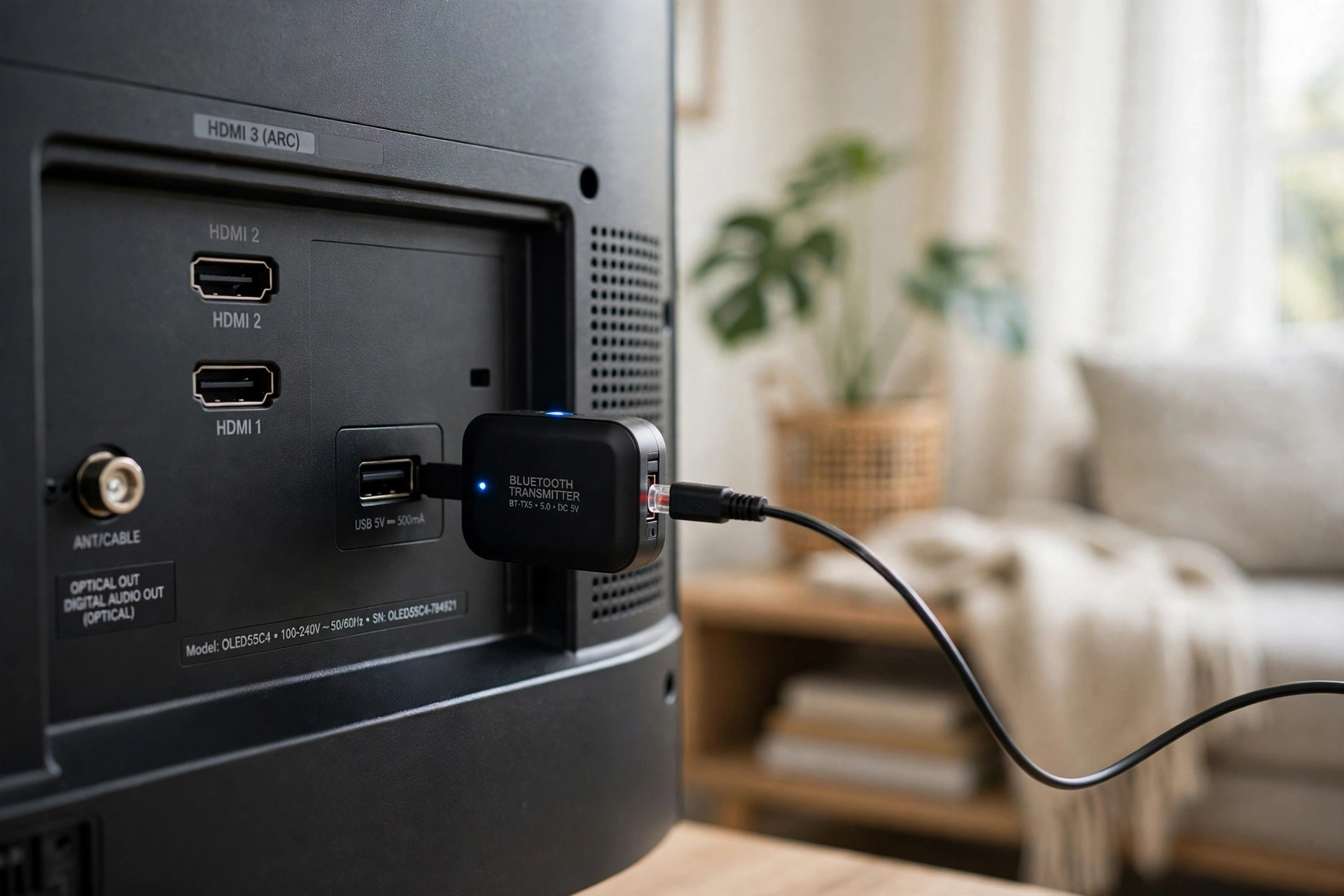
Plug a Bluetooth transmitter into the TV's optical port or headphone jack, pair your headphones to the transmitter, and the TV gains Bluetooth in about five minutes.
A transmitter is a small box that takes the TV's sound and sends it over Bluetooth. It plugs into the audio output on the back of the TV — the optical port is best, the 3.5 mm headphone jack works too — and draws power from a USB port.
Built-in Bluetooth vs a transmitter vs a streamer: built-in Bluetooth is the simplest route because nothing extra is needed. A transmitter works better when the TV has no Bluetooth or the delay is bad. A streamer wins when you already own one and want two listeners.
- Pick the right port. Optical (TOSLINK) gives clean, fixed-level sound. The 3.5 mm jack works on sets that have one. If the TV has neither, check for RCA red-and-white audio outputs — most transmitters ship with an adapter for those.
- Plug the transmitter in and power it. Connect it to the port, then to a USB port on the TV for power. Flip it to transmitter (TX) mode — the switch is on the side of most units.
- Pair your headphones to the transmitter. Put the transmitter in pairing mode, then the headphones. The two find each other in seconds, and a steady light means they are linked.
- Set the TV's audio output. In the TV's Sound settings, pick the port you used — optical, headphone jack or external speakers. If the sound still comes from the TV speakers, the output is pointing at the wrong port.
Or maybe I should say it this way: the transmitter is a translator, not a speaker. It just gives your TV a Bluetooth voice.
Here's an opinion some readers will argue with: skip the dedicated RF TV headphones unless you watch for hours every night. The headphones you already own, plus a small transmitter, do the same job for less money — and you can take those headphones anywhere. See our best Bluetooth transmitter for headphones picks if you need one.
How Do I Connect Headphones to a Fire TV, Roku or Apple TV?
Pair the headphones to the streaming box itself, or use the phone app's private listening mode — both routes skip the TV's own Bluetooth entirely.
A streaming box is often the easiest path, because its Bluetooth menu is simpler than the TV's. The headphones pair to the box, and the box sends its sound to them while the TV stays silent.
- Apple TV 4K: go to Settings > Remotes and Devices > Bluetooth and pick your headphones. For a second pair, open Control Centre, pick the headphones, and choose Share Audio — it works with AirPods and Beats.
- Fire TV Stick or Cube: go to Settings > Controllers & Bluetooth Devices > Other Bluetooth Devices > Add Bluetooth Devices. Put the headphones in pairing mode first, then pick them from the list.
- Roku (app route): pair the headphones to your phone, open the Roku app, tap Devices, pick your Roku, tap Remote, then tap the headphones icon. The sound travels from the Roku to the phone to your ears — and it works on every Roku model.
- Chromecast with Google TV: go to Settings > Remotes & Accessories > Pair remote or accessory and pick the headphones.
Here's the thing: if your TV's Bluetooth is flaky but your Fire TV or Apple TV pairs fine, use the streamer and stop fighting the TV. The picture is the same either way.
Why Is the Sound Behind the Picture?
Standard Bluetooth takes time to process sound, so lips move before the words arrive. A low-latency codec or the TV's audio-delay slider closes the gap.
Bluetooth was built for music and calls, not video. The standard SBC codec takes roughly 150 to 300 milliseconds to process and send sound, which is enough for lips to move before the words arrive. You notice it most on talk shows and news, where faces fill the screen.
Look — if the sound is fine on your phone but lags on the TV, here's what actually works: check the codec first. Headphones and transmitters that support aptX Low Latency cut the delay to around 40 milliseconds, close enough that your brain stops noticing it. Both ends need the same codec, though — a low-latency transmitter with standard headphones changes nothing.
I've seen conflicting data — some guides say standard Bluetooth lag is barely noticeable on TV, while others put it at 150 to 300 milliseconds. My read is both are right: dialogue-heavy shows expose the delay, and fast action scenes hide it. Judge it on a news clip, not a car chase.
- Use the TV's audio-delay or lip-sync slider. Most smart TVs have one in Sound settings. Nudge it until the voices line up with the mouths.
- Match the codec. If you use a transmitter, buy one with aptX Low Latency or aptX Adaptive, and pair it with headphones that support the same codec. See how to fix Bluetooth audio delay for the full codec breakdown.
- Try a wired fall-back. A long 3.5 mm cable from the TV's headphone jack has zero delay. It is not elegant, but it never lags.
Anyway, if the delay is small and only shows up on close-ups, the slider alone will fix it. Spend the money on a transmitter only when the gap is obvious on everything you watch.
Can I Connect Two Bluetooth Headphones to One TV?
Yes, on some TVs and streamers — Samsung's Dual Audio, Apple TV's Share Audio and Roku's private listening all let two people listen at once. Otherwise a dual-link transmitter does it.
Two people, one show, nobody woken up. It works, but the route depends on what you own — most TVs only pair one audio device at a time, so the second pair needs a feature built for sharing.
- Samsung Dual Audio: on many 2022 and newer Samsung TVs, pair the first set, then pair the second from the same Bluetooth Speaker List. The TV sends sound to both at once.
- Apple TV Share Audio: connect one pair of AirPods or Beats, open Control Centre, and add a second pair. Both listeners get their own volume.
- Roku private listening: each person pairs their headphones to their own phone, and each phone runs the Roku app. It works with any Roku model.
- Dual-link transmitter: a transmitter with two-device pairing links two sets of headphones to one TV. Check the box says dual-link — a basic transmitter pairs one set only.
If your TV only allows one pair, do not keep re-pairing the second set and hoping. The TV is not broken; it was built for one listener. See how to connect two Bluetooth headphones to one phone for the phone-side version of the same trick.
Why Won't My Bluetooth Headphones Connect to My TV?
Most failures come down to four things: the headphones never entered pairing mode, they are still grabbed by the phone, the TV's Bluetooth only runs the remote, or the sound output never switched.
| What is happening | What is wrong | Fix it |
|---|---|---|
| TV never finds the headphones | Headphones are not in pairing mode | Hold the pairing button until the light blinks — a single press just powers them on |
| Headphones pair to the phone instead | Phone grabs the connection first | Turn off the phone's Bluetooth, then pair to the TV |
| No Bluetooth menu on the TV at all | TV has no Bluetooth audio | Use a transmitter, or pair through a Fire TV, Roku or Apple TV |
| Paired, but no sound in the headphones | Sound output still points at the speakers | Go to Sound Output and pick the headphones by name |
| Sound is far too quiet | Bluetooth volume is separate from speaker volume | Turn up the volume on the TV and on the headphones |
| Headphones keep dropping out | Too far away, or something in the way | Sit within a few metres with a clear line to the TV |
| One side goes silent on the TV | Fault in the headphones, not the TV | Test the headphones on your phone first — see how to reset Bluetooth headphones |
If you have tried the menu twice and it still will not show up, do not keep tapping the same button — you are not missing a step, the TV just does not have Bluetooth audio. Check the model on the maker's site, or go straight to the transmitter route. For the deeper version of each fix, see why your Bluetooth headphones won't connect and how to pair Bluetooth headphones.
Frequently Asked Questions
What's the fastest way to connect Bluetooth headphones to my TV?
Put the headphones in pairing mode, open the TV's Sound settings, pick Bluetooth Speaker List, and select your headphones. About two minutes, and no extra gear needed.
Do I need a Bluetooth transmitter for my TV?
Only if your TV has no Bluetooth audio. If the menu has no Bluetooth speaker list, plug a transmitter into the optical port or headphone jack and pair your headphones to that instead.
Can I use AirPods with my TV?
Yes. Put the AirPods in pairing mode with the case lid open, then pick them from the TV's Bluetooth list. On Apple TV 4K you can also share audio with a second pair of AirPods.
Why is my TV Bluetooth volume so low?
Check the volume on both the TV and the headphones — Bluetooth volume is separate from the speaker volume. If it is still quiet, unpair and pair again, or check the TV's audio output level.
Can I use the TV speakers and headphones at the same time?
Most TVs mute their speakers the moment headphones connect. Samsung's Dual Audio on newer models and a dual-link transmitter are the two common ways around it.
Do Bluetooth headphones work with any TV brand?
They work with any TV that has Bluetooth audio — Samsung, LG, Sony, TCL, Hisense and Vizio smart TVs all have it on recent models. Older sets need a transmitter plugged into the audio output.
Why do my headphones keep disconnecting from my TV?
They are probably still paired to your phone, which grabs the connection back. Turn off Bluetooth on the phone, or unpair the headphones there, then pair them to the TV again.