How to Pair Bluetooth Headphones (2026 Guide)

You just unboxed new headphones. You turned them on, opened Bluetooth on your phone — and nothing showed up. Ten minutes later you are still staring at an empty list, wondering if the headphones are broken.
They are probably fine. Pairing fails for one reason most of the time: the headphones were on, but they were not in pairing mode. Those are two different things, and this guide shows you both.
Pairing Bluetooth headphones means saving a link between the headphones and one device, like a phone or laptop, so they can find each other again later. The headphones broadcast a signal in pairing mode, the device spots it, and the two agree to remember each other. After that, they reconnect on their own.
The short version: charge the headphones, hold the pairing button until the light flashes or you hear "pairing", then pick the headphones in your device's Bluetooth settings. That fixes it for most people in under two minutes. The rest of this guide covers each device, and what to do when the headphones still will not show up.
What Does Pairing Bluetooth Headphones Actually Do?
Pairing saves a one-time handshake between your headphones and a device. After that, the two remember each other and reconnect on their own.
Bluetooth pairing is a one-time setup that links headphones to a phone, tablet, or computer. According to Microsoft's support pages, the device must be in pairing mode — broadcasting its name — before the computer can see it. Once paired, the link is saved, and the headphones reconnect when both are switched on and nearby.
Pairing is not the same as connecting. Pairing is the first-time setup that saves the link; connecting is the live audio link that happens each time you use the headphones. A paired pair can still fail to connect if the headphones are linked to another device, the battery is flat, or the wrong audio output is picked.
Pairing vs connecting: pairing is the one-time setup that saves the link between headphones and a device. Connecting is the live link that carries sound each time you switch them on. The key difference is timing — you pair once, you connect every time you listen.
One setup. Then it just works.
How Do I Put My Bluetooth Headphones in Pairing Mode?
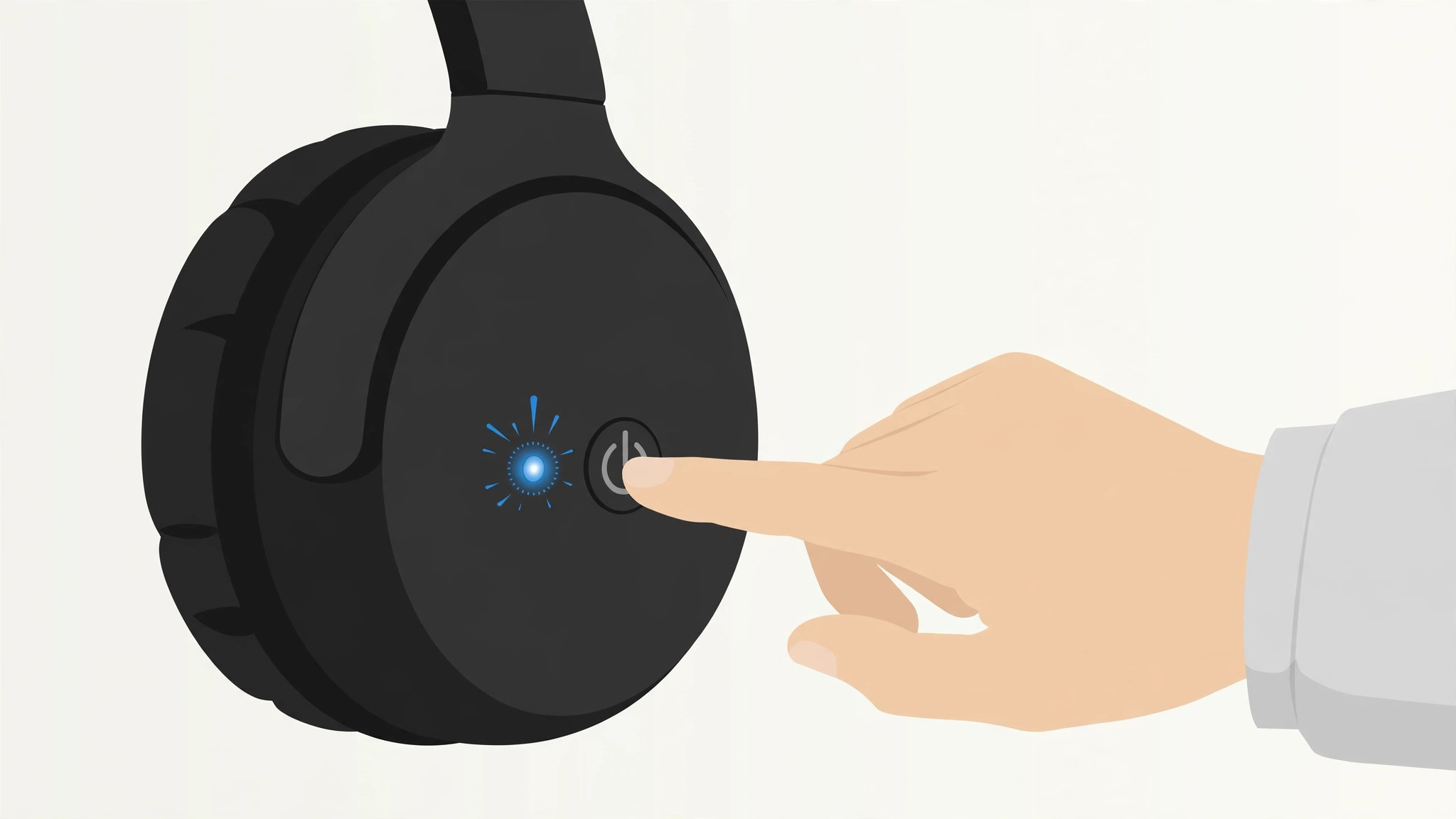
Hold the pairing button — or the power button — until the light flashes or a voice says "pairing". That flashing light is the whole trick: it means the headphones are shouting their name so your phone can find them.
To pair Bluetooth headphones, follow these steps: 1. Charge the headphones and turn them off. 2. Hold the pairing or power button until the light flashes or you hear "pairing". 3. Open Bluetooth settings on your phone or laptop. 4. Tap the headphones' name when it appears. 5. Play a short sound to check the audio.
To put Bluetooth headphones in pairing mode, hold the pairing or power button until the light flashes or a voice says "pairing". According to Google's support pages, most accessories ask for the code 0000 or 1234 if a PIN appears. Keep the headphones within a metre of the phone or laptop while you pair, then move away once paired.
Or maybe I should say it this way: the headphones are not ignoring you, they are just not shouting yet. Powering on and pairing mode look the same from the outside — same button, same light — but only pairing mode makes the headphones discoverable. That is why pressing power and waiting never works on its own.
- Charge first. A low battery is the quietest cause of pairing failure. Plug the headphones in for ten minutes before you start, even if the light says they have some charge left.
- Turn them off, then hold the button. If the headphones are already on and linked to another device, turn them off first. Then press and hold the power button for 5–10 seconds — past the "power on" beep — until the light starts flashing blue and white, or you hear "pairing". On models with a dedicated Bluetooth button, hold that one instead.
- Watch for the cue, not the clock. The flashing light, the tone, or the voice prompt is the confirmation. If the light goes solid, the headphones connected to something else instead — turn Bluetooth off on that device and try again.
- Pair right away. Pairing mode times out after 30–120 seconds on most models, depending on the brand. If the headphones vanish from the list, put them back in pairing mode and try again.
- True wireless earbuds are different. Open the case with the earbuds inside, then hold the small button on the case — on AirPods, the round button on the back — until the light flashes white. Some earbuds use a touch gesture on both buds instead, so check the quick-start card in the box.
If you have charged them, you have turned Bluetooth on, and you have still got nothing, you are one step from the fix: the headphones were never in pairing mode.
How Do I Pair Bluetooth Headphones to an iPhone or iPad?
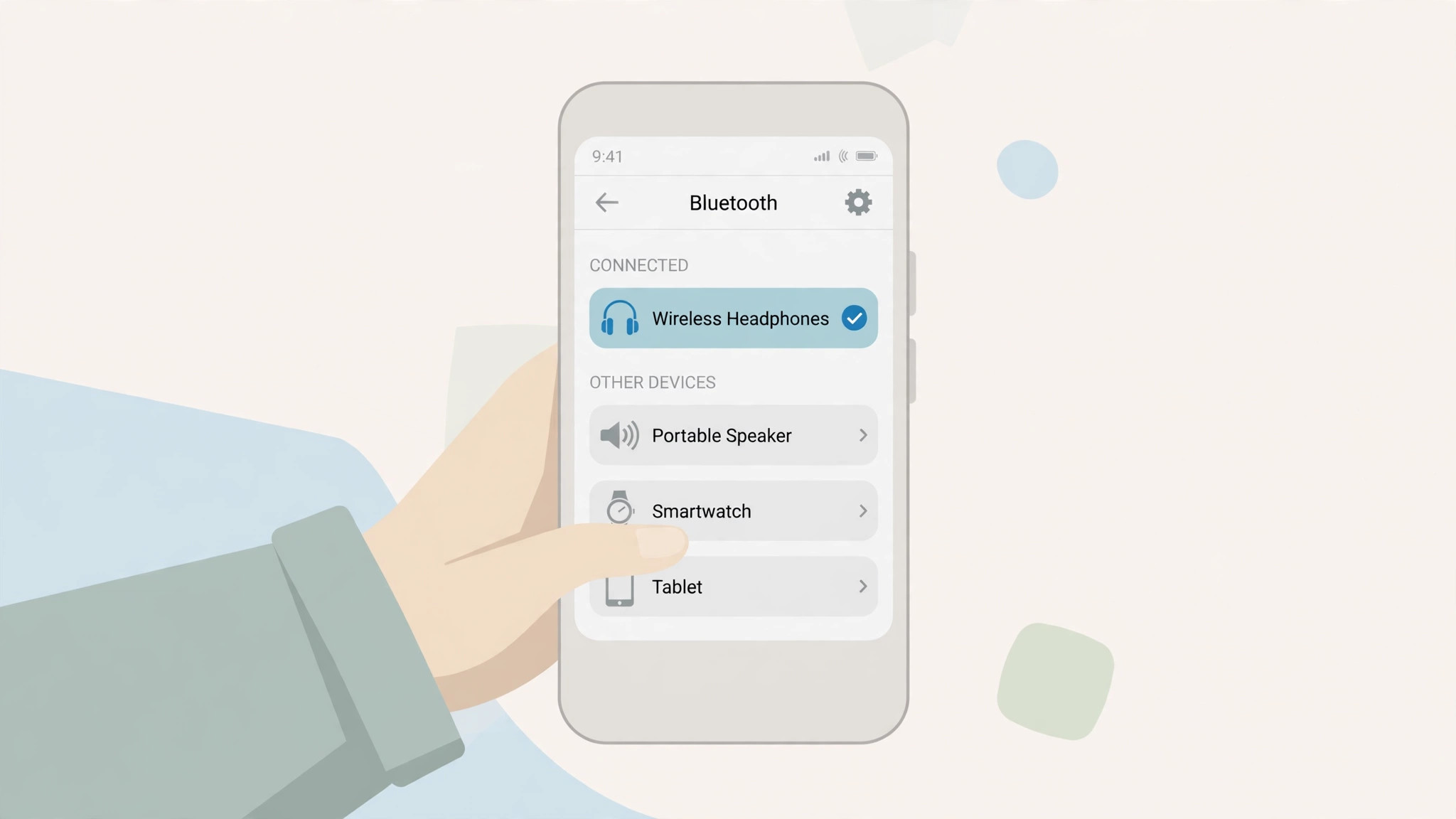
Open Settings → Bluetooth, turn Bluetooth on, put the headphones in pairing mode, and tap their name under Other Devices. It takes about thirty seconds.
- Put the headphones in pairing mode first — flashing light or "pairing" voice prompt.
- On the iPhone or iPad, open Settings → Bluetooth and make sure Bluetooth is on. The phone starts scanning at once.
- Wait for the headphones' name to appear under Other Devices, then tap it.
- If a PIN is asked for, try 0000 or 1234. Most modern headphones skip this step entirely.
- When the entry moves to My Devices and says Connected, play a few seconds of music to check the sound.
AirPods pair faster: open the case near an iPhone and a setup card pops up on its own — tap Connect and you are done. The same card appears on an iPad signed into the same Apple account.
Look — if you are staring at an empty Bluetooth list right now, here is what actually works: put the headphones in pairing mode first, then open the list. The order matters, because the phone only scans while the screen is open.
How Do I Pair Bluetooth Headphones to an Android Phone?
Open Settings → Connected devices → Pair new device, put the headphones in pairing mode, and tap their name when it appears. Samsung phones use Settings → Connections → Bluetooth instead.
- Put the headphones in pairing mode first.
- Open Settings, then Connected devices (or Connections on Samsung), then Bluetooth. Turn Bluetooth on.
- Tap Pair new device. The phone scans for nearby devices.
- Tap the headphones' name in the list of available devices. Accept any pairing prompt or PIN — 0000 or 1234 if one is asked for.
- Check the device details and make sure Media audio is turned on, then play a short sound.
Quick note: many Android headphones support Fast Pair. With Bluetooth and Location both on, hold the headphones in pairing mode near the phone and a pop-up card appears — tap Connect and you are done. Google lists 400-plus compatible headphone models across brands including Sony, JBL, and Bose, and it needs Android 6.0 or later.
Menu names shift between Samsung, Pixel, and OnePlus, but the path is the same every time: Bluetooth on, pair new device, tap the name.
How Do I Pair Bluetooth Headphones to a Windows 11 PC?
Put the headphones in pairing mode, then go to Settings → Bluetooth & devices → Add device → Bluetooth, and click the headphones when they appear.
- Put the headphones in pairing mode first.
- Press Windows + I to open Settings, then go to Bluetooth & devices and turn Bluetooth on.
- Click Add device, then Bluetooth. The PC starts scanning.
- Click the headphones' name when it appears, follow any prompt, and click Done.
- Right-click the volume icon in the taskbar, open Sound settings, and set the headphones as the output device — otherwise the sound may keep coming from the speakers.
The faster route is the taskbar: click the network, sound, or battery icon, open the Bluetooth tile, and pick the headphones under New devices. Same result, fewer clicks.
Here's the thing: Windows 10 support ended on 14 October 2025, so Windows 11 is the path that still gets fixes. If your PC has no Bluetooth at all — most desktops do not — a small USB Bluetooth adapter adds it for a few dollars, and it pairs exactly the same way.
I've seen conflicting data — some guides say a Windows driver update fixes stubborn pairing, while others say the driver is never the problem. My read is the stale saved entry is the fault far more often, so forget-and-repair first and touch drivers last.
How Do I Pair Bluetooth Headphones to a Mac?
Put the headphones in pairing mode, then open Apple menu → System Settings → Bluetooth and click Connect next to the headphones' name.
- Put the headphones in pairing mode first.
- Click the Apple menu → System Settings (or System Preferences on older macOS), then Bluetooth.
- Make sure Bluetooth is on, then wait for the headphones to appear in the device list.
- Click Connect next to the headphones' name.
- Open System Settings → Sound → Output and pick the headphones if the sound still comes from the Mac's speakers.
AirPods signed into the same Apple account as your iPhone show up in the Mac's Bluetooth list without pairing mode — click Connect and they switch over. The same trick works in reverse: AirPods paired to the Mac appear on the iPhone.
How Do I Pair Bluetooth Headphones to a TV?
Open the TV's sound settings, turn on its Bluetooth, put the headphones in pairing mode, and select them from the list. The exact menu name changes by brand, and some TVs have no Bluetooth at all.
- Samsung: Settings → Sound → Sound Output → Bluetooth Speaker List. Put the headphones in pairing mode, then select them.
- LG: Settings → Sound → Sound Out → Bluetooth. Select the headphones when they appear.
- Sony / Android TV / Google TV: Settings → Remotes & Accessories → Pair accessory, or Settings → Bluetooth. Select the headphones from the list.
- Fire TV: Settings → Controllers & Bluetooth Devices → Other Bluetooth Devices → Add Bluetooth Devices.
- No Bluetooth on the TV? A small Bluetooth transmitter plugs into the TV's headphone jack or optical-out port and broadcasts to your headphones. It pairs the same way — hold the transmitter's pairing button, put the headphones in pairing mode, and wait for the light to go solid.
Anyway, TV pairing has one quirk worth knowing: some TVs only allow one Bluetooth audio device at a time, so the soundbar or a second pair of headphones gets kicked off when yours connects. And expect a small delay between lips and sound on some TVs — that is Bluetooth latency, not a fault, and it is why a transmitter with aptX Low Latency or a wired connection still wins for films.
Why Won't My Bluetooth Headphones Show Up?
Because they are not in pairing mode, they are still linked to another device, or the battery is too low to broadcast. Work through the table below in order — the first row fixes most cases.
| What you see | Most likely cause | Fix |
|---|---|---|
| Headphones never appear in the list | Not in pairing mode — powered on is not the same thing | Hold the pairing or power button until the light flashes or you hear "pairing" |
| They appeared once, then vanished | Pairing mode timed out after 30–120 seconds | Put them back in pairing mode and pair at once |
| They appear but will not connect | Still linked to another device nearby | Turn Bluetooth off on the other phone, laptop, or tablet, then try again |
| They appear, connect, then drop | Low battery or too far from the device | Charge them and stay within a few metres while pairing |
| Listed as saved but will not connect | Stale pairing record | Forget the device (Forget This Device / Remove device) and pair again from scratch |
| Connected but no sound | Wrong audio output selected | Pick the headphones in the phone or PC's sound output settings |
- Turn Bluetooth off on every other device first. Headphones that are already linked to your laptop will keep reconnecting to it, and your phone will never see them. Switch Bluetooth off on the laptop, the tablet, and the old phone before you pair to the new one.
- Forget the old entry, then pair again. On iPhone, tap the info button next to the headphones and choose Forget This Device. On Android, open the saved device and choose Unpair. On Windows, open Bluetooth & devices → Devices, click the three dots, and choose Remove device. Then pair from scratch.
- Restart both sides. Turn the headphones off and on, and restart the phone or PC. It clears the half-finished pairing that blocks a fresh attempt.
- Check the battery properly. A headphone that turns on is not necessarily charged enough to pair — pairing needs more power than playing music. Give them ten minutes on the charger and try again.
- Move closer and cut the interference. Keep the headphones within a metre of the device while pairing. A microwave running, a busy office full of Bluetooth devices, or a thick wall between the two can all drown out the pairing signal.
One fix at a time. Change one thing, test, then move on — changing five settings at once leaves you guessing which one worked.
Can I Pair Bluetooth Headphones to Two Devices at Once?
Only if they support multipoint. Most flagship headphones do; most budget pairs do not — and the spec sheet is the only place that tells you for sure.
Multipoint is a Bluetooth feature that keeps headphones linked to two devices at the same time — say, a phone and a laptop. Music plays from one, and when a call comes in on the other, the headphones switch over on their own. Without it, the headphones link to one device at a time, and switching means disconnecting from one and pairing to the other.
Multipoint vs single-device pairing: multipoint headphones stay linked to two devices at once, so a call on your laptop pauses music from your phone. Single-device headphones link to one device at a time and need a fresh pair to switch. The key difference is switching — multipoint does it for you.
- Check before you buy. The box or spec sheet says "multipoint" or "two-device connection" when it is supported. If neither phrase appears, assume it is not.
- Turn multipoint on. On many models it is off by default and lives in the companion app — Sony Headphones Connect, Bose Music, and the Jabra Sound+ app all have the toggle.
- Pair in order. Pair the first device, then put the headphones back in pairing mode and pair the second. The headphones remember both.
- Know the limit. Two devices is the usual cap, and only one plays sound at a time. A third device means forgetting one of the two.
Two devices, one switch. That is the whole feature.
What If Nothing Works?
Then reset the headphones, test them on a second device, and let that test decide whether you are fixing settings or returning hardware.
- Factory-reset the headphones. The sequence differs by model — usually holding the power and volume buttons together for ten seconds — so check the manual or the maker's support page. A reset wipes every saved pairing, which fixes the stale-entry faults that toggling Bluetooth never touches.
- Update the firmware. Companion apps from Sony, Bose, JBL, and Jabra push firmware updates to the headphones. A firmware bug can break pairing while the speakers keep working, and the update fixes it.
- Test on a second device. Try pairing to a different phone or laptop. If it works there, the fault is in the first device's Bluetooth, not the headphones. If it fails on two devices, the headphones are the problem — check the warranty before buying anything.
- Check the warranty, not the shop. Headphones that fail on two devices are a warranty claim, and most makers cover pairing faults in the first year.
Here's an opinion that might get pushback: if you have spent more than twenty minutes on pairing, a factory reset is faster than another round of toggling Bluetooth. People avoid resets because they sound drastic, but re-pairing takes two minutes, and it fixes the stale entries that toggling never touches.
Settings first. Shopping last.
Frequently Asked Questions
What's the fastest way to pair Bluetooth headphones?
Charge them, hold the pairing button until the light flashes or you hear "pairing", open Bluetooth settings on your phone, and tap the headphones' name. Most pairs connect in under two minutes.
Why won't my Bluetooth headphones show up on my phone?
They are usually not in pairing mode, still linked to another device, or flat on battery. Put them in pairing mode, turn Bluetooth off on nearby devices, charge them, and try again.
How do I put earbuds in pairing mode?
Open the case with the earbuds inside, then hold the case button — on AirPods, the small round button on the back — until the light flashes white. Tap the name on your phone.
Do I need a PIN to pair Bluetooth headphones?
Almost never. If a code appears, try 0000 or 1234 — the defaults Google lists for older accessories. Newer headphones pair without any code.
Can I pair Bluetooth headphones to my TV?
Yes, if the TV has Bluetooth: open its sound settings and add the headphones. If it doesn't, a small Bluetooth transmitter plugged into the TV's audio-out jack does the job.
Can Bluetooth headphones connect to two devices at once?
Only if they support multipoint. Most flagship models do; budget pairs usually don't. Check the spec sheet for "multipoint" before you buy.
Why do my Bluetooth headphones keep disconnecting?
Usually low battery, distance, or a second device grabbing the link. Charge them, stay close, and turn Bluetooth off on the device you're not using.