How to Connect Two Bluetooth Headphones to One Phone

You are on a plane with someone you like. One phone, one film, two pairs of headphones — and only one of them is playing sound. The other sits there, paired and silent, while you pass a single earbud back and forth like it is 2009.
That silence is not a fault. Most phones send sound to one Bluetooth output at a time, and pairing a second pair just steals the output from the first. The fix is a feature with a name — Dual Audio on Samsung, Audio Sharing on iPhone — or a small gadget that adds it.
Connecting two Bluetooth headphones to one phone means sending the same sound to two pairs at once. It needs a phone feature called Dual Audio or Audio Sharing, or a small dual-link transmitter. Pairing both pairs is not enough on its own.
The short version: on a Samsung Galaxy, pair both pairs and tick both in Media output. On an iPhone, use Audio Sharing with two pairs of AirPods or Beats. On any other phone, a dual-link Bluetooth transmitter does the job for about $30. The rest of this guide covers each phone, and what to do when only one pair plays.
Can You Connect Two Bluetooth Headphones to One Phone?
Yes — if your phone supports sending sound to two Bluetooth outputs at once. Samsung calls it Dual Audio, Apple calls it Audio Sharing, and newer Pixel phones do it through Bluetooth LE Audio.
Connecting two Bluetooth headphones to one phone is possible on phones that support dual audio output. According to Samsung's support pages, Galaxy phones from the S8 onward can send the same sound to two Bluetooth devices at once through Dual Audio. iPhones handle it differently, sharing sound only with compatible AirPods and Beats headphones through Audio Sharing.
Two Bluetooth headphones can share one phone when the phone itself supports sending sound to two outputs. According to Apple's support pages, Audio Sharing works on iPhone 8 and later running iOS 13 or newer, but only with AirPods and selected Beats models. Other phones need a dual-link Bluetooth transmitter to do the same job.
| Your phone | Method | Works with | Limit |
|---|---|---|---|
| Samsung Galaxy (S8 or newer) | Dual Audio in Media output | Any brand of headphones | Two devices at once |
| iPhone 8 or newer, iOS 13+ | Audio Sharing | AirPods and selected Beats only | Two pairs at once |
| Pixel 8 or newer | Bluetooth LE Audio sharing | LE Audio headphones | Two devices at once |
| Any other Android | Dual-link Bluetooth transmitter | Any brand of headphones | Needs a small gadget |
| Any phone with a headphone jack | Wired Y-splitter | Any wired headphones | A cable between you |
I've seen conflicting data here — some guides say any phone with Bluetooth 5.0 can do this, while Samsung's and Apple's own pages show the phone maker has to switch the feature on. My read is the version number is necessary, not enough. Bluetooth 5.0 gave phones the raw ability to talk to two audio devices, but most makers never turned it into a feature you can use.
Check your phone first. Buy nothing yet.
How Do I Connect Two Bluetooth Headphones to a Samsung Phone?
Pair both pairs in Bluetooth settings, start playing something, then open Media output in the Quick Panel and tick both headphones. Sound reaches both pairs at once.
To connect two Bluetooth headphones to a Samsung phone, follow these steps: 1. Pair both headphones in Bluetooth settings. 2. Start playing music or a film. 3. Swipe down and open Media output. 4. Tick both headphones. 5. Press play and check the sound reaches both pairs.
Samsung Dual Audio lets one Galaxy phone play the same music or film through two Bluetooth headphones at the same time. Both pairs must be paired first, then picked together in the Media output panel. The feature works with any brand of headphones, and Samsung documents a limit of two active audio devices.
- Put the first pair in pairing mode and pair it in Settings → Connections → Bluetooth.
- Put the second pair in pairing mode and pair it the same way. Both pairs now show as connected.
- Start playing music or a film so there is live sound to send.
- Swipe down from the top of the screen and tap Media output in the Quick Panel.
- Tick the checkbox next to each pair so both are selected, then press play and check the sound reaches both.
Dual Audio has been on Galaxy phones since the S8, and it takes any brand — a Sony over-ear on one side and a budget pair on the other will play the same film side by side. One quirk: the volume slider moves both pairs together, so agree on a level before the film starts. If one person wants it louder, they will have to live with the shared setting or use the volume buttons on their own headphones, if their pair has them.
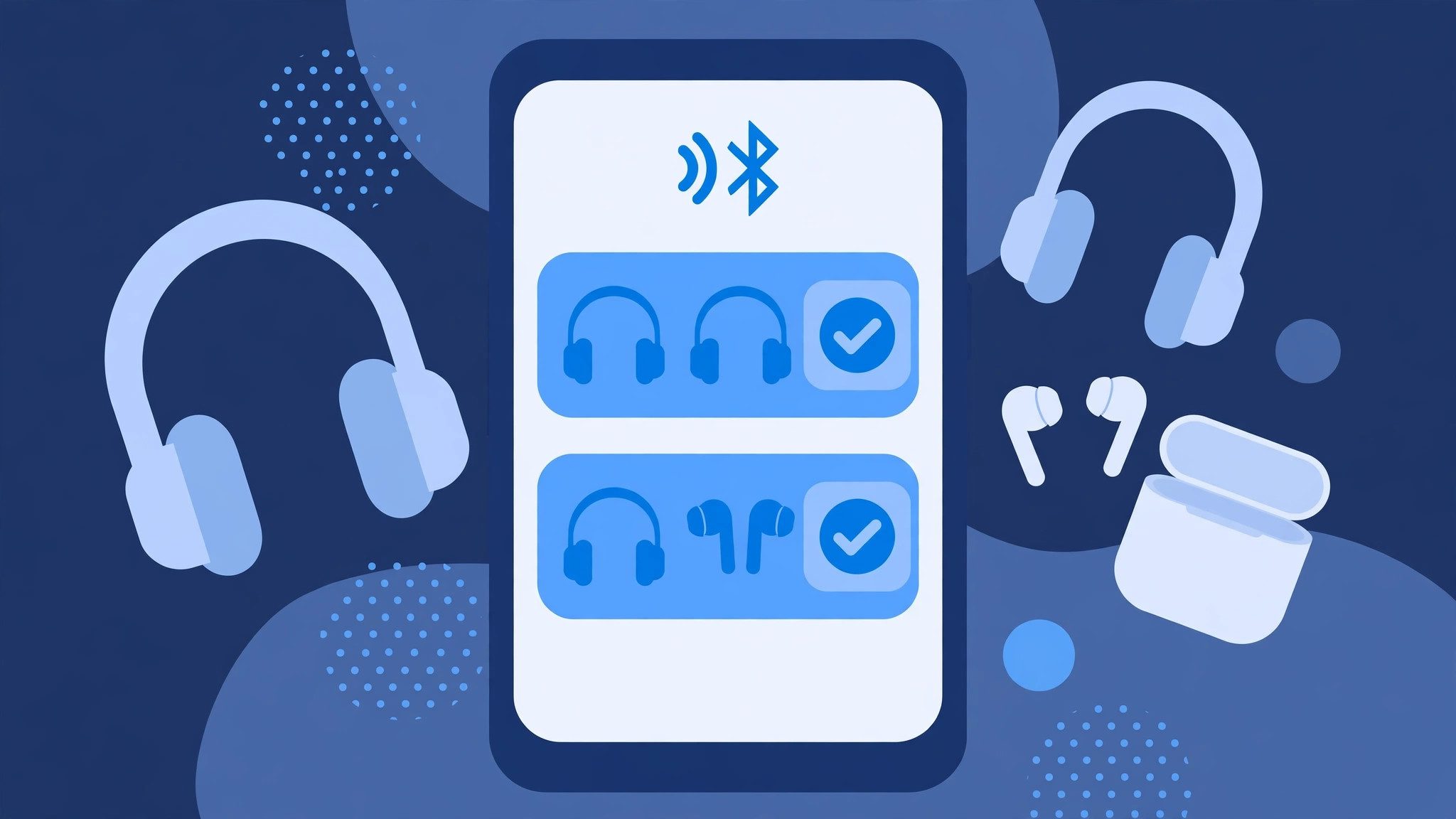
Or maybe I should say it this way: pairing is the easy half. The step people miss is Media output — pairing both pairs in settings does nothing until you tick both boxes there. If you have never opened that panel, it hides in the Quick Panel under the music player, not in Bluetooth settings.
Two ticks. That is the whole trick.
How Do I Share Audio on an iPhone or iPad?
Connect the first pair of AirPods or Beats, open Control Centre, tap the AirPlay icon, choose Share Audio, and hold the second pair near the phone. Tap Share Audio again when it appears.
- Connect the first pair of AirPods or Beats to the iPhone as normal.
- Swipe down from the top-right corner to open Control Centre.
- Tap the AirPlay audio icon and choose the first pair of headphones.
- Tap Share Audio, then hold the second pair of AirPods or Beats near the phone.
- When the second pair appears on screen, tap Share Audio again to connect it.
Audio Sharing needs iPhone 8 or newer running iOS 13 or later, and both pairs must be AirPods or selected Beats models. Regular Bluetooth headphones from Sony, Bose, or JBL cannot join — Apple limits the feature to its own chips. Each person gets their own volume slider, which is the one place Apple beats Samsung here: two people can listen at different levels without arguing about it.
Samsung Dual Audio vs Apple Audio Sharing: Dual Audio is better suited for mixed headphones because it works with any brand. Audio Sharing works better when both listeners already own AirPods or Beats, since setup takes seconds. The key difference is brand freedom — Samsung takes any pair, Apple takes only its own.
Look — if you are holding two non-Apple pairs and an iPhone, no settings trick will fix it. Apple built a wall here, and the way around it is a transmitter, covered near the end of this guide. Before you spend anything, check whether the second pair is actually a Beats model with an Apple chip — Beats Solo Pro, Powerbeats Pro, and newer Beats models qualify, while older Beats with standard Bluetooth do not.
Apple's rule, not yours.
What About Other Android Phones?
Pixel 8 and newer phones can share audio with Bluetooth LE Audio headphones. Most other Android phones have no built-in option, so a dual-link transmitter is the fix.
- Pixel 8 or later: pair both LE Audio headphones in Settings → Connected devices → Bluetooth, then pick both in the media output panel while music plays. Both pairs need Bluetooth LE Audio support — older headphones will not show the option at all.
- OnePlus, Xiaomi, Motorola and the rest: most models list two paired devices but play through one. Check the media output panel while music plays — if only one box can be ticked, the phone cannot do it natively.
- Auracast: the newer broadcast standard in Bluetooth LE Audio lets one phone broadcast to many headphones at once, like a radio station. It needs a phone and headphones that both support it, and in late 2026 that still means a short list of new models.
It won't work on most budget Androids, and it isn't a setting you can unlock — it's baked into the phone's Bluetooth stack. If your phone is not a Samsung, Pixel, or iPhone, assume it cannot do this on its own until the media output panel proves otherwise. That ten-second check saves a lot of toggling.
Can I Use Two Different Brands of Headphones at Once?
Yes on Samsung, no on iPhone, and yes with a transmitter. The phone decides, not the headphones.
Samsung Dual Audio takes any two brands mixed together — a Sony over-ear and a cheap gym pair will play the same film side by side. Apple's Audio Sharing needs AirPods or Beats on both sides, so two different brands only works if both are Apple-made. A dual-link transmitter accepts any two brands, because it does the sending instead of the phone.
Mixing brands has one cost: sync. Two identical pairs share the same delay, so they stay in step. Two different pairs can drift apart by a fraction of a second, and one listener hears the punchline first. For music it hardly matters. For films, matching pairs are the calmer choice.
Same brand, same beat.
Why Does Only One Pair Play Sound?
Because the phone is sending sound to one Bluetooth output, and pairing the second pair stole it from the first. Open Media output or Share Audio and pick both pairs together.
| What you see | Most likely cause | Fix |
|---|---|---|
| Second pair pairs but stays silent | Only one output is selected | Open Media output (Samsung) or Share Audio (iPhone) and tick both |
| First pair goes quiet when the second connects | Phone allows one active audio output | Select both pairs in the output panel, not just in Bluetooth settings |
| Second pair never appears in the list | Not in pairing mode, or still linked elsewhere | Put it in pairing mode; turn Bluetooth off on nearby devices |
| Both connect, then one drops | Low battery or too far apart | Charge both pairs and keep them within a few metres of the phone |
| Sound plays from the phone speaker | Wrong output selected | Pick the headphones in the output panel, not the phone speaker |
| Second pair connects but the phone says "not supported" | Headphones lack LE Audio (Pixel) or are not AirPods/Beats (iPhone) | Use a dual-link transmitter instead |
- Forget and re-pair. If a pair shows as saved but will not connect, forget it in Bluetooth settings and pair again from scratch. Our guide to resetting Bluetooth headphones covers the per-brand steps.
- Restart both sides. Turn the headphones off and on, then restart the phone. It clears the half-finished pairing that blocks a fresh attempt.
- Check Media audio is on. On Android, open the saved device and make sure Media audio is turned on — a pair set to calls only will never play music.
- Pair in the right order. If you are still stuck, put both pairs in pairing mode first, then open Bluetooth settings — the phone only scans while the screen is open. Our pairing guide walks through the mode step for every device.
Work through the table in order. The first row fixes most cases, and it is the step most people skip — they pair the second pair and expect sound, without ever opening the output panel.
Pairing is not sharing.
Does Sharing Audio Hurt Sound Quality or Cause Lag?
Sometimes, slightly. Two streams share the phone's Bluetooth bandwidth, so the codec can drop a step and the two pairs can drift out of sync. For music you won't notice. For films, matching pairs help.
The codec drop is the honest trade-off: with two pairs connected, some phones fall back from aptX or AAC to the basic SBC codec to keep both links stable. The sound gets a little flatter, and lip-sync can slip by a fraction of a second — enough to notice on close-ups, not enough to ruin a song. Two identical pairs drift less, because they process sound at the same speed.
- Use matching pairs for films — same model, same delay, no echo between listeners.
- Keep both pairs close to the phone — distance makes dropouts worse with two links to hold.
- Expect faster battery drain — two Bluetooth streams cost the phone more power than one.
Anyway, the lag is small. If the delay bothers you on films, the wired splitter at the end of this guide has none at all — no Bluetooth, no delay, no battery. And if the lag shows up with one pair too, our Bluetooth audio delay guide covers the codec and settings fixes.
Two streams, one small trade-off.
Can I Connect Three Bluetooth Headphones to One Phone?
Not with the built-in features. Samsung Dual Audio and Apple Audio Sharing both stop at two pairs. For three or more listeners, you need a transmitter that supports it, or Auracast.
A few dual-link transmitters accept three or more pairs, though the sound can thin out as each new pair joins. Auracast — Bluetooth LE Audio's broadcast mode — can reach a whole room of headphones at once, but in late 2026 the list of phones and headphones that support it is still short. For a family film night right now, the honest answer is two wireless pairs plus the phone speaker, or a wired splitter with three outputs.
Two is the built-in limit.
What If My Phone Has No Dual Audio?
Buy a dual-link Bluetooth transmitter, or use a wired Y-splitter. The transmitter costs about $30 and works with any phone; the splitter costs a few dollars and never needs charging.
A dual-link transmitter plugs into the phone's USB-C port or headphone jack and broadcasts to two pairs at once. It does the sending instead of the phone, so brand limits vanish — any two Bluetooth headphones work, iPhone included. Our roundup of the best Bluetooth transmitters for headphones covers the dual-link models worth buying, including pocket ones made for planes.
A wired Y-splitter is the cheapest fix: plug it into the phone's headphone jack, plug a wired pair into each side, and both listeners hear the same sound. It needs a jack or a USB-C adapter, and a cable between you, but it has zero lag, zero battery, and zero pairing. A basic 3.5mm Y-splitter costs a few dollars. On a plane, it is still the most reliable option — and that is an opinion worth arguing with, since it means giving up wireless entirely.
Here's the thing: a transmitter is the better buy if you fly a lot or your phone has no jack. A splitter is the better buy if you want the cheapest fix that cannot fail. Pick the one that matches how often you will actually share.
No feature, no problem.
Frequently Asked Questions
What's the fastest way to connect two Bluetooth headphones to one phone?
On a Samsung Galaxy, pair both pairs, open Media output and tick both. On an iPhone, connect AirPods, tap Share Audio and bring the second pair close. Both take under a minute.
Can I connect two Bluetooth headphones to an iPhone?
Yes, but only through Audio Sharing, and only with AirPods or selected Beats headphones. Regular Bluetooth headphones from other brands cannot join. Your iPhone needs iOS 13 or newer.
Why does only one pair of headphones play sound?
Most phones send sound to one Bluetooth output by default. Pairing the second pair steals the output from the first. Open Media output on Samsung or Share Audio on iPhone and pick both pairs together.
Can I use two different brands of headphones at the same time?
On a Samsung Galaxy, yes — Dual Audio works with any two brands mixed together. On an iPhone, no — Audio Sharing needs AirPods or Beats on both sides. A dual-link transmitter also accepts any two brands.
Does connecting two headphones make the sound worse?
Sometimes, slightly. Two streams share the phone's Bluetooth bandwidth, so the codec can drop a step and the two pairs may drift out of sync by a fraction of a second. Matching pairs drift less.
Can I connect three Bluetooth headphones to one phone?
Not with the built-in features — Samsung Dual Audio and Apple Audio Sharing both stop at two. A few dual-link transmitters accept three or more, and Bluetooth LE Audio Auracast can broadcast to many, but both need matching gear.
What's the difference between Dual Audio and multipoint?
Dual Audio sends one phone's sound to two headphones. Multipoint links one pair of headphones to two devices, like a phone and a laptop. They solve opposite problems, and multipoint will not share sound with a second pair.