Why Won't My Bluetooth Headphones Connect? (2026 Fix Guide)

Your headphones worked yesterday. Today they won't show up, won't pair, or say connected with no sound. You already toggled Bluetooth off and on. You restarted your phone. Nothing changed.
Most of the time the headphones aren't broken. Something small is blocking the link — the wrong device grabbed them, the saved pairing went stale, or they never entered pairing mode at all. This guide helps you name the exact fault first, then fix it in minutes.
Bluetooth headphones that won't connect are headphones that fail to form a wireless link with a phone, laptop or tablet. They may not appear in the Bluetooth list at all, pairing may fail halfway, or they may show as paired with no sound. Each symptom points to a different fix.
The short version: charge the headphones, switch Bluetooth off on every other device nearby, put the headphones in pairing mode, forget the old entry on your phone, restart the phone, then pair again. That chain fixes most failures — and the step that works tells you what went wrong.
What Does "Won't Connect" Actually Mean?
"Won't connect" covers six different faults, and each one needs a different fix. Find your symptom in the table below before you change any settings — it saves you from resetting headphones that only needed a charge.
Bluetooth headphones that won't connect fail for one of five reasons: they are not in pairing mode, they are already linked to another device, the battery is too low, the pairing record is stale, or the source device glitched. According to Microsoft's Bluetooth troubleshooting guidance, a low battery is one of the first things to check.
Headphones that show as paired but not connected remember the device without an active link, which usually means another device claimed them first or the saved record went stale. According to Sony's help guide, initializing a pair like the WH-1000XM5 deletes all pairing information, so the fix is to forget the old entry and pair again from scratch.
| What you see | Most likely cause | Fix first |
|---|---|---|
| Headphones don't appear in the Bluetooth list | Not in pairing mode, linked elsewhere, low battery, or too far away | Charge them, switch Bluetooth off on other devices, re-enter pairing mode |
| They appear but pairing fails | Stale pairing record, full pairing list, or a competing connection | Forget the old entry, restart both devices, pair again |
| Saved but says "Not connected" | Another device claimed them, or the saved record went stale | Tap the headphones to connect, or forget and re-pair |
| Says "Connected" but no sound | Sound is going to the wrong output, or the wrong audio profile is active | Check the audio output on your phone or laptop |
| Connects, then drops after a minute or two | Low battery, distance, interference, or a second device pulling them away | Charge them, move closer, switch Bluetooth off elsewhere |
| Works on your phone but not your laptop | The laptop's Bluetooth adapter, driver, or settings | Test another accessory on the laptop, update the driver |
Paired and connected are two different things. Paired means the devices saved each other. Connected means a live link exists right now. A pair can be saved for months and still fail to connect on a given morning.
Name the symptom first.
What's the Fastest Fix? Try This 60-Second Triage First
Run this six-step triage before anything else. It takes about a minute, it fixes most failures, and the step that works tells you what went wrong.
The fastest way to fix Bluetooth headphones that won't connect is a short triage: charge them, switch Bluetooth off on every other device nearby, put the headphones in pairing mode, forget the old entry on your phone, restart the phone, then pair again. Most failures clear somewhere in that chain, and the step that fixes it tells you what went wrong.
To fix Bluetooth headphones that won't connect, follow these steps: 1. Charge the headphones for ten minutes. 2. Turn Bluetooth off on every other device nearby. 3. Put the headphones in pairing mode. 4. Forget the old entry on your phone. 5. Restart your phone. 6. Pair the headphones again.
- Charge for ten minutes. A low battery stops some headphones entering pairing mode at all, and a case that looks charged can still hold a dead earbud.
- Switch Bluetooth off on every other device. Your laptop, tablet, TV and watch can all grab the headphones the moment they wake up. Turn their Bluetooth off for now.
- Enter pairing mode on purpose. Turning the headphones on is not the same as making them discoverable. Hold the power or Bluetooth button until the light blinks — usually 3 to 7 seconds — and listen for the voice prompt.
- Forget the old entry. On your phone, open Bluetooth settings, find the headphones, and choose Forget. A stale record is one of the most common causes, and it costs nothing to clear.
- Restart your phone. A restart clears the Bluetooth stack on the phone, which a simple toggle does not always do.
- Pair again like new. With the headphones still in pairing mode, pick them in your phone's Bluetooth settings. If you need the full walkthrough, our pairing guide covers iPhone, Android, Windows 11, Mac and TV step by step.
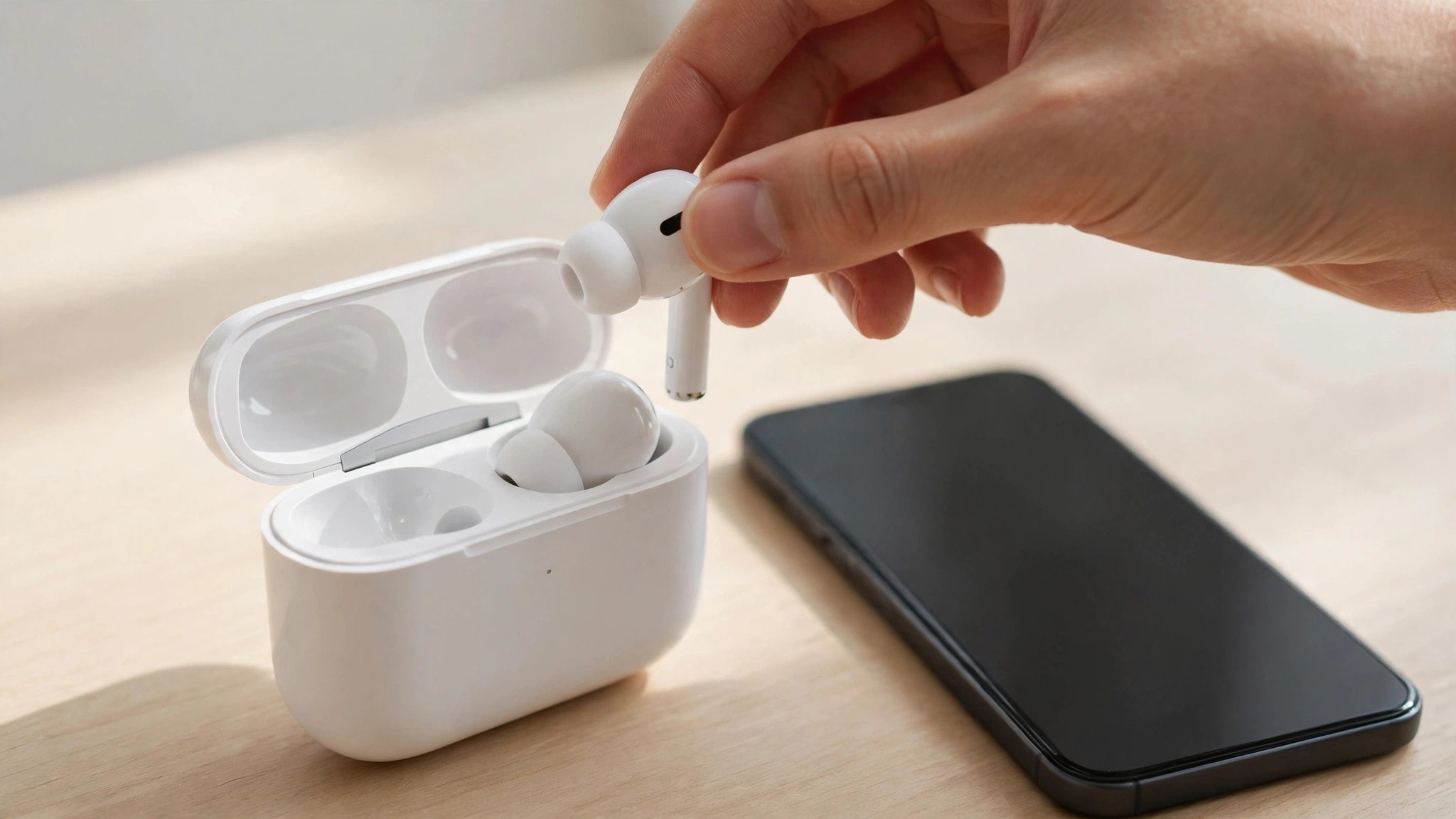
Restart vs forget vs reset: a restart switches the headphones off and on and keeps your settings, so try it first. Forgetting the headphones clears the saved link on your phone only. A factory reset wipes the headphones' memory too. The key difference is which side forgets — start with the side that costs least.
Look — if you're about to board a plane or start a call in five minutes, the triage above is the whole guide. The sections below are for when the quick fix doesn't stick.
It's not you, it's not the headphones, and it isn't always the other device's fault either — sometimes the saved link just went bad, and a fresh pairing is all it takes.
Why Won't My Bluetooth Headphones Show Up in the List?
When headphones never appear, they are almost never broken. They are off, flat, already linked to another device, or simply not in pairing mode. Work through the four checks in order.
First, check the charge. Plug the headphones in for ten minutes, and for earbuds check both buds and the case — a case can show a full light while one bud sits dead on dirty contacts. Wipe the charging contacts with a dry cloth if a bud never lights up.
Second, kill the competition. Headphones reconnect to the last device they used, so a laptop in the next room or a TV downstairs can claim them before your phone sees them. Switch Bluetooth off on every device they have ever paired with, then try again.
Third, enter pairing mode for real. On most over-ears, hold the power button for 5 to 7 seconds after they switch on, until the light blinks blue or white. On most earbuds, hold the case button with the lid open, or hold both buds for a few seconds. The manual for your exact model has the gesture — close doesn't count.
Fourth, get close. Pair within a few feet, with no wall, bag or body between the headphones and the phone. Bluetooth reaches about 10 metres in open air, but a phone in a back pocket and headphones on a desk can still struggle during pairing.
I've seen conflicting data — some guides say a full pairing list blocks new connections, others say most headphones just overwrite the oldest entry. My read is both happen: budget pairs tend to refuse, premium ones tend to overwrite — so clearing the list is worth doing first on a cheap pair. If your model has a companion app, check it for saved devices; if not, a factory reset wipes the list. Our reset guide has the exact button combo for Sony, Bose, JBL, AirPods, Galaxy Buds and more.
Charge first. Fiddle second.
Why Do My Headphones Say Paired but Not Connected?
Paired but not connected means the devices remember each other, but no live link exists. Another device usually claimed the headphones first, or the saved record went stale.
Start with the easy tap: on iPhone, open Settings → Bluetooth and tap the headphones' name. On Android, open the saved device and tap Connect. On Windows 11, open Settings → Bluetooth & devices → Devices and click Connect. Sometimes the link just needs a nudge.
If the tap does nothing, switch Bluetooth off on every other device the headphones know. Multipoint headphones can hold two links at once, and the second link can block the first — a laptop on standby counts, even with its lid shut.
Or maybe I should say it this way: the headphones remember the handshake, but the link itself never opened. Forgetting the entry on your phone and pairing again rebuilds both halves, and that fixes it when a tap does not.
Here's the thing: if the headphones connect fine to your phone but never to your laptop, the laptop is the problem. Stop resetting the headphones and look at the laptop's Bluetooth instead — the per-device sections below cover exactly that.
Why Do My Bluetooth Headphones Connect but There's No Sound?
When the headphones connect and stay silent, the link is fine — the sound is going somewhere else. Check the output on your device before you touch the headphones.
On a phone, open the volume panel and check the output: the sound may be playing through the phone speaker or a smart speaker. Turn the volume up on both the phone and the headphones — some pairs keep separate volume levels, and one of them may sit at zero.
On Windows, the trap is the audio profile. If an app is using the microphone, Windows drops the headphones to the Hands-Free profile, which sounds muffled or goes silent for music. Close the app using the mic, then pick the Stereo profile in Sound settings. Our audio delay guide walks through the Windows mic trap in detail.
On a Mac, open System Settings → Sound → Output and pick the headphones. On a TV, check the sound output menu — some TVs keep playing through their own speakers even after the headphones connect.
Also check the app itself. A video app or game can hold its own output setting, and a browser tab can be muted while everything else plays fine.
Connected is half the job. Sound is the other half.
Why Do My Bluetooth Headphones Keep Disconnecting?
Repeated drops point to power, distance, interference, or a second device pulling the headphones away. Fix them in that order — power first, because it is the most common and the easiest to rule out.
- Charge them fully. A dying battery is the top cause of drops. Charge the headphones and the case, and check that both earbuds charge — one dead bud can break the pair's link.
- Stay close. Keep the phone on the same side of your body as the headphones, and out of a back pocket during a call. Walls, metal cases and your own body all weaken the signal.
- Move away from the router. Wi-Fi routers, microwaves and USB 3.0 hubs all share the 2.4 GHz band with Bluetooth. Microsoft notes that unshielded USB 3.0 devices can interfere with Bluetooth — move a hub or cable away from the laptop as a test.
- Switch Bluetooth off on your other devices. A multipoint pair can jump to a laptop the moment it wakes, then jump back. If the drops follow a pattern — every time the laptop wakes, say — that is the cause.
- Update the firmware. Companion apps from Sony, Bose, JBL and Jabra push updates that fix connection bugs. A firmware bug can break the link while the speakers keep working.
- Check battery saver. On Android and Windows, power-saving settings can switch the Bluetooth radio off to save battery. Turn battery saver off while you test.
Here's an opinion that might get pushback: Bluetooth headphones were never built to juggle five devices at once. If you want them on your phone and your laptop at the same time, buy a multipoint pair — fighting the single-connection design wastes more time than the upgrade costs.
Why Won't My Bluetooth Headphones Connect to My iPhone?
iPhone failures are usually a stale entry, an old iOS bug, or the headphones linked to another Apple device. Work through the iPhone steps in order.
- Open Settings → Bluetooth and check Bluetooth is on. If the toggle is greyed out, restart the iPhone.
- Tap the info button next to the headphones and choose Forget This Device.
- Restart the iPhone, then put the headphones in pairing mode and pick them in Settings → Bluetooth.
- If it still fails, check for an iOS update — a Bluetooth bug after an update is fixed by the next one.
- As a last resort, reset network settings (Settings → General → Transfer or Reset iPhone → Reset → Reset Network Settings). This wipes saved Wi-Fi passwords too, so save them first.
AirPods have one extra catch: they pair through your Apple account, so they can show up on your iPad or Mac while your iPhone can't see them. Switch Bluetooth off on your other Apple devices while you pair. The reset steps for AirPods — case button, or three taps on the case front for AirPods 4 and Pro 3 — are in our reset guide.
Why Won't My Bluetooth Headphones Connect to Android?
Android failures are usually a stale entry, a clogged Bluetooth cache, or a power-saving setting. Android also varies by brand, so the menu names below may differ slightly on your phone.
- Swipe down and long-press the Bluetooth tile to open Bluetooth settings. Check Bluetooth is on.
- Open the saved headphones and tap Forget (or Unpair).
- Clear the Bluetooth cache: Settings → Apps → Show system apps → Bluetooth → Storage → Clear cache. This wipes the stored pairing data without touching your files.
- Restart the phone, put the headphones in pairing mode, and tap Pair new device.
- If the headphones pair but drop, turn battery saver off and check that no battery-optimisation setting is killing Bluetooth in the background.
Samsung phones have one more option: Dual Audio lets two pairs play at once, and it can hold a link open. Turn Dual Audio off while you test a single pair. If your phone is a Samsung and you want two pairs on one phone, our dual-headphones guide covers it.
Why Won't My Bluetooth Headphones Connect to Windows?
Windows failures are usually a stale device entry, an old driver, or the Bluetooth service in a bad state. Windows is the fussiest of the four — give it the full sequence.
- Open Settings → Bluetooth & devices and check Bluetooth is on. If the toggle is missing, restart the laptop.
- Find the headphones under Devices, click the three dots, and choose Remove device.
- Restart the laptop — choose Restart, not sleep — then put the headphones in pairing mode and add them again.
- Update the driver: open Device Manager → Bluetooth, right-click the adapter, and choose Update driver. Or grab the latest driver from the laptop maker's support site.
- Run the troubleshooter: Settings → System → Troubleshoot → Other troubleshooters → Bluetooth.
- Move USB 3.0 hubs, docks and cables away from the laptop — unshielded USB 3.0 gear can interfere with Bluetooth, per Microsoft's own guidance.
If the headphones pair but the sound is muffled or missing, check the audio profile: Windows may have picked the Hands-Free profile because an app is using the mic. Close the app, then pick the Stereo profile in Sound settings.
Why Won't My Bluetooth Headphones Connect to a Mac?
Mac failures are usually a stale entry or a Bluetooth module in a bad state. The fix is short: forget, restart, pair again — and update macOS if it keeps happening.
- Open System Settings → Bluetooth and check Bluetooth is on.
- Click the info button next to the headphones and choose Forget.
- Restart the Mac, put the headphones in pairing mode, and pick them in Bluetooth settings.
- If the headphones appear but won't connect, remove other Bluetooth accessories from the list and try again — a crowded list can block a new link.
- Check for a macOS update. Bluetooth fixes ship in point updates, and an old macOS version can refuse a new pair for no clear reason.
If the headphones connect to your iPhone but never to your Mac, the Mac is the problem — and the second-device test in the next section proves it in a minute.
What If My Bluetooth Headphones Fail on Every Device?
Then the fault is in the headphones, not the settings. Run the second-device test, update the firmware, and let the result decide whether you're fixing software or claiming a warranty.
The second-device test: try pairing the headphones to a different phone or laptop. If they work there, the fault is in the first device's Bluetooth — go back to its section above. If they fail on two devices, the headphones are the problem.
- Update the firmware. Open the maker's companion app and check for an update. A firmware bug can break pairing while the speakers keep working, and the update fixes it.
- Factory reset the headphones. This wipes the pairing memory and fixes glitches a restart can't. Our reset guide has the exact button combo for every major brand.
- Check the warranty, not the shop. Headphones that fail on two devices after a reset are a warranty claim, and most makers cover pairing faults in the first year. Keep the receipt and the serial number handy.
- Know when to stop. A battery that won't hold a charge, a driver that stays dead after a reset, or damage from a drop or a swim — none of those are settings problems. A second reset won't fix them either.
One test. Two answers.
Frequently Asked Questions
Why won't my Bluetooth headphones connect to my phone?
Usually they aren't in pairing mode, they're linked to another device, or the saved pairing went stale. Charge them, turn Bluetooth off on your other devices, forget the old entry, then pair again.
How do I force my Bluetooth headphones into pairing mode?
Hold the power or Bluetooth button until the light blinks blue or white — usually 3 to 7 seconds. Turning the headphones on is not the same thing: most pairs need a deliberate long press to become discoverable.
Why do my headphones say connected but I hear nothing?
Your phone or laptop is sending sound somewhere else. Check the audio output on your device, turn the volume up, and make sure no other app or device grabbed the headphones first.
Why do my Bluetooth headphones keep disconnecting?
Low battery, distance, interference, or a second device pulling them away. Charge them, stay close to the source, switch Bluetooth off on your other devices, and update the firmware.
Should I reset my Bluetooth headphones?
Yes, if forgetting and re-pairing didn't work. A reset wipes the headphones' saved pairings and fixes glitches a restart can't. Our reset guide has the exact button combo for Sony, Bose, JBL, AirPods and more.
Can too many saved devices stop my headphones connecting?
On some models, yes — a full pairing list can block new pairings. Clear old entries in the companion app, or factory reset the headphones to wipe the list.
When should I stop troubleshooting and claim the warranty?
When the headphones fail on two different devices after a reset, or the fault started after a drop or a swim. Those point to hardware, and no setting will fix them.