How to Fix a Headset Mic Not Working on PC (2026 Guide)

A gaming headset mic not working on PC is almost never one problem — it is four or five different problems wearing the same symptom. The mic can be missing entirely, present but silent, working in Windows but dead in Discord, or fine everywhere except one game. Each version has a different fix, and working through a generic list in order wastes the evening.
This guide shows how to fix a headset mic not working on PC — it starts with a 60-second diagnosis that routes you to the right fix, then covers the causes the top-ranking pages gloss over: the Realtek "Headset vs Headphones" jack-detection trap that silently kills the mic on laptops and desktops, the TRRS splitter problem that is the single commonest desktop cause, and a per-app settings matrix for Discord, Steam, in-game voice, the Xbox app and OBS. Most readers are fixed in ten minutes, with no new hardware.
What Is Wrong With My Headset Mic? Start Here
Match your symptom to the row below, then jump straight to that section. The rows are ordered by how common each cause is.
| What you see | Most likely cause | Jump to |
|---|---|---|
| The mic is missing from Windows sound settings entirely | Wrong jack, Realtek jack detection, or a disabled device | Realtek trap + Splitter |
| The mic is listed, but the input meter never moves | Wrong default input, a mute switch, or mic privacy blocking it | Hear but not heard |
| The mic works in Windows but not in Discord or a game | The app is using a different input device than Windows | Windows, not Discord |
| The mic works, but everyone says you are very quiet | Input volume or Mic Boost too low, or the boom is too far away | Quiet mic |
| It worked yesterday and stopped after a Windows update | Privacy reset, or Windows replaced your audio driver | After an update |
| It works wired but not on Bluetooth, or game audio turns tinny when the mic turns on | Bluetooth Hands-Free profile, or a dongle pairing fault | Connection types |
One test before you read on: open Settings → System → Sound → Input, select your headset mic, and speak. If the blue input-level bar moves, Windows can hear you — the fault is in the app, not the mic. If it stays flat, the fault is in Windows or the hardware, and the sections below apply in order.
Is It the Headset or the PC? The 2-Minute Test That Tells You
Plug the headset into a second device — a phone, a console, or another PC — and test the mic there before touching any driver. If it works there, the headset is fine and the fault is in your PC's settings or drivers. If it fails on two devices, the headset, its cable or its mic is broken, and no Windows setting will fix it.
- Test it properly, not just by plugging it in. On a phone, open the voice recorder app and record ten seconds of speech through the headset mic, then play it back. On a second PC, use Settings → System → Sound → Input and watch the level meter while you speak. Hearing game audio proves nothing — the speakers and the mic are separate circuits, and one can be dead while the other works.
- Bend the cable while you test. Gently flex the cable near the plug and near the earcup while the meter is visible. If the level flickers or cuts in and out as you bend it, the wire is damaged inside — usually at the plug, where it bends every time you put the headset down.
- Check the physical mute first. Most gaming headsets have a mute button on the earcup, a flip-to-mute boom, or an inline mute switch on the cable. Flip the boom up and down, press the mute button once, and check the inline switch. It sounds obvious, and it is the fix in a surprising number of cases — especially on headsets where the mute button has no light.
- Try a different port on the same PC. A 3.5mm headset goes in the rear motherboard jack instead of the front panel; a USB headset goes in a rear USB port instead of a hub. If it works in the new port, the first port or its wiring was the fault.
If the headset fails the second-device test, skip to the final section — you are shopping, not troubleshooting. If it passes, keep going: the fault is in your PC, and it is fixable.
Why Can I Hear Game Audio but Nobody Can Hear Me?
Because hearing and speaking use two separate paths — the output can be perfect while the input is muted, misrouted, or blocked by a Windows privacy setting. Work through these in order; the first two fix most cases.
- Set the right default input device. Go to Settings → System → Sound → Input and select your headset mic from the list — not "Microphone Array", not your webcam, not your monitor. Then click the arrow next to it and speak: the Test your microphone meter should move. Windows often keeps using the laptop mic or webcam mic after you plug a headset in, and your teammates then hear the room, not you — or nothing at all.
- Check mic privacy. Go to Settings → Privacy & security → Microphone and make sure Microphone access is on, and that "Let desktop apps access your microphone" is on too. Windows updates sometimes reset these, and when they are off, the mic simply does not exist for your apps — even though it shows up in sound settings.
- Turn off exclusive mode as a test. Press Win + R, type mmsys.cpl, open the Recording tab, right-click your headset mic → Properties → Advanced, and uncheck "Allow applications to take exclusive control of this device". One app holding the mic exclusively can starve every other app of input.
- Move the boom mic closer. The mic should sit about two fingers' width from the corner of your mouth, pointing at it — not under your chin and not pressed against your lips. A boom hanging by your jaw picks up almost nothing, and no volume setting compensates for a mic that is physically too far away.
- Check the app's own mute, not just Windows. Discord, Steam, in-game voice chat and the Xbox app each have their own mute button and their own input device setting. A mic muted inside Discord stays muted even when Windows shows it live — see the app matrix below.
The Realtek Trap: Did Windows Ask "Headset" or "Headphones"?
If your headset mic is not detected in Windows 11 at all, the likeliest cause is the Realtek jack-detection popup — and the wrong answer to it kills the mic silently.
On most laptops and many desktops, the 3.5mm jack is managed by Realtek audio. The first time you plug a headset in, a small popup asks what you connected: "Headset" or "Headphones". Pick "Headset" and Windows enables the microphone pin. Pick "Headphones" and Windows treats the jack as output-only — the mic never appears in Recording devices, the headset plays sound perfectly, and nothing in Settings explains why. That is why so many people end up searching for a headset microphone not detected in Windows 11: the device is not broken, it was never enabled. The popup only appears once, so if you clicked the wrong option — or dismissed it — the mic stays dead until you change the setting.
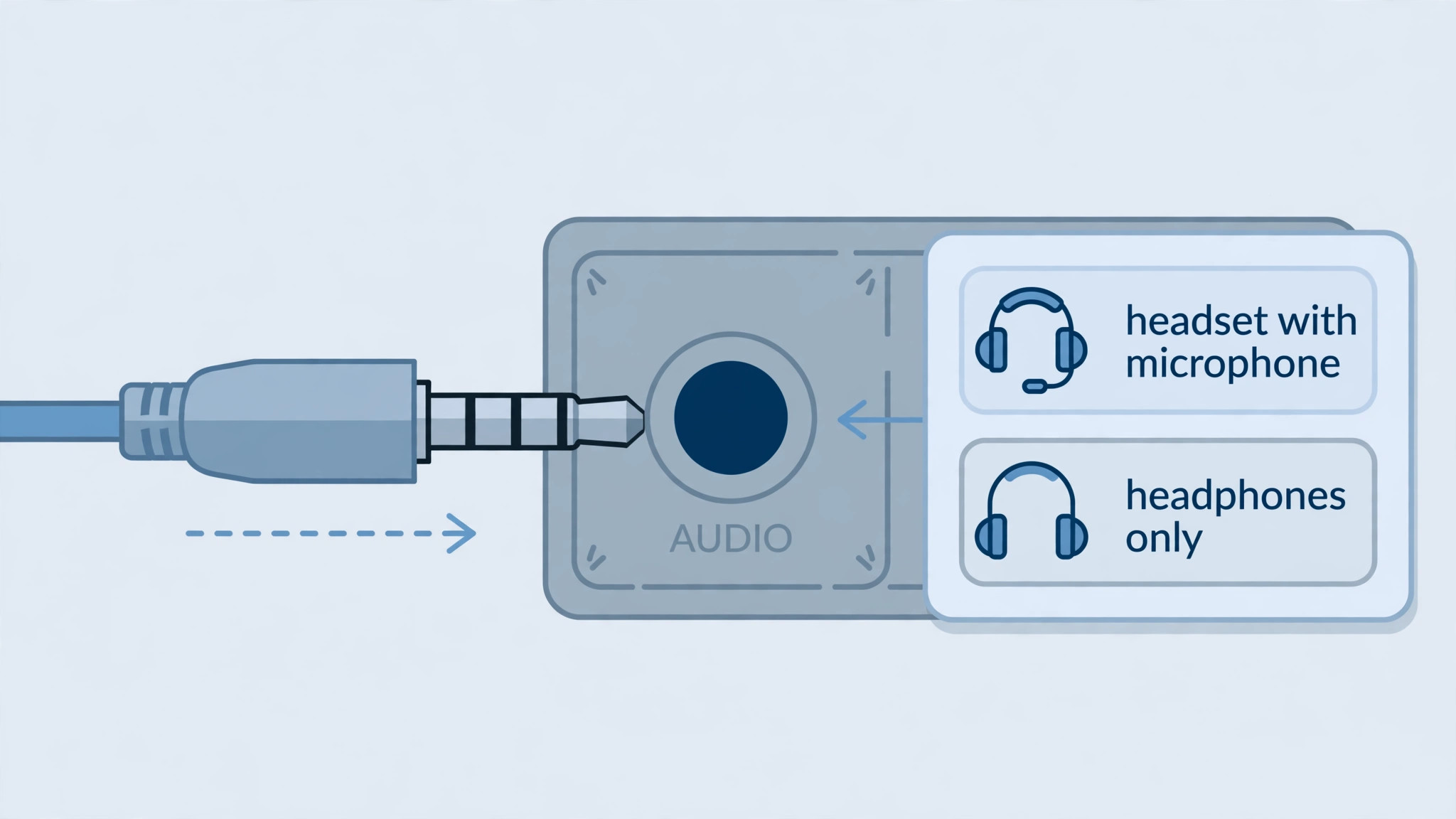
- Change the answer. Open the Realtek Audio Console (search for it in the Start menu, or find it in the system tray) and look for the connector or jack setting — on many systems it is under Device advanced settings or a plug icon. Change the plugged-in device from "Headphones" to "Headset". If the Realtek Audio Console is not installed, install it from your PC maker's support page or the Microsoft Store.
- Re-trigger the popup. Unplug the headset, wait a few seconds, and plug it back in firmly. The popup should appear again — this time choose "Headset". If it does not appear, the detection may be disabled: in the Realtek Audio Console, turn jack detection back on.
- Show disabled devices. Press Win + R, type mmsys.cpl, open the Recording tab, right-click in the empty space and tick "Show Disabled Devices" and "Show Disconnected Devices". If your headset mic appears greyed out, right-click it and choose Enable, then Set as Default Device.
- Reinstall the Realtek driver cleanly — from your PC maker, not from Windows Update. The common trap here is the UAD vs legacy HDA driver split: Windows Update often installs a generic Realtek driver that does not include the jack-detection console at all. Download the audio driver from your laptop or motherboard maker's support page, uninstall the current Realtek device in Device Manager (tick "Attempt to remove the driver for this device" if offered), restart, and install the maker's version. This is the fix Microsoft's own support answers point to for the "mic not detected" reports on ASUS and Dell laptops.
- Check Device Manager for a hidden fault. Open Device Manager → Audio inputs and outputs. If the headset mic shows a yellow warning icon, right-click it → Uninstall device, unplug the headset, plug it back in, and let Windows rediscover it.
How Do I Fix the TRRS Splitter Problem on a Desktop PC?
Most desktop PCs have two separate 3.5mm jacks — one for headphones, one for a microphone — but most gaming headsets have one combined plug. Without a splitter, the mic has nowhere to go.
That single plug is a TRRS plug: tip, ring, ring, sleeve — four contacts carrying left audio, right audio, microphone, and ground. A phone or laptop with one combined jack reads all four. A desktop with separate pink (mic) and green (headphone) jacks reads only the audio contacts when you plug a TRRS plug into the green jack, and only the mic contact when you plug it into the pink jack. Either way, one half of the headset does not work — and the usual result is exactly this article's symptom: sound works, mic does not.
- Use a 3.5mm TRRS Y-splitter cable. It is a short, cheap cable — one TRRS socket on one end, two TRS plugs on the other — that splits the combined plug into separate headphone and microphone plugs. Plug the green plug into the green jack and the pink plug into the pink jack. Any generic splitter works; there is no brand to chase here, and it costs less than a takeaway coffee.
- Check the rings on your plug first. A plug with two black rings (TRS) carries audio only and has no mic signal at all — if your headset cable ends in a TRS plug, the mic is on a separate cable or a USB connection, and the splitter is not your problem. A plug with three black rings (TRRS) is the combined one that needs the splitter.
- Use the rear jacks, not the front panel. Front-panel audio wiring is a known source of noise and mis-detection, and some front panels are wired for headphones only. If the mic works in the rear pink jack but not the front one, the front panel is the fault — use the rear jacks.
- USB and wireless headsets skip this entirely. If your headset connects by USB or a 2.4 GHz dongle, the mic travels over that connection, not the 3.5mm jack — the splitter section does not apply, and your fix is in the connection-type section.
Why Does My Mic Work in Windows but Not in Discord or My Game?
Because Windows and each app pick their input device independently — Windows can be listening to your headset while Discord is listening to your webcam. A headset mic not working in Discord but working everywhere else is the commonest version of this problem, and the fix is in Discord's own settings, not Windows. Every app below has its own input setting, and each one defaults to whatever it likes, not to your Windows default.
| App | Where to set the input | What to check |
|---|---|---|
| Discord | User Settings → Voice & Video → Input Device | Set it to your headset mic explicitly, never "Default". Check the mic test bar moves, and turn off "Automatically determine input sensitivity" if your voice keeps cutting out. |
| Steam | Steam → Settings → Voice → Voice Input Device | Same rule: pick the headset mic by name. Test with the "Test Microphone" button. |
| In-game voice chat | Usually Settings → Audio → Voice Chat → Input Device | Also check the in-game voice-chat mode: push-to-talk needs the right key bound, and open mic needs a threshold low enough to catch your voice. |
| Xbox app (PC) | Settings → Audio → Microphone | The Xbox app has its own device list and its own mute. If party chat is silent, check here before touching Windows. |
| OBS Studio | Settings → Audio → Mic/Auxiliary Audio, or the Sources panel | Make sure the mic source points at the headset mic, not the default device, and that the source is not muted in the Audio Mixer. See our OBS dropping-frames guide for the rest of the OBS setup. |
- Set the device by name in every app, never "Default". "Default" follows whatever Windows currently thinks the default is — and Windows changes its mind when you plug something in, wake from sleep, or update. Naming the headset mic in each app locks it in.
- Check Discord's input mode. If you use push-to-talk, the key must actually be held down while you speak, and the key must not clash with a game binding. If you use voice activity, the sensitivity slider may be set too high for a quiet mic — lower it until the test bar lights up on normal speech. Discord's echo cancellation and noise suppression can also cut a quiet voice out entirely; turn them off as a test.
- Check the game's voice-chat enable switch. Several games ship with voice chat off by default, or with cross-play voice chat disabled. If nobody hears you in one game but Discord works fine, the game's own setting — not your mic — is the fault.
- Restart the app after changing the device. Discord and many games read the audio device list once, at startup. Plug the headset in, then start the app — not the other way round. If you plugged in mid-session, restart the app.
Why Is My Headset Mic So Quiet?
Usually it is input volume, not a broken mic — Windows defaults the mic level low, and a boom mic two inches too far from your mouth loses most of its signal before Windows ever sees it.
- Raise the input volume. Go to Settings → System → Sound → Input, select your headset mic, and set Input volume to 90–100. Then click the arrow next to the device → Additional device properties → Levels, and check the Microphone level is at 100. If there is a Microphone Boost slider, raise it in +10 dB steps — +20 dB is usually enough, and more than +30 dB adds hiss.
- Move the boom mic to the corner of your mouth. About two fingers' width away, pointing at your mouth. A mic hanging by your jaw or pointing at your cheek picks up a fraction of your voice, and no boost setting makes up for it.
- Turn off audio enhancements for the mic. In the same Properties window, open the Enhancements tab and tick "Disable all enhancements". Noise suppression and echo cancellation built into the driver can over-suppress a quiet voice, and the effect looks exactly like a mic that is too quiet.
- Check the app's own volume. Discord has a per-user input volume slider (User Settings → Voice & Video → Input Volume) that can sit at 50% while Windows is at 100%. Games have their own mic volume sliders too — check both ends of the chain.
- Rule out the cable. If the mic is quiet on every device and the level jumps around when you bend the cable, the wire is damaged. Boost will not save it — see the final section.
Why Did My Headset Mic Stop Working After a Windows Update?
A headset mic not working in Windows 11 right after an update is almost always one of two things: the update reset your mic privacy settings, or it replaced your working audio driver with a generic one — both are known Windows 11 behaviours, and both are reversible.
- Re-check mic privacy first. Go to Settings → Privacy & security → Microphone and confirm Microphone access and "Let desktop apps access your microphone" are both on. Windows feature updates have reset these before, and it takes ten seconds to check.
- Roll back the audio driver. Open Device Manager → Sound, video and game controllers → your audio device → Properties → Driver → Roll Back Driver. If the button is greyed out, uninstall the device instead and restart — Windows will reinstall the driver it had before the update.
- Reinstall the manufacturer's driver. If the rollback does not help, download the audio driver from your PC or motherboard maker's support page and install it over the generic one Windows Update supplied — the same fix as the Realtek section, because it is usually the same cause.
- Install the latest Windows update and reboot. Settings → Windows Update → Check for updates. Microsoft has shipped fixes for USB audio breakage in recent cumulative updates, and an update that broke audio can be followed by one that repairs it.
- Re-select the input device. After an update, Windows sometimes resets the default input to the laptop mic or webcam mic. Go to Settings → System → Sound → Input and pick your headset mic again.
How Do I Fix a USB, Wireless or Bluetooth Headset Mic?
Each connection type fails differently, so match the fix to how your headset connects — a Bluetooth fix will not help a USB headset, and a dongle fix will not help a 3.5mm one.
USB headsets
- Try a rear motherboard USB port. Front-panel and hub ports can under-deliver power, and a USB headset mic is the first thing to fail when power is marginal. A rear port is directly on the motherboard.
- Turn off USB selective suspend. Go to Control Panel → Power Options → Change plan settings → Change advanced power settings → USB settings → USB selective suspend setting → Disabled. Windows putting the USB port to sleep mid-game silences the mic until you unplug and replug.
- Reinstall the headset in Device Manager. Find it under Audio inputs and outputs and under Sound, video and game controllers, uninstall both entries, unplug the headset, plug it back in, and let Windows rediscover it.
2.4 GHz wireless headsets (dongle)
- Move the dongle onto your desk. Plug it into a USB 2.0 port, or a short USB extension cable, with a clear line of sight to the headset — not buried behind the PC case. USB 3.0 ports emit radio noise in the 2.4 GHz band, so a dongle plugged straight into a USB 3.0 port sits inside its own interference.
- Re-pair the headset and dongle. Most wireless headsets have a pairing sequence — usually holding the power button and the dongle button together for a few seconds. Check your headset's manual for the exact combination; a dropped pairing can leave audio working while the mic channel is dead.
- Charge the headset. A low battery makes the wireless link unstable, and the mic channel is the first to drop. If the mic dies late in a session and works after charging, that was it.
Bluetooth headsets
- Expect the quality drop — and pick the right profile. When a Bluetooth headset's mic turns on, Windows switches it to the Hands-Free profile, and game audio drops to low-quality, tinny mono — that is how Bluetooth works, not a fault. In mmsys.cpl, set the output to the headset's Stereo profile for listening and use the Hands-Free profile only when you need the mic, or use a separate mic for calls. For gaming, a 2.4 GHz dongle headset is the better connection whenever you have the choice.
- Re-pair from scratch. Go to Settings → Bluetooth & devices → Devices, remove the headset, restart the PC, and pair it again. A stale pairing is the commonest Bluetooth mic fault.
- Check the Bluetooth services. In Device Manager → Bluetooth, make sure the headset's Hands-Free Telephony service is enabled: right-click the headset → Properties → Services → Hands-Free Telephony. If it is off, the mic never appears.
Could My Headset's Own Software Be Muting the Mic?
Yes — Logitech G Hub, Razer Synapse, SteelSeries GG and HyperX NGENUITY can all mute, reroute or gate the mic without touching any Windows setting, and they do it silently.
- Open the companion app and check the mic state. Look for a mic mute toggle, a mic volume slider, and any noise-gate or sidetone setting. A noise gate set too high cuts quiet speech out entirely — lower it or turn it off and test. A mic muted in G Hub stays muted in Discord, no matter what Windows says.
- Check for a second mute. Some headsets have both a hardware mute button and a software mute, and either one silences the mic. If the app says the mic is live but nobody hears you, press the physical button once and check again.
- Update the app and the headset firmware. Companion apps push firmware updates to the headset itself, and a firmware bug can break the mic channel while the speakers keep working. Update both, restart, and re-test.
- Close the app as a test. If the mic works with the companion app closed and dies when it opens, the app is the fault — reinstall it, or leave it closed and use Windows settings instead. The headset works without the app; the app is a convenience, not a requirement.
What If Nothing Fixes It?
Then it is time to call it hardware — but only after the second-device test, because that test is the proof.
- The mic fails on two devices. The headset is broken — most likely the cable or the mic capsule. Check the warranty before buying anything: a headset that fails on a phone and a PC is a warranty claim, not a settings problem.
- The mic works on a phone but not on any PC port. The fault is in the PC — a dead jack, a failed onboard audio chip, or a driver Windows will not fix. A cheap USB sound adapter (a small dongle with its own mic and headphone jacks) bypasses the onboard audio entirely and usually solves it for less than a new headset.
- The mic works, but only just — quiet, crackly, cutting out. Try a different cable if the headset has a detachable one. If the fault follows the headset, not the cable, the mic capsule is dying.
- If you are replacing the headset anyway, buy for the mic, not just the sound. Our best gaming headset guide ranks six headsets with mic quality as a scored factor, and our best gaming headsets under $50 covers the budget end. And if you stream or record, a separate desk mic beats any headset mic — see our best microphone for streaming guide.
Most readers never reach this section. A default-device change, the right answer to the Realtek popup, or a splitter fixes the large majority of dead headset mics — and the second-device test tells you within two minutes whether you are fixing settings or shopping.
Frequently Asked Questions
Why does my headset play sound but the mic does not work on PC?
Hearing and speaking use two separate paths, so the output can be perfect while the input is muted, misrouted, or blocked. The usual causes, in order, are the wrong default input device (Windows is listening to your laptop mic or webcam instead), a mic privacy setting that is off, the Realtek jack-detection popup answered as "Headphones" instead of "Headset", or a missing TRRS splitter on a desktop with separate mic and headphone jacks. Check Settings → System → Sound → Input first, then the privacy setting, then the Realtek and splitter sections above.
Why is my headset mic not detected by Windows 11?
The likeliest cause is the Realtek jack-detection popup: if you answered "Headphones" instead of "Headset" when you plugged in, Windows treats the jack as output-only and the mic never appears. Change it in the Realtek Audio Console, or unplug and replug and choose "Headset" when the popup appears. If the mic still does not appear, open mmsys.cpl → Recording, right-click and tick "Show Disabled Devices", enable the mic if it is greyed out, and reinstall the audio driver from your PC maker's support page — the generic driver Windows Update installs often lacks jack detection entirely.
Why does my headset mic work in Windows but not in Discord?
Because Discord picks its input device independently of Windows — it may be listening to your webcam mic while Windows is listening to your headset. Open Discord → User Settings → Voice & Video → Input Device and select your headset mic by name, never "Default", then check the mic test bar moves. Also check Discord's input mode: push-to-talk needs the key held down, and voice activity needs the sensitivity low enough to catch your voice. Restart Discord after plugging the headset in, since it reads the device list once at startup.
Do I need a splitter for my headset mic?
Yes, if your desktop PC has separate pink (microphone) and green (headphone) 3.5mm jacks and your headset has a single combined TRRS plug — without a splitter, the mic has nowhere to go, so you get sound but no microphone. A 3.5mm TRRS Y-splitter cable splits the one plug into separate headphone and microphone plugs: green into the green jack, pink into the pink jack. You do not need one for a laptop with a single combined jack, or for a USB or wireless headset, where the mic travels over the USB or dongle connection instead.
Why is my headset mic so quiet?
Usually the input volume is too low, or the boom mic is too far from your mouth. Set Input volume to 90–100 in Settings → System → Sound → Input, then open the mic's Properties → Levels and set Microphone to 100, adding Mic Boost in +10 dB steps if it is available — +20 dB is usually enough. Move the boom to about two fingers' width from the corner of your mouth, pointing at it. Also turn off audio enhancements for the mic and check the app's own input volume — Discord's input volume slider can sit at 50% while Windows is at 100%.
Why did my headset mic stop working after a Windows update?
A Windows update can reset your mic privacy settings or replace your working audio driver with a generic one. First re-check Settings → Privacy & security → Microphone and make sure access is on for desktop apps. Then roll back the audio driver in Device Manager → Sound, video and game controllers → Properties → Driver → Roll Back Driver, or reinstall the driver from your PC or motherboard maker's support page. Finally, re-select your headset mic in Settings → System → Sound → Input, since updates sometimes reset the default input to the laptop or webcam mic.
Why does my headset mic not work on Bluetooth, and why does game audio turn tinny when the mic turns on?
When a Bluetooth headset's mic turns on, Windows switches it to the Hands-Free profile, which carries the mic but drops game audio to low-quality mono — that is how Bluetooth works, not a fault in your headset. For gaming, a 2.4 GHz dongle headset is the better connection whenever you have the choice. If you must use Bluetooth, re-pair the headset from scratch (remove it in Bluetooth settings, restart, pair again) and check that Hands-Free Telephony is enabled for the device in Device Manager → Bluetooth → Properties → Services.
How do I know if my headset mic is broken or it's a settings problem?
Plug the headset into a second device — a phone, a console, or another PC — and test the mic there. If it works on the second device, the headset is fine and the fault is in your PC's settings or drivers, so work through this guide. If it fails on two devices, the headset, its cable or its mic is broken: bend the cable gently near the plug while testing, and if the level flickers or cuts out, the wire is damaged inside. A headset that fails on every device is a warranty claim, not a settings problem.