How to Fix Audio Crackling While Gaming (2026 Guide)

Audio crackling while gaming is a symptom, not a diagnosis — and that is why most fix lists fail. The same pops and static can come from a Windows setting, a driver that stalls under load, a crowded wireless band, or a headset that is simply dying. The fastest way to the right fix is not to work through a generic list: it is to notice when the crackling happens, because the timing points at the cause.
This guide starts with that test, then gives you the fixes in the order that solves most cases — including the two things the top-ranking pages skip: a real LatencyMon walkthrough for the stubborn cases, and the console and wireless paths that PC-only guides never cover. Most readers will be fixed in ten minutes, with no new hardware. And there is a genuine 2026 angle here: Windows 11 26H2 and the NVIDIA 621 driver branch are producing exactly these reports right now, and the fixes for them are specific.
When Does It Crackle? Start Here
Match your symptom to the row below, then jump straight to that section. If more than one row fits, start with the first — the rows are ordered by how common each cause is.
| When it crackles | Most likely cause | Jump to |
|---|---|---|
| Only in one game | That game's audio settings, a bad game update, or a corrupted install | Only in games |
| Only when the game gets demanding | Buffer underruns — the audio stream starves under load, or a driver stalls (DPC latency) | Under load + LatencyMon |
| Everywhere, including music and YouTube | Windows format, audio enhancements, or the audio driver itself | Quick fixes + Sample rate |
| Only on a wireless headset | 2.4 GHz interference, low battery, or dongle placement | Wireless headset |
| Only through a controller's headphone jack | The controller's built-in DAC, or a low controller battery | Controller jack |
| Started right after a Windows update | A 26H2 audio bug, or a driver the update replaced | After an update |
| Only at high volume or during explosions | Gain staging — the signal is clipping, not broken | Sample rate |
| Only after waking from sleep or at startup | The audio driver not resuming cleanly; Fast Startup | After an update |
One test before you read on: plug the headset into a different device — a phone, a console, or a second PC — and play something. If it crackles there too, the headset or its cable is the fault, and no Windows setting will fix it. If it only crackles on your gaming machine, the fault is in the machine, and everything below applies.
What Are the Fastest Fixes?
If you only have five minutes, do these in order — they solve the large majority of cases.
- Reseat everything. Unplug the headset and plug it back in firmly. For a 3.5mm jack, push it all the way in — a half-seated jack is one of the commonest causes of intermittent crackle. For USB, try a different port, preferably one directly on the motherboard rather than a front-panel or hub port.
- Turn off audio enhancements. Go to Settings → System → Sound, select your output device, and set Audio enhancements to Off. Enhancements are extra processing layered on the stream, and under gaming load they are a frequent source of distortion. The older path still works too: Control Panel → Sound → Playback → Properties → Enhancements → Disable all enhancements.
- Set the default format to 24-bit, 48000 Hz. Control Panel → Sound → Playback → Properties → Advanced → Default Format. This is the native rate most gaming headsets are built around. If the crackle stays, try 16-bit, 44100 Hz instead — the two rates are covered properly in the sample-rate section, because the guides disagree about them for a real reason.
- Close background apps. Browsers with dozens of tabs, Discord overlays, RGB software, and recording tools all compete for the same CPU time the audio stream needs. Close what you are not using and test the game again.
- Restart the game, then the PC. A game that has been running for hours can develop audio glitches from a corrupted audio buffer; a restart clears it. If the crackle only appears after long sessions, that is a clue in itself — see the graphics-card section.
If the crackle is gone, you are done. If it is better but not fixed, keep going — the next sections deal with the causes that need a real diagnosis.
Why Does My Audio Crackle Only in Games but Not in Music or Videos?
Because games push the audio path far harder than music does — and the part that breaks under that pressure is what you need to fix.
Music and YouTube are a light, steady stream: one source, a fixed format, almost no CPU cost. A game is the opposite. It mixes dozens of sounds in real time — footsteps, gunfire, voice chat, music — often through spatial audio, sometimes in exclusive mode where the game takes direct control of the output device, all while the CPU and GPU are already busy rendering the game itself. The audio buffer is a small queue: the game fills it, Windows drains it to your headset. When anything in that chain stalls for even a few milliseconds, the buffer runs dry and you hear a pop or a crackle.
That is why "it works fine in Spotify" tells you almost nothing about the fault, and why the fix depends on what else is true:
- Only one game crackles, the rest are clean. The fault is in that game, not your system. Check the game's own audio settings first — turn off any in-game spatial audio or "3D audio" option and test — then verify the game files (Steam: right-click the game → Properties → Installed Files → Verify integrity of game files). A bad game update or a corrupted audio asset produces exactly this pattern, and no driver update will touch it.
- Every game crackles, music is clean. The fault is in the shared path games use and music does not: the graphics driver (see the GPU section), DPC latency under load (see LatencyMon), or audio enhancements that only misbehave when the stream is complex. Work through the quick fixes above, then the LatencyMon section.
- It crackles in games and in Discord, but not in music. Voice chat and games both use real-time audio with tight timing; music does not. Same diagnosis as above — the real-time path is the one that is starving.
Why Does Audio Crackle Only When the Game Gets Demanding?
Because the audio buffer is starving: under heavy load, something else in your system is holding the CPU for too long, and the audio stream is the first thing you hear go wrong.
Audio is the canary in the performance coal mine. A frame that renders 5ms late is invisible; an audio buffer that is 5ms late is a pop you can hear. When a game gets demanding — a big fight, an explosion, a new area loading — the CPU and GPU are at their busiest, and any driver that hogs the processor for too long delays the audio stream. The usual suspects, in order:
- Background apps flooding the CPU with interrupts. A November 2026 XDA report found exactly this on a laptop: the crackling stopped only after removing bloatware and background apps that were hammering the processor with interrupt calls — the hardware was fine. Close browsers, launchers, RGB suites, and recording tools you are not actively using, and test again. If the crackle tracks with CPU usage, you have found it.
- Power states. A GPU dropping in and out of low-power states can stall the audio path. In the NVIDIA Control Panel, set Manage 3D Settings → Power management mode to Prefer maximum performance for the game, and test. This is also the first fix in the graphics-card section.
- Hardware-accelerated GPU scheduling (HAGS). It changes how the GPU driver schedules work, and on some systems it makes DPC spikes worse. Turn it off as a test: Settings → System → Display → Graphics → Default graphics settings → Hardware-accelerated GPU scheduling → Off, then reboot.
- A driver that only misbehaves under load. This is the LatencyMon case. The walkthrough is in the section below — it names the exact driver file responsible, which is the difference between guessing and fixing.
One thing that is not the cause: your headset. If the crackle only appears when the game gets busy and never when the system is idle, the headset is fine — a broken headset crackles whenever it feels like it, not on a schedule set by your GPU.
Why Is My Wireless Headset Crackling — and Why Does It Get Worse When I Move?
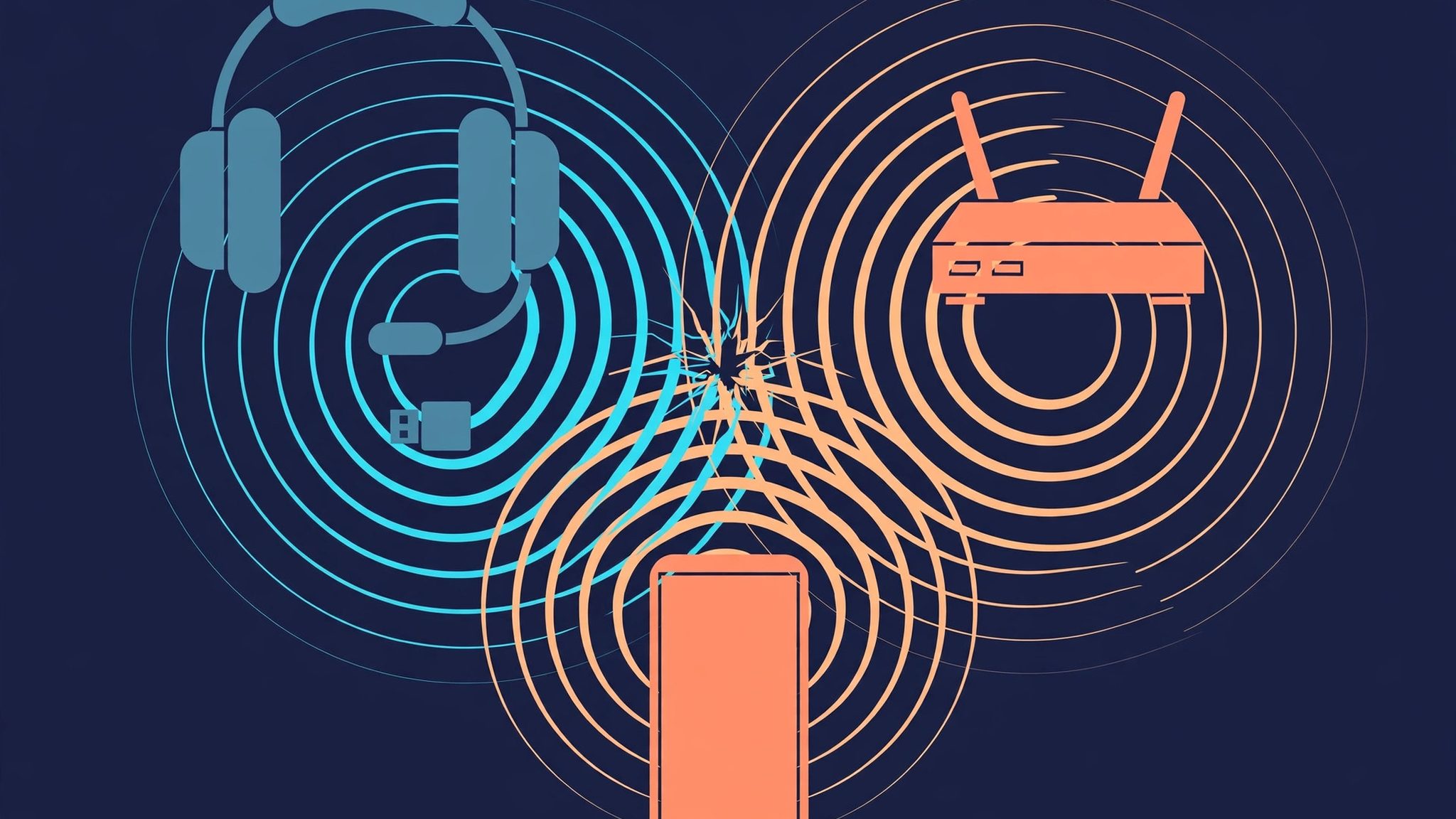
Because your headset is fighting for the same 2.4 GHz airspace as everything else in the room — and moving changes which signal wins.
Most wireless gaming headsets use a 2.4 GHz dongle, not Bluetooth, because the dongle is faster and carries game audio with less delay. But 2.4 GHz is the most crowded band in your home: your router, your neighbour's router, Bluetooth devices, microwaves, and other wireless peripherals all live there. When the headset's signal weakens — you turn your head, walk away from the PC, put your body between the headset and the dongle — the interference wins for a moment, and you hear it as crackling or dropouts. It is the same reason the crackle gets worse when you move: movement changes the signal path, and the headset has to re-establish a clean link every time.
- Move your router to 5 GHz. If your router broadcasts both bands, move your own devices to 5 GHz and leave 2.4 GHz as clear as possible for the headset. This is the single highest-impact change for a crowded home.
- Move the dongle, not the headset. Plug the dongle into a USB 2.0 port, or put it on a short USB extension cable so it sits on your desk with a clear line of sight to the headset — not buried behind the PC case. USB 3.0 ports emit radio noise in the 2.4 GHz band, so a dongle plugged straight into a USB 3.0 port is sitting inside its own interference. This is specific to the dongle: USB 3.0 is not bad for audio in general, only for 2.4 GHz receivers plugged directly into it.
- Charge the headset. A low battery makes the dongle connection unstable — several headset makers list it as a cause in their own FAQs. If the crackle appears late in a session and vanishes after charging, that was it.
- Re-pair Bluetooth headsets from scratch. Delete the headset from Windows Bluetooth settings, remove it from the device list, and pair it again. Bluetooth uses the SBC codec by default, which is lossy and sensitive to congestion, and it adds latency that matters in games — a 2.4 GHz dongle is the better gaming connection whenever you have the choice.
- Test with a wired connection. If your headset has a 3.5mm cable, plug it in and play for a session. If the crackle vanishes, the wireless link was the problem, not the headset — and the fixes above are worth doing properly rather than replacing hardware.
Why Does My Headset Crackle Only When It's Plugged Into a Controller?
Because the controller's built-in DAC is the bottleneck — it is a small, cheap audio chip doing a job a PC sound card does properly.
When you plug a headset into a DualSense or Xbox controller, the audio is decoded inside the controller, not in the console. That chip is small and power-limited, and it is the first thing to struggle when the controller's battery runs low — low battery means less stable power to the audio circuit, which shows up as crackling before it shows up as anything else. The 3.5mm jack itself is another weak point: it wears with use, collects dust, and a slightly loose plug crackles with every movement.
- Charge the controller, or play with it plugged in. If the crackle appears late in a session and fades after charging, low battery was the cause. A controller at 10% is a sluggish, noisy controller.
- Test the headset on the console directly. Plug the same headset into the console's USB port (or a USB DAC) instead of the controller. If the crackle vanishes, the controller audio path was the problem — and that is a controller limitation, not a headset fault. Our guide to fixing a PS5 controller that keeps disconnecting covers the same hardware from the connection side.
- Clean and reseat the jack. Blow compressed air into the controller's 3.5mm port, then push the plug in firmly and rotate it slightly. If the crackle changes as you move the plug, the jack is worn or dirty.
- Check the console's audio output settings. On PS5: Settings → Sound → Audio Output — make sure the output device is the one you intend, and check the output format the console is sending. On Xbox: Settings → General → Volume & audio output → Advanced. A mismatch between what the console sends and what the headset expects produces the same distortion as a bad Windows format.
Why Did My Audio Start Crackling After a Windows Update?
Because the update either introduced an audio bug of its own, or replaced a working driver with one that does not work as well on your hardware.
This is a real 2026 pattern, not a coincidence. Windows 11 26H2 has produced a run of audio reports: Bluetooth headsets crackling or losing sound entirely after the upgrade, and USB audio devices failing with Code 10 errors. Microsoft's November 2026 Patch Tuesday update (KB5132061, released 10 November 2026) fixes the USB audio Code 10 bug — so the first step is the simplest one:
- Install the latest Windows update and reboot. Settings → Windows Update → Check for updates. If KB5132061 or a later cumulative update is waiting, install it — it is the official fix for part of the 26H2 audio breakage.
- Reinstall the manufacturer's drivers — do not just click "Update driver". Go to your PC maker's support page (or your motherboard maker's page for a custom build) and download the Bluetooth driver and the HD Audio driver they provide, then install them over the ones Windows Update supplied. The manufacturer versions are the ones tested against your exact hardware; the generic ones Windows installs are the ones that break. This is also the fix Microsoft's own support answers recommend first for post-26H2 Bluetooth crackling.
- Set the default format to 16-bit, 48000 Hz as a test. Control Panel → Sound → Playback → Properties → Advanced → Default Format. After an update, the format Windows picks by default can be one your headset handles badly; 16-bit 48000 Hz is the most widely compatible setting, and the sample-rate section explains the trade-off.
- Roll back the audio driver if the crackle started the day of the update. Device Manager → Sound, video and game controllers → your audio device → Properties → Driver → Roll Back Driver. If that button is greyed out, uninstall the device and restart — Windows will reinstall the driver it had before.
- Uninstall the update as a last resort, to prove the cause. Settings → Windows Update → Update history → Uninstall updates. If the crackle vanishes with the update gone, you have proved the update was the cause — and you should report it through the Feedback Hub before reinstalling, so Microsoft has the data.
One related fix, for a different symptom: if the crackle only appears after waking from sleep or right after startup, turn off Fast Startup (Control Panel → Power Options → Choose what the power buttons do → Change settings that are currently unavailable → uncheck Turn on fast startup) and restart fully. Fast Startup skips a full driver reload, so a driver that resumes badly stays broken until a real restart. It is a conditional fix for that one symptom — not a general audio setting, and it will not help crackling that happens mid-game.
Can a Graphics Card Cause Audio Crackling?
Yes — through its driver, not through electrical interference. The graphics driver is one of the commonest sources of the DPC latency spikes that starve the audio stream.
This is the mechanism most guides get wrong. It is not the card "interfering" with your headset. It is the driver — nvlddmkm.sys on NVIDIA cards — holding the CPU for too long while it does graphics work, so the audio buffer runs dry. The same driver also carries the HDMI and DisplayPort audio path, so if your sound goes to a monitor's speakers over HDMI, the graphics driver is literally in the audio chain.
The 2026 evidence is concrete. Users on Microsoft Q&A report DPC spikes from nvlddmkm.sys building up over hours after installing NVIDIA driver 621.01, with LiveKernelEvent 141 and Event ID 153 entries pointing at the same driver stack. NVIDIA's 621.14 driver (4 November 2026) fixed a related 621.01 fault — video playback freezing on RTX 50-series cards — and 621.24 (12 November 2026) is the current Game Ready driver as of 16 November 2026. If you are still on 621.01, update first and test before changing anything else.
- Update the graphics driver — and do it cleanly. Download the latest Game Ready driver from NVIDIA (or the latest Adrenalin driver from AMD), then do a clean install: download Display Driver Uninstaller (DDU), boot into Safe Mode, run it, and install the new driver fresh. A plain reinstall over the old one leaves the corrupted state in place; a clean swap is the fix Microsoft's own answers recommend for this exact fault.
- Set Power management mode to Prefer maximum performance. NVIDIA Control Panel → Manage 3D Settings → Power management mode. A card dropping in and out of low-power states at idle is a common source of these spikes, and it matches the pattern of crackling that appears outside games too.
- Turn off Hardware-accelerated GPU scheduling as a test. Settings → System → Display → Graphics → Default graphics settings → Hardware-accelerated GPU scheduling → Off, then reboot. If the crackle goes, HAGS was making the driver's scheduling worse on your system.
- Disable audio devices you are not using. If you do not use HDMI or DisplayPort audio, disable those outputs in Device Manager or in Sound settings — each one is another device the driver has to service, and an unused one can still generate the interrupts that delay the real one.
- Re-test with LatencyMon after each change. Run it for 10–15 minutes after each fix and watch the nvlddmkm.sys numbers — that tells you which change actually worked, instead of guessing. The walkthrough is next.
How Do I Find the Driver Causing the Crackling?
Run LatencyMon — it is the free tool that names the exact driver behind the crackling, and it takes ten minutes.
Everything so far has been educated guessing. LatencyMon ends it. It is a small, free Windows utility from Resplendence that measures how long each driver holds the CPU — the Deferred Procedure Call (DPC) and interrupt times that decide whether real-time audio stays smooth. When a driver holds the CPU for too long, the audio buffer starves and you hear a pop. LatencyMon shows you which driver, and how long, in microseconds.
Run it properly
- Download LatencyMon from Resplendence's own site (version 7.31 is the current stable release) and install it.
- Right-click it and choose Run as administrator — it needs admin rights to read kernel timings.
- Click the green play button, then play your game normally for 10–15 minutes with your usual background apps open. Do not close everything first: you want the test to reproduce the conditions that crackle.
- Open the Drivers tab and sort by Highest DPC routine execution time. That column — the longest single uninterruptible block from one driver — is the number that matters.
Read the numbers correctly
Two scales circulate, and they are both real — do not mix them. Resplendence's own thresholds: under 2,000 microseconds is suitable for real-time audio, 2,000–4,000 is doubtful, and over 4,000 is unsuitable. Practitioners who work with gaming audio use a stricter line: anything consistently above 1,000 microseconds will break real-time audio. Judge the sustained pattern, not a single spike — one 1,900-microsecond event is noise; a driver that sits above 1,000 microseconds again and again is your fault.
And do not blame the driver at the top of the list by total time. The top entries are almost always ntoskrnl.exe and Wdf01000.sys, which are frameworks executing other drivers' work — they look guilty because everything runs through them. The file rspLLL64.sys is LatencyMon's own driver, so it shows up in every report. Read the per-driver highest DPC routine time, and fix the driver that actually owns the long block:
| Driver file | What it is | Fix first |
|---|---|---|
| Your Wi-Fi driver (e.g. Netwtw, athw, rtwlane) | Network driver — the most common genuine offender | Turn off Wi-Fi power saving in Device Manager; update the driver from the laptop/motherboard maker |
| nvlddmkm.sys | NVIDIA graphics driver | Clean install with DDU; Prefer maximum performance; HAGS off (see GPU section) |
| dxgkrnl.sys / storport.sys | DirectX kernel / storage driver | Update the graphics driver and the storage driver; check for a BIOS update |
| Your audio driver (e.g. RTKVHD64, IntcAzAud) | Realtek / Intel audio driver | Reinstall from the PC maker's support page, not from Windows Update |
| tcpip.sys / ndis.sys | Network stack | Update the network driver; disable unused network adapters |
After each fix, run LatencyMon again for another 10–15 minutes and compare the numbers. The driver that drops is the one that was causing it — and you now have proof, not a guess. If no driver ever crosses 1,000 microseconds while the crackle is happening, the fault is not DPC latency: go back to the wireless or controller sections, or to the hardware checks in the final section.
What Sample Rate Should I Use to Stop the Crackling?
Try 24-bit, 48000 Hz first. If the crackle stays, try 16-bit, 44100 Hz. The honest answer is a test sequence, not a single "correct" setting — because the guides that disagree about this are each right about a different headset.
This is the one question where the top-ranking pages openly contradict each other, and it is worth saying why. One page tells you 16-bit 44100 Hz; another says 24-bit 48000 Hz; a third says "the highest the device lists". They are not guessing — they are each describing the native rate of the headset they tested. A headset's driver is built around one sample rate, and Windows resamples everything to the Default Format you set. When the format you set matches the headset's native rate, there is no resampling to do, and the stream is clean. When it does not match, Windows converts every sample on the fly — and under gaming load, that conversion is one more thing that can stall and pop.
- Start with 24-bit, 48000 Hz. This is the native rate most modern gaming headsets are built around, and it is the setting headset makers themselves recommend. Control Panel → Sound → Playback → your device → Properties → Advanced → Default Format.
- Fall back to 16-bit, 44100 Hz if the crackle stays. Older headsets, USB headsets with cheaper DACs, and Bluetooth devices often run cleanest at CD quality — the lower rate means less data to move per second, which is exactly what a struggling device needs. If 44100 Hz fixes it, keep it: the audible difference between the two rates in a game is negligible, and a clean 44100 Hz stream beats a crackling 48000 Hz one every time.
- Do not set the highest rate the device lists. 24-bit 192000 Hz sounds better on paper and is worse in practice for gaming: it quadruples the data rate for no audible benefit, and it is the setting most likely to crackle under load. High numbers are not better numbers here.
- Test Exclusive Mode off. In the same Advanced tab, uncheck "Allow applications to take exclusive control of this device" and test. Exclusive Mode lets a game take direct control of the output — which is good when it works and a source of conflicts when it does not. Treat it as a diagnostic test, not a permanent setting: some apps legitimately need it.
- Turn off spatial audio as a test. Windows Sonic, Dolby Atmos for Headphones, and DTS Headphone:X all add processing to the stream. Right-click the speaker icon → Spatial sound → Off, and test. If the crackle goes, the spatial processing was the weak link on your setup.
- Check gain staging before blaming the format. If the crackle only appears on the loudest sounds — explosions, gunfire, a bass drop — turn Windows volume down to roughly 70–80% and turn the headset itself up instead. When Windows and the game are both near maximum, loud peaks clip the output, and clipping sounds exactly like crackling. It is the cheapest fix in this guide, and it is the one people try last.
What If Nothing Fixes It?
Then it is time to isolate hardware, because you have eliminated settings.
- Try a different headset on the same PC. If a second headset crackles in the same way, the fault is in the PC — a driver, a port, or the motherboard audio. If the second headset is clean, the first one is faulty.
- Try the same headset on a different device. If it crackles on a phone, a console, and a second PC, the headset is the fault — most likely the cable. Gently bend the cable near each connector while audio plays: if the crackle changes, the wire is damaged inside, and no setting will fix it.
- Try a different port — and a different connection type. Move a USB headset to a rear motherboard port. Move a 3.5mm headset from the front panel to the rear panel jack (front-panel audio wiring is a known source of noise). If a USB headset keeps crackling, try it through a cheap USB DAC: if the DAC is clean, the PC's onboard audio was the weak link.
- Check the ports themselves. Blow compressed air into the jacks, and look for bent pins or debris. A dirty jack is a five-minute fix that gets mistaken for a dead headset every week.
- Know when it is a warranty claim. A headset that crackles on every device, with a cable that fails the bend test, is a hardware fault — check the warranty before buying a replacement. And if LatencyMon shows no driver ever crossing 1,000 microseconds, every setting is correct, and a second headset crackles the same way on the same PC, the motherboard's audio hardware is the remaining suspect — a USB DAC is the practical fix, and it costs far less than a new board.
Most readers never reach this section. A format change, an enhancements toggle, or a driver update fixes the large majority of cases, and LatencyMon finds the rest. If you worked through all of it, you now know exactly which link in the chain is broken — and that is a much better position than buying a new headset blind.
Frequently Asked Questions
Why does my audio crackle only in games and not in music?
Games push the audio path far harder than music does: real-time mixing of dozens of sounds, spatial audio, exclusive mode, and a graphics driver that shares the same pipeline — all while the CPU and GPU are under load. Music is a light, steady stream that rarely stresses any of it. If music plays clean and games crackle, the fault is almost always load-related: a driver that stalls under pressure (DPC latency), a sample-rate mismatch, or audio enhancements fighting the game.
Does crackling mean my headset is broken?
Rarely. Test the headset on another device first — a phone, a console, or a second PC. If it crackles there too, the headset or its cable is the problem. If it only crackles on your gaming PC, the fault is in the PC: drivers, Windows settings, or wireless interference. A cable-bend test also helps: gently flex the cable near each connector while audio plays — if the crackle changes, the wire is damaged inside.
Can Bluetooth cause crackling while gaming?
Yes. Bluetooth audio uses the SBC codec by default, which is lossy and sensitive to congestion, and Bluetooth shares the crowded 2.4 GHz band with Wi-Fi, microwaves, and other devices. It also adds latency that matters in games. A 2.4 GHz dongle headset is the better gaming connection; if you must use Bluetooth, keep the headset close, move your router to 5 GHz, and re-pair the headset from scratch.
Why does my audio crackle at high volume or during explosions?
That is usually clipping, not a fault. When Windows volume and the game's volume are both near maximum, loud peaks exceed what the output can reproduce cleanly and the waveform clips — which sounds exactly like crackling. Turn Windows volume down to roughly 70–80% and turn the headset itself up instead. If the crackle only appears on the loudest sounds and vanishes at lower volume, gain staging was the cause.
Why does my audio crackle only after my PC wakes from sleep?
The audio driver sometimes does not resume cleanly from sleep, and Windows Fast Startup can make it worse by skipping a full driver reload at boot. Try disabling Fast Startup (Control Panel, Power Options, Choose what the power buttons do, Change settings that are currently unavailable, uncheck Turn on fast startup) and restarting fully. If the crackle disappears after a real restart but returns after sleep, the driver resume is the problem — update or reinstall the audio driver from your PC maker's support page.
Can a graphics card cause audio crackling?
Yes — through its driver, not through electrical interference. The NVIDIA driver (nvlddmkm.sys) is a common source of DPC latency spikes, and users reported spikes building up over hours on driver 621.01, with LiveKernelEvent 141 and Event ID 153 entries. Update past 621.01 — 621.24 is current as of 16 Nov 2026 — do a clean install, set Power management mode to Prefer maximum performance in the NVIDIA Control Panel, and turn off Hardware-accelerated GPU scheduling as a test.
Is the Windows 11 audio crackling issue impossible to fix?
No. Most cases are a driver or format fix: disable audio enhancements, set the default format to 24-bit 48000 Hz (or 16-bit 44100 Hz if that fails), update or reinstall the audio and graphics drivers, and check Windows Update — the November 2026 update KB5132061 fixes a USB audio bug in Windows 11 26H2. The stubborn cases are DPC latency, and LatencyMon finds the driver behind them: run it as administrator for 10–15 minutes while gaming and read the highest DPC routine execution time per driver.