Can I Use Bluetooth Headphones for Gaming on PC? (2026)

You already own good Bluetooth headphones. Your PC game is waiting. Do you really need to buy a gaming headset as well?
Probably not. Not yet.
Bluetooth works on PC. Pairing takes two minutes. The catch shows up later: sound arrives a beat late, and voice chat can turn crisp audio into a phone call. This guide sorts out when Bluetooth is fine, when it ruins the game, and the one mic trick that fixes most of the pain.
The short version: Yes, you can use Bluetooth headphones for PC gaming. They suit story games, strategy and casual play. Fast shooters and racing feel late on standard Bluetooth. Use a separate mic, turn on game mode, and pick 2.4 GHz or a wire for ranked play.
Can You Use Bluetooth Headphones for Gaming on PC?
Yes. Any Bluetooth headphones or earbuds can play PC game audio. Windows pairs them like any wireless pair. Lag and mic quality decide if they feel good.
Bluetooth headphones for gaming on PC refers to using regular wireless headphones or earbuds as your PC game audio, with no cable. It works on laptops and desktops that have Bluetooth.
Using bluetooth headphones for gaming on pc works because Windows treats them as a normal sound output once paired. According to Microsoft's Windows support guidance, you pair the device, then choose it under Sound output. Games then play through it like speakers.
Bluetooth gaming on pc feels fine for many games, yet the link adds delay before sound reaches your ears. According to PCWorld, Bluetooth delay can reach about 150 milliseconds. That gap is small for menus and story scenes. It feels large in fast action.
Most laptops have Bluetooth built in. Many desktop PCs do not. Check Settings for Bluetooth first. No Bluetooth page means no radio. A USB Bluetooth adapter fixes that. Our pairing guide covers the first connection if the pair will not show up.
Here's the thing: owning Bluetooth headphones already saves you money. Try them before you buy anything. You might be done.
Or maybe I should say it this way: Bluetooth is the free trial. Buy only if it fails your games.
How Much Lag Does Bluetooth Add on PC?
Standard Bluetooth adds about 150 to 250 milliseconds. That is fine for slow games. It is too much for shooters, racing and rhythm games.
Bluetooth audio lag on pc comes from the way sound travels. Your PC squeezes the audio, sends it by radio, and your headphones unpack it. Each step adds a little time, and the total lands near a fifth of a second on the basic codec.
Bluetooth latency in games matters more than in videos because games cannot cheat the timing. According to Android Police, low-latency codecs such as aptX Low Latency cut the delay hard. Video apps can hold the picture back. A live game cannot hold your next shot back.
I've seen conflicting data — some codec charts put aptX Adaptive near 50 to 80 milliseconds, while real PC tests land higher because Windows often falls back to SBC. My read is the chart shows the codec at its best, and your PC shows the whole chain. Trust the game feel over the box claim.
| Connection | Typical delay | Good for gaming? |
|---|---|---|
| Wired headphones | About 5 to 10 ms | Yes — the timing reference |
| 2.4 GHz USB dongle headset | About 10 to 40 ms | Yes — built for games |
| Bluetooth LE Audio (LC3) | About 30 to 70 ms | Mostly — where PC and headphones support it |
| aptX Low Latency / Adaptive | About 40 to 80 ms | Mostly — needs support on both ends |
| Standard Bluetooth (SBC / AAC) | About 150 to 250 ms | Slow games only |
Ranges vary by PC, adapter and headphones. Treat them as a guide, not a promise. Our Bluetooth audio delay guide digs into codecs and lip sync in depth. Our aptX headphones guide lists pairs that support the faster codecs.
Look — if you're in ranked matches where footsteps decide rounds, here's what actually works: skip standard Bluetooth. Your ears will thank you.
A fifth of a second matters. Sometimes.
Why Does the Sound Get Worse When the Mic Turns On?
Windows switches your headphones to hands-free mode when the mic opens. Stereo sound drops to phone-call quality. A separate mic stops the switch.
This is the trap that fools most people. Music sounds great. You join voice chat. The game turns thin, flat and mono. Nothing broke. Bluetooth changed jobs.
Classic Bluetooth has two modes. One mode plays rich stereo sound one way. The other mode carries your voice back, so it squeezes both directions into a narrow pipe. Discord, Steam chat and game voice can all trigger the switch.
Quick note: you can't fix this with volume or EQ. The mode itself is the limit. Pick a different mic and the headphones stay in stereo mode.
- Use a desk mic, webcam mic or laptop mic for chat. Keep Bluetooth for game sound only.
- Check the game settings too. Some games pick the headphone mic even when Windows picked another one.
- LE Audio helps. Newer LE Audio pairs can keep stereo sound with the mic on, where the PC supports it.
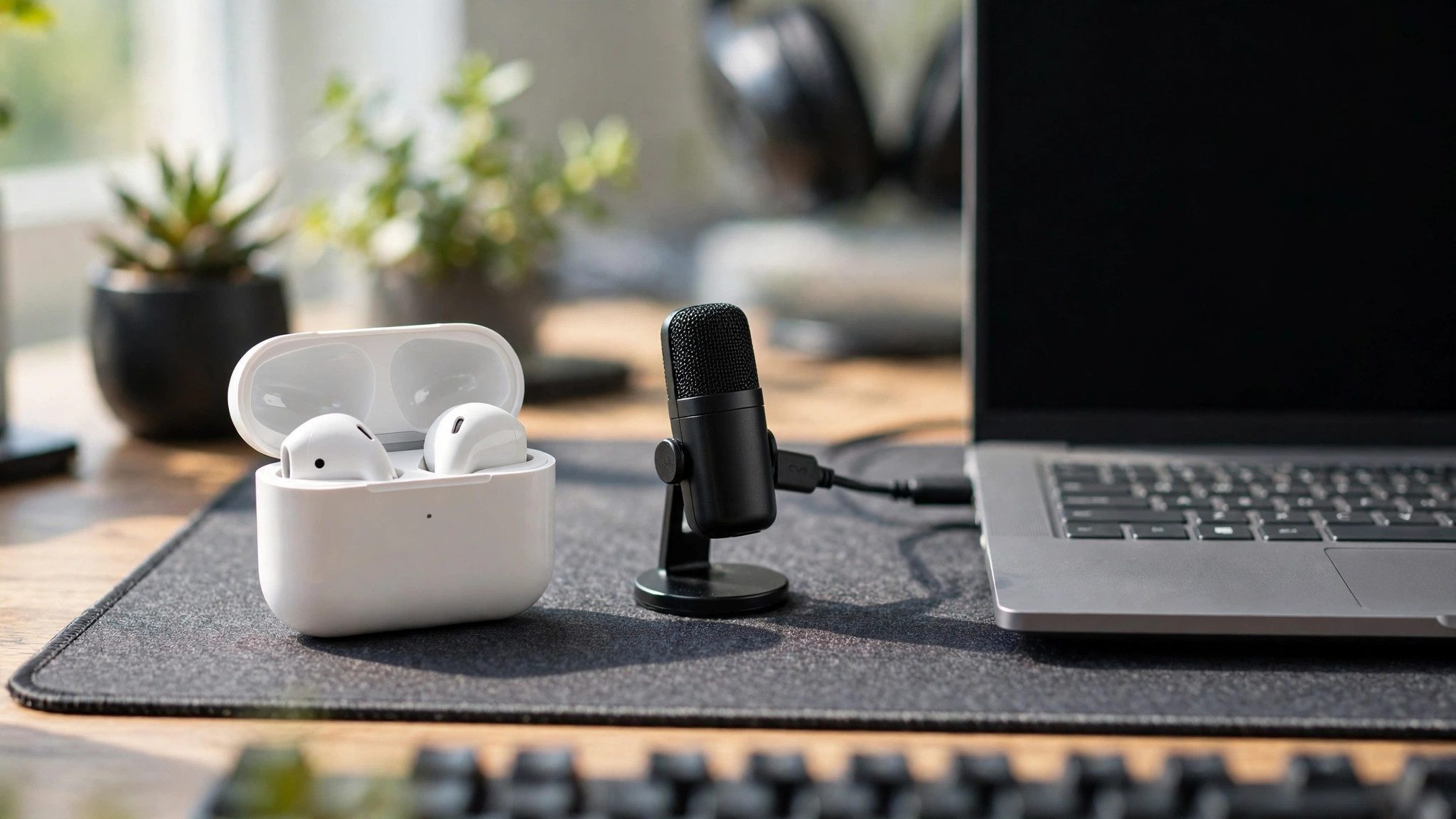
That one change saves most Bluetooth setups. Sound stays rich. Chat stays clear.
How Do You Set Up Bluetooth Headphones on Windows 11?
Pair in Bluetooth settings, set the headphones as output, pick a separate mic, then turn on game mode. Five steps. Two minutes.
To use bluetooth headphones for gaming on pc, follow these steps: 1. Pair the headphones in Windows. 2. Set them as the output. 3. Pick a separate microphone. 4. Turn on game mode. 5. Test in your game.
- Pair them. Open Settings, then Bluetooth and devices. Turn Bluetooth on. Choose Add device, then Bluetooth. Put your headphones in pairing mode and pick their name.
- Set the output. Open Settings, then System, then Sound. Under Output, pick your Bluetooth headphones.
- Pick a separate mic. Under Input, choose a desk, webcam or laptop mic. Do not pick the headphone mic unless you accept the quality drop.
- Turn on game mode. Open the headphone app. Look for game mode, low-latency mode or a similar switch. Turn it on before you play.
- Test in the game. Open the game audio settings. Confirm output, input and push-to-talk. Fire a test sound. Speak a test line.
Sound missing or pairing stuck? Our connection fix guide and reset guide walk through the common blocks. A fresh pair fixes stale settings more often than people expect.
Charge matters too. Low batteries can add dropouts that feel like lag. Start sessions charged.
Which Games Work Well on Bluetooth, and Which Do Not?
Story, strategy and casual games work well. Shooters, racing, fighting and rhythm games expose the lag. Voice-heavy games expose the mic trap.
| Game type | Bluetooth verdict | Why |
|---|---|---|
| Story and adventure games | Works well | Timing is loose, sound sets mood |
| Strategy, sims and card games | Works well | Clicks and turns forgive delay |
| Casual and co-op games | Works with a separate mic | Chat needs the mic fix |
| Shooters and battle royale | Poor on standard Bluetooth | Footsteps and shots arrive late |
| Racing, fighting, rhythm | Poor on standard Bluetooth | Timing is the game |
| Ranked and esports play | Use 2.4 GHz or wired | Every millisecond counts |
Game mode shifts the line a bit. Earbuds with a strong game mode can handle casual shooters. They still trail a dongle headset. My take, and plenty of casual players will push back: for most home gaming, Bluetooth plus a cheap desk mic beats buying a full gaming headset. Ranked play is the exception.
Try your hardest game first. If it feels fine there, the rest will too.
Bluetooth vs 2.4 GHz vs Wired: Which Should You Pick?
Bluetooth wins on price and freedom. 2.4 GHz wins on wireless speed. Wired wins on pure timing. Pick by the games you play most.
Bluetooth vs 2.4 GHz for pc gaming: Bluetooth is better suited for casual play because you may already own the headphones. 2.4 GHz works better when fast games and voice chat matter. The key difference is delay — the dongle link is built for games.
Many gaming headsets offer both links. You game over the dongle at your desk. You switch to Bluetooth for your phone. Our wireless gaming headsets guide compares those dual-link picks. A Bluetooth transmitter can also add a low-latency link to a PC that lacks one.
Don't buy on Bluetooth version numbers alone. Bluetooth 5.3 on the box does not promise low lag. Codec support on both ends decides the result. Check for aptX Adaptive, aptX Low Latency or LE Audio by name.
Start free. Upgrade only on proof.
Frequently Asked Questions
Can I use Bluetooth headphones for gaming on PC?
Yes. Pair them in Windows and pick them as the output. Expect lag in fast games and worse sound if you use the built-in mic.
Why do my Bluetooth headphones sound bad in games?
The mic turns on hands-free mode. Windows drops stereo quality to carry your voice. Use a separate mic to keep full sound.
How much lag do Bluetooth headphones add on PC?
Standard Bluetooth adds about 150 to 250 milliseconds. Low-latency codecs and LE Audio cut that a lot, if both ends support them.
Should I buy a 2.4 GHz headset instead?
For shooters, racing and voice chat, yes. For story games and casual play, Bluetooth is fine and you may already own it.
Do I need a Bluetooth adapter for my PC?
Only if your PC has no Bluetooth. Most laptops have it. Many desktops do not. A USB adapter adds it in minutes.
Can I use AirPods or earbuds for PC gaming?
Yes, they pair like any Bluetooth pair. Lag is the limit. Game mode helps. A separate mic keeps the sound clean.
When should I just use a wire?
When timing decides the match, or voice chat matters every session. A wire has near-zero lag and no mic trap.