How to Fix Screen Tearing on PC (2026 Guide)

You are mid-fight, you flick your view sideways, and a sharp horizontal line slices across the screen — the top half of the image belongs to one moment, the bottom half to another. That is screen tearing, and it is a timing problem, not a broken monitor. Your graphics card and your display are out of step: the card hands over a new frame while the monitor is still drawing the old one, so one refresh shows parts of two frames at once.
The fix depends on your setup, not on how much you spend. A variable-refresh-rate monitor fixes it with almost no lag. A fixed-refresh monitor trades the tear for input lag. And a surprising number of tearing reports are not a settings problem at all — the monitor is silently running at 60Hz, or the sync setting is on in the wrong place. This guide starts with a one-minute diagnosis, so you apply the fix that matches your cause instead of toggling settings at random.
What Causes Screen Tearing?
Screen tearing happens when your GPU delivers a frame in the middle of your monitor's refresh cycle. A monitor draws its picture top to bottom, one refresh at a time — 60 times a second on a 60Hz panel, 144 times on a 144Hz panel. If the GPU finishes a new frame halfway through that sweep, the monitor switches to the new frame mid-draw. Everything above the switch point is the old frame; everything below it is the new one. The result is a visible horizontal split, worst during fast sideways pans in shooters and racing games, and invisible when the picture is still.
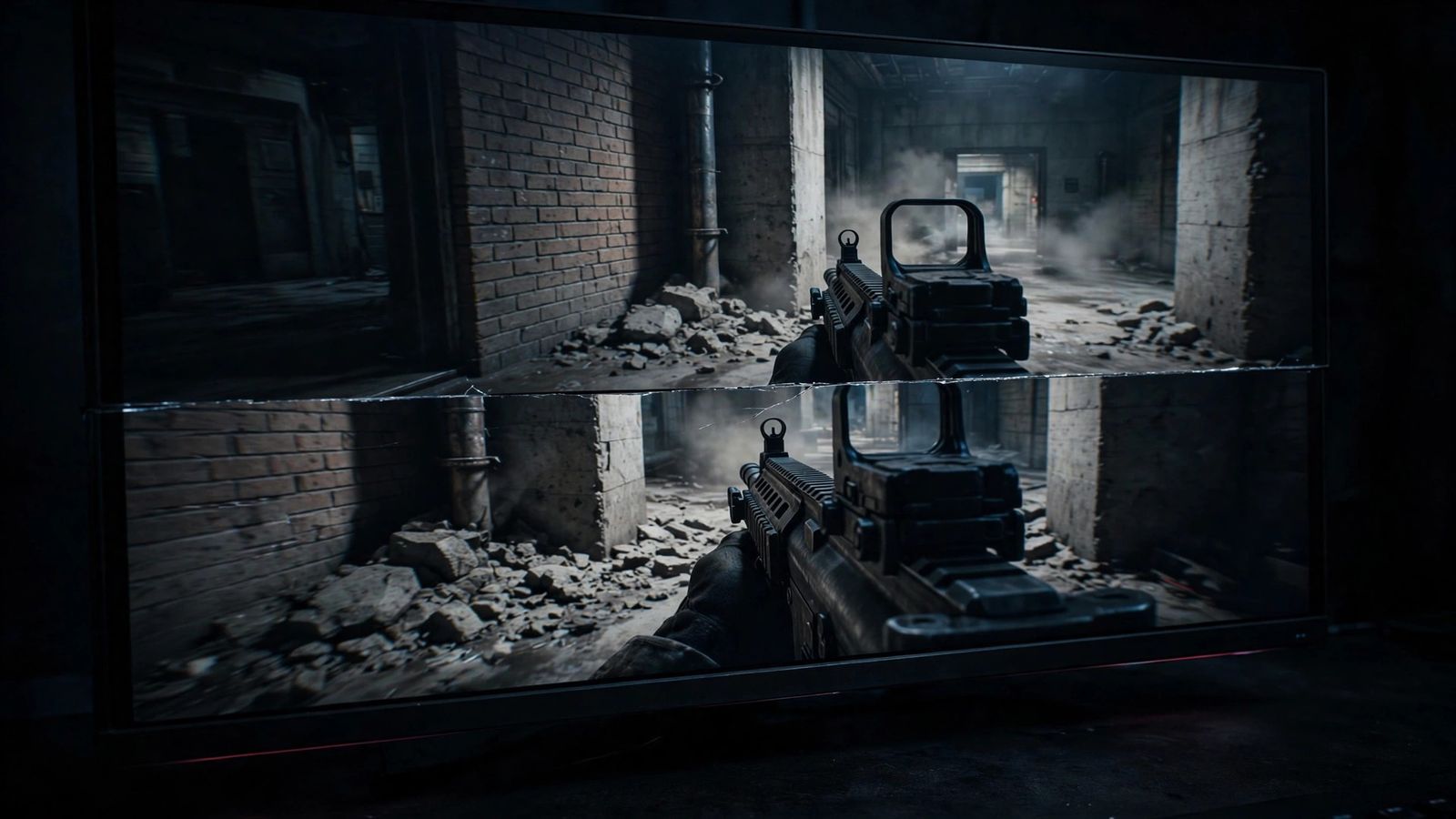
Two details catch most people out. First, tearing happens below your refresh rate too, not only when the frame rate exceeds it — uneven frame times mean a frame can still land mid-scan even while the average FPS looks fine. Second, tearing is not the same as stuttering: stuttering is the whole picture hesitating or jumping, with no split line, while tearing is a clean split in an otherwise smooth image. If your whole picture hesitates, our game stuttering guide covers that problem instead.
How Do I Tell What Is Causing My Tearing?
Watch when the tear appears and where the line sits — the pattern names the cause. A tear that only shows during fast camera movement is ordinary unsynchronised output. A tear line that drifts slowly up or down the screen means your frame rate is close to, but not locked to, your refresh rate. Tearing in one game only points at that game's settings. And if tearing started the day after a driver or Windows update, check your refresh rate first — updates silently reset panels to 60Hz more often than people expect.
| What you see | Likely cause | Jump to |
|---|---|---|
| Split line during fast pans, in every game | No sync active — GPU and monitor out of step | Fastest fix |
| Tear line drifts slowly up or down the screen | Frame rate hovering near the refresh rate | Frame-rate cap |
| Tearing only in one game | That game's own sync or limiter settings | One game only |
| Tearing only in borderless windowed mode | Windows compositor / flip-mode interaction | Borderless section |
| Tearing with G-Sync or FreeSync already on | A setting in the chain is wrong — cap, cable, or refresh rate | G-Sync checklist |
| Tearing started after a driver or Windows update | Refresh rate reset to 60Hz, or VRR switched off | Turn on VRR |
| Whole screen pulses in brightness, no split line | Flicker, not tearing — cable, power, or panel issue | Check cable and power first |
One more diagnostic that saves time: a screenshot usually will not show a tear, because it captures a single frame buffer. If you want proof of what you are seeing, film the monitor with your phone while panning in-game — the split shows up clearly on video. The free Blur Busters TestUFO motion test (testufo.com) is the other reliable check: run its frame-skipping test and watch for a split line as the UFO crosses the screen.
What Is the Fastest Fix for My Setup?
It depends on one thing you can check in a minute: whether your monitor supports variable refresh rate (VRR). With VRR — G-Sync on NVIDIA, FreeSync on AMD — the monitor waits for the GPU instead of the other way round, and tearing disappears with almost no added lag. Without VRR, you trade the tear for input lag with V-Sync, or for dropped frames with Fast Sync and Enhanced Sync. There is no setting that gives a fixed-refresh monitor both zero tearing and zero lag.
| Your setup | The fix | Input lag cost |
|---|---|---|
| VRR monitor + NVIDIA card | G-Sync on, driver V-Sync on, in-game V-Sync off, cap 3 FPS below refresh | About 1ms |
| VRR monitor + AMD card | FreeSync on, cap below refresh, Enhanced Sync on | About 1ms |
| Fixed-refresh monitor, casual play | V-Sync on (in-game or driver) | Up to ~50ms; frame-rate halving below refresh |
| Fixed-refresh monitor, competitive play | Fast Sync (NVIDIA) or Enhanced Sync (AMD), FPS well above refresh | Low, but repeated frames near refresh |
| Fixed-refresh monitor, esports | Very high uncapped FPS on a high-refresh panel — tears get thin enough to ignore | None — you accept the tear |
The cap matters as much as the sync setting. Once your frame rate reaches the refresh rate, VRR has nothing left to adjust — G-Sync falls back to V-Sync behaviour (lag) or to full tearing, depending on your driver V-Sync setting. So cap at least 3 FPS below your monitor's maximum refresh rate: 57 FPS on 60Hz, 141 on 144Hz, 237 on 240Hz. Never cap exactly at the refresh rate — frame limiters overshoot, and that overshoot is enough to break the sync. Use the game's own limiter first; if it has none, use NVIDIA Max Frame Rate, AMD Frame Rate Target Control, or RTSS (bundled with MSI Afterburner). A cap alone, without VRR, only reduces tearing — it does not guarantee a fix, because it changes how often a frame lands mid-scan without synchronising presentation.
How Do I Turn On G-Sync or FreeSync?
Start in the monitor's own menu, then the driver — and use the 2026 paths, not the retired ones. Some monitors ship with VRR switched off, and some picture presets turn FreeSync off silently, so the driver setting does nothing until the panel itself is enabled. Check the monitor OSD first: enable FreeSync, Adaptive-Sync, or G-Sync Compatible, and use DisplayPort — G-Sync Compatible needs DisplayPort on most panels, and VRR over HDMI needs a GTX 16-series or RTX 20-series card or newer with an HDMI 2.1 display.
On NVIDIA, the current path is the NVIDIA App, which replaced the classic Control Panel for Game Ready drivers from driver 610.47 (May 2026): open the NVIDIA App, go to System > G-SYNC and Surround and set G-SYNC to On (full screen, or full screen and windowed if you play borderless), then under Graphics > Program Settings, pick your game and set Vertical Sync to On. That driver V-Sync is the part most guides get wrong — with G-Sync, driver V-Sync stays on while in-game V-Sync stays off. Inside the VRR range, driver V-Sync adds no measurable lag; it only catches the occasional frame that finishes a fraction early and would otherwise tear. If you use NVIDIA Reflex, skip the manual cap — Reflex limits the frame rate itself (about 138 FPS on a 144Hz panel).
On AMD, open AMD Software: Adrenalin Edition and go to Display to confirm AMD FreeSync is enabled for your monitor (it is on by default when a compatible display is detected), then set it per game under Gaming > Games if needed. Two AMD traps to know: the driver "Wait for Vertical Refresh" switch works only in OpenGL — in DirectX and Vulkan games, use the in-game V-Sync or Enhanced Sync instead — and Enhanced Sync is the right partner for FreeSync above the VRR range, not a replacement for it. Finally, in Windows, check Settings > System > Display > Advanced display and confirm the refresh rate is actually your monitor's maximum, and switch on the Variable refresh rate toggle under Graphics settings, which gives VRR to older DirectX 11 fullscreen games that did not support it natively.
Why Does My Screen Still Tear at 144Hz?
Because a higher refresh rate makes tears shorter-lived, not impossible. At 144Hz each frame is on screen for 6.9ms instead of 16.7ms, so a tear is visible for less than half as long and is easier to miss — but the mechanism is unchanged. If your GPU delivers a frame mid-scan, you still get a split, just a briefer one. That is why "I bought a 144Hz monitor and it still tears" is one of the most common complaints in PC gaming forums.
The other half of the paradox is the average. A counter reading "144 FPS" is an average: some frames take 5ms, others 12ms, and the slow ones are the ones that land mid-scan. Frame-time variance, not the average, decides whether you tear — which is also why tearing can appear below your refresh rate, on a monitor that seems fast enough. The fix is the same as at 60Hz: VRR plus a cap 3 FPS below refresh (141 FPS on a 144Hz panel), with the driver V-Sync rule above. If your panel is running at 144Hz in Windows but tearing in one game, check that game is not forcing its own refresh rate or a borderless mode that bypasses your sync settings — see the one-game section below.
Does V-Sync Fix Screen Tearing?
Yes — completely, on any monitor — but it is the most expensive fix in input lag. V-Sync makes the GPU wait for the monitor's next refresh before handing over a frame, so no frame ever arrives mid-scan and the split disappears entirely. The cost is latency: measurements put it at up to around 50ms on top of your display's baseline at 60Hz, roughly one to three frames, which is why competitive players feel it immediately in shooters. It also has a second cost with double buffering: if your frame rate dips below the refresh rate — 59 FPS on a 60Hz monitor — V-Sync holds the frame and your displayed rate halves to 30 FPS until the GPU catches up, which feels like a stutter.
Triple buffering avoids that halving by adding a second back buffer, so the GPU keeps rendering while the display finishes — but it adds about one extra frame of lag of its own, and here is the trap: NVIDIA's driver "Triple buffering" toggle applies to OpenGL only, so do not present it as a general DirectX fix. In-game triple-buffer options are engine-specific and vary by title. Adaptive V-Sync (NVIDIA) is a middle ground: it enables V-Sync only while your frame rate is above the refresh rate and switches it off below it, so you get tear-free play at high frame rates without the halving when performance dips.
So who should use plain V-Sync? Anyone playing casually on a fixed-refresh monitor, where the tear is more annoying than the lag — story games, strategy, single-player adventures. Anyone playing competitively should not: use VRR, or Fast Sync / Enhanced Sync, or accept thin tears at very high frame rates. The honest trade-off is the whole decision: tearing versus lag, and there is no setting on a fixed-refresh panel that removes both.
What About Fast Sync and Enhanced Sync?
Fast Sync (NVIDIA) and Enhanced Sync (AMD) are the low-lag alternatives to V-Sync — but only when your frame rate runs far above your refresh rate. Both let the GPU render freely and show the most recently completed full frame, so you get tear-free output with far less lag than V-Sync. The catch is what happens near the refresh rate: when FPS hovers close to it, the display can repeat frames, producing a subtle judder that some players notice more than the tear they were fixing.
The rule of thumb, from DisplayNinja's testing, is that Fast Sync only earns its keep when your frame rate is at least twice your refresh rate — 300 FPS on a 144Hz panel, for example. It needs a Pascal (GTX 10-series) card or newer, works on a single GPU only, and is set as "Fast" in the NVIDIA Vertical sync list. Enhanced Sync needs a Polaris-based GPU or newer, works with DirectX 9, 10, 11 and 12 plus Vulkan — but not OpenGL — and is designed to complement FreeSync above the VRR range rather than replace it. If your frame rate sits near your refresh rate most of the time, neither is the right tool: VRR with a cap, or plain V-Sync, will look better.
Why Do I Still Tear With G-Sync On?
This is the single most common screen-tearing complaint, and it is almost always one setting in the chain. G-Sync only works when every link holds: the monitor, the cable, Windows, the driver, and the game. Work through this checklist in order — most people find the fault in the first four checks.
- Monitor OSD: is VRR actually on? Check the panel menu for FreeSync / Adaptive-Sync / G-Sync Compatible. Some monitors ship with it off, and some picture presets disable it.
- Cable and port: G-Sync Compatible needs DisplayPort on most panels. A monitor connected over HDMI 2.0, or through a USB-C dock that does not negotiate the full refresh rate, can silently drop out of VRR range.
- Windows refresh rate: Settings > System > Display > Advanced display — confirm the panel is running at its maximum refresh rate, not 60Hz. Driver and Windows updates reset this often. Our 144Hz stuck at 60Hz guide covers the fix.
- Frame-rate cap: is the cap below the refresh rate — 141 FPS on 144Hz, never 144? A cap at or above refresh hands control back to V-Sync behaviour or full tearing.
- Driver V-Sync off: with G-Sync, driver V-Sync must be on and in-game V-Sync off. If both are off, frames that finish a fraction early tear even inside the VRR range. If both are on, you get V-Sync lag.
- Borderless mode: DirectX 11 borderless games need G-Sync set to "full screen and windowed" in the driver. DirectX 12 and Vulkan borderless use flip-mode and can tear like exclusive fullscreen.
- Frame generation: check which frame-generation mode is active first — some DLSS frame-generation modes are incompatible with V-Sync and external frame limiters, so a game running frame generation can tear despite correct sync settings.
- Second monitor: mixed-refresh multi-monitor setups confuse the Windows compositor. Test with the second display disconnected, or set both to the same refresh rate for the test.
- Overlays and background load: Discord, Steam, Xbox Game Bar, and RGB software can spike GPU load and make frame times uneven, which reintroduces tearing at the margins. Disable overlays one at a time for a test run.
Why Does Only One Game Tear?
Because that game is ignoring your driver settings — and each game ignores them in its own way. Some games ship with their own frame limiter or V-Sync toggle that overrides the driver; some ignore the driver's V-Sync entirely and only respect their in-game switch. If tearing survives every fix above in one game only, turn that game's own V-Sync on and test again, even if your driver settings look correct. One frequently reported case: 2XKO launched in January 2026 with severe tearing on PS5 and Xbox, worst at 120Hz, reportedly because the game shipped without V-Sync at all — console players had no driver-level fix and could only wait for a patch or rely on system VRR.
Borderless windowed mode is the other one-game cause. In borderless, the game renders through the Windows compositor (DWM), which usually force-syncs the picture and hides tearing — so tearing that vanishes in borderless may simply be masked, at the cost of a little latency. But DirectX 12 and Vulkan games in borderless use flip-mode presentation, which bypasses that protection and can tear exactly like exclusive fullscreen. If a game tears in borderless but not in exclusive fullscreen, switch it to exclusive fullscreen; if it tears in exclusive fullscreen but not borderless, the compositor is doing the syncing for you and borderless is the honest fix. Also check the game's frame limiter: a limiter set exactly at the refresh rate, or a limiter that overshoots, can itself cause tearing — cap 3 FPS below instead.
Does Screen Tearing Happen on Consoles and TVs?
Yes — and on a console the fix is in the system menus and the TV, because there is no driver to tweak. On PS5, go to Settings > Screen and Video > Video Output and turn VRR on, with 120Hz output enabled. On Xbox Series X|S, go to Settings > General > TV & display > Video modes and turn on Allow Variable Refresh Rate. Both need a VRR-capable TV or monitor, and the setting most people miss is on the TV itself: the HDMI port must be set to Enhanced format (sometimes called Enhanced HDMI or 4K120 mode), and the TV must be in Game Mode with motion interpolation switched off. A console plugged into a standard-format HDMI port will not get VRR at all, no matter what the console menu says.
The honest limit is the game itself. If a game ships without V-Sync — as 2XKO reportedly did in January 2026 — console players have no driver-level override; system VRR is the only mitigation, and if the TV does not support VRR, the only fix is a patch. The same applies to performance modes: some games tear in their 120Hz performance mode while their 60Hz quality mode, with V-Sync on, does not. If tearing bothers you more than the extra frames, the quality mode is the right call. For the lag side of the same trade-off, our PS5 input lag guide and Xbox input lag guide cover the display settings in detail.
Can Screen Tearing Damage My Monitor?
No. Screen tearing cannot damage your monitor or your graphics card. Every manufacturer FAQ and support page that asks the question gives the same answer: tearing is purely a timing artifact — two halves of two different frames shown in one refresh — and it puts no extra strain on the panel or the GPU. It is a visual annoyance, not a hardware fault, and it is not a sign your monitor is failing.
Keep it separate from flicker, which is a different symptom. If the whole screen pulses in brightness, dims, or flashes, that can indicate a cable, power, or panel problem worth investigating. Tearing is a sharp horizontal split that appears during motion and clears when the picture is still; flicker affects the whole panel and does not need motion. If you see the split and nothing else, your hardware is fine — fix the sync settings and move on.
What Should I Try First?
Work in this order, changing one setting at a time and testing the same in-game area after each step. Most tearing dies in the first four.
- 1. Check the refresh rate. Settings > System > Display > Advanced display — confirm Windows is running your monitor at its maximum refresh rate. Fix this first; it is the most common single cause.
- 2. Update your graphics driver. Install the latest driver from NVIDIA, AMD, or Intel directly, and restart. Driver updates also reset display settings, which is why step 1 comes first after an update.
- 3. Turn on VRR. Enable FreeSync / Adaptive-Sync in the monitor OSD, then G-Sync or FreeSync in the driver, using the 2026 paths above.
- 4. Set the trio. Driver V-Sync on, in-game V-Sync off, frame-rate cap 3 FPS below your refresh rate (141 on 144Hz, 237 on 240Hz).
- 5. Check the cable. Use DisplayPort for G-Sync Compatible; a bad cable is unlikely to cause classic tearing, but the wrong cable or port can force a lower refresh rate, which does.
- 6. Test the game's own settings. If one game still tears, toggle its in-game V-Sync and limiter, and try exclusive fullscreen instead of borderless.
- 7. No VRR? Pick your trade-off. V-Sync on for tear-free casual play, or Fast Sync / Enhanced Sync if your frame rate runs at least twice your refresh rate.
- 8. Confirm with a test. Run the TestUFO frame-skipping test and film the screen with your phone while panning in-game. If the split is gone in the test, it is gone in the game.
Skip the miracle cures: a faster GPU will not fix tearing — the GPU is already delivering frames faster than the monitor can show them, which is the cause, not the cure — and neither will more RAM or a generic Windows optimisation tool. Tearing is a synchronisation problem, and the fix is always in the sync chain: monitor, cable, refresh rate, driver, game. Work the chain in order and you will find the broken link.
Frequently Asked Questions
Is screen tearing the same as stuttering?
No. Screen tearing is a sharp horizontal split where one refresh shows parts of two different frames, and it appears during motion. Stuttering is the whole picture hesitating or jumping, with no split line, caused by uneven frame delivery. They feel different, have different causes, and need different fixes — tearing is fixed in the sync chain, stuttering by diagnosing frame-time spikes.
Does higher FPS reduce screen tearing?
Higher FPS makes tears thinner and shorter-lived, so they are less noticeable — at 300 FPS on a 144Hz panel, each tear is on screen for a fraction of the time it would be at 60 FPS. But it does not remove tearing: any frame that lands mid-scan still splits the picture. Only synchronisation — VRR, V-Sync, or Fast/Enhanced Sync — actually eliminates it.
Does capping my frame rate fix screen tearing?
Not on its own. A cap changes how often a frame lands mid-scan, so it reduces tearing, but without VRR or V-Sync it does not synchronise presentation and cannot guarantee a fix. Cap 3 FPS below your refresh rate as part of the VRR recipe — 141 FPS on a 144Hz panel — and never cap exactly at the refresh rate, because limiters overshoot.
Can a bad HDMI cable cause screen tearing?
A bad cable is unlikely to cause classic tearing — it more often causes signal loss, a blank screen, or discolouration. What a cable can do is force a lower refresh rate: an HDMI 2.0 cable cannot carry 4K at 120Hz, for example, so the monitor drops to a lower rate and tearing becomes more visible. If you suspect the cable, check the refresh rate Windows is actually running first.
How do I fix screen tearing on a 60Hz monitor?
The same rules apply, with a tighter cap: enable V-Sync for tear-free casual play, or use Fast Sync / Enhanced Sync if your frame rate runs well above 60 FPS. With VRR, cap at 57 FPS. The 60Hz trap is the double-buffer halving — if your frame rate dips to 59 FPS with V-Sync on, the displayed rate halves to 30 FPS, so triple buffering or Adaptive V-Sync is worth trying on a 60Hz panel.
How do I test for screen tearing?
Run the free Blur Busters TestUFO frame-skipping test at testufo.com and watch for a split line as the UFO crosses the screen, or film your monitor with your phone while panning quickly in a game. A screenshot will not show a tear, because it captures a single frame buffer — video of the monitor is the reliable check. Change one setting at a time and re-test the same scene, so you know what actually fixed it.
Can multiple monitors cause screen tearing?
Yes — mixed-refresh multi-monitor setups can confuse the Windows compositor, especially when the second display runs at a different refresh rate from your gaming monitor. If tearing appears with a second monitor connected, test with it disconnected, or set both displays to the same refresh rate for the test. Laptops have a related trap: hybrid graphics, where the discrete GPU renders through the integrated GPU's path, can also interfere with sync.