How to Fix a 144Hz Monitor Stuck at 60Hz (2026 Guide)

You bought a 144Hz monitor, plugged it in, and everything still feels exactly like your old 60Hz screen. The panel is almost certainly fine. In the large majority of cases the cause is one of three things: Windows defaulted the new display to 60Hz, the cable or port cannot carry 144Hz at your resolution, or the monitor's own menu is hiding its top rate. This guide diagnoses which one you have before you change anything, then fixes them in order.
The short version: check the real rate first, set it in Windows, and if 144Hz is not even listed, work the cable, port, and monitor menu — not Windows settings. Windows can only offer rates the whole chain reports as supported, so a missing option is a hardware-chain problem, not a settings problem.
How Do I Know What Refresh Rate My Monitor Is Actually Running?
Check Windows first, then verify with a frame test — Windows alone can lie to you. A monitor can report 144Hz in settings while still showing fewer real frames if something downstream is capping it, and the reverse happens too: a browser test can read 60fps on a correctly set 144Hz display if the browser itself is throttled.
Windows 11: right-click the desktop, choose Display settings, scroll down and click Advanced display. Make sure the right monitor is selected at the top if you have more than one, then read the rate under "Choose a refresh rate" and under Display information. Windows 10: the same path is Settings → System → Display → Advanced display settings, or Display adapter properties → Monitor tab on older builds.
Then verify with a real frame test. Open Blur Busters' TestUFO in a Chromium-based browser (Chrome or Edge) with hardware acceleration on, and run its refresh-rate test. If Windows says 144Hz and TestUFO reads around 144fps, you are done. If Windows says 144Hz but TestUFO reads 60fps, something is still capping real frames — work through the games and browser sections below. If you see 59Hz or 59.94Hz in Windows, that is effectively 60Hz: a broadcast-standard holdover, not a different problem.
One more check that costs nothing: look at your monitor's own on-screen display. Most gaming monitors show the current refresh rate in their info or status menu. If the monitor itself reports 60Hz while Windows claims 144Hz, believe the monitor — the signal reaching it is 60Hz.
Why Is My 144Hz Monitor Stuck at 60Hz?
Match your symptom to the cause before touching anything — each one has a different fix. Guessing wastes time because the fixes look similar but target different links in the chain.
| What you see | Most likely cause | Fix first |
|---|---|---|
| 144Hz is listed, but 60Hz is selected | Windows defaulted the new monitor to 60Hz | Select 144Hz in Advanced display (next section) |
| 144Hz is not listed at all | Cable, port, or monitor menu cannot carry it | Cable and port check, then the monitor's OSD |
| 144Hz appears with an asterisk (*) | That rate needs a different resolution | Drop the resolution, or accept the resolution change Windows warns about |
| 144Hz works, then reverts to 60Hz | Driver update, reboot, or a second display reset it | Re-select it, then check the reset section below |
| Desktop is 144Hz, games run at 60Hz | In-game cap, GPU panel setting, or VSync | Game display settings and GPU control panel |
| Only a laptop's built-in screen is capped | Integrated graphics driving the panel | MUX / discrete-graphics setting (laptop section) |
If your symptom is the first row, you are two clicks from fixed and the rest of this guide is reassurance. If it is any other row, skip straight to that section — the fixes are ordered by how often they actually solve the problem, and the cable comes before the driver.
How Do I Set My Monitor to 144Hz in Windows 11?
Right-click the desktop → Display settings → Advanced display → "Choose a refresh rate" → 144Hz → Keep changes. That is the whole fix when 144Hz is listed. Windows often defaults a newly connected monitor to 60Hz regardless of what the panel supports, so a monitor that was never manually set has very likely been running at 60Hz since the day it arrived.
- Pick the right monitor first. On a multi-monitor setup, the dropdown at the top of the Advanced display page selects which display you are changing. Setting 144Hz on the wrong screen is the most common "it didn't work" report.
- Click "Keep changes" when prompted. Windows shows a confirmation dialog and reverts after 15 seconds if you do not confirm. A black screen for a second or two while the display re-handshakes is normal — do not panic and power-cycle the monitor mid-change.
- Watch for the asterisk. In Windows, a refresh rate marked with an asterisk means selecting it will also change your resolution to reach that rate. If 144Hz only appears with an asterisk, your current resolution is too demanding for the cable or port — the cable table below explains why, and dropping the resolution (or upgrading the cable) is the real fix.
- Windows 10 path: Settings → System → Display → Advanced display settings → choose the monitor → Refresh rate dropdown. On older builds, use Display adapter properties → Monitor tab → Screen refresh rate.
If 144Hz is listed and selected, verify it with TestUFO as described above, then check your games — the desktop setting alone does not force games to run at 144Hz (see the games section). If 144Hz is not listed, do not reinstall drivers yet: read the next two sections first.
Which Cable and Port Do I Need for 144Hz?
Use the cable that came in the monitor's box, plugged into the graphics card — and check that both the cable and the port are rated for your resolution at 144Hz. This is the single most common reason 144Hz never appears in Windows: the chain's weakest link decides what Windows is offered, and an old cable silently removes the option.
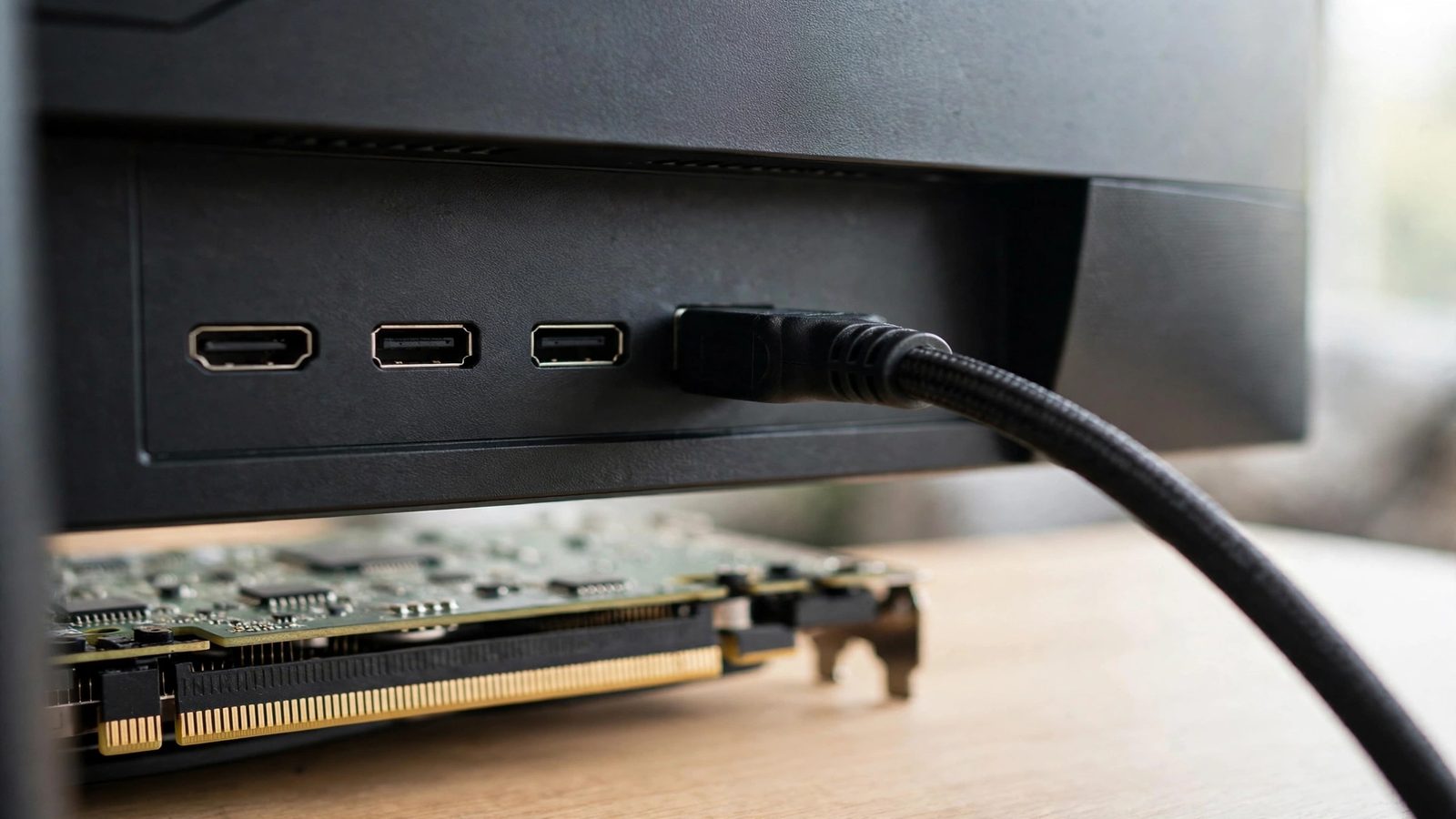
The bandwidth picture, in plain terms:
| Connection | 1080p at 144Hz | 1440p at 144Hz | 4K at 144Hz |
|---|---|---|---|
| HDMI 1.4 (older cables) | Usually yes | No — capped around 60Hz | No |
| HDMI 2.0 | Yes | Yes | No (60Hz max) |
| HDMI 2.1 (Ultra High Speed cable) | Yes | Yes | Yes |
| DisplayPort 1.2 | Yes | Yes | No |
| DisplayPort 1.4 | Yes | Yes | Yes, with Display Stream Compression |
- DisplayPort is the safe default for PC gaming. If your monitor and graphics card both have DisplayPort, use it — it covers 1440p at 144Hz on every version, and avoids the per-port HDMI lottery described next.
- Not every HDMI port on a monitor is equal. Some monitors have three HDMI ports where only one is full-bandwidth; the others are capped at an older HDMI version. If 144Hz is missing over HDMI, try a different HDMI port on the monitor and check the manual's per-port specs — this exact trap catches people who assume any HDMI port will do.
- Plug into the graphics card, not the motherboard. The video ports on the motherboard run off the CPU's integrated graphics, which are often capped at 60Hz or lower at high resolutions. The graphics card's ports are lower on the back of the PC, usually horizontal — if your cable is in a vertical cluster near the USB ports, it is in the wrong place.
- Remove adapters, docks, and KVM switches while testing. Any of them can be the bottleneck. Connect the monitor directly to the GPU with a known-good cable: if 144Hz appears, the dock or adapter was the limit, not the monitor.
- Do not trust an unlabelled cable. HDMI cables are not all the same inside, and an old cable from a DVD player or a console box may be HDMI 1.4. The cable in the monitor's box is rated for that monitor; if it is missing, buy a cable certified for the version you need (Premium High Speed for HDMI 2.0, Ultra High Speed for HDMI 2.1) rather than any cheap lead.
Why Is 144Hz Missing From Windows Altogether?
If 144Hz is not listed at all, something before Windows is the limit — and no setting inside Windows will conjure it. Work this list in order after the cable and port check:
- Check the monitor's own menu (OSD). Some gaming monitors ship with their top refresh rate behind a menu toggle — often labelled Overclock, Over Clocking, or a Gaming preset — or with a refresh-rate setting that defaults to a lower mode. Open the monitor's on-screen menu, look for refresh-rate or overclock options, and enable the top rate. Also check that the monitor is not in a power-saving or Eco mode that caps the rate.
- Check the monitor's spec for that exact input and resolution. A panel advertised as 144Hz may only reach it on DisplayPort, or only at a lower resolution over HDMI. The manual's per-input table is the authority, not the box sticker. If your monitor is 144Hz over DisplayPort but 120Hz over HDMI at 1440p, that is normal for that model — switch inputs rather than fighting Windows.
- Update the graphics driver — properly. A missing rate can come from a stale or corrupted driver, or from a driver that lost the monitor's capability data (EDID) after an update. Install the latest driver from NVIDIA, AMD, or Intel directly (not just Windows Update), and after a major driver change, re-check Advanced display — driver installs are one of the things that reset the rate to 60Hz.
- Try the GPU control panel. NVIDIA Control Panel (Display → Change resolution) and AMD Software (Display settings) sometimes list rates Windows' own page does not, and both let you create a custom resolution as a last resort. Only use a custom resolution within the monitor's rated specs — forcing a rate the panel cannot do risks a blank screen, and Windows' revert timer exists for exactly this reason.
- Test a second cable and a second port. Cables fail silently and partially: a damaged DisplayPort cable can still show a picture at 60Hz while losing the high-rate modes. If a different cable and port bring 144Hz back, the first cable was the fault — replace it, do not keep it as a spare for the same monitor.
Why Does 144Hz Keep Resetting to 60Hz?
Because Windows re-picks a default after events that re-detect the display — and that default is usually 60Hz. If you have set 144Hz before and it keeps sliding back, look for the trigger rather than re-setting it forever:
- GPU driver updates and clean installs. Deleting and reinstalling graphics drivers, or a clean driver install, commonly resets the rate. Re-select 144Hz immediately after any driver update and verify it stuck after a reboot.
- Unplugging, switching inputs, or Safe Mode boots. Each re-detection can reset the rate. If you regularly switch the monitor between a PC and a console, expect to re-check the rate on the PC side.
- Per-monitor settings on multi-monitor setups. Windows stores the rate per display, and a second monitor being connected, disconnected, or set as primary can shuffle which display holds which rate. Re-check the rate on the right monitor, not just the primary one.
- Power and sleep states. Some monitors re-handshake at a lower rate after deep sleep. If the rate only drops after sleep, update the monitor's firmware if the manufacturer offers one, and check whether the monitor's power-saving mode is capping the rate on wake.
A rate that holds after a reboot but drops after a driver update is a known annoyance, not a fault — put "re-check refresh rate" on your post-update checklist alongside re-enabling any custom GPU settings.
Why Do My Games Still Run at 60Hz?
Because the desktop refresh rate and a game's frame rate are two different numbers. Setting Windows to 144Hz only raises the ceiling: a game still needs to be told to use it, and your hardware still needs to render frames fast enough to fill it. Refresh rate is how often the screen redraws; frame rate is how often the game produces a new image. A game capped at 60fps on a 144Hz screen still shows 60 distinct frames per second.
- Set the refresh rate inside the game. Most games have a display or video setting for refresh rate, often next to the resolution. Set it to 144Hz (or the highest available) and to your monitor's native resolution — a game running at a lower resolution may offer different rates.
- Check the GPU control panel's per-game settings. NVIDIA Control Panel and AMD Software can cap frame rates per application. If a global or per-game cap is set to 60fps, no in-game setting will override it until you lift the cap.
- Check VSync and frame limiters. VSync locks frame rate to the refresh rate, which is fine at 144Hz — but if VSync is syncing to a 60Hz display profile, or a frame limiter is set to 60, the game stays at 60. In competitive games, many players turn VSync off and use the GPU's frame cap slightly above the refresh rate instead.
- Fullscreen versus borderless window. Some games behave differently in borderless windowed mode, where Windows' desktop compositor can cap the effective rate — particularly on multi-monitor setups with mixed refresh rates. If a game is stuck at 60Hz in borderless mode, try exclusive fullscreen.
- Your GPU still has to keep up. A 144Hz display does not make a graphics card render 144 frames per second. If your GPU produces 70fps in a demanding game, that is what you see — smoother than 60fps, but not 144. Lowering settings or resolution is the honest fix for a frame-rate shortfall, not a refresh-rate setting.
For the related question of whether a new monitor is even the right upgrade, our FPS monitor guide and 540Hz monitor roundup cover when a faster panel is worth it — and when it is not, because the jump from 60Hz to 144Hz is far bigger than the jump from 240Hz to 540Hz.
What About Laptops, Consoles and Macs?
Laptops have an extra link in the chain: which graphics chip drives the screen. On many laptops the built-in panel is wired through the integrated GPU, which can cap the internal display at 60Hz even when the discrete GPU is far more capable. Look for a MUX switch or "Discrete Graphics" / "dGPU only" mode in the laptop maker's software or in BIOS/UEFI (often under Advanced or Display settings), switch it on, reboot, and re-check the rate. Note the exception: an external monitor is often wired directly to the discrete GPU, so an attached 144Hz monitor may already run at full rate while the laptop's own screen is capped — if only the built-in screen is stuck, the MUX is almost certainly the cause.
Consoles are a separate system. PS5 and Xbox Series X top out at 120Hz, not 144Hz, and need a 120Hz mode in the game plus an HDMI 2.1 port and cable. A 144Hz monitor connected to a console will run at 120Hz at best — that is normal, not a fault, and our PS5 input-lag guide and Xbox input-lag guide cover the console-side settings.
On a Mac, use System Settings → Displays → Refresh Rate. Note that browser-based frame tests on Safari can read near 60fps by default even on a high-refresh display; run the test in Chrome if the number looks wrong on a Mac.
How Do I Prove the Fix Worked?
Run TestUFO after the fix, on the monitor in question, and look for a reading near 144fps with low jitter. That is the number that matters — not the Windows dropdown, not the box, not the feeling. Do it properly:
- Use a Chromium-based browser with hardware acceleration on. If hardware acceleration is off, the browser cannot deliver high frame rates and the test reads low with nothing wrong. Check the browser's system settings if the reading is stuck at 60fps while Windows says 144Hz.
- Run the test on the right monitor. Drag the browser window onto the monitor you fixed before running the test. A test run on a second 60Hz monitor tells you about that monitor, not the one you fixed.
- Close background tabs and heavy apps. A background tab gets a throttled frame timer, and a busy GPU can drag the reading down. If the reading is close to 144fps but jittery, close other apps and re-run.
- Trust the monitor's OSD as a second opinion. If TestUFO reads 144fps and the monitor's info menu reports 144Hz, the fix is real. If they disagree, the monitor's reading wins — something between Windows and the panel is still capping the signal.
Also judge by feel, honestly: mouse movement and scrolling should look visibly smoother at 144Hz than at 60Hz. If the numbers say 144Hz but nothing looks different, re-run the test — you may be looking at the wrong display.
What If Nothing Fixes It?
Then isolate the hardware, because you have eliminated settings. Work this elimination in order — it tells you exactly which part to replace or return:
- Try a different cable and port. A second known-good cable (ideally the one from the monitor's box, or a certified cable) on a different port rules out the two most common silent faults.
- Try a different PC or console output. If the monitor hits 144Hz on another device, your PC's GPU, driver, or port is the limit — not the monitor.
- Try a different monitor on the same PC. If a second high-refresh monitor also caps at 60Hz on the same cable and port, the PC side is the problem; if it hits 144Hz, the first monitor is.
- Check the spec sheet one last time. A monitor advertised as 144Hz that only reaches it on one input at one resolution is not faulty — it is just more limited than the headline suggested. If the spec says your exact input and resolution cannot do 144Hz, no fix exists: switch inputs, drop the resolution, or accept the lower rate.
Most people never reach this section. A Windows setting, a cable swap, or a monitor-menu toggle fixes the large majority of stuck-at-60Hz cases — and once you know which link was slow, you also know what to check first on the next monitor you buy.
Frequently Asked Questions
Can HDMI run 144Hz?
Yes, but it depends on the HDMI version and the resolution. HDMI 2.0 handles 1080p and 1440p at 144Hz; HDMI 2.1 handles 4K at 144Hz. Older HDMI 1.4 cables usually manage 1080p at 144Hz but cap 1440p at around 60Hz. If 144Hz is missing over HDMI, check the cable version and try a different HDMI port on the monitor — some ports are capped at an older version.
Does a 144Hz monitor need DisplayPort?
No, but DisplayPort is the simplest choice on PC: every DisplayPort version from 1.2 up covers 1440p at 144Hz, and DisplayPort 1.4 covers 4K at 144Hz with Display Stream Compression. Use DisplayPort when both the monitor and graphics card have it, and keep HDMI for consoles and TVs.
Why does my monitor show 59Hz or 59.94Hz?
That is effectively 60Hz. 59.94Hz is a broadcast-standard timing holdover that Windows still lists, and it behaves like 60Hz in practice. It is not a separate fault: if 144Hz is what you want, the fix is the same — select the higher rate, or fix the cable and port if the higher rate is not listed.
Will 144Hz work on my laptop?
It depends on which graphics chip drives the screen. Many laptops route the built-in panel through integrated graphics, which can cap it at 60Hz; look for a MUX switch or discrete-graphics mode in the laptop maker's software or BIOS and switch it on. An external monitor is often wired directly to the discrete GPU, so it may already run at full rate even when the laptop's own screen is capped.
Does 144Hz increase FPS or reduce input lag?
It does not increase the frames your GPU renders, but it does reduce the time each frame waits to be shown: a frame at 144Hz takes about 6.9ms versus 16.7ms at 60Hz, so inputs reach the screen sooner and motion looks smoother. For the full input-lag picture — controller, rendering, and display together — see our PS5 and Xbox guides.
Why is 144Hz only available at a lower resolution?
Because the cable or port does not have enough bandwidth for 144Hz at your current resolution. A rate marked with an asterisk in Windows means selecting it will also change the resolution. The fix is a higher-bandwidth connection: DisplayPort, or HDMI 2.0 for 1440p and HDMI 2.1 for 4K, on a port rated for that version.
Do I need a new graphics card for 144Hz?
For the desktop and for showing 144Hz, no — almost any modern graphics card or integrated GPU can output 144Hz at 1080p or 1440p over the right connection. For actually rendering games at 144 frames per second, yes, that depends on the game and settings: a demanding game at high settings needs a much stronger GPU than the desktop does. Judge the two separately.