How to Fix Monitor Flickering When Gaming (2026 Guide)

You load into a dark level and the shadows start to breathe. The picture gets brighter, then dimmer, then brighter again. It is maddening.
You have probably swapped the cable, updated the driver, and restarted twice. The flicker stayed. Look — if your new high-refresh monitor pulses in dark scenes but looks fine on the desktop, here's what actually works: name the kind of flicker first, then fix that cause. Here's the thing: three different faults all get called flicker, and each one needs a different fix.
Monitor flickering when gaming refers to rapid changes in brightness or brief signal dropouts during play. The common causes are variable refresh rate, a weak cable, and a driver or setting fault. Most cases need settings, not a new monitor.
What Causes Monitor Flickering When Gaming?
Most gaming flicker comes from variable refresh rate reacting to an unsteady frame rate. G-Sync, FreeSync, and HDMI VRR change the refresh rate to match your game. That stops tearing. On some panels, the brightness shifts a little as the refresh rate moves, and your eye sees that shift as a pulse.
What causes monitor flickering when gaming is usually variable refresh rate reacting to an unsteady frame rate, with cable faults behind it. According to DisplayNinja, VRR brightness flickering usually affects high refresh rate VA and OLED panels, though IPS panels can show it too. It appears in some games and stays hidden in others.
Three causes cover most reports. First, VRR brightness flicker, worst when frame times jump around. Second, signal dropouts, where the screen cuts to black for a beat. Third, a plain fault: wrong refresh rate, a bad driver, or an app fighting the display.
I've seen conflicting data on how common each cause is — some sources blame cables first, others blame VRR first. My read is that your symptom settles it faster than any ranking, because a black cut and a brightness pulse rarely share a cause.
How Do I Tell Which Kind of Flicker I Have?
Watch what the picture does, not just that it flickers. A brightness pulse points to VRR. A black cut points to the signal path. A fast whole-screen strobe points to the driver, refresh rate, or an app.
How to tell which kind of monitor flicker you have starts with the symptom, because each pattern points to a different cause. According to Microsoft, if Task Manager flickers with everything else, a display driver is likely, while a steady Task Manager points to an app. That test saves an hour of toggling.
Monitor flickering only in games points first to variable refresh rate, because the desktop rarely swings frame times the way a game does. Menus, loading screens, and dark scenes are the usual triggers. A steady frame-rate cap is the first fix to test before turning VRR off for good.
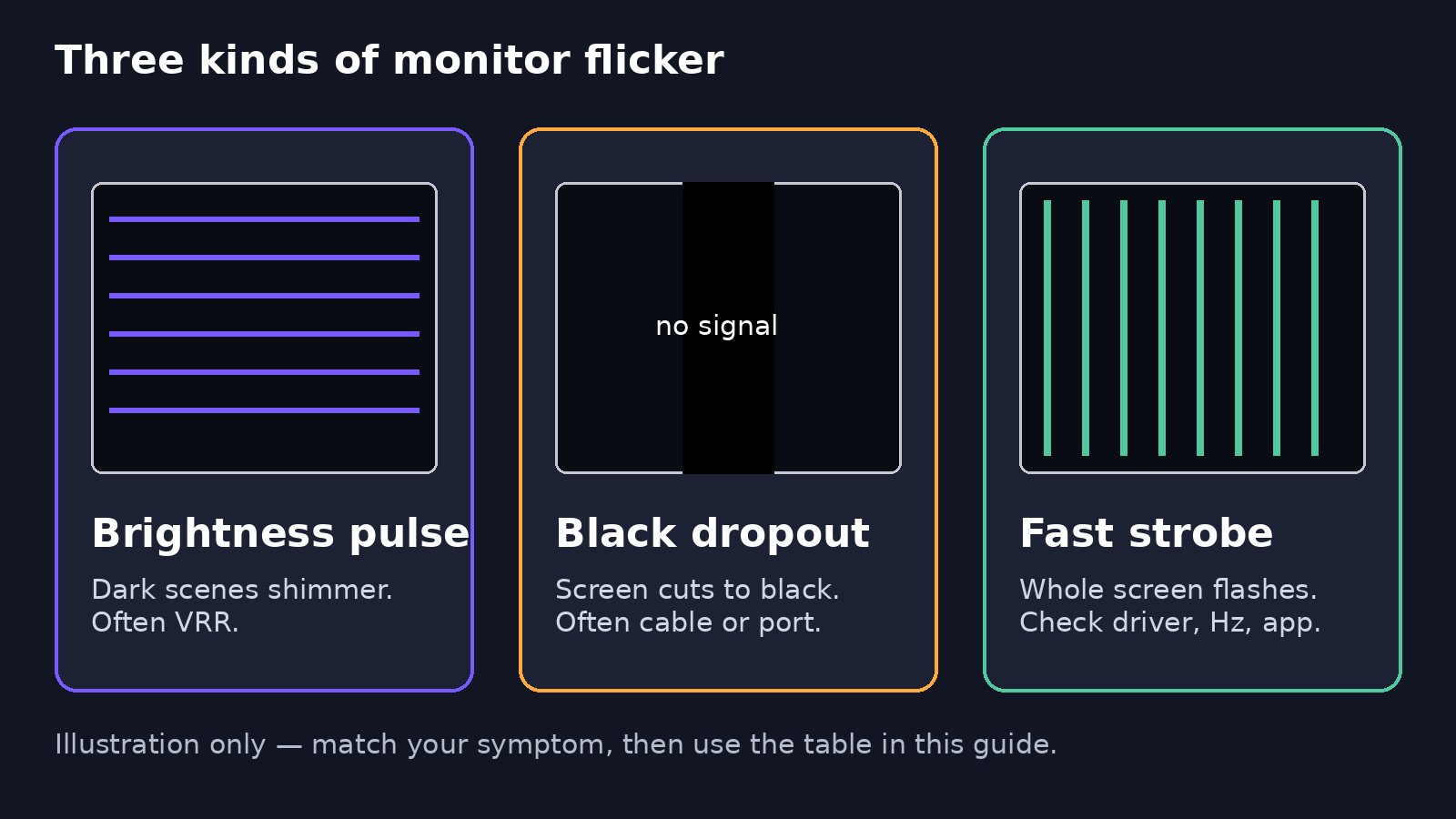
| What you see | Likely cause | Try first |
|---|---|---|
| Brightness pulses in dark scenes, menus, or loading screens | VRR flicker from jumping frame times | Cap the frame rate, then test VRR off for that game |
| Screen goes black for a second, then comes back | Cable, port, or signal bandwidth | Reseat the cable, try a lower refresh rate |
| Flicker only at 144Hz or higher, fine at 60Hz | Cable cannot carry the full signal cleanly | Test a known-good DisplayPort or HDMI cable |
| Everything flickers, Task Manager included | Graphics driver or refresh-rate fault | Reset the driver, check the Windows refresh rate |
| Everything flickers except Task Manager | One app or overlay | Update or close that app and test again |
| Flicker at low brightness, steady at full brightness | Backlight dimming behaviour | Raise brightness and test again |
| The monitor menu flickers too | Monitor setting or monitor fault | Reset the monitor, test on a second computer |
One trap catches people out. A phone video can show rolling bands on a steady screen. Judge flicker by eye first. If your picture splits with a clean horizontal line instead, that is tearing, and our screen tearing guide covers it.
What Should I Try First?
Run five quick tests in order, changing one thing at a time. Each test takes a minute. Stop when the flicker stops, because that test just named your cause.
To fix monitor flickering when gaming, follow these steps: 1. Note whether Task Manager flickers too. 2. Reseat the display cable at both ends. 3. Confirm the native resolution and refresh rate. 4. Turn VRR off for one test run. 5. Cap the frame rate and test again.
- Test 1 — Task Manager: press Ctrl + Shift + Esc. If it flickers too, start with the driver and cable. If it stays steady, close overlays and test the game alone.
- Test 2 — cable: push the cable fully in at both ends. Then try a lower refresh rate for five minutes. Steady at 60Hz but not at 144Hz means the signal path is struggling.
- Test 3 — refresh rate: open Settings, System, Display, Advanced display. Pick the native resolution marked Recommended and the refresh rate your monitor is made for. Updates can reset this, as our 144Hz stuck at 60Hz guide shows.
- Test 4 — VRR off: turn G-Sync or FreeSync off for one run. If the pulse stops, VRR is the trigger and the next section is your fix.
- Test 5 — frame-rate cap: cap the game at a rate your card can hold without dips. A steady cap often calms the pulse on its own.
Quick note: change one setting, test, then change the next. If you change three at once and it works, you will not know which one mattered. That matters when the flicker comes back.
How Do I Fix VRR Flicker Without Turning G-Sync Off?
Steady the frame rate first, and keep VRR on. VRR flicker feeds on frame-time jumps. A cap your graphics card can hold removes most jumps, so the refresh rate stops swinging and the brightness settles.
Start with the cap. Pick a number your card holds in the worst scene, not the menu. Many players use 60, 90, or 120 FPS, or a cap 3 FPS below the refresh rate. Use the in-game limiter when the game has one. Driver limiters work too.
Next, lift the floor. If your frame rate sits near 48 to 60 FPS, low framerate compensation can switch on and off, and each switch can pulse. Lower a heavy setting or two so the game stays clear of that zone. Our guide to increasing FPS lists the settings that cost the most frames.
Then check the monitor menu. Some OLED models have an anti-flicker mode that limits the refresh range for you. Turn off monitor overclocking while you test. Motion-blur modes such as ULMB, ELMB, and DyAc strobe the backlight on purpose, so test with those off too.
VRR on vs VRR off: keeping VRR on is better suited for most players because it stops tearing with low lag once the frame rate is steady. Turning VRR off works better when one game still pulses at every cap. The key difference is smoothness kept versus flicker removed.
Per-game control is the clean middle path. NVIDIA and AMD software both let you set VRR per game, so one bad title does not cost you VRR everywhere else. Or maybe I should say it this way: fix the game, not the whole desk.
Why Does My Monitor Flicker Only in Dark Scenes?
Dark scenes expose small brightness shifts that bright scenes hide. The shift is often there all along. You just notice it in shadows, menus, and loading screens, where the picture sits still and your eye has nothing else to watch.
Panel type matters here. VA and OLED panels show VRR brightness shifts more readily than IPS panels do. On OLED, the brightness curve is tuned near the native refresh rate, so large refresh swings can read as shimmer in near-black areas. Our OLED burn-in guide covers the other OLED setting worth knowing.
Local dimming and dynamic contrast can add their own pumping in dark scenes. Test with those off. HDR can join in too, so test HDR off for one run if the pulse tracks bright highlights. If the picture looks washed out at the same time, see our HDR washed out guide.
Why Does My Screen Go Black for a Second?
A brief black cut is a signal dropout until proven otherwise. The monitor lost the signal, renegotiated, and came back. That pattern points to the cable, the port, or a mode the cable cannot carry.
Test in this order. Reseat the cable. Try another port on the graphics card and another input on the monitor. Drop the refresh rate and test again. Remove adapters, docks, and switches for one run, and connect the computer straight to the monitor. If the cuts stop at a lower rate, the cable or port cannot carry the full mode.
Long black screens with a game crash are a different fault. Our black screen when gaming guide covers that case, and the PC crashing guide covers full crashes.
Does a Bad Cable Cause Monitor Flickering?
Yes, mainly as black dropouts and high-refresh flicker. A loose or weak cable rarely causes a gentle brightness pulse. It causes cuts, sparkles, or a picture that only breaks at 144Hz and above.
Match the cable to the mode. High refresh rates at 1440p and 4K need a cable rated for that bandwidth, and a long or damaged cable can fail a mode a short one passes. Plug into the graphics card output, not the motherboard port, on a desktop with a dedicated card.
My honest take: buy one known-good cable before you buy anything else. It is the cheapest test on this page, and it rules out the one cause no setting can fix.
Why Does Only One Game Flicker?
One game flickering points at that game's frame pacing or settings. Shader loading, area streaming, and menus locked to a different frame rate all make frame times jump. VRR then swings, and the pulse follows.
Cap that game, test its display mode, and try fullscreen against borderless. Turn its in-game V-Sync off while VRR is on, unless the game behaves better with it on. Close overlays for one run. If the game hitches as well as flickers, our game stuttering guide works through the frame-time causes.
Menus deserve a special note. A menu can run at a wild frame rate while the game runs at 60. That jump alone can pulse. A global cap calms menus too.
Can Monitor Flickering Damage My Monitor?
No, flicker itself does not damage the panel. VRR brightness shifts and signal dropouts are timing and signal faults. They are annoying, and they can strain your eyes, but they do not wear the panel out.
Eye comfort is a fair reason to fix it fast. Raise the room light a little, keep brightness at a level you can hold all session, and take breaks. If flicker gives you headaches even after the fixes here, stop testing settings and check the monitor on a second computer.
When Should I Stop Tweaking and Return the Monitor?
Stop when the monitor menu flickers or the fault follows the monitor. Test the monitor on a second computer with a known-good cable. If it flickers there too, and its own menu flickers, the fault sits in the monitor.
Also stop when one panel pulses hard at every steady cap with VRR on, while a second monitor on the same PC stays calm. Some units show VRR flicker more than others. Inside the return window, a swap beats a month of tweaks. Outside it, per-game VRR off is a fair long-term answer for the worst titles.
Before you decide, update the monitor firmware if the maker offers one, and reset the monitor to factory settings once. Those two steps clear setting faults that look like panel faults. Keep your test notes. They help any support call go faster.
Frequently Asked Questions
Why does my monitor flicker when I play games?
Usually VRR reacting to jumping frame times, which shifts brightness on VA and OLED panels. Black cuts point to the cable or port instead. Match the symptom first, then fix that cause.
How do I stop G-Sync flicker?
Cap the frame rate at a level your card can hold, keep the game clear of the 48 to 60 FPS zone, and test monitor anti-flicker modes. Use per-game VRR off only for titles that still pulse.
Should I turn FreeSync off to stop flickering?
Turn it off as a test. If the pulse stops, FreeSync is the trigger, but a steady frame-rate cap often fixes it with FreeSync left on. Keep it off per game only when caps fail.
Why does my screen go black for a second while gaming?
That is a signal dropout. Reseat the cable, try another port, and test a lower refresh rate. If it is steady at 60Hz only, the cable cannot carry the full mode.
Can a bad HDMI cable cause flickering?
Yes. A weak or loose cable causes black dropouts and flicker at high refresh rates. Test a known-good cable rated for your resolution and refresh rate before changing settings.
Does monitor flickering damage the screen?
No. Flicker is a timing or signal fault, not panel wear. It can strain your eyes, so fix it, but it will not shorten the monitor's life by itself.
When should I return a flickering monitor?
Return it when its own menu flickers, when it flickers on a second computer with a good cable, or when it pulses hard at every steady cap. Those signs point to the monitor itself.