How to Increase FPS on PC (2026): Diagnose the Bottleneck First, Then Fix It

Your game stutters, your aim feels a beat behind, and every "how to increase FPS" guide hands you the same flat list of tips — update drivers, lower settings, buy a new graphics card — with no way to know which one is actually your problem. Most of those guides are also selling you something: three of the top five results for this question belong to one optimizer vendor, and their own pages contradict each other on whether Game Mode helps or hurts.
This guide works differently. First, you find out what is holding your PC back — a five-minute test tells you whether it is the graphics card, the processor, the memory, or the heat. Then you apply only the fixes that match your bottleneck, in order of impact, with the trade-offs stated honestly. Every fix here is free except the ones in the upgrade section, and nothing here asks you to install a paid optimizer.
Why Is My FPS So Low?
Because one part of your PC is holding the rest back — and until you know which part it is, every fix is a guess. Low FPS is almost never "your PC is too slow" in general. It is one bottleneck: a graphics card working at its limit, a processor that cannot feed frames fast enough, RAM running out, or heat forcing everything to slow down. Each one has different fixes, and the settings that help a graphics-card bottleneck do nothing for a processor bottleneck.
Run the 30-second bottleneck test before changing anything:
- Open your game, note your FPS, then drop the resolution to 720p and turn the graphics settings to Low. If your FPS jumps dramatically, your graphics card is the bottleneck — the card was the limit, and lowering its workload freed it up.
- If your FPS barely moves at 720p on Low, your processor is the bottleneck. The graphics card was already waiting on the processor, so giving it less work changed nothing. Your fixes are the processor-side ones: background apps, Windows settings, and eventually a CPU upgrade — not lower graphics settings.
- Check Task Manager while you play (Ctrl+Shift+Esc, Performance tab). A graphics card pinned near 100% with the processor at 50–60% confirms a GPU bottleneck. A processor pinned near 100% while the graphics card idles confirms a CPU bottleneck. For a clearer picture, the free tool MSI Afterburner with its RTSS overlay shows both numbers on screen while you play.
Two numbers matter more than the one most players watch. The average FPS is what the counter shows — but the 1% low is the frame rate during the worst one percent of frames, and it is what you actually feel. A game averaging 120 FPS with 1% lows of 40 will stutter and feel worse than a steady 90. Judge every fix by whether it lifts your 1% lows, not just the average.
Match your symptom to the cause, then jump to the matching section:
| What happens | Most likely cause | Go to |
|---|---|---|
| FPS jumps a lot at 720p on Low settings | Graphics card is the bottleneck | In-game settings, DLSS/FSR |
| FPS barely changes at 720p on Low settings | Processor is the bottleneck | Fastest fixes, Windows settings |
| FPS is fine at the start, then drops after 10–20 minutes | Heat — thermal throttling | Overheating section |
| FPS was fine yesterday, suddenly bad today | Driver update, background app, or a game patch | Fastest fixes |
| FPS is capped at 60 no matter what you change | Monitor refresh rate, VSync, or a frame cap | FPS target section |
| Stuttering and hitching, not low average FPS | RAM, storage, or shader compilation | RAM/SSD section, stuttering guide |
What Are the Fastest Free Fixes?
If you only have five minutes, do these four things in this order — they solve the large majority of low-FPS problems, and they cost nothing.
- Update your graphics driver with a clean install. Do not just click "update" over the old driver. Use the free Display Driver Uninstaller (DDU) in Safe Mode to wipe the old driver completely, then install a fresh copy from NVIDIA or AMD — through the NVIDIA App (which replaced GeForce Experience in 2024) or AMD Software. A corrupted or half-updated driver is one of the most common causes of a sudden FPS drop, and a clean install is the fix.
- Set Windows to the Best Performance power plan. Go to Settings → System → Power → Power mode and pick Best Performance. The default Balanced plan throttles your processor between tasks, which is exactly what you do not want mid-game. On a desktop this is a free win; on a laptop it only works properly while plugged in (see the laptop section).
- Close background apps and trim your startup list. Open Task Manager, sort by CPU, then by memory, and close anything you do not need while gaming — browsers with dozens of tabs, Discord's hardware-accelerated overlay, launchers you are not playing from, and cloud sync tools are the usual suspects. A browser tab running a video can cost you more frames than any single in-game setting.
- Check your monitor is actually running at its full refresh rate. Go to Settings → System → Display → Advanced display and pick the highest refresh rate available. A 144Hz monitor left at 60Hz caps everything at 60 FPS no matter how fast your PC is — and a surprising number of players never change it. If the higher rate is missing entirely, see our guide to fixing a 144Hz monitor stuck at 60Hz.
Two checks that catch people out: first, make sure your monitor cable is plugged into the graphics card, not the motherboard. A cable in the motherboard port runs the game on your processor's integrated graphics, and no setting fixes that — move the cable to the graphics card's port. Second, check nothing is recording in the background — Windows Game Bar, the NVIDIA overlay, and Discord's streaming all record or encode video while you play, and all of them cost frames.
If the FPS jumps after these four fixes, you are done. If it does not, the bottleneck test above tells you where to look next.
Which In-Game Settings Actually Raise FPS?
Shadows, ray tracing, and volumetric lighting cost the most FPS of any in-game settings — turning those down first gives the biggest gain for the smallest visual loss. Not all settings are equal. Resolution is the single biggest lever, then shadows and ray tracing, then lighting and effects. Texture quality, by contrast, costs almost no FPS as long as your graphics card has enough memory for the textures — it costs loading time and VRAM, not frames.
Cut in this order, and stop as soon as the game feels smooth — there is no prize for playing on Low:
- Ray tracing off (or Low). Still the single biggest FPS gain in most games that support it. It looks great in the right game, but it is the most expensive effect in modern graphics. If you are short on frames, this goes first.
- Shadows from Ultra to High or Medium. Soft, moving shadows are one of the most expensive settings in modern games, and the visual difference between Ultra and High is small on a moving screen.
- Volumetric lighting, fog, and clouds down a notch. These are expensive for what they add in most scenes.
- Anti-aliasing to a lighter option. MSAA at 4x or 8x is costly; TAA or the upscaler's own anti-aliasing (DLAA/FSR native) is usually cheaper and looks as good in motion.
- Turn on the upscaler before lowering resolution. DLSS, FSR, or XeSS at Quality mode renders at a lower resolution and reconstructs the image — a large FPS gain for very little visible loss. The full comparison is in the next section.
- Leave texture quality alone if you have the VRAM. Dropping textures from Ultra to Low rarely buys frames and makes the game look noticeably worse. Only lower them if you are running out of graphics memory — stuttering when you turn quickly is the sign.
Competitive games reward a different preset than cinematic ones. The pros play on low settings for a reason — fewer effects means clearer enemies and steadier frames:
| Game | Settings that matter most | What to do |
|---|---|---|
| Warzone | Render resolution, DLSS, shadows, particle quality | DLSS Quality, shadows Low, textures Normal, turn off ray tracing and motion blur |
| Valorant | Anti-aliasing, shadows, material quality | Everything Low except textures; MSAA off or 2x; VSync off for lowest input lag |
| Counter-Strike 2 | Shadows, MSAA, FidelityFX | Shadows Low, MSAA 2x or off, boost player contrast on, VSync off |
| Fortnite | Rendering mode, shadows, effects | Performance Mode (or DX11) for competitive play, shadows off, view distance Far |
If your network is the problem rather than your frame rate — rubber-banding, delayed hits, teleporting players — that is ping, not FPS, and no graphics setting fixes it. See our guide to lowering ping in Warzone and Valorant and our packet-loss fix guide.
Should I Use DLSS, FSR or XeSS?
Yes — if your game supports one, turning on upscaling is the biggest free FPS gain available in 2026, and Quality mode is the right starting point. DLSS (NVIDIA), FSR (AMD), and XeSS (Intel) all render the game at a lower resolution and use AI to reconstruct a sharp image. At Quality mode the visual difference during normal play is hard to spot, and the frame-rate gain is large. This is the one setting that can turn an unplayable game into a smooth one without touching anything else.
- On an NVIDIA RTX card, use DLSS. DLSS 4.5 is the current version, and in 2026 it is still the image-quality leader: ComputerBase's blind tests had readers prefer it in six of seven games against FSR 4.1, with the gap widest in motion and at aggressive Performance presets. DLSS 4.5 costs slightly more performance than DLSS 4 did — in ComputerBase's 4K test an RTX 5070 Ti averaged 62.7 FPS with DLSS 4.5 Quality against 69.3 FPS with DLSS 4 — but the image is cleaner. If your game offers DLSS, start with Quality mode and only drop to Balanced or Performance if you still need frames.
- On an AMD card, use FSR 4.1. FSR 4.1 closed most of the gap to DLSS at Quality settings — many players cannot tell them apart during normal play — and it is notably better than FSR 4.0 at foliage and motion. It officially supports RX 7000 and RX 9000 cards, and AMD extended FSR 4.1 upscaling to RX 6000 cards with the Adrenalin 26.10.1 driver (21 October 2026). On older cards, FSR 3.1 is the fallback.
- On an Intel Arc card, or anything else, XeSS works across brands. It is a solid third option and the only upscaler that runs well on Intel hardware.
- Frame generation is not the same as real FPS. It inserts AI-generated frames between real ones, so the counter goes up — but the game still only responds to your inputs at the real frame rate, and it adds latency. Only turn it on when you already get around 50–60 real FPS, and pair it with NVIDIA Reflex or AMD Anti-Lag, which cut the added latency. Below that base rate, frame generation makes the game feel worse, not better.
- Frame generation does not help a CPU bottleneck. If the 720p test showed your processor is the limit, generated frames cannot fix it — the real frames are not there to interpolate between.
The practical rule: upscaling on, Quality mode, frame generation only on top of a healthy base frame rate, Reflex or Anti-Lag on whenever frame generation is on.
What Windows 11 Settings Matter for FPS?
Three settings matter — the power plan, Game Mode, and Hardware-Accelerated GPU Scheduling — and two of them are genuinely contested, so test rather than trust any one guide. Windows 11 has improved meaningfully for gaming through updates, including better thread scheduling for hybrid-core Intel chips, but the settings that ship by default are still tuned for battery life and background tasks, not for your game.
- Power plan: Best Performance. Settings → System → Power → Power mode → Best Performance. This is the one Windows setting with no downside on a desktop. It stops Windows throttling your processor between tasks.
- Game Mode: on — but know the honest position. Game Mode reallocates system resources to the active game and reduces background CPU activity. Its effect on frame rate is small, and the top guides for this question genuinely disagree about it — one vendor guide says it gains 5–10 FPS, another says turning it off gains the same. Our position: leave it on, test your game with it off if you are chasing the last few frames, and keep whichever measures better on your machine. It is not the magic switch either side claims.
- Hardware-Accelerated GPU Scheduling (HAGS): test both ways. Settings → Display → Graphics → Default graphics settings. On recent NVIDIA and AMD cards it can help; on older cards it can add latency. Turn it on, play for a few minutes, turn it off, compare — and keep the one that feels better. There is no universal right answer.
- Turn off recording and overlays you do not use. Xbox Game Bar (Settings → Gaming → Xbox Game Bar), the NVIDIA overlay's instant replay, and Discord's overlay all cost frames while they run. If you are not streaming or clipping, turn them off.
- Keep Windows itself updated. Windows 11 gaming improvements arrive through Windows Update — thread scheduling, Game Mode behaviour, and latency fixes. An unpatched install can cost you frames for no reason.
One warning: some guides tell you to disable Memory Integrity / Virtualization-Based Security (VBS) for a 5–15% FPS gain. The gain is real in some games, but Memory Integrity is a genuine security feature — it isolates core Windows processes from malware. Disabling it trades real protection for a few frames. Unless you understand the trade-off and accept it, leave it on.
Can BIOS Settings Increase FPS?
Yes — two BIOS settings are free, safe, and worth enabling on almost every gaming PC: XMP/EXPO for your RAM, and Resizable BAR. Both are off by default on many systems, and both are set once and forgotten.
- Enable XMP (Intel) or EXPO (AMD) for your RAM. Your memory is probably running slower than the speed printed on the box — DDR5 kits ship at a slow default speed and only reach their rated speed when XMP or EXPO is turned on in the BIOS. Enter the BIOS (usually Del or F2 during startup), find the AI Tweaker or Overclocking section, and enable the XMP/EXPO profile. In memory-sensitive games the gain is real, and in some CPU-heavy titles it is one of the largest free gains available. This is the single most common "my PC is slow for no reason" fix.
- Enable Resizable BAR (Smart Access Memory on AMD). It lets the processor access the graphics card's full memory at once instead of in small chunks, and it adds a small but free FPS gain in supported games. It needs a compatible processor, graphics card, and motherboard — most hardware from the last five years qualifies — and it is a single toggle in the BIOS. If the option is greyed out, your hardware does not support it; nothing is broken.
- Update your BIOS if it is years old — carefully. Newer BIOS versions add Resizable BAR support and fix memory compatibility, but a failed BIOS update can brick a motherboard. Only update from the manufacturer's own support page, only on a stable power supply, and never during a storm. If your BIOS already supports XMP/EXPO and Resizable BAR, there is no need.
How Do I Increase FPS on a Gaming Laptop?
On a laptop, the fixes are different — and the first one is the most embarrassing: plug it in. Almost every gaming laptop caps the graphics card hard on battery power, and no setting overrides that. A laptop that gets 120 FPS plugged in can drop to 30 on battery. If you are gaming unplugged, that is not a fault — it is the design.
- Use the manufacturer's performance mode. Armoury Crate (ASUS), Legion Vantage (Lenovo), MSI Center, and the rest all have a Turbo or Performance mode that raises the power limit and fan speed. It is the single biggest laptop FPS lever after plugging in, and it is one tap. Balanced mode exists to keep the laptop quiet and cool — it costs you frames by design.
- Force the dedicated graphics card. Many laptops have two graphics chips — the power-saving integrated one and the dedicated gaming one — and games sometimes pick the wrong one. In Windows Settings → Display → Graphics, set your game to High Performance so it uses the dedicated card. If your laptop has a MUX switch or Advanced Optimus, turning it on routes the dedicated card straight to the screen and removes another layer of overhead — the setting lives in the manufacturer's software or the BIOS.
- Keep the vents clear and the laptop raised. A laptop sitting flat on a bed or a desk blocks its own intakes. Raising the back by a centimetre or two — a stand, a book, anything that lets air in underneath — can be worth several degrees, and several degrees can be the difference between full speed and throttling. Clean the vents with compressed air every few months.
- Cap your expectations at the laptop's design. A laptop graphics card with the same name as a desktop card is not the same chip — it runs at lower power and lower clocks. If your laptop is already at its thermal and power limits, the remaining gains are the same free settings in this guide, not a hidden switch.
Is Overheating Killing My FPS?
If your FPS is fine for the first 10–20 minutes and then falls off a cliff, yes — that is thermal throttling, and it is one of the most common causes of low FPS on PCs that are a year or more old. When a processor or graphics card gets too hot, it slows itself down to protect itself. The game does not crash; it just gets slower and slower as the session goes on. If your fans are screaming and the case is hot to the touch, this is your section.
- Check your temperatures with the free tool HWInfo. Graphics cards start throttling around 83–87°C and processors around 95–100°C, depending on the model. If you are hitting those numbers during a game, heat is costing you frames.
- Clean the dust out. A year of dust in the fans, filters, and heatsinks can cost you 10°C or more. Power the PC off, take it outside, and blow the dust out with compressed air — fans, filters, heatsink fins, and the graphics card. Do not use a vacuum, which builds static. If your PC is suddenly loud as well as slow, see our guide to why your gaming PC is so loud — and if it is a laptop, our gaming laptop overheating guide.
- Fix the airflow. A case with no intake fans, cables blocking the airflow, or a PC shoved into a closed cabinet will cook itself. Two intake fans at the front and one exhaust at the back is the minimum that works; make sure the intakes are not blocked by a wall or a desk panel.
- Thermal paste is a last resort, not a first step. If the PC is several years old and cleaning and airflow did not help, dried-out thermal paste on the processor can be the cause — but repasting means removing the cooler, and it is the one fix in this guide that can damage hardware if done wrong. Clean first, check the temperatures again, and only repaste if the numbers still say the chip is overheating.
Does More RAM or an SSD Increase FPS?
More RAM helps only if you do not have enough — and an SSD does not raise your average FPS at all, though it fixes a different problem that feels like low FPS. These two upgrades are the most misunderstood in PC gaming, and they are the ones where spending money without checking first wastes the most.
- 16GB is the minimum for gaming in 2026; 32GB is the sweet spot. If you have 8GB, upgrading to 16GB is one of the best value upgrades in PC gaming — games and Windows together will use more than 8GB, and the moment memory runs out, the game starts stuttering as it swaps to the drive. If you already have 16GB and your games are not stuttering, 32GB buys you headroom, not frames — it helps if you stream, run a browser with dozens of tabs, or play memory-heavy simulation games.
- Do not buy RAM in late 2026 expecting it to be cheap — it is not. Memory prices are climbing on AI demand: makers are diverting wafer capacity to the high-bandwidth memory that AI accelerators use, and a 32GB DDR5-6000 kit that cost around $460 in late October 2026 was selling for about $570 within days. TrendForce forecasts conventional DRAM contract prices rising another 10–15% in the fourth quarter of 2026, and no major forecaster expects a price drop before the second half of 2027 at the earliest. If you need RAM, buy it — but buy it knowing the price, not because a guide from earlier in the year called it cheap.
- An SSD fixes stuttering and loading, not average FPS. Moving a game from a hard drive to an SSD will not raise your frame counter — but it will stop the hitching when the game streams in new areas, and it will cut load times dramatically. If your symptom is stuttering when you move through the world rather than a low frame rate, the drive is the suspect. See our guide to fixing game stuttering on PC.
- Check before you buy either. Open Task Manager while you play: if memory usage is pinned near 100%, RAM is the upgrade. If the disk is pinned at 100% during hitches, the drive is the upgrade. If neither is maxed out, your money is better spent on the graphics card.
What FPS Should I Aim For?
Match your monitor's refresh rate — and stop chasing numbers past it, because frames your monitor cannot show are frames you cannot see. On a 60Hz screen, 60 FPS is the target; on a 144Hz screen, 144; on a 240Hz screen, 240. Anything above your refresh rate is wasted unless it is headroom for the dips — which is where the 1% lows matter again.
- For competitive games, aim for your refresh rate as a minimum, with headroom. On a 144Hz screen, aim for 144 minimum and 200 for comfort, so the dips stay above the refresh rate. On a 240Hz screen, aim for 240.
- For single-player games, a steady 60 is fine — steady matters more than high. A locked, stable 60 FPS with good 1% lows feels better than 90 that swings between 50 and 120.
- Cap your frame rate 3–4 FPS below your refresh rate if you use G-Sync or FreeSync. The cap keeps you inside the adaptive-sync range, which removes tearing without adding the input lag that VSync brings. Set the cap in the NVIDIA Control Panel or AMD Software, or in the game if it offers one.
- Turn VSync off for competitive play. VSync stops tearing, but it adds input lag — your inputs reach the screen later. With G-Sync or FreeSync plus a frame cap, you get the tear-free picture without the lag.
- Is 60 FPS good? Yes — for most players and most games, 60 FPS is genuinely good. It only feels slow if you have played at 144Hz or higher and gone back, or if the 1% lows are dragging. Do not let a counter convince you a smooth game is broken.
Which FPS "Fixes" Don't Work?
Most of the internet's favourite FPS tricks either do nothing, do something tiny, or trade something valuable for frames you will not notice. Here is the honest list — including the ones this site will not recommend even though they appear in the top 10 results for this question.
- Paid "game optimizer" software. The three hone.gg pages ranking in the top five for this question exist to sell the Hone optimizer, and their own pages contradict each other on basic settings. A paid optimizer does nothing Windows and your driver settings do not already do for free — and the FPS gains it claims per tweak are asserted, not measured. Do not pay for one.
- Debloat tools and "Windows debloaters". Stripping Windows components can break updates, break games that depend on those components, and occasionally break Windows itself. The FPS gain, if any, is tiny. Closing the background apps you do not need does the same job with none of the risk.
- Disabling Windows Defender. It costs almost nothing while you game, and turning it off leaves the machine unprotected. Not worth it for any measurable gain.
- Defragging an SSD. Defragmentation is for spinning hard drives. An SSD does not benefit from it, and the extra writes wear the drive out faster. Windows handles SSD optimisation itself — leave it alone.
- Registry tweaks (Nagle's algorithm, timer resolution, "disable HPET"). These are old, mostly debunked, and occasionally harmful. The guides that still recommend them are copying each other, not testing. Skip them.
- Disabling Memory Integrity / VBS. Covered above — a real FPS gain in some games, but a real security trade-off. If you do it, do it knowing what you gave up.
- Reinstalling Windows. It helps only if the problem is a genuinely broken Windows install — corrupted drivers, malware, years of accumulated junk. It is the nuclear option, and it is worth trying only after everything in this guide has failed. Back up first.
When Is It Time to Upgrade?
When the free fixes are done and the bottleneck test still says one part is maxed out — upgrade that part, and only that part. Spending money on the wrong component is the most expensive mistake in PC gaming, and the bottleneck test exists precisely to prevent it.
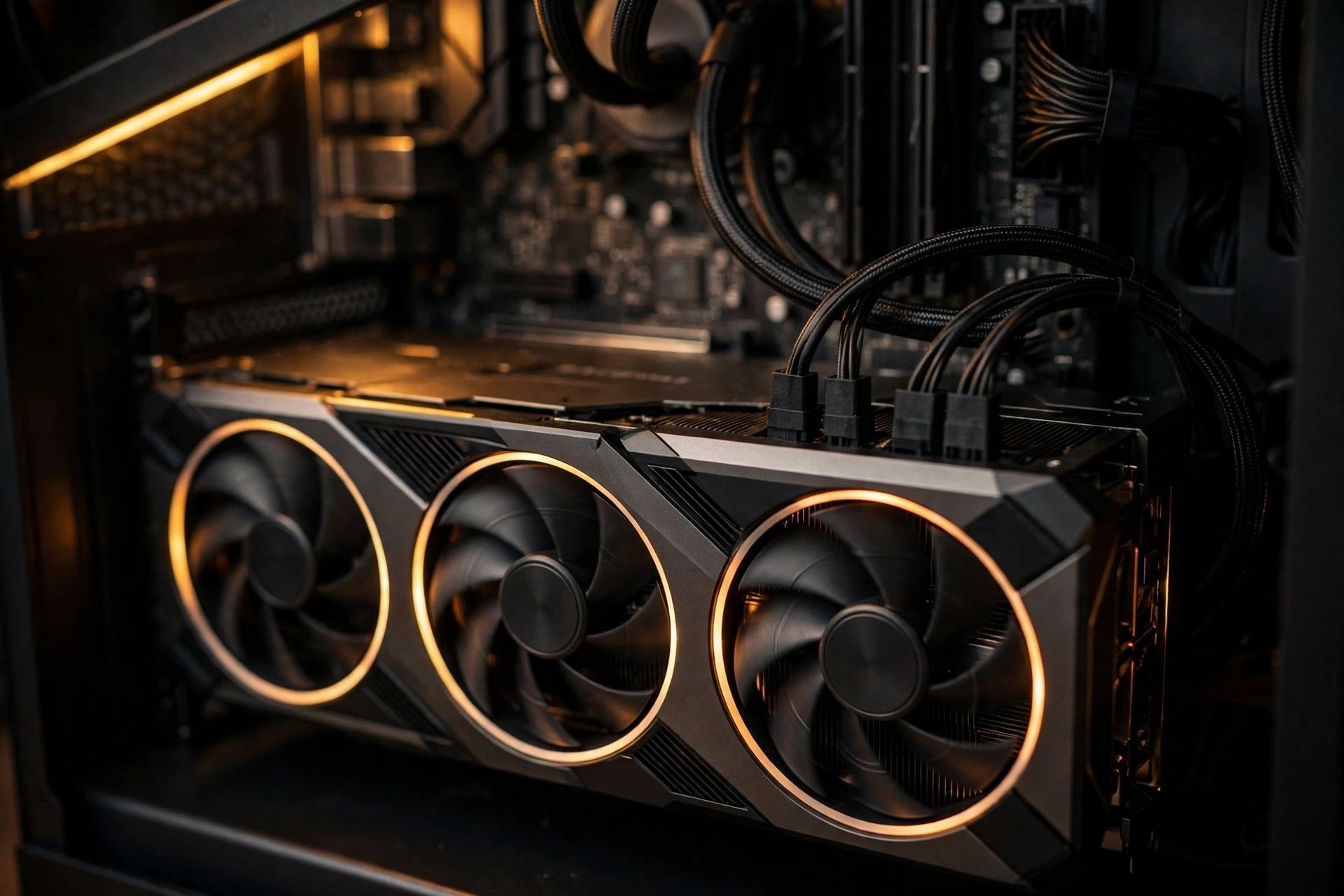
- GPU-bound? Upgrade the graphics card first. It is the single biggest FPS upgrade in almost every case. Check your power supply can handle the new card before you buy — a card that needs 750W on a 550W supply is a crash, not an upgrade.
- CPU-bound? Upgrade the processor — and check the motherboard. A new processor may need a new motherboard and new RAM, which turns a "CPU upgrade" into a platform upgrade. Sometimes the honest answer is that the whole platform is due.
- Stuttering with full RAM? Upgrade the RAM — but mind the price warning above. In late 2026, RAM is expensive and getting more so. Buy only what you need, and buy it from a reputable seller at a price you have checked this week.
- Loading and hitching? Move the game to an SSD. It will not raise your average FPS, but it will fix the stutter that feels like low FPS.
- Still on a 60Hz monitor with a fast PC? The monitor is the bottleneck you can see. A 144Hz or 165Hz display is often a better spend than a faster graphics card you cannot see the benefit of — see our best monitors for FPS gaming and, if you are building or buying a whole machine, our guide to the most important parts of a gaming PC and our best gaming PC under $1,000 roundup.
The rule for the whole guide: diagnose first, fix in impact order, spend money last. Most low-FPS problems are a driver, a setting, or a cable — not a component.
Frequently Asked Questions
Why is my FPS so low even though I have a good PC?
Most often it is one of four things: the monitor cable is plugged into the motherboard instead of the graphics card, the monitor is still set to 60Hz, the laptop is running on battery or in a power-saving mode, or a driver is corrupted. Run the 30-second bottleneck test first — drop to 720p on Low and see whether the FPS jumps — then check the cable, the refresh rate, and the power plan before blaming the hardware.
How can I increase FPS without upgrading hardware?
Do a clean graphics driver install with DDU, set Windows to the Best Performance power plan, close background apps, turn on DLSS, FSR or XeSS at Quality mode, turn ray tracing off, and enable XMP/EXPO and Resizable BAR in the BIOS. Those are all free, and together they are the largest FPS gain most PCs will ever get without spending money.
How do I fix low FPS suddenly?
A sudden drop means something changed: a driver update, a game patch, a background app, or a Windows update. Start by rolling back or clean-installing the graphics driver with DDU, then check Task Manager for a background app eating CPU or memory, then check whether the game patched recently. If the FPS was fine yesterday, the cause is almost always software, not hardware.
Can I increase FPS on a laptop?
Yes. Plug it in first — laptops cap the graphics card hard on battery. Then switch to the manufacturer's Turbo or Performance mode, force the game to use the dedicated graphics card, and turn on the MUX switch or Advanced Optimus if your laptop has one. Keep the vents clear and the laptop raised so air can get in underneath. The same free settings in this guide apply on top of that.
Will frame generation add input lag?
Yes, a little — frame generation inserts AI-generated frames between real ones, so the game only responds to your inputs at the real frame rate. Only use it when you already get around 50–60 real FPS, and pair it with NVIDIA Reflex or AMD Anti-Lag to cut the added latency. Below that base rate, frame generation makes the game feel worse, not better.
Does upgrading RAM increase FPS?
Only if you do not have enough. Going from 8GB to 16GB helps a lot; going from 16GB to 32GB mostly buys headroom for streaming, heavy multitasking, and memory-hungry simulation games — not frames. And in late 2026, RAM is expensive: a 32GB DDR5-6000 kit that cost around $460 in late October was selling for about $570 within days, so buy it because you need it, not because a guide called it cheap.
How do I get 120 FPS on my PC?
First, make sure your monitor can actually show 120 FPS — a 60Hz monitor caps everything at 60. Then run the bottleneck test: if the graphics card is the limit, turn on DLSS or FSR at Quality mode, turn ray tracing off, and drop shadows to High or Medium. If the processor is the limit, close background apps, set the Best Performance power plan, and enable XMP/EXPO. If the PC still cannot hold 120 after the free fixes, the graphics card is the upgrade.