How to Fix Input Lag on PC (2026 Guide)

Your crosshair trails your mouse by a beat. You click, the shot comes a fraction late, and the duel is over before your aim arrives — yet the FPS counter in the corner reads 240 and your ping is fine. You have probably already turned the settings down and restarted the PC, and it changed nothing, because input lag is not one problem. It is a chain, and the slow link is rarely the one you suspect. Before you buy a new mouse or blame your internet, know this: most input lag on PC comes from the display, the render queue, or a Windows setting — not from your aim.
Input lag refers to the delay between pressing a button or moving your mouse and seeing the result on screen. It is the total time your input spends travelling through the mouse, the game, the graphics card and the monitor. Ping is different — it is the trip to the game server and back.
Look — if you're losing duels you should win while the FPS counter looks fine, here's what actually works: find which link in the chain is slow first, then fix the links in impact order. This guide starts with that 60-second diagnosis, then covers the fixes that matter — including the November 2026 Windows update that quietly switched Memory Integrity on for some PCs, and the fullscreen-optimisations advice every other guide still gets wrong.
This guide is for a PC player, not a console player — if your lag is on a PlayStation or Xbox, our PS5 input lag guide and Xbox input lag guide cover the TV side. On PC the chain is longer, and the fixes are yours to change.
Is It Input Lag, or Is It Your Internet?
Input lag is local; ping is not. If your controls feel heavy offline or in a practice range, it is input lag. If the game only feels late online — players teleporting, shots registering late — it is ping or packet loss, and no display setting will fix it.
| What you feel | Likely problem | Where to look |
|---|---|---|
| Controls feel heavy, game looks smooth, FPS high | Input lag — render queue or display | Fix order |
| Everything rubber-bands, players teleport | Ping or packet loss | Ping guide |
| Game stutters, frames drop, FPS counter dips | Low FPS or frame-time spikes | Stuttering guide |
| Mouse fine in-game, floaty in menus | Windows pointer processing (raw input off) | Mouse section |
| Only one game feels late | That game's settings — V-Sync, frame gen, Reflex off | V-Sync section |
Input lag on PC is the delay between your mouse click and the action appearing on screen, not the delay to the game server. According to Intel, gaming displays typically add 10–15ms of built-in input latency. Ping is separate — it measures the round trip to the server, so a fast ping with heavy aim means the fix is local.
Input lag on a fast PC usually comes from the render queue or the display, not the parts you paid for. A 240Hz monitor still shows a queued frame late. A monitor left at 60Hz wastes a fast graphics card. The quickest check is the refresh rate in Windows, then whether Reflex or Anti-Lag is on in your game.
Diagnose first. Fix second.
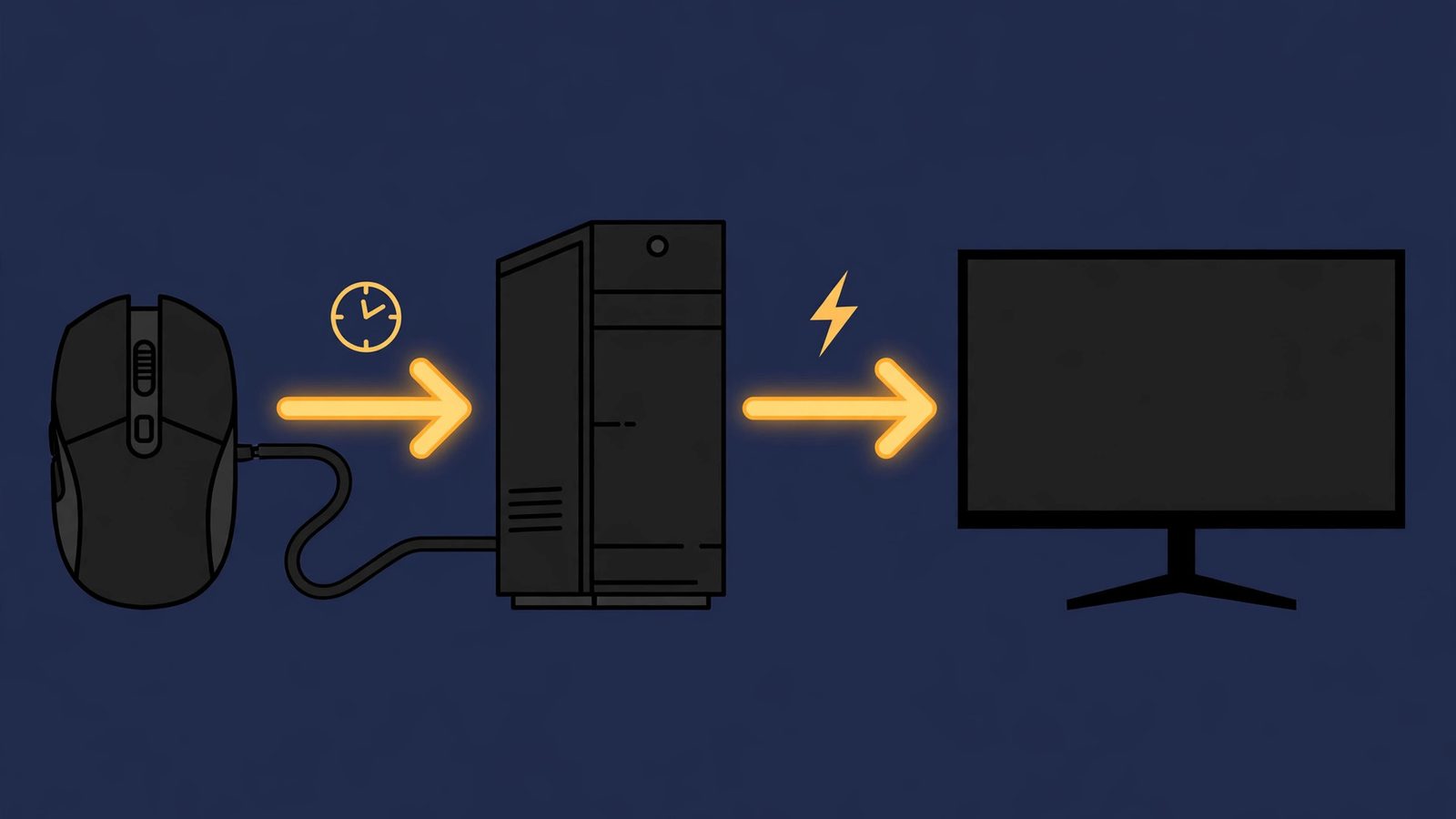
Your input travels a chain — mouse, connection, game, graphics card, monitor — and every link adds time. You reduce input lag by shortening the slowest link, not by upgrading the fastest one. That is the whole method, and it is why the fixes in this guide are ordered by impact instead of by price.
Why Does My Mouse Feel Delayed Even Though My FPS Is High?
Because high FPS only means frames are drawn fast — it says nothing about how old the frame you see is. When your graphics card is working flat out, finished frames wait in a queue. They reach the screen late. The frame carries a mouse position from two or three frames ago, so your aim feels like it is dragging through mud even at 240 FPS.
A mouse can feel delayed at high FPS. The graphics card queues finished frames before showing them, so the frame you see carries an older mouse position. According to NVIDIA, Reflex removes that queue by syncing the CPU and GPU, so the frame shown carries your latest input. Raising FPS alone does not fix a deep render queue.
The maths makes it plain. At 60 FPS each frame takes 16.7ms; at 144 FPS it takes 6.9ms; at 240 FPS it takes 4.2ms. A three-frame queue at 60 FPS hides about 50ms of your input — enough to lose every close duel. The same three-frame queue at 240 FPS hides about 13ms, which most players barely feel. That is why raising your frame rate helps, but only up to a point: the queue itself is the problem, and the low-latency modes in the next sections exist to empty it.
FPS is speed. The queue is age.
Or maybe I should say it this way: your FPS counter measures how fast frames are made, not how fresh the one on screen is. A fast queue of old frames still feels slow.
What Should I Fix First?
Fix in impact order: display, render queue, sync and cap, mouse, Windows. The display is first because it is the biggest single link and the most commonly misconfigured — a surprising number of 144Hz monitors still sit at 60Hz in Windows. The render queue is second because it is the hidden one. The rest are smaller, but they stack.
| Link in the chain | Unoptimised 60Hz setup | Tuned 144Hz setup | What changes it |
|---|---|---|---|
| Mouse and USB | ~8ms | ~1ms | 1000Hz polling, wired or 2.4GHz dongle |
| Game and CPU | ~8ms | ~4ms | Raw input, Reflex or Anti-Lag, fewer background apps |
| Render queue | ~50ms (3 frames) | ~7ms (1 frame) | Reflex or Anti-Lag, frame cap below GPU limit |
| Display | ~17ms or more | ~7ms | 144Hz or higher, Game Mode, processing off |
| Rough total | ~80ms or more | ~20ms |
Figures are rough and typical, not measured on a single machine — the point is the shape of the problem, not the exact numbers. The queue and the display dominate the total, which is why they come first.
Work the list top to bottom. Test after each change. Most players feel the difference after the first two.
Big links first.
How Do I Fix Input Lag on My Monitor?
Set the refresh rate Windows actually uses — then switch the monitor's own processing off. Many gaming monitors ship at 60Hz. They stay there until someone changes it. Right-click the desktop, open Display settings, then Advanced display, and pick the highest refresh rate listed. If 144Hz or 240Hz is not listed, you are on the wrong cable or the wrong port — DisplayPort handles high refresh and adaptive sync more reliably than HDMI on PC monitors.
Then open the monitor's own menu and turn Game Mode on. That one toggle switches off the motion smoothing, sharpening and contrast processing that can add tens of milliseconds. Turn off any extra processing by name — dynamic contrast, motion interpolation, HDR tone mapping left on for SDR games — and check the monitor is running at its native resolution, since scaling adds delay too.
Response time is not input lag. The 1ms figure on the box is how fast a pixel changes colour; it says nothing about how long the picture waits to reach the panel. According to Intel, gaming displays typically carry 10–15ms of built-in input latency, and the only way to know your model's number is a third-party measurement — RTINGS publishes per-model input lag figures. Buy the refresh rate and the panel, not the response-time sticker.
Check the refresh rate first.
If your monitor is stuck below its rated refresh rate for other reasons, our 144Hz stuck at 60Hz guide walks through the cable, driver and Windows causes. A panel silently running at the wrong rate causes more display problems than people expect.
What Are NVIDIA Reflex, AMD Anti-Lag 2 and Intel XeLL?
They are the same idea from three vendors: stop the graphics card queueing frames ahead, so the frame you see carries your latest input. Reflex is NVIDIA's version, Anti-Lag 2 is AMD's, XeLL is Intel's. All three live in the game or the driver, all three are free, and all three beat any amount of settings-tweaking once your GPU is the bottleneck.
| Technology | Who it is for | Where to switch it on | What to know |
|---|---|---|---|
| NVIDIA Reflex | GeForce GTX 900 series and newer | In-game graphics settings, not the driver | On is the safe choice; On + Boost helps when CPU-bound, at the cost of a little power and heat |
| AMD Anti-Lag 2 | Radeon RX 5000 series and newer (RDNA) | In-game, where the game supports it | Needs Adrenalin 24.6.1+ (DX11) or 24.7.1+ (DX12); Latency Monitor on Alt+Shift+L should read 1.0–2.0 frames |
| Intel XeLL | Intel Arc GPUs | In-game, where supported | Part of XeSS 2; required for XeSS Frame Generation; Intel's whitepaper claims up to 45% lower latency — a vendor best case, not a typical result |
Reflex 2 deserves a note of its own. NVIDIA announced it at CES 2025 with the RTX 50 series, and its headline feature, Frame Warp, updates the finished frame with your latest mouse input just before it reaches the screen. As of today, 18 November 2026, NVIDIA's own page still lists Frame Warp as "coming soon" — so do not buy a card for it yet, and do not expect a toggle for it in your game. Frame Warp can wait. The standard Reflex Low Latency mode is the one you can switch on now.
Anti-Lag 2 is the more open of the three. AMD built it as a game-integrated SDK, so the delay is inserted inside the game's logic just before your controls are sampled — later than the old driver-level Anti-Lag 1, which is why it cuts more latency. Games that support it include Counter-Strike 2, Dota 2 and Ghost of Tsushima Director's Cut. Press Alt+Shift+L in a supported game to open AMD's Latency Monitor: the green number is latency in frames, and it should read 1.0 to 2.0 when Anti-Lag 2 is working. Hold Right Ctrl to bypass it and see your native latency — usually 3 to 5 frames.
One honest caveat: the gains are real but small in absolute terms. In one independent side-by-side test from November 2026, Anti-Lag 2 saved about 1–2.5ms in Counter-Strike 2 and Reflex about 1ms. That is one lab, one game — treat it as the scale of the effect, not a promise. The big wins are still the display and the queue, not a single toggle.
Switch it on in the game, not the driver.
Should I Turn V-Sync Off?
For competitive play, yes — V-Sync is the single biggest avoidable delay in most setups. It forces the graphics card to wait for the monitor's refresh before showing a frame, which removes tearing but adds one to three frames of latency. At 60Hz that is roughly 17–50ms, which is why V-Sync feels so heavy on a 60Hz screen; at 240Hz the same one-to-three frames cost far less, which is also why the millisecond figures you see quoted online disagree — they were measured at different refresh rates.
V-Sync vs G-Sync/FreeSync: V-Sync suits slow, story-driven games because it removes tearing completely. G-Sync or FreeSync works better for fast competitive games, because it removes tearing without the extra delay. The key difference: V-Sync waits; adaptive sync follows.
The better setup for most players is adaptive sync with a frame cap. Turn G-Sync or FreeSync on, then cap your frame rate a few frames below your monitor's refresh rate — 141 FPS on a 144Hz monitor, 237 FPS on a 240Hz one — so the cap engages before the variable range runs out. You get no tearing and almost none of the delay.
If you cannot stand any tearing and do not want V-Sync's delay, the middle options are NVIDIA Fast Sync and AMD Enhanced Sync, which uncap the frame rate and show only the newest complete frame. They work best when your frame rate is well above your refresh rate. And if your game has a Reflex or Anti-Lag toggle, switch that on first — it does more for latency than any sync setting on its own.
V-Sync off, adaptive sync on, cap just below refresh.
Tearing and lag are the same trade-off seen from opposite sides — our screen tearing guide explains the sync options in full, including the borderless-windowed cost.
How Do I Set My Mouse Up for the Lowest Lag?
Set 1000Hz polling, turn raw input on in the game, and switch Windows mouse acceleration off. Those three changes cost nothing and remove the whole mouse layer of delay. A 1000Hz polling rate means the mouse reports every millisecond; the old 125Hz office default reports every 8ms, which you can feel.
Higher polling is not automatically better. 4000Hz and 8000Hz mice report more often, but they also use more CPU. In some games that costs frames. Test before you commit. Keep 1000Hz if your frame rate dips. The same applies to the connection. A manufacturer's 2.4GHz dongle is the fast wireless option; Bluetooth is slower and less consistent. Use it for browsing, not for ranked play. Plug the receiver into a rear motherboard USB port, use the extender dongle if one came in the box, and keep the receiver close to the mouse.
Then fix the software side. In Windows, turn off Enhance Pointer Precision. It is mouse acceleration. It makes your aim inconsistent, though it adds no delay itself. Find it under Settings, then Bluetooth & devices, then Mouse, then Additional mouse settings, then Pointer Options. In your game, turn raw input on — in Valorant it is Settings, Mouse, Input Method, Raw Input; in Counter-Strike 2 it is Settings, Keyboard/Mouse, Raw Input, Enabled. Raw input bypasses the Windows cursor curve entirely, which is also why your mouse can feel fine in-game and floaty in menus: the menu cursor still runs through Windows processing.
1000Hz, raw input, acceleration off.
Quick note: a wireless mouse on a low battery can stutter and drop inputs, which feels exactly like lag. Charge it before you blame the settings. And if your mouse only feels delayed in one game, check that game's raw-input toggle before anything else.
Which Windows Settings Actually Reduce Input Lag?
Turn Hardware-accelerated GPU Scheduling on, keep Game Mode on, and check Memory Integrity after any Windows update. Those three are the ones that matter. The rest is noise. HAGS lives at Settings, System, Display, Graphics, Default graphics settings. It lets the GPU manage its own memory scheduling, which trims a few milliseconds on most modern cards. Test it both ways: a small number of older systems lose a little performance with it on.
Game Mode stays on. It stops Windows Update and background tasks from stealing CPU time mid-match, and it costs nothing. Use the High performance power plan while you play, and switch USB selective suspend off for your mouse and keyboard so Windows cannot put them to sleep between inputs — a sleeping mouse wakes up late, which feels like lag.
Then there is Memory Integrity, and this is where the advice gets messy. I've seen conflicting data — some outlets quote a 25–30% gaming performance loss with Memory Integrity on. Others (Tom's Hardware) measure about 5% on average. Their 2021 and 2023 tests both landed there, with up to 10% in some games. My read is that the bigger figures come from older hardware without the newer MBEC support. On a modern CPU, the hit is small. XDA's recent Cyberpunk 2077 test found the 1% low dropping from 124.5 to 116.8 FPS — about 6%. The reason it matters now: Microsoft's 10 November 2026 update (KB5132061) automatically enables Memory Integrity on more eligible Windows 11 25H2 and 26H2 PCs. It respects a manual switch-off. Installing the update does not guarantee it switched on for you, so check it: Windows Security, Device security, Core isolation. If it is on and your games got slower after the update, that is a real suspect. Switching it off is a security trade-off, not a free lunch. Keep it on for a work machine.
Fullscreen optimisations are the other piece of advice every guide still gets wrong. The old rule was to disable them; on modern Windows 11, especially 24H2, the optimised path performs near exclusive fullscreen while keeping Auto HDR, variable refresh rate and fast alt-tabbing. Disabling them can lose those features or add delay. Leave them on, and test per game — the per-game toggle is a right-click on the game's .exe, Properties, Compatibility, "Disable fullscreen optimizations".
Check Memory Integrity after every Windows update.
Here's the thing: most Windows "optimisation" guides are a list of registry edits with invented millisecond savings attached. The three settings above are the ones with a real mechanism behind them. Everything else is a placebo with extra steps.
Why Did My Input Lag Suddenly Get Worse?
Because something changed — and "suddenly worse" has a short list of suspects. Work it like a detective, not a shopper: the fix is almost always undoing the last change, not buying a new part.
- A driver update: if the lag started the day after a graphics driver update, roll back or do a clean install with Display Driver Uninstaller (DDU) in Safe Mode. A bad driver is the most common sudden cause, and a clean install — not an update over the top — is the fix.
- A Windows update: check Memory Integrity first (see the Windows section), then check your monitor is still at its highest refresh rate — updates have been known to reset it to 60Hz.
- A virtual controller: software like vJoy creates a virtual gamepad that can flood a game with input. In one confirmed case from November 2026, disabling vJoy took a game from 1–2 FPS to a smooth 60. If your game only runs smoothly after you alt-tab away from it, a virtual controller or an overlay is the first thing to check.
- A background app: a download, a browser with hardware acceleration on, or a Discord call can eat the CPU your game needs. Close the heavy ones and test again.
- A dying battery or a moved receiver: a wireless mouse on low battery, or a receiver now sitting behind a metal case, drops inputs. Charge it, move the receiver closer, and test wired.
Undo the last change first.
Does Frame Generation Make Input Lag Worse?
Yes — frame generation trades latency for smoothness, and that trade is bad for competitive play. DLSS, FSR and XeSS frame generation insert an interpolated frame between two real ones. That means the graphics card holds frames back to build the extra one. The FPS counter climbs, the game looks smoother, and your inputs arrive later — exactly the wrong direction for a shooter.
The fix is pairing. If you use frame generation, switch Reflex, Anti-Lag 2 or XeLL on with it — Intel's XeLL is even a prerequisite for XeSS Frame Generation. For single-player games the trade is fine. The extra smoothness is worth a few milliseconds. For ranked play, turn frame generation off and take the lower FPS with the lower latency. Our FPS guide covers the settings that raise frame rate without adding delay.
Smooth is not responsive.
How Do I Know a Fix Actually Worked?
Measure before and after, and change one thing at a time. Feel alone will fool you — every tweak feels faster for the first five minutes. The free tools are: NVIDIA Reflex Latency Analyzer, if your G-SYNC monitor and mouse support it, which measures click-to-photon latency directly; NVIDIA FrameView, which shows system latency on screen; and LatencyMon, which names the driver that is spiking your latency. No special hardware? Film your mouse and screen with a phone at 240fps slow motion and count the frames between the click and the muzzle flash.
Write the number down before you change anything, then change one setting, play the same game in the same spot, and measure again. If the number did not move, the setting did not help — revert it. That is the whole method, and it is the difference between a faster PC and a longer list of toggles you no longer understand.
One change, one measurement.
In What Order Should I Try the Fixes?
Work in this order, changing one thing at a time and testing the same game after each step. Most input lag dies in the first four.
To fix input lag on PC, follow these steps: 1. Set your monitor to its highest refresh rate. 2. Turn on NVIDIA Reflex or AMD Anti-Lag 2 in your game. 3. Turn V-Sync off and cap your frame rate a few frames below your refresh rate. 4. Set your mouse to 1000Hz polling and turn raw input on. 5. Check Memory Integrity after Windows updates. 6. Measure before and after.
- 1. Check the refresh rate. Settings, System, Display, Advanced display — pick the highest rate, and switch Game Mode on in the monitor's menu.
- 2. Switch on the low-latency mode. Reflex (NVIDIA), Anti-Lag 2 (AMD) or XeLL (Intel) — in the game, not the driver.
- 3. Fix the sync. V-Sync off, G-Sync or FreeSync on, and cap the frame rate a few frames below your refresh rate (141 FPS on 144Hz, 237 FPS on 240Hz).
- 4. Set the mouse up. 1000Hz polling, raw input on in the game, Enhance Pointer Precision off in Windows.
- 5. Check Windows. HAGS on, Game Mode on, and Memory Integrity checked after any Windows update.
- 6. Check the sudden causes. If it got worse overnight, roll the driver back with a clean DDU install and look for virtual controllers.
- 7. Turn frame generation off for competitive play — or pair it with Reflex or Anti-Lag if you keep it on.
- 8. Measure. Reflex Analyzer, FrameView or a 240fps phone video, before and after, one change at a time.
I'd argue a new mouse is the worst first fix for input lag — it's the most expensive guess in the chain, and it fixes nothing a refresh-rate check or a Reflex toggle wouldn't have found first. Spend the money after the free fixes, not before them.
Skip the miracle cures. Forum threads will tell you to disable XMP, avoid DSC monitors, reinstall Windows, or chase ungrounded-outlet theories — none of that is a measured fix for input lag, and a clean Windows install is a weekend lost for a problem that lives in a settings menu. Work the chain in order and you will find the slow link. If the lag only appears online, our ping guide and packet loss guide cover the network side of the same problem.
Frequently Asked Questions
Is input lag the same as ping?
No. Input lag is the delay between your click and the action on screen — it happens on your PC. Ping is the round trip to the game server. Fix input lag locally; fix ping with your connection.
What's a good input lag for gaming?
For the display itself, under 20ms feels responsive and under 10ms feels instant. Total system latency depends on your whole chain — measure it with Reflex Analyzer or FrameView and compare before and after each fix.
Does a wired mouse have less input lag than wireless?
A wired mouse is the most consistent option, but a good 2.4GHz wireless mouse is just as fast in practice. Bluetooth is the slow one — use the dongle for ranked play, not Bluetooth.
Does 240Hz reduce input lag?
Yes. At 240Hz each frame takes 4.2ms instead of 16.7ms at 60Hz, so your input reaches the screen sooner. It helps most when the render queue is short too — pair it with Reflex or Anti-Lag.
Is 100ms input delay bad?
Yes — 100ms is clearly noticeable, and most players feel anything over 50ms. Competitive players notice differences as small as 10–20ms, so 100ms will cost you duels.
What causes high input lag on a fast PC?
Usually the render queue or the display, not the parts. A deep frame queue, V-Sync on, a monitor left at 60Hz, or Memory Integrity switched on by a Windows update are the usual suspects.
How do I measure my input lag on Windows?
Use NVIDIA Reflex Latency Analyzer with a compatible G-SYNC monitor and mouse, or FrameView for an on-screen latency readout. No hardware? Film your mouse and screen at 240fps and count the frames.