How to Fix Game Stuttering on PC (2026 Guide)
Your FPS counter says 120, but the game still jerks, hitches, and freezes for a split second. That is stuttering — and it is not the same problem as low FPS. Low FPS is consistently slow. Stuttering is inconsistently delivered: most frames arrive on time, then one frame takes 100ms instead of 16ms, and your eyes notice that spike instantly.
The fix depends entirely on which kind of stutter you have. Shader compilation, thermal throttling, a full VRAM buffer, a slow drive, and a bad frame-rate cap all feel similar in the moment and need completely different fixes. This guide starts with a five-minute diagnosis, so you stop changing settings at random, then answers each cause in turn — including the October 2026 change that actually removes one whole category of stutter for supported games.
How Do I Diagnose Stuttering in 5 Minutes?
Before changing anything, turn on a frame-time graph — the FPS number alone cannot diagnose stutter. At a steady 60 FPS every frame should take about 16.7ms. A stutter is a frame that suddenly takes far longer. Free tools that show this are Intel PresentMon, CapFrameX, and MSI Afterburner: play for five minutes in the area that stutters and watch the shape of the spikes, not the average.
| What the spikes look like | Likely cause | Jump to |
|---|---|---|
| Hitches on new effects or first visits, gone on a second run | Shader compilation | Shader stutter |
| Hitches when sprinting or crossing area boundaries, same spots every time | Asset streaming / slow storage | Traversal stutter |
| Smooth for 10–20 minutes, then steadily worse | Thermal throttling or VRAM filling up | Worse over time |
| Stutter in every game, at every setting, from launch | Driver, sync, or a system-wide bottleneck | After an update |
| Only online, offline feels fine | Network latency, not frame stutter | Our ping guide |
Also note two things while you test: whether the stutter happens in one game or all of them, and whether it improves after a restart. One game only points at that game's shaders, settings, or a bad patch. Every game points at drivers, Windows, thermals, or hardware. And if a reboot temporarily fixes it, suspect something that builds up over a session — heat, VRAM, or a background process — rather than a permanent setting.
Why Does My Game Stutter When My FPS Is High?
Because smoothness is decided by frame consistency, not the average frame rate. A game averaging 120 FPS can still feel broken if most frames take 8ms and a few take 60ms. The counter barely moves — it is an average — but your eyes catch every spike. A stable 90 FPS often feels better than a game bouncing between 120 and 180 FPS.
The usual culprits behind high-FPS stutter are uncapped frame rates, mismatched sync settings, and overlays. An uncapped GPU running flat out at 99% usage has no headroom: the moment a scene gets heavier, frame time spikes. The standard fix is a frame-rate cap set a few frames below your monitor's refresh rate — 141 FPS on a 144Hz display is the commonly recommended starting point — using the in-game limiter first, or RTSS if the in-game cap is unreliable. That small headroom lets the GPU finish frames consistently instead of constantly missing the next refresh window.
Next, check the sync chain in this order: confirm Windows is actually running your monitor at its full refresh rate (a 144Hz display silently running at 60Hz after a driver change or cable swap is a classic trap), enable G-Sync or FreeSync if your monitor supports it, and disable overlays one at a time for a test run — Discord, Steam, Xbox Game Bar, GeForce Experience, and RGB software can each inject small frame-time spikes without denting the average FPS. Change one thing at a time and re-test the same area, so you know what actually helped.
Why Does My Game Stutter in New Areas?
Because the game is compiling shaders mid-play — and that work happens on the CPU, not the GPU. Modern DirectX 12 games must convert graphics programs (shaders) into a form your specific GPU and driver can run. Ideally that happens once, before you play, during a "Compiling Shaders" step. In practice some shaders are missed by that step, so the game compiles them the first time a new effect, weapon, or area appears — and while it does, the frame stalls. That is why the hitch happens once in a spot and is gone on a second run through the same area.
Work through shader stutter in this order:
- Let pre-compilation finish. Do not alt-tab or skip the shader step on first launch, and do not judge a game by its first 20 minutes. Many "this game stutters" reports are just an unfinished first run.
- Raise the shader cache size. In the NVIDIA app or Control Panel, check Shader Cache Size and make sure it is not set to Off or a small limit — a cache that keeps evicting shaders forces recompilation. On AMD, reset the shader cache after a driver update so stale entries are rebuilt cleanly.
- Verify the game files. Corrupted or incomplete shader data forces recompilation in odd places. A file verification in Steam or your launcher is a five-minute check that rules this out.
- Clear caches only if hitches got worse after a driver update. If a single game started crashing or hitching right after a driver change, purging the NVIDIA DXCache, GLCache, and NV_Cache folders (or using Display Driver Uninstaller's clean-shader-cache option) and letting the cache rebuild is the documented fix. Do not clear caches routinely — it forces a full rebuild and makes the first sessions worse.
- Try the DirectX 11 renderer if the game offers one. DX11 games generally pre-compile differently and can sidestep DX12 shader stutter entirely, at the cost of some newer rendering features. It is a diagnostic as much as a fix: if DX11 is smooth and DX12 stutters in new areas, you have confirmed the cause.
What does not fix shader stutter: more RAM, a lower resolution, or generic Windows "optimisation" tweaks. The GPU is idle during a compilation hitch and the CPU is doing the work, so lowering resolution changes nothing, and registry tweaks do not touch the shader pipeline.
What Is Advanced Shader Delivery, and Does It Fix Shader Stutter?
For supported games, yes — it removes shader compilation from your PC almost entirely. For everything else, nothing changes yet, so do not expect a system-wide fix. This is the genuinely new part of the story: in October 2026, NVIDIA driver 621.01 enabled Microsoft's Advanced Shader Delivery on Windows 11 for GeForce RTX systems, with AMD support via Adrenalin 26.6.1 or newer and Qualcomm support on newer Snapdragon drivers.
The idea is simple. Instead of every PC compiling the same shaders locally, Microsoft pre-compiles them in the cloud for your exact hardware and driver combination and your PC downloads the precompiled set with the game. Microsoft says this cuts the up-front pre-compilation step by up to 95% and removes the just-in-time compilation that causes mid-game hitches. At launch the supported list is short — Gears of War: E-Day and Call of Duty: Modern Warfare 4 are the named titles — and you need the Xbox PC app installed for the feature to activate, even for Steam versions of those games, according to NVIDIA's notes. Developers must specifically support the technology, so adoption will decide how much of a difference it makes in practice, and there is little independent real-world testing yet.
Two honest limits. First, Advanced Shader Delivery does not fix traversal stutter — hitches from streaming world data off a drive are a different failure with a different fix (see below). Second, if you play a supported game, the fix is essentially "update your driver and the Xbox PC app and let it work" — there is no per-game toggle to hunt for. If your stutter is in an unsupported game, the shader-cache steps above are still your fix.
Why Does Stuttering Get Worse the Longer I Play?
That pattern points at heat or memory filling up — both build gradually, which is why the first 15 minutes feel fine. Check temperatures first with HWMonitor, HWiNFO, or MSI Afterburner while playing: sustained CPU temperatures approaching 90–100°C or GPU temperatures well above 85°C mean the chip is throttling its clock speed to protect itself, and each throttle step shows up as a frame-time spike.
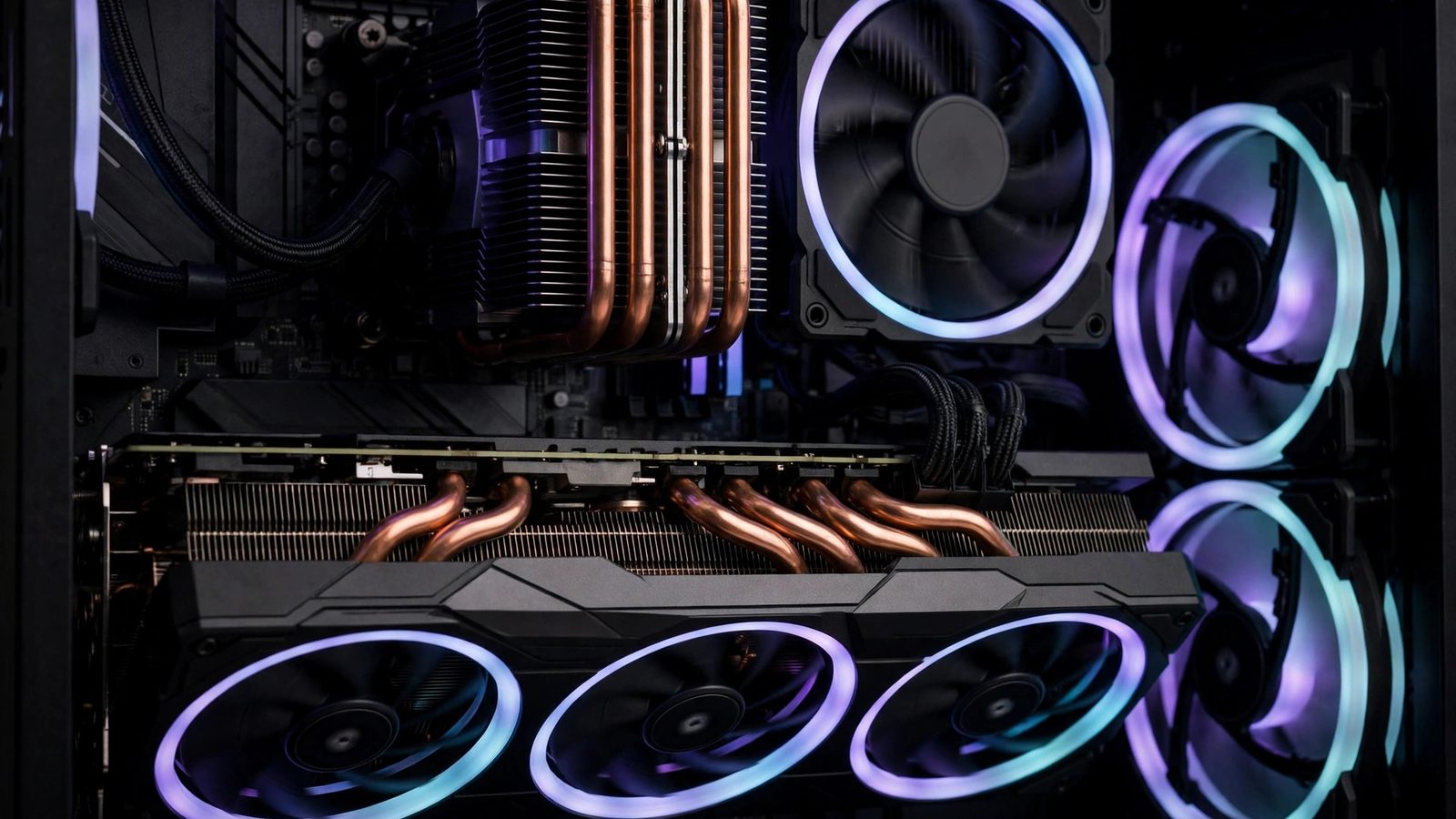
The fixes are unglamorous and effective: clean dust from fans, filters, and heatsinks; make sure intake and exhaust fans are actually moving air in the right direction; and on a system over two years old, consider fresh thermal paste on the CPU. On a laptop, the same logic applies with less room to manoeuvre — use a cooling pad, keep vents clear, and set Windows power mode to Best Performance while plugged in, since balanced power plans can let clocks fluctuate in ways that show up as uneven frame delivery.
The other slow-build cause is VRAM exhaustion. Watch VRAM usage during play: if it sits at 95–100% as stutter worsens, the GPU is swapping textures in and out. Drop texture quality one notch, turn ray tracing down or off, or enable upscaling — that frees VRAM directly, where a resolution drop alone may not. The same logic applies to system RAM: 16GB is the realistic minimum for stutter-free modern gaming, and with 8GB Windows leans on the pagefile, which produces severe hitches. Also check that XMP (Intel), EXPO (AMD), or DOCP (ASUS) is enabled in BIOS so your RAM actually runs at its rated speed — RAM running at a slow default speed is a quiet, common bottleneck.
Why Does My Game Hitch When I Sprint or Enter a New Area?
Because the game cannot stream world data fast enough — and the hitch repeats in the same places, unlike shader stutter. Open-world games constantly load textures, models, and audio as you move. If that data arrives late, the frame waits. The signature is repeatability: the same doorway, the same fast-travel point, the same sprint across a map boundary, every time.
The biggest lever is storage. Games installed on a hard drive, or on a nearly full SSD, stream far worse than games on an NVMe SSD with 15–20% free space. Moving the game to an NVMe drive is the single most effective traversal fix, and it is also why our storage guides keep coming back to drive choice. If moving the game is not an option, lower the texture streaming pool or texture quality, and cap your frame rate slightly — a cap gives the CPU and storage breathing room to stream ahead of you instead of chasing the frame. Also separate your game drive from your OS drive if you can: background indexing, antivirus scans, and launcher updates hitting the same drive as the game add latency spikes that look exactly like traversal stutter. If you alt-tab during a hitch and see disk usage pegged by Search, OneDrive, Steam, or Windows Defender, that background load is part of your problem — pause updates and scans during play sessions.
Why Did Stuttering Start After a Driver or Windows Update?
Because drivers and Windows settings change the frame pipeline, and a regression in either can break games that were smooth yesterday. Start with the simplest test: did the stutter start the same day as an update? If yes, that update is your prime suspect, not your hardware.
- Do a clean driver install. Use Display Driver Uninstaller (DDU) in Safe Mode to remove the old driver fully, then install the latest driver from NVIDIA, AMD, or Intel directly — not just the "Express" update over the top. This alone fixes a large share of post-update stutter, including corrupted shader caches left behind by the old driver.
- Check the refresh rate and sync settings again. Driver updates reset display settings more often than people expect. Confirm Windows is at your monitor's full refresh rate and that G-Sync/FreeSync is still enabled.
- Look at Windows 11 security features last, not first. Virtualisation-based security and Memory Integrity (Core Isolation) can add a small overhead on some systems, and forums often recommend turning them off. Treat that as a diagnostic step only: it weakens a security feature for a usually small gain, and it should never be the first thing you try. If disabling it for one test session clearly fixes the stutter, you have at least identified the trade-off honestly rather than following a checklist blindly.
- Rule out a bad game patch. If only one game stutters after its own update, check that game's forums before touching your system — a patch-introduced shader or streaming regression is the developer's to fix, and no driver change will cure it.
What Should I Try First?
Work in this order, testing the same in-game area after each step — most stutter dies in the first four.
- 1. Measure. Turn on a frame-time graph and confirm you are seeing spikes, not just a low average. Note the spike pattern from the diagnosis table.
- 2. Close the background. Shut browsers (especially Chrome with many tabs), launchers, RGB software, and overlays. Pause downloads, updates, and cloud sync during the test.
- 3. Cap the frame rate. Set a cap a few frames below your monitor's refresh rate (141 FPS on 144Hz), confirm Windows is at the full refresh rate, and enable G-Sync/FreeSync if available.
- 4. Update drivers cleanly. Latest driver from the GPU vendor, clean install, shader cache left intact unless the hitches worsened after the update.
- 5. Let shaders finish. Complete any pre-compilation step, verify game files, and check the shader cache setting.
- 6. Check heat and memory. Monitor temperatures and VRAM/RAM usage during a full session, not just the first five minutes.
- 7. Move the game to an NVMe SSD with free space, and separate it from the OS drive if background disk activity is spiking.
- 8. Enable XMP/EXPO/DOCP in BIOS, and set Windows power mode to Best Performance while plugged in.
Skip the miracle cures: registry "gaming tweaks," disabling random Windows services, and game-booster apps that promise to fix stutter by closing processes you could close yourself. They do not touch the shader, streaming, thermal, or sync paths that actually cause stutter, and the ones that change system settings blindly can make diagnosis harder.
When Is It Hardware, Not Settings?
When monitoring shows a component pinned at its limit no matter what you change — and only then should you spend money. The bottleneck test is simple: if a CPU core sits at 100% while the GPU sits below 95%, you are CPU-limited, and a faster GPU will not fix your stutter. If the GPU sits at 99–100% constantly, you are GPU-limited, and lower settings or a GPU upgrade are the honest answers. If neither is pinned and stutter persists across games after a clean driver install, suspect storage, RAM speed, or a failing drive — long freezes with the disk queue pegged are a drive problem, not a settings problem.
That ordering matters because the most common wasted purchase in stutter troubleshooting is a new graphics card for a CPU, storage, or shader problem. Fix the cause the frame-time graph points at, in the order above, and only upgrade the component the graph actually implicates. Most players never get to this section: a frame cap, a clean driver, finished shader compilation, and a game on an NVMe drive resolve the large majority of PC stutter.
Frequently Asked Questions
Why does my game stutter with high FPS?
Because stutter is inconsistent frame delivery, not a low average. If most frames take 8ms but some take 60ms, the FPS counter still looks healthy while the game visibly hitches. Turn on a frame-time graph and fix the spikes — usually with a frame-rate cap, sync settings, or shader and streaming fixes — rather than chasing a higher average.
Is stuttering the same as low FPS?
No. Low FPS means consistently slow frame delivery, like a steady 30 FPS — sluggish but smooth. Stuttering means irregular delivery with sudden spikes, which feels jerky and unpredictable even at a high average. That is why a stable 90 FPS can feel better than a game bouncing between 120 and 180 FPS.
What are shader compilation stutters?
They are hitches that happen when a DirectX 12 game compiles a shader the first time a new effect or area appears. They are worst on a first playthrough, fade on repeat visits, and are fixed by letting pre-compilation finish, verifying game files, and keeping the shader cache enabled. Microsoft's Advanced Shader Delivery, enabled in NVIDIA driver 621.01 in October 2026, removes this work for supported games such as Gears of War: E-Day and Call of Duty: Modern Warfare 4.
Why does my game stutter after playing for 20 minutes?
That pattern is thermal throttling or VRAM filling up. Heat builds over a session until the CPU or GPU reduces its clock speed, and VRAM fills until textures must be swapped. Monitor temperatures and VRAM during a full session: clean dust and improve airflow for heat, and lower texture quality or enable upscaling for VRAM.
Should I use VSync to fix stuttering?
Not on its own. VSync can remove screen tearing but often adds input lag and can worsen stutter unless paired with G-Sync/FreeSync. A frame-rate cap a few frames below your monitor's refresh rate, plus adaptive sync if your monitor supports it, is usually the better starting point.
How much RAM do I need to prevent stuttering?
16GB is the realistic minimum for modern games. With 8GB, Windows leans on the pagefile and produces severe hitches, and 32GB only helps if you multitask heavily while gaming. Also enable XMP, EXPO, or DOCP in BIOS so your RAM runs at its rated speed rather than a slow default.
Will upgrading my GPU fix stuttering?
Only if the GPU is the bottleneck — consistently at 99–100% usage while stuttering. Most stutter comes from CPU limits, shader compilation, storage speed, RAM, thermals, or driver and sync settings. Check GPU usage during stutters first: if it is below 95% while a CPU core is pinned, a GPU upgrade will not help.