Why Does My PC Keep Crashing When Gaming? (2026 Fix Guide)

Your game closes, freezes, or takes the whole PC down with it — and only when you are playing. That "only when gaming" part is the first clue: games push your GPU, CPU, RAM, and power supply harder than anything else you do, so a weakness that web browsing never exposes shows up the moment a demanding scene loads.
The crash itself tells you where to look. A game closing to the desktop, a frozen screen, an instant restart, and a blue screen are four different failures with four different prime suspects. This guide starts by matching your crash to its type, then shows you how to confirm the cause in five minutes with Windows' own logs — before you change a single setting.
What Exactly Happens When Your PC Crashes?
Start here: name the crash type, because each one points at a different component. "Crashing" covers four distinct failures, and the fix for one is useless for another.
| What happens | Most likely cause | First test |
|---|---|---|
| Game closes to the desktop, PC keeps running | GPU driver, shader cache, overlay, or the game itself | Reliability Monitor — Event 1000 names the faulting module |
| Screen freezes, sound loops or stops | Driver crash, RAM instability, or CPU/GPU instability | Check whether Ctrl+Alt+Del responds; then read the crash log |
| PC restarts or shuts off instantly, no error shown | Power supply headroom, heat protection, or a loose power cable | Event 41 check + temperatures under load; cap FPS to test |
| Blue screen (black screen on Windows 11 24H2+) with a stop code | Driver, RAM, or hardware fault — the code names it | Read the stop code in the table below |
Also note two things before you touch anything: whether the crash happens in one game or all of them, and whether it starts after a fixed amount of play time. One game only points at that game's files, shaders, or a bad patch — check its forums before touching your system. Every demanding game points at drivers, heat, RAM, or power. And crashes that always arrive 10–30 minutes in, never in the first minutes, point at something that builds up: heat, a memory leak, or a power supply struggling as components get hot.
How Do I Find Out What Crashed My PC?
Read the log Windows already kept — five minutes here saves hours of guessing. Open Reliability Monitor by pressing Win+R, typing perfmon /rel, and pressing Enter. It shows a timeline of crashes with a short description for each one; click a crash on the day it happened and read the summary before you do anything else.
For the detail behind it, open Event Viewer (Win+X → Event Viewer) → Windows Logs → System, and filter for these event IDs:
- Event 41, Kernel-Power — the PC rebooted without a clean shutdown. This is a symptom, not a cause: it tells you the shutdown was sudden, which points at power or heat, but it never names the culprit on its own.
- Event 1001, BugCheck — the blue-screen record. It carries the stop code (see the decoder below) and the driver or module involved.
- Event 1000, Application Error (in the Application log, not System) — for crash-to-desktop cases. It names the faulting application and module, which is often the game itself, a driver file, or an overlay.
Crash dumps are saved in C:\Windows\Minidump and can be read with the free WinDbg tool from the Microsoft Store (!analyze -v), but most players never need to go that far — Reliability Monitor plus the event IDs above identify the culprit in the large majority of cases. One note: on Windows 11 24H2 and later, the classic blue screen is now a black screen. Same stop code, same meaning, different colour.
Why Does My PC Crash Only When Gaming?
Because gaming is the only thing you do that loads everything at once. Browsing and office work barely wake the GPU, draw a fraction of your power supply's capacity, and touch a small part of your RAM. A game loads the GPU to near 100%, spikes power draw in milliseconds, fills VRAM and system RAM, and keeps the CPU, storage, and cooling working continuously for hours.
That is why a marginal component passes every everyday task and fails only in games: a driver with a bug in one rendering path, a power supply that cannot handle transient spikes, RAM that is only unstable at its rated XMP speed, or a heatsink clogged just enough that temperatures creep past the safe range after 20 minutes. It also means the fix is rarely "your PC is too weak" — a well-matched system that crashes in games almost always has one specific fault, and the sections below find it. If the same PC also stutters without crashing, our game stuttering guide covers the frame-time side of the same hardware.
Why Does My Game Keep Crashing to Desktop With No Error?
Start with the one-game test, then the driver — a silent crash to desktop is almost always software. If only one game crashes, verify its files first: Steam → right-click the game → Properties → Installed Files → "Verify integrity of game files"; Epic → Library → ⋯ → Manage → Verify; Battle.net → gear icon → Scan and Repair; Xbox app → ⋯ → Manage → Files → Verify and repair. Corrupted or incomplete files — including corrupted shader data — are a common cause, and a verification takes five minutes. If other players report the same crash at the same spot, it is likely a game bug the developer has to patch, not your hardware.
If every game crashes to desktop, work through these in order:
- Update the GPU driver cleanly. A driver that is outdated, corrupted, or half-installed after an update is the single most common cause. Download the latest driver from NVIDIA, AMD, or Intel directly, and if a normal update does not fix it, do a full clean install with Display Driver Uninstaller — the steps are in the update section below.
- Disable overlays one at a time. Discord, Steam, the NVIDIA App, AMD Adrenalin, and Xbox Game Bar all inject themselves into running games. Close them for one test session each; if stability returns, you have found the conflict. Antivirus scans hitting game files mid-session can do the same — pause real-time scanning for one test session, and see our antivirus guide before deciding what to keep running.
- Clear the shader cache — only if crashes started recently. Corrupted shader cache data can crash a game on launch or when entering a new area. Clearing it forces a full rebuild, so the first sessions after clearing will be slower — do it as a diagnostic, not as routine maintenance. (If a game hitches rather than crashes in new areas, that is shader compilation, covered in our stuttering guide.)
- Lower the load as a diagnostic. Drop texture quality one notch and turn ray tracing off for a test session. If crashes stop, the game was exhausting VRAM or pushing the GPU past a stability edge — that narrows the fault to the GPU side rather than RAM or storage.
Do not chase "game booster" apps or registry tweaks for crash-to-desktop: they close processes you could close yourself and do not touch drivers, shaders, or overlays — the three things that actually cause it.
Why Does My PC Restart or Shut Off When Gaming?
An instant restart with no error is a power or heat problem until proven otherwise. Windows never got the chance to show an error, which is why the log will show only Event 41. Two causes dominate, and they are easy to tell apart.
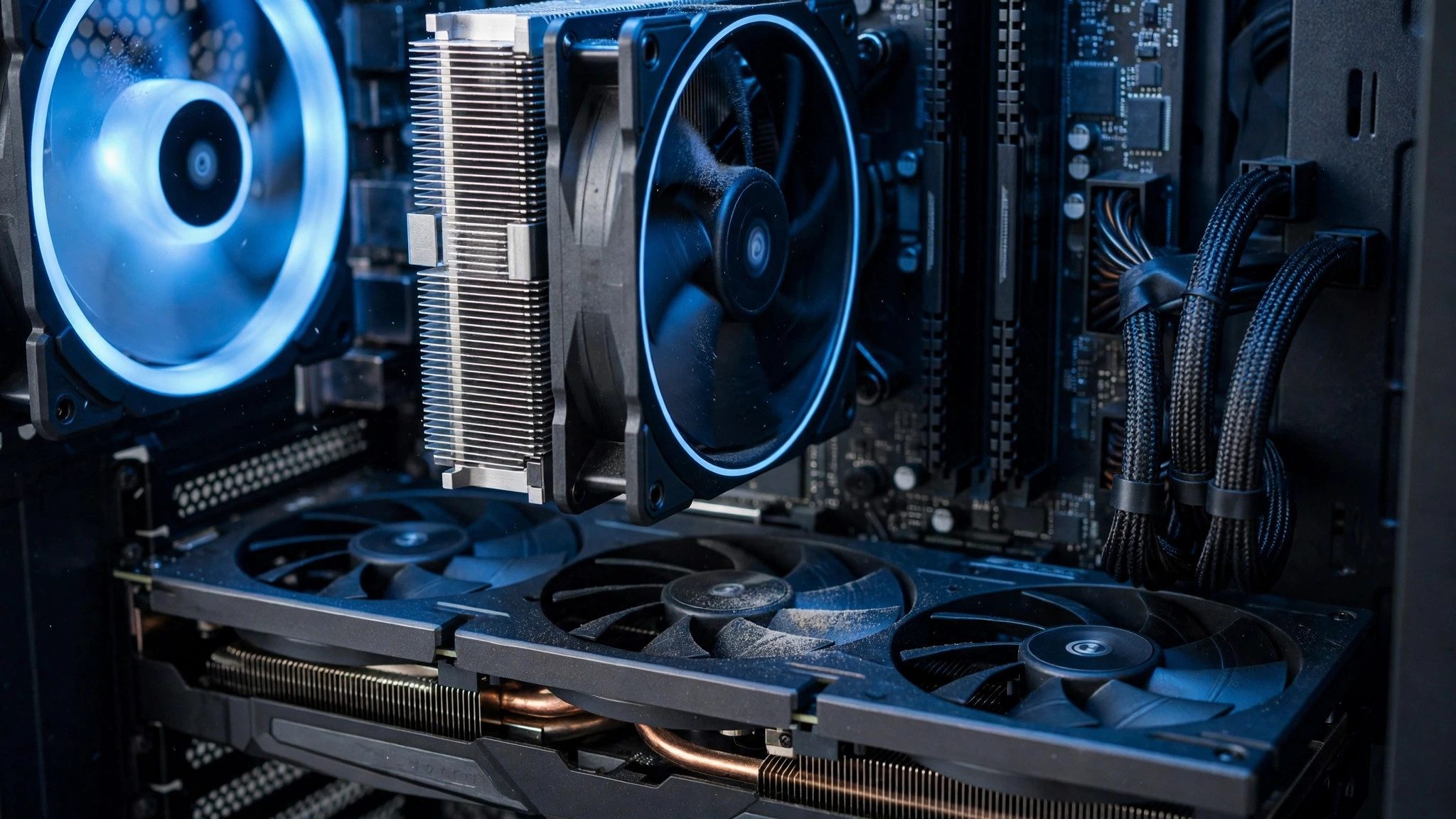
Power supply headroom. A GPU can draw 1.5–2× its rated power for a few milliseconds when a demanding scene loads — a transient spike. A power supply that is "big enough on paper" can still trip and reboot the PC at that instant. The working rule is (GPU TDP + CPU TDP + 100–150W for everything else) × 1.25–1.35, rounded up to a standard size: roughly 650W for a midrange build, 750W as the sweet spot, and 850W or more for high-end cards. Prefer an ATX 3.0 or 3.1 unit, which is rated for these spikes, and remember a quality 650W beats a cheap 850W. The isolation test: cap your frame rate or lower the GPU power limit by 10–15%. If stability returns, the fault is in the power-delivery lane — PSU headroom, cabling, or GPU power delivery — even if it does not name which one. Also check the physical side: a loose GPU power cable, or a single daisy-chained cable feeding a card that needs two separate ones, causes exactly this failure.
Heat protection. If the restart always comes after 10–30 minutes of play, never in the first minutes, suspect temperatures. Monitor CPU and GPU temperatures during a full session with HWiNFO or MSI Afterburner. Sustained gaming temperatures of 60–85°C on the CPU are normal; Intel CPUs throttle near ~100°C and Ryzen near ~95°C, and the chip shuts the system down to protect itself above that. For GPUs, the limit is per model — NVIDIA publishes a "Maximum GPU Temperature" per card (RTX 5090: 90°C, 5080: 88°C, 5070: 85°C, RTX 40 series: 90°C, RTX 30 series: 93°C) — and a card throttles as it approaches that limit, which costs performance but does not crash anything; shutdown is a separate, higher protection step. AMD's junction (hotspot) temperature can sit up to 110°C within spec, while the edge temperature should stay below ~90°C. Do not treat 85°C as a danger line — check your own card's published limit instead. If temperatures are the problem, clean dust from fans and heatsinks and check airflow direction; our loud PC guide covers fan curves and cooling fixes, and laptop players should read why gaming laptops overheat.
Why Does My PC Blue Screen When Gaming?
The stop code is the diagnosis — read it before you change anything. It appears on the blue (or black) screen itself and in Event 1001. The common gaming codes decode like this:
| Stop code | What it means | Check first |
|---|---|---|
| WHEA_UNCORRECTABLE_ERROR | A hardware fault — CPU, RAM, or a PCIe device reported an unrecoverable error | RAM test, CPU temperatures, BIOS and chipset driver update |
| VIDEO_TDR_FAILURE (nvlddmkm.sys / amdkmdag.sys) | The GPU driver stopped responding and Windows reset it | DDU clean driver install; GPU temperatures and power cables |
| IRQL_NOT_LESS_OR_EQUAL | A driver or faulty RAM accessed memory it should not have | DDU clean install, then a RAM test |
| MEMORY_MANAGEMENT | Windows found corruption in memory | RAM test (see below); disable XMP/EXPO for one test session |
| DPC_WATCHDOG_VIOLATION | A driver took too long to finish — often storage or network | Storage and network driver updates; SSD health check |
| DXGI_ERROR_DEVICE_REMOVED | The GPU driver was removed or reset mid-game | DDU clean install; remove any GPU overclock; check power cables |
One blue screen after a driver update is usually the driver; repeated blue screens with the same code across different games point at the component the code names. If the code keeps changing from crash to crash, suspect RAM or the power supply rather than any single driver — unstable memory and unstable power both produce a rotating cast of stop codes.
Can XMP or EXPO Make My PC Crash When Gaming?
Yes — and it is one of the most missed causes, because the PC can be stable for months before it starts. XMP (Intel), EXPO (AMD), and DOCP (ASUS) are factory overclocks: they run your RAM faster than its official JEDEC speed. A kit can pass every test at that speed for months, then fail when a new game exercises memory in a different pattern. Two separately bought kits with identical specs are also not guaranteed to run together, especially with all four DIMM slots filled.
The diagnostic test takes two minutes: enter BIOS, disable the XMP/EXPO/DOCP profile (or load BIOS defaults), and play the game that crashes. If the crashes stop, the memory profile is the problem — update the BIOS (manufacturers regularly improve memory compatibility), then either re-enable the profile and retest, or run the RAM one speed step below its rated XMP speed. Do not leave the profile off permanently without trying the BIOS update first: the rated speed is part of what you paid for, but a stable slightly-slower speed beats a crashing fast one. If crashes continue with the profile off, RAM speed was not the cause — move on to the driver and RAM tests below.
Why Do Games Crash After a Driver or Windows Update?
Because updates change the frame pipeline, and a bad install or a regression in either can break games that were smooth yesterday. If the crashes started the same day as an update, that update is the prime suspect — not your hardware. First, try the simple path: install the latest driver from the GPU vendor directly (not just the "Express" update over the top) and check for a newer Windows update that may already contain the fix. If that does not work, do a clean driver install with Display Driver Uninstaller (DDU):
- Download first. Get DDU only from wagnardsoft.com or the official Guru3D mirror, and download the new GPU driver before you start.
- Disconnect from the internet. This stops Windows from automatically installing a driver while you are cleaning.
- Boot into Safe Mode (DDU can reboot you there), select your GPU vendor, and choose "Clean and restart".
- Install the driver you downloaded, then reconnect to the internet and restart.
Two caveats: know your Windows account password before you start — a PIN may not work in Safe Mode on Windows 11 24H2 — and have your BitLocker recovery key handy if your drive is encrypted. Be honest about what DDU is: Intel's own support pages name it, but NVIDIA and AMD do not officially support it, and it is a tool for when drivers are suspect — not something to run on every driver update. A normal update is fine for routine maintenance.
For Windows itself, remember that Fast Startup means "Shut down" is not a clean reload — use Restart when troubleshooting, and if crashes began right after a Windows update, check for optional driver updates or roll that update back. Run DISM /Online /Cleanup-Image /RestoreHealth followed by sfc /scannow if system files are suspect — DISM first, then SFC — and test with overlays disabled, since updates sometimes re-enable a conflicting overlay. Auto HDR has been reported by some users as a crash trigger after updates; that is single-thread evidence, not an established cause, so treat it as a test (toggle it off for one session) rather than a confirmed fix.
Can RAM Cause Games to Crash?
Yes — faulty or unstable RAM is the classic cause of random, inconsistent crashes. The signature is crashes in different games, at different times, sometimes with different stop codes, and sometimes during installations or file operations as well. If that pattern sounds familiar, test the memory before buying anything:
- Windows Memory Diagnostic first. Search for it in Start, choose "Restart now and check for problems", and let it run. It is a first screen, not a final verdict — a pass does not fully clear the RAM.
- MemTest86 for the deep test. Boot from a MemTest86 USB drive and let it run overnight. Errors here mean a faulty stick: test one stick at a time in the motherboard's recommended slot to find which one.
- Check the simple things too. Reseat the sticks firmly, make sure they are in the slots your motherboard manual recommends (usually slots 2 and 4 for two sticks), and confirm the BIOS is not running a speed the kit cannot hold — see the XMP section above.
Also watch system RAM usage during play: 16GB is the realistic minimum for modern games, and with 8GB Windows leans on the pagefile, which produces severe hitches and can crash a game outright if the drive is slow or nearly full. Keep 15–20% free on the game drive, and make sure the pagefile sits on your fastest SSD, not a hard drive. If you are weighing a RAM upgrade, our guide to the most important parts of a gaming PC explains where RAM actually matters.
What Should I Try First?
Work in this order, testing the same game after each step — most crashes die in the first five.
- 1. Name the crash type from the table above, and check Reliability Monitor (
perfmon /rel) for what Windows recorded. - 2. Restart the PC — a real Restart, not a Fast Startup shutdown — and close browsers, launchers, RGB software, and overlays for the test.
- 3. Verify the game files in your launcher, and test a second game to split one-game from every-game.
- 4. Update the GPU driver cleanly — latest driver from the vendor, DDU clean install if the normal update does not fix it.
- 5. Disable XMP/EXPO for one test session if crashes are random or started without an obvious trigger.
- 6. Monitor temperatures and power under load — full-session readings, not the first five minutes — and cap FPS to test PSU headroom.
- 7. Test the RAM with Windows Memory Diagnostic, then MemTest86 overnight if crashes are random.
- 8. Check storage health (CrystalDiskInfo for SMART status) and run DISM then SFC if Windows itself looks suspect.
- 9. Update the BIOS and chipset drivers — especially if crashes started after a hardware change or a new game.
Skip the miracle cures: registry "gaming tweaks", disabling random Windows services, and game-booster apps. They do not touch the driver, heat, RAM, or power paths that actually cause crashes, and the ones that change system settings blindly make diagnosis harder.
When Is It Hardware, Not Software?
When the fault survives a clean driver install, stock memory settings, and a second game — and a stress test can reproduce it on demand. Test one component at a time so you can isolate the fault:
- GPU: FurMark or a 3DMark stress test. Crashes or artefacts under load point at the card, its cooling, or its power delivery.
- CPU: Prime95 or OCCT. Errors or instant restarts point at the CPU, its cooler, or the motherboard's power delivery.
- RAM: MemTest86 overnight, one stick at a time.
- Storage: CrystalDiskInfo for SMART health — a failing drive causes long freezes and file corruption, not clean restarts.
Do not run several stress tests at once: the point is isolation, and combined tests hide which component failed. And do not buy a new graphics card to fix a crash you have not diagnosed — the most common wasted purchase in crash troubleshooting is a GPU for a RAM, PSU, or driver problem. Fix the cause the logs point at, in the order above, and only replace the component a test actually implicates. Most players never reach this section: a clean driver, stock memory settings, verified game files, and a power supply with real headroom resolve the large majority of PC crashes while gaming.
Frequently Asked Questions
Why does my PC only crash when gaming?
Because gaming loads the GPU, CPU, RAM, and power supply all at once, far harder than browsing or office work. A marginal driver, power supply, RAM profile, or cooling setup passes everyday tasks and fails only under that sustained load — which is why the crash type, not the game, is the best clue to the cause.
Why does my game keep crashing to desktop with no error?
Most often a GPU driver problem, corrupted shader cache, a conflicting overlay, or corrupted game files. Verify the game files first, then update the GPU driver cleanly (DDU if a normal update does not help), disable overlays one at a time for a test session, and check Reliability Monitor — Event 1000 usually names the faulting module.
Why does my PC restart when gaming?
An instant restart with no error is usually power or heat: the power supply tripping on a transient spike, or the CPU/GPU hitting its thermal protection limit. Check Event 41, monitor temperatures during a full session, and cap your frame rate or lower the GPU power limit — if stability returns, the fault is in the power-delivery lane.
Why does my PC blue screen when gaming?
The stop code names the cause: VIDEO_TDR_FAILURE points at the GPU driver, MEMORY_MANAGEMENT and IRQL_NOT_LESS_OR_EQUAL point at RAM or a driver, WHEA_UNCORRECTABLE_ERROR points at a hardware fault. Read the code from Event 1001 and fix the component it names; if the code changes every crash, suspect RAM or the power supply.
Can XMP or EXPO crash my PC?
Yes. XMP, EXPO, and DOCP are factory overclocks beyond the RAM's official speed, and a kit can be stable for months before a new game exposes the instability. Disable the profile in BIOS for one test session: if crashes stop, update the BIOS and re-enable it, or run the RAM one speed step below its rated profile.
Is Windows 11 causing my games to crash?
Windows 11 itself is rarely the direct cause. Crashes after a Windows update are usually an outdated or corrupted driver, a re-enabled overlay, or a settings change from the update. Update the GPU and chipset drivers from the vendor, use Restart (not Fast Startup shutdown) while troubleshooting, and roll the update back only if the crashes started the same day it installed.
Will upgrading my GPU fix crashing?
Only if the GPU is the faulty component — consistently crashing under GPU stress tests while the CPU, RAM, and power supply test clean. Most gaming crashes come from drivers, heat, RAM, XMP profiles, or PSU headroom. Diagnose first with Reliability Monitor and the component tests above: if the GPU is not implicated, a new card will not help.