Fix One Side of Bluetooth Headphones Not Working (2026)

You pressed play and the music came out of one ear only. The other side is dead quiet — not quieter, not crackly, just gone. You already toggled Bluetooth and restarted your phone, and nothing changed.
This is one of the most common Bluetooth headphone faults, and most of the time it is not a broken pair. A shifted balance slider, a bud that never charged, a dirty charging contact, or earbuds that lost sync with each other can each kill one side on their own.
One side of Bluetooth headphones not working means sound plays from only the left or the right ear, while the other stays silent. The fault can sit in the headphones, the phone's settings, or the Bluetooth link between them.
The short version: check the balance slider first — it takes ten seconds and it is the most common cause. Then charge both sides, clean the contacts, and forget and re-pair. If the same side stays silent on a second device, the fault is in the headphones, not your phone.
Why Is Only One Side of My Bluetooth Headphones Working?
One side of Bluetooth headphones stops working when the sound is sent to one ear only, or when one ear stops receiving it. The usual causes are a shifted balance slider, one earbud that never charged, dirty charging contacts, earbuds that lost sync, or a failed driver.
Only one side of Bluetooth headphones working usually points to a setting or a charging fault rather than a broken pair. According to iTechGuides, the fastest test is a swap: try the headphones on another device and try another pair on the original device, which shows whether the fault follows the headphones or stays with the phone.
A silent earbud is often a charging problem in disguise. According to soundcore, one earbud can sit in the case all night and still not charge if the metal contacts are dirty or the bud is not seated, so the fix starts with wiping the contacts and checking that each bud shows a charging light.
Silent and quieter are two different problems, and the fix is different for each. A side that is completely silent points to charging, pairing, a blocked grille, or a failed driver. A side that is merely quieter points first to the balance slider or a clogged speaker mesh — the sound is getting through, just held back.
| What happens | Most likely cause | Check first |
|---|---|---|
| Silent on every device and app | Headphones: charging, sync, or driver | Charge, clean the contacts, reset |
| Works on one device, silent on another | Source settings or Bluetooth link | Balance, mono audio, re-pair |
| One side quieter, not silent | Balance shifted or blocked mesh | Centre the balance, clean the mesh |
| Silent only in one app | That app's output or channel setting | Check the app's audio settings |
| Sound cuts in and out when the cable moves | Damaged wire or plug (wired pairs) | Try another cable, check the warranty |
Run the swap test before you change anything. It takes two minutes and it stops you fixing the wrong thing.
Silent everywhere means the headphones. Silent on one device means the settings.
How Do I Fix One Side of My Bluetooth Headphones in 7 Steps?
Work in this order — easiest first. Most one-side faults clear by step 4, and you should only reset the headphones after the quick checks have failed.
To fix one side of Bluetooth headphones not working, start with the balance slider, then charge both sides fully and clean the charging contacts before you re-pair. According to Microsoft's support guidance, an even left and right balance, mono audio switched off and a fresh pairing fix most one-side cases on Windows 11.
To fix one side of Bluetooth headphones not working, follow these steps: 1. Charge both sides fully. 2. Centre the balance slider. 3. Clean the mesh and charging contacts. 4. Forget the headphones and pair again. 5. Test them on a second device. 6. Reset the headphones. 7. Update the firmware.
- Charge both sides fully. Put both earbuds in the case, close the lid, and wait at least 30 seconds. Check that each bud shows a charging light — a bud with no light is not charging, and a dead bud plays no sound. For over-ears, plug the headset in until the charge light says full.
- Centre the balance slider. Open the balance control on your phone or computer and set left and right to the same level. The exact paths are in the balance section below — iPhone, Android, Windows 11, Mac and Samsung are all covered.
- Clean the mesh and the charging contacts. Brush the speaker mesh on the silent side with a dry soft brush and wipe the metal charging contacts on the bud and inside the case with a dry cloth. Earwax and lint on the mesh can muffle one side to silence, and a dirty contact can stop a bud charging at all. Our cleaning guide shows the safe method for earbuds and over-ears.
- Forget the headphones and pair again. On your phone, open Bluetooth settings, remove the headphones, then pair them as a new device. Put both earbuds in the case first, or turn the over-ears off and back on, so both sides join the pairing together — a half-pairing is how one side gets left behind.
- Test them on a second device. Try a different phone, tablet, or computer. If both sides work there, the fault is in the first device's settings. If the same side stays silent everywhere, the fault is in the headphones.
- Reset the headphones. Use the reset combo for your exact model — the case button on most earbuds, a button hold on most over-ears. Our reset guide has the exact steps for Sony, Bose, JBL, AirPods, Galaxy Buds, Beats and Soundcore.
- Update the firmware. Open the maker's companion app and install any update. Makers sometimes fix one-side pairing bugs in firmware, and the update only takes a few minutes.
Look — if you're holding one dead earbud right now, here's what actually works: put both buds back in the case, close the lid, count to thirty, then open it and check that each bud shows a charging light before you touch any setting.
Or maybe I should say it this way: the case is the charger, the sync hub and the reset button all at once — start there, not in your phone's settings.
If you've charged them, cleaned them, and re-paired them and it's still silent, don't keep repeating the same steps — you've ruled out the easy stuff, and the next section tells you where the fault really lives.
Charge first. Reset last.
Why Is Only One Earbud Not Working?
True wireless earbuds are two tiny computers that must charge, sync and connect separately. When one side goes silent, the fault is usually in the case, not the bud — a dirty contact, a bud that never charged, or buds that lost sync with each other.
Earbuds vs over-ear headphones: earbuds lose one side to charging and sync faults, because each bud carries its own battery and radio. Over-ears lose one side to balance settings or a damaged cable instead. The key difference is where to look first — the case for earbuds, the settings for over-ears.
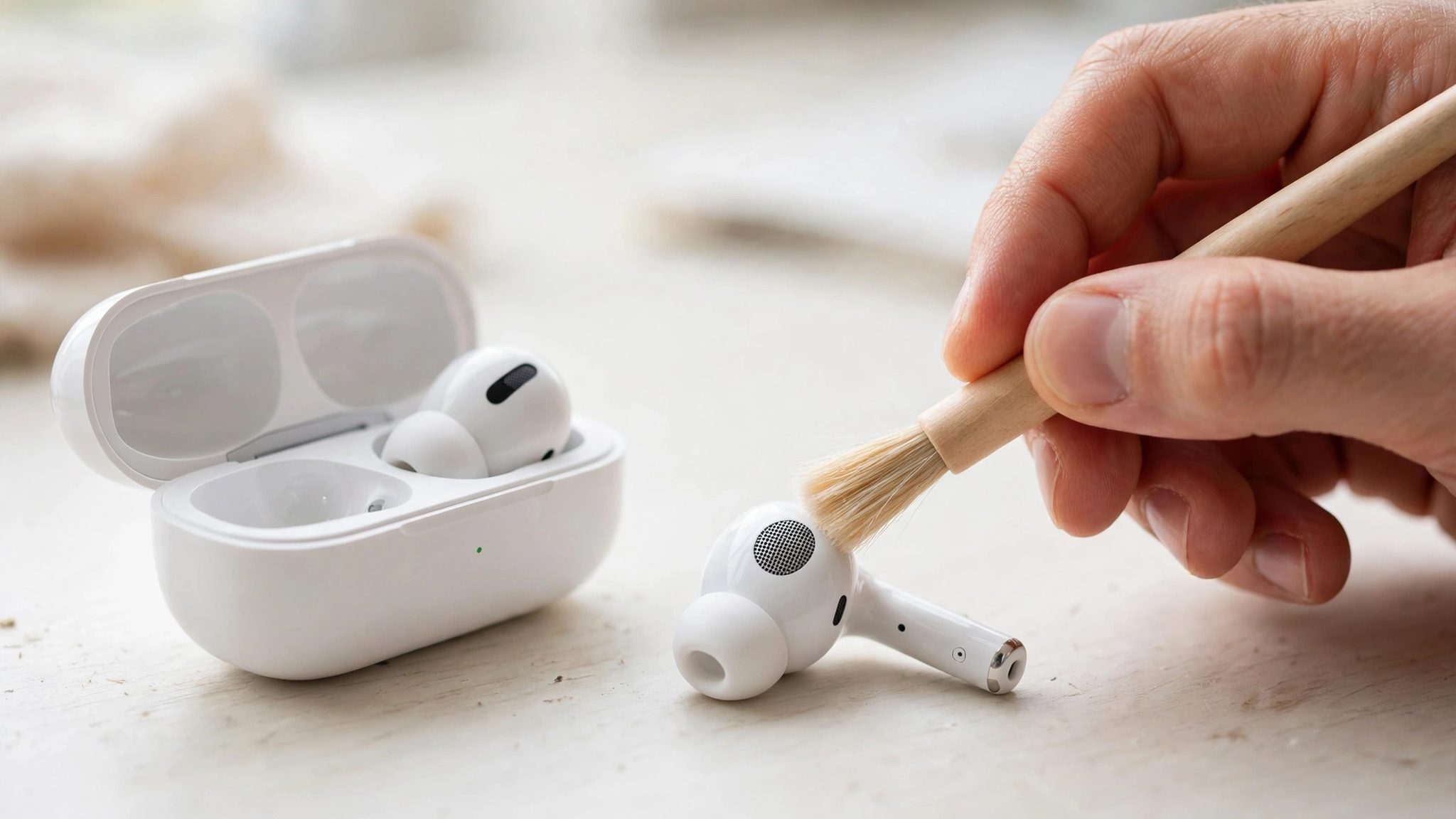
- Check the charging contacts. Look at the metal pins inside the case and on the bottom of the silent bud. Wipe both with a dry cloth, reseat the bud, and watch for the charging light. A third-party foam tip can hold a bud a fraction of a millimetre too high to touch the pins — try the stock tips if the bud never charges.
- Test the silent bud alone. Leave the working bud in the case and wear only the silent one. If it plays on its own, the two buds had lost sync, and the re-pair in step 4 usually fixes it for good.
- Clean the speaker mesh. Hold the bud mesh-down and brush it gently with a dry soft brush so debris falls out instead of in. Never poke the mesh with a pin — one slip tears it, and a torn mesh is a dead bud.
- Re-couple the buds. Some models lose the link between the left and right bud and need a re-couple from the case — Samsung's method is in the brand section below, and most other makers have the same move in their manual.
I've seen conflicting data — some guides say reset the earbuds first, others say check the balance slider first. My read is the slider wins: it takes ten seconds, and it fixes the most embarrassing cause before you wipe any settings.
The case tells the truth.
How Do I Fix the Left/Right Balance on My Phone or Computer?
Every phone and computer has a left/right balance control buried in its accessibility or sound settings, and it is easy to nudge by accident. If it sits all the way to one side, that ear goes silent on everything you play.
| Device | Where the balance lives | What to set |
|---|---|---|
| iPhone / iPad | Settings → Accessibility → Audio & Visual → Balance | Slider dead centre |
| Android | Settings → Accessibility → Audio adjustment | Left/right slider in the middle |
| Samsung Galaxy | Settings → Accessibility → Hearing enhancements → Left/right sound balance | Slider centred |
| Windows 11 | Settings → System → Sound → output device → Volume | Left and Right equal, normally 100/100 |
| Mac | System Settings → Sound → Output → Balance | Slider centred |
On Windows 11, check one more switch while you are there: mono audio. Open Settings → System → Sound and turn Mono audio off. Microsoft also lists a system-wide mono switch under Settings → Accessibility → Audio, and stereo may not work right while it is on. Mono audio is not a fix for a dead side — it just pushes both channels through the working one, so the silence hides instead of healing.
Quick note: if the slider was off-centre, centre it and test again before you touch anything else — this is the fix people miss most, because nobody expects a setting to fail that quietly.
Here's an opinion that might get pushback: check the balance slider before you reset anything. A reset wipes pairings and settings you didn't need to lose, and the slider takes ten seconds.
Centre it. Test again.
What If Only One AirPod or Galaxy Bud Works?
AirPods and Galaxy Buds each have their own re-sync move, and it is different from a normal reset. Use the maker's steps below before you try a full factory reset.
AirPods (with a setup button — AirPods 1, 2, 3 and Pro 1, 2):
- Put both AirPods in the case and close the lid. Wait 30 seconds.
- Open the lid, then hold the round setup button on the back of the case.
- Let go when the status light flashes amber and then white. Pair them again and test the silent bud on its own.
AirPods 4 and AirPods Pro 3: these have no setup button. With the buds in the case and the lid open, double-tap the front of the case three times. The light flashes amber and then white.
Samsung Galaxy Buds: seat both buds in the case, open it, and hold the connect button for 7 seconds — on Buds3, Buds3 Pro and Buds3 FE the button sits on the bottom of the case, on Buds4 and Buds4 Pro it sits on the back. On older models, wear both buds and hold both touchpads for 7 seconds until you hear a beep. Samsung also offers a reset in the Galaxy Wearable app under Earbuds settings, and both buds need at least 15% battery before you reset.
For Sony earbuds, the app path is Sony Headphones Connect → System → Initialize. For most other brands, the case-button hold or the companion app does the same job — our reset guide has the exact combos by model.
Brand steps first. Generic reset second.
When Is It a Hardware Fault — and When Should I Stop Fixing?
If the same side stays silent on two devices after every fix above, the fault is hardware — a dead driver, a dead battery, or a broken wire. No setting will bring it back, and a second reset won't either.
| What you see | What it means | What to do |
|---|---|---|
| Same side silent on two devices | Driver, battery, or internal wire | Warranty claim |
| Case hot, battery swollen, or buds soaked | Battery or water damage | Stop using them, contact the maker |
| Sound returns when the cable moves | Damaged cable or plug | Replace the cable, check the warranty |
| One bud never charges, no light at all | Dead battery or case contact | Clean the contacts once, then claim warranty |
| Cracked shell or broken hinge | Physical damage | Repair shop or replacement |
Most makers cover a dead driver or a dead battery in the first year, so check the warranty before you buy a replacement — keep the receipt and the serial number handy, and don't open the buds yourself. A lithium battery is not a do-it-yourself job, and opening the shell voids the warranty on most pairs. If the headphones were a gift or the warranty is gone, a single replacement earbud from the maker is often cheaper than a whole new pair.
Two devices. Same silence. That's the verdict.
Frequently Asked Questions
What's the fastest fix when only one earbud works?
Check the balance slider first, then put both buds in the case for 30 seconds and re-pair. Most one-side faults clear in under five minutes.
Why does only my left earbud work?
Usually the right bud never charged, lost sync, or the balance slider shifted right. Charge both buds, centre the balance, then re-pair.
How do I fix one AirPod not working?
Put both AirPods in the case, close the lid for 30 seconds, then hold the setup button until the light flashes amber and then white.
Why is one side of my headphones quieter, not silent?
A shifted balance slider or a blocked speaker mesh. Centre the balance first, then clean the quiet side's mesh with a dry brush.
Should I reset my headphones if only one side works?
Not first. Charge, check the balance, clean the contacts and re-pair — reset only when those fail, since a reset wipes your settings.
Can a dirty earbud cause one side to stop working?
Yes. Earwax or lint on the speaker mesh can muffle one side to silence, and dirty charging contacts can stop one bud charging at all.
When should I replace my headphones instead of fixing them?
When the same side stays silent on two devices after every fix, or the battery is swollen or the buds were soaked. That's a warranty claim, not a setting.