Why Is My Gaming Laptop Overheating? (2026 Guide)

A gaming laptop that runs hot is not automatically broken — a powerful CPU and GPU squeezed into a thin chassis are supposed to get warm under load. It becomes a real problem only when the heat costs you performance, forces a shutdown, or shows up where it should not, like at idle or on the keyboard. This guide separates normal heat from a fault by symptom, then fixes it in the order a technician would: free and safe first, opening the machine last.
The short version: if it only overheats on a bed or in a closed space, move it. If the fan is loud everywhere and the laptop is a few years old, clean it. If it still shuts down within minutes after a proper clean, stop and get it repaired — that is a fan, heatsink, or paste job, not a settings fix.
Is My Gaming Laptop Actually Overheating, or Just Hot?
A warm chassis and audible fans during a demanding game are normal; a shutdown, a fan screaming at idle, or a keyboard too hot to touch comfortably is not. Gaming laptops are designed to run hotter than desktops, and modern chips protect themselves by slowing down (thermal throttling) before they take damage. What matters is not one peak number on a monitoring app, but the pattern: when it gets hot, and what happens next.
| What you see | What it usually means | Do this first |
|---|---|---|
| Warm underside, fans audible in demanding games, frame rate steady | Normal cooling under load | Nothing — unless it is new behaviour |
| Frame rate drops after 10–20 minutes of smooth play | Thermal throttling as heat builds | Placement, vents, then the fix order below |
| Fan loud at idle or on the desktop | Background load, blocked vents, or dust | Task Manager check, then vent clean |
| Laptop shuts off mid-game, restarts only after cooling | Thermal protection tripped | Cool fully, then diagnose — do not keep restarting it |
| Grinding, clicking, or rattling from a fan | Failing fan bearing, not dust | Repair — cleaning will not fix a bearing |
| Hot spot near the battery, trackpad lifting, case not sitting flat | Possible battery swelling — stop and get it checked | Do not charge or press on it; see the repair section |
| Only one game overheats it | That game pushes sustained maximum clocks | Cap that game's frame rate and check its settings |
As a rough guide, most gaming laptops sit around 70–85°C on CPU and GPU while gaming, with brief peaks toward 90°C. Sustained CPU temperatures in the mid-90s and above, or a GPU that keeps pulling back in the high 80s, mean the cooling system has run out of headroom — especially if the frame rate falls at the same time. Exact limits vary by chip, so check your own model's specification rather than treating any single number as a universal red line. Free tools such as HWMonitor, HWiNFO, or MSI Afterburner show CPU and GPU temperatures and clock speeds together, which is the combination that tells you whether heat is actually costing performance.
Why Does My Gaming Laptop Keep Shutting Down?
Because the laptop is protecting itself: when a chip passes its safe limit, it shuts down rather than cook itself. A thermal shutdown is a safety feature, not proof the laptop is dead — but it is proof something is wrong, and powering straight back on into the same game is the one thing you should not do.
When it shuts down, power it fully off, unplug it, and let it cool for at least 30 minutes in open air. Do not restart it into the same game in the same spot — that just repeats the shutdown and adds heat stress each time. Once it is cool, check the two causes behind most shutdowns: is it sitting on a bed, blanket, or lap that blocks the underside intakes, and are its vents visibly dusty? Fix those first and re-test with the same game that shut it down. If shutdowns still happen within minutes of starting any demanding game after a move and a clean, the cause is almost certainly internal: a dust-clogged heatsink the surface clean could not reach, a fan that is not spinning properly, or dried thermal paste. That is the repair section at the end of this guide, not another driver update.
Why Is My Gaming Laptop Fan So Loud?
Because loud fans under load are the cooling system working — but a fan that is loud when nothing is running is a symptom, not a personality trait. Start by listening to when the noise happens. Fans that ramp up in a demanding game and settle afterwards are normal. Fans that stay loud on the desktop usually mean something is using the CPU in the background — open Task Manager, sort by CPU usage, and close the browser tabs, updaters, or launchers hogging resources before blaming the hardware.
Two fan sounds need a different response. A fan that barely reacts while the chassis gets very hot can point to a quiet or silent power profile, a custom fan curve, or a software problem — switch to the manufacturer's balanced or performance profile and re-test. A fan that grinds, clicks, or rattles, or one that does not spin at all, is a failing fan: no settings change fixes a bearing, and a laptop with a dead fan should not be gamed on until it is replaced.
How Do I Fix Gaming Laptop Overheating, in Order?
Work cheapest and safest first: most overheating laptops are fixed before anyone opens a screwdriver. Do these in order, and re-test after each step — the step that fixes it tells you what was wrong.
- Move it and lift it. Hard, flat surface, nothing blocking the underside intakes or rear exhausts. Raising just the rear edge on a stand or a couple of books gives the intakes room to breathe, and on its own this is often worth several degrees.
- Close the background load. Browsers with dozens of tabs, launchers, and sync tools all add CPU heat. Close what you are not using before you judge the cooling system.
- Cap the frame rate. An uncapped frame rate keeps the CPU and GPU working flat out even on a display that cannot show every extra frame. Cap it at your screen's refresh rate in the game's settings — this is the single biggest free temperature drop in most games.
- Use the right power profile. Game on the manufacturer's balanced or performance profile, plugged into the correct adapter that came with the laptop. Gaming on battery throttles performance, and an underpowered adapter creates confusing results.
- Clean the vents. With the laptop off and unplugged, use short bursts of compressed air on the intakes and exhausts, holding the can upright. Hold the fan blades still while you blow — a fan spun freely by compressed air can overspeed and, in some designs, feed voltage back into the board.
- Update drivers and BIOS. Graphics drivers and BIOS updates regularly improve fan control and efficiency. Update through the manufacturer's own app or support page, not a third-party driver tool.
- Turn down the hottest settings. Shadows, lighting effects, view distance, and crowd density are usually CPU-heavy; dropping those cools the machine more than dropping texture quality, which mostly loads the GPU's memory.
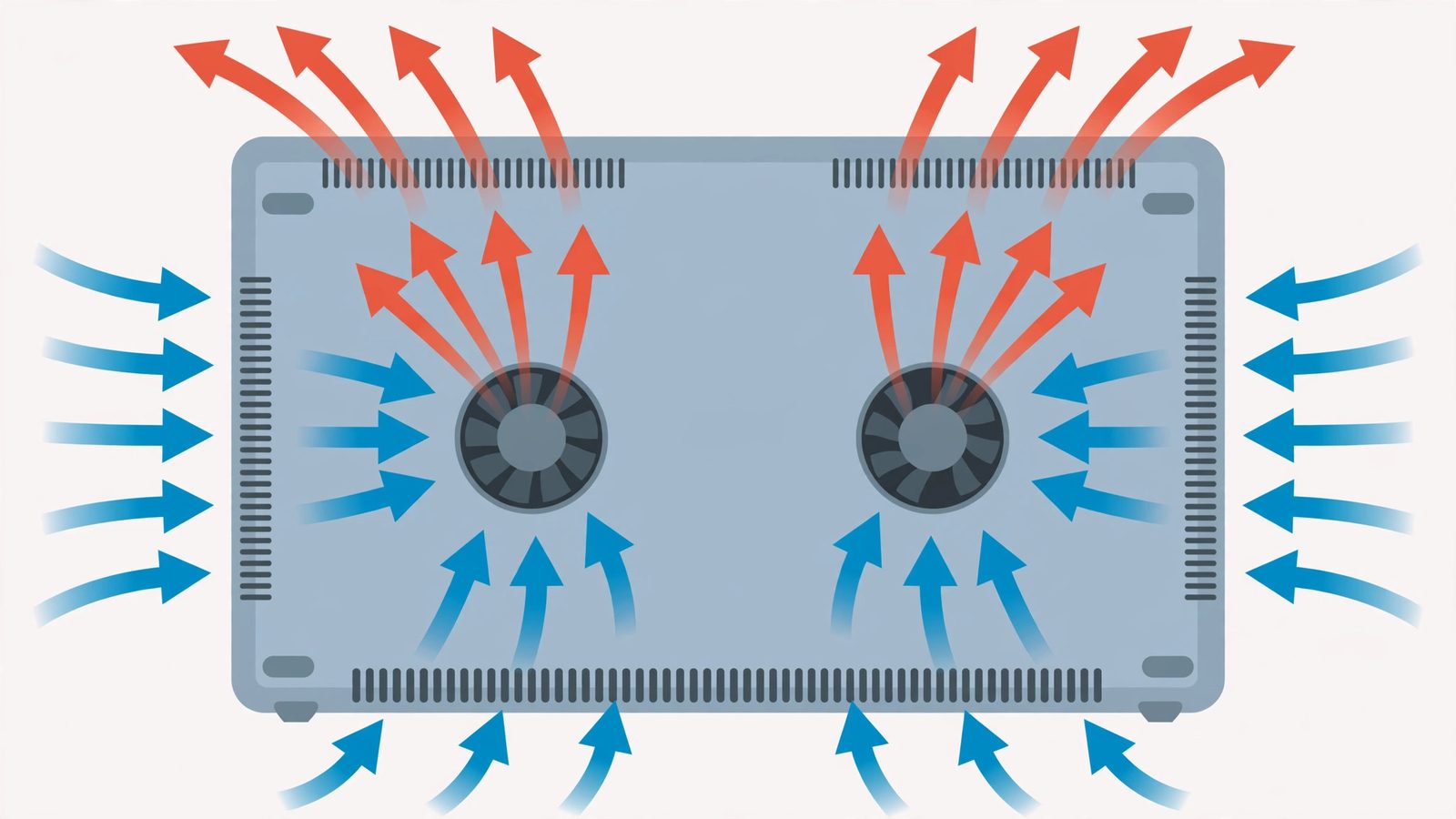
If none of that helps, the remaining steps involve opening the machine — cleaning inside the heatsink fins, replacing thermal paste, or replacing a fan — and those belong in the sections below, with the warranty warning attached.
Do Laptop Cooling Pads Actually Work?
Yes, but less than the box claims — and only after the free fixes. A cooling pad does not cool the laptop directly; the laptop cools itself, and a pad only changes the air reaching its intakes. It lifts the chassis so the vents are not breathing against a desk, and its fans push slightly cooler, slightly faster air at them. That is the whole mechanism, which is why a pad's fans matter less than its fit: a pad whose fans sit nowhere near your laptop's intakes is mostly an expensive stand.
Realistic expectations: a decent pad typically buys a few degrees, enough to stop throttling on a laptop that is only just over its limit, but not enough to rescue a heatsink clogged with years of dust or paste that dried out in 2021. Claims of 20–30°C drops are marketing, not measurement. The honest order is: clean the vents, lift the rear edge, cap the frame rate — then, if it still throttles after 20 minutes, a well-fitting pad is a reasonable buy. Sealed turbo-style pads that force air into the intakes tend to do more than multi-fan pads with small, scattered fans, but only if they actually seal against your model's vent layout.
Is Undervolting Safe?
Undervolting is generally safe for the hardware, but it is not risk-free for your time or your stability. It lowers the voltage supplied to the CPU (and, with tools such as MSI Afterburner, the GPU) while keeping clock speeds the same, so the chip produces less heat for the same performance. Less voltage cannot burn out a chip the way overvolting can — the failure mode is crashes and freezes if you push the voltage too low, which is why you test in small steps and revert at the first sign of instability.
Two caveats. First, some laptop CPUs lock voltage control, so the option may simply not be available on your model — that is a manufacturer restriction, not a fault. Second, check your warranty terms before using third-party tuning tools, and save your original settings first. A simpler, lower-risk alternative achieves much of the same effect: in Windows Advanced Power Settings, capping Maximum Processor State at 99% stops the CPU entering its hottest turbo-boost states, often with a small performance cost and a large temperature drop. Try that before undervolting.
Should I Replace the Thermal Paste Myself?
On a laptop more than two or three years old that still overheats after cleaning, dried thermal paste is a genuine suspect — but repasting is an intermediate job, not a first fix. The paste sits between the CPU/GPU and the heatsink, and as it dries out it transfers heat worse, so the same game runs hotter year after year. A fresh application can drop load temperatures noticeably on an older machine, and it is the biggest single win left once the vents are clean.
Do it yourself only if you are comfortable opening your exact model — watch a teardown for that model first, note that screws are often different lengths, and disconnect the battery before touching anything inside. If your laptop uses liquid metal instead of paste, or the battery is glued in, do not attempt it: liquid metal is electrically conductive and can short the board if it escapes, and a glued battery is a puncture risk. Opening the machine can also affect warranty coverage, so check the terms first. If any of that sounds like too much, a repair shop's deep clean and repaste is a modest job — far cheaper than a heat-damaged motherboard.
When Should I Stop and Get It Repaired?
Stop troubleshooting at home if the laptop shuts down repeatedly after a move and a clean, smells of burning, reports a fan error, has a fan that does not spin, or shows any sign of battery swelling. Battery swelling is the urgent one: a lifted trackpad, a case that no longer sits flat, or a hot spot near the battery means the battery may be failing. Do not charge it, do not press on the swollen area, and do not try to remove a glued battery yourself — take it to a repairer promptly.
The same applies to a fan that grinds or clicks, a heatsink that stays hot with no airflow from the exhaust, or shutdowns that happen within minutes on any demanding game. At that point the fault is a component — fan, heatsink mounting, paste, or power delivery — and no driver, profile, or cooling pad fixes a component. A shop can test fan operation, heatsink contact, and battery condition in one visit.
How Do I Keep My Gaming Laptop Cool Long Term?
Treat cooling as maintenance, not a one-off repair. Clean the external vents every few months with compressed air, and plan a deeper internal clean yearly — every six months if you have pets, smoke indoors, or regularly game on soft surfaces. Keep the laptop on a hard surface with clear vents as a habit, not just when it overheats, and game in the coolest room you reasonably can: a hot room gives the cooling system warmer air to work with, and no setting compensates for that. Cap frame rates at your display's refresh rate by default, keep drivers and BIOS current, and re-check temperatures after any change — a 10-minute monitoring session after cleaning tells you whether the fix actually worked. Our guide to cleaning dust from a laptop covers the deep-clean steps in detail.
Frequently Asked Questions
Is 90°C too hot for a gaming laptop CPU?
Not automatically: most gaming laptop CPUs run 70–85°C while gaming with brief peaks toward 90°C, and 90°C is on the hot side rather than a crisis. It becomes a problem when temperatures stay in the mid-90s and above, or when the frame rate falls as temperatures rise — that is throttling. If your CPU sits at 90°C but performance is steady, improve airflow and cap the frame rate before worrying; if it sits higher and throttles, work through the fix order in this guide.
Is 85°C too hot for a gaming laptop GPU?
For most laptop GPUs, 85°C is warm but within the range where the card manages itself, and many start pulling back clock speeds in the mid-to-high 80s to stay safe. Judge it by behaviour: steady frame rates at 85°C are fine, while falling frame rates at the same temperature mean the card is throttling and needs better airflow, a frame-rate cap, or a vent clean.
Do cooling pads actually work?
Yes, but modestly: a well-fitting pad typically buys a few degrees by lifting the laptop and pushing cooler air at its intakes, which can be enough to stop throttling on a machine that is only just over its limit. A pad cannot fix a dust-clogged heatsink or dried thermal paste, and claims of 20–30°C drops are marketing. Clean the vents and lift the rear edge first, then buy a pad if it still throttles.
Is undervolting safe, and will it void my warranty?
Undervolting is generally safe for the hardware because less voltage cannot damage a chip the way overvolting can; the risk is instability, with crashes if you push the voltage too low, so test in small steps and revert at the first crash. Warranty terms vary by manufacturer and by tool, so check yours before using third-party tuning software, and save your original settings first. The 99% processor-state setting in Windows is a simpler, lower-risk alternative.
Can I vacuum my gaming laptop to clean it?
For the outside, yes: a vacuum with a soft brush attachment on the vents is safe for loose surface dust. Do not use a household vacuum directly on internal components, do not vacuum with the laptop powered on, and never let compressed air spin the fan freely — hold the fan blades still while you blow dust out, because an overspeeding fan can be damaged and can feed voltage back into the board.
Why does only one game make my gaming laptop overheat?
Because some games push sustained maximum clocks that others never reach — a demanding open-world or ray-traced title heats the CPU and GPU far more than a menu-heavy or older game. If only one game triggers throttling or shutdowns, cap that game's frame rate, drop its CPU-heavy settings such as shadows and view distance, and re-test after the placement and cleaning steps; if it still shuts down, the cooling margin is the problem, not the game.
Does gaming on battery make a laptop hotter?
Usually the opposite for performance, but not for the battery: on battery power most gaming laptops throttle back, so they run cooler and slower. The hotter combination is gaming while charging on an underpowered or failing adapter, or in a warm room, because charging adds heat on top of the gaming load. Always game plugged into the correct adapter that came with the laptop, and if charging cuts in and out during play, inspect the cable, connector, and adapter before blaming heat.