Why Is My Gaming PC So Loud? (2026 Guide)

A gaming PC that roars under load is not automatically broken — fans spin faster because the CPU and GPU are producing more heat, and moving that heat out is their job. The noise only becomes a problem when it shows up where it should not: at idle, as a grinding or rattling sound, or alongside falling frame rates and shutdowns. This guide starts with the sound itself, because the sound tells you the cause faster than any settings menu — then fixes it in the order a technician would: free and safe first, replacement parts last.
The short version: if the noise is a steady whoosh that settles after you quit the game, your cooling is working and the fix is airflow, a frame-rate cap, and a gentler fan curve. If it rattles, grinds, or never spins down, stop tuning and find the failing fan — no curve fixes a worn bearing.
Is Loud Fan Noise Normal When Gaming?
Yes — a steady whoosh that rises under load and settles within a minute or two of quitting is normal; a fan that stays loud at idle, grinds, or runs alongside stuttering and shutdowns is not. Demanding games push the CPU and GPU near their limits, so their fans must move more air. What matters is the pattern, not a single loud moment: normal noise follows the load up and down, while a fault ignores it.
| What you notice | What it usually means | Do this first |
|---|---|---|
| Steady whoosh in demanding games, quiet again after quitting | Normal cooling under load | Nothing — or tune the fan curve if it bothers you |
| Fan loud on the desktop with nothing open | Background load, blocked vents, or dust | Task Manager check, then vent clean |
| Frame rate drops after 10–20 minutes of smooth play | Heat building until the chip throttles | Airflow, frame-rate cap, then the fix order below |
| Grinding, clicking, or rattling tied to fan speed | Worn bearing, cable touching a blade, or loose mount | Power off and inspect — see the failing-fan section |
| High-pitched whine that changes with frame rate, not fan speed | Coil whine from the GPU or power supply, not a fan | Cap the frame rate; it is usually harmless |
| PC shuts off mid-game and restarts only after cooling | Thermal protection tripped | Cool fully, then diagnose — do not keep restarting it |
| Burning smell, smoke, or repeated shutdowns | Possible electrical or cooling failure | Power off and get it assessed; do not keep gaming on it |
As a rough guide, most desktop CPUs sit around 70–85°C and GPUs in the 70s to low 80s while gaming, with brief peaks higher. Judge temperatures by behaviour, not one number: steady frame rates at 82°C are fine, while frame rates falling as temperatures climb mean the chip is throttling and the cooling system has run out of headroom. Free tools such as HWiNFO, HWMonitor, or MSI Afterburner show temperatures and fan speeds together, which is the combination that tells you whether the fans are loud because they need to be, or because something is stopping them cooling efficiently.
What Does the Noise Sound Like — and What Does It Mean?
Do not diagnose by volume alone — diagnose by the kind of sound, because each sound points at a different fix. A whoosh is air moving; a rattle is something physical; a whine that follows the frame rate is electrical. Competitor guides mostly list "dust" and stop there, which is why a rattling bearing or coil whine keeps getting misdiagnosed as a dirty case.
| Sound | Most likely cause | What to do |
|---|---|---|
| Steady whoosh, rises and falls with load | Normal airflow at high fan speed | Clean, improve airflow, cap frame rate, tune the curve |
| Rattling or buzzing that starts when a fan spins up | Cable touching a blade, loose screw, or vibrating panel | Power off, re-route the cable, tighten mounts |
| Grinding or clicking, worse at certain speeds | Worn fan bearing | Replace the fan — cleaning will not fix a bearing |
| High-pitched whine or chirp that changes with frame rate | Coil whine from GPU or power-supply inductors | Cap frame rate, try a different game scene; usually harmless |
| Clicking from a hard drive bay, not a fan | Failing mechanical hard drive | Back up immediately, then replace the drive |
| Short roar at boot, then quiet | Fans briefly running at full speed on startup | Normal on most boards — worry only if it never settles |
Coil whine deserves a special note because it is the most mislabelled PC noise. It is a thin electrical whine from vibrating inductors under load, and its pitch follows the frame rate or power draw rather than the fan speed — so it often screams in an uncapped game menu rendering hundreds of frames per second, then vanishes in gameplay. It is usually harmless on its own, and it is not fixed by cleaning, replacing fans, or changing a fan curve. The test is simple: cap the frame rate and watch whether the sound changes while the reported fan speeds stay steady. If it does, you are hearing load-related electrical noise, not a fan — and if it comes with instability, a burning smell, or shutdowns, stop using the machine and get it checked rather than assuming it is coil whine.
Which Fan Is Actually Making the Noise?
Listen from outside the case first — near the graphics card, then near the power-supply exhaust, then the CPU cooler — and compare what you hear with the fan speeds your monitoring tool reports. Most gaming PCs have four possible culprits, and guessing wrong wastes a replacement: the CPU cooler fan, the graphics-card fans, the case fans, and the power-supply fan. A noise that starts the moment one fan spins up, or that rises and falls exactly with one fan's reported speed, points at that fan.
Two safety rules. Never stop a running fan with your fingers or a tool to identify it — that can damage the fan, the board, or you. And never open a power supply: its fan is not a user-serviceable part, and the unit holds charge even when unplugged. If the noise clearly comes from the power supply area and the unit is otherwise behaving, a replacement power supply is a shop job for most owners, not a fan swap. One more trap: many modern graphics cards and power supplies use a zero-RPM mode, where the fan deliberately stops at low load. A stopped fan on a cool, idle GPU is a feature, not a failure — check the temperature before assuming the fan is dead.
How Do I Make My Gaming PC Quieter, in Order?
Work cheapest and safest first, and re-test after each step — the step that quiets it tells you what was wrong. Most loud PCs are fixed before anyone buys a part.
- Cap the frame rate. An uncapped frame rate keeps the GPU working flat out even on a display that cannot show every extra frame — and in menus it can run into the hundreds. Cap it at your monitor's refresh rate in the game's settings or the graphics driver. This is the single biggest free noise drop in most games, and it also tames coil whine.
- Close the background load. Open Task Manager, sort by CPU and GPU usage, and close the browser tabs, launchers, updaters, and sync tools you are not using. A fan that roars on the desktop is usually cooling a hidden workload, not a broken cooler.
- Clean the dust. Power off and unplug the PC, then use short bursts of compressed air on the case filters, CPU heatsink, and graphics-card fans, holding the can upright. Hold each fan's blades still while you blow — a fan spun freely by compressed air can overspeed and, in some designs, feed voltage back into the board. A clogged front filter alone can force every fan in the case to work harder.
- Fix the airflow. Cool air should come in at the front (and bottom, if filtered) and leave at the rear and top — heat rises, so a top exhaust helps rather than fights physics. Keep cables tied away from the airflow path, leave the case's vents unblocked, and do not park the tower in a closed cabinet or against a wall that traps its exhaust. A hot room gives the cooling system warmer air to work with, and no setting compensates for that.
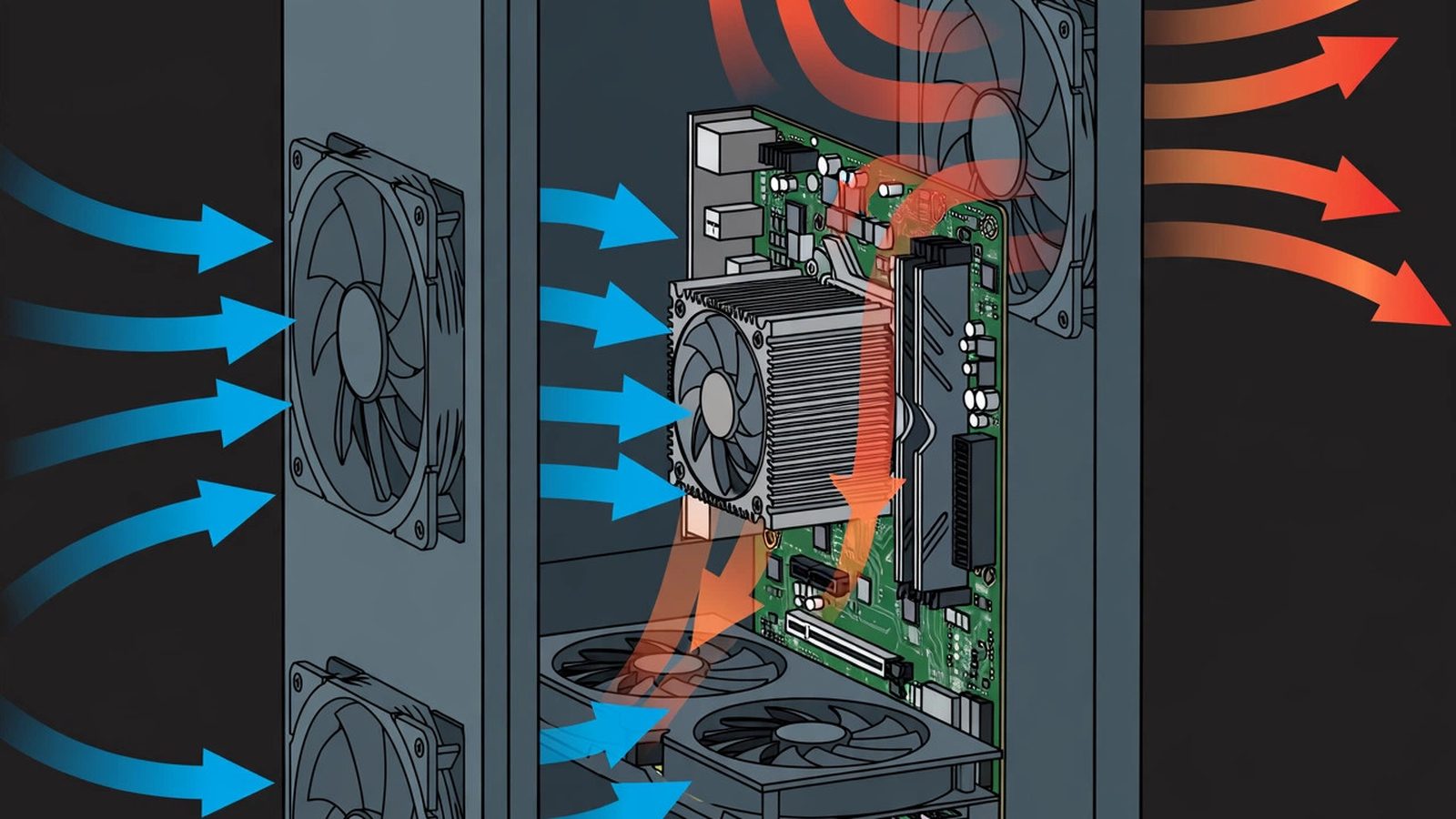
- Tune the fan curve. Factory curves are tuned for worst-case safety, not your desk, and often ramp fans hard at modest temperatures. The next section shows a safe starting curve — quiet at idle, strong under load, never flat at high temperatures.
- Turn down the hottest settings. Shadows, lighting effects, view distance, and crowd density are usually CPU-heavy; dropping those cools the machine more than dropping texture quality, which mostly loads the GPU's memory.
- Update drivers and BIOS. Graphics drivers and BIOS updates regularly improve fan control and efficiency. Update through the manufacturer's own app or support page, not a third-party driver tool.
If none of that helps and temperatures are still high, the remaining suspects are dried thermal paste on a machine more than two or three years old, a cooler that was never mounted evenly, or a fan whose bearing is worn. Paste and mounting are intermediate jobs — watch a teardown for your exact cooler first, and do not attempt them on a machine still under a warranty you care about without checking the terms.
How Do I Set a Fan Curve Without Cooking My PC?
A fan curve is simply the rule that says "at this temperature, spin this fast" — and a safe one is quiet at idle, gradual in the middle, and strong at the top, never the reverse. You set it in the BIOS for CPU and case fans (look for Hardware Monitor, Q-Fan Control, Smart Fan, or FAN-Tastic Tuning, depending on the board maker), and in MSI Afterburner or AMD Adrenalin for the graphics card, because the BIOS cannot see GPU temperature. For finer control in Windows, the free Fan Control tool can drive case fans from whichever sensor is hotter — CPU or GPU — which the BIOS alone cannot do.
| Temperature | Fan speed (starting point) | Why |
|---|---|---|
| Below 40°C | 30–40% | An idling PC makes little heat; blasting fans here is pure noise |
| 50–60°C | 40–50% | Gentle rise for everyday use and light games |
| 70–75°C | 65–75% | Audible, but this is where the fans earn their noise |
| 85°C and above | 100% | Maximum cooling for sustained heavy load — never flatten this end |
Three details separate a good curve from a noisy one. First, match the fan type: 4-pin PWM fans take percentage control across their range, while 3-pin DC fans need voltage mode and a higher minimum speed, or they stall. Second, add hysteresis — a step-up/step-down delay of a few seconds — so a one-second temperature spike does not yank the fans to full speed and back, which is the surging roar many owners complain about. Third, test it: run a demanding game for ten minutes and watch temperatures. Sustained CPU temperatures under about 85°C and GPU under about 83°C with steady frame rates mean the curve is safe; if anything runs hotter, steepen the top end rather than flattening it. Save the profile — boards sometimes reset to defaults after a BIOS update, and a saved profile restores your quiet in seconds.
Why Is My PC Louder in Game Menus Than in the Game?
Because an uncapped menu can render far more frames per second than the game itself, so the GPU works harder doing nothing than it does in gameplay. A menu scene is simple to draw, which lets the graphics card run at hundreds of frames per second — maximum power draw, maximum heat, maximum fan speed, and often coil whine too — all while you are just staring at a settings screen. It feels backwards, and it is the single most common "my PC is loud for no reason" complaint that is not a fault at all.
The fix is the same frame-rate cap from the fix order: cap at your monitor's refresh rate, either in the game's settings, in the graphics driver's global settings, or with the in-game frame limiter. If the noise drops the moment the cap applies, you have your answer — and you have also just proved the cooling system is responding to load correctly. If the menu roar persists with a cap in place and temperatures are high, work through the cleaning and airflow steps instead, because then the load is not the explanation.
When Is It a Failing Fan — and Should I Replace It?
Replace the fan when the noise is mechanical and survives cleaning: grinding, clicking, or rattling that tracks with one fan's speed, a fan that wobbles, or a fan that does not spin while its chip gets hot. A worn bearing does not heal, and a fan that stops cooling a hot chip is a countdown to throttling or a shutdown — gaming on a machine with a dead CPU or GPU fan is not worth the risk to the chip. Replacement case and CPU fans are inexpensive and standardised by size (120mm and 140mm are the common case sizes), so match the size, the connector (4-pin PWM where possible), and the airflow direction before buying.
Stop and get the machine assessed instead if the noise comes from the power supply, if there is a burning smell or visible damage, or if the PC shuts down repeatedly after cleaning and a frame-rate cap. The power supply is not a fan-swap job, and repeated thermal shutdowns after the free fixes point at a component fault — cooler mounting, paste, or power delivery — that no settings change fixes. A shop can test fan operation, heatsink contact, and power delivery in one visit, which is cheaper than replacing parts by guesswork.
Frequently Asked Questions
Is it bad if my gaming PC fan is always loud?
Not by itself — a steady whoosh under load is normal cooling. It becomes a warning when the fan never spins down at idle, grinds or rattles, or runs alongside falling frame rates or shutdowns. A fan that never quiets usually means it cannot cool efficiently (dust, blocked vents, dried paste) or something is keeping the CPU or GPU busy in the background, so check Task Manager and the vents before assuming the fan is failing.
Can I turn my PC fans off to make it silent?
No — not as a general rule. Even at idle, components generate heat, and fans should run at low speed (around 30–40%) to keep air moving. Some graphics cards and power supplies deliberately stop their own fans at low load in a zero-RPM mode, which is safe because it is designed in and temperature-controlled. Forcing all fans off, or setting minimum speeds so low they stall, risks thermal throttling and, in the worst case, a shutdown.
Why is my PC fan loud at idle with nothing open?
Usually because something is not actually idle: a browser with dozens of tabs, a launcher updating in the background, a sync tool, or a Windows update can pin the CPU while the desktop looks empty. Open Task Manager, sort by CPU and GPU usage, and close the real culprit before blaming the hardware. If usage is genuinely low and the fan still roars, check for blocked vents and dust, then look at the fan curve — an aggressive factory curve is the next suspect.
Does undervolting make a gaming PC quieter?
It can, because lowering the voltage a chip runs at reduces the heat it produces for the same performance, so the fans do not need to work as hard. It is a tuning job rather than a first fix, though: push the voltage too low and the machine crashes, so test in small steps and revert at the first sign of instability. Try the free fixes first — frame-rate cap, cleaning, airflow, and a fan curve — and only undervolt if the machine is still loud after those.
Will a new case make my PC quieter?
Only if airflow is the actual bottleneck. A mesh-front case with good intake and dust filters can drop temperatures — and therefore fan speeds — noticeably compared with a sealed glass-front case that starves its fans. But a new case will not fix a worn bearing, dried paste, or an uncapped frame rate, and it is an expensive guess if you have not worked through the free fixes first. Clean, cap, and tune before you spend.
Why does only one game make my PC loud?
Because some games push sustained maximum clocks that others never reach — a demanding open-world or ray-traced title heats the CPU and GPU far more than a menu-heavy or older game. If only one game triggers the roar, cap that game's frame rate, drop its CPU-heavy settings such as shadows and view distance, and re-test after the cleaning and airflow steps; if it still overheats, the cooling margin is the problem, not the game.
Is coil whine dangerous for my GPU?
On its own, no — coil whine is vibrating inductors under load, it is common on modern graphics cards and power supplies, and it does not by itself mean the component is failing. Cap the frame rate first, since the whine usually follows frame rate and power draw. Get the machine checked if the whine comes with crashes, shutdowns, a burning smell, or visible damage, because then the noise is not the only symptom.