Best USB Hub for Home Office Setup (2026): 6 Picks

The call starts. Your webcam freezes.
You unplug the backup drive and the picture comes back. That small desk fight is the real home office hub problem: too many devices, too little power, and a laptop with almost no ports to spare.
The best USB hub for home office setup is a desk hub that adds the ports your computer lacks for a keyboard, mouse, webcam, headset and storage. It should match your computer port, power needs and cable reach, not just your port count.
This guide ranks six hubs by desk type. Three suit USB-C laptops. Three suit desktop PCs and USB-A desks. If your desk needs two monitors, wired internet and laptop charging from one cable, read our docking station guide instead — a plain hub will not do that job.
No prices are printed in this guide — hub prices move often and listings change. Check the live price before buying. Specs below are the makers' own figures.
What's the Best USB Hub for a Home Office Setup?
For a USB-C laptop desk, the Anker 332. For a desktop desk with drives, the powered TP-Link UH720. The right pick depends on the computer, not the port count.
The best USB hub for a home office setup depends on the computer on the desk. According to Anker, the 332 USB-C Hub adds HDMI, one USB-C data port, two USB-A data ports and pass-through charging. That mix suits a USB-C laptop with a keyboard, mouse, webcam and one screen.
A home office USB hub should match the hungriest device on the desk. According to UGREEN, the Revodok 105 gives one 5Gbps USB-A port, two slower USB-A ports, HDMI and 100W power delivery. Put drives on the fast port and leave keyboards and mice on the slower ports.
Look — if you're in the spot where the mouse stutters every time the drive wakes up, here's what actually works: power first, ports second. A hub with its own adapter stops most dropouts before speed even matters.
Anker 332 vs UGREEN Revodok 105: the Anker is better suited for desks with a USB-C drive because it adds a USB-C data port. The UGREEN works better when three USB-A devices stay plugged in all day. The key difference is data-port mix, not HDMI.
Do I Need a Powered USB Hub for My Home Office?
Yes, if a drive, webcam or several busy devices share the hub. No, if the hub only holds a keyboard, mouse and flash drive.
A powered USB hub is needed when drives, webcams or several busy devices share one computer port. Bus-powered hubs split a small power budget, so a drive can drop out when a camera starts. A powered hub brings its own adapter and gives each port steadier power for all-day desk work.
Keyboards and mice sip power. Drives, webcams, microphones and phone charging drink it. Two hungry devices on a bus-powered hub is the classic recipe for random disconnects, and the fault looks like bad luck until you count the power.
Here's the thing: a powered hub does not make data faster. It makes devices stay connected. Speed still comes from the USB version, the cable and the device itself.
Our powered USB hub guide goes deeper on adapter watts if your desk holds several drives.
USB Hub or Docking Station — Which Do I Need?
Buy a hub when you need more USB ports. Buy a docking station when one cable must run your monitors, internet, charging and desk gear.
A hub adds ports. A dock rebuilds the desk around one cable. Docks add display outputs, Ethernet, audio and laptop charging with their own power supply, which is why they cost more and stay in one place.
One screen and a few USB devices? A hub is enough, and picks one to three below cover that desk. Two screens, wired internet and a laptop that charges through the same cable? That is dock work. Our USB-C hub with Ethernet and HDMI guide covers the middle ground.
My honest take: most home offices buy a dock too early. If one HDMI screen and three USB devices cover your day, a good hub does the job for far less money and far less desk clutter.
Ports first. Screens decide the rest.
Why Does My Webcam Freeze or My Drive Drop Out on a Hub?
Usually power or interference. A busy bus-powered hub can starve a drive or camera, and USB 3.0 gear can disturb nearby 2.4GHz wireless receivers.
Test the device straight into the computer first. If it works there and fails on the hub, the hub is the suspect. Move drives to a powered hub or a direct port, then test the webcam again on a real call.
Wireless keyboard and mouse receivers need care too. Sabrent warns that 2.4GHz wireless adapters may not work well close to USB 3.0 devices or hubs. A short extension lead that moves the receiver away from the hub often fixes stutter with no new purchase.
Quick note: monitor USB ports count as a hub too. They suit a mouse or flash drive. Keep external drives on the computer or a powered hub.
Or maybe I should say it this way: feed the hungry devices first.
Quick Comparison
| Product | Desk Type | Key Specs | ||
|---|---|---|---|---|
| #1 | Anker 332 USB-C HubBest Overall | USB-C laptop | HDMI 4K 30Hz · 3 data ports · 85W charging | Check Price |
| #2 | UGREEN Revodok 105Best Budget USB-C | USB-C laptop | 3 USB-A · HDMI 4K 30Hz · 100W PD input | Check Price |
| #3 | Satechi 4-in-1 Slim AdapterBest for 4K 60Hz | USB-C laptop | HDMI 4K 60Hz · 2 USB-A · 100W PD input | Check Price |
| #4 | Sabrent HB-UM43Best With Switches | Desktop / USB-A | 4 USB-A 5Gbps · switch per port · bus-powered | Check Price |
| #5 | TP-Link UH720Best Powered | Desktop / USB-A | 7 data ports · 2 charging ports · own adapter | Check Price |
| #6 | UGREEN 4-Port USB 3.0 HubBest Long Cable | Desktop / USB-A | 4 USB-A 5Gbps · 3.3ft cable · bus-powered | Check Price |
The desk-type column decides the shortlist. USB-C picks one to three need a laptop port with video and charging support. USB-A picks four to six need a free USB-A port or an adapter.
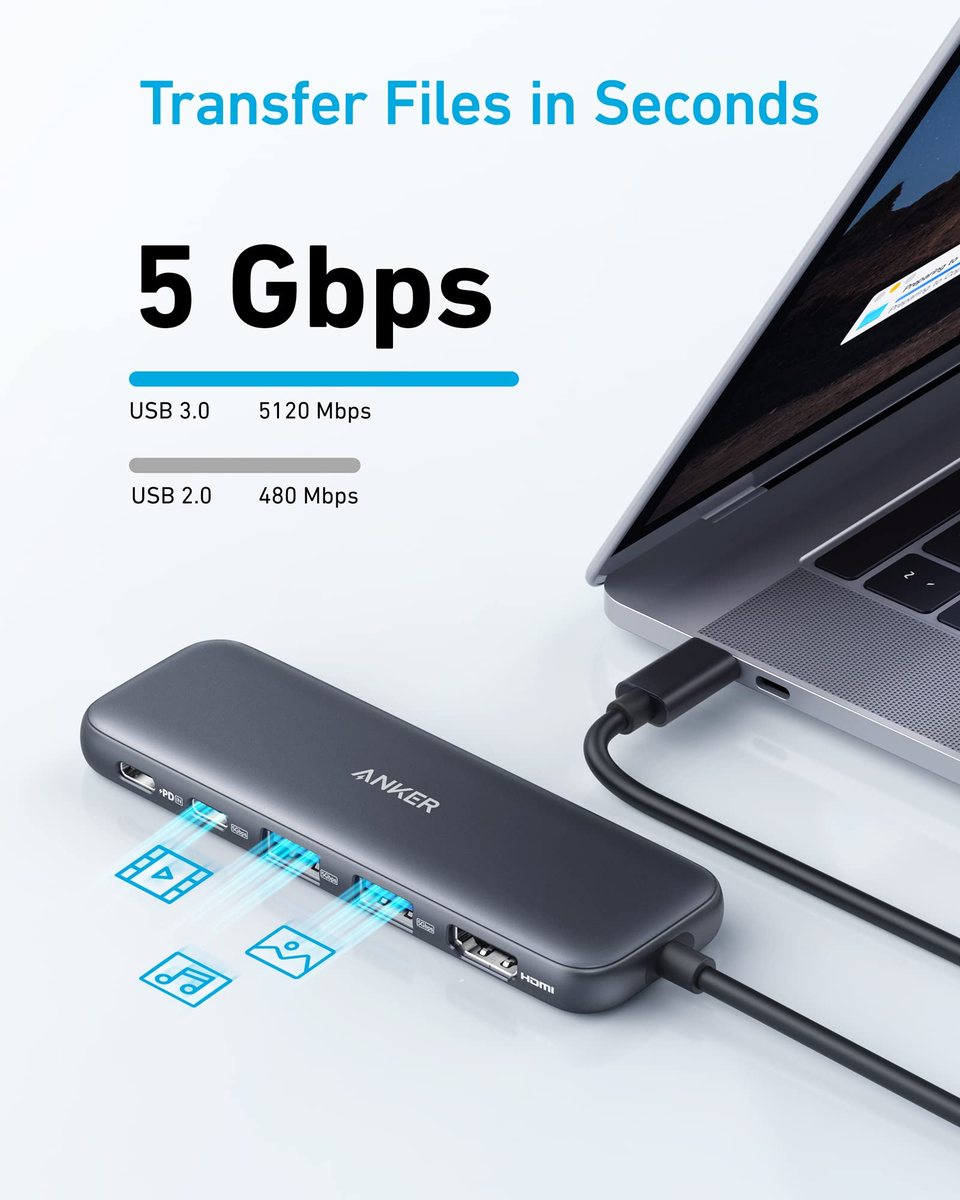
Anker 332 USB-C Hub (5-in-1, A8355)
Best OverallBuy if: your USB-C laptop desk needs one screen and three data ports
Don't buy if: your monitor must run at 4K 60Hz
The Anker 332 is the safest start for a laptop-based home office. Anker lists a 4K HDMI port, a 5Gbps USB-C data port, two 5Gbps USB-A ports and a 100W power input that passes up to 85W to the laptop. A keyboard receiver, webcam and USB-C drive all fit without a second hub.
Two limits matter. HDMI stops at 4K 30Hz, which feels slow on a desk monitor even though documents still look fine. The power port charges only — it carries no data and no video, so headphones and drives belong on the data ports. Your charger is not in the box.
Pros
- USB-C data port plus two USB-A
- Up to 85W laptop charging
- HDMI for one extra screen
- 18-month warranty listed
Cons
- HDMI caps at 4K 30Hz
- Only two USB-A ports
- Power port carries no data
- No card reader or Ethernet
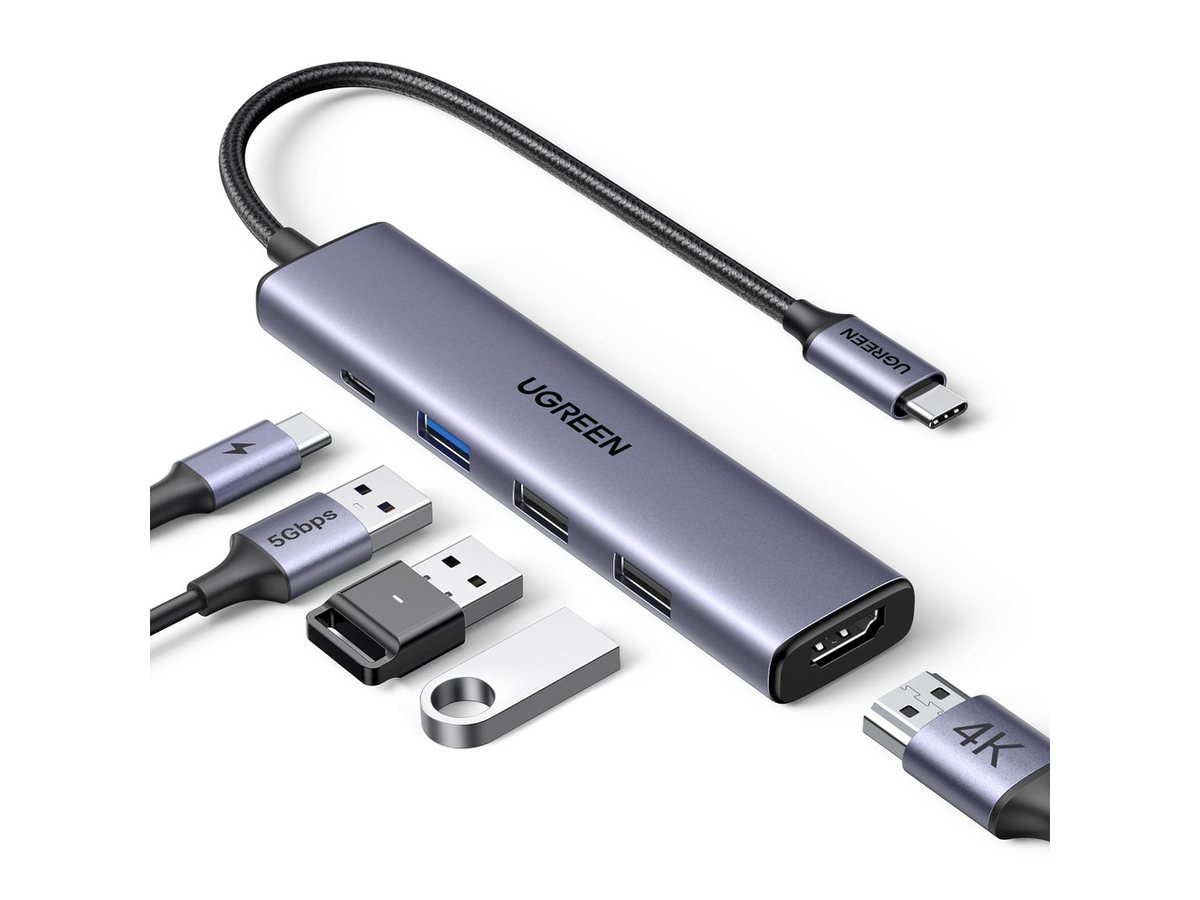
UGREEN Revodok 105 5-in-1 USB-C Hub
Best Budget USB-CBuy if: three USB-A devices live on your desk all day
Don't buy if: you need a USB-C data port or card reader
The Revodok 105 suits desks built on USB-A gear. UGREEN lists one USB-A 3.0 port at 5Gbps, two USB-A 2.0 ports, an HDMI port up to 4K 30Hz and a 100W power delivery input. Keyboard, mouse and printer can stay plugged in while the fast port handles a flash drive.
Port speed needs a plan. Only one USB-A port is fast, so a backup drive on a slow port crawls. There is no USB-C data port and no SD card slot. For most home offices that trade is fine; for camera cards it is not.
Pros
- Three USB-A ports for desk gear
- 100W power delivery input
- HDMI for one extra screen
- Strong budget value
Cons
- Only one fast USB-A port
- HDMI caps at 4K 30Hz
- No USB-C data port
- No card reader
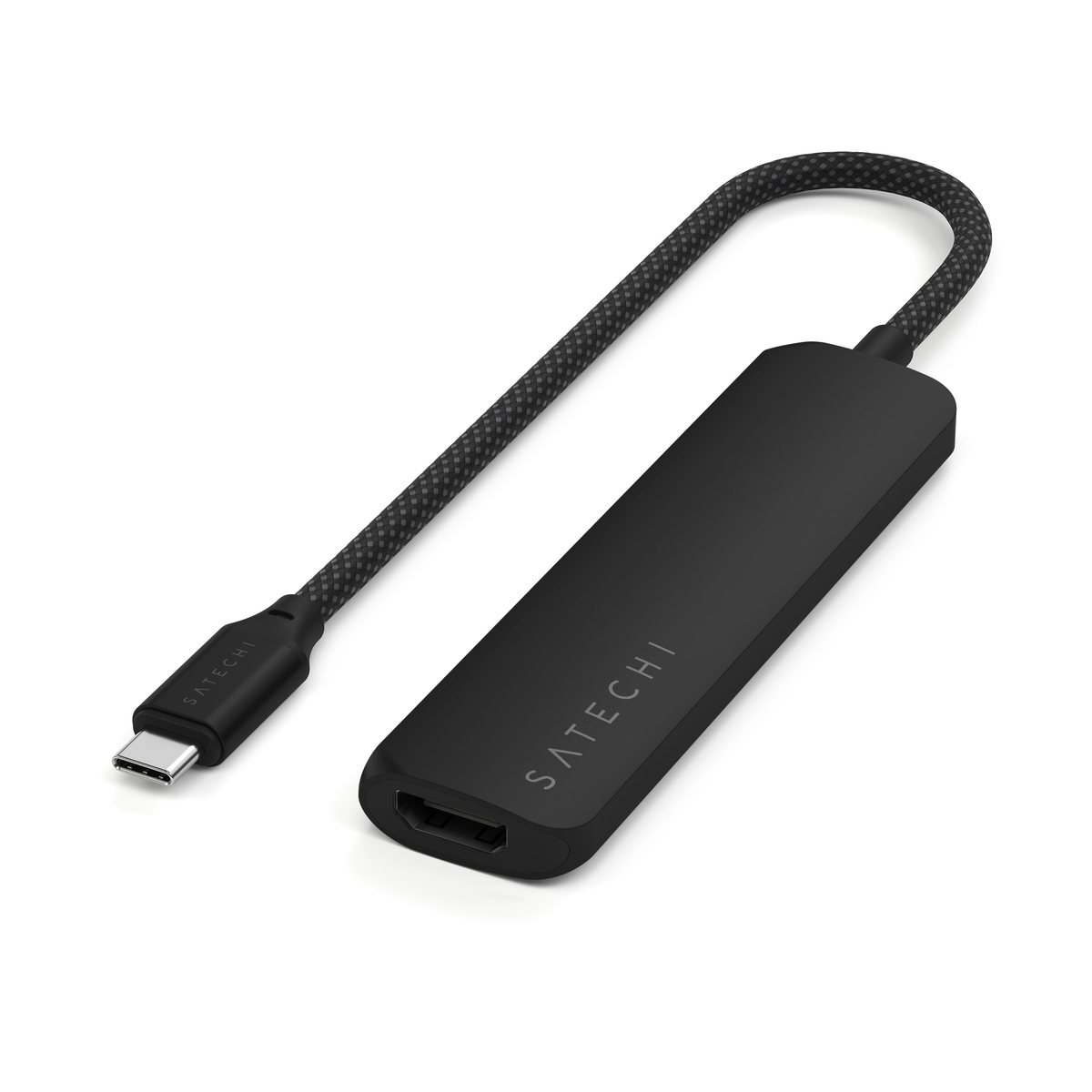
Satechi 4-in-1 USB-C Slim Multiport Adapter 4K
Best for 4K 60HzBuy if: your desk monitor needs smooth 4K 60Hz
Don't buy if: you need Ethernet, card slots or USB-C data
The Satechi is the smooth-screen pick. Satechi's quick guide lists HDMI up to 4K at 60Hz, two USB-A ports up to 10Gbps and USB-C power delivery up to 100W, with 15W used for operation. Mouse movement on a 4K desk monitor feels right at 60Hz in a way 30Hz never does.
I've seen conflicting data — one retailer listing for this adapter family shows 60W charging and 5Gbps ports, while Satechi's own quick guide for the ST-P4S models lists 100W and 10Gbps. My read is to order by the ST-P4S model code and check the box specs on arrival.
Pros
- HDMI up to 4K 60Hz
- Two USB-A ports up to 10Gbps
- Up to 100W power input
- Slim desk-friendly body
Cons
- Only two USB-A ports
- No USB-C data port
- No Ethernet or card reader
- Model codes need care
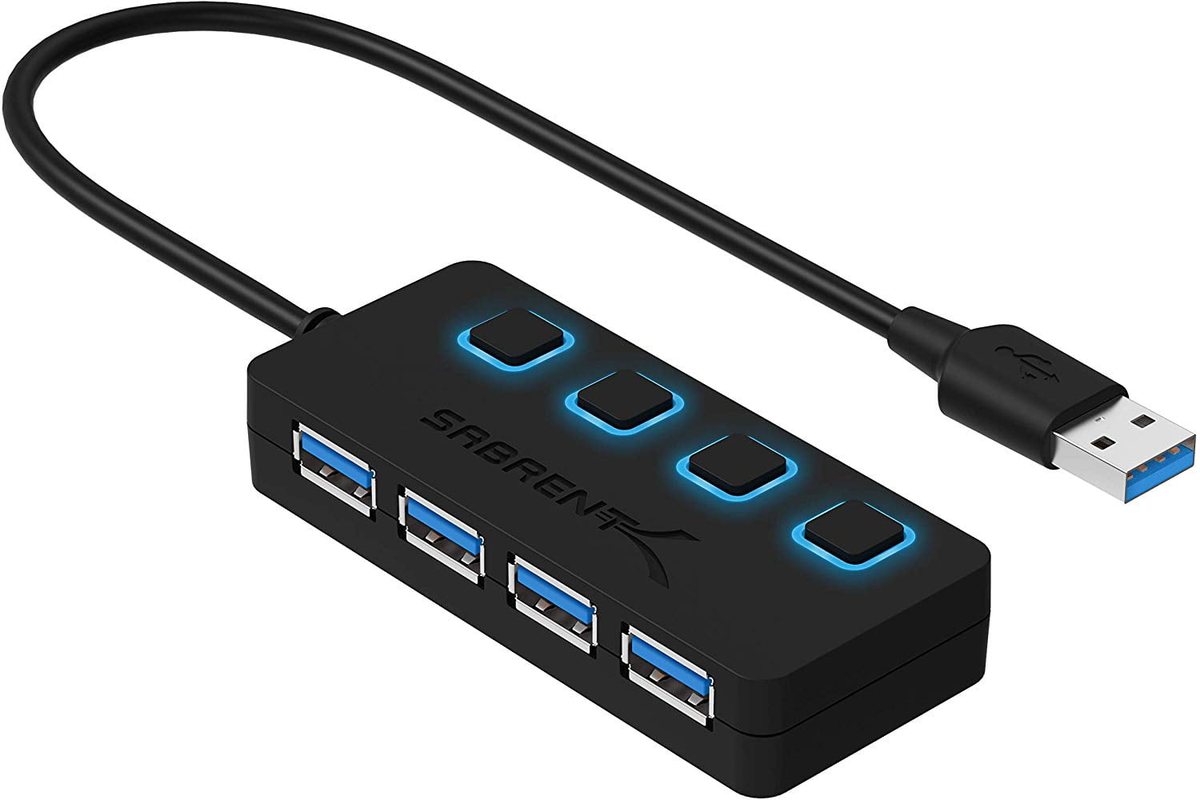
Sabrent HB-UM43 4-Port USB 3.0 Hub
Best With SwitchesBuy if: desk devices stay plugged in but not always on
Don't buy if: drives or charging share the hub
The HB-UM43 adds four USB 3.0 ports at up to 5Gbps, each with its own switch and light. That suits a home office where a printer, headset base or spare drive stays cabled but only wakes when needed. No crawling behind the desk to unplug anything.
Power is the limit. This hub runs from the computer port and is not built for charging phones or feeding hungry drives. Keep it to keyboards, mice, flash drives and light gear. Sabrent also warns that wireless receivers can misbehave near USB 3.0 hubs, so give the receiver some distance.
Pros
- Switch and light per port
- Four 5Gbps USB-A ports
- Simple plug-and-play setup
- Good for always-cabled gear
Cons
- Bus-powered, shared budget
- Not for charging devices
- Only four ports
- USB-A host only
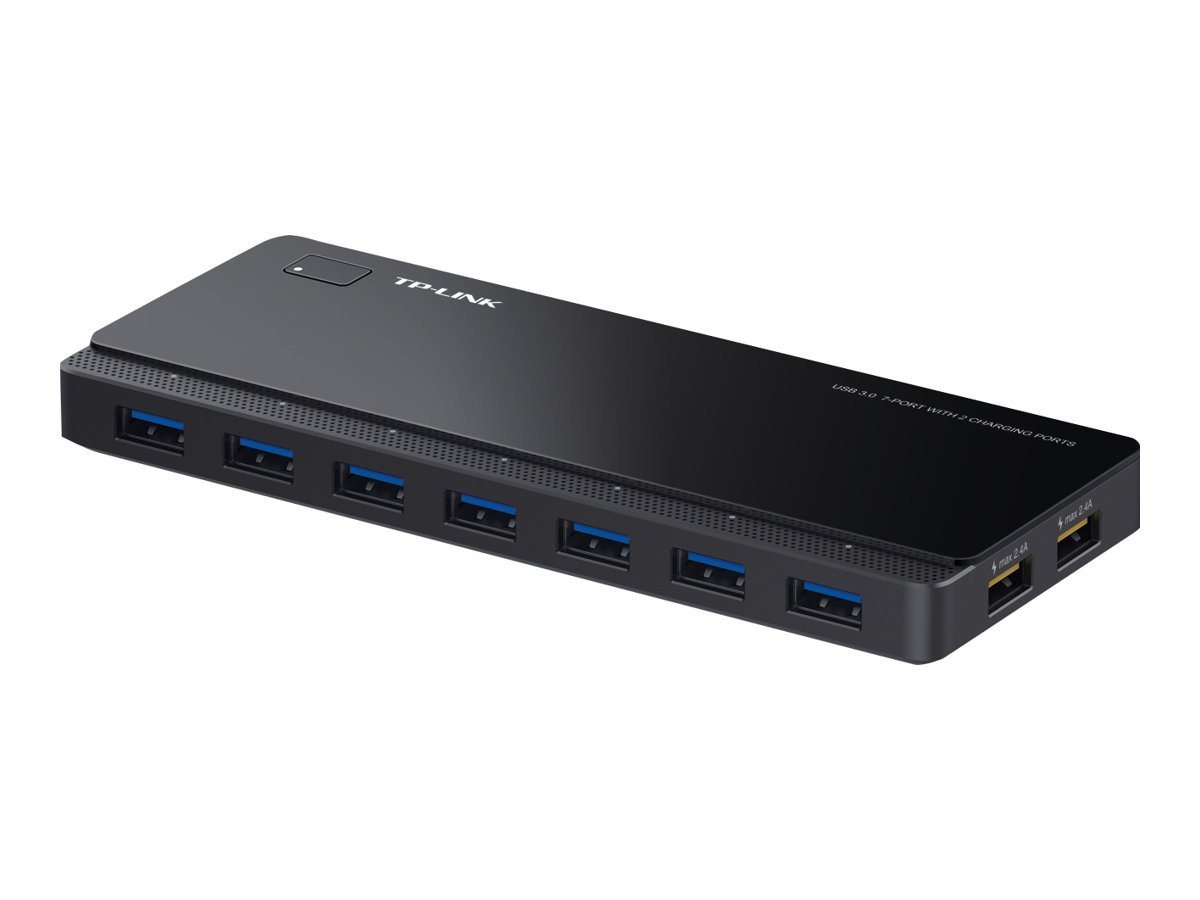
TP-Link UH720 Powered USB 3.0 Hub
Best PoweredBuy if: drives, a webcam and desk gear share one hub
Don't buy if: your desk has no room for a large hub
The UH720 is the steady-power pick for busy desks. TP-Link lists seven USB 3.0 data ports at up to 5Gbps plus two charging ports at 5V/2.4A, with its own power adapter and protection against over-current, over-voltage and short circuits. Webcam, headset, printer and a backup drive can share it with far fewer dropouts.
Check the adapter label when yours arrives. The original UH720 shipped with a 48W adapter, while TP-Link's FAQ lists the V2 at about 40W. Either version beats bus power for hungry gear, but neither runs every port at full tilt. The two side ports charge only — they carry no data.
Pros
- Seven data ports, own adapter
- Two 2.4A charging ports
- Overload protection listed
- Best fix for dropouts
Cons
- Adapter watts vary by version
- Large body needs desk room
- Charging ports carry no data
- USB-A host only
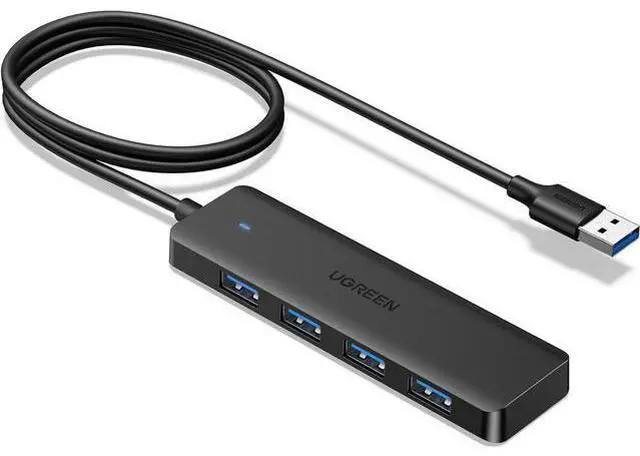
UGREEN 4-Port USB 3.0 Hub, 3.3ft Cable
Best Long CableBuy if: your PC sits under or behind the desk
Don't buy if: several drives need power at once
The UGREEN solves reach. Four USB-A ports at up to 5Gbps sit on a 3.3ft cable, so the hub can live at the desk edge while the PC stays on the floor. Flash drives and peripherals plug in at hand height instead of behind the tower.
Power stays shared. This hub has no adapter input, so all four ports split what the computer port gives. That is fine for a mouse, keyboard and occasional flash drive. It is the wrong tool for two drives and a webcam at once — pick five covers that desk.
Pros
- 3.3ft cable reaches the desk edge
- Four 5Gbps USB-A ports
- Plug and play, no drivers
- Slim, easy to place
Cons
- Bus-powered, shared budget
- No charging support
- USB-A host only
- Fixed cable length
How to Set Up a USB Hub for a Home Office
List the desk gear, feed the hungry devices first, keep receivers clear, then test a real call.
To set up a USB hub for a home office, follow these steps: 1. List every device that stays on the desk. 2. Put drives and webcams on powered ports. 3. Keep wireless receivers away from USB 3.0 ports. 4. Plug the hub into the computer. 5. Test one video call.
- List every device that stays on the desk. Count keyboard, mouse, webcam, headset, printer and drives before you buy.
- Put drives and webcams on powered ports. Hungry devices get the adapter-backed hub or a direct computer port.
- Keep wireless receivers away from USB 3.0 ports. A short extension lead moves the receiver clear of hub noise.
- Plug the hub into the computer. Use a rear desktop port or the laptop port with video support for HDMI hubs.
- Test one video call. Run the webcam, headset and a file copy together — that is the real desk load.
Pair the hub with our desk cable management tray guide if the extra leads turn into a nest under the desk.
Buying Guide: What Actually Matters
Four things matter most: the computer port, power for hungry devices, the right port mix, and cable reach.
Computer port comes first because it can cancel the purchase. USB-C hubs need a port with video support for HDMI and charging support for pass-through power. USB-A hubs need a free USB-A port. A hub with the wrong host plug is desk clutter, not a fix.
Power comes next. Count hungry devices — drives, webcams, microphones, charging phones. One hungry device can justify a powered hub. Light gear alone does not. Our USB-C hub for laptop guide covers laptop charging watts in more depth.
Port mix beats port count. Three USB-A ports help a desk full of receivers. A USB-C data port helps a desk with modern drives. HDMI refresh rate matters more than the word 4K — 30Hz feels slow for mouse work, 60Hz feels normal.
Cable reach is the quiet deal-breaker. Measure the real path from computer to hub spot, around stands and desk edges. A hub pulled tight gets unplugged by accident, and every device on it drops at once.
Port first. Power second.
Hubs to Skip in 2026
USB 2.0 hubs. A 480Mbps hub chokes drives and cameras no matter how many ports it has. Every pick above runs USB 3.0 speeds or better on its data ports.
Bus-powered hubs sold for drives. A hub with no adapter input cannot feed two drives and a webcam from one computer port. The dropouts will arrive on your busiest call day.
\"4K\" hubs with no refresh rate. The missing number is usually 30Hz. Check the maker's spec for 60Hz if the hub drives your main desk monitor.
Hubs bought for two-monitor desks. One HDMI port means one screen. Two screens plus Ethernet and charging is docking station work, not hub work.
Frequently Asked Questions
What's the best USB hub for a home office setup?
The Anker 332 for USB-C laptop desks. Desktop desks with drives should pick the powered TP-Link UH720 instead.
Do I need a powered USB hub for a webcam?
Often, yes, when other busy devices share the hub. A webcam alone on a light hub usually works fine.
Can a USB hub charge my laptop?
USB-C hubs with pass-through charging can, when your charger plugs into the hub. Plain USB-A hubs cannot charge a laptop.
Why does my wireless mouse stutter on a USB hub?
USB 3.0 gear can disturb 2.4GHz receivers nearby. Move the receiver away from the hub with a short extension lead.
Should I buy a USB hub or a docking station?
Buy a hub for more USB ports and one screen. Buy a dock for two screens, Ethernet and one-cable charging.
How many USB ports does a home office need?
Four covers keyboard, mouse, webcam and one spare. Drives, a printer and a headset push most desks to seven.
Will a USB-C hub work with my laptop?
Data ports work on most USB-C laptops. HDMI and charging need video and power support on the laptop port.