Best Powered USB Hub for Multiple Devices (2026): 6 Picks

Your drive vanishes mid-copy. Your webcam freezes when the phone starts charging. You unplug one thing so another thing can work.
You have tried the cheap fixes. A small unpowered hub. Swapping cables. Plugging the hungry drive straight into the laptop and leaving the rest to fight over what is left. It hasn't fixed the dropouts.
A powered USB hub for multiple devices is a hub with its own wall adapter that feeds every port. Your computer sends the data, while the wall supplies the power, so drives and accessories stop stealing current from one laptop port.
This guide ranks six powered hubs by the thing that decides whether your desk stays stable: adapter watts, split between data and charging. Our USB-C hub for laptop guide covers travel hubs with HDMI; this one is for the fixed desk with many devices plugged in at once.
No prices are printed in this guide — hub prices move often and listings disagree on the same model. Check the live price before buying. All specs are the makers' own figures — never a guess.
What's the Best Powered USB Hub for Multiple Devices?
The Plugable USBC-HUB7BC. All seven ports carry data and charging, the 60W adapter gives real headroom, and the host cable fits USB-A and USB-C computers. For a desk with drives, a webcam, a microphone and phones to charge, it is the safest buy.
The best powered USB hub for multiple devices is the Plugable USBC-HUB7BC for most desks. According to Plugable, it gives seven USB-A ports at up to 5Gbps, BC 1.2 charging on every port, and a 60W adapter. That mix covers drives, peripherals and charging in one box.
A powered hub beats an unpowered one when several devices stay plugged in all day. The wall adapter feeds the ports, so a spinning hard drive does not pull current away from a webcam or a second drive. Bus-powered hubs still suit a keyboard, a mouse and one flash drive.
You don't need ten ports, you don't need switches, and you don't need to guess. You need enough watts for the devices you actually own, with a little spare. That is the whole job.
Look — if you're in the spot where the backup drive drops out whenever the phone charges, here's what actually works: put both on a 60W powered hub and stop asking one laptop port to feed the whole desk.
Do You Need a Powered Hub, or Will a Plain One Do?
You need a powered hub if you run external hard drives, several devices at once, or anything that charges from USB. A plain bus-powered hub is fine for a keyboard, a mouse, a flash drive and one small accessory.
You need a powered USB hub when your devices draw more current than one computer port can share. According to Plugable, an underpowered bus can make attached devices disconnect. External drives, webcams, microphones and charging phones are the usual triggers.
Here's the thing: port count misleads people. A 7-port unpowered hub still shares the small power budget of one laptop port across all seven sockets. The plugs fit. The power does not. That gap is why devices vanish one by one.
Count what stays plugged in, not what you own. Three low-power devices can share a plain hub happily. Add one mechanical hard drive or a tablet that charges, and the powered hub earns its place. Our hub with individual switches guide covers the per-port on/off version of this same desk problem.
Drives first. Then decide.
How Many Watts Does Your Desk Really Need?
Use this rule: allow about 5W for each busy data port, then add charging on top. A 60W adapter covers seven busy ports with room to spare. A 24W adapter suits light peripherals, not a stack of drives.
Adapter watts decide how many devices stay stable at once. According to TP-Link, its UH720 data ports top out at 900mA each, which is 4.5W per port. Seven busy ports at that rate need about 32W before any phone charging starts.
That maths sorts this guide fast. The three 60W hubs — Plugable, Sabrent and Anker — can feed a full desk. The UGREEN's 24W adapter works for keyboards, mice and one drive, but it runs thin with several drives plus charging. The StarTech splits its budget differently: 12W on two charging ports, 4.5W on the rest.
I've seen conflicting data — some TP-Link pages list the UH720 adapter as 12V/4A, while TP-Link's own FAQ lists the newer V2 at 12V/3.3A. My read is simple: plan around the lower figure, about 40W, and treat any extra as a bonus.
Watts first. Ports second.
Data Ports or Charging Ports — Which Should You Count?
Count data ports for drives and peripherals. Count charging ports only for phones and tablets. A “10-port” hub with three charging-only ports gives you seven data ports, and the charging ports will never see a drive.
Plugable USBC-HUB7BC vs Anker 10-Port: the Plugable is better suited for mixed desks because every port does data and charging. The Anker works better when three phones charge in one fixed spot. The key difference is port roles.
My honest take: most people overvalue charging-only ports. A phone can charge from any data port with BC 1.2, just slower, while a charging-only port can never run a drive, a printer or a webcam. Flexible ports beat fixed roles on a desk that changes.
Or maybe I should say it this way: buy data ports for the desk you have, and treat charging ports as a bonus, never as part of the count. Speed works the same way — every port shares one upstream link, so two busy drives split 5Gbps or 10Gbps between them.
Quick Comparison
| Product | Ports | Adapter | Best for | ||
|---|---|---|---|---|---|
| #1 | Plugable USBC-HUB7BCBest Overall | 7 data + charging | 60W (12V/5A) | Most multi-device desks | Check Price |
| #2 | Sabrent HB-BU10Most Data Ports | 10 data | 60W (12V/5A) | Ten data devices | Check Price |
| #3 | Anker 10-Port 60WBest Simple 10-Port | 7 data + 3 charging | 60W (12V/5A) | Data plus phone charging | Check Price |
| #4 | TP-Link UH720Best Value | 7 data + 2 charging | 12V/4A or 12V/3.3A V2 | Budget desk hub | Check Price |
| #5 | UGREEN 7-Port Powered HubBest Compact | 7 data, 4 BC 1.2 | 24W (12V/2A) | Light peripherals | Check Price |
| #6 | StarTech HB31C5A2CMEBest 10Gbps | 5 USB-A + 2 USB-C | 40W total budget | Fast SSDs, fixed installs | Check Price |
The adapter column is the honest summary: three hubs give you 60W, one gives about 40W, one gives 24W, and the StarTech spends its budget on speed and mounting instead. Match the watts to your device count.
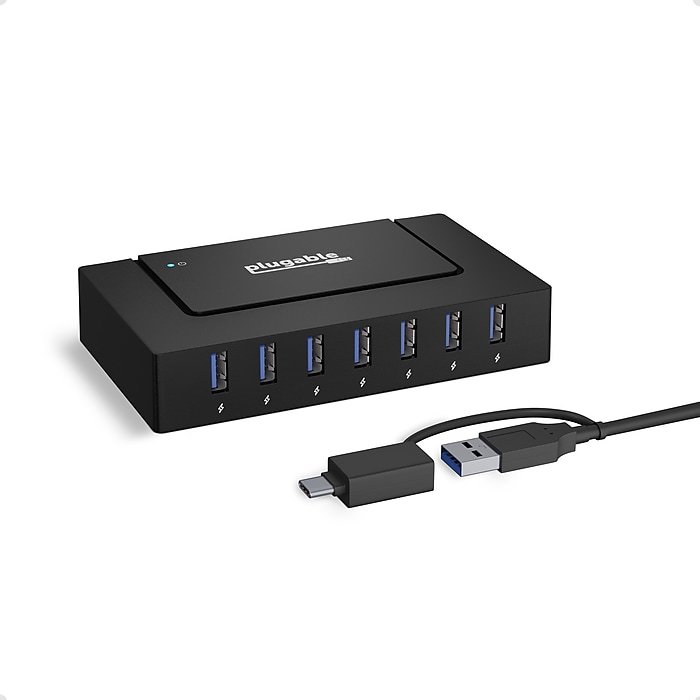
Plugable USBC-HUB7BC 7-Port Powered USB Hub
Best OverallBuy if: your desk mixes drives, peripherals and charging
Don't buy if: you need USB-C device ports or 10Gbps speed
The USBC-HUB7BC removes the port-role guessing game. All seven front USB-A ports carry data at up to 5Gbps and BC 1.2 charging — up to 1.5A per port while connected, and up to 2.4A per port as a standalone charging station. The 60W (12V/5A) adapter feeds the whole row, so a drive, a webcam and a phone can share the hub without taking turns.
The host cable fits USB-A and USB-C computers, which keeps older desktops and new laptops on the same hub. The flat box stacks if you ever need a second one. The limits are clear: downstream ports are USB-A only, speed stops at 5Gbps shared, and the power brick is large. Tom's Hardware load-tested a port at 2.4A, so the charging claim holds up in practice.
Pros
- Every port does data and charging
- 60W adapter with real headroom
- USB-A and USB-C host cable
- Charges with the computer off
Cons
- No USB-C device ports
- 5Gbps shared across all ports
- Large power brick
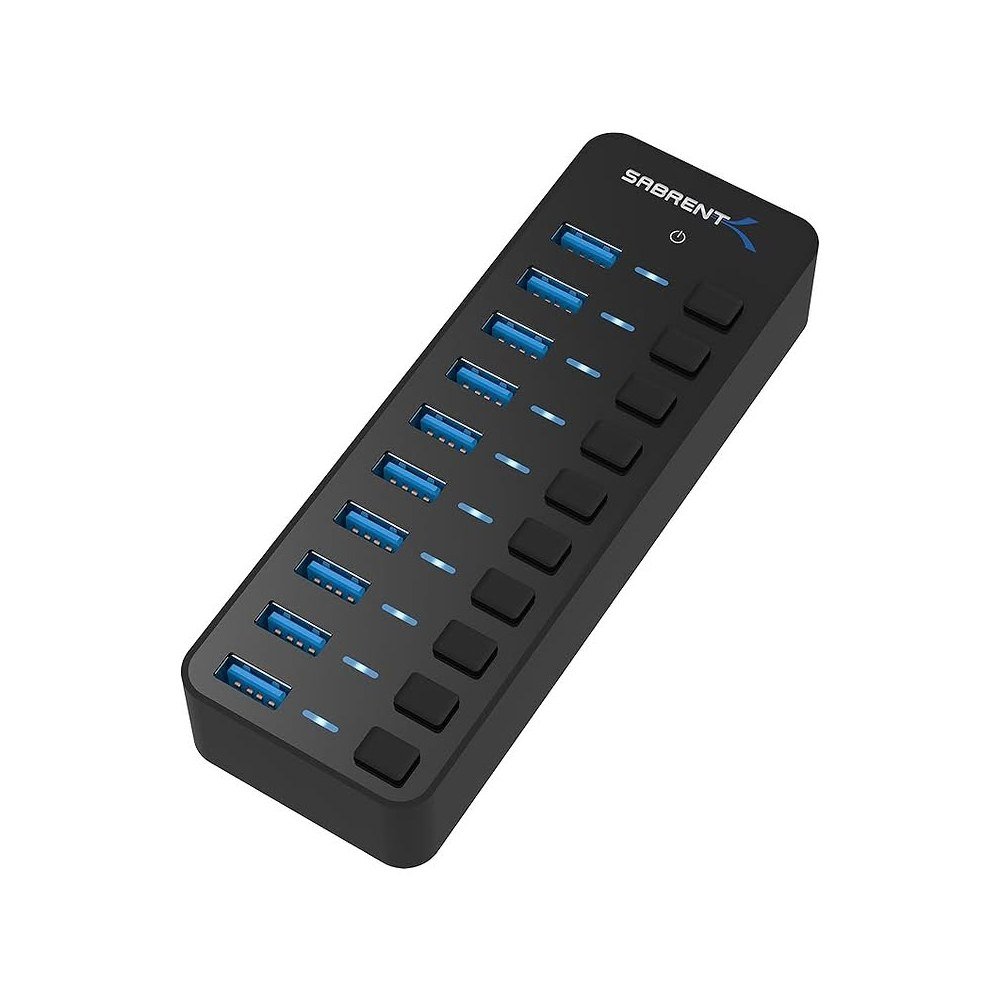
Sabrent HB-BU10 10-Port 60W USB 3.0 Hub
Most Data PortsBuy if: you need ten data ports on one desk
Don't buy if: you want fast phone charging ports
The HB-BU10 is the port-count pick done right: ten USB-A data ports, each at up to 5Gbps, fed by a 60W (12V/5A) adapter. Sabrent rates each port at up to 900mA, so ten busy ports stay inside the adapter budget. Every port has its own switch and LED, which helps when one device needs a reset without unplugging the rest.
There are no dedicated charging ports here. Phones charge slowly from the data ports, and that is the trade for ten full data sockets. Speed is shared 5Gbps, so two SSDs copying at once split the link. For a desk full of drives, printers, receivers and controllers, this is the most data ports you can get with honest power behind them.
Pros
- Ten full data ports
- 60W adapter
- Switch and LED on every port
- 900mA per port stated
Cons
- No fast charging ports
- 5Gbps shared
- USB-A host only
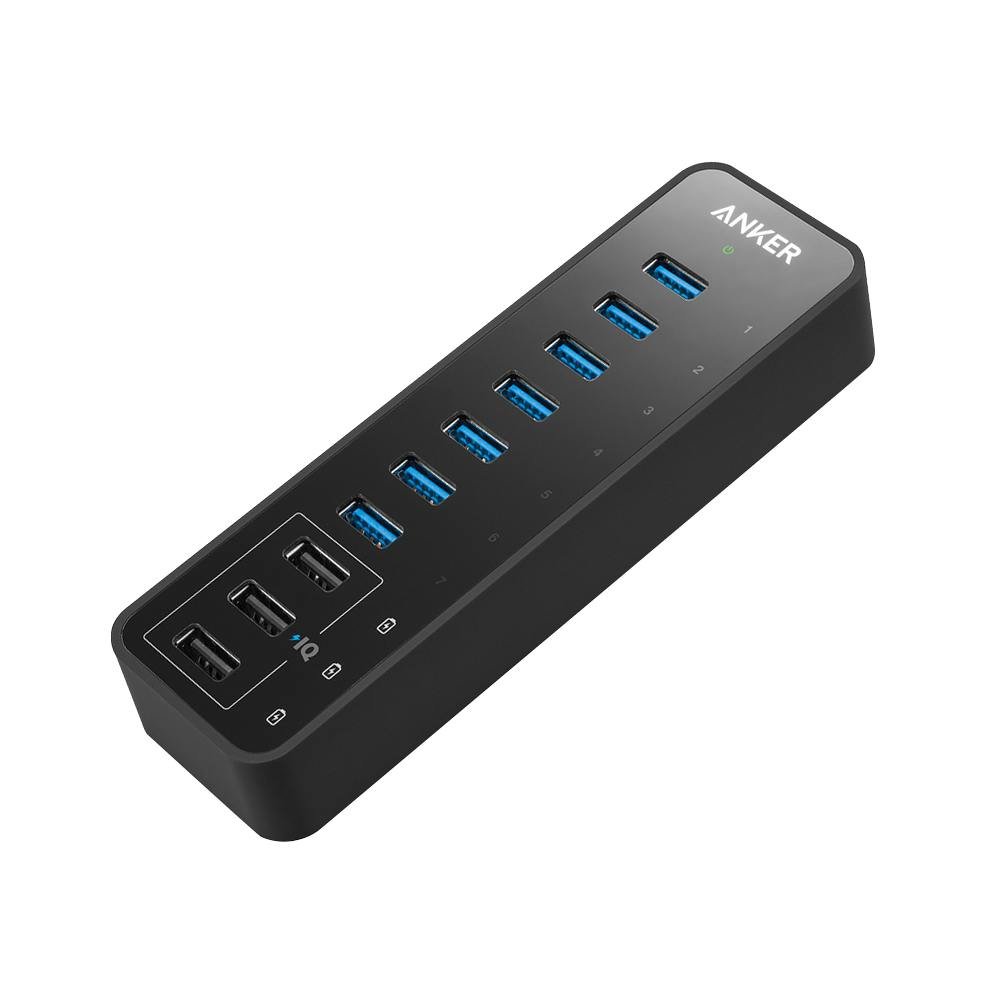
Anker 10-Port 60W USB 3.0 Data Hub
Best Simple 10-PortBuy if: you want seven data ports plus three charging spots
Don't buy if: you need per-port switches or USB-C ports
The Anker splits its ten sockets by job: seven USB 3.0 data ports at up to 5Gbps, plus three PowerIQ charging ports at up to 2.1A each. A 12V/5A (60W) adapter powers the hub, and the body is about the size of a pen case. For a desk that always charges a phone, a tablet and earbuds in the same place, the fixed roles feel tidy.
Read the split before you buy. The three charging ports carry no data, and Anker says the data ports give too little power for charging. So this is a seven-data-port hub with a charging strip built in — not ten data ports. Anker also warns that some 2.4GHz wireless receivers and MIDI devices may misbehave on USB 3.0 hubs; keep those on a USB 2.0 port if you hit trouble.
Pros
- 60W adapter
- Three 2.1A charging ports
- Compact pen-case body
- 18-month warranty
Cons
- Charging ports carry no data
- Data ports charge poorly
- Older USB-A-only design
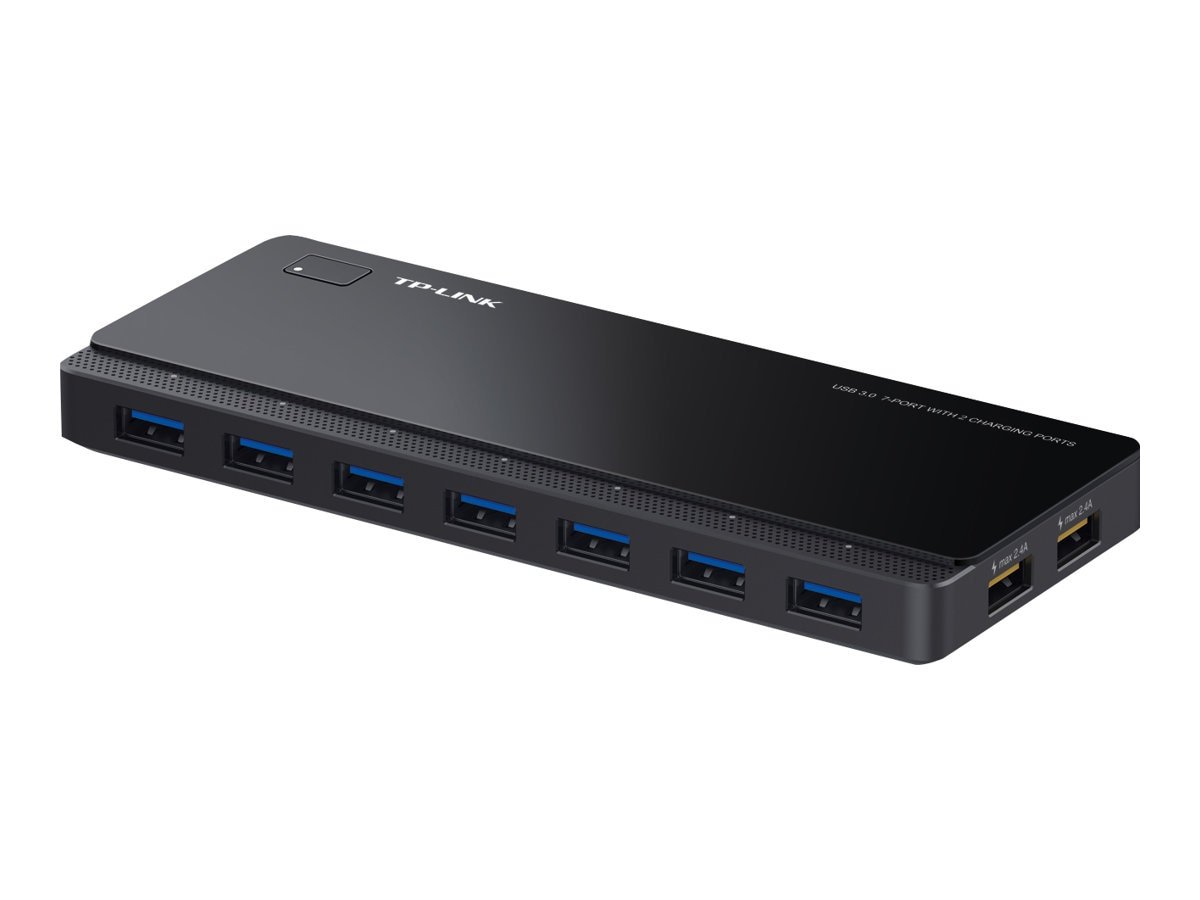
TP-Link UH720 Powered USB 3.0 Hub
Best ValueBuy if: you want seven data ports and two charging ports for less
Don't buy if: desk space is tight or you need 60W headroom
The UH720 gives seven USB 3.0 data ports at up to 5Gbps plus two charging ports at 5V/2.4A. One power button turns the whole hub on or off. TP-Link lists protection against over-heating, over-current, over-voltage and short circuits, with a built-in surge protector. It is plug and play on Windows, Mac, Linux and Chrome OS.
Check the adapter label when yours arrives. The original UH720 shipped with 12V/4A (48W), while TP-Link's FAQ lists the V2 at 12V/3.3A (about 40W). Either way it sits below the 60W hubs, so plan for seven data ports at 900mA plus light charging, not everything at full tilt. The body is large at 7.8 inches long, and the charging ports carry no data.
Pros
- Seven data ports plus two 2.4A charging
- Surge and overload protection
- Single power button
- Strong value
Cons
- Adapter watts vary by version
- Large body
- Charging ports carry no data
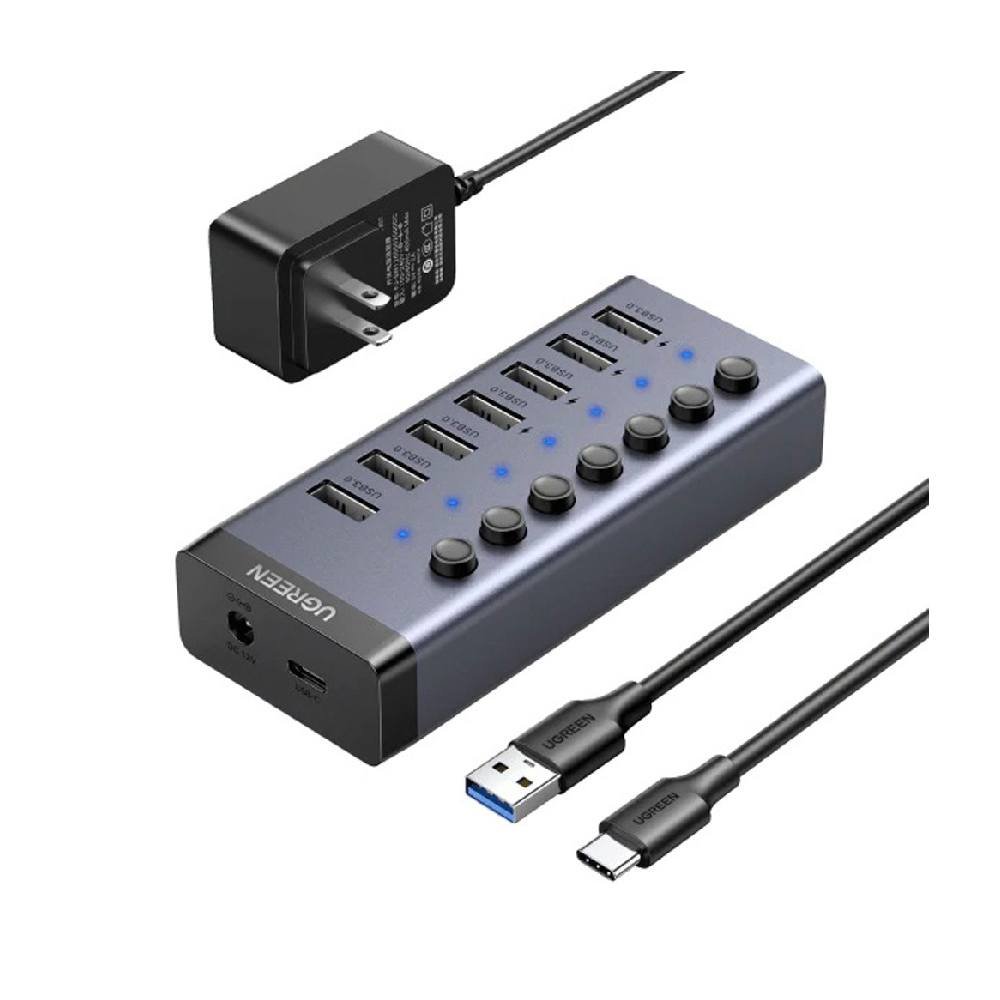
UGREEN 7-Port Powered USB 3.0 Hub
Best CompactBuy if: your desk is mostly keyboards, mice and one drive
Don't buy if: you run several hard drives at once
The UGREEN packs seven USB-A data ports at up to 5Gbps into a small aluminium body, with a switch and LED for each port. Four ports support BC 1.2 charging at up to 7.5W. The host side takes USB-C, with a USB-A cable in the box for older computers. It is the neatest hub here on a small desk.
The adapter sets the limit: 12V/2A, just 24W in total. UGREEN states the total draw of connected devices should stay within that budget, and warns the hub is not for charging laptops. Seven light peripherals fit fine. Three spinning drives plus a charging tablet do not. Buy it for stability with light gear, not for a drive stack.
Pros
- Compact aluminium body
- Switch and LED per port
- Four BC 1.2 ports at 7.5W
- USB-C and USB-A host cables
Cons
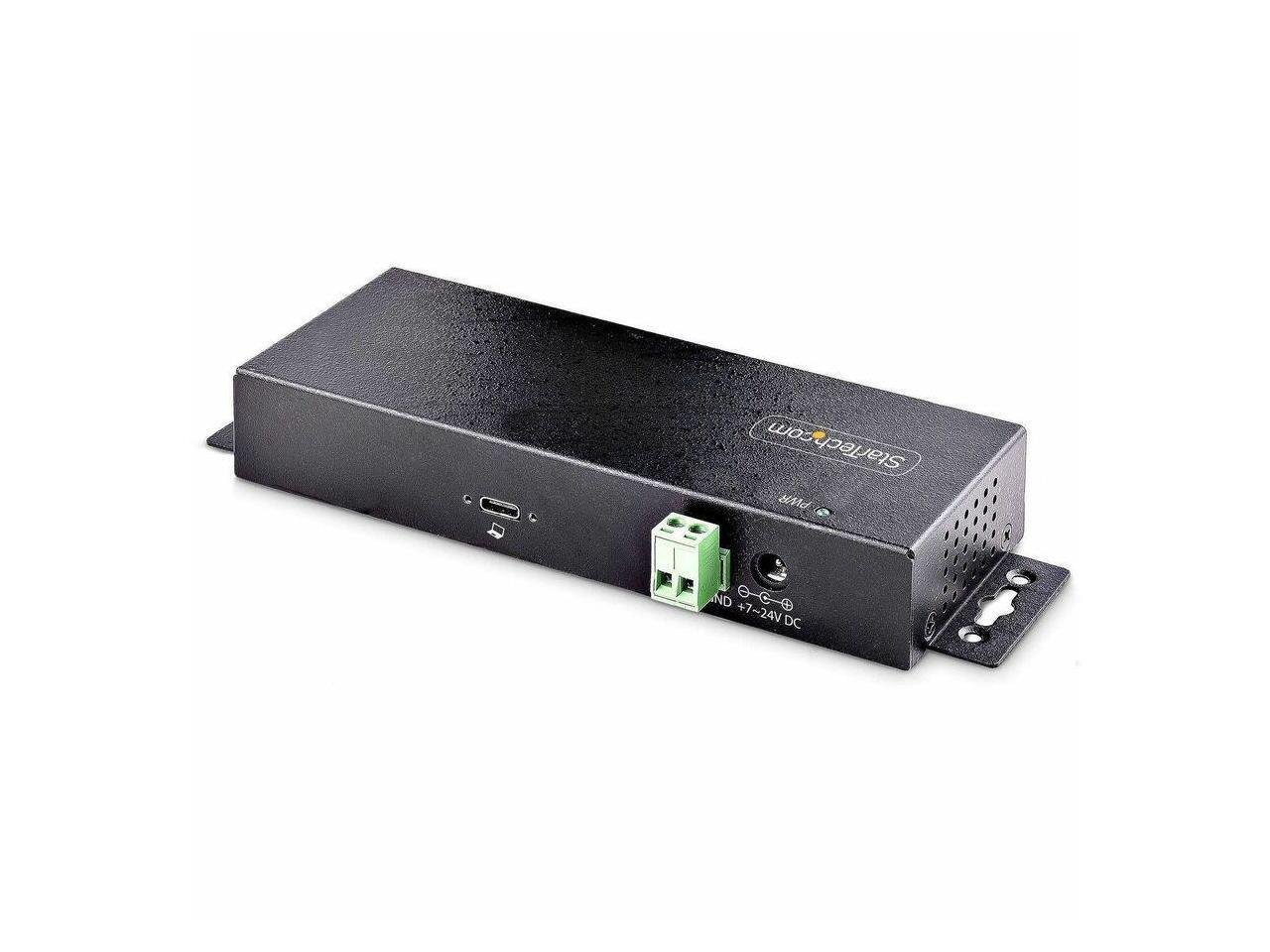
StarTech HB31C5A2CME 7-Port Industrial USB Hub
Best 10GbpsBuy if: you run fast SSDs and want a hub that stays fixed
Don't buy if: you want a cheap desk hub for basic peripherals
The HB31C5A2CME is the speed and build pick. Five USB-A ports and two USB-C ports share a 10Gbps USB 3.2 Gen 2 link — double the ceiling of the 5Gbps hubs here, which matters with NVMe enclosures and fast SSDs. The steel body mounts on a desk, a wall or a DIN rail, with Level-4 ESD protection and screw-locking host cables that resist accidental unplugs.
Power runs through the included adapter or a 7–24V DC terminal block. With no host connected it works as a charging station, up to 2.4A per port within a 40W total budget. That budget is honest but smaller than the 60W hubs, and the industrial build costs far more. Buy it when speed and a fixed install matter more than price.
Pros
- 10Gbps shared link
- USB-A and USB-C device ports
- Steel mountable body
- ESD and surge protection
Cons
- 40W total power budget
- Industrial price
- Overkill for basic peripherals
How to Set Up a Powered Hub in 5 Steps
Plug the adapter in first, then the hub, then your devices one by one. Five steps, five minutes, and every device gets a stable port.
To set up a powered USB hub, follow these steps: 1. Plug the wall adapter into the hub. 2. Connect the hub to your computer. 3. Add drives and peripherals one by one. 4. Eject drives safely before unplugging. 5. Keep wireless receivers on a USB 2.0 port if they stutter.
- Plug the wall adapter into the hub. Connect power before devices, so every port starts with full current.
- Connect the hub to your computer. Use a USB 3.0 or faster host port for full 5Gbps or 10Gbps speed.
- Add drives and peripherals one by one. Let each device appear before adding the next, so you spot any problem port.
- Eject drives safely before unplugging. Use the eject command first; cutting power mid-write can corrupt files.
- Keep wireless receivers clear of USB 3.0 noise. If a keyboard or mouse receiver stutters, move it to a USB 2.0 port.
Quick note: a hub does not add speed. Two busy drives share the one upstream link, so stagger big copies if transfers feel slow.
Buying Guide: What Actually Matters
Four things matter most: adapter watts, data-port count, upstream speed and host connector — in that order.
Watts come first because dropouts are a power problem, not a port problem. Add up your busy devices at about 5W each, then add charging. The 60W hubs cover a full desk; the 24W UGREEN covers light peripherals. Stay inside the adapter budget with room to spare.
Data ports come next. Charging-only ports never run a drive, so count them separately. The Plugable's seven flexible ports suit changing desks. The Anker and TP-Link splits suit desks where phones always charge in one spot. The Sabrent's ten data ports suit device-heavy rigs.
Speed is shared, always. A 5Gbps hub gives one busy drive up to 5Gbps and splits that link across two busy drives. The StarTech's 10Gbps link doubles the ceiling for SSD work. Keyboards, mice and printers never notice either way.
Host connector decides fit. USB-C-only laptops need a hub with a USB-C host cable, like the Plugable, UGREEN or StarTech. Older desktops with USB-A ports suit every hub here with the right cable. Check the cable in the box before you order.
Watts first. Features second.
Hubs to Skip in 2026
Unpowered hubs for drive stacks. They split one laptop port's small power budget across every socket. Fine for a keyboard and mouse; a dropout machine with two hard drives.
“10-port” hubs that hide the split. If a listing never says how many ports carry data, assume some are charging-only. The Anker and TP-Link state their splits plainly; copy that standard.
Hubs with no adapter watts stated. A powered hub with no watt figure is a guess with a power cord. Every pick here states its adapter; skip any hub that will not.
Charging stations sold as hubs. A GaN charging station feeds phones well but connects nothing to your computer. Our USB charging station guide ranks those; this guide ranks data hubs.
Frequently Asked Questions
What's the best powered USB hub for multiple devices?
The Plugable USBC-HUB7BC for most desks. Seven data-and-charging ports and a 60W adapter cover drives, peripherals and phones.
How many watts do I need for a powered USB hub?
Allow about 5W per busy port, plus charging. A 60W adapter covers seven busy ports; 24W suits light peripherals only.
Can a powered hub run two external hard drives?
Yes, with a 60W hub. Plug the adapter in first, then add each drive. Both drives share the upstream speed.
Does a powered hub make transfers faster?
No. Power stops dropouts; speed still shares one 5Gbps or 10Gbps link. Two busy drives split that link.
Should I leave the hub plugged in all the time?
Yes for a fixed desk. The adapter feeds the ports, and charging ports keep working with the computer off on most picks.
Why does my wireless keyboard stutter on a USB 3.0 hub?
USB 3.0 signals can disturb 2.4GHz receivers nearby. Move the receiver to a USB 2.0 port or a short extension cable.
Can I charge my laptop from a powered hub?
No. These hubs feed devices, not the host laptop. Laptop charging needs a USB-C dock with power delivery.