Best Monitor for Home Office Setup in 2026: 6 Picks

You work from home because the office went away. Then the laptop screen starts to hurt — your neck aches by lunch, windows pile on top of each other, and every morning begins with a tangle of charger, dongle and hub cables. That is the problem this guide fixes. Every monitor here is picked for a full workday at home: sharp text, a stand that adjusts to eye level, and one-cable charging where it counts.
Best monitor for home office setup refers to a display picked for full workdays at home: sharp text, a stand that adjusts to eye level, and one-cable USB-C charging for a laptop. Size matters more than brand — measure your desk depth first.
The top 10 results for "best monitor for home office setup" are mostly roundups that list the same six monitors and move on. Few of them check the USB-C wattage they print — one popular guide claims 90W for a monitor that delivers 65W — and none of them size the picks to your desk. This guide does both: every wattage comes from the maker's own spec page, and every pick carries the desk depth it needs.
No prices are printed in this guide — monitor prices move by seller and week, so check the live price before buying. USB-C wattage figures come from the makers' own spec pages, and where sources disagree, the disagreement is stated on the card.
What Size Monitor Is Best for a Home Office?
27 inches for most desks. Go 24 inches if your desk is under 60 cm deep, and 32 inches only if it is 70 cm or deeper.
The best monitor size for a home office is 27 inches for most desks. According to HP, a 27-inch screen suits desks 60 to 75 cm deep, while 24 inches fits desks under 60 cm and 32 inches needs 70 to 85 cm. Measure your desk depth first, then pick the size — not the other way round.
Size is a distance question, not a bigger-is-better question. Sit where you work, stretch your arm out, and look at where your fingertips land — that is roughly where the screen should sit. According to the American Academy of Ophthalmology, about 25 inches (an arm's length) is the right viewing distance, and OSHA puts the range at 20 to 40 inches. A 32-inch screen at 50 cm fills too much of your view. You turn your head to read the corners. That is not a big monitor. That is a monitor that is too close.
| Desk depth | Best size | Why |
|---|---|---|
| Under 60 cm | 24 inches | Fits the distance; 27 inches crowds a shallow desk |
| 60–75 cm | 27 inches | The sweet spot — full screen in view without turning your head |
| 70–85 cm | 32 inches | Needs a deep desk; superb for split-screen work at the right distance |
| 70 cm or more | 34-inch ultrawide | Wide, not tall — replaces two screens on one stand |
Here's my honest take: most home-office buyers should not buy a 32-inch monitor. It looks impressive in photos, but on a normal 60 cm desk it sits too close, and you end up turning your head like you're watching tennis. A 27-inch screen at the right distance beats a 32-inch screen that's too near. Or maybe I should say it this way: buy the size your desk fits, not the size the photos sell.
Quick note: a monitor arm buys back desk depth. If your desk is shallow, a cheap arm lets the screen sit further back than its factory stand allows — and our monitor arm guide covers which ones hold an ultrawide.
Do You Need a 4K Monitor for Home Office Work?
Not always — but for most buyers in 2026, yes. A 27-inch 4K screen shows sharper small text than 1440p, and the price gap has shrunk to the point where 4K is the default.
Do you need 4K for home office work? Not always. A 27-inch 1440p monitor is fine for email and documents, and it costs less. But 4K wins for small text, spreadsheets and photo work, and macOS scaling stays sharp on a 4K panel. If the price gap is small, buy 4K.
A 27-inch 4K monitor for home office work gives sharper text than 1440p at the same size, with about 163 pixels per inch against 109. According to PCWorld, 27 inches is the goldilocks size for office work, and 4K panels at that size have become the default pick in 2026 roundups.
The argument for 1440p is real, and it is mostly about scaling. At 27 inches, 4K text at 100% scaling is tiny, so Windows and macOS scale it up — and some older apps still blur when scaled. A 1440p panel at 27 inches needs no scaling at all. The argument for 4K is that scaling is a solved problem on modern systems, and once you have read 10-point text on a 163 PPI screen, 109 PPI looks soft.
I've seen conflicting data — some guides call 27-inch 1440p the sweet spot, others crown 27-inch 4K as the only sensible buy. My read is that both are right for different people: 1440p is fine if your eyes are good and your budget is tight, while 4K earns its keep the moment you read small text all day. If you work in spreadsheets, code or photos, buy 4K. If you live in email and video calls, 1440p will do — and the money you save buys a better stand.
At 24 inches, 1080p is enough. At 32 inches, 4K is not optional — 1440p stretched across 32 inches looks coarse. At 34 inches ultrawide, 3440×1440 is the standard, and it works because the screen is wide, not tall.
How Much USB-C Power Do You Need?
65W covers a MacBook Air or a Windows ultrabook. A 14- or 16-inch Pro laptop needs 90–96W. A big workstation laptop needs 140W. Buy the wattage your laptop actually draws, not the wattage the listing implies.
This is the section other guides get wrong, so read it twice. One popular roundup claims the Dell S2725QC delivers 90W of USB-C power. Dell's own spec page says 65W — and so do Currys, smarthomegen and techpicklab. The 90W figure belongs to a different Dell monitor, the UltraSharp U2723QE, and it has leaked into roundup after roundup. A monitor rated below your laptop's charging need will still show a picture. It just won't keep the battery full.
Look — if you're charging a 14-inch MacBook Pro from your monitor, 65W won't keep up. The laptop will charge slowly while you work, and under load it may drain anyway. That is the trap: the cable fits, the screen works, and the battery still dies by four o'clock.
| Your laptop | Watts you need | Picks here |
|---|---|---|
| MacBook Air, ultrabook, Chromebook | 45–65W | S2725QC (65W), S3425DW (65W) |
| 14–16-inch Pro laptop (MacBook Pro, XPS 14/16) | 90–96W | LG 27UP850N-W (96W), ProArt PA279CRV (96W) |
| Workstation laptop, 16-inch gaming laptop | 140W | UltraSharp U3225QE (140W) |
| Desktop PC, or laptop with its own charger | 0W — any port works | Any pick, including the Acer B247Y G (no USB-C) |
Two checks before you trust any wattage number. First, check the maker's spec page, not a roundup — the roundup may have copied the wrong model's number. Second, check your laptop's own charger: if it ships with a 96W brick, a 65W monitor will not replace it. Don't buy it if you can't see the wattage on the maker's page — it's not verified, it's copied.
Ultrawide or Two Monitors?
An ultrawide wins for one wide workspace. Two monitors win when you need a portrait screen or a second computer on its own display. For most home offices, the ultrawide is the simpler buy.
Ultrawide vs dual monitors: an ultrawide is better suited for one wide workspace because no bezel splits your spreadsheet in half. Dual monitors work better when you want one screen in portrait or a second computer on its own screen. The key difference is flexibility: two screens split apart; one ultrawide doesn't.
A 34-inch 3440×1440 ultrawide is roughly two 27-inch screens with the middle bezel removed. Spreadsheets stretch across it, timelines run long, and code sits beside its preview without a black bar in the middle. One cable, one stand, one screen to manage. The Dell S3425DW below is the pick for this setup.
Two monitors win in three cases. You want one screen in portrait for documents or code. You run two computers — work laptop on one screen, personal machine on the other — and want them truly separate. Or you already own a decent monitor and only need to add a second one. Two 27-inch 4K screens also beat one ultrawide on total pixels, if your desk and your budget can take them.
The honest downside of ultrawide: some video calls and screen shares crop the wide frame, and a few older apps don't know what to do with 21:9. The honest downside of dual monitors: two stands, two cables, and a bezel right where your eyes want to rest. Pick the downside you can live with.
Quick Comparison
| Product | Size / Resolution / Panel | USB-C Watts | Best For | ||
|---|---|---|---|---|---|
| #1 | Dell S2725QCBest Overall | 27" / 4K / IPS, 120Hz | 65W | Most home offices | Check Price |
| #2 | Dell UltraSharp U3225QEBest Premium | 31.5" / 4K / IPS Black, 120Hz | 140W | Big desks, one-cable docking | Check Price |
| #3 | LG UltraFine 27UP850N-WBest for Mac | 27" / 4K / IPS, 60Hz | 96W | MacBook + colour work | Check Price |
| #4 | Dell S3425DWBest Ultrawide | 34" / 3440×1440 / VA curved, 120Hz | 65W | Spreadsheets, timelines | Check Price |
| #5 | Acer Vero B247Y GBest Budget | 24" / 1080p / IPS, 120Hz | None | Tight budgets, small desks | Check Price |
| #6 | Asus ProArt PA279CRVBest 4K for Colour | 27" / 4K / IPS, 60Hz | 96W | Photo and design work | Check Price |
USB-C wattage is the power delivery figure from each maker's own spec page. No prices are printed — check the live price before buying.
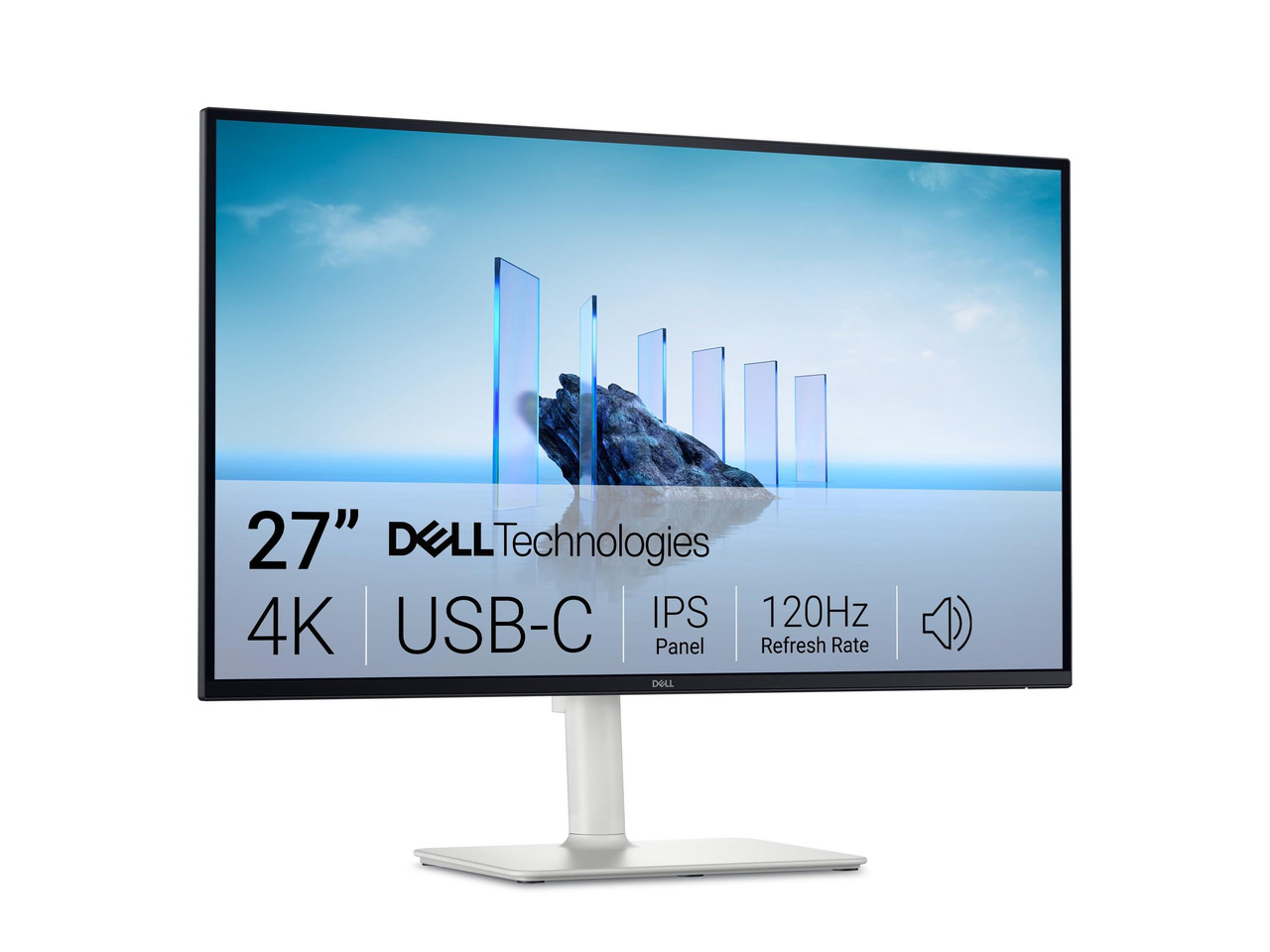
Dell S2725QC
Best OverallBuy if: you want the best all-round home office monitor — 4K, 120Hz and one-cable charging for most laptops
Don't buy if: you charge a 14- or 16-inch Pro laptop, or you need a DisplayPort input for a desktop
The S2725QC is the most-recommended home office monitor of 2026 across the roundups I read, and it earns that spot. A 27-inch 4K IPS panel at 120Hz, 99% sRGB, with a USB-C upstream port that delivers 65W — enough to charge a MacBook Air or a Windows ultrabook over the same cable that carries the picture. Two HDMI 2.1 ports, built-in 2×5W speakers, and a stand that adjusts for height, tilt, swivel and pivot. It fits a 60–75 cm desk, which is where most home offices live.
Two honest limits. First, the wattage: 65W, not 90W. Several roundups print 90W, and they are wrong — Dell's own spec page says 65W. If your laptop ships with a 96W charger, this monitor will not replace it. Second, there is no DisplayPort input. A desktop PC connects over HDMI, which is fine at 4K 120Hz on HDMI 2.1, but DisplayPort fans should look at the LG or the ProArt instead.
If you want the same panel for less and you use a desktop, the twin model S2725QS drops the USB-C port and the hub entirely — same 4K 120Hz screen, lower price, no one-cable charging. Don't buy the QS thinking it has USB-C. It doesn't. That mistake is already printed in other guides.
Pros
- 27-inch 4K IPS at 120Hz — sharp text, smooth scrolling
- One-cable USB-C charging at 65W (maker's figure)
- 99% sRGB, built-in speakers
- Fully adjustable stand
Cons
- 65W won't fully charge a Pro laptop
- No DisplayPort input
- Some roundups wrongly claim 90W — check the spec page
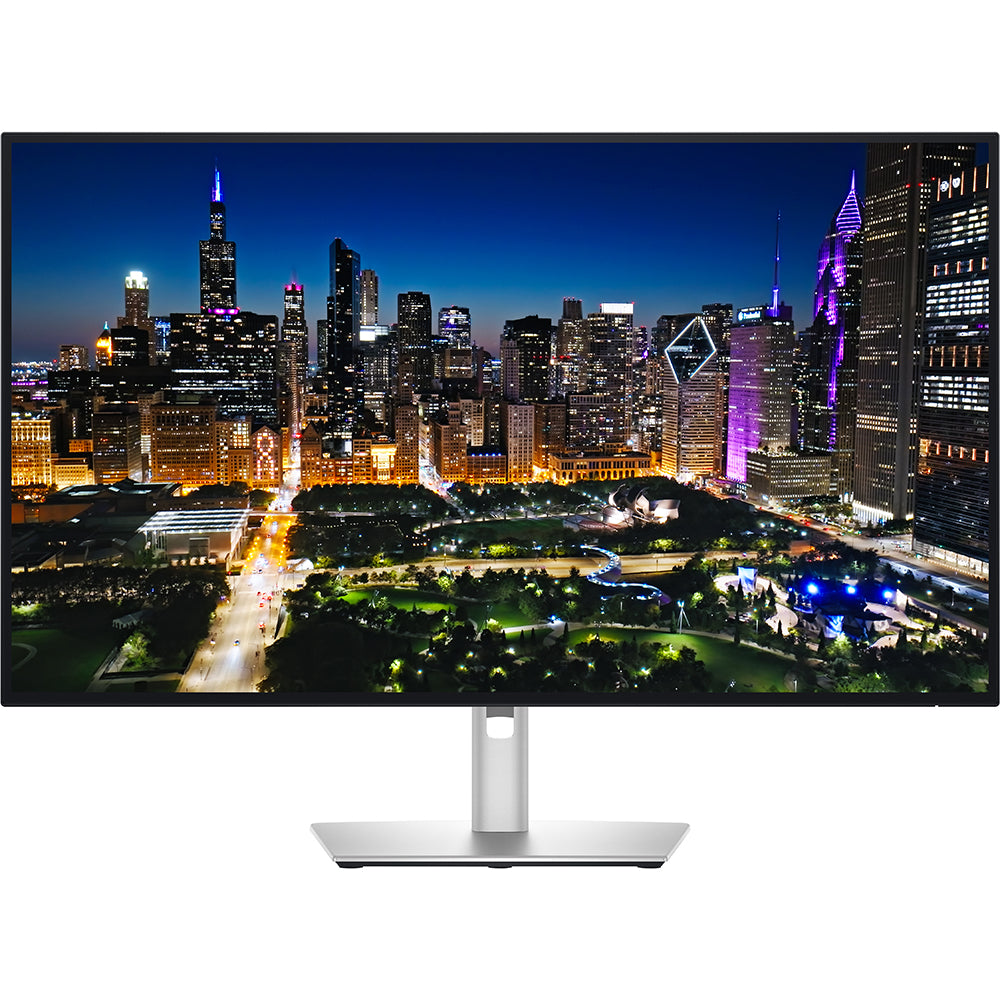
Dell UltraSharp U3225QE
Best PremiumBuy if: you want one monitor as a full docking station — 140W charging, Thunderbolt 4, ethernet and KVM in one screen
Don't buy if: your desk is under 70 cm deep, or you want built-in speakers
The U3225QE is PCWorld's overall winner for home office monitors, and it is the only pick here that replaces a docking station. A 31.5-inch 4K IPS Black panel — 3000:1 contrast, so blacks look black instead of grey — at 120Hz with 98% DCI-P3. Thunderbolt 4 plus USB-C with up to 140W power delivery, a 2.5GbE ethernet port, a USB hub with pop-out front ports, and a KVM switch that lets one keyboard and mouse serve two computers.
That 140W figure matters. It is the only pick here that charges a big workstation laptop at full speed while driving the screen. The IPS Black panel matters too: on a normal IPS panel, a dark spreadsheet at night glows grey at the edges. This one doesn't. The trade is desk depth — 32 inches needs 70 to 85 cm of desk, and on a shallow desk it will sit too close. And there are no speakers, so budget for a pair or a headset.
One more thing worth knowing: this monitor has been seen well under its launch price in November, so check the live price before you judge it on cost. It is a premium buy, and the premium is the dock, the panel and the wattage — not the badge.
Pros
- IPS Black panel — 3000:1 contrast, real blacks
- Thunderbolt 4 with 140W charging
- 2.5GbE ethernet, KVM, pop-out front ports
- 98% DCI-P3, 120Hz
Cons
- Needs a deep desk (70–85 cm)
- No built-in speakers
- Premium price — check the live price first
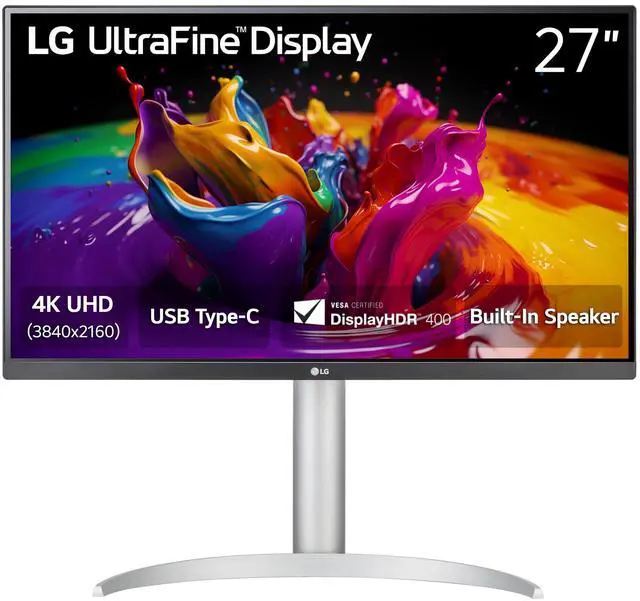
LG UltraFine 27UP850N-W
Best for MacBuy if: you use a MacBook and want sharp macOS scaling plus 96W charging for a 14-inch MacBook Pro
Don't buy if: you want 120Hz — this panel runs at 60Hz
The 27UP850N-W is the Mac pick. A 27-inch 4K IPS panel with 95% DCI-P3, DisplayHDR 400 and 400 nits, tuned for the way macOS scales — text stays crisp at the "looks like 2560×1440" setting where cheaper 4K panels can look soft. USB-C delivers 96W, which charges even a 14-inch MacBook Pro properly, and there are two HDMI 2.0 ports, a DisplayPort 1.4 input and a two-port USB hub.
Two things to check before you buy. First, the wattage: LG's own marketing copy says 90W in one place and 96W in another. The spec sheet — and retailers like B&H — say 96W, and that is the figure used here. Second, the model suffix. The original 27UP850-W from 2021 is discontinued, and a retailer variant carries a K-W suffix. Same panel, same stand. Buy the N-W for the current model, and check the listing says N-W before you pay.
MacBook owners, one more note: a 27-inch 4K panel is the size where macOS scaling works best. Smaller 4K screens force a scaling compromise; larger ones cost far more. This is the sweet spot, and the 96W charging means one cable does the whole job.
Pros
- 96W USB-C charging (maker's spec sheet)
- 95% DCI-P3, DisplayHDR 400
- Sharp macOS scaling at 27-inch 4K
- DisplayPort 1.4 plus two HDMI ports
Cons
- 60Hz only — scrolling is less smooth than 120Hz picks
- LG's own copy disagrees on 90W vs 96W
- Suffix trap: W, N-W and K-W listings all exist
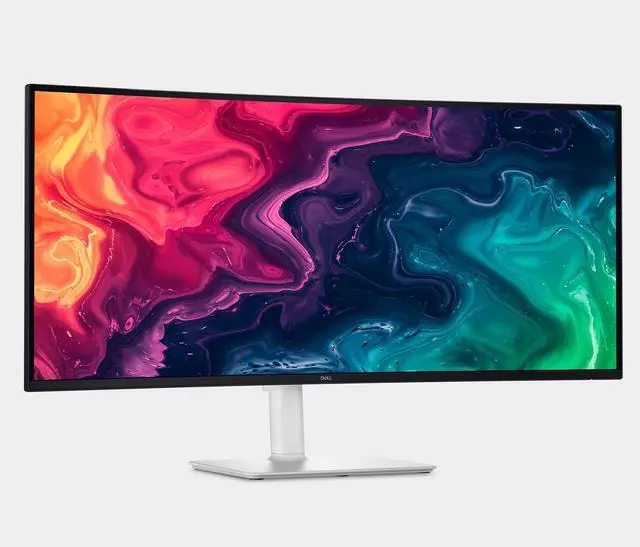
Dell S3425DW
Best UltrawideBuy if: you live in spreadsheets, timelines or code and want two screens' worth of space with no bezel in the middle
Don't buy if: your desk is under 70 cm deep, or you need colour-critical accuracy — this is a VA panel
The S3425DW is the ultrawide consensus pick across the home office roundups, and it replaces two monitors with one. A 34-inch curved VA panel (1800R) at 3440×1440 and 120Hz, with 3000:1 contrast, 99% sRGB and 95% DCI-P3. USB-C delivers 65W — enough for an Air or ultrabook — plus two HDMI ports, a downstream USB-C port and two USB-A ports, and 2×10W speakers that are louder than most monitor speakers. The stand adjusts 130 mm in height.
The curve is gentle, not dramatic. At a normal desk distance it wraps the screen around your view without the fishbowl feel of tighter curves. The VA panel is the trade: contrast is superb, but viewing angles are narrower than IPS, so colour shifts if you sit far off-centre. For spreadsheets and code that doesn't matter. For photo work, pick the ProArt instead.
One spec note: response time is quoted all over the place for this monitor — 3 ms, 1 ms, even 0.03 ms in one listing. The 0.03 ms figure belongs to OLED panels and is wrong for this VA screen. The honest figure is 3 ms GtG, and for office work it is irrelevant anyway.
Pros
- 34-inch ultrawide replaces dual monitors
- 120Hz, 3000:1 contrast, wide colour
- USB-C 65W charging plus speakers
- Gentle 1800R curve, height-adjustable stand
Cons
- VA panel — narrower viewing angles than IPS
- Needs a deep desk (70 cm or more)
- 65W won't charge a Pro laptop
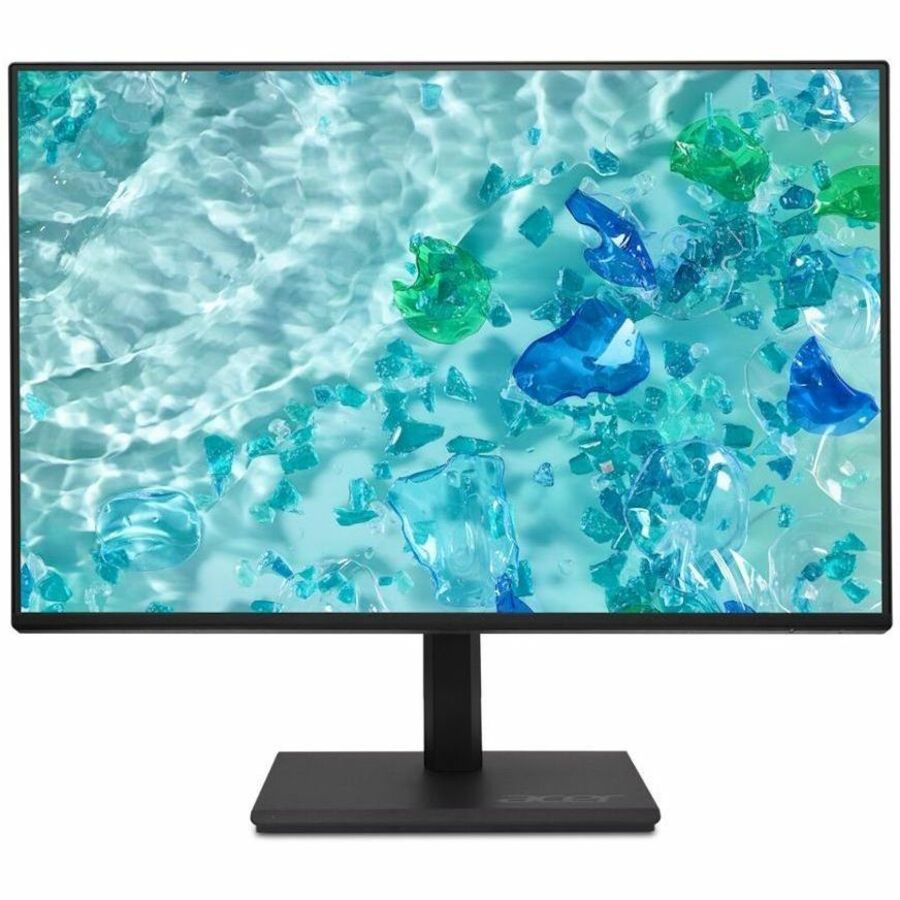
Acer Vero B247Y G
Best BudgetBuy if: your budget is tight, your desk is shallow, or you need a solid second monitor for email and documents
Don't buy if: you want one-cable USB-C charging, or you do spreadsheet-heavy work on one screen
The B247Y G is PCWorld's best budget pick, and it is the only monitor here for a desk under 60 cm deep. A 24-inch IPS panel at 1080p and 120Hz, with a fully adjustable stand — height, tilt, swivel and pivot — and a matte anti-glare finish that suits a bright room. There is even a 1/4-inch tripod mount on top of the frame for a webcam or ring light, which is rare at this price.
The limits are honest ones. There is no USB-C and no USB hub at all — HDMI, DisplayPort and VGA only — so your laptop keeps its own charger and its own dongle. And 1080p at 24 inches is fine for email and documents, but don't buy it as your only screen for design or spreadsheet-heavy work. At that job, the extra pixels of a 27-inch 4K screen pay for themselves.
Where this monitor earns its keep: a second screen beside a laptop, a shallow desk, a spare room, or a first home office on a tight budget. It does the basic job well, and it does it for roughly the price of a decent keyboard.
Pros
- Fully adjustable stand at a budget price
- 120Hz, matte anti-glare screen
- Tripod mount on top for a webcam
- Fits shallow desks under 60 cm
Cons
- No USB-C, no USB hub
- 1080p only — not for design or heavy spreadsheets
- 24 inches feels small as a single main screen
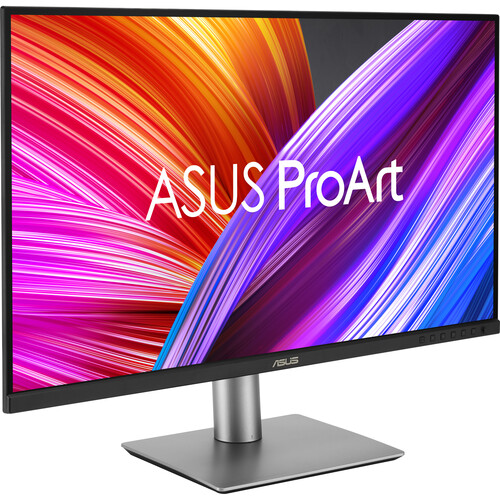
Asus ProArt PA279CRV
Best 4K for ColourBuy if: you edit photos or design for a living and need accurate colour without paying for a reference monitor
Don't buy if: you want 120Hz, or you work in a bright room — brightness and contrast are average
The PA279CRV is the colour pick. A 27-inch 4K IPS panel at 163 pixels per inch, factory-calibrated, covering 100% sRGB, 99% DCI-P3 and 98% AdobeRGB. That is the widest colour coverage here, and it is why PCWorld names it the best 4K pick for creative work. USB-C delivers 96W, there are two DisplayPort 1.4 inputs — one supports daisy-chaining a second monitor — plus two HDMI 2.0 ports and a three-port USB-A hub.
Say it plainly, though: the panel has limits. Contrast and brightness are average, HDR is sub-par, and 60Hz is the ceiling. In a bright room the screen can look washed out next to the Dell IPS Black panel. None of that matters for colour accuracy — the calibration is what you pay for — but don't buy it expecting a bright, punchy display.
For photographers and designers, the daisy-chain DisplayPort is a quiet win: two ProArt screens on one cable from the laptop, with the second screen carrying the tools while the first holds the image. For everyone else, the Dell S2725QC is the better all-rounder.
Pros
- Factory-calibrated, 100% sRGB / 99% DCI-P3 / 98% AdobeRGB
- 96W USB-C charging
- DisplayPort daisy-chain for a second screen
- 163 PPI — very sharp text
Cons
- 60Hz only
- Average contrast and brightness
- Sub-par HDR
How Do I Connect My Laptop to a Monitor With One Cable?
Use a USB-C cable from the monitor's upstream port to a USB-C port on your laptop that supports DisplayPort Alt Mode or Thunderbolt. One cable then carries the picture, the charging and the USB hub.
To connect your laptop to a monitor with one USB-C cable, follow these steps: 1. Check your laptop's USB-C port supports DisplayPort Alt Mode or Thunderbolt. 2. Plug the cable into the monitor's USB-C upstream port. 3. Plug the other end into your laptop. 4. Choose Extend in display settings. 5. Set the monitor as your main display.
The catch is step one. Not every USB-C port carries video. Some laptop ports are charging-only, and some carry data but no DisplayPort signal. Check your laptop's spec page for "DisplayPort Alt Mode" or "Thunderbolt" next to the port — if neither is listed, the port won't drive a monitor, and you need an HDMI or DisplayPort cable instead. A Thunderbolt port always works. A port marked with a small "D" or lightning symbol works too.
Once it is connected, set the monitor as your main display so new windows open on the big screen, and close the laptop lid if you want clamshell mode — the laptop keeps running on the monitor alone. If the screen stays black, try the other USB-C port on the laptop. Most machines have one port with video and one without.
What About Eye Strain?
Eye strain comes from distance, brightness and breaks — not from the monitor's brand. Set the screen at arm's length, match its brightness to the room, and look away every 20 minutes.
The 20-20-20 rule is the one worth remembering: every 20 minutes, look at something 20 feet away for 20 seconds. It sounds too simple to work, and it is the single best-studied fix for screen fatigue. Pair it with the right distance — about 25 inches, or an arm's length, per the American Academy of Ophthalmology — and the top of the screen at or just below eye level, so your eyes look slightly down.
Brightness matters more than blue light. A screen brighter than the room forces your eyes to work; a screen dimmer than the room makes them strain the other way. Match the monitor to the room, and use the monitor's ambient light sensor if it has one. Flicker-free backlights and low blue light modes help, and every pick here has both — but they are the garnish, not the meal. The meal is distance, brightness and breaks.
If your eyes still ache after a week at the right distance, check the scaling. Text that is too small makes you lean in, and leaning in is what hurts. Bump the scaling up one step. A bigger screen does not help if the text on it is still tiny.
Can I Use a TV as a Monitor for My Home Office?
Yes — with HDMI 2.0 or newer and PC or Game mode switched on. It works, but a real monitor is better for desk work.
A TV works as a monitor if it has an HDMI 2.0 port or newer and a PC or Game mode that cuts the picture processing. Without that mode, expect 15 to 40 ms of input lag — fine for documents, noticeable when you move the mouse fast, and rough for anything timing-sensitive. With the mode on, the lag drops to a level most people won't feel.
The problems are size and text. A 43-inch TV at desk distance is too big — you turn your head to read the edges, the same problem as a 32-inch monitor on a shallow desk, only worse. And TV panels sharpen and smooth the picture in ways that make small text look fuzzy. If the TV is all you have, sit further back, use it at 4K, and turn every processing feature off. If you are buying something, buy a monitor. It is built for the distance you sit at.
Does a Home Office Monitor Need HDR?
No. Windows HDR is still rough, office work doesn't need it, and the HDR on most office monitors is a label rather than a feature.
Real HDR needs a DisplayHDR 1000 panel or an OLED with true blacks — both far above office-monitor prices. The DisplayHDR 400 badge on the LG here means the panel can hit 400 nits in a bright highlight, which is nice for photos and meaningless for a spreadsheet. Spend the money on resolution, USB-C wattage and a good stand instead. If you edit HDR video, that is a different purchase, and it starts at twice this budget.
Buying Guide: What Actually Matters
After size, the four things worth your attention are resolution, USB-C wattage, panel type and the stand — in that order.
Resolution decides how sharp your text is: 1080p at 24 inches, 1440p or 4K at 27 inches, 4K at 32 inches, 3440×1440 at 34 inches ultrawide. USB-C wattage decides whether the monitor charges your laptop — check the maker's spec page, and match it to your laptop's own charger. Panel type decides the picture: IPS for colour and viewing angles, IPS Black for contrast, VA for deep blacks on a budget. The stand decides whether the screen sits at eye level — height adjustment is not optional for eight-hour days, and every pick here has it.
Three things not to overpay for: refresh rate above 120Hz on an office monitor (you will never use it), HDR on a DisplayHDR 400 panel (a label, not a feature), and built-in speakers on a monitor you will use with headphones anyway. And one thing to check before you buy anything: measure your desk. A monitor that doesn't fit your desk is a return, not a purchase.
Monitors to Skip in 2026
Dell S2725QS — the same 4K 120Hz panel as our top pick, with no USB-C at all. A good monitor, and a trap. Buy it only for a desktop PC, where USB-C doesn't matter. Buy it for a laptop and you will still need a charger, a dongle and a hub on your desk — the whole mess this guide exists to remove. Worse, one popular roundup lists it as having USB-C. It doesn't.
27-inch 1080p monitors — too coarse for desk work. At 27 inches, 1080p text looks soft at arm's length. 1080p belongs on a 24-inch screen or smaller. If the price looks tempting, remember you will read that screen for eight hours a day.
Samsung ViewFinity S50GC 34-inch ultrawide — no USB-C. A fair ultrawide panel at a fair price, and the wrong one for a laptop setup. No USB-C means no one-cable charging, which is half the point of an ultrawide on a home desk. Buy it as a second screen for a desktop, not as your laptop's only display.
Gaming OLEDs — gorgeous, and the wrong tool for office work. A 240Hz QD-OLED looks superb in a shop demo, and static taskbars and spreadsheet grids are exactly what OLED panels hate. Burn-in risk, a price that buys two good office monitors, and no USB-C hub on most models. Keep the OLED for the games room.
The pattern is the same every time: a good monitor, recommended for the wrong setup.
Frequently Asked Questions
What's the best monitor for a home office in 2026?
The Dell S2725QC — 27-inch 4K, 120Hz, one-cable USB-C charging. For a bigger desk and budget, the Dell UltraSharp U3225QE.
What size monitor is best for home office work?
27 inches for most desks. Go 24 inches if your desk is under 60 cm deep, 32 inches only if it is 70 cm or deeper.
Do I need a 4K monitor for home office work?
Not always. 1440p is fine for email and documents, but 4K gives sharper small text and better macOS scaling. If the price gap is small, buy 4K.
How many watts of USB-C do I need to charge my laptop?
65W covers a MacBook Air or ultrabook. A 14- or 16-inch Pro laptop needs 90–96W, and a big workstation laptop needs 140W.
Is an ultrawide or two monitors better for a home office?
Ultrawide for one wide workspace with no bezel split. Dual monitors when you want a portrait screen or a second computer on its own display.
Can I use a TV as a monitor for my home office?
Yes, with HDMI 2.0 or newer and PC or Game mode on. Expect 15–40 ms input lag — fine for documents, worse for fast work than a real monitor.
Does a home office monitor need HDR?
No. Windows HDR is still rough, and office work doesn't need it. Spend the money on resolution and USB-C instead.