Best USB C Hub With Ethernet and HDMI (2026): 6 Picks

Your video call freezes mid-sentence. The Wi-Fi drops again. Your laptop has no Ethernet port to plug a cable into.
You have tried the usual fixes. Moving closer to the router. A Wi-Fi extender. Restarting everything before each call. The drops keep coming back, and the desk monitor still needs its own cable.
A USB-C hub with Ethernet and HDMI is a small adapter that adds a wired network port and a monitor port to one laptop USB-C port. One cable to the laptop runs your screen, your wired internet, and your charging.
This guide ranks six hubs by the two things you came for: wired network speed and HDMI quality. Our USB-C hub for laptop guide covers travel hubs in general; this one is for desks where the Ethernet cable and the monitor both matter every day.
No prices are printed in this guide — hub prices move often and listings disagree on the same model. Check the live price before buying. All specs are the makers' own figures — never a guess.
What's the Best USB C Hub With Ethernet and HDMI?
The Plugable USBC-10IN1E. It pairs 2.5Gbps Ethernet with HDMI 2.1, fast USB ports, card readers and up to 125W of laptop charging. For a desk that needs wired internet and a sharp monitor from one cable, it is the safest buy.
The best USB-C hub with Ethernet and HDMI is the Plugable USBC-10IN1E for most desks. According to Plugable, it gives 2.5Gbps Ethernet, HDMI 2.1 up to 4K at 144Hz or 8K at 30Hz, and 125W charging with the right charger. That mix covers fast wired internet and a high-refresh monitor in one slim hub.
Wired Ethernet beats Wi-Fi for calls and large uploads. The cable does not fight neighbours, walls or a busy router for airtime. A hub with a real Ethernet port gives your laptop a stable link while the HDMI port drives the desk monitor.
You don't need the fastest network port, you don't need 8K, and you don't need to guess. You need Ethernet speed that matches your network and an HDMI port that runs your monitor at full refresh rate. That is the whole job.
Look — if you're in the spot where calls drop whenever someone else streams video, here's what actually works: plug in one Ethernet cable through a hub and take Wi-Fi out of the call.
Gigabit or 2.5Gb Ethernet — Which Do You Need?
Gigabit Ethernet is enough for most homes. Choose 2.5Gb Ethernet only if your router, switch and internet plan or home server can use the extra speed. The hub port alone cannot make a Gigabit network faster.
Gigabit Ethernet runs at up to 1Gbps, and 2.5Gb Ethernet runs at up to 2.5Gbps. According to Belkin, its 8-port hub gives up to 2.5Gb Ethernet, yet real speed still depends on your network, cable and internet plan. Every link in the chain must support the faster rate.
Plugable USBC-10IN1E vs Anker 555: the Plugable is better suited for fast home networks because its 2.5Gbps port can use a multi-gig router or server. The Anker works better when your network stops at Gigabit. The key difference is network speed headroom.
My honest take: most people overpay for 2.5Gb Ethernet. A Gigabit port already handles video calls, cloud sync and a 1Gbps internet plan at full speed. The faster port earns its keep with a home server, fast local file copies, or an internet plan above 1Gbps.
Or maybe I should say it this way: buy 2.5Gb for the network you have, not the network in the advert. Check your router ports first. Then decide.
Will the HDMI Port Run 4K at 60Hz?
Only if your laptop, hub, cable and monitor all support it. A hub marked 4K can still drop to a sluggish 30Hz on an older laptop. Check for 4K at 60Hz in the maker's specs, not just 4K on the box.
4K at 60Hz needs a laptop USB-C port with DisplayPort Alt Mode and enough display bandwidth. According to Plugable, its 7-in-1 hub reaches 4K at 60Hz on DisplayPort 1.4 hosts, while many DisplayPort 1.2 hosts stop at 4K at 30Hz. The laptop sets the ceiling, and the hub cannot raise it.
Refresh rate is easy to feel. At 30Hz the mouse drags and text smears as you scroll. At 60Hz the same monitor feels smooth. For a 1080p or 1440p monitor, every hub here runs 60Hz with room to spare.
I've seen conflicting data — Plugable lists its 7-in-1 hub at up to 87W of charging in one place and about 92W in another. My read is simple: plan around the lower figure and treat any extra as a bonus.
Specs first. Box art second.
Can One Hub Run Two Monitors and Wired Internet?
Yes, on the right laptop. Windows and ChromeOS laptops with DisplayPort 1.4 can run two different screens through the dual-HDMI pick here. On a Mac, the same hub shows the same image on both screens.
Two-monitor hubs use a trick called MST to split one display signal into two. Windows supports it. macOS does not support it for two different screens, so both monitors mirror. That one fact decides which hub a Mac owner should buy.
Quick note: a single HDMI port plus your laptop screen still gives you two displays on any system. Many desks need nothing more. Our dual-monitor docking station guide covers the bigger desk docks if you need two external screens plus more ports.
Quick Comparison
| Product | Ethernet | HDMI | Best for | ||
|---|---|---|---|---|---|
| #1 | Plugable USBC-10IN1EBest Overall | 2.5Gbps | HDMI 2.1, 4K 144Hz | Fast networks, high-refresh monitors | Check Price |
| #2 | Belkin Connect 8-PortBest Portable 2.5GbE | 2.5Gbps | 4K 60Hz | Travel and hot desks | Check Price |
| #3 | Anker 555 (8-in-1)Best Value Gigabit | Gigabit | 4K 60Hz | Most Gigabit desks | Check Price |
| #4 | Anker 565 (11-in-1)Best HDMI + DisplayPort | Gigabit | 4K 60Hz + DisplayPort | Two screens, mixed cables | Check Price |
| #5 | Plugable USBC-11IN1EBest Dual HDMI | Gigabit | 2× 4K 60Hz | Dual monitors on Windows | Check Price |
| #6 | Plugable USBC-7IN1EBest Budget | Gigabit | 4K 60Hz | Simple wired desks | Check Price |
The Ethernet column is the honest summary: two hubs run 2.5Gbps, four run Gigabit. Match that column to your router before you look at anything else.
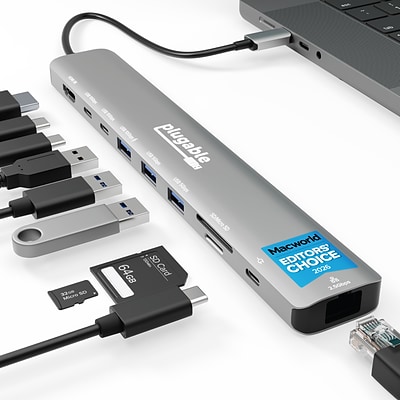
Plugable USBC-10IN1E 10-in-1 USB-C Hub
Best OverallBuy if: your network or monitor can use 2.5Gbps Ethernet or 4K above 60Hz
Don't buy if: your network stops at Gigabit and your monitor is plain 4K 60Hz
The USBC-10IN1E puts the two fastest ports in this guide on one slim hub. The Ethernet port runs at 2.5Gbps and falls back to Gigabit on slower networks. The HDMI 2.1 port reaches 4K at 144Hz or 8K at 30Hz on a laptop that can feed it. Two 10Gbps USB-C ports, three USB-A ports and SD and microSD readers fill out the desk.
Charging is the other headline. With a 140W USB PD 3.1 charger and a matching laptop, up to 125W reaches the computer. On a standard 100W charger it delivers about 85W, like the cheaper hubs here. The card readers run at UHS-I speed, and the top display modes need a strong laptop and a certified HDMI 2.1 cable. Macworld named it an Editors' Choice for 2026.
Pros
- 2.5Gbps Ethernet
- HDMI 2.1 up to 4K 144Hz
- Up to 125W laptop charging
- Five USB data ports
Cons
- Top modes need a strong laptop
- Card readers are UHS-I
- Overkill on a Gigabit network
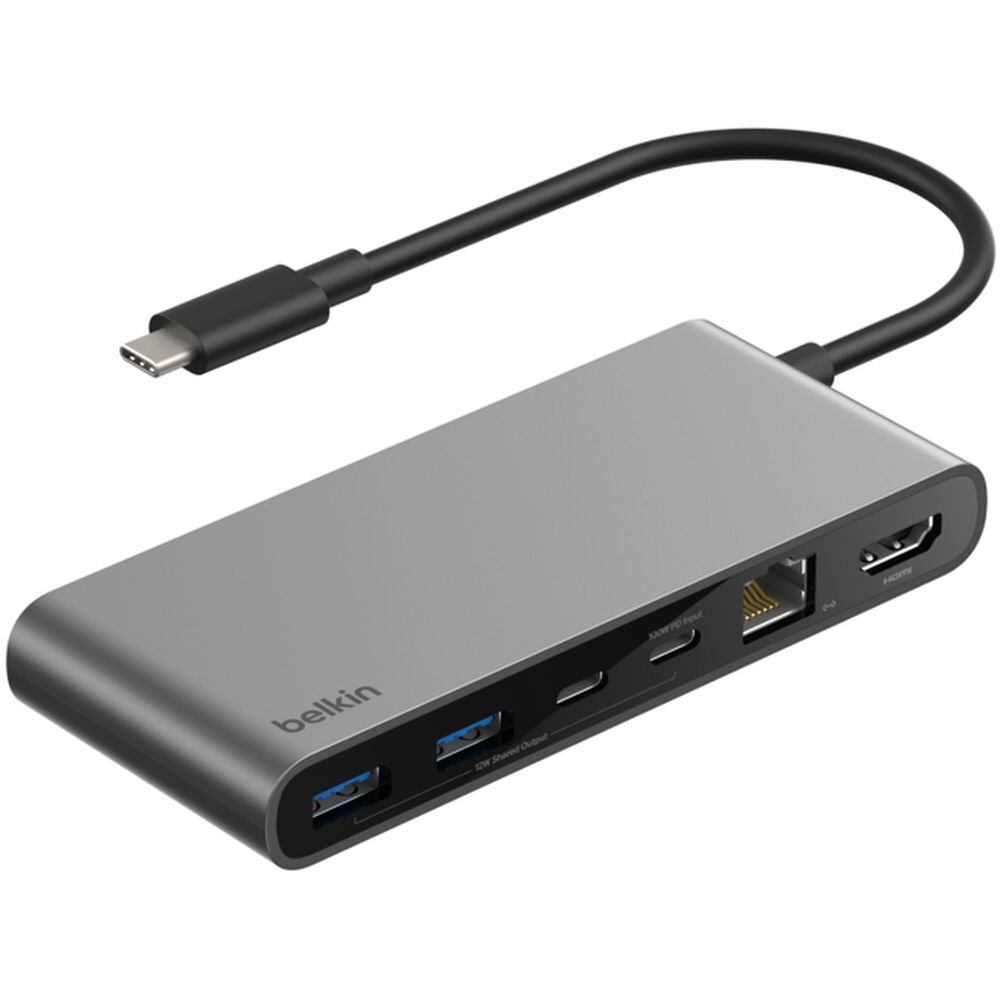
Belkin Connect 8-Port USB-C Hub With 2.5Gb Ethernet
Best Portable 2.5GbEBuy if: you want 2.5Gb Ethernet in a small travel hub
Don't buy if: you need two monitors or 125W charging
The Belkin INC024 keeps the fast network port and drops the extras. You get 2.5Gb Ethernet, one HDMI port at 4K 60Hz, two 10Gbps USB-A ports, a 10Gbps USB-C data port, SD and microSD readers and a USB-C charging input. The body is compact with a short tethered cable, so it suits a laptop bag and a hot desk.
Read the charging claim with care. Belkin rates the hub at up to 100W pass-through, then reserves about 15W to run the hub. With a 100W charger your laptop sees up to about 85W. With the 60W charger Belkin suggests, it sees up to about 45W while the ports work. One monitor only, and the charger is not in the box.
Pros
- 2.5Gb Ethernet
- Compact travel body
- 10Gbps USB-A and USB-C ports
- SD and microSD readers
Cons
- One HDMI output only
- Charging drops with small chargers
- No charger in the box
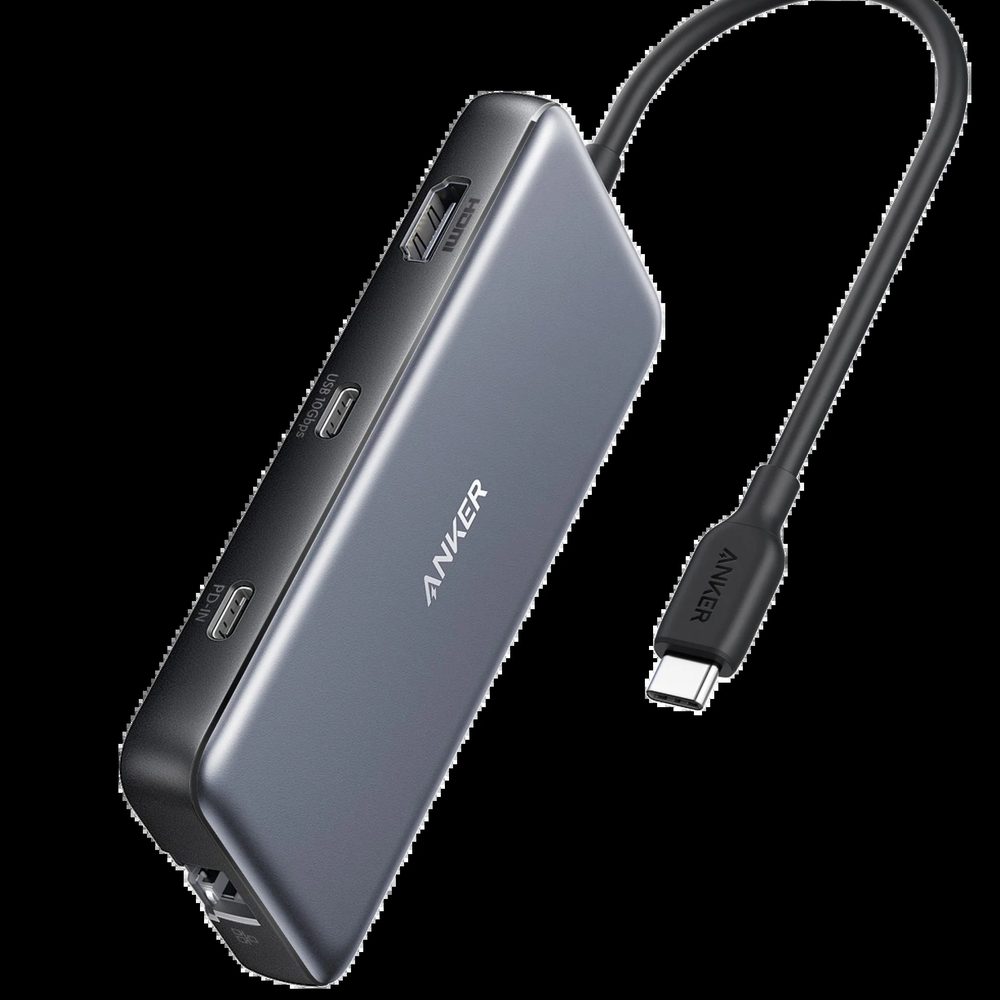
Anker 555 USB-C Hub (8-in-1)
Best Value GigabitBuy if: your network is Gigabit and you want the safe all-round pick
Don't buy if: you need 2.5Gb Ethernet or a second monitor
The Anker 555 is the value pick for a Gigabit desk. It pairs 4K 60Hz HDMI with Gigabit Ethernet, 10Gbps USB-C and USB-A data ports, SD and microSD readers and up to 85W of laptop charging from a 100W charger. No other hub here matches that mix at this level.
The limits are plain. One HDMI output means one external monitor. The Ethernet port stops at Gigabit, so a multi-gig network gains nothing. The shell looks near-identical to the Anker 552 and 565, so check the model number on the listing before you order. For most home networks, none of that matters.
Pros
- 4K 60Hz HDMI with Gigabit Ethernet
- 10Gbps data ports
- 85W laptop charging
- Compact aluminium shell
Cons
- Gigabit Ethernet only
- One HDMI output
- Easy to confuse with sibling models
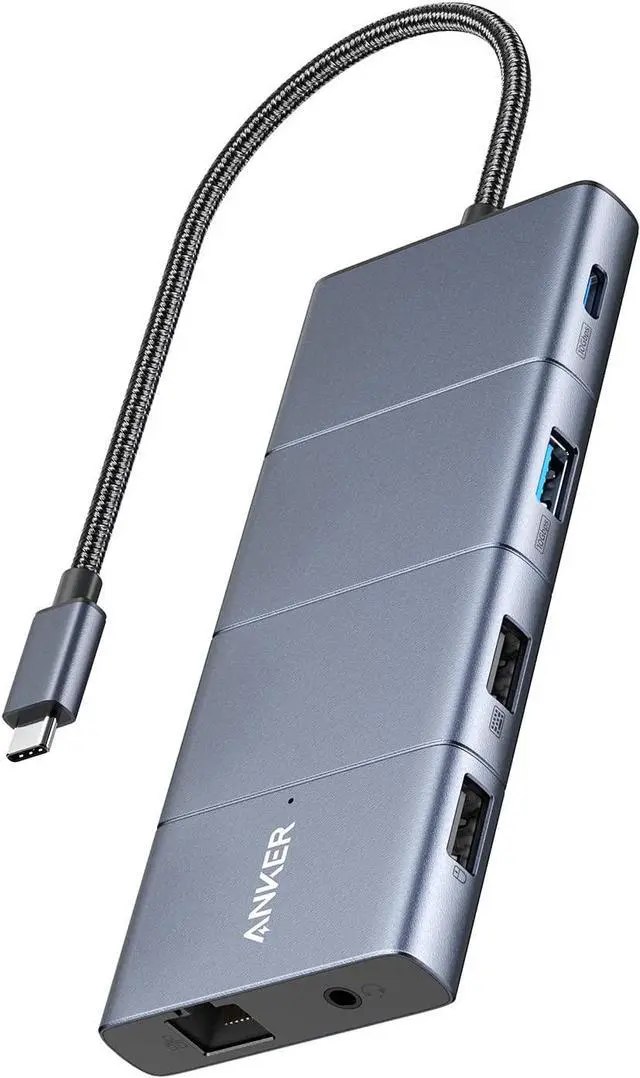
Anker 565 USB-C Hub (11-in-1)
Best HDMI + DisplayPortBuy if: your two monitors use one HDMI and one DisplayPort cable
Don't buy if: you want two different screens on a Mac
The Anker 565 adds a DisplayPort output beside the HDMI port, plus Gigabit Ethernet, an audio jack and card readers. One screen runs at 4K 60Hz. Two screens run at up to 2K 60Hz each on a DisplayPort 1.4 laptop, or 1080p 60Hz on an older one. A 10Gbps USB-C port and a 10Gbps USB-A port handle fast drives.
Two USB-A ports run at slow 480Mbps speeds. They suit a keyboard, a mouse or a headset receiver, not a drive. On a Mac both screens show the same image. Anker also states the hub is not compatible with Linux. Within those limits, it is the most flexible wired desk hub here.
Pros
- HDMI and DisplayPort outputs
- Gigabit Ethernet and audio jack
- Two 10Gbps data ports
- 85W laptop charging
Cons
- Dual screens drop to 2K
- Two slow USB-A ports
- Mac screens mirror
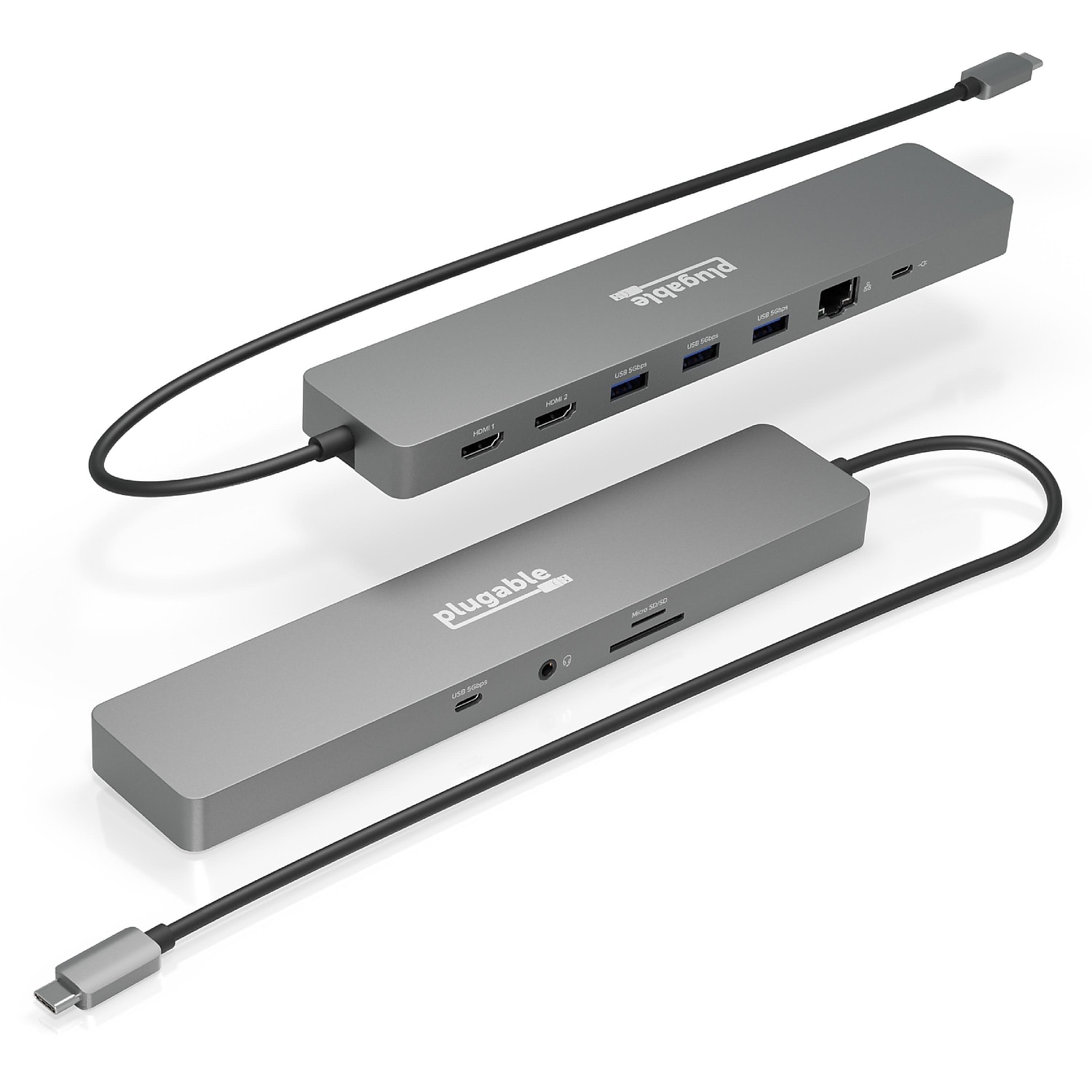
Plugable USBC-11IN1E 11-in-1 USB-C Hub
Best Dual HDMIBuy if: you run two HDMI monitors on Windows or ChromeOS
Don't buy if: you use a Mac and want two different screens
The USBC-11IN1E is the two-monitor pick. Two HDMI ports drive two different 4K 60Hz screens on a Windows or ChromeOS laptop with DisplayPort 1.4. Gigabit Ethernet, three USB-A ports, a USB-C data port, card readers and an audio jack complete the desk. Charging reaches about 92W to the laptop from a 100W charger.
Mac owners should look elsewhere for two screens. macOS mirrors the second HDMI display instead of extending it, and Plugable does not recommend this hub for Mac dual-display use. Data ports run at 5Gbps, so fast SSDs move slower here than on the 10Gbps picks. For a Windows desk with two monitors, it is the right tool.
Pros
- Two 4K 60Hz HDMI outputs
- Gigabit Ethernet
- Card readers and audio jack
- About 92W laptop charging
Cons
- Mac screens mirror
- 5Gbps data ports
- Needs DisplayPort 1.4 for dual 4K
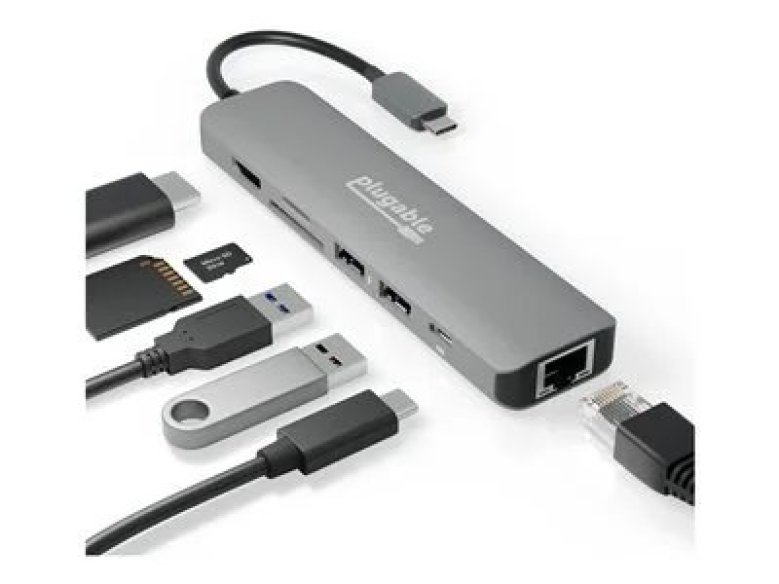
Plugable USBC-7IN1E 7-in-1 USB-C Hub
Best BudgetBuy if: you need one monitor, wired internet and little else
Don't buy if: you move large files to fast SSDs every day
The USBC-7IN1E covers the basic wired desk for the least money here. One HDMI port reaches 4K 60Hz on a DisplayPort 1.4 laptop. Gigabit Ethernet, two USB-A ports, SD and microSD readers and USB-C charging round out the seven ports. The metal body suits hot desks and classrooms.
The trade-offs are speed and port count. USB ports run at 5Gbps, and there is no USB-C data port for a modern drive. The charging port takes a charger only; it carries no data. On an older DisplayPort 1.2 laptop the HDMI output drops to 4K 30Hz. For calls, documents and one monitor, it does the job.
Pros
- Gigabit Ethernet and 4K 60Hz HDMI
- Lowest cost here
- Metal body
- Card readers included
Cons
- 5Gbps USB ports
- No USB-C data port
- 4K 30Hz on older laptops
How to Set Up Wired Internet and HDMI in 5 Steps
Plug the hub into the laptop first, then add the Ethernet cable, the monitor and the charger. Five steps, five minutes, and one cable runs the desk.
To set up a USB-C hub with Ethernet and HDMI, follow these steps: 1. Plug the hub into a video-capable USB-C port. 2. Connect the Ethernet cable to the router. 3. Connect the monitor with an HDMI cable. 4. Plug your charger into the hub. 5. Check the network and display settings.
- Plug the hub into a video-capable USB-C port. HDMI needs DisplayPort Alt Mode; a data-only port gives no picture.
- Connect the Ethernet cable to the router. Use a Cat 5e or better cable for Gigabit and 2.5Gb links.
- Connect the monitor with an HDMI cable. Use an HDMI 2.0 or better cable for 4K at 60Hz.
- Plug your charger into the hub. A 100W charger leaves about 85W for most laptops here.
- Check the network and display settings. Confirm the wired link speed and set the monitor to 60Hz.
Quick note: if the picture stops at 30Hz, check the laptop port first. The hub cannot add bandwidth the laptop does not have.
Buying Guide: What Actually Matters
Four things matter most: Ethernet speed, HDMI refresh rate, delivered charging watts and display count — in that order.
Ethernet speed comes first because it is the reason you are here. Gigabit covers most homes. The 2.5Gb picks pay off with a multi-gig router, a fast home server or an internet plan above 1Gbps. Check every link: router port, switch, cable and plan.
HDMI refresh rate comes next. Look for 4K at 60Hz in the maker's specs. A bare 4K claim often means 30Hz, which feels sluggish on a desk monitor. The Plugable 10-in-1 goes further with HDMI 2.1 for 4K at 144Hz on the right laptop.
Charging watts need a careful read. The wattage on the box is what the hub takes in, not what the laptop gets. Most hubs keep about 15W, so a 100W charger gives the laptop about 85W. The Plugable 10-in-1 reaches 125W only with a 140W charger and a matching laptop.
Display count decides the model. One monitor suits four picks here. Two different screens need the dual-HDMI Plugable on Windows, or the Anker 565 with its HDMI plus DisplayPort pair at 2K. Mac owners get one extended screen from every hub in this guide.
Network first. Features second.
Hubs to Skip in 2026
Hubs with 100Mbps Ethernet. Some cheap hubs hide a slow network port behind a long port list. If the maker will not state Gigabit or faster, skip it.
Hubs that promise 4K with no refresh rate. A silent spec sheet usually means 4K at 30Hz. Every pick here states its rate; hold other hubs to the same standard.
Dual-HDMI hubs sold to Mac owners. Two HDMI ports on a Mac still show one mirrored image through these hubs. Mac desks with two screens need a different product class.
Hubs with no charging input. A desk hub without power pass-through drains the laptop battery through the day. Our powered USB hub guide covers the wall-powered hubs for device-heavy desks.
Frequently Asked Questions
What's the best USB-C hub with Ethernet and HDMI?
The Plugable USBC-10IN1E for most desks. It pairs 2.5Gbps Ethernet with HDMI 2.1 and up to 125W charging.
Do I need 2.5Gb Ethernet or is Gigabit enough?
Gigabit is enough for most homes. Choose 2.5Gb only with a multi-gig router, fast server or faster internet plan.
Why does my hub show 4K at only 30Hz?
Your laptop port likely limits the signal. DisplayPort 1.2 hosts cap at 4K 30Hz; DisplayPort 1.4 allows 4K 60Hz.
Can I use Ethernet and HDMI at the same time?
Yes. Every hub here runs wired internet and the monitor together from one laptop cable, with charging too.
Should I buy a hub or a separate Ethernet adapter?
Buy the hub if you also need HDMI or charging. A lone adapter suits laptops that only lack a network port.
How do I check my wired speed through the hub?
Open your network settings and read the link speed. It shows 1Gbps or 2.5Gbps, set by the slowest link.
When should I choose a docking station instead?
Choose a dock for two Mac screens, many ports or a fixed desk. A hub suits one monitor and travel.