Best USB C Hub for Laptop in 2026: 6 Picks

A laptop with two USB-C ports feels wonderfully minimal — until one port is charging, the other is driving a display, and there is nowhere to plug in a mouse, a memory card, an Ethernet cable or a backup drive. You've probably tried a cheap adapter already, and you've likely found out the hard way that "supports 4K" usually means a stuttering 30Hz picture. That's what this guide fixes.
A USB-C hub for a laptop is a small adapter that turns one USB-C port into several: HDMI for a monitor, USB-A for a mouse and drive, Ethernet for wired internet, and card readers. It draws power from the laptop or a charger.
The problem is that the box lies to you in three specific ways: the wattage printed on it is the power going in, not the power reaching your laptop; "supports 4K" usually means 4K at a choppy 30Hz, not 60Hz; and on a Mac, two HDMI ports do not mean two monitors.
This guide corrects all three. Every price below was verified on 17 November 2026 from manufacturer listings and published US price tables, and every wattage, refresh rate and display limit is stated as delivered power and real behaviour — not the number on the box. The six picks below are current models sold on Amazon US, each with a clear job: a best overall hub, a best-value 9-port hub, a high-power hub for big laptops, a MacBook-shaped hub, the only dual-monitor fix for base Macs, and a budget hub.
Quick Comparison
| Product | Key Specs | ||
|---|---|---|---|
| #1 | Anker 555 USB-C Hub (8-in-1)Best Overall | 4K 60Hz HDMI · 10Gbps USB-C + USB-A · Gigabit Ethernet · SD/microSD · 85W charging · $49.99 | Check Price |
| #2 | UGREEN Revodok Pro 109Best Value | 4K 60Hz HDMI · 9 ports · up to 10Gbps data · Gigabit Ethernet · SD/TF · 100W PD · $54.99 list | Check Price |
| #3 | Plugable 9-in-1 USB-C Hub (USBC-9IN1E)Best for High-Power Laptops | 4K 60Hz HDMI · 10Gbps USB-C + USB-A · UHS-II readers · 140W EPR, up to 125W to laptop · $44.99 | Check Price |
| #4 | Satechi Pro Hub SlimBest for MacBook | USB4 up to 6K 60Hz + HDMI 4K 60Hz · 10Gbps USB-C + USB-A · SD/microSD · 100W charging · $79.99 | Check Price |
| #5 | Plugable 7-in-1 Dual HDMI Dock (USBC-6950PDZ)Best for Two Monitors on a Mac | 2× HDMI 4K 60Hz via DisplayLink · Gigabit Ethernet · SD · 82W charging · $139.99 | Check Price |
| #6 | Anker 341 USB-C Hub (7-in-1)Best Budget | 4K 30Hz HDMI · 5Gbps USB-C + USB-A · Gigabit Ethernet · SD · 85W charging · $29.95 | Check Price |
Anker 555 vs UGREEN Revodok Pro 109: the Anker is better suited for most laptops because it pairs 4K 60Hz with 10Gbps data and Ethernet for $49.99. The UGREEN works better when you need a ninth port and the fastest card readers. The key difference is one extra USB-A port — and about $5.
The best USB-C hub for a laptop is the Anker 555 USB-C Hub (8-in-1) at $49.99. According to rival guides, it is the consensus pick, thanks to 4K 60Hz HDMI, 10Gbps data, Gigabit Ethernet and 85W charging. It suits any mainstream laptop with a USB-C port that carries video.
A USB-C hub delivers less power than the box promises because the hub keeps about 15W to run its own chips. According to the manufacturers' own specifications, a hub rated 100W passes around 85W to the laptop. That covers every mainstream laptop; only a 16-inch MacBook Pro under full load needs more.
You should spend $50 on a USB-C hub for a laptop. The Anker 555 at $49.99 covers 4K 60Hz, 10Gbps data and 85W charging. The Anker 341 at $29.95 is the budget option, but its 4K HDMI runs at 30Hz. Paying $20 more buys a monitor that doesn't stutter.
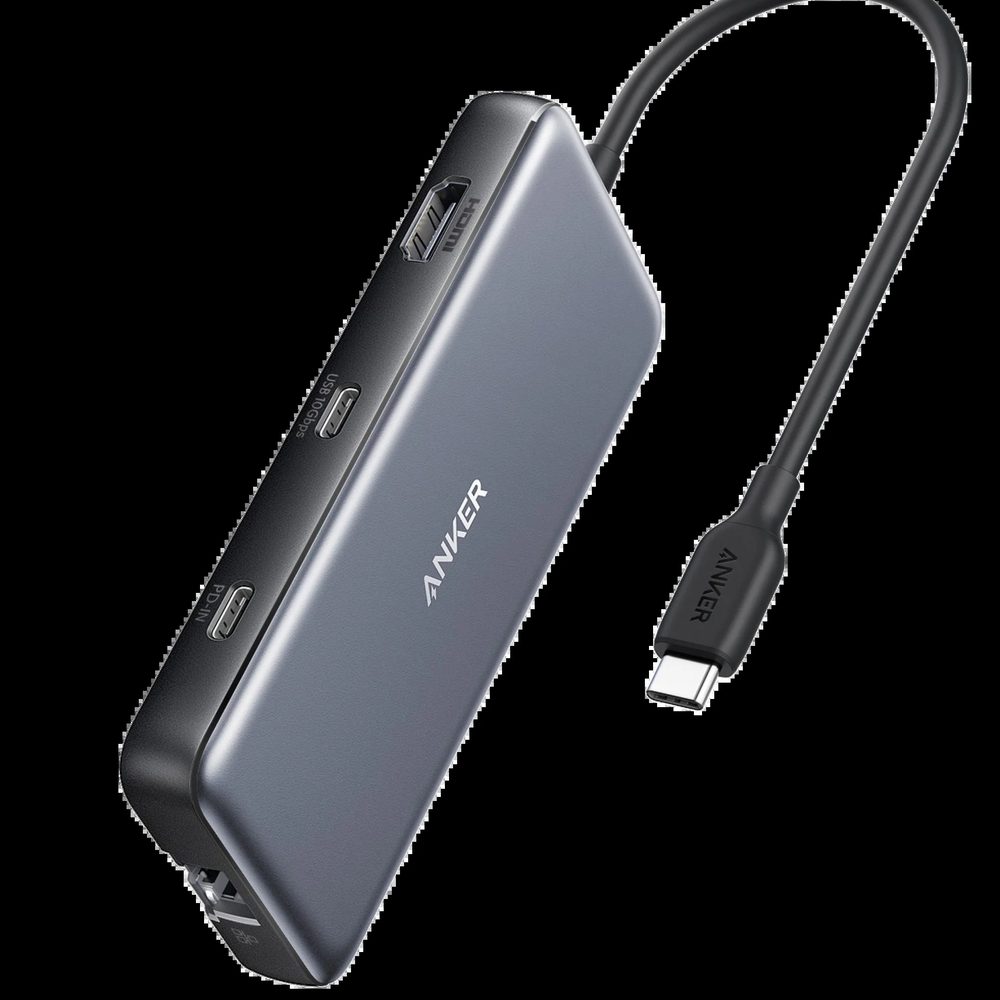
Anker 555 USB-C Hub (8-in-1)
Best OverallBuy if: you want one hub that does everything a laptop desk setup needs, for $50
Don't buy if: you need two external monitors on a Mac, or you charge a 16-inch MacBook Pro under full load — the 85W ceiling is the limit
The Anker 555 is the consensus pick across every serious rival guide, and the reason is the spec sheet: one HDMI 2.0 port at 4K 60Hz, a 10Gbps USB-C data port, two 10Gbps USB-A ports, Gigabit Ethernet, SD and microSD card readers, and 100W power delivery in with up to 85W reaching the laptop. No other hub under $60 combines 4K 60Hz, 10Gbps data, Ethernet and dual card readers — and at $49.99 it is the cheapest hub in this guide that gets all four right at once.
No other hub under $60 does all four.
The honest limits are the ones that apply to every bus-powered hub in this price class. There is only one HDMI output, so a second monitor needs a different product — the DisplayLink dock at #5. The USB-C data port outputs neither video nor charging, only data, so the HDMI port is the only way to get a picture out. And 85W is enough for a 14-inch MacBook Pro or any mainstream Windows laptop under load, but a 16-inch MacBook Pro charging while exporting video will slowly lose charge — that job belongs to the Plugable 9-in-1 at #3.
One naming note: Anker sells three lookalike hubs with numbers that blur together. The 555 is the 8-in-1 at $49.99 with 4K 60Hz. The 552 is a 9-in-1 at around $40. The 565 is an 11-in-1 at $129.99. They are not the same hub at different prices — check the model number on the listing before you buy, because the 555 is the only one of the three with this exact combination of 4K 60Hz and 10Gbps ports at $50.
Pros
- The only hub under $60 with 4K 60Hz, 10Gbps data, Ethernet and dual card readers together
- 85W laptop charging from a 100W charger covers every mainstream laptop
- Aluminum shell, compact enough to travel with
- The default recommendation across rival guides — the safe pick
Cons
- One HDMI output only — no second monitor without a different product
- USB-C data port carries neither video nor charging
- 85W ceiling will not hold a 16-inch MacBook Pro under full load
- Looks near-identical to the Anker 552 and 565 — check the model number
List price $49.99. Check the price before buying, as prices change.
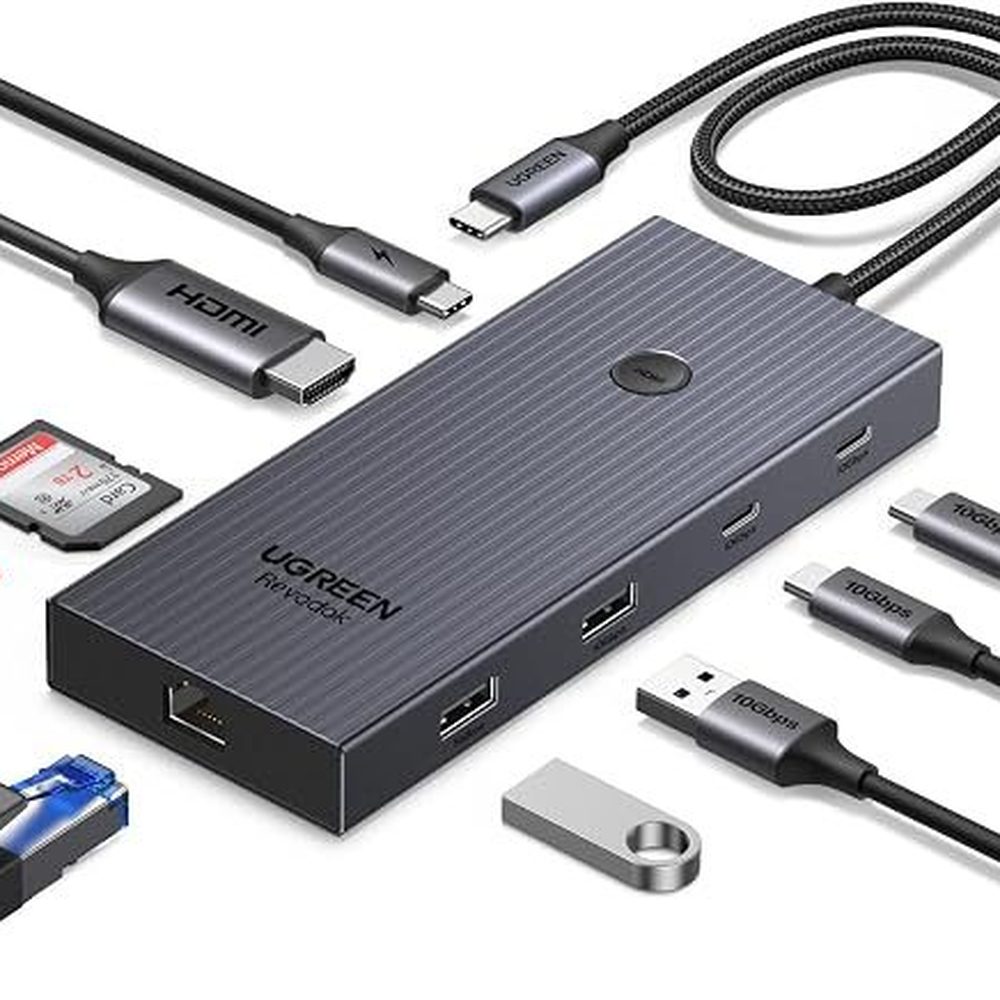
UGREEN Revodok Pro 109
Best ValueBuy if: you want the most ports per dollar — nine ports, 4K 60Hz and 10Gbps data for around $55 list, often less on sale
Don't buy if: you need two monitors on a Mac, or you charge a 16-inch laptop under load — same 85W-class ceiling as the Anker 555
The Revodok Pro 109 is the value pick because it adds a ninth port — an extra USB-A — to the same formula as the Anker 555, for about the same money: 4K 60Hz HDMI, USB-C and USB-A data at up to 10Gbps, Gigabit Ethernet, SD and microSD readers, and 100W power delivery in. UGREEN lists it at $54.99 on its US store, and it regularly sells for $39.99–$44.99 — at that street price it is the most capable hub per dollar in this guide, and Macworld named it the best wired USB-C hub for iPad in its 2026 roundup.
Nine ports for about fifty-five dollars.
Two details worth knowing. First, the card readers are genuinely fast for the price — rated at up to 170 MBps, which is the fastest reader speed in this guide outside the Plugable's UHS-II slots. Second, the port speeds are tiered rather than flat: the fastest data runs on the USB-C port, so put your external SSD there and the mouse receiver on a slower USB-A port — the hub leaves the network controller a predictable share of bandwidth when everything runs at once.
I've seen conflicting data — UGREEN lists the Revodok Pro 109 at $54.99, while some retailers show $72.99 and others $39.99. My read is the $39.99–$44.99 street price is the real one, and the $72.99 listings are outliers.
The trap is the name. UGREEN sells the Revodok Pro 109 (9-in-1), the Revodok Pro 210 (10-in-1, dual 4K) and the Revodok Pro 313 (13-in-1, triple display) — three different hubs with similar names and different port counts. The 109 is the 9-in-1 in this guide. Check the model number, because a listing that just says "Revodok Pro" without the number could be any of the three.
Pros
- Nine ports for around $55 list — often $39.99–$44.99 on sale, the best port-per-dollar ratio here
- 4K 60Hz HDMI with 10Gbps data and Gigabit Ethernet together
- Fastest card readers in this price class — up to 170 MBps
- Macworld's best wired USB-C hub for iPad in its 2026 roundup
Cons
- One HDMI output only — no second monitor without a different product
- Port speeds are tiered — the fastest data is on the USB-C port, not every port
- Street price moves a lot — $39.99 to $72.99 depending on the retailer
- Three similar Revodok Pro models — check for "109" on the listing
List price $54.99 — often $39.99–$44.99 street. Check the price before buying, as prices change.
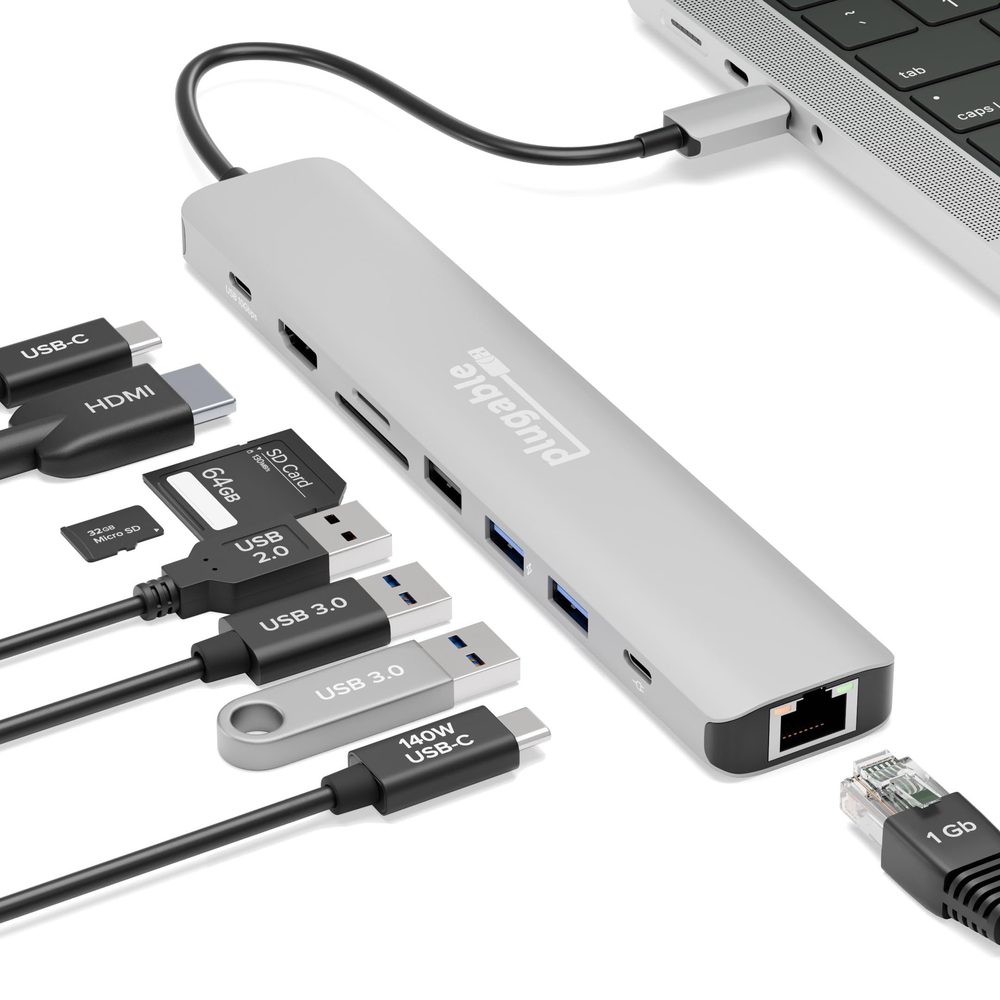
Plugable 9-in-1 USB-C Hub (USBC-9IN1E)
Best for High-Power LaptopsBuy if: you charge a 16-inch MacBook Pro or a high-power Windows laptop through your hub — this is the only compact hub here that delivers more than 85W
Don't buy if: your laptop charges at 65W or less — the extra power headroom buys you nothing, and the Anker 555 is $5 more for the same ports
The Plugable 9-in-1 is the only hub in this guide with USB PD 3.1 EPR support, and that is the whole reason to buy it. With a 140W EPR charger and a laptop that accepts it, up to 125W reaches the laptop — the only compact hub here that holds a 16-inch MacBook Pro at full charge under load. On a standard 100W charger it delivers the same 85W as the cheaper hubs, because the hub keeps 15W to run its own ports. Everything else matches the Anker 555 spec for spec: 4K 60Hz HDMI, a 10Gbps USB-C data port, two 10Gbps USB-A ports, a USB 2.0 port for a mouse or keyboard receiver, Gigabit Ethernet, and SD and microSD readers — rated UHS-II, the fastest readers in this guide.
125W is the whole reason to buy it.
The honest math: the 125W ceiling only matters if you own both a 140W EPR charger and a laptop that draws that much. If you charge with the 96W or 100W brick that came with your laptop, this hub delivers exactly what the Anker 555 delivers, for the same money — $44.99 at Best Buy when checked. Buy it for the headroom if your laptop needs it; otherwise buy on ports, not watts.
One naming note: Plugable's model numbers are the whole product name here. The USBC-9IN1E is this hub — 140W EPR, single HDMI. The USBC-7IN1E is the cheaper 7-in-1 with 5Gbps USB-A and no EPR. The USBC-6950PDZ at #5 is the dual-HDMI DisplayLink dock. Same brand, same shape, three different hubs — the model number on the listing is the only thing that tells them apart.
Pros
- Only compact hub here with USB PD 3.1 EPR — up to 125W to the laptop with a 140W charger
- UHS-II card readers — the fastest in this guide
- Same 4K 60Hz + 10Gbps + Ethernet port mix as the Anker 555
- A dedicated USB 2.0 port for a mouse or keyboard receiver
Cons
- 125W needs a 140W EPR charger — with a 100W charger it delivers the same 85W as cheaper hubs
- One HDMI output only — no second monitor without a different product
- No advantage at all on laptops that charge at 65W or less
- Model numbers are easy to confuse — USBC-9IN1E is this hub, USBC-7IN1E is not
Price $44.99 at Best Buy when checked. Check the price before buying, as prices change.
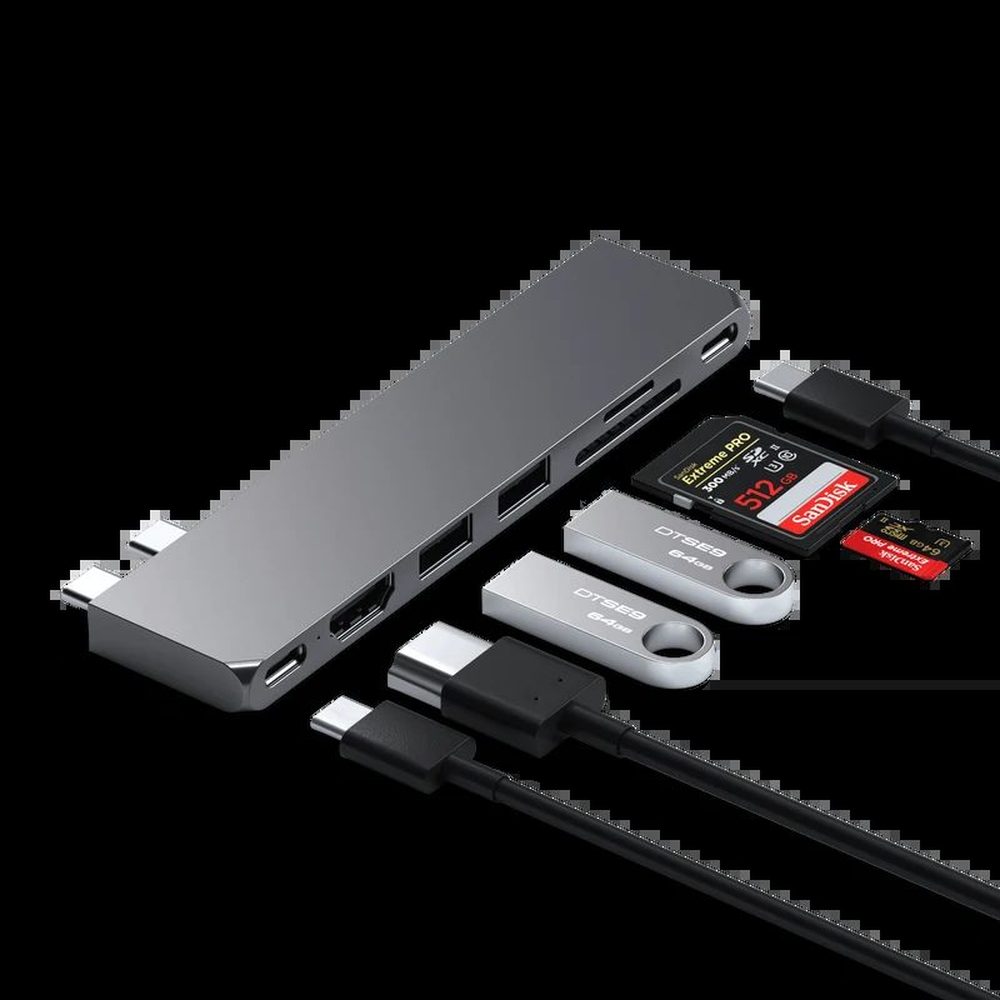
Satechi Pro Hub Slim
Best for MacBookBuy if: you own a MacBook and want a hub that sits flush against it, with USB4 speed and a 6K monitor option
Don't buy if: you use a Windows laptop — it plugs into two adjacent USB-C ports spaced for a MacBook, and it will not fit most other laptops
The Pro Hub Slim is shaped for the side of a MacBook: it plugs into two neighbouring USB-C ports and sits flush against the chassis, so it reads as part of the laptop rather than something dangling from it. The spec sheet is the strongest single-display setup in this guide — a full-function USB4 pass-through port that drives a monitor up to 6K at 60Hz, plus a separate HDMI port at 4K 60Hz, a 10Gbps USB-C data port, two 10Gbps USB-A ports, SD and microSD readers, and up to 100W of charging.
The fit is the whole story.
The fit is the whole story, and it cuts both ways. On a MacBook Air or Pro it is the neatest hub here by a distance — no cable, no dongle hanging off the desk edge. On anything else it is the wrong purchase: the two-connector spacing matches Apple's port layout, and most Windows laptops put their USB-C ports in different places or only have one. It is also the most expensive single-display hub in this guide at $79.99 — $30 more than the Anker 555 for the same ports plus USB4 and the flush fit. Buy it for the fit and the 6K option, not for the port count.
One naming note: Satechi's "Pro Hub" line has several members. The Pro Hub Slim is this one — dual-connector, USB4, $79.99. The USB-C Multiport Adapter V3 is a different product: a single-cable adapter with an 8K-capable HDMI port (8K at 30Hz, or 4K at 144Hz) and three 10Gbps USB-C ports, at around $100. The Thunderbolt 4 Slim Hub Pro is a third product again, at $199.99. Check the name on the listing — "Pro Hub Slim" is the flush-fit MacBook one.
Pros
- Flush fit against a MacBook — no dangling cable, the neatest hub here
- USB4 pass-through drives a monitor up to 6K at 60Hz, plus HDMI at 4K 60Hz
- 10Gbps data on USB-C and both USB-A ports
- Up to 100W charging covers every current MacBook
Cons
- MacBook-only fit — the dual-connector spacing will not suit most Windows laptops
- $79.99 is $30 more than the Anker 555 for the same port count
- One HDMI output — still no second monitor on a base Mac without DisplayLink
- Easy to confuse with Satechi's Multiport Adapter V3 and Thunderbolt 4 Slim Hub Pro
List price $79.99. Check the price before buying, as prices change.
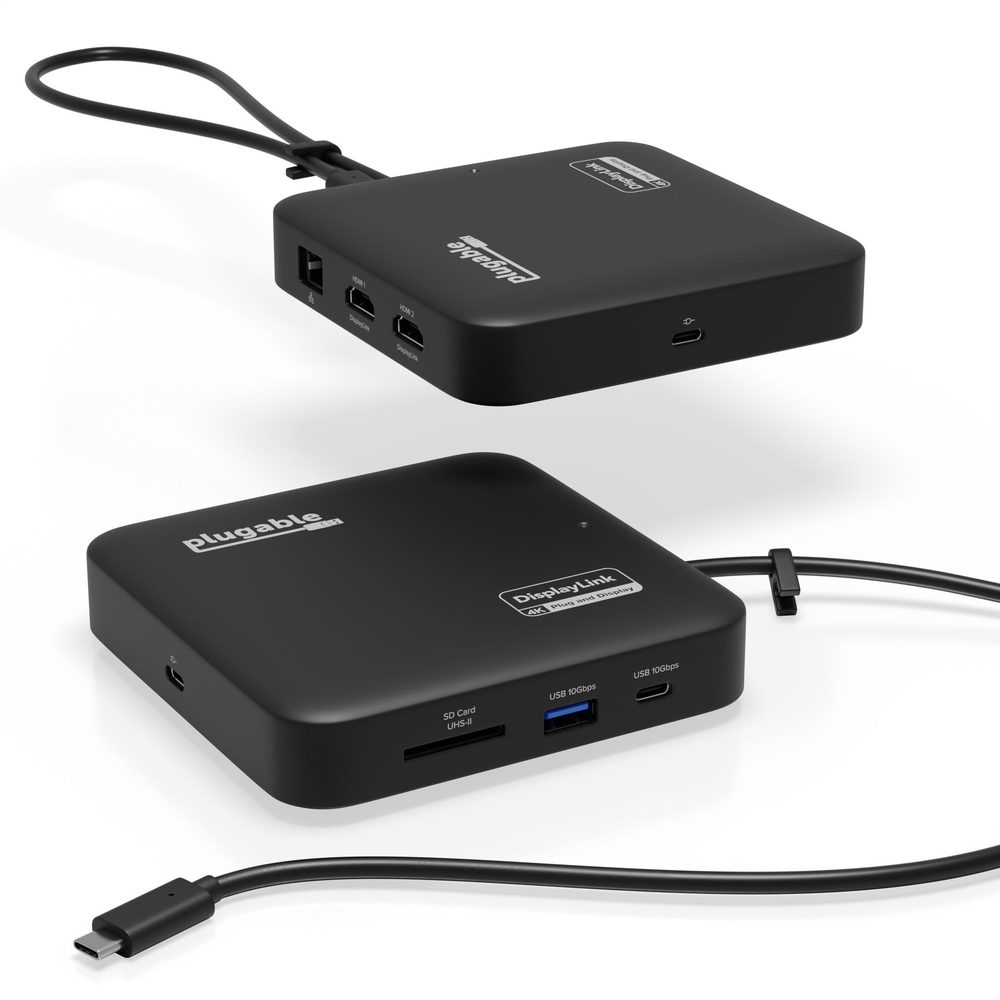
Plugable 7-in-1 Dual HDMI Dock (USBC-6950PDZ)
Best for Two Monitors on a MacBuy if: you run two external monitors from a base MacBook (M1–M5) — this is the only pick here that can do it
Don't buy if: you stream Netflix or Disney+ on an external monitor, or you will not install a driver — this dock needs the DisplayLink driver and blocks HDCP content
This is the most important pick in the guide for Mac owners, because it solves the problem no other hub here can. Base Apple Silicon Macs — M1, M2 and M3 — natively support only one external monitor, no matter how many HDMI ports the hub has. The USBC-6950PDZ gets around it with DisplayLink, a software-driven display technology that processes video inside the dock: two extended 4K 60Hz HDMI displays, even on laptops that do not natively support dual video output, including every Apple Silicon MacBook once the driver is installed.
The second monitor is the whole point.
The rest of the spec sheet is solid for a desk dock: Gigabit Ethernet, USB-A and USB-C ports, an SD card slot, and 100W of power input delivering up to 82W to the laptop. But read the fine print before you buy. The dock ships with no power supply — it runs off your own USB-C laptop charger, and charging only works if your laptop supports USB Power Delivery. The DisplayLink driver installs automatically through Windows Update, but on macOS you must download and install the DisplayLink Manager yourself, with administrator rights. And the dock does not support HDCP-protected content, so Netflix, Hulu and Disney+ may be blocked or fail on the external monitors.
At $139.99 (down from $204.99) it costs nearly three times the Anker 555 — and it is worth it only if you actually need the second monitor. If you run one monitor, buy the 555 and save $90. If you run two on a base Mac, there is no cheaper honest answer than this dock.
Pros
- The only pick here that runs two extended 4K 60Hz displays on a base MacBook
- DisplayLink works across Windows and macOS, including Apple Silicon M1–M5
- Compact square dock — portable for a dual-display dock
- $139.99, down from a $204.99 list price
Cons
- Needs the DisplayLink driver — manual install with admin rights on macOS
- No power supply in the box — bring your own USB-C charger
- No HDCP — Netflix, Hulu and Disney+ may fail on external monitors
- Nearly 3× the price of the Anker 555, and pointless if you run one monitor
List price $204.99 — $139.99 when checked. Check the price before buying, as prices change.
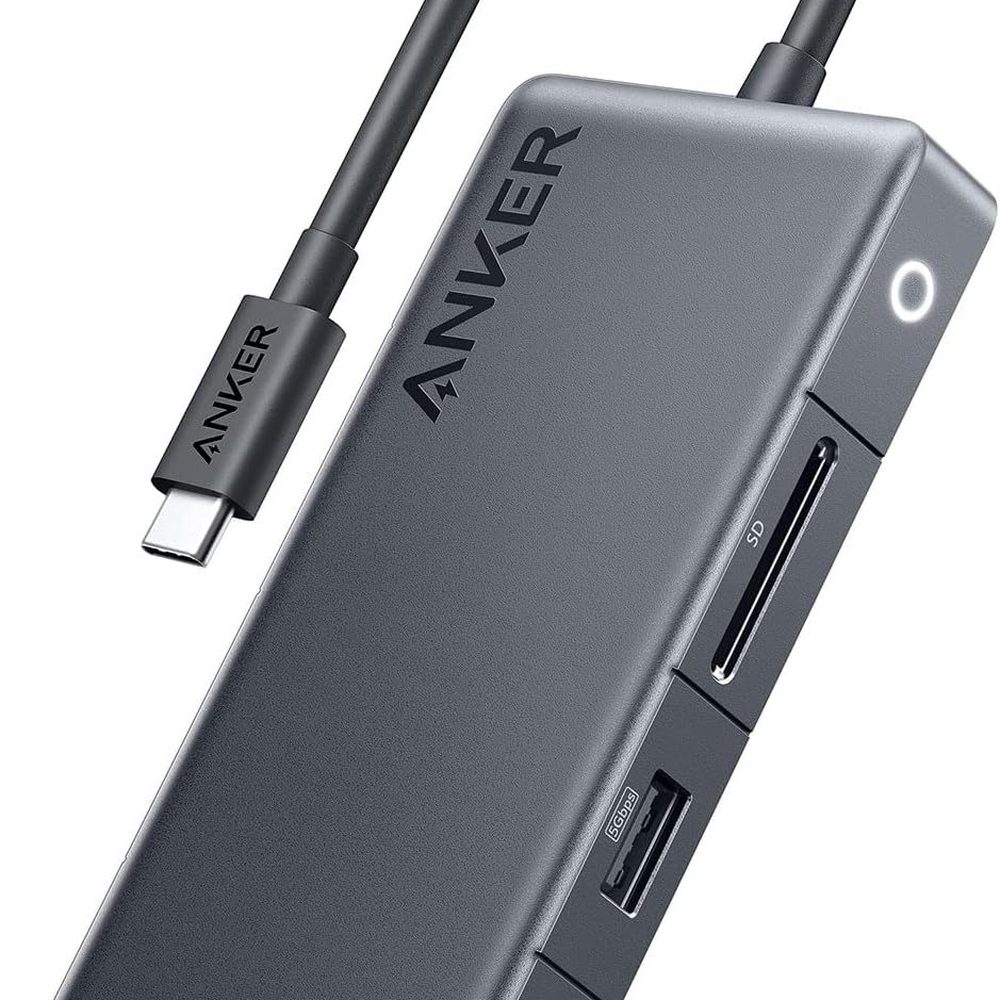
Anker 341 USB-C Hub (7-in-1)
Best BudgetBuy if: you want the cheapest credible hub from a brand you can actually get support from — $29.95 for the ports most people use
Don't buy if: you run a 4K monitor daily — the 30Hz HDMI will feel sluggish, and the Anker 555 is only $20 more for 60Hz
The Anker 341 is the budget pick because it keeps the ports that matter and cuts the ones that cost money: 4K HDMI, a USB-C data port, two USB-A data ports, an SD card slot and Gigabit Ethernet, with 100W power delivery in and up to 85W to the laptop — the same charging as the $49.99 Anker 555. At $29.95 it is the cheapest hub in this guide from a major brand with real support behind it.
The cut that matters is the refresh rate. The HDMI port runs 4K at 30Hz, not 60Hz, and on a 4K monitor you will feel it: scrolling stutters, the cursor drags, windows feel heavy. If your monitor is 1080p or 1440p, 30Hz at 4K is irrelevant — the hub drives those resolutions at 60Hz without a problem. The data ports are also 5Gbps rather than 10Gbps, which is fine for a mouse, a keyboard and a flash drive, and slow for an external SSD. Know which side of that line you sit on before you buy: $20 more for the 555 buys 4K 60Hz and 10Gbps everywhere.
One naming note: the 341 is the 7-in-1. The Anker 332 is the 5-in-1 at a similar price, with fewer ports and the same 4K 30Hz HDMI. They look the same and cost almost the same — check for "341" and "7-in-1" on the listing, because the 332 drops the second USB-A port and the microSD reader.
Pros
- $29.95 — the cheapest hub here from a major brand with real support
- Same 85W laptop charging as the $49.99 Anker 555
- Gigabit Ethernet and an SD reader at a budget price
- Compact aluminum-polycarbonate shell, genuinely portable
Cons
- HDMI is 4K at 30Hz only — sluggish on a 4K monitor
- Data ports are 5Gbps, not 10Gbps — slow for external SSDs
- No microSD reader, unlike the 555
- Near-identical to the cheaper Anker 332 (5-in-1) — check the model number
List price $29.95. Check the price before buying, as prices change.
Will Any USB-C Hub Work With My Laptop?
No — and this is the first thing to check, before the price or the port count. A USB-C hub with an HDMI port only works if the laptop's USB-C port carries video, a feature called DisplayPort Alt Mode. USB-C describes the shape of the connector, not what the port can do: the same plug can carry data only, data plus charging, or data plus charging plus video, depending on the laptop. VESA, the standards body behind DisplayPort, says ports that carry video normally show a small DP logo next to the connector — look for it before you buy.
If your laptop's USB-C port does not support video output, no hub will fix it: the HDMI port will stay dark whatever you plug in. Anker publishes a list of laptop models that do not support USB-C media display — among them the ASUS VivoBook L203MA, the ZenBook 13 Ultra-Slim and the Lenovo IdeaPad L340 Gaming. Check your laptop's specifications for "DisplayPort Alt Mode" or "DP Alt Mode" before you order, and on laptops with two USB-C ports, check both: on some machines the two ports are not equal, and only one of them carries video.
How Many Watts Does a USB-C Hub Really Deliver?
Less than the box says — and the gap is the same on almost every hub. The wattage printed on the box is the power the hub accepts from your charger, not the power it sends to your laptop. The hub keeps about 15W to run its own chips — the Ethernet controller, the video chip, the USB lanes — so a "100W" hub fed by a 100W charger delivers around 85W to the laptop. Every hub in this guide except the Plugable 9-in-1 follows that rule: feed it 100W, your laptop sees about 85W.
Here's the thing: for most laptops, 85W is plenty. A MacBook Air charges at full speed on 30W, a 14-inch MacBook Pro needs around 70W under load, and most Windows ultrabooks sit between 45W and 65W.
Can I Run Two Monitors From a USB-C Hub on a Mac?
On a base MacBook, no — not with a normal hub, no matter how many HDMI ports it has. Apple Silicon chips in the base tier (M1, M2 and M3) natively support only one external display. A hub with two HDMI ports will show the same picture on both screens — it mirrors, it does not extend. Apple says so plainly: a hub does not raise the number of external displays a Mac supports. Newer M3 and M4 MacBook Airs can drive two displays with the lid closed, but two HDMI jacks on a hub still do not override what the chip allows.
There are two honest ways around it. The first is a DisplayLink dock, like the Plugable USBC-6950PDZ at #5: DisplayLink processes video inside the dock, so it drives two extended 4K 60Hz displays on any Mac, including base M1–M5 machines — at the cost of installing a driver and losing HDCP streaming on those monitors. The second is to buy the higher-tier Mac: MacBook Pro models with Pro or Max chips support two or more external displays natively, no dock tricks needed. On Windows, this is almost entirely a non-issue — most Windows laptops drive multiple external displays from a single USB-C connection via MST (Multi-Stream Transport), so a dual-HDMI hub just works.
Is 4K at 30Hz or 60Hz — Does It Matter?
Yes — it is the single most felt difference between a $30 hub and a $50 hub. A screen at 60Hz redraws the picture 60 times a second; at 30Hz it redraws 30 times. Scrolling, dragging windows and moving the cursor all feel twice as smooth at 60Hz, and at 30Hz the cursor feels like it is dragging through syrup. "Supports 4K HDMI" is the most abused phrase in this whole category: plenty of budget hubs deliver 4K resolution at only 30Hz, and the box never says so in large print.
The rule is simple: a hub worth buying states "4K at 60Hz" in plain text. The Anker 555, UGREEN 109, Plugable 9-in-1 and Satechi Pro Hub Slim all do. The Anker 341 does not — its HDMI tops out at 4K 30Hz, which is why it costs $20 less. There is one more link in the chain: 4K 60Hz also needs a laptop that supports DisplayPort 1.4. On a laptop with DisplayPort 1.2, even the Anker 555 falls back to 4K 30Hz — the hub, the laptop port and the monitor all have to support the standard, or the slowest one wins.
What Is the Difference Between a USB-C Hub and a Docking Station?
A hub is a small, bus-powered adapter that turns one USB-C port into several — it draws its power from the laptop or from a charger you plug into it, and it travels in a bag. A docking station is a bigger, mains-powered box that sits on a desk permanently, with its own power supply, more ports, and usually two or three display outputs. The Plugable 6950PDZ at #5 sits between the two: a compact dock with dual displays that still runs off your own charger.
Buy a hub when you move between desk and bag, when you need one monitor, or when your laptop already has a charger you like. Buy a docking station when the setup never moves, when you run two or three monitors, or when you want one cable that also powers the laptop from the dock's own supply rather than a separate charger. The price gap is real — a good Thunderbolt dock costs $200–$350 against $50 for a hub — so do not buy a dock for a job a hub does. If one monitor and a handful of peripherals is the whole job, the Anker 555 is the right purchase and a dock is money spent on ports you will never use. If two monitors is the job, see our best laptop docking station for dual monitors guide — it covers the Thunderbolt vs DisplayLink choice and the Mac mirror trap in full.
Do I Need 10Gbps USB Ports?
Only if you move large files through them. A 10Gbps port transfers data twice as fast as a 5Gbps port, and the difference shows up with external SSDs, large video files and photo libraries: a 50GB video folder copies in roughly half the time. It makes no difference at all to a mouse, a keyboard, a webcam or a flash drive — those devices never get near 5Gbps, let alone 10Gbps.
The practical version: put your external SSD on the 10Gbps USB-C port and everything else anywhere. The Anker 555, UGREEN 109, Plugable 9-in-1 and Satechi Pro Hub Slim all have 10Gbps data ports; the Anker 341 tops out at 5Gbps, which is the main reason it costs $20 less. One more detail worth knowing: several hubs in this guide include a deliberately slow USB 2.0 port. That is not a defect — it is the right port for a mouse or keyboard receiver, because a 2.4GHz receiver next to a 10Gbps port can pick up interference. Use the slow port for the receiver and the fast ports for storage.
Will a USB-C Hub Work With My iPad or Phone?
With an iPad, yes — with a phone, mostly no. Apple lists hubs, USB-to-Ethernet adapters and SD card readers among the accessories an iPad's USB-C port supports, with 4K at 60Hz over HDMI 2.0 on newer models and 4K at 30Hz on older ones. The UGREEN Revodok Pro 109 is the standout here: Macworld named it the best wired USB-C hub for iPad in its 2026 roundup, and its nine ports turn an iPad Pro into a workable desk machine. The Anker 555 and Satechi hubs work with iPads too, as long as the iPad's USB-C port supports the feature you want — video out needs a compatible iPad, and the cheapest iPads have a USB-C port that carries data only.
Phones are a different story. A few Android phones support desktop modes over USB-C — Samsung DeX is the best known — but most phones treat a hub as a way to plug in a flash drive and nothing more. Do not buy a laptop hub for a phone unless you have checked that your exact phone model supports video output over USB-C. And on any device, the same rule applies as on a laptop: the connector shape alone promises nothing. Check the port's capabilities first.
The Exact-Model Trap Decoder
Six names in this market each hide two or three different hubs. Check the model number on the listing — the name alone will not save you.
The generation and model traps
| Name on the Box | What It Actually Is |
|---|---|
| Anker 555 / 552 / 565 | Three different hubs: the 555 is the 8-in-1 at $49.99 with 4K 60Hz; the 552 is a 9-in-1 at around $40; the 565 is an 11-in-1 at $129.99. Same brand, same shape, different port counts and prices. |
| Anker 341 / 332 | The 341 is the 7-in-1 at $29.95. The 332 is the 5-in-1 at a similar price, with fewer ports and the same 4K 30Hz HDMI. Check for "341" and "7-in-1" — the 332 drops a USB-A port and the microSD reader. |
| UGREEN Revodok Pro 109 / 210 / 313 | The 109 is the 9-in-1 in this guide ($54.99 list). The 210 is a 10-in-1 with dual 4K. The 313 is a 13-in-1 triple-display dock. A listing that just says "Revodok Pro" could be any of the three. |
| Plugable USBC-9IN1E / USBC-7IN1E / USBC-6950PDZ | The 9IN1E is the 140W EPR hub with one HDMI. The 7IN1E is the cheaper 7-in-1 with 5Gbps USB-A and no EPR. The 6950PDZ is the dual-HDMI DisplayLink dock. The model number is the product name. |
| Satechi Pro Hub Slim / Multiport Adapter V3 / Thunderbolt 4 Slim Hub Pro | The Pro Hub Slim is the flush-fit MacBook hub at $79.99. The Multiport Adapter V3 is a single-cable adapter with 8K-capable HDMI at around $100. The Thunderbolt 4 Slim Hub Pro is a $199.99 dock. Three products, one brand line. |
| "100W" on the box | That is the power going in, not the power reaching your laptop. Expect around 85W from a 100W charger on every hub here except the Plugable 9-in-1, which passes up to 125W with a 140W EPR charger. |
What each pick's ports actually do
| Hub | Video Out | Fastest Data | Power to Laptop |
|---|---|---|---|
| Anker 555 | 1× HDMI, 4K 60Hz | 10Gbps USB-C + USB-A | 85W from a 100W charger |
| UGREEN Revodok Pro 109 | 1× HDMI, 4K 60Hz | Up to 10Gbps | Around 85–90W from a 100W charger |
| Plugable 9-in-1 (USBC-9IN1E) | 1× HDMI, 4K 60Hz | 10Gbps USB-C + USB-A, UHS-II readers | 125W with a 140W EPR charger; 85W otherwise |
| Satechi Pro Hub Slim | USB4 up to 6K 60Hz + HDMI 4K 60Hz | 10Gbps USB-C + USB-A | Up to 100W |
| Plugable 7-in-1 Dual HDMI (USBC-6950PDZ) | 2× HDMI, 4K 60Hz via DisplayLink | USB-A + USB-C | 82W from a 100W charger (own charger required) |
| Anker 341 | 1× HDMI, 4K 30Hz | 5Gbps USB-C + USB-A | 85W from a 100W charger |
Buying Guide: What Actually Matters
To pick the right USB-C hub, follow these steps: 1. Check your port carries video. 2. Count the watts you actually get. 3. Demand 4K at 60Hz. 4. Match the hub to your monitor count.
Check the port before the hub. Confirm your laptop's USB-C port supports DisplayPort Alt Mode — look for the DP logo next to the connector, or check the specifications. If the port does not carry video, no hub will give you a monitor. On laptops with two USB-C ports, check both: they are not always equal.
Count the watts you actually get. A "100W" hub delivers around 85W to the laptop. That covers every mainstream laptop; only a 16-inch MacBook Pro or a high-power Windows laptop under full load needs more, and only the Plugable 9-in-1 delivers it — with a 140W EPR charger to match.
Demand 4K at 60Hz, not just 4K. If you run a 4K monitor daily, 30Hz will annoy you within an hour. The Anker 555, UGREEN 109, Plugable 9-in-1 and Satechi Pro Hub Slim all state 4K 60Hz in plain text. The Anker 341 does not, and costs $20 less for exactly that reason.
Match the hub to the monitor count. One monitor: any hub here. Two monitors on Windows: a dual-HDMI hub works. Two monitors on a base Mac: only a DisplayLink dock works — the Plugable 6950PDZ is the pick, and it needs a driver installed.
Buy 10Gbps only where it matters. External SSDs and large video files benefit; mice, keyboards and webcams do not. If your storage lives in the cloud, the Anker 341's 5Gbps ports will never slow you down.
Buy by job, not by port count. A traveller wants a slim hub that charges over one cable; a desk worker wants the dock with two displays and Ethernet; a MacBook owner wants the flush-fit Satechi. Port count is marketing — the four specs that decide whether a hub is any good are real delivered wattage, true 4K at 60Hz, 10Gbps data on the right port, and the display limit of your laptop.
Look — if you run a 4K monitor every day, here's what actually works: spend the $20 and get the 555, not the 341. Or maybe I should say it this way: buy the hub that matches your laptop, not the one with the longest spec sheet.
Here's an opinion that might get pushback: most people should buy the $29.95 Anker 341, not the $49.99 Anker 555. If your monitor is 1080p or 1440p, the 341 drives it at 60Hz and the 555's advantages never show up.
What to Skip
A hub that only does 4K at 30Hz for a 4K monitor. If your monitor is 4K and you use it daily, 30Hz will feel sluggish within an hour. The Anker 555 is $20 more than the 341 and the difference is visible every minute you work.
A dual-HDMI hub for a base MacBook without DisplayLink. Two HDMI ports on a normal hub mirror the same picture on a base M1–M3 Mac. Without DisplayLink, the second port is decoration.
A hub with no power delivery passthrough when your laptop has one USB-C port. Without passthrough, the hub takes your only port and you cannot charge at the same time. Every pick in this guide has passthrough — do not buy one that does not.
A Thunderbolt dock for a one-monitor job. A good Thunderbolt dock costs $200–$350. If one monitor and a handful of peripherals is the whole job, a $50 hub does it and the dock money buys a better monitor instead.
No-name hubs with no published specs. If a $20 hub states no wattage, no refresh rate and no data speed, it is a gamble on all three — and the failure modes are a laptop that slowly discharges, a stuttering monitor and an Ethernet port that drops. Buy a hub that publishes its specs.
The wrong Anker, UGREEN, Plugable or Satechi. The model numbers in the trap decoder above are not trivia — the 555, 552 and 565 are different hubs at different prices, and the same is true of the Revodok Pro 109, 210 and 313. Check the model number on the listing, not the shape of the box.
Frequently Asked Questions
What's the best USB-C hub for a laptop?
The Anker 555 USB-C Hub (8-in-1) at $49.99 — 4K 60Hz HDMI, 10Gbps data, Gigabit Ethernet, card readers, and 85W charging from a 100W charger. For nine ports, the UGREEN Revodok Pro 109 at $54.99 is the best value.
Will a USB-C hub work with my laptop?
Not always. The hub's HDMI port only works if your laptop's USB-C port carries video — DisplayPort Alt Mode. Check your laptop's specs for DisplayPort Alt Mode, and look for the small DP logo next to the connector.
How much power does a USB-C hub pass to my laptop?
A hub rated 100W typically delivers around 85W, because it keeps about 15W for its own chips. The Plugable 9-in-1 passes up to 125W with a 140W charger — the only compact hub here that does.
Can I connect two monitors to my MacBook with a USB-C hub?
Only with a DisplayLink dock. Base Apple Silicon Macs support one external display, so a normal hub with two HDMI ports just mirrors. The Plugable 7-in-1 Dual HDMI Dock at $139.99 drives two extended 4K 60Hz displays.
Should I get 4K 30Hz or 60Hz on a USB-C hub?
60Hz, by a distance you can feel. A 4K screen at 60Hz redraws twice as often as at 30Hz, so scrolling looks smooth instead of sluggish. Buy a hub that states 4K at 60Hz in plain text.
What's the difference between a USB-C hub and a docking station?
A hub is a small, bus-powered adapter that turns one USB-C port into several and travels in a bag. A dock is a bigger, mains-powered box for a desk, with its own power supply and more display outputs.
Do USB-C hubs work with iPads?
Yes, on iPads with a USB-C port that supports video — newer models drive 4K at 60Hz, older ones at 30Hz. The UGREEN Revodok Pro 109 is the standout: Macworld's best wired USB-C hub for iPad in 2026.