Best Laptop Docking Station for Dual Monitors 2026: 6 Picks

You bought a second monitor, plugged it into a dock with two HDMI ports, and one screen stayed black — or both screens showed the same picture. That is the most common docking station story there is, and it is almost never a faulty dock. The dock is fine. Your laptop and the dock just disagree about how video travels down the cable.
A laptop docking station for dual monitors is a mains-powered desk box that turns one laptop cable into two monitor outputs, charging, Ethernet and USB ports. It sits on your desk for good, and one plug connects everything at once.
This guide fixes the disagreement before you spend anything. Every price below was verified on 18 November 2026 from manufacturer listings and live US price tables, and every display limit is stated as real behaviour — not the number on the box. The six picks below are current models sold on Amazon US, each with a clear job: a best overall Thunderbolt dock, a best desk dock for a loaded setup, the only honest answer for base Macs, a best-value Thunderbolt dock, a best dock for Dell laptops, and a best dock for laptops with no Thunderbolt at all.
Quick Comparison
| Product | Key Specs | ||
|---|---|---|---|
| #1 | Plugable TBT4-UDZBest Overall | Thunderbolt 4 · 2× HDMI + 2× DisplayPort · dual 4K 60Hz · 100W charging · 2.5GbE · $289.99 | Check Price |
| #2 | CalDigit TS4Best for a Loaded Desk | Thunderbolt 4 · 18 ports · DisplayPort 1.4 + 3× TB4 · dual 4K 60Hz · 98W charging · 2.5GbE · $379.99 | Check Price |
| #3 | Anker Prime Docking Station (DL7400)Best for Mac + Triple Display | DisplayLink · triple 4K 60Hz, one up to 8K · 140W charging · smart display · cooling fan · $299.99 | Check Price |
| #4 | UGREEN Revodok Max 208Best Value Thunderbolt 4 | Thunderbolt 4 · 3× TB4 · dual 4K 60Hz or single 8K · 85W charging · Gigabit Ethernet · $199.98 | Check Price |
| #5 | Dell WD22TB4Best for Dell Laptops | Thunderbolt 4 · 2× DisplayPort + HDMI · up to four 4K displays · 130W charging on Dell · $273.99 | Check Price |
| #6 | WAVLINK Dual 4K Docking StationBest Without Thunderbolt | DisplayLink · 2× HDMI + 2× DisplayPort · dual 4K 60Hz · 100W charging · works on plain USB-C · $149.99 | Check Price |
Plugable TBT4-UDZ vs CalDigit TS4: the Plugable is better suited for dual-monitor desks because it gives you two HDMI and two DisplayPort outputs with no adapters for $289.99. The CalDigit works better when your desk is full of drives and peripherals. The key difference is video outputs versus port count.
The best laptop docking station for dual monitors is the Plugable TBT4-UDZ at $289.99. According to Plugable's own spec sheet, it drives two 4K monitors at 60Hz through dedicated HDMI and DisplayPort outputs, charges the laptop at 100W, and adds 2.5Gb Ethernet. It suits any Thunderbolt 4 or USB4 laptop.
A docking station runs two monitors only when the laptop and the dock agree on how video travels. According to CalDigit's documentation, Thunderbolt 4 docks pass video natively from the graphics chip, while DisplayLink docks compress it through a driver. Base MacBooks need DisplayLink for a second extended screen.
You should spend about $200 on a dual-monitor docking station. The UGREEN Revodok Max 208 at $199.98 covers dual 4K at 60Hz, 85W charging and Gigabit Ethernet. The $379.99 CalDigit TS4 adds ports and faster Ethernet, but most desks never use them.
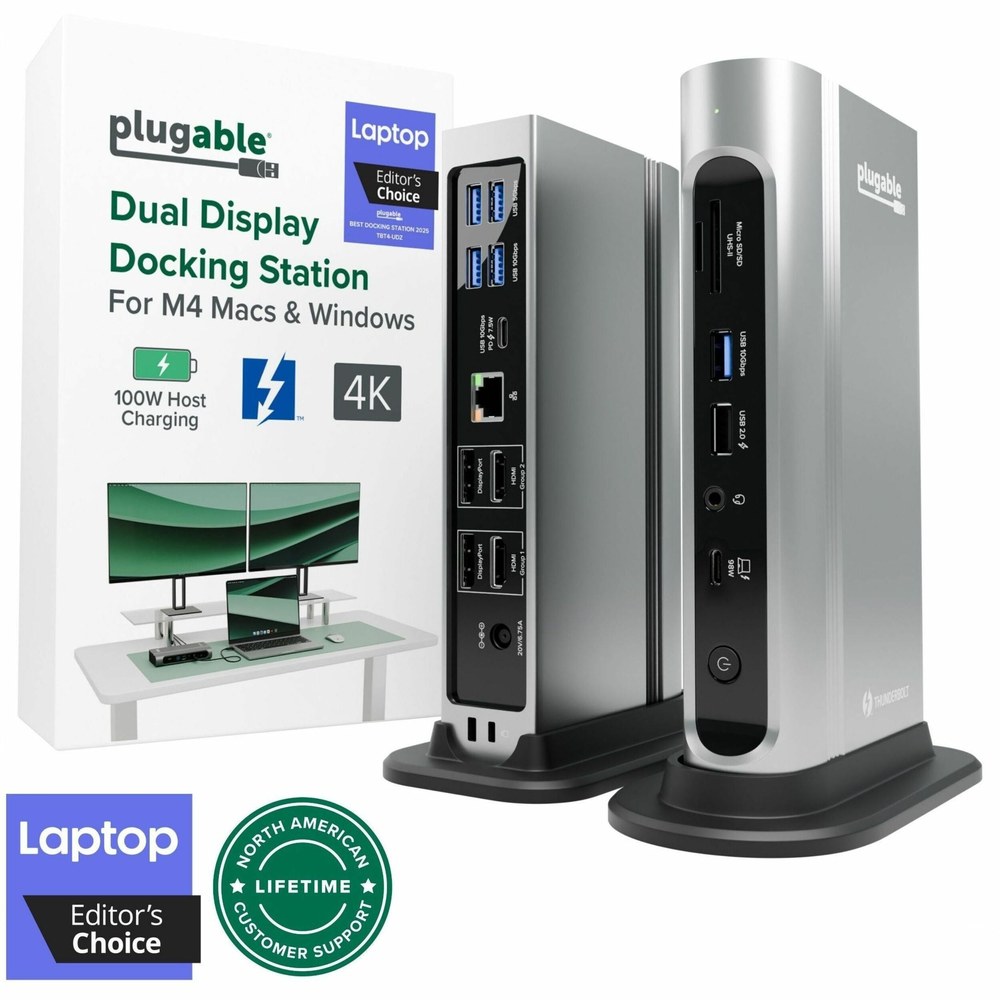
Plugable TBT4-UDZ
Best OverallBuy if: you want two monitors with no adapters, no drivers and no guesswork — this is the dock most desks should buy
Don't buy if: your laptop has no Thunderbolt or USB4 port, or you run two monitors from a base MacBook — the video outputs are native, so Apple's one-display limit still applies
The TBT4-UDZ is the top pick for one reason: it is the only dock in this guide with two HDMI 2.0 and two DisplayPort 1.4 outputs built in. Your monitors plug straight in — no dongles, no adapters, no hunting for the right cable. On a compatible Thunderbolt 4 or USB4 laptop it drives dual 4K at 60Hz, and it can run up to four displays in total. Around the back there is 2.5Gb Ethernet, SD and microSD card readers rated UHS-II, and 100W of charging to the laptop.
Four video outputs. No adapters.
The honest limits are the ones that apply to every native Thunderbolt dock. It cannot add a display your laptop's chip does not support — a base MacBook Air still gets one external screen, because that limit lives in Apple's chip, not in the dock. And the 100W charging covers every mainstream laptop, but a 16-inch MacBook Pro or a workstation laptop under full load may still want its own charger alongside. At $289.99 it sits in the middle of this guide's prices, and it is the dock the rival roundups keep naming as the dual-monitor pick.
One naming note: Plugable's model numbers are the whole product name here. The TBT4-UDZ is this dock — 16-in-1, four video outputs. The TBT4-UD5 is a different dock with fewer video outputs, and the TBT3-UDZ is the older Thunderbolt 3 version. Check for "TBT4-UDZ" on the listing, because the boxes look near-identical.
Pros
- Two HDMI and two DisplayPort outputs — no adapters for any monitor pair
- Dual 4K at 60Hz natively, with no driver to install
- 100W laptop charging plus 2.5Gb Ethernet and UHS-II card readers
- The consensus dual-monitor pick across rival roundups
Cons
- Needs a Thunderbolt or USB4 port — useless on plain USB-C laptops
- Cannot beat Apple's one-display limit on base MacBooks
- 100W charging may not hold a 16-inch laptop under full load
- Easy to confuse with the TBT4-UD5 and the older TBT3-UDZ
Price $289.99. Check the price before buying, as prices change.
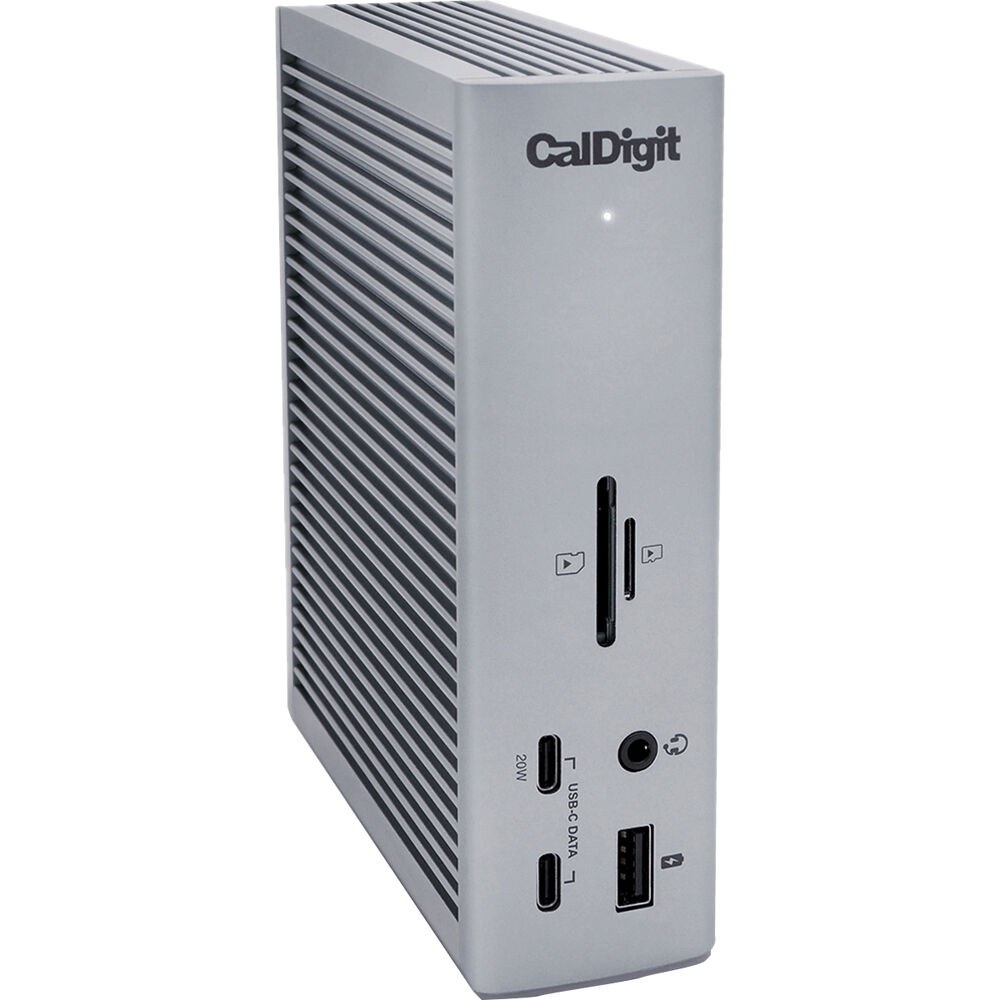
CalDigit TS4
Best for a Loaded DeskBuy if: your desk has drives, a card reader habit and a wired network — this is the dock that never runs out of ports
Don't buy if: you only need two monitors and a keyboard — the UGREEN at #4 does that job for $180 less
The TS4 is the benchmark Thunderbolt 4 dock, and it has been for years: 18 ports, a single DisplayPort 1.4 output plus three downstream Thunderbolt 4 ports, 98W of charging, UHS-II SD and microSD readers, and 2.5Gb Ethernet. On Windows it drives dual 4K at 60Hz; on a Mac it drives dual 6K at 60Hz. The Ethernet controller is the detail reviewers keep praising — it hangs off PCIe, not USB, so wired speeds stay fast while the dock is busy with displays and drives.
Eighteen ports, and the Ethernet is the real deal.
The trade-off is the video outputs. There is only one dedicated display port on the back — the second monitor connects through a Thunderbolt port, which means a USB-C to DisplayPort cable or a Thunderbolt monitor. That is fine if your monitors take USB-C, and a small extra purchase if they do not. At $379.99 it is also the priciest Thunderbolt dock here, and the price buys ports and build quality rather than more monitors.
I've seen conflicting data — the TS4 shows up at $349 in some roundups and $380 in others. My read is $379.99 is the real price right now, since that is what CalDigit's own store and the major retailers list it at, and the lower figures are older or sale prices.
Pros
- 18 ports — the most connections in this guide
- 2.5Gb Ethernet on PCIe, not USB, so speeds hold under load
- Dual 6K at 60Hz on Mac, dual 4K at 60Hz on Windows
- UHS-II card readers — the fastest in this guide
Cons
- Only one dedicated display port — the second monitor needs a Thunderbolt cable
- $379.99 is $180 more than the UGREEN for the same two monitors
- 98W charging will not hold a 16-inch laptop under full load
- Big and heavy — a desk fixture, not a travel dock
List price $379.99. Check the price before buying, as prices change.
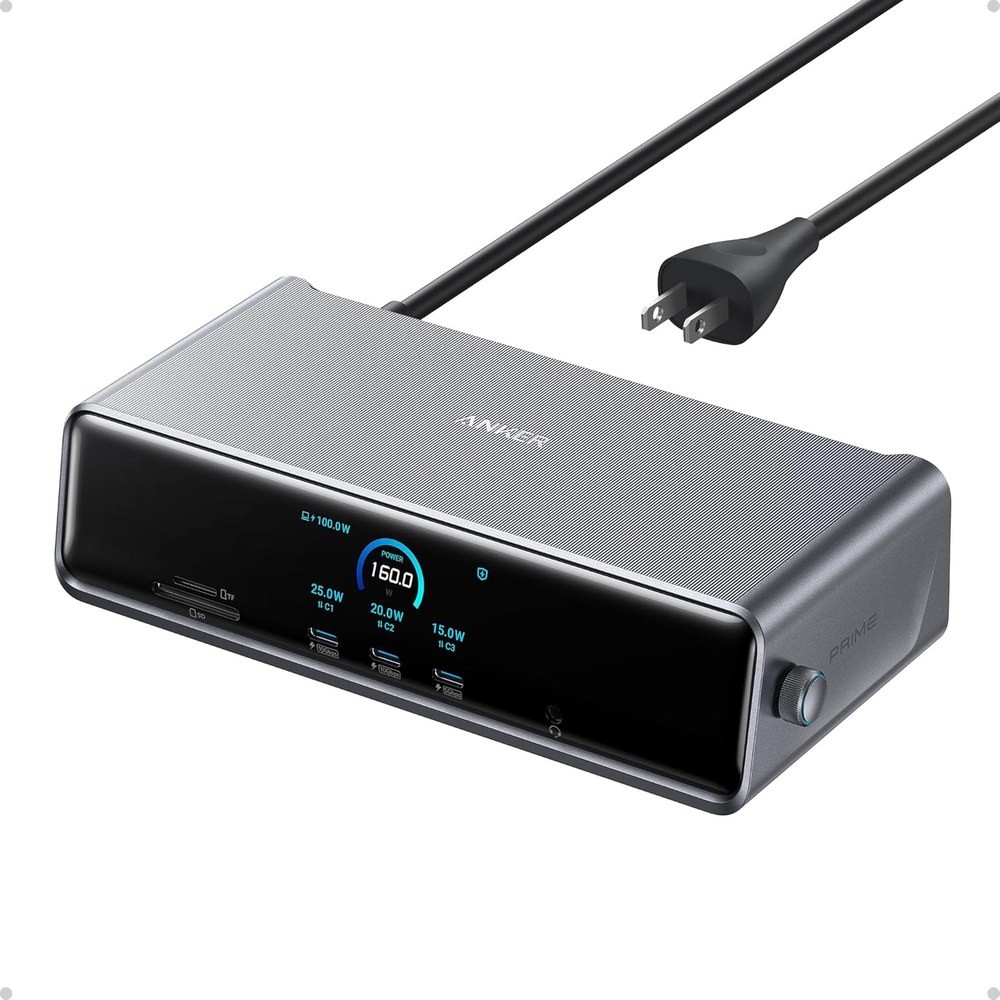
Anker Prime Docking Station (DL7400)
Best for Mac + Triple DisplayBuy if: you run two or three monitors from a base MacBook, or you want the most charging power in this guide
Don't buy if: you will not install a driver, or you watch Netflix on an external monitor — DisplayLink needs the driver and blocks protected streaming
This is the most important pick in the guide for Mac owners, because it solves the problem no Thunderbolt dock can. The DL7400 uses DisplayLink, a chip that renders video inside the dock and sends it over plain USB — so it drives up to three extended 4K displays at 60Hz, one of them up to 8K, even on base Apple Silicon Macs that natively support one screen. It works over any USB-C port, Thunderbolt or not.
Three monitors, even on a MacBook Air.
The rest of the spec sheet is the strongest in this guide: 140W of charging to the laptop from a 160W total supply, a small smart display on the front that shows live wattage per port, a built-in cooling fan, and 14 ports including card readers and Ethernet. The fine print matters, though. You must install the DisplayLink driver — on macOS it is a manual download with administrator rights — and DisplayLink screens cannot play HDCP-protected content, so Netflix and Disney+ may show a black screen on those monitors. The front USB-C ports also carry no video, so the monitors go on the back.
At $299.99 it costs about the same as the Plugable, and it is the right buy whenever the laptop is a base Mac or has no Thunderbolt port. If your laptop has Thunderbolt and you hate installing drivers, buy the Plugable instead.
Pros
- The only pick here that runs three extended displays on a base MacBook
- 140W laptop charging — the most in this guide
- Smart display shows live wattage; built-in cooling fan
- Works over any USB-C port, Thunderbolt or not
Cons
- Needs the DisplayLink driver — manual install with admin rights on macOS
- No HDCP — Netflix, Hulu and Disney+ may fail on external monitors
- Front USB-C ports carry no video — monitors go on the back only
- DisplayLink adds a little CPU load and can lag behind OS updates
List price $299.99. Check the price before buying, as prices change.
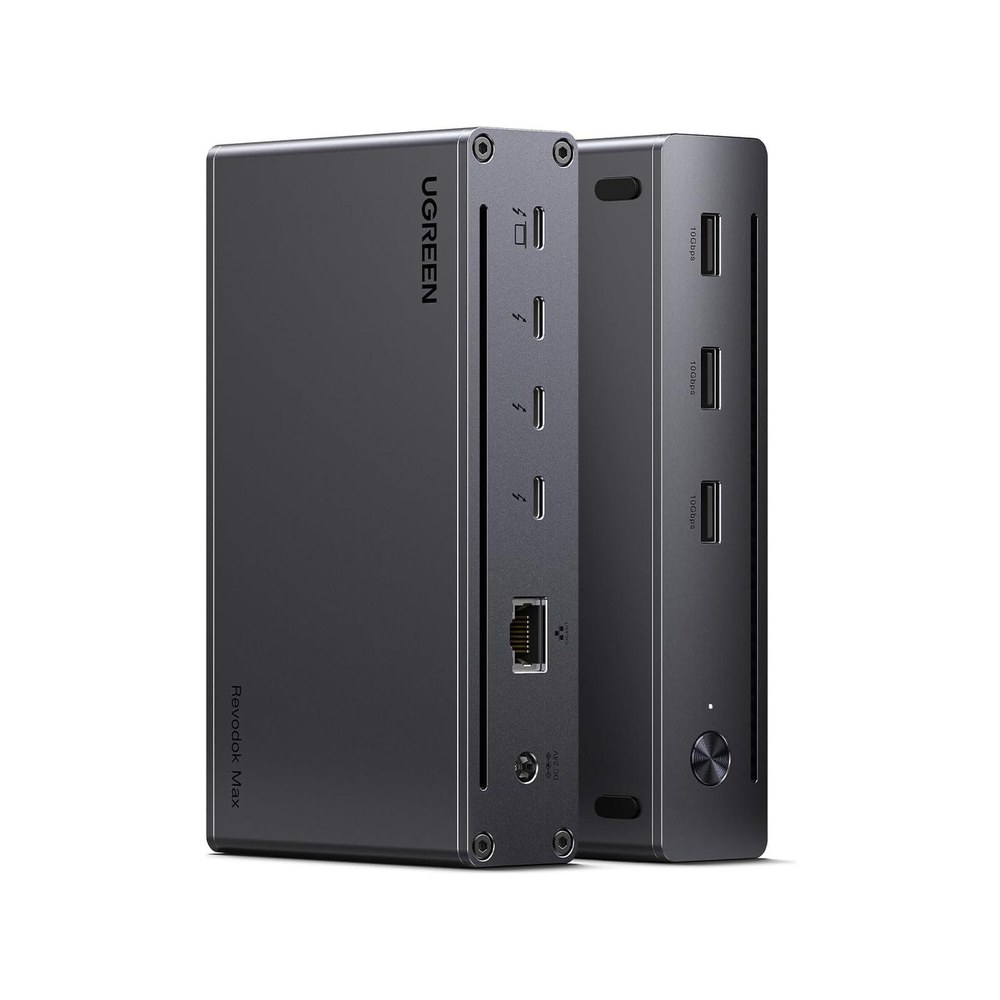
UGREEN Revodok Max 208
Best Value Thunderbolt 4Buy if: you want Thunderbolt 4 dual monitors for the least money — this is the cheapest honest way in
Don't buy if: you need a card reader or more than three USB-A ports — this dock keeps it lean
The Revodok Max 208 is the value pick because it strips a Thunderbolt 4 dock down to the parts that matter: three downstream Thunderbolt 4 ports, dual 4K at 60Hz or a single 8K display, 85W of charging, Gigabit Ethernet and three 10Gbps USB-A ports. That is the full dual-monitor job, for $199.98 — $90 less than the Plugable and $180 less than the CalDigit.
Thunderbolt 4 for two hundred dollars.
Here's the thing: the savings come from what is missing, not from what is worse. There is no card reader, no DisplayPort or HDMI output — your monitors connect through the Thunderbolt ports, so you need USB-C monitors or USB-C to DisplayPort cables — and the Ethernet is Gigabit, not 2.5Gb. The 85W charging covers every mainstream laptop, and the dock is small enough to travel with. If those gaps do not bother you, this is the smart buy in the guide.
One naming note: UGREEN's "Revodok Max" line has several members. The 208 is this one — 8-in-1, Thunderbolt 4, $199.98. The Revodok Max 213 is a 13-in-1 with dual 4K and 90W charging at a higher price, and the Revodok Pro 109 is a different, cheaper USB-C hub with one HDMI port. Check for "Max 208" on the listing.
Pros
- $199.98 — the cheapest Thunderbolt 4 dock in this guide
- Dual 4K at 60Hz or single 8K, with no driver needed
- Three downstream Thunderbolt 4 ports for monitors and fast storage
- Compact enough to pack in a bag
Cons
- No HDMI or DisplayPort — monitors need USB-C or an adapter cable
- No card reader, and only Gigabit Ethernet, not 2.5Gb
- 85W charging will not hold a 16-inch laptop under full load
- Three similar Revodok names — check for "Max 208"
Price $199.98. Check the price before buying, as prices change.
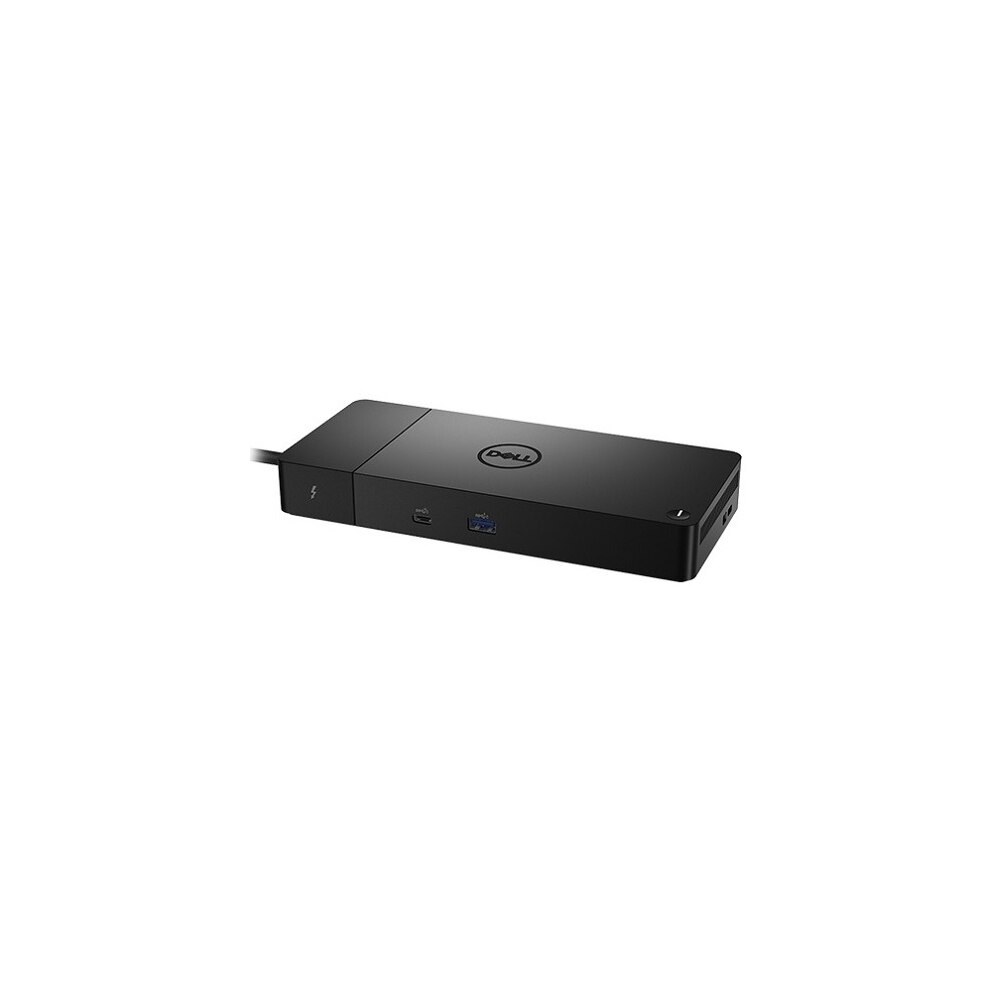
Dell WD22TB4
Best for Dell LaptopsBuy if: you use a Dell Latitude, XPS or Precision — this dock charges it faster than any universal dock here
Don't buy if: you use a Mac or a non-Dell laptop — the charging advantage disappears, and the Plugable is the better buy
The WD22TB4 is Dell's own Thunderbolt 4 dock, and it earns its place on one number: 130W of charging to a Dell laptop, against 90W to anything else. That gap is the whole reason to buy it. It ships with a 180W power supply, two DisplayPort 1.4 outputs, an HDMI 2.0 port and two Thunderbolt 4 ports, and Dell rates it for up to four 4K displays. It also has a swappable module design, so an IT department can replace the cable or the port module instead of the whole dock.
130W — but only if the laptop says Dell on it.
On a non-Dell laptop the WD22TB4 is an ordinary Thunderbolt dock at $273.99, and the Plugable at #1 gives you more video outputs for about the same money. On a Dell it is the obvious pick: faster charging, firmware that Dell actually supports, and Wake-on-LAN and PXE boot features that matter in offices. One more detail worth knowing: it works with Windows and Linux, but macOS support is limited, so Mac owners should look at the Anker or the Plugable instead.
Pros
- 130W charging on Dell laptops — the fastest Dell charging in this guide
- Two DisplayPort, HDMI and two Thunderbolt 4 outputs; up to four 4K displays
- Swappable module — replace a worn cable without replacing the dock
- Dell firmware support and office features like Wake-on-LAN
Cons
- Only 90W charging on non-Dell laptops — the advantage vanishes
- Limited macOS support — Windows and Linux are the intended hosts
- Gigabit Ethernet, not 2.5Gb like the Plugable and CalDigit
- Wide, flat slab — takes more desk depth than the upright docks
Price $273.99 at Dell. Check the price before buying, as prices change.
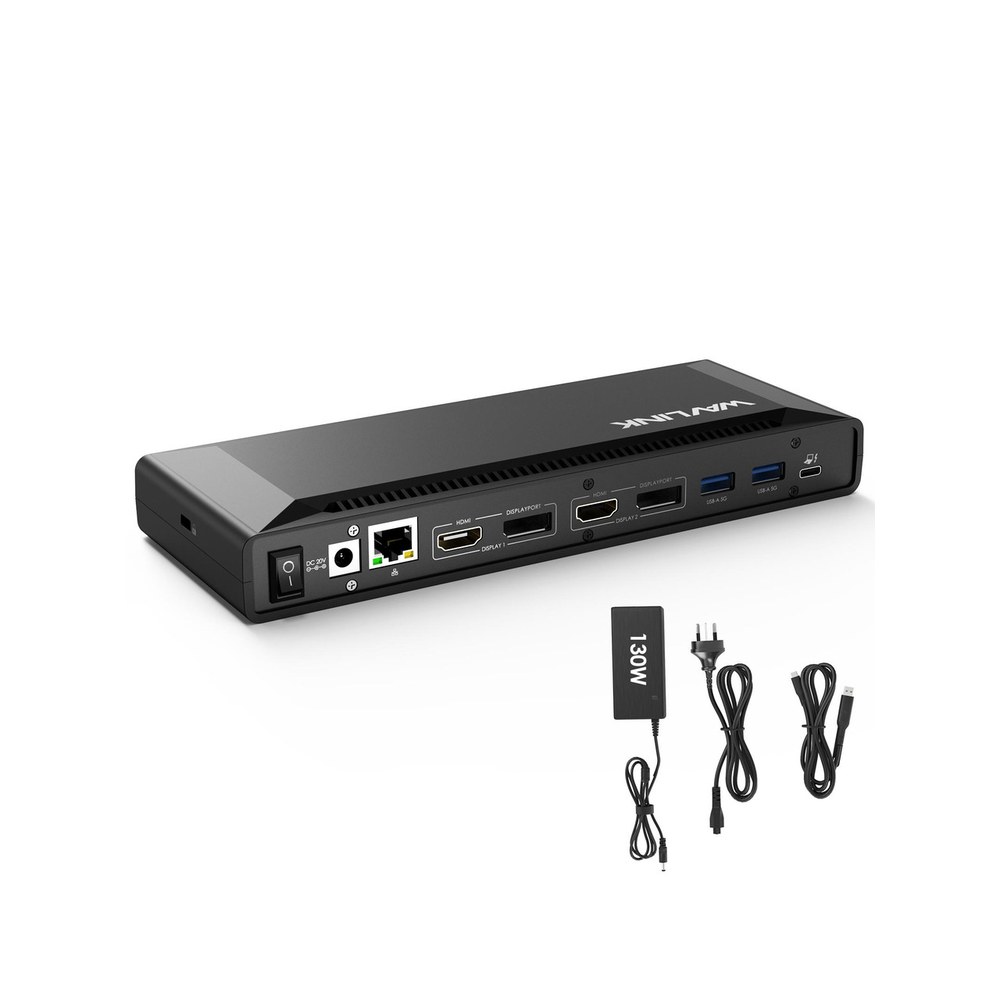
WAVLINK Dual 4K Docking Station
Best Without ThunderboltBuy if: your laptop has a plain USB-C port with no Thunderbolt and no video output — this is the cheapest dock that still gives you two monitors
Don't buy if: you have a Thunderbolt port — the UGREEN at #4 is faster, driver-free and only $50 more
The WAVLINK is the budget pick with a specific job: it brings dual monitors to laptops that Thunderbolt docks cannot help. It uses DisplayLink, so it works over any USB-C port — even a basic USB 3.2 port with no video output at all — and it drives two 4K monitors at 60Hz through its two HDMI and two DisplayPort outputs. It ships with a 130W power adapter in the box and delivers 100W of charging to the laptop, plus a 10Gbps USB-C port and Gigabit Ethernet.
Two monitors from a port that carries no video.
The price is the story: $149.99, the cheapest dock in this guide, and the only one under $200 that works on a laptop without Thunderbolt. The catches are the usual DisplayLink ones — install the driver, accept that protected streaming may not play on those screens — plus a plainer build than the Anker or the CalDigit. For an older laptop or a work machine with locked-down ports, though, it is the only honest answer at this price.
Pros
- $149.99 — the cheapest dual-monitor dock in this guide
- Works on any USB-C port, including ports with no video output
- Two HDMI and two DisplayPort outputs, dual 4K at 60Hz
- 130W power adapter included; 100W charging to the laptop
Cons
- Needs the DisplayLink driver — and no HDCP streaming on those screens
- DisplayLink adds CPU load, so it is not the pick for video editing or gaming
- Plainer build and shorter support history than Anker, Plugable or CalDigit
- WAVLINK's model names are confusing — check for the 2 HDMI + 2 DisplayPort layout
Price $149.99. Check the price before buying, as prices change.
Will Any Docking Station Run Two Monitors From My Laptop?
No — and this is the first thing to check, before the price or the port count. A docking station can only drive two monitors if your laptop's port and the dock agree on one of three methods: Thunderbolt or USB4, which carries video natively; MST, which splits one DisplayPort signal into two; or DisplayLink, which renders video in software through a driver.
Look — if your second monitor is still black after plugging everything in, here's what actually works: check the port first. A USB-C port with a lightning bolt next to it is Thunderbolt, and any Thunderbolt dock here will drive two screens. A port with a small DP logo carries DisplayPort video, so an MST dock works. A plain USB-C port with no logo at all carries no video, and only a DisplayLink dock — the Anker at #3 or the WAVLINK at #6 — can give you two monitors.
The trap is the listing. A dock that says "dual monitor support" may mean two extended screens, two mirrored screens, or one screen plus the laptop's own display. Read the spec sheet for the words "extended mode" before you buy, and check the refresh rate too: dual 4K at 30Hz is a different product from dual 4K at 60Hz, and the box rarely says so in large print.
Thunderbolt or DisplayLink — Which One Should I Buy?
Thunderbolt if your laptop has the port, DisplayLink if it does not — or if it is a base Mac. Thunderbolt passes video straight from your graphics chip, with no driver, no CPU load and no compression. The picture is exactly what the GPU draws. DisplayLink compresses the picture in software and rebuilds it in the dock, which needs a driver and uses 5–15% of your CPU, but it works on any USB-C port and beats Apple's one-display limit.
Thunderbolt vs DisplayLink: Thunderbolt is better suited for most desks because it needs no driver, adds no CPU load and carries fast data too. DisplayLink works better when your laptop has no Thunderbolt port or your Mac is limited to one native display. The key difference is native video versus software video.
For office work — spreadsheets, code, email, meetings — most people never notice the difference between the two. The gap shows up in fast motion and protected video: DisplayLink can show slight compression in dark scenes, and Netflix or Disney+ may refuse to play on a DisplayLink screen at all. Gamers and video editors should buy Thunderbolt. Everyone else should buy on compatibility first and technology second.
Can I Run Two Monitors From a MacBook With a Docking Station?
On a base MacBook, only with a DisplayLink dock — no Thunderbolt dock will do it, whatever the box promises. Apple Silicon chips in the base tier (M1, M2, M3 and M4, plus the MacBook Neo) natively support only one external display. Plug a Thunderbolt dock into a MacBook Air and you get one monitor, full stop. Apple says so plainly: a hub or dock does not raise the number of external displays a Mac supports.
There are two honest ways around it. The first is a DisplayLink dock, like the Anker DL7400 at #3: DisplayLink renders the extra screens in software, so it drives two or three extended 4K displays on any Mac, including base M1–M5 machines — at the cost of installing a driver and losing protected streaming on those monitors. The second is to buy the higher-tier Mac: MacBook Pro models with Pro or Max chips support two or more external displays natively, no dock tricks needed. Newer M3 and M4 MacBook Airs can also drive two displays with the lid closed, but that is the laptop's own display plus one external — the second external screen still needs DisplayLink.
Or maybe I should say it this way: on a Mac, the chip decides, not the dock. Buy the dock that matches your chip, and if you own a base MacBook, that dock has DisplayLink inside it.
How Much Power Should a Docking Station Deliver to My Laptop?
Enough to charge it while you work — and that number is lower than the box suggests. A dock's wattage is the power its supply can deliver in total, not the power reaching your laptop. The Anker DL7400 is rated 160W in total but delivers 140W to the laptop; the Dell WD22TB4 has a 180W supply and delivers 130W to a Dell laptop, 90W to anything else. The rest runs the dock's own chips, ports and fan.
The rule is simple: 85W covers every mainstream laptop — a MacBook Air charges at full speed on 30W, a 14-inch MacBook Pro needs around 70W under load, and most Windows ultrabooks sit between 45W and 65W. Only a 16-inch MacBook Pro or a workstation laptop under full load needs more, and only the Anker at 140W or the Dell at 130W deliver it in this guide.
Quick note: a dock that charges slowly is worse than a dock that does not charge at all, because you will not notice until the battery is flat at 4pm. Check the delivered watts on the spec sheet — the number next to "host charging" or "power delivery" — not the number on the power brick.
What Is the Difference Between a Docking Station and a USB-C Hub?
A hub is a small, bus-powered adapter that turns one USB-C port into several — it draws power from the laptop or from a charger you plug into it, and it travels in a bag. A docking station is a bigger, mains-powered box that sits on a desk permanently, with its own power supply, more ports, and usually two or three display outputs. The WAVLINK at #6 sits between the two: a compact dock with dual displays that still needs its own power brick.
Buy a hub when you move between desk and bag, when you need one monitor, or when your laptop already has a charger you like. Buy a docking station when the setup never moves, when you run two or three monitors, or when you want one cable that also powers the laptop from the dock's own supply. The price gap is real — a good Thunderbolt dock costs $200–$380 against $50 for a hub — so do not buy a dock for a job a hub does. If one monitor and a handful of peripherals is the whole job, a $50 hub is the right purchase, and our best USB-C hub for laptop guide covers that choice.
Do I Need Thunderbolt 5, or Is Thunderbolt 4 Enough?
Thunderbolt 4 is enough for two monitors — and it will be for years. Thunderbolt 4 carries 40Gbps, which comfortably holds two 4K displays at 60Hz plus fast storage and Ethernet at the same time. Thunderbolt 5 doubles that to 80Gbps, which matters for three 4K displays, an 8K monitor, or a very fast external drive array. For a dual-monitor desk, the extra bandwidth buys nothing you can see.
There is also the laptop side of the deal: a Thunderbolt 5 dock only runs at Thunderbolt 5 speed on a laptop with a Thunderbolt 5 port, and most laptops sold today still have Thunderbolt 4 or USB4. A Thunderbolt 5 dock on a Thunderbolt 4 laptop just runs at Thunderbolt 4 speed — for Thunderbolt 5 money. Buy Thunderbolt 5 when your next laptop has the port and your monitors need it. Until then, the docks in this guide are the right spend.
The Exact-Model Trap Decoder
Six names in this market each hide two or three different docks. Check the model number on the listing — the name alone will not save you.
The generation and model traps
| Name on the Box | What It Actually Is |
|---|---|
| Plugable TBT4-UDZ / TBT4-UD5 / TBT3-UDZ | The TBT4-UDZ is the 16-in-1 in this guide, with four video outputs. The TBT4-UD5 is a different Thunderbolt 4 dock with fewer video outputs. The TBT3-UDZ is the older Thunderbolt 3 version. Same shape, three different docks. |
| CalDigit TS4 / TS5 / TS3 Plus | The TS4 is the Thunderbolt 4 dock in this guide at $379.99. The TS5 is the Thunderbolt 5 successor at around $500. The TS3 Plus is the older Thunderbolt 3 dock. The TS4 and TS5 look near-identical — check the number. |
| Anker Prime DL7400 / Prime TB5 | The DL7400 is the DisplayLink dock in this guide at $299.99, with triple 4K. The Prime TB5 is a Thunderbolt 5 dock at a higher price, with no DisplayLink — it cannot beat Apple's one-display limit. Same "Prime" line, opposite technology. |
| UGREEN Revodok Max 208 / Max 213 / Pro 109 | The Max 208 is the 8-in-1 Thunderbolt 4 dock in this guide at $199.98. The Max 213 is a 13-in-1 Thunderbolt 4 dock at a higher price. The Revodok Pro 109 is a cheaper USB-C hub with one HDMI port, not a dock at all. |
| Dell WD22TB4 / WD19S / WD25 | The WD22TB4 is the Thunderbolt 4 dock in this guide, with a 180W supply and 130W charging on Dell laptops. The WD19S is the older USB-C dock with a 180W supply and 130W charging. The WD25 is a newer USB-C dock. Three generations, similar black slabs. |
| "Dual monitor support" on the box | That phrase can mean two extended screens, two mirrored screens, or one screen plus the laptop display. It says nothing about refresh rate either — dual 4K at 30Hz is not dual 4K at 60Hz. Read the spec sheet for "extended mode" and "4K at 60Hz" before you buy. |
What each pick's ports actually do
| Dock | Video Out | How It Drives Two Monitors | Power to Laptop |
|---|---|---|---|
| Plugable TBT4-UDZ | 2× HDMI + 2× DisplayPort | Native Thunderbolt 4 | 100W |
| CalDigit TS4 | 1× DisplayPort + 3× Thunderbolt 4 | Native Thunderbolt 4 | 98W |
| Anker Prime (DL7400) | 2× HDMI + 1× DisplayPort | DisplayLink (driver needed) | 140W |
| UGREEN Revodok Max 208 | 3× Thunderbolt 4 | Native Thunderbolt 4 | 85W |
| Dell WD22TB4 | 2× DisplayPort + HDMI + 2× TB4 | Native Thunderbolt 4 | 130W on Dell, 90W on others |
| WAVLINK Dual 4K | 2× HDMI + 2× DisplayPort | DisplayLink (driver needed) | 100W |
Buying Guide: What Actually Matters
To pick the right dual-monitor dock, follow these steps: 1. Check your laptop's port for Thunderbolt or DisplayPort video. 2. Count your monitors and their resolution. 3. Match the dock's charging watts to your laptop. 4. Pick Thunderbolt for speed or DisplayLink for Mac compatibility.
Check the port before the dock. Look for the lightning bolt (Thunderbolt) or the DP logo (DisplayPort video) next to your laptop's USB-C port, or check the specifications for "Thunderbolt", "USB4" or "DisplayPort Alt Mode". A plain USB-C port with no video needs a DisplayLink dock — the Anker at #3 or the WAVLINK at #6. On laptops with two USB-C ports, check both: they are not always equal.
Count the monitors and the resolution. Two 1080p monitors are easy — almost any dock here does it. Two 4K monitors at 60Hz need Thunderbolt 4, USB4 or DisplayLink with a 4K 60Hz rating in plain text. Three monitors means DisplayLink or a high-end Thunderbolt dock, and on a base Mac it means DisplayLink, full stop.
Match the watts to the laptop. A "160W" dock does not send 160W to your laptop — check the "host charging" figure. 85W covers every mainstream laptop; only a 16-inch MacBook Pro or a workstation laptop under load needs the Anker's 140W or the Dell's 130W.
Pick Thunderbolt for speed, DisplayLink for compatibility. Thunderbolt is driver-free and adds no CPU load, but it cannot beat a laptop's display limit. DisplayLink works on any port and beats Apple's one-display limit, but it needs a driver and blocks protected streaming. Buy on your laptop's limits, not on the dock's spec sheet.
Buy by job, not by port count. A traveller wants a compact dock that charges over one cable; a desk worker wants two displays and Ethernet; a MacBook owner wants DisplayLink. Port count is marketing — the four specs that decide whether a dock is any good are the video method, the real delivered wattage, true 4K at 60Hz on both screens, and the display limit of your laptop.
Look — if you run two 4K monitors every day, here's what actually works: buy the Plugable TBT4-UDZ and stop reading roundups. Or maybe I should say it this way: buy the dock that matches your laptop's port, not the one with the longest spec sheet.
Here's an opinion that might get pushback: most people should buy the $199.98 UGREEN, not the $379.99 CalDigit. Two 4K monitors at 60Hz is two 4K monitors at 60Hz — the extra $180 buys ports you will never plug anything into.
What to Skip
A dual-HDMI dock for a base MacBook without DisplayLink. Two HDMI ports on a normal dock mirror the same picture on a base M1–M4 Mac. Without DisplayLink, the second port is decoration.
A Thunderbolt 5 dock for a dual-monitor desk. Thunderbolt 4 already carries two 4K displays at 60Hz with room to spare. A Thunderbolt 5 dock costs more, and on a Thunderbolt 4 laptop it just runs at Thunderbolt 4 speed.
A hub sold as a docking station. A bus-powered hub with two HDMI ports is not a dock — it has no power supply of its own, and on a laptop with one USB-C port it takes the charging port too. If the listing shows no power brick, it is a hub, whatever the title says.
A dock that only does 4K at 30Hz on a 4K monitor. If your monitors are 4K and you use them daily, 30Hz will feel sluggish within an hour. Every pick in this guide states 4K at 60Hz in plain text — do not buy one that does not.
No-name docks with no published specs. If a $60 dock states no wattage, no refresh rate and no driver requirement, it is a gamble on all three — and the failure modes are a laptop that slowly discharges, a stuttering monitor and a second screen that stays black. Buy a dock that publishes its specs.
The wrong Plugable, CalDigit, Anker, UGREEN or Dell. The model numbers in the trap decoder above are not trivia — the TBT4-UDZ, TBT4-UD5 and TBT3-UDZ are different docks at different prices, and the same is true of the TS4 and TS5. Check the model number on the listing, not the shape of the box.
Frequently Asked Questions
What's the best laptop docking station for dual monitors?
The Plugable TBT4-UDZ at $289.99 — two HDMI and two DisplayPort outputs, dual 4K at 60Hz, 100W charging and 2.5Gb Ethernet, with no adapters or drivers needed.
Will a docking station work with my laptop?
Not always. It needs a Thunderbolt, USB4 or DisplayPort video port for a native dock — or any USB-C port for a DisplayLink dock. Check your laptop's specs before you order.
Can I use a docking station with a MacBook Air for two monitors?
Only a DisplayLink dock works. Base MacBooks support one external display, so a normal dock just mirrors. The Anker Prime DL7400 at $299.99 drives two extended 4K displays.
How much should a docking station cost?
About $200 for a good Thunderbolt 4 dock — the UGREEN Revodok Max 208 at $199.98. Budget DisplayLink docks start near $150, and loaded Thunderbolt docks reach $380.
Do I need Thunderbolt 5 for dual monitors?
No. Thunderbolt 4 already carries two 4K displays at 60Hz with room to spare. Thunderbolt 5 only helps with three 4K screens, 8K, or very fast external storage.
Why is my second monitor black with a docking station?
Usually the port, not the dock: the laptop's USB-C port may carry no video, the Mac may mirror instead of extend, or the DisplayLink driver is missing. Check the port, the display settings and the driver.
What's the difference between a docking station and a USB-C hub?
A hub is a small, bus-powered adapter that travels in a bag. A dock is a bigger, mains-powered box for a desk, with its own power supply and two or three display outputs.