Best Webcam for Dual Monitor Setup (2026): 6 Picks

You work on two screens and you're on video calls all day. The faces are on one screen, the camera sits on the other, and every time you look at the person you're talking to, you look sideways on their screen. You've already tried the laptop webcam — it films you from below — and a cheap clip-on that wobbles every time you type. This guide is written for you. It fixes the placement first, then picks the camera.
Best webcam for dual monitor setup refers to a camera chosen for a two-screen desk — one that mounts where you actually look, frames just you, and stays sharp in office light. Mounting and field of view matter more than raw resolution here, because the camera's job is eye contact, not cinema.
The top 10 results for this keyword are mostly thin listicles that crown any webcam and move on. Two of them get basic facts wrong — one calls the 1080p Brio 101 a 4K camera, another invents a "Brio Ultra 4K" that doesn't exist. None of them test a clip on a curved monitor or tell you where the camera should actually sit. This guide checks every spec against the maker's own page, labels every mount honestly, and starts with the placement problem that is the whole point of the search. If you want the wider webcam picture — streaming cameras, 4K60 and gimbals — our webcams for streaming guide covers those.
No prices are printed in this guide — webcam prices move by seller and week, so check the live price before buying. Specs come from the makers' own pages, and where sources disagree, the disagreement is stated on the card.
Where Should You Put Your Webcam With Two Monitors?
On the screen you look at most, at eye level, about an arm's length away. If you split your attention evenly, put the camera between the screens on a small stand and drag the call window to the inner edge of that screen.
Where to place a webcam with dual monitors depends on which screen holds your attention. Put the camera on the screen you look at most, at eye level and an arm's length away. According to LensLines, if both screens matter equally, the camera goes between them on a small stand, with the call window dragged to the inner edge.
Should the webcam go on the primary monitor or between the two screens? On the primary monitor if one screen clearly wins your attention, because the camera sits where your eyes already go. According to LensLines, if you split time evenly, the camera goes between the screens and the call window moves to the inner edge.
Look — if you're in back-to-back calls and your call window lives on the right screen while the camera sits on the left, here's what actually works: move the call window under the camera. It costs nothing and it fixes the sideways look in one drag.
The one setup that never works is the split: camera on one monitor, faces on the other. You will always look away from the lens, and no camera fixes that. The fix is placement, not a better sensor — which is why this guide spends a whole section on it before any product appears.
Eye level matters more than brand.
Do You Need 4K for Zoom and Teams, or Is 1080p Enough?
No. Zoom and Teams cap video at 1080p, and Meet stops at 720p — so a 4K camera does not make your calls look sharper. 4K earns its keep for cropping, digital zoom and recording, not for the call itself.
Do you need 4K for Zoom and Teams calls? No — both platforms cap video at 1080p, and Google Meet stops at 720p, so the extra pixels never reach the other side. A good 1080p camera with a big sensor beats a cheap 4K one on a live call, and 4K earns its keep when you crop, zoom or record.
I've seen conflicting data — some sources say 4K webcams look clearly better on calls, others say the platforms crush the difference. My read is that both are right at different ends: the platform cap is real, and the 4K camera still wins when the light is bad, because its bigger sensor does the work.
Here's the thing: for solo calls, a wide-angle lens is the wrong buy. The listicles all push 90 degrees and wider, and on a two-screen desk that frames your bezels, your second screen and half the room. A 65 to 78 degree view frames you and nothing else. Groups need wide. You don't.
Buy the sensor, not the resolution number.
How Wide Should the Field of View Be on a Dual Monitor Setup?
65 to 78 degrees for solo calls. That frames your head and shoulders without pulling in the second screen, the bezel or the room behind you. Wider than 90 degrees suits a group sharing one camera, not one person at a desk.
Narrow vs wide field of view: a 65–78° view is better suited for solo calls because it frames just you and hides the desk clutter. A 90°+ view works better when two or three people share one camera. The key difference is what the lens includes — you, or everything around you.
| Field of View | What It Frames | Verdict for dual monitors |
|---|---|---|
| 65° | Just you, head and shoulders | Best for solo calls — cleanest frame |
| 78° | You plus a little desk | The safe middle — most calls look right here |
| 90° | You, the bezel, the second screen | Only with auto-framing to crop it down |
| 95°+ | The whole room | For groups, not for one person at a desk |
Auto-framing changes the maths. The Insta360 Link 2 and the Logitech auto-framing modes crop a wide sensor down to you, so a 90-degree lens can behave like a 65-degree one. Fixed-focus budget cameras can't do that — what the lens sees is what the call sees. Or maybe I should say it this way: with auto-framing, wide is fine; without it, wide is clutter.
One trap: makers quote field of view two ways. Logitech quotes diagonal on some models and horizontal on others, and the Cyber Acoustics Flex quotes 74.57 degrees diagonal. Compare like with like, or the numbers lie to you.
Will the Clip Fit My Monitor?
Maybe not. Clip mounts grip the top edge of the screen, and thin bezels, curved panels and ultrawides defeat them — the clip either slips or tilts the camera down. Check the mount before the sensor: a ¼-inch tripod thread and a small desk stand work on any screen.
Curved monitors are the worst case. The clip expects a flat top edge, and a curved panel gives it a slope — the camera points down at your keyboard instead of at your face. Thin-bezel screens are the second trap: there is nothing for the clip's front lip to catch on, so the camera slides. If your monitor is curved or nearly bezel-free, skip the clip entirely and use the tripod thread on a small stand.
Gimbal cameras need room too. The Insta360 Link 2 pans and tilts on its mount, and it needs about 10 cm of clear space above the camera to move. On a low shelf or a monitor tucked under a cabinet, the gimbal hits the shelf. Measure the clearance before you buy a tracking camera.
A desk-mount arm frees the camera from either monitor entirely. Tom's Guide covered the SmallRig camera desk mount in January 2026: it clamps to the back of the desk and holds the camera between the screens, at eye level, with no clip at all. It is the cleanest fix for the sideways-look problem, and it costs about as much as a budget webcam.
The mount is the product. The sensor is the garnish.
How Do I Set Up a Webcam on Two Monitors?
Mount the camera, plug it in, pick it in your call app, then drag the call window under the lens. Five minutes, no extra software — the operating system and the call app do the work.
To set up a webcam on two monitors, follow these steps: 1. Mount the camera on the screen you look at most. 2. Plug it into a USB port on the same side. 3. Open your call app and pick the camera. 4. Drag the call window under the lens. 5. Check the preview — your eyes should meet the lens.
- Mount the camera. Clip it to the screen you look at most, or set it on a small stand between the screens.
- Plug it in. Use a USB port on the same side of the desk — a cable stretched across two monitors is a snag waiting to happen.
- Pick the camera in your call app. Zoom, Teams and Meet all let you choose the camera in settings — check it before the call, not during it.
- Drag the call window under the lens. This is the step that fixes the sideways look.
- Set the height. Eye level, or a centimetre or two above — never below, or the camera films up your nose.
- Test with a real call. Record 30 seconds, watch it back, and check the framing, the light and the sound.
Quick note: if your laptop lid is closed and docked, the laptop camera is off — the external webcam is your only camera, so plug it in before the meeting starts.
Quick Comparison
| Product | Resolution / Field of View | Mount | Best For | ||
|---|---|---|---|---|---|
| #1 | Logitech MX BrioBest Overall | 4K30 / 65–90° | Clip + ¼" thread | Most callers, best picture | Check Price |
| #2 | Logitech C920xBest Value | 1080p30 / 78° | Clip | The safe default | Check Price |
| #3 | Insta360 Link 2Best for Presenters | 4K30 / gimbal tracking | Clip + magnetic mount | Moving around on calls | Check Price |
| #4 | Logitech Brio 500Best for Work Calls | 1080p30 / 65–90° | Clip + ¼" thread | All-day meetings | Check Price |
| #5 | Anker PowerConf C200Best Budget | 2K30 / 65–95° | Clip + ¼" thread | Tight budgets | Check Price |
| #6 | Cyber Acoustics Webcam FlexBest for Eye Contact | 5MP 2592×1944 / 74.57° | Rotatable arm | Looking people in the eye | Check Price |
Field of view figures come from each maker's own spec page, and diagonal and horizontal figures are mixed across brands — treat close numbers as roughly equal. No prices are printed — check the live price before buying.
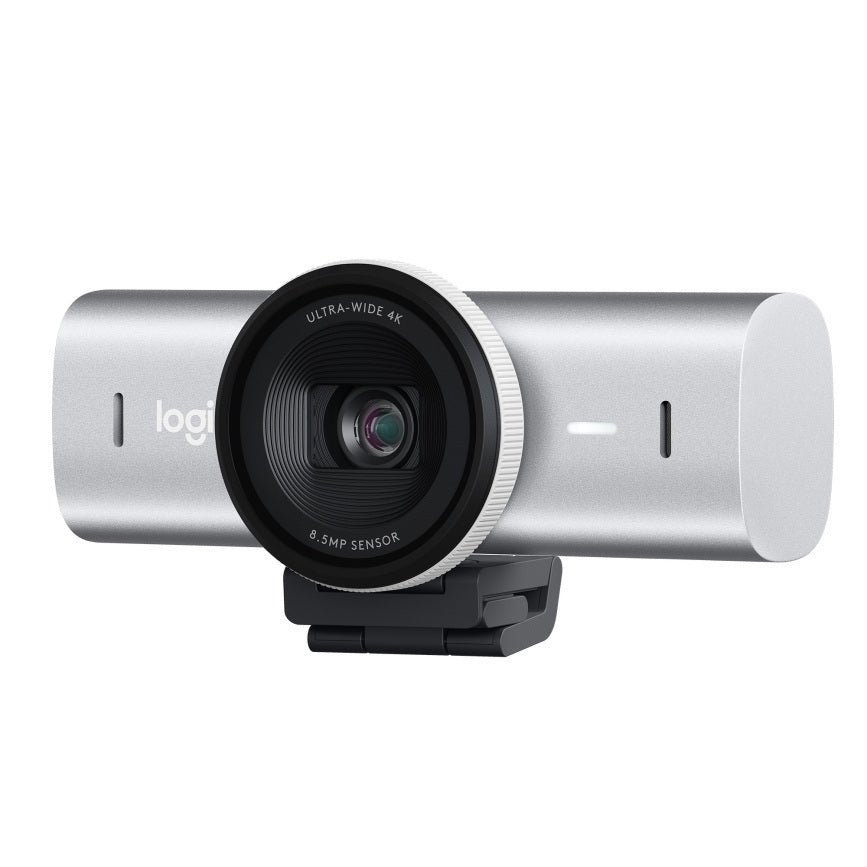
Logitech MX Brio
Best OverallBuy if: you want the best picture on a dual-monitor desk — 4K, an adjustable field of view and the strongest low-light sensor here
Don't buy if: you sign into Windows with your face — this camera has no Windows Hello
The MX Brio is the best webcam in this list, and it earns the spot on the sensor. A 4K camera with an 8.5MP sensor — the largest in Logitech's webcam range — shooting 4K at 30fps or 1080p at 60fps, with a field of view you can set to 65, 78 or 90 degrees. That adjustable view is the dual-monitor feature: set it to 65 degrees for solo calls and the second screen stays out of frame. Show Mode tilts the camera down to show your desk, and the privacy shutter is a dial on the lens ring, not a flimsy flap.
The mount is honest too: a clip that grips a normal monitor edge, plus a ¼-inch thread underneath for a desk stand or an arm. USB-C, dual microphones, and Logitech's RightLight picture tuning that holds up in a dim room. On a two-screen desk in a normal office, this is the camera that makes you look like you have good lighting when you don't.
One thing to get right before you buy. The older Brio 4K from 2017 had an infrared sensor for Windows Hello face login. The MX Brio dropped it — Logitech's own spec page lists no Hello support. If face login matters to you, keep the old Brio or pair this camera with a fingerprint reader. For everyone else, the MX Brio is the better camera in every way that shows on a call.
Pros
- 8.5MP sensor — best low-light picture in this list
- Adjustable 65/78/90° field of view
- Show Mode tilts down to show the desk
- 1080p60 for smooth motion, USB-C
Cons
- No Windows Hello — the old Brio 4K had it
- 4K30, not 4K60
- Premium pick — check the live price first
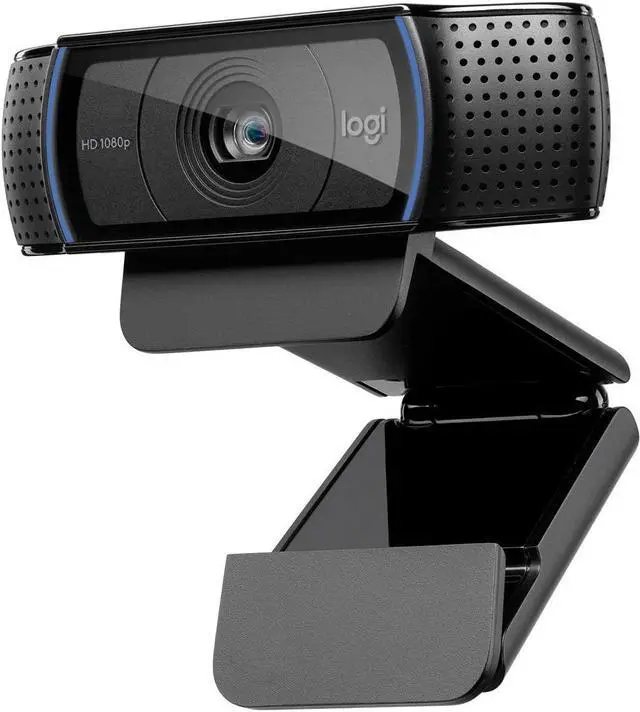
Logitech C920x
Best ValueBuy if: you want the camera that just works — 1080p, autofocus and every call app supports it
Don't buy if: you need a privacy shutter or a ¼-inch tripod thread — this one has neither
The C920x is the default webcam for a reason. A 1080p camera at 30fps with autofocus, a 78-degree field of view and dual stereo microphones, with Logitech's HD light correction smoothing out a dim room. It has been the standard work-call camera for a decade, and every conferencing app on the planet recognises it the moment you plug it in. On a dual-monitor desk, 78 degrees is the safe middle — wide enough to look natural, narrow enough to keep the second screen out of the frame.
Two name traps to know. The C920e is the same camera with business certification for Teams and Zoom — same picture, different box. The C920S adds a privacy shutter. Listings for all three sit side by side, and the wrong one costs more for the same image. Buy the x unless you specifically want the shutter.
Two honest limits. First, 1080p only — fine for calls, since the platforms cap there anyway, but there is no 4K for cropping or recording. Second, USB-A only, and the clip is the only mount — no tripod thread, so a desk stand needs an adapter.
Pros
- Just works — every call app supports it
- Autofocus, 78° field of view, dual mics
- Cheapest Logitech pick here
- HD light correction for dim rooms
Cons
- 1080p only — no 4K for cropping
- No privacy shutter on the x version
- No tripod thread, USB-A only
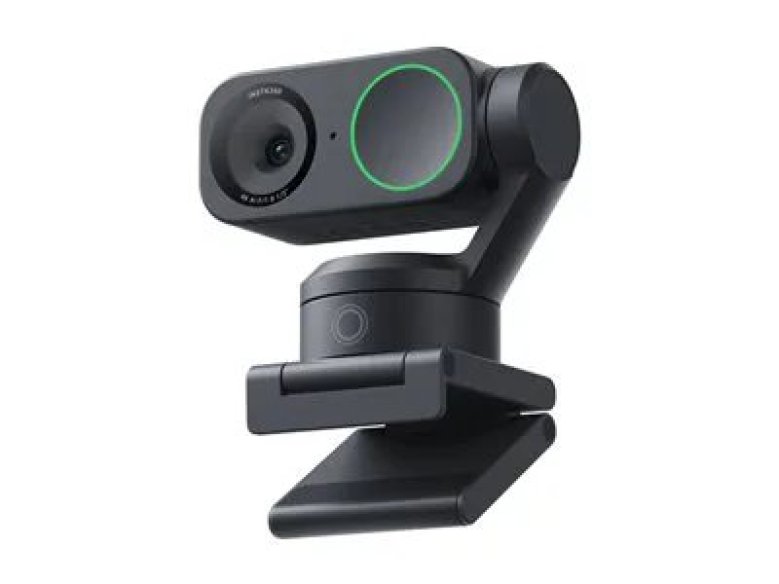
Insta360 Link 2
Best for PresentersBuy if: you present on calls — the gimbal tracks you when you glance between screens or stand up to a whiteboard
Don't buy if: your monitor sits under a low shelf — the gimbal needs clear space above it to move
The Link 2 is the only camera here that moves. A 4K camera on a two-axis gimbal with AI tracking: it follows your face as you turn between screens, lean back, or stand up to a whiteboard, and it reframes you instead of leaving you at the edge of the shot. DeskView points the camera down at your desk for showing documents, and gesture control starts tracking with a wave — no reaching for the mouse mid-call.
The sensor is a 1/2-inch unit shooting 4K at 30fps with HDR, and the mount is a clip plus a magnetic base that sticks to a metal surface. That magnetic mount is the dual-monitor trick: it holds the camera on a monitor arm or a metal desk edge, off either screen, right where your eyes go.
Two things to get right. First, the gimbal needs about 10 cm of clear space above the camera — measure before you buy. Second, the range has grown: the fixed Link 2C Pro and the gimbal Link 2 Pro launched at CES 2026 with a larger 1/1.3-inch sensor, at $199.99 and $249.99 respectively. The original Link 2 is the value pick in the family; the Pro is the step up if you want the bigger sensor.
Pros
- Gimbal AI tracking — stays framed as you move
- DeskView for showing documents on calls
- Magnetic mount works off either screen
- Gesture control, 4K30 with HDR
Cons
- Needs clearance above the monitor for the gimbal
- Full features need Insta360's software
- 4K30, not 4K60
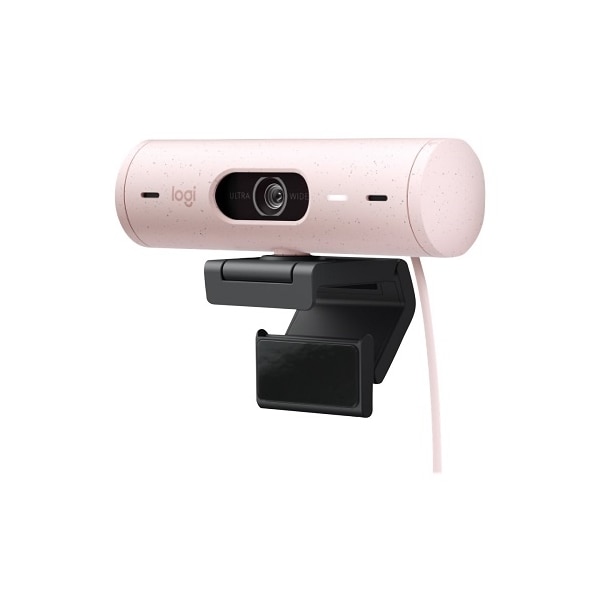
Logitech Brio 500
Best for Work CallsBuy if: you live on work calls and want the best 1080p picture Logitech makes, with Show Mode and USB-C
Don't buy if: you need 1080p at 60fps — this camera tops out at 30fps in 1080p
The Brio 500 is the work-call specialist. A 1080p camera with a 4MP sensor, autofocus and RightLight 4 with HDR, shooting 1080p at 30fps or 720p at 60fps. The picture is the sharpest 1080p in this list — the glass lens and the bigger sensor show in a dim room. The field of view adjusts to 65, 78 or 90 degrees, Show Mode tilts down to the desk, and the privacy shutter slides shut with a click.
The mount is a clip with a ¼-inch thread underneath, and the cable is USB-C. Dual noise-reducing microphones pick up your voice and cut the keyboard clatter, and auto-framing keeps you centred when you shift in your chair. It comes in graphite, off-white and rose — the rose version is the one pictured here.
One honest limit, stated plainly: there is no 1080p at 60fps. Logitech's own spec page lists 1080p30 and 720p60 only, and several roundups get this wrong. For calls it doesn't matter — the platforms cap at 30fps anyway — but if you record at 1080p60, buy the MX Brio instead.
Pros
- Best 1080p picture in this list — 4MP sensor, HDR
- Adjustable 65/78/90° field of view, Show Mode
- USB-C, privacy shutter, dual noise-reducing mics
- Auto-framing keeps you centred
Cons
- No 1080p60 — 1080p30 or 720p60 only
- 1080p ceiling for recording
- Auto-framing needs Logi Tune software
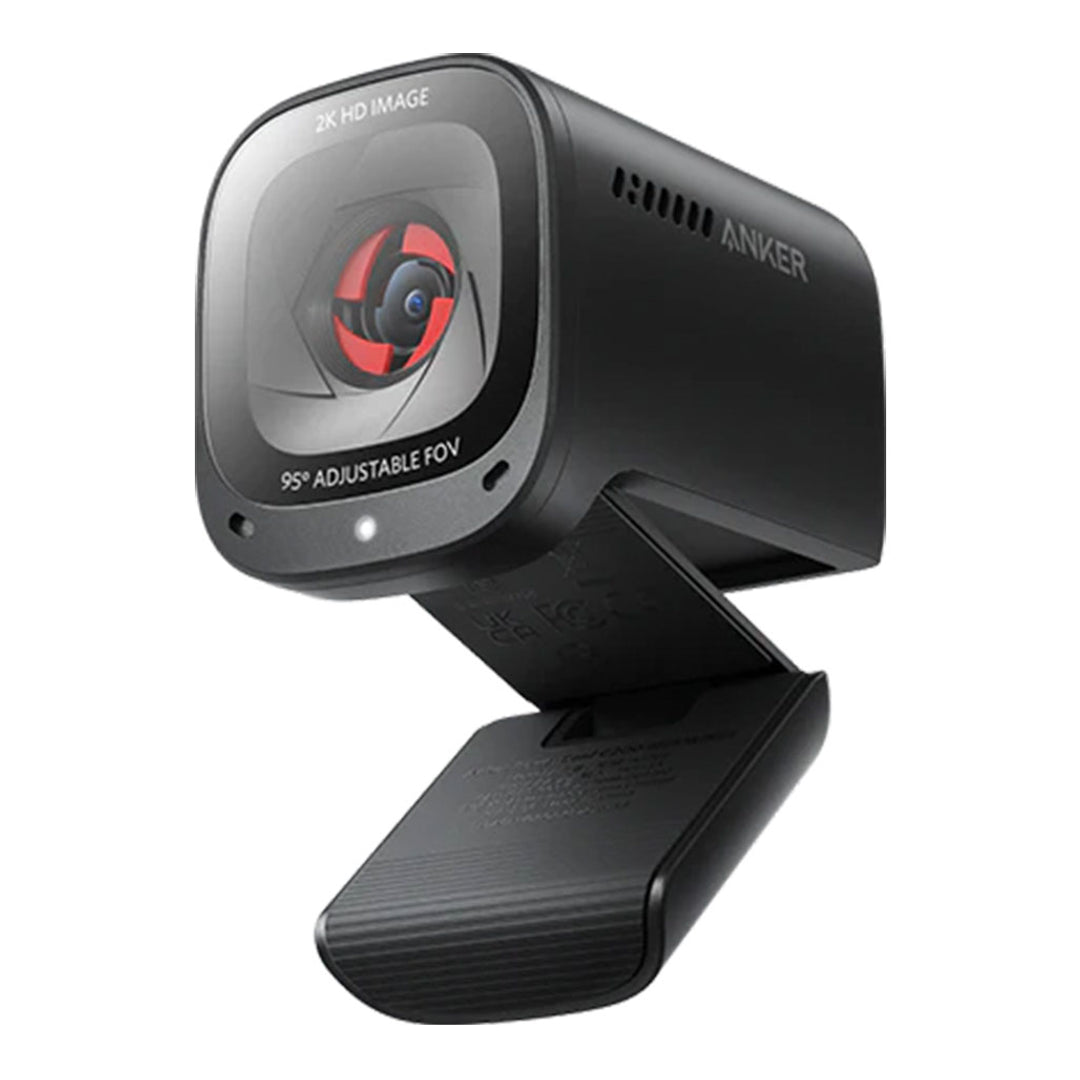
Anker PowerConf C200
Best BudgetBuy if: your budget is tight and you still want 2K sharpness, an adjustable field of view and a privacy cover
Don't buy if: you want 60fps video — this one is 2K at 30fps only
The C200 is the budget pick that doesn't look like one. A 2K camera — 2560×1440 at 30fps — with an adjustable field of view you can set to 65, 78 or 95 degrees, dual microphones with AI noise cancelling, low-light correction and a built-in privacy cover that slides shut. At 65 degrees it frames just you on a two-screen desk, which is exactly the setting to use.
The mount is a clip with a ¼-inch thread underneath, so a small desk stand works when the clip doesn't fit your monitor. The red privacy shutter on the front is easy to see at a glance — no guessing whether the camera is live. For the money, the microphones are the quiet win: the AI noise cancelling cuts keyboard clatter better than the mics on cameras twice the price.
Two honest limits. First, 30fps only — there is no 60fps mode at any resolution. Second, the wide end of the field of view is a trap on a dual-monitor desk: at 95 degrees the camera sees the second screen and the room. Set it to 65 and leave it there.
Pros
- 2K sharpness at a budget price
- Adjustable 65/78/95° field of view
- AI noise-cancelling mics, built-in privacy cover
- ¼-inch thread for a desk stand
Cons
- 2K30 only — no 60fps mode
- 95° wide end shows the room — use 65°
- USB-A only, plastic build
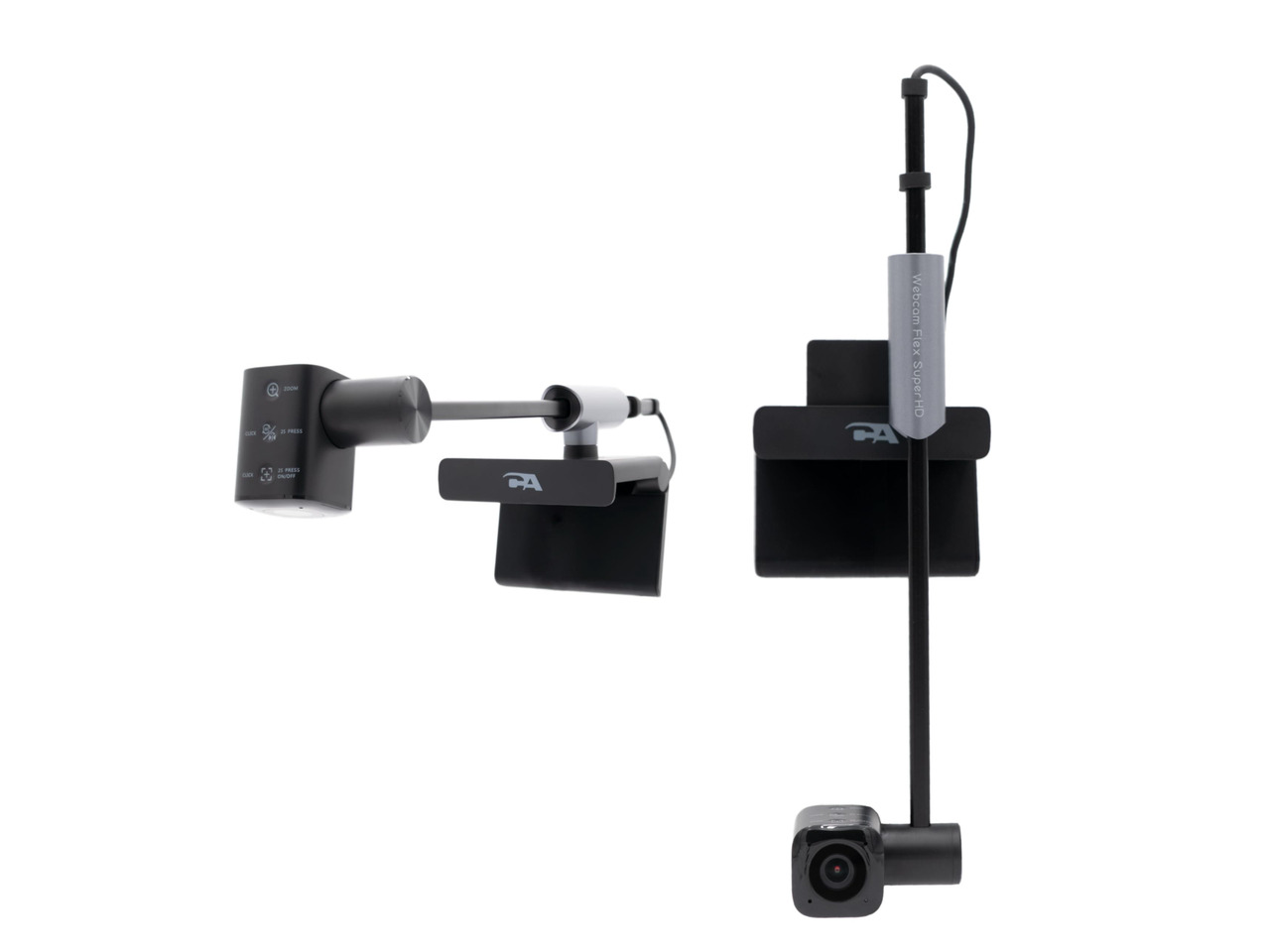
Cyber Acoustics Webcam Flex
Best for Eye ContactBuy if: eye contact is the whole point — this is the only camera here that sits in the middle of your screen
Don't buy if: you want a privacy shutter — this one has none, you rotate the camera up to hide it
The Webcam Flex is the only camera in this list designed for the dual-monitor problem itself. A 5MP camera — 2592×1944 at 30fps — on a rotatable arm up to 19 cm long. In Center View the arm drops the camera down the middle of your monitor, right where your eyes are, so you look at the person and the lens at the same time. PCWorld's review says it largely solves the eye-contact problem, and on a two-screen desk that is the whole job.
The arm does a second job too. In Table View it swings the camera over your desk to show documents, objects or a notebook — a document camera without buying one. Five levels of manual zoom frame your face and cut out the background, dual omnidirectional microphones pick up your voice, and it is plug-and-play USB-A with no software at all.
Two honest limits. First, no privacy shutter — Cyber Acoustics tells you to rotate the camera up when you're done. Second, the arm takes getting used to: PCWorld found adjusting it awkward, and the three buttons on top are easy to press by accident while you move it. Once it's set, leave it alone.
Pros
- Center View — the only true eye-contact mount here
- Table View doubles as a document camera
- Five-level manual zoom cuts background clutter
- No software needed, plug-and-play USB-A
Cons
- No privacy shutter — rotate the camera up instead
- Arm is awkward to adjust, buttons easy to press
- USB-A only; 1080p output for calls despite the 5MP sensor
Buying Guide: What Actually Matters
After placement, the four things worth your attention are the mount, the field of view, the sensor and the microphones — in that order.
The mount decides whether the camera sits where you look. A clip works on a normal flat monitor; a ¼-inch thread plus a small stand works on any monitor, curved or thin-bezel included. The field of view decides what the call sees: 65 to 78 degrees for solo calls, wider only for groups or with auto-framing to crop it down. The sensor decides how you look in a dim room — a bigger sensor beats more pixels every time, which is why the 4K MX Brio and the 1080p Brio 500 both outshine cheap 4K cameras. The microphones decide whether people hear you or your keyboard: dual mics with noise cancelling are worth having, and every pick here has them except the C920x's basic stereo pair.
Two more checks before you buy. First, the cable: USB-C cameras need a USB-C port or an adapter, and a short cable on a two-monitor desk means the camera ends up on the wrong screen. Measure the run from the camera to the port. Second, Windows Hello: only the old Brio 4K in this category signs you in with your face, and it is a 2017 camera. If face login matters, buy for the login, not the picture — or pair a better camera with a fingerprint reader.
Webcams to Skip in 2026
The old Logitech Brio 4K (2017) as a "best 4K" pick. The MX Brio replaced it in every way that shows on a call — bigger sensor, better low light, adjustable field of view. The old Brio's only remaining edge is Windows Hello face login. Several roundups still crown it as the best 4K webcam. It isn't anymore.
Elgato Facecam Pro. Discontinued in December 2025 and no longer sold new at major retailers. Its replacement is the Elgato Facecam 4K from 2025. Several 2026 guides still list the Pro — don't pay new-camera money for a camera you can only find second-hand.
No-name 1080p webcams from the AI listicles. Fixed focus, plastic lenses, no low-light correction and no field-of-view control. They cost half the C920x and look a quarter as good. The C920x is the floor for a camera worth buying.
Fixed wide-angle cameras for solo calls. A fixed 90-degree or wider lens on a two-screen desk frames the bezel, the second screen and the room. Unless it has auto-framing to crop down, wide is clutter.
Listings for cameras that don't exist. "Logitech Brio Ultra 4K" is not a real product name, and the Brio 101 is a 1080p camera, not 4K. If a listing's name doesn't match the maker's own site, don't buy it.
The pattern is the same every time: a good camera, recommended for the wrong setup — or a listing that isn't what it claims to be.
Frequently Asked Questions
What's the best webcam for a dual monitor setup?
The Logitech MX Brio — 4K, adjustable 65–90° field of view, and the best low-light sensor here. For true eye contact, the Cyber Acoustics Webcam Flex.
Where should I put my webcam with two monitors?
On the screen you look at most, at eye level, an arm's length away. If you split time evenly, put it between the screens and drag the call window to the inner edge.
Do I need 4K for Zoom or Teams calls?
No. Zoom and Teams cap video at 1080p and Meet at 720p. 4K helps when you crop, zoom or record — not on the call itself.
Will a webcam clip fit a curved or ultrawide monitor?
Often not. Thin bezels and curved screens defeat clip mounts. Use the camera's ¼-inch tripod thread on a small desk stand instead.
How far should the webcam be from my face?
Arm's length — about 20 to 30 inches — at eye level or a touch above. Closer than that and the lens distorts your face.
Can I use my laptop's built-in webcam with two monitors?
You can, but it films from below or off to the side while you look at the big screens. An external camera at eye level looks far better.
Is a wide-angle webcam better for dual monitors?
Not for solo calls. A 65–78° view frames just you. Wider than 90° pulls in the second screen, the bezel and the room.