Best USB Hub with Individual Power Switches in 2026: 6 Picks

A USB hub with individual power switches is a powered hub with a small on/off button for each port. Each switch cuts power — and sometimes data — to that one device, so you can turn a single drive, webcam or headset off without unplugging it or powering down the whole hub.
That sounds simple. It is not, once you shop for one. Half the roundups ranking for this query list hubs with no switches at all. Others count charging-only ports as data ports, or crown a 10-port hub whose adapter can barely feed two drives. We checked every pick against its manual, not just its listing.
Look — if you're buying a hub to keep three backup drives plugged in but powered down, here's what actually works: switch them off at the hub, but eject them in Windows or macOS first. The switch is a power cut, not a goodbye. Get that one habit right and the rest of this guide is just picking the right box.
If you need a hub for a laptop instead of a desk, our best USB-C hub for laptop guide covers the travel-sized options. And if your desk never moves and you run two monitors, a docking station for dual monitors is the better buy.
The 6 Best USB Hubs with Individual Power Switches in 2026
The best USB hub with individual power switches is the Sabrent HB-B7C3: seven switched data ports at 5Gbps, three charging ports at 2.4A each, and a 60W adapter. According to Tom's Hardware, which named it the Best Desktop USB Hub, it held full 5Gbps speed from an external SSD in testing, with no drop-off against a direct connection.
Our Top Pick
Sabrent HB-B7C3
Best Overall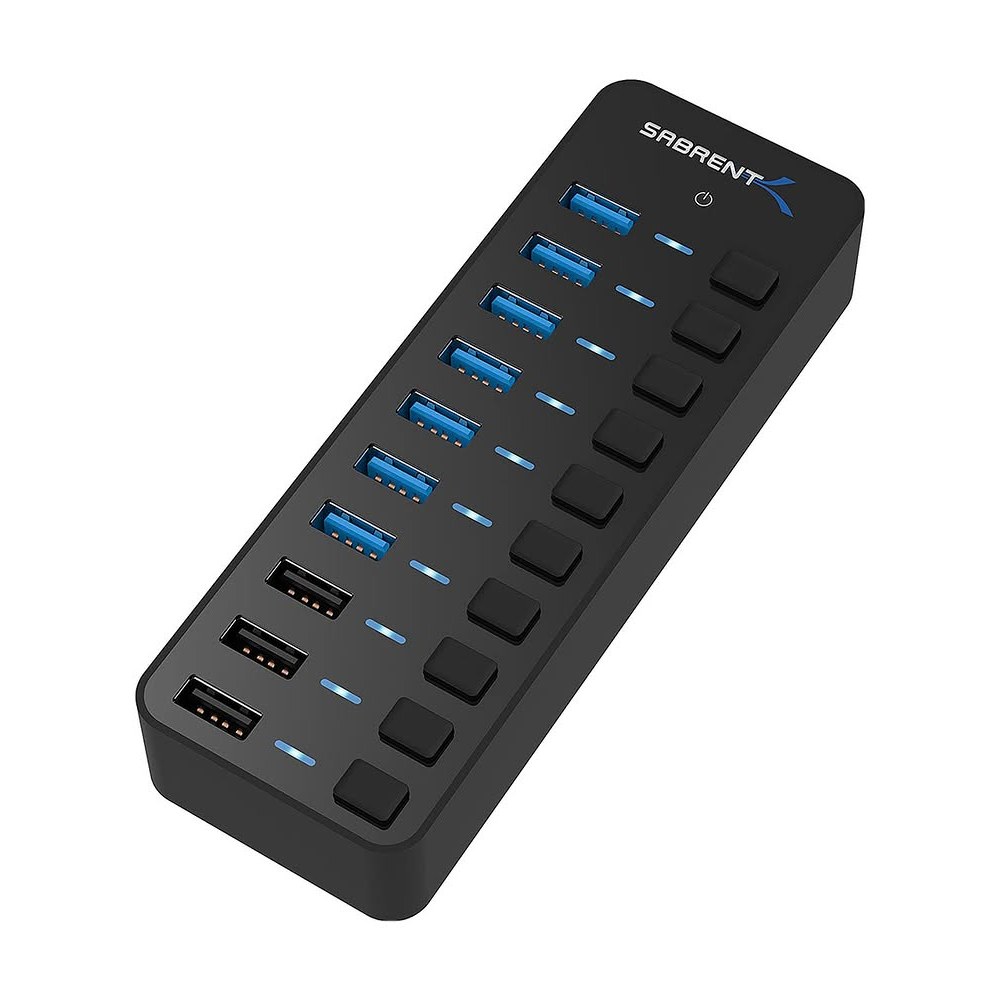
The HB-B7C3 wins because its power matches its port count. A 60W adapter feeds seven data ports and three charging ports without the brown-outs that kill cheap hubs. Tom's Hardware named it the Best Desktop USB Hub and measured sustained 5Gbps from an external SSD through it. The switches have a firm click and stay where you put them.
Check Price on AmazonQuick Comparison
| Product | Key Specs | ||
|---|---|---|---|
| #1 | Sabrent HB-B7C3Best Overall | 7 data + 3 charging · 5Gbps · 60W adapter · ~6W per port · charging 2.4A | Check Price |
| #2 | Sabrent HB-BU10Best 10-Port, All Data | 10 data ports · 5Gbps · 60W adapter · ~6W per port · 0.9A per port | Check Price |
| #3 | StarTech 5G7AIBSBest Charging on Every Port | 7 ports · 5Gbps · 65W adapter · BC 1.2, 1.5A on every port · USB-C host cable | Check Price |
| #4 | ACASIS HB10ProBest 10Gbps | 5 USB-A + 5 USB-C · 10Gbps · 48W adapter · BC 1.2, 1.5A per port · surge protection | Check Price |
| #5 | Atolla CH-207U3Best Value | 7 data + 1 charging · 5Gbps · 20W adapter · charging 2.4A · press-and-hold off | Check Price |
| #6 | ORICO BT2U3-7ABBest Aluminium Budget Pick | 7 data ports · 5Gbps · 24W adapter · BC 1.2, 1.5A per port · aluminium body | Check Price |
Powered vs bus-powered: a powered hub has its own wall adapter and can feed every port at full power, so it suits hard drives and charging. A bus-powered hub draws all its power from your laptop's single port, so it suits mice and keyboards only. The key difference is the adapter: no adapter means no real power for drives.
Sabrent HB-B7C3
Best OverallBuy if: you run a desk full of USB-A gear and want drives plus fast charging in one box
Don't buy if: you need USB-C ports or 10Gbps speeds — this is a 5Gbps USB-A hub
The HB-B7C3 splits its ten ports honestly: seven carry data at 5Gbps, three charge at up to 2.4A each. Its 60W adapter is the real story — it is big enough that a full desk of devices never fights over power. Tom's Hardware named it the Best Desktop USB Hub and held full 5Gbps from an external SSD through it in testing.
One catch, straight from the manual: the switches control the seven data ports only. The three charging ports stay live all the time. That is fine for phones, but it means you cannot kill a charging port with its switch — there is no switch for it.
Here's my honest take: I'd take this 2015 Sabrent over most 2026 hubs, because a 60W brick beats a pretty case every time. The design is old. The power math is still right.
Pros
- 60W adapter feeds all 10 ports without brown-outs
- Three charging ports at 2.4A each
- Tom's Hardware Best Desktop USB Hub, sustained 5Gbps in its SSD test
- Firm switches with a clear click and blue LEDs
Cons
- Switches control data ports only — charging ports stay live
- Large laptop-brick power adapter
- No USB-C ports, 5Gbps only
- 2015 design with no 10Gbps version
Prices change frequently — click through to see today's price.
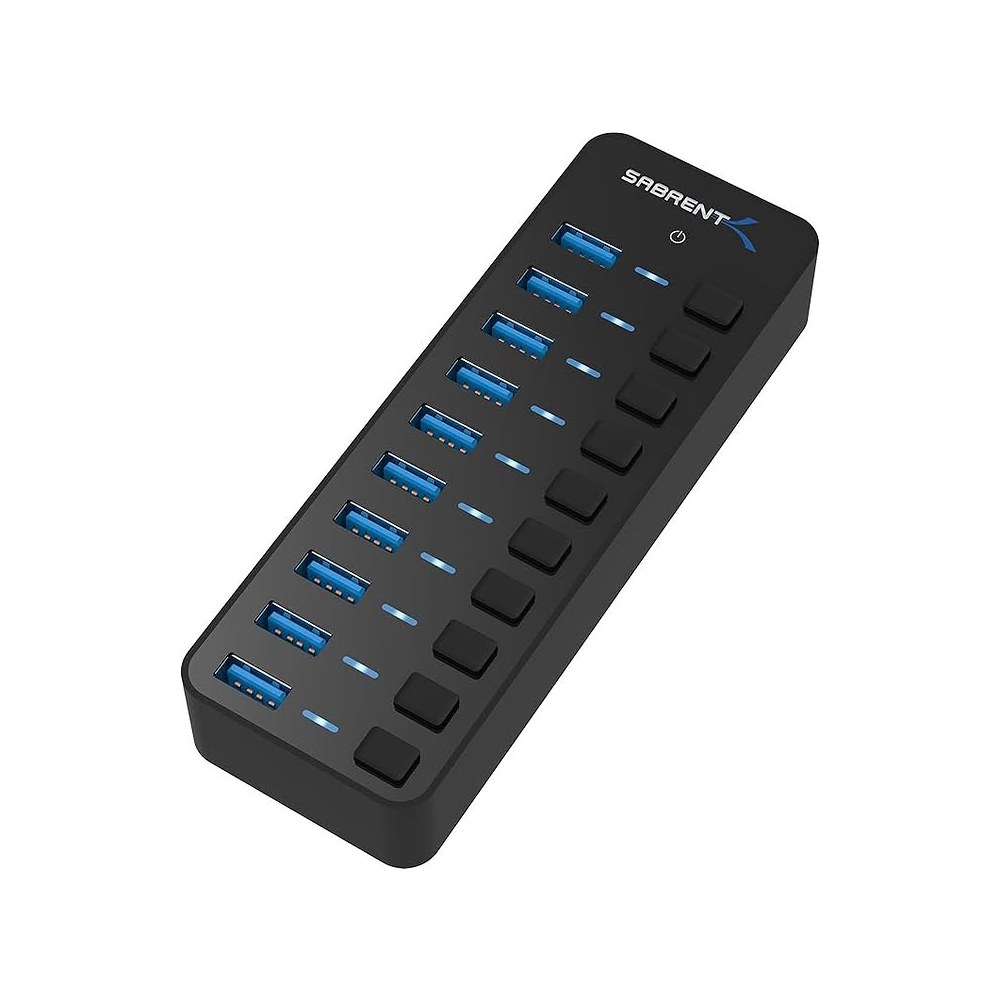
Sabrent HB-BU10
Best 10-Port, All DataBuy if: every port must carry data — ten drives or peripherals, no charging ports needed
Don't buy if: you charge phones from the hub — there are no fast-charging ports here
The HB-BU10 is the HB-B7C3's simpler sibling: ten data ports, all switched, no charging ports at all. Same 60W adapter, same solid build. If your desk is drives, card readers and peripherals — and your phone charges somewhere else — this is the cleaner pick.
Each port delivers up to 0.9A, which is the USB 3.0 spec for a data port. That is enough for spinning hard drives and SSDs. It is not enough to fast-charge a tablet, and that is the trade you are making.
Pros
- All 10 ports switched — every port carries data
- 60W adapter, same strong power as the HB-B7C3
- Every port delivers the full 0.9A data-port spec
- Same firm switches and build quality as our top pick
Cons
- No dedicated fast-charging ports
- 5Gbps only, no 10Gbps option
- Large power adapter takes desk space
Prices change frequently — click through to see today's price.
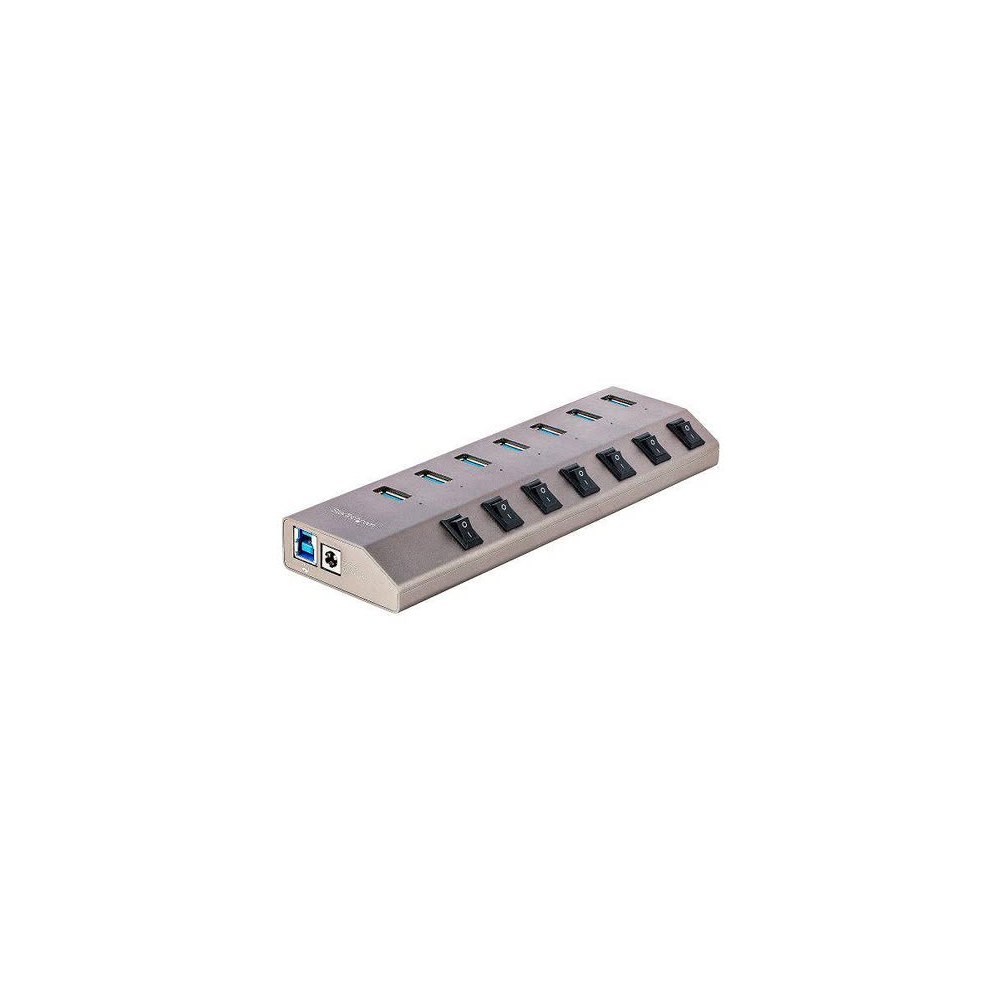
StarTech 5G7AIBS
Best Charging on Every PortBuy if: you charge a phone or tablet on every port and want charging that works with the PC off
Don't buy if: you need more than seven ports
The StarTech 5G7AIBS is the only pick here that treats charging as a first-class job. Its 65W adapter is the strongest in this roundup, and every one of its seven ports delivers BC 1.2 charging at 1.5A at the same time — 52.5W of charging at once. It also charges with the host PC off, and the box includes both USB-A and USB-C host cables.
That last point matters more than it sounds. Most switched hubs ship one USB-A cable and leave newer laptops to fend for themselves. This one plugs into either port type out of the box.
Pros
- BC 1.2 charging at 1.5A on every port at once
- Charges devices with the PC off
- USB-A and USB-C host cables included
- Strongest adapter here at 65W
Cons
- Seven ports only
- 5Gbps, not 10Gbps
- StarTech's datasheet says the switches cut power only, not data
Prices change frequently — click through to see today's price.
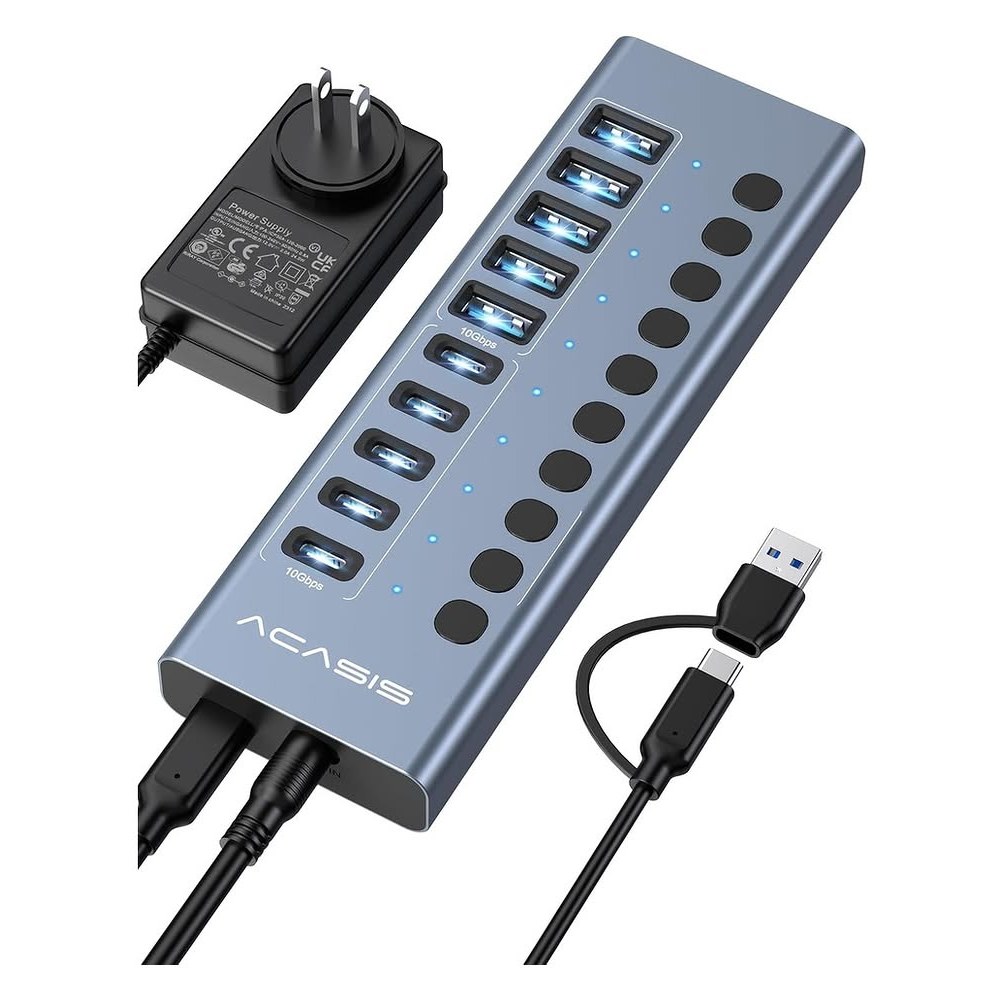
ACASIS HB10Pro
Best 10GbpsBuy if: you move big files and want 10Gbps with a switch on every port
Don't buy if: you only plug in mice and keyboards — 10Gbps buys you nothing there
The HB10Pro is the only switched hub here that runs at 10Gbps — twice the speed of every other pick. It splits its ten ports evenly: five USB-A and five USB-C, all USB 3.2 Gen 2, each with its own switch and LED. A 48W adapter with surge protection feeds the lot, and every port supports BC 1.2 charging at 1.5A.
Watch the model name when you order. ACASIS sells a near-identical 10-port hub with eight USB-A ports, two USB-C ports and a 60W adapter under almost the same title. Check the listing says five USB-A and five USB-C — that is the HB10Pro in this guide.
Pros
- 10Gbps on all 10 ports — twice the speed of the rest
- Five USB-A plus five USB-C, so no adapter dongles
- Surge protection built into the 48W adapter
- BC 1.2 charging at 1.5A on every port
Cons
- 48W shared across 10 ports means not every port hits 1.5A at once
- Near-identical 60W 8A+2C variant causes listing confusion
- Newer brand with fewer long-term owner reviews
Prices change frequently — click through to see today's price.
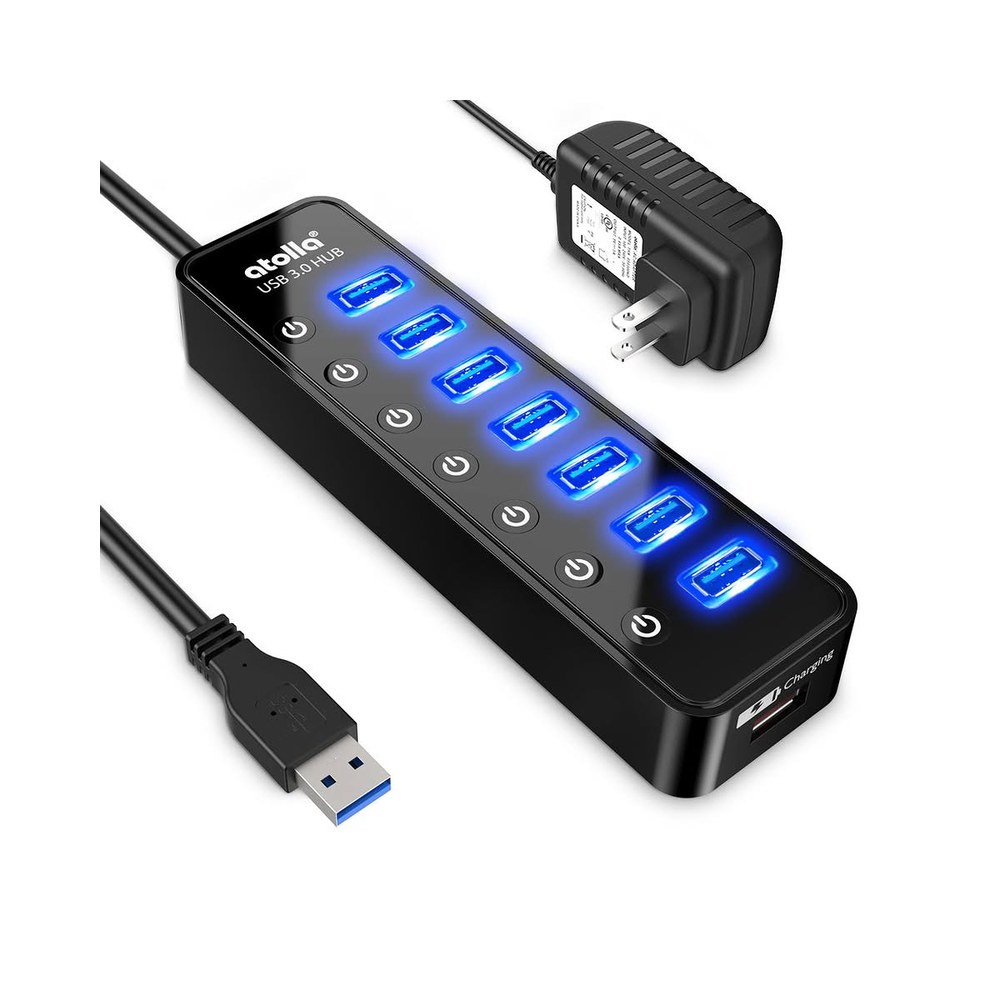
Atolla CH-207U3
Best ValueBuy if: you want switched ports on a budget and one fast-charging port covers your phone
Don't buy if: you run several spinning hard drives at once — the 20W adapter is the limit
The Atolla gives you seven switched data ports plus one smart-charging port at 2.4A, all for the lowest price in this roundup. Data ports deliver up to 1.5A each, which is more than the USB 3.0 spec — handy for a drive that is picky about power.
One quirk to know before you buy: a tap turns a port on, but turning it off takes a press-and-hold of about two seconds. That is in the manual, and it catches people out. If you expect every press to work the same way, you will think the switch is broken. It is not.
Pros
- Seven switched data ports plus a 2.4A charging port
- Data ports deliver up to 1.5A — above the USB 3.0 spec
- Lowest price in this roundup
- Compact footprint for a crowded desk
Cons
- Turning a port off needs a two-second press-and-hold
- 20W total means heavy loads share power
- No USB-C ports
Prices change frequently — click through to see today's price.
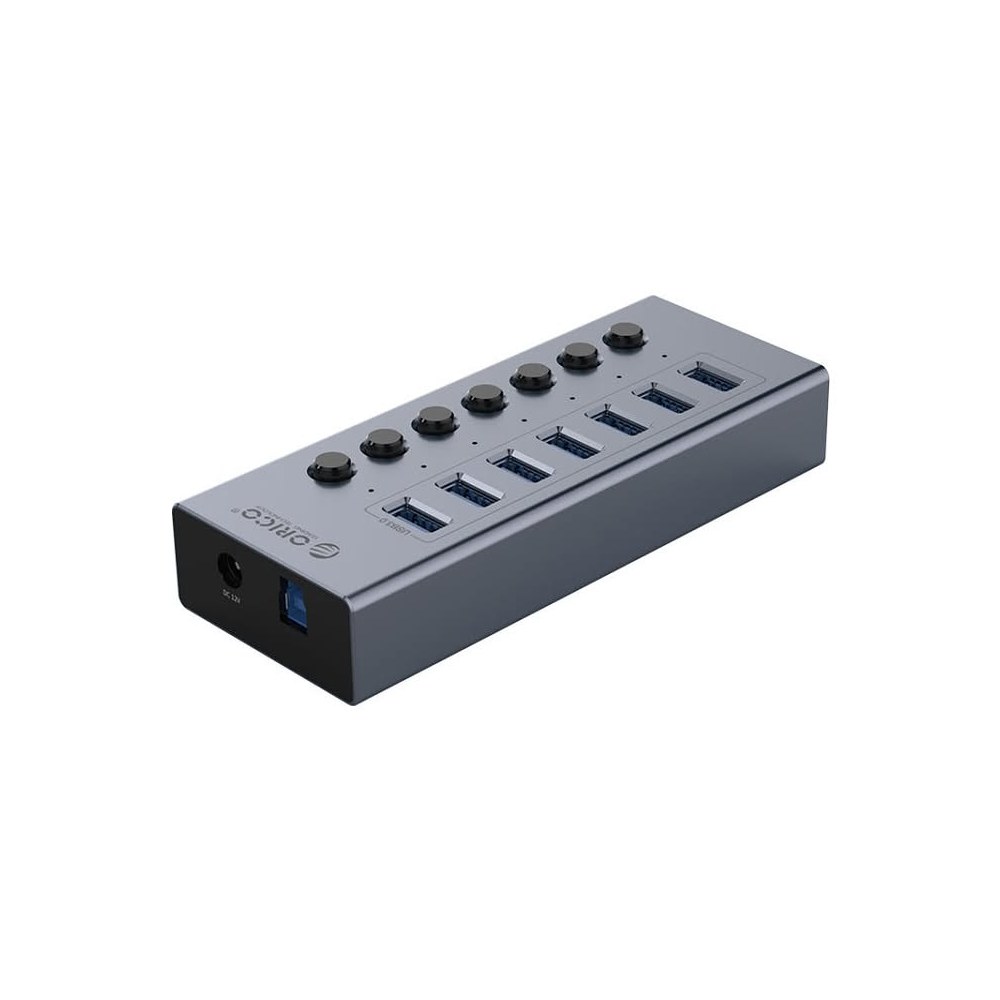
ORICO BT2U3-7AB
Best Aluminium Budget PickBuy if: you want a metal hub with BC 1.2 charging on a budget
Don't buy if: you need a dedicated charging port — all seven ports here are data
The ORICO is the budget 7-port done right. An aluminium body, a VL817 chip, and a 24W adapter — more than double the power of the cheapest aluminium rivals. Every port supports BC 1.2 charging at 1.5A, so a phone plugged into a data port still charges at a decent rate.
I've seen conflicting data on this one — the manual says all seven ports switch, one review says only ports 4–7 do. My read is the manual wins, but check the port you care about most inside the return window. The photo on this card shows all seven switches, and the manual matches it.
Pros
- Aluminium body that stays cool and looks the part
- BC 1.2 charging at 1.5A on every port
- 24W adapter — the strongest budget 7-port here
- VL817 chip, a proven USB 3.0 controller
Cons
- One review disputes whether all seven switches work
- No dedicated charging-only port
- 5Gbps only
Prices change frequently — click through to see today's price.
Do I Need to Eject a Drive Before I Switch Its Port Off?
Yes. Eject the drive in your operating system first, then switch the port off. Switching a port off cuts power to the drive mid-write, which is the same as yanking the cable out — and it can corrupt files or the drive itself.
This is the question that drives this whole guide, and the roundups ranking above us mostly skip it. The switch is not a safe-eject button. It is a power cut. Or maybe I should say it this way: the switch is a power cut, not a goodbye — your computer still needs its own moment to finish writing.
According to Ask Leo, turning an external drive off without safely removing it first is essentially the same as unplugging it, and the same rule holds for a hub switch — the switch cuts power whether Windows has finished writing or not. Eject first, wait for the safe-to-remove message, then switch the port off, every time.
A backup drive left plugged in but switched off stays electrically isolated, which also keeps ransomware from reaching it while it sits idle. According to a BleepingComputer thread on hub switches, the switch only enables or disables the port — it is not a substitute for safely removing the drive first. Eject first, then switch off.
The habit is simple once it sticks. Right-click the drive, hit eject, wait for the "safe to remove" message, then press the switch. Two seconds. Your backup drive will thank you by not dying.
One exception: a drive with nothing being written to it — a cold backup drive that has sat idle for an hour — is low risk. Low, not zero. Eject anyway.
What Does a Switch Actually Cut — Power, Data, or Both?
It depends on the hub. Most switches cut power only. Some cut power and data together. The difference decides whether your PC still sees the device when the switch is off.
According to StarTech's own datasheet for the 5G7AIBS, its switches control power only and do not disable or interrupt data transmission. Its other datasheets say the opposite for different models. Never assume — check the manual for the exact model you buy.
Why does it matter? A power-only switch leaves the device visible to your PC while it draws no power, which can confuse some software. A power-and-data switch makes the device vanish completely, like unplugging it. For a webcam or mic you want as a privacy kill-switch, power-and-data is the safer bet.
Short version: if the manual does not say, treat the switch as power-only and eject drives before you touch it.
How Much Power Does Each Port Really Get?
Less than you think. A USB 3.0 data port needs about 5W — 5 volts at 0.9 amps — to run a device at full spec. Ten ports at full spec need about 50W. So a 10-port hub with a 10W adapter gives each port about 1W. That hub cannot feed ten drives. It can barely feed two.
Here's the thing: the adapter wattage is the whole game, and it is the number most listings bury. Divide the adapter watts by the port count before you buy. The Sabrent pair at 60W gives each of ten ports about 6W — enough. The StarTech at 65W gives each of seven about 9W — plenty. The Atolla at 20W across eight ports gives about 2.5W each — fine for mice and keyboards, tight for drives.
It won't fry your drive, it doesn't replace safe ejection, and it's not a substitute for a backup. But a weak adapter will make a spinning hard drive click, disconnect and reconnect in a loop — the classic symptom of a hub that cannot feed what is plugged into it.
Bandwidth works the same way. "10 × 5Gbps" is never true. Every port on these hubs shares one 5Gbps upstream link to your PC (10Gbps on the ACASIS). Two SSDs copying at once split that link. Plan for it.
Can I Charge My Phone from the Hub When My PC Is Off?
Only on some hubs. The StarTech 5G7AIBS charges with or without a host PC connected — its datasheet says so, and its 65W adapter makes it real. Most other switched hubs need the PC on, because their charging runs through the host connection.
Check two things before you count on it: the manual must say charging works with the PC off, and the adapter must be strong enough to charge without the host. A hub that claims off-PC charging on a 10W adapter is lying by omission.
If overnight phone charging is the job, the StarTech is the pick. If the hub lives on a desk PC that is always on anyway, any pick here charges fine.
How to Set Up a USB Hub with Individual Power Switches
Six steps, five minutes. To set up a switched USB hub, follow these steps: 1. Plug the power adapter into the wall first. 2. Connect the hub to your PC with the included cable. 3. Switch on only the ports you need. 4. Plug in one device at a time. 5. Eject drives in your OS before switching them off. 6. Leave unused ports switched off.
Step 1: Plug the power adapter into the wall first
Power the hub before you connect it to your PC. A hub that boots on bus power alone can brown out when the adapter kicks in later.
Step 2: Connect the hub to your PC with the included cable
Use the cable in the box. Long or thin replacement cables can drop a 5Gbps link to USB 2.0 speeds without any warning.
Step 3: Switch on only the ports you plan to use
Leave the rest off. Unused live ports draw standby power and keep devices warm for no reason.
Step 4: Plug devices in one at a time and wait for each to appear
Give each device a few seconds to show up in your OS before you plug in the next one. If two devices fight over power, you will know which one caused it.
Step 5: Eject any drive in your operating system before switching its port off
Right-click, eject, wait for the safe-to-remove message, then press the switch. Never switch a drive off mid-write.
Step 6: Leave unused ports switched off to cut standby power
Switched-off ports draw nothing. It is the simplest power saving on your desk, and it keeps a backup drive electrically isolated when you are not using it — which also helps against ransomware reaching a connected drive.
How to Choose a USB Hub with Individual Power Switches
Start with the adapter, not the port count. Divide adapter watts by ports and check the result against 5W per port. A 10-port hub needs roughly 50W to feed every port at spec. The two Sabrents and the StarTech clear that bar. The Atolla at 20W does not — it is a value pick, and its price reflects that.
Next, split the ports in your head: data ports vs charging ports. The HB-B7C3's three black ports charge only — they will never show a drive to your PC. Listings that call it a "10-port data hub" are wrong, and so are roundups that count charging ports as data ports. Count them yourself from the manual.
Then check the switch itself. Mechanical switches with a click (Sabrent, ORICO) stay where you put them. Touch switches can be bumped by a cable. The Atolla's press-and-hold-to-turn-off design stops accidents but annoys people who expect a tap.
Speed comes last for most buyers. 5Gbps is plenty for drives used as backup, and for every peripheral on your desk. Buy the 10Gbps ACASIS only if you regularly move big video files or run an SSD as a working drive through the hub.
One more check: the host cable. If your laptop has only USB-C ports, a hub that ships a USB-A cable needs an adapter of its own. The StarTech is the only pick here that includes both cables in the box.
Two Hubs Other Roundups Get Wrong
Two famous names keep showing up in "best USB hub with individual power switches" lists. Neither belongs there.
Anker's 10-port hub (A7515211) has no individual switches. No Anker spec sheet, retailer listing or manual mentions them. One blog post credits it with switches anyway, and the error keeps getting copied. Anker makes good hubs. This one just does not switch.
StarTech's ST7300USB3B has no individual switches either. StarTech's own product page lists only connection LEDs and overload protection. Its switched sibling is the 5G7AIBS — the one in this guide at #3. Same brand, similar name, different hub. Check the model number, not the brand.
If a roundup lists either hub as a switched pick, it did not check the manual. That is the fastest way to judge any hub list you read.
Frequently Asked Questions
What's the best USB hub with individual power switches?
The Sabrent HB-B7C3. Seven switched data ports, three 2.4A charging ports and a 60W adapter — plus Tom's Hardware's Best Desktop USB Hub award.
Should I eject a drive before I switch its port off?
Yes. Eject the drive in your OS first, then press the switch. Switching off mid-write can corrupt files, just like unplugging the cable.
Can I charge my phone from a USB hub when my PC is off?
Only on hubs built for it. The StarTech 5G7AIBS charges with the PC off; most other switched hubs need the PC on.
How many watts should a powered USB hub have?
About 5W per port. A 10-port hub needs roughly 50W to feed every port at full spec — check the adapter watts before you buy.
Do the switches cut data too, or just power?
It varies by model. Most cut power only; some cut power and data. Check the manual for your exact model — never assume.
Why does my external hard drive keep disconnecting from my hub?
Almost always power. A spinning drive needs steady power, and a weak adapter or bus power makes it click and drop. Use a powered hub with a strong adapter.