Best External Keyboard for Laptop Users (2026)

Your neck hurts by lunch. Your shoulders ache by three. The laptop screen sits too low, so you hunch — or you prop the laptop up and your hands end up typing at chin height.
You have tried the cheap fixes. A budget wireless combo from the supermarket. The laptop flat on the desk. Maybe a stand on its own, which fixed your neck and made your wrists worse. And if your laptop only has USB-C ports, the little USB dongle from that cheap combo may not even fit.
The best external keyboard for laptop users is a full-size keyboard that connects to a laptop over Bluetooth or a USB dongle and gives you a proper number pad at elbow height, with the laptop raised on a stand beside it. It turns a laptop into a desktop without buying a desktop.
This guide ranks six full-size boards by what laptop users actually need — a number pad, three-device switching, a connection that works on a USB-C-only laptop, and a fit with a stand. Our compact-keyboard picks live in the compact wireless keyboard guide; this one is for the desk, where size is a feature, not a problem.
No prices are printed in this guide — keyboard prices move daily and listings disagree on the same board. Check the live price before buying. All specs are the makers' own figures — never a guess.
What's the Best External Keyboard for Laptop Users?
The Logitech MX Keys S. It is the board nearly every major roundup names first — Windows Central calls it the best keyboard for Windows, Engadget calls it the pick for most people — and it is the only scissor-switch board here that pairs over Bluetooth and the Logi Bolt receiver, switches between three devices, and charges over USB-C.
The best external keyboard for laptop users is the Logitech MX Keys S. According to Windows Central, it is the best keyboard for Windows in 2026, and Engadget calls it the pick for most people. It pairs over Bluetooth or the Logi Bolt receiver, switches between three devices, and charges over USB-C — the exact mix a laptop desk needs.
A full-size external keyboard beats the built-in laptop keyboard for one reason: your hands stay at elbow height while the screen sits at eye level. According to ergonomic guidance from Cornell and OSHA, the screen should sit at eye level and the keyboard at elbow height — two heights one laptop cannot give you alone.
The MX Keys S wins on the desk test, not on any single spec. The Dell KB900 has the better call keys. The Keychron K10 Max has the better switches. But no other board here pairs as cleanly with a laptop, a tablet and a phone in one working day — and that is what this search is asking for.
One board. Three devices. That is the whole test.
Do I Need an External Keyboard With a Laptop Stand?
Yes, if you use the laptop at a desk most days. A stand lifts the screen to eye level, which puts the built-in keyboard too high and too far away to type on comfortably. The external board is what makes the stand work — without it, you trade a neck problem for a wrist one.
An external keyboard is worth buying with a laptop stand when you use the laptop at a desk most days. The stand lifts the screen to eye level, which makes the built-in keyboard too high to type on, so a separate board fixes the trade-off. Without the board, the stand trades a neck problem for a wrist one.
Here's the thing: the stand and the keyboard are one purchase, not two. Buy the stand first and you will type with your hands held high. Buy the keyboard first and you will still hunch at a low screen. Together they split the laptop into two parts — screen up high, keys down low — and each part sits where your body wants it.
Pairing checklist: raise the laptop so the top of the screen is at eye level, put the keyboard at elbow height with your forearms level, add an external mouse so your right hand isn't reaching for the trackpad, and leave enough desk depth that the board sits a full forearm's length from the screen. Our laptop riser guide ranks the stands that pair best with a separate board.
Stand first, keyboard second, mouse third. In that order.
How Do I Connect an External Keyboard to My Laptop?
Three ways: Bluetooth, a 2.4GHz USB dongle, or a wired USB cable. Bluetooth is the safest bet for a USB-C-only laptop because it needs no port at all. A dongle is the fastest to wake up. A cable never needs charging.
Bluetooth vs dongle vs wired: Bluetooth is better suited for USB-C-only laptops because it needs no port at all. A 2.4GHz dongle works better when you want the fastest wake-up and zero pairing fuss. Wired works best when you never want to think about batteries. The key difference is the port: dongles are USB-A, and most new laptops only have USB-C.
| Connection | How it works | Watch out for |
|---|---|---|
| Bluetooth | Pairs with the laptop's own radio, no port needed | Can lag on wake-up; re-pair after a big OS update |
| 2.4GHz dongle | Tiny USB receiver, plug and type | Dongles are USB-A — a USB-C-only laptop needs an adapter |
| Wired USB | Cable straight into a USB port | Eats a port; some keyboards' USB-C port is charging-only, not data |
The USB-C trap catches more buyers than any other mistake here. A keyboard can say "USB-C" on the box and still mean charging only — the cable tops the battery up, but the keys only talk over Bluetooth or the dongle. Check the spec sheet for "USB-C data" or "wired mode" before you buy a board to use plugged in.
Look — if you're in the situation where your laptop has two USB-C ports and nothing else, here's what actually works: a Bluetooth board, or a dongle plus a small USB-C adapter that lives on the dongle. Don't buy a dongle-only board and hope the port problem sorts itself out.
One port, no dongle. That is the Bluetooth case in a line.
Should I Get a Full-Size Keyboard or a Compact One?
Full-size if the laptop lives on a desk. Compact if the keyboard travels in your bag. A full-size board gives you a number pad and proper arrow keys — the two things spreadsheet work and coding actually need — and at a desk the extra width costs you nothing.
The number pad is the whole argument. If you type numbers all day — budgets, invoices, data entry — the pad saves more time than any other feature on this page. A compact board makes you hunt for numbers on the top row, and that hunt adds up across a working week.
The real cost of a full-size board is desk space, and it is smaller than people think. The pad pushes the mouse about four to five inches to the right, which can strain the shoulder if you sit square to the whole board. The fix is free: centre the letter keys in front of you, not the middle of the board, and let the pad hang off to the right.
Or maybe I should say it this way: buy the board for where you type most, not for the trip you take twice a year. A desk keyboard that travels badly is a better buy than a travel keyboard that types badly every single day.
Desk first. Bag second.
Do External Keyboards Work Well With a MacBook?
Yes — with one check first. Pick a board with Mac keys or a Mac/Windows switch, and test the media keys in the connection mode you will actually use. Some boards' function keys behave differently over Bluetooth than over a dongle, and a few budget boards lose them entirely on macOS.
The MX Keys S comes in a Mac version with proper Command and Option keys, and the standard version works on macOS too. The Keychron K10 Max has a physical Mac/Windows switch on the back, so the layout follows the laptop. The Dell KB900 and the Logitech K780 both list macOS support, though their call and media keys are tuned for Windows first.
I've seen conflicting data — some listings show the MX Keys S at $109.99, others at $156, and the same board can swing between those two prices in a single week. My read is that the street price sits near $110 most weeks, which is why this guide prints no prices at all: check the live price on the day you buy.
Mac users: check the keys, not the brand. A Windows-first board with a Mac switch beats a Mac-branded board with no backlight.
Quick Comparison
| Product | Connection | Layout / switches | Best for | ||
|---|---|---|---|---|---|
| #1 | Logitech MX Keys SBest Overall | Bluetooth + Logi Bolt, USB-C charging | Full-size, scissor keys, backlit | Most laptop desks | Check Price |
| #2 | Dell KB900 PremierBest Premium | Bluetooth 5.1 + 2.4GHz, USB-C rechargeable | Full-size, quiet chiclet keys | Video calls all day | Check Price |
| #3 | Keychron K10 MaxBest Mechanical | Bluetooth + 2.4GHz + wired USB-C | Full-size, hot-swap mechanical, QMK | Mechanical feel, your switches | Check Price |
| #4 | Logitech K780Best Multi-Device | Bluetooth + Unifying receiver | Full-size, quiet round keys, phone cradle | Laptop + tablet + phone | Check Price |
| #5 | Logitech K845Best Budget Mechanical | Wired USB | Full-size, TTC mechanical switches, backlit | Mechanical feel, lowest price | Check Price |
| #6 | Logitech K270Best Budget | 2.4GHz Unifying receiver | Full-size, membrane keys, spill-resistant | Cheapest way to full-size | Check Price |
The "Best for" column is the honest summary: the MX Keys S covers the most desks, the KB900 owns video calls, and the K270 does the whole job for the least money. Buy the board that matches the work you actually do.
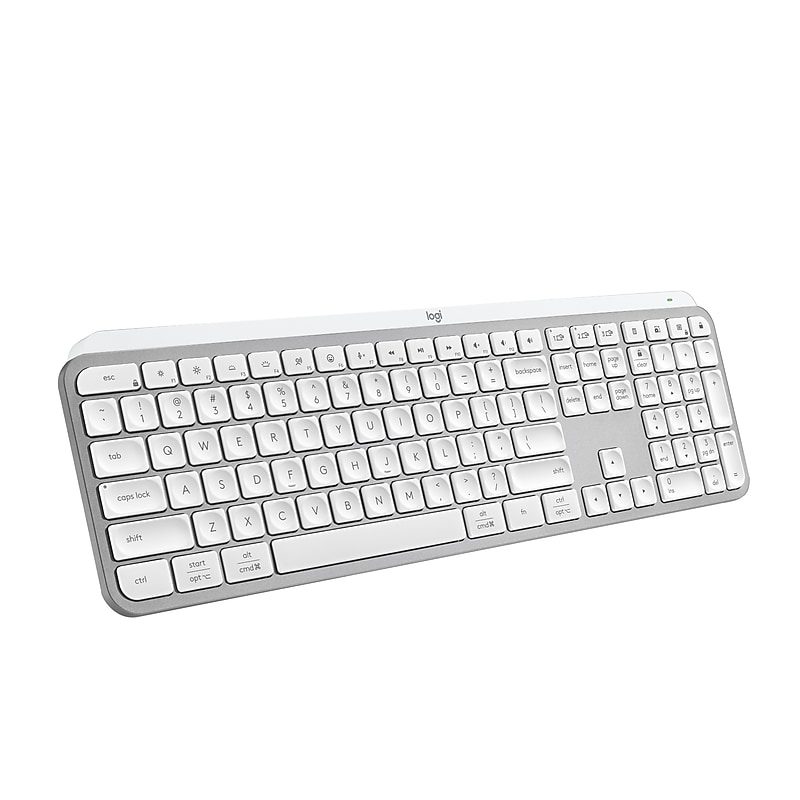
Logitech MX Keys S Wireless Keyboard
Best OverallBuy if: you want the safest all-round pick for a laptop desk
Don't buy if: you want clicky mechanical keys
The MX Keys S is the board nearly every major roundup names first — Windows Central, Engadget and CNN Underscored all rank it top for most people. The reason is the mix: spherically dished scissor keys that feel close to a good laptop keyboard, backlighting that brightens as your hands approach, three-device Easy-Switch, and charging over USB-C instead of throwaway batteries.
It pairs two ways — Bluetooth or the Logi Bolt receiver in the box — so it works on a USB-C-only laptop with no adapter at all. The battery lasts up to 10 days with the backlight on and up to five months with it off, and a quick charge gives a full day's typing. The weak spot is the price, which swings between listings, and the software: custom keys need Logi Options+, which some work laptops won't let you install.
Pros
- Best typing feel of the scissor boards here
- Three-device switching
- USB-C charging, no batteries
- Backlit keys
Cons
- No mechanical switch option
- Price varies a lot between listings
- Custom keys need Logi Options+ software
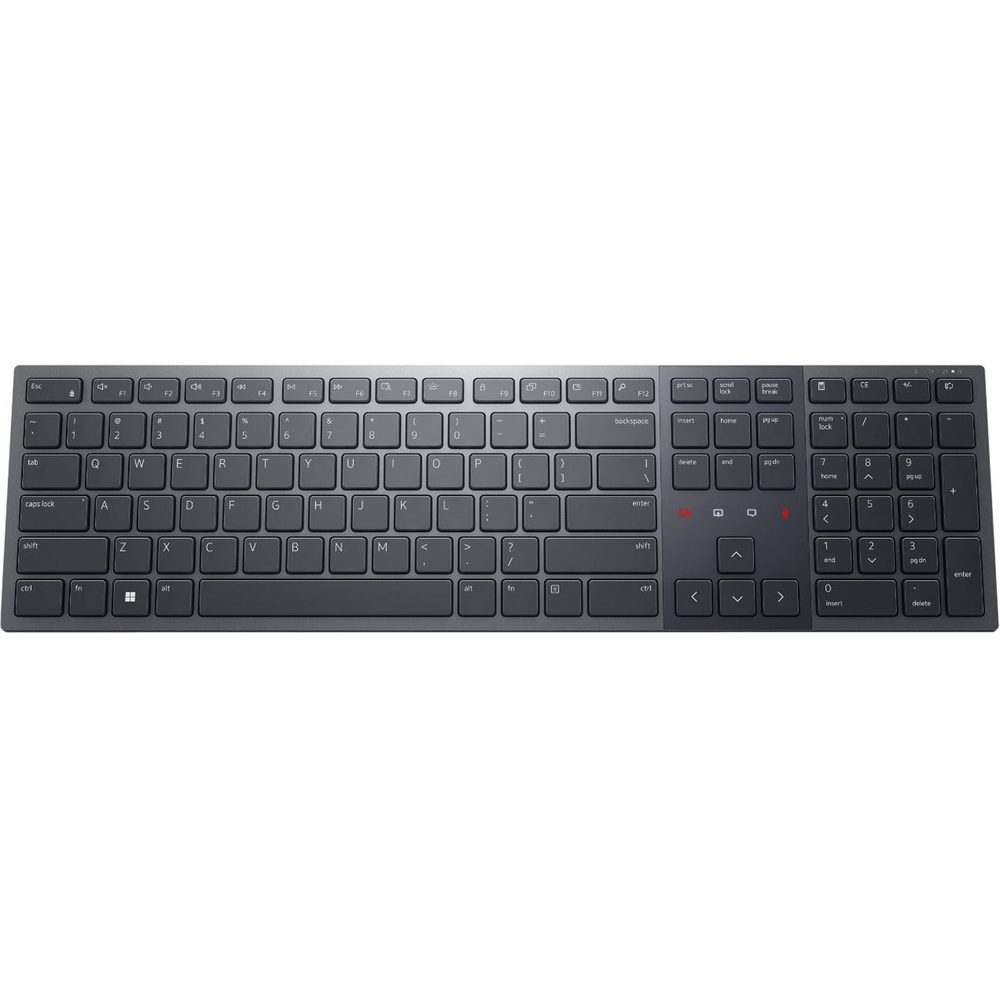
Dell KB900 Premier Multi-Device Wireless Keyboard
Best PremiumBuy if: you live on video calls and want the call keys on the board
Don't buy if: you want backlit keys for typing in the dark
The KB900 is Dell's premium desk board, and it is built around one job: video calls. Dedicated keys mute the mic, toggle video and open the call app, and a small LED shows your mute state at a glance. Underneath that it is a solid full-size board — quiet chiclet keys, Bluetooth 5.1 and 2.4GHz wireless, three-device pairing, and a rechargeable battery that tops up over USB-C.
It pairs with up to three devices and switches between them with a key press, so a work laptop, a personal laptop and a tablet can share one board. The 12 programmable keys cover the rest of the desk — launch apps, run shortcuts, control media. The trade is the price: it costs more than the MX Keys S on most weeks, and the call keys shine brightest in a Dell setup, with Dell Peripheral Manager unlocking the full set.
Pros
- Dedicated video-call keys with mute LED
- Three-device pairing
- USB-C rechargeable
- 12 programmable keys
Cons
- Costs more than the MX Keys S most weeks
- Call keys work best with Dell software
- No mechanical option
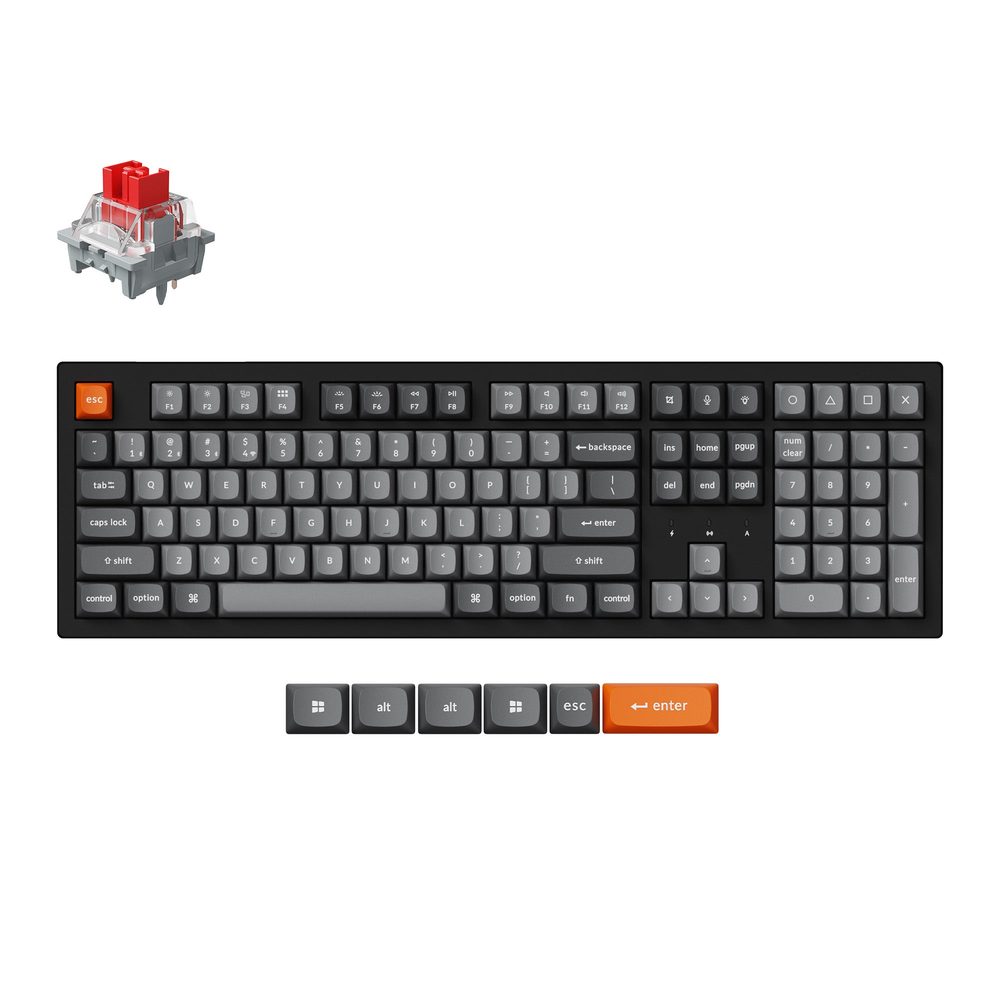
Keychron K10 Max QMK Wireless Mechanical Keyboard
Best MechanicalBuy if: you want a mechanical board you can change later
Don't buy if: you share a quiet room or hate setup time
The K10 Max is the full-size mechanical board for laptop users who want to pick their own feel. It is hot-swappable, so the switches pull out and swap without soldering, and it runs QMK and VIA, so any key can be remapped from the browser. It connects three ways — Bluetooth 5.1, 2.4GHz wireless and wired USB-C — and polls at 1000Hz in wired and 2.4GHz mode.
A Mac/Windows switch on the back flips the layout, and the board ships with both sets of keycaps in the box. The 108-key layout keeps the number pad, and the south-facing RGB lights the legends instead of your eyes. The cost is size and sound: it is heavier and louder than the scissor boards here, and the ABS keycaps will shine with heavy use. QMK takes an evening to learn — worth it if you remap keys, wasted if you never will.
Pros
- Hot-swap switches, no soldering
- QMK and VIA remapping
- Three connection modes
- Mac/Windows switch with both keycap sets
Cons
- Heavier and louder than scissor boards
- ABS keycaps shine with heavy use
- QMK setup takes an evening to learn
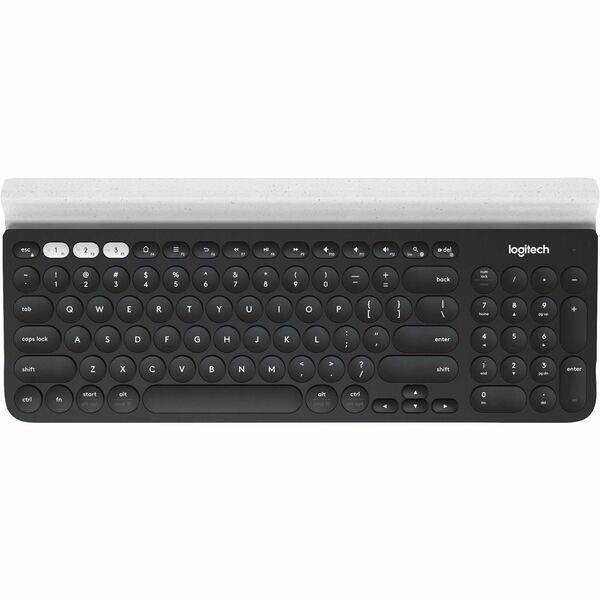
Logitech K780 Multi-Device Wireless Keyboard
Best Multi-DeviceBuy if: you switch between a laptop, a tablet and a phone at one desk
Don't buy if: you type in the dark — it has no backlight
The K780 is the multi-device specialist. A rubber cradle runs along the top edge and holds a phone or tablet upright at a readable angle, and the white Easy-Switch keys jump between three paired devices — laptop, tablet, phone — with one tap. It pairs over Bluetooth or the Unifying receiver, and the round, quiet keys are the softest typing feel in this guide.
The battery is the quiet win: two AAA batteries last up to 24 months, so the board simply stays on the desk and works. The trade is the keys themselves — the round caps take a day to get used to, and there is no backlight, so night typing needs a lamp. It is also the only board here that runs on batteries instead of USB-C, which is a feature if you hate cables and a chore if you hate buying batteries.
Pros
- Phone and tablet cradle built in
- Three-device Easy-Switch
- Up to 24-month battery life
- Quietest typing here
Cons
- No backlight
- Round keys take a day to get used to
- Runs on AAA batteries, not USB-C
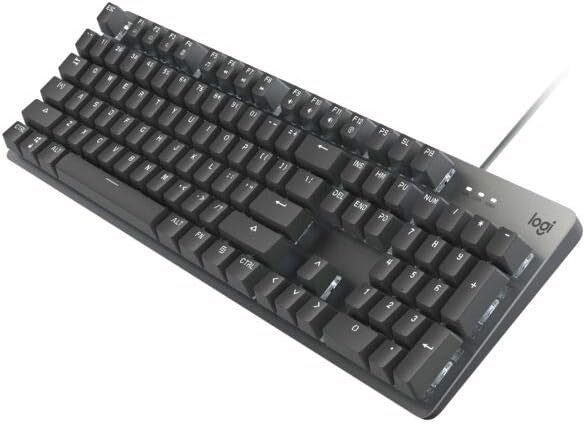
Logitech K845 Mechanical Illuminated Keyboard
Best Budget MechanicalBuy if: you want real mechanical switches on a budget and don't mind a cable
Don't buy if: your laptop has USB-C only and no adapter
The K845 is the cheapest way into a proper mechanical board. TTC switches — Red, Brown or Blue, picked at purchase — sit under 104 full-size keys, with white backlighting and an aluminium top case that keeps the board from flexing. Adjustable tilt legs set the angle, and the whole board feels far more solid than its price suggests.
It is wired only, and that is both the strength and the catch. No batteries, no pairing, no wake-up lag — plug it in and type. But the cable eats a USB port, and on a USB-C-only laptop it needs an adapter or a hub. Pick the switch carefully, too: Red is smooth and quiet, Brown adds a small bump, Blue clicks loud enough to carry across a room.
Pros
- Real mechanical switches at a low price
- Solid aluminium top case
- Backlit keys
- No batteries, no pairing
Cons
- Wired only — no Bluetooth or dongle
- Cable eats a USB port
- Switch choice is fixed at purchase
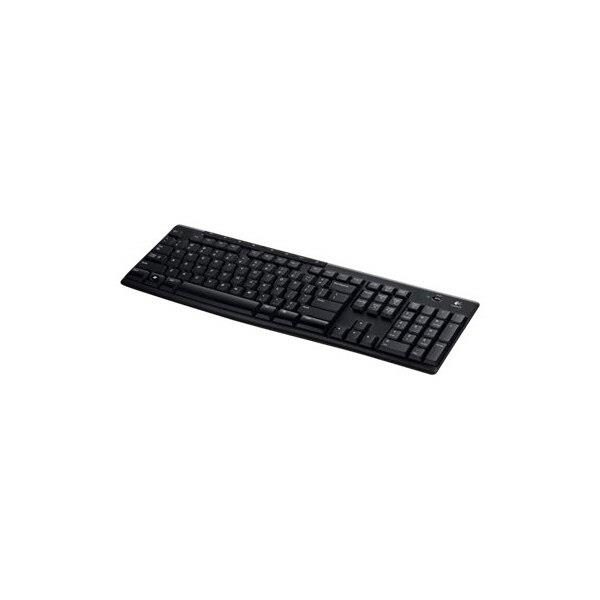
Logitech K270 Wireless Keyboard
Best BudgetBuy if: you want the cheapest way to a full-size board
Don't buy if: you need Bluetooth for a USB-C-only laptop
The K270 is the budget default for a reason: a full-size wireless board with a number pad, eight shortcut keys and a spill-resistant design, for the price of a takeaway. It connects over the Unifying receiver, so it pairs in seconds and stays paired, and two AAA batteries last up to 24 months.
The keys are membrane — soft and quiet, with a short, light press. That is fine for spreadsheets and email, and it is the reason the board costs so little. What it doesn't have is Bluetooth, so a USB-C-only laptop needs an adapter for the receiver, and there is no backlight. But as a first external keyboard for a laptop, it does the whole job: number pad, proper arrows, and a board that stays put on the desk.
Pros
- Cheapest full-size board here
- Up to 24-month battery life
- Spill-resistant design
- Eight shortcut keys
Cons
- No Bluetooth — dongle only
- No backlight
- Membrane keys feel soft next to the others
How to Set Up Your Laptop as a Desktop in 5 Steps
Raise the laptop, plug the keyboard in, add a mouse, set the heights, centre the keys. Five steps, ten minutes, and the laptop stops hurting.
To turn your laptop into a desktop, follow these steps: 1. Raise the laptop on a stand. 2. Plug in the external keyboard. 3. Add an external mouse. 4. Set the screen to eye level. 5. Centre the letter keys in front of you.
- Raise the laptop on a stand. Lift it until the top of the screen sits at eye level — high enough that you look straight ahead, not down.
- Plug in the external keyboard. Bluetooth pairs in the laptop's settings; a dongle goes in a USB port (or a USB-C adapter); a wired board plugs straight in. Both keyboards stay live — the laptop keys still work.
- Add an external mouse. Put it to the right of the board at the same height. Reaching for the trackpad on a raised laptop is the strain you just fixed.
- Set the screen to eye level. Adjust the stand until the top third of the screen is at your eye line. If you wear glasses, drop it a touch lower.
- Centre the letter keys in front of you. Sit square to QWERTY, not to the middle of the board — the number pad hangs off to the right, and your shoulders stay level.
Quick note: give it a week. The first day feels strange — the keys are further away than the laptop keyboard was. By day three your hands stop reaching, and by day seven the old setup feels cramped.
Buying Guide: What Actually Matters
After the full-size check, the four things worth your attention are the connection, the switching, the power and the Mac keys — in that order.
The connection decides whether the board works with your laptop at all. Bluetooth fits every modern laptop with no port needed. A dongle needs a USB-A port or an adapter. Wired needs a port and a cable you can live with. Check your laptop's ports before you check anything else on the box.
Switching matters if you use more than one device. Three-device boards — the MX Keys S, the KB900, the K780 — let one keyboard serve a work laptop, a personal laptop and a tablet. If you only ever use one laptop, switching is a feature you will never touch, and a single-device board costs less.
Power is the quiet running cost. Rechargeable boards charge over USB-C and never need batteries; battery boards last one to two years on a set of AAs and never need a cable. Neither is better — pick the one that matches how you feel about cables and batteries.
Mac keys are the last check. A Mac/Windows switch or a Mac version keeps Command and Option where your fingers expect them. A Windows-only board still types fine on a MacBook, but the keys will lie to you.
Here's my honest take: for most laptop users, quiet scissor keys beat a mechanical board. Mechanical switches feel great and last longer, but on a shared desk or a video call the click carries — and the MX Keys S types just as fast for real work. Buy the mechanical board if you love the feel; buy the scissor board if you love your colleagues.
Connection first. Feel second.
Keyboards to Skip in 2026
Compact 60% boards as a desk keyboard. They are great in a bag — our compact keyboard guide ranks them — but at a desk they trade the number pad and arrow keys for space you don't need. Buy them for travel, not for the desk.
Gaming TKL boards without a number pad. Fast switches and flashy lights, no pad, no media keys worth having. They are built for a game, not a spreadsheet, and this search asks for the spreadsheet.
No-name combos with no brand behind them. The same black keyboard-and-mouse set sells under a dozen names, and the quality swings with the seller — keys that stick, dongles that drop, no support when they fail. If the listing won't name a brand, don't buy it.
"Mechanical-feel" membrane boards. A rubber dome with a clicky sound is not a mechanical switch. It costs nearly as much as the K845 and types like the K270. Buy one or the other, not the imitation.
Frequently Asked Questions
What's the best external keyboard for laptop users?
The Logitech MX Keys S — full-size with a number pad, three-device switching, Bluetooth and USB-C charging, and the top pick in nearly every major roundup.
Can I plug an external keyboard into my laptop?
Yes. Use Bluetooth, a 2.4GHz USB dongle, or a wired USB cable — all three work, and the laptop's own keyboard stays live alongside it.
Do I need an external keyboard with a laptop stand?
Yes, if you use the laptop at a desk most days. The stand lifts the screen to eye level, which makes the built-in keyboard too high to type on comfortably.
Will a wireless keyboard work with my USB-C-only laptop?
Yes, over Bluetooth — it needs no port at all. A USB-A dongle needs a small USB-C adapter, and a wired board needs a USB-C cable or hub.
Should I get a full-size or compact keyboard for my laptop?
Full-size at a desk — the number pad and proper arrow keys pay off daily. Compact only if the keyboard travels in your bag.
Do external keyboards work with a MacBook?
Yes. Pick a board with Mac keys or a Mac/Windows switch, and check the media keys work in the connection mode you will use.
Can I use my laptop keyboard and an external keyboard at the same time?
Yes. Both stay live — you can type on either one, and the laptop switches between them without any setup.