Best Keyboard for Long Typing Sessions in 2026: 6 Picks That Stay Comfortable

It's mid-afternoon. Your fingers ache. Your wrists feel tight, the typos are creeping in, and the keyboard under your hands is the same cheap one that came free with the PC. You've tried stretching. You've tried a foam pad that went flat in a month. Maybe you've tried a brace. None of it stuck — because the board itself was working against you.
That's the person this guide is for: a writer, student or office worker who types five to nine hours a day, with fingers that tire by lunch and a worry that it's getting worse. You don't need a hobby board. You need one clear pick that won't fight you by the end of the day — and the three checks that decide whether any board will.
The best keyboard for long typing sessions is a board that keeps your fingers light and your wrists straight for hours. It pairs low actuation force with a low front height, so each press takes little effort and your wrists stay near level.
The top 10 results for "best keyboard for long typing sessions" mostly crown the same Logitech boards, repeat each other's specs without checking them, and never explain why a board tires your fingers — or when the fix is your desk, not a new keyboard. This guide covers both, plus an honest mechanical-versus-membrane call, a real switch recommendation, and a clear list of who should not buy one at all.
Prices below are the makers' store prices from November 2026, and they move — check the live price before buying. The MX Keys S and Wave Keys prices come from Product Bible's roundup; the Q6 Max and K3 Max prices come from Keychron's own store. The K860 and Freestyle2 have no price printed — check the live price.
What Makes a Keyboard Good for Long Typing Sessions?
Three things: light keys, a low front edge, and a shape that fits your hands. Get those right and the brand barely matters.
The best keyboard for long typing sessions is one that keeps your fingers light and your wrists straight for hours. According to Product Bible, the Logitech MX Keys S is the top pick, because its low-profile keys are quiet, fast and easy on the fingers. The right board for you depends on your hands, not the brand.
Start with force. Every key needs a certain push to fire, and that push adds up over thousands of presses. A key that needs 45 grams feels light all day; a key that needs 70 grams feels fine for ten minutes and heavy by lunch. Light switches are the single biggest comfort lever in this guide.
Next, height. A tall board bends your wrists back to reach the keys, and bent wrists tire fast. Low-profile boards sit 15 to 20 millimetres at the front edge; standard mechanical boards sit 20 to 25. That few millimetres is the difference between straight wrists and sore ones.
A keyboard built for long typing days pairs low actuation force with a low front height. According to Keychron, the Q6 Max pairs a gasket mount with hot-swappable switches, so each press lands soft and you can swap in lighter switches later. Light keys and a low board beat a fancy brand every time.
Then shape. A straight board forces your forearms to angle inward so your hands meet in the middle. Split and curved boards let each hand point straight ahead. If your shoulders are broad or your wrists angle inward on a flat board, shape matters more than switches.
Sound counts too, in a shared room. A loud board is not just rude — it makes you press harder than you need to, because the click trains you to hammer. Quiet switches let you type light.
Look — if your fingers are tired by lunch and your current board came free with a PC, here's what actually works: check the height first, then the force, then the shape. Most people buy the shape and ignore the first two. Don't.
Mechanical or Membrane: Which Is Better for Long Sessions?
Mechanical, if the switches are light. Membrane, if quiet and cheap matter more than feel. The mechanism is less important than the force.
Mechanical vs membrane: mechanical is better suited for long typing days because each key fires halfway down, so you can type lighter and stop pressing sooner. Membrane works better when quiet and cheap matter most and your sessions run short. The key difference is feedback: mechanical tells you the press landed; membrane makes you guess.
Mechanical keyboards use a spring under each key. The key fires about halfway down, around 2 millimetres in, so you can lift off early instead of slamming every press to the bottom. That lighter touch is what saves your fingers over hours. Good mechanical boards also let you swap switches, so a board that feels stiff can be fixed instead of replaced.
Membrane keyboards use a rubber dome under each key. The key only fires when you press it all the way down, so every press is a full push with no feedback on the way. Cheap membrane boards feel mushy and tire fingers fast. Good scissor-switch boards — the kind in premium laptops and the MX Keys S — are the exception: short travel, light force, and a crisp stop.
Mechanical keyboards suit long typing sessions when the switches are light and the board has a soft mount. The keys fire halfway down, so you can lift off early instead of slamming each press to the bottom. That lighter touch is what saves your fingers by hour six.
I've seen conflicting data — some roundups claim mechanical boards cut finger fatigue by a fifth, others say a good scissor-switch board tests just as well for office typists. My read is that the force of the key matters more than the mechanism under it: a 45-gram tactile switch and a good laptop-style scissor board both beat a stiff 70-gram board, whatever the label says.
Here's my honest take, and plenty of mechanical fans will disagree: for most people who type for a living, a good scissor-switch board beats a cheap mechanical board. The mechanism is less important than the force, the height and the shape — and a $120 scissor board that fits your hands beats a $60 clacker that doesn't.
What Switch Is Best for Long Typing?
A light tactile switch, around 45 grams. It gives you feedback without the hard bottom-out that tires fingers.
Switches come in three flavours: linear, tactile and clicky. Linear switches press smooth from top to bottom with no bump — fast, but easy to bottom out hard. Tactile switches have a small bump halfway down that tells your finger the press landed. Clicky switches add a loud snap to that bump.
For long sessions, tactile wins. The bump is the signal to stop pressing, and stopping early is the whole trick. Cherry MX Brown and Gateron Brown are the usual starting points, both near 45 grams. Gateron Banana gives an earlier, stronger bump for typists who like more feedback. Linear reds near 45 grams work too, if you have a light touch and don't mind the lack of a signal.
Skip clicky switches for long days. The snap is satisfying for an hour and tiring for eight — and your coworkers will hear every word. Skip heavy switches too: anything over 60 grams is a workout, not a tool.
Or maybe I should say it this way: the switch is the engine, but the mount is the suspension. A tactile switch in a stiff, hollow board still jars your fingers. A gasket mount, foam layers and a solid case soften each press — which is why the Q6 Max below feels gentler than its specs suggest.
Quick note: if you buy a hot-swappable board, the switch is not a life sentence. A $20 set of lighter switches can turn a stiff board into a comfortable one in ten minutes.
Quick Comparison
| Product | Key Type / Layout / Weight | ||
|---|---|---|---|
| #1 | Logitech MX Keys SBest Overall | Scissor / full-size / 810 g | Check Price |
| #2 | Logitech Ergo K860Best Ergonomic | Membrane / split curved / 1,160 g | Check Price |
| #3 | Keychron Q6 MaxBest Mechanical Full-Size | Mechanical / full-size / 2,184 g | Check Price |
| #4 | Logitech Wave KeysBest Budget Comfort | Membrane / wave / 980 g | Check Price |
| #5 | Keychron K3 MaxBest Low-Profile Mechanical | Low-profile mechanical / 75% / 525 g | Check Price |
| #6 | Kinesis Freestyle2Best Split | Membrane / fully split / 907 g | Check Price |
Weights are the makers' figures. The MX Keys S was listed at $119.99 and the Wave Keys at $69.99 in Product Bible's roundup; the Q6 Max was $211.99 and the K3 Max $87.49 on Keychron's own store in November 2026. Prices move — check the live price before buying.
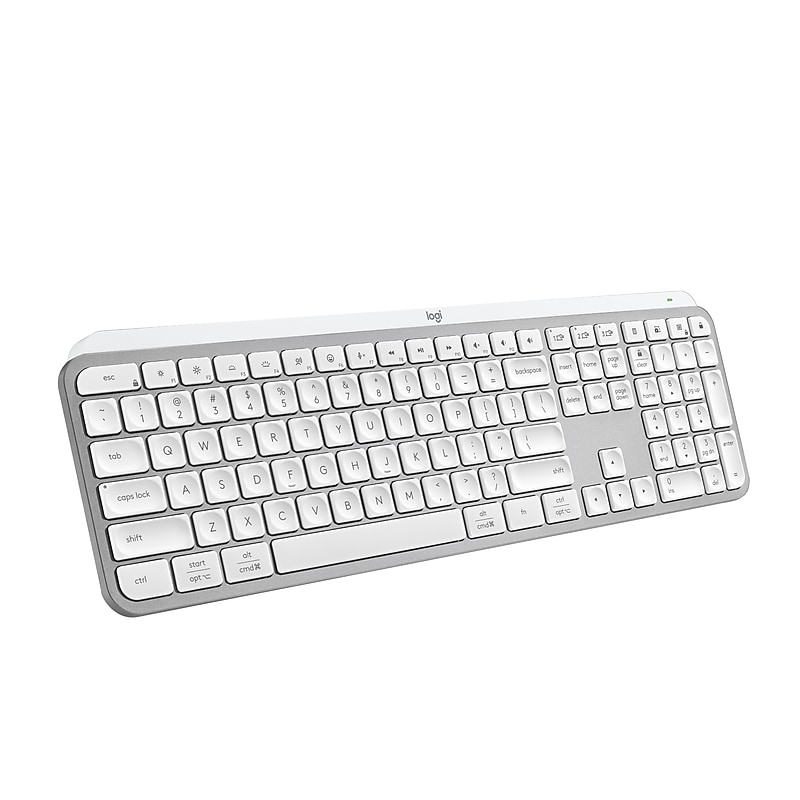
Logitech MX Keys S
Best OverallBuy if: you want the quiet, low-profile board most typing roundups crown, with keys that stay easy on the fingers all day
Don't buy if: you want a mechanical feel, or you need a split layout
The Logitech MX Keys S is the default recommendation because it gets the three things that matter right: the keys are low and light, the board is quiet, and the layout is full-size with a number pad. Each key has a shallow dish that centres your fingertip, which helps accuracy when you type fast without looking. It connects to three devices over Bluetooth or Logi Bolt, and the backlight turns on as your hands approach. Product Bible names it the best keyboard for typing overall, and lists it at $119.99.
Two things to know. A USB-C charge lasts about 10 days with the backlight on, or about five months with it off — so leave the backlight off if you hate charging. And the keys are scissor-switch, not mechanical, so if you love the feel of a real mechanical switch, the Q6 Max below suits you better. For most people who type for a living, this is the safe first buy.
Pros
- Low-profile keys stay easy on the fingers for hours
- Quiet enough for an open office or a call
- Spherically dished keys help fast, accurate typing
- Connects to three devices
- Named best overall by Product Bible
Cons
- Scissor-switch, not mechanical — no switch swapping
- Backlight drains the battery in about 10 days
- Full-size footprint needs desk space
- Costs more than budget membrane boards
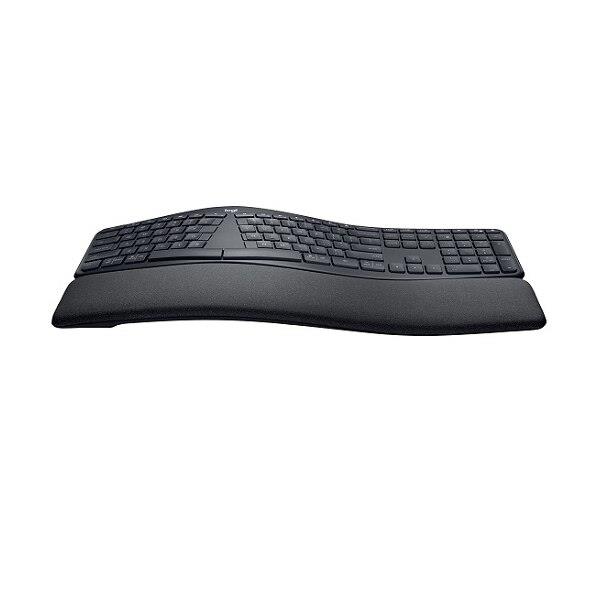
Logitech Ergo K860
Best ErgonomicBuy if: your wrists ache by lunch and you want the split curved layout most ergonomic roundups recommend first
Don't buy if: you want a mechanical feel, or your desk is narrow — this board is wide
The Logitech Ergo K860 is the easiest way into an ergonomic keyboard. The keys follow a gentle curve that rises in the middle, angling your wrists into a more natural position, with a built-in pillowed wrist rest and front legs that tilt the board away from you. The keys are quiet membrane, so it suits a shared room, and two AAA batteries last about two years. It connects over Bluetooth or a USB receiver, and it keeps the full-size layout with a number pad.
Know the trade. The learning curve runs one to two weeks — your speed drops at first, then comes back. The footprint is very wide, wider than most people expect, so measure your desk before you buy. And the keys are membrane, not mechanical: soft and quiet, with less feedback than the Keychron boards below. For aching wrists on a normal desk, it is the pick.
Pros
- Split curved layout keeps wrists straight
- Built-in pillowed wrist rest
- Quiet membrane keys suit shared rooms
- Full-size with a number pad
- About two years on two AAA batteries
Cons
- One to two weeks to get used to the shape
- Very wide — measure your desk first
- Membrane keys, not mechanical
- Heavier than a flat board at 1,160 g
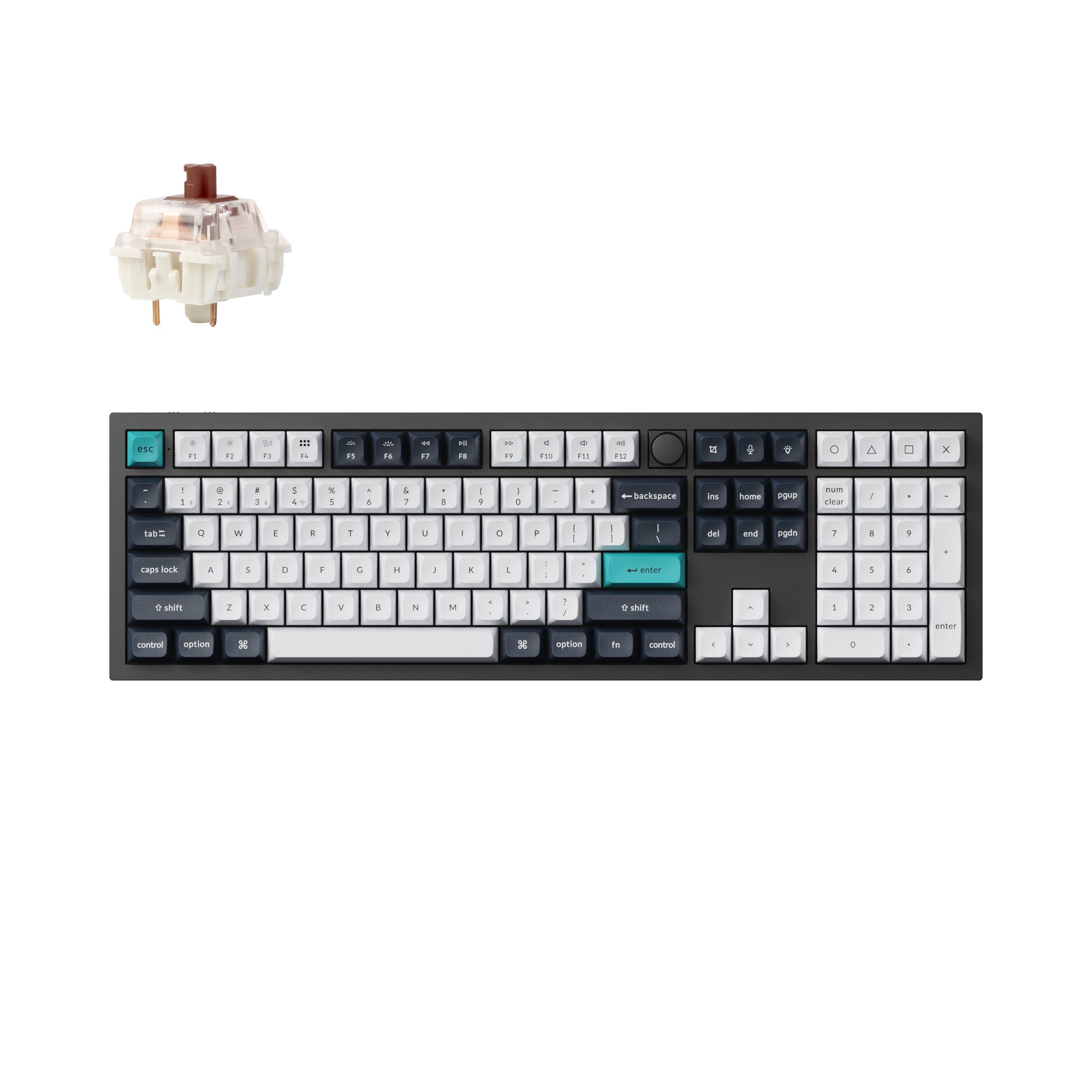
Keychron Q6 Max
Best Mechanical Full-SizeBuy if: you want a full-size mechanical board with a soft, cushioned feel and the freedom to swap switches
Don't buy if: you move your keyboard around — at 2,184 g it stays where you put it
The Keychron Q6 Max is the mechanical pick for long sessions. It is a full-size board in a CNC aluminium case with a double-gasket mount, hot-swappable Gateron Jupiter switches and layers of acoustic foam, so each press lands soft instead of jarring your fingers. It connects over 2.4 GHz, Bluetooth to three devices, or USB-C wired, with a 1000 Hz polling rate and a 4000 mAh battery rated up to 180 hours with the backlight off. The maker's store price was $211.99 in November 2026, down from $239.99, and mkbguide ranks it the best mechanical keyboard for typing overall.
Two things to know. It weighs 2,184 grams — this is a desk board, not a travel board. And the front height is 20.1 millimetres without keycaps, so pair it with a wrist rest if your wrists sit low. For writers and data-entry typists who want a mechanical board that stays gentle at hour six, it is the pick.
Pros
- Gasket mount and foam layers soften every press
- Hot-swappable — swap in lighter switches any time
- Full-size with a number pad and volume knob
- Up to 180 hours of battery with the backlight off
- Ranked best mechanical for typing by mkbguide
Cons
- Heavy at 2,184 g — not portable
- Tall front edge wants a wrist rest
- Premium price for a typing board
- Aluminium case shows fingerprints
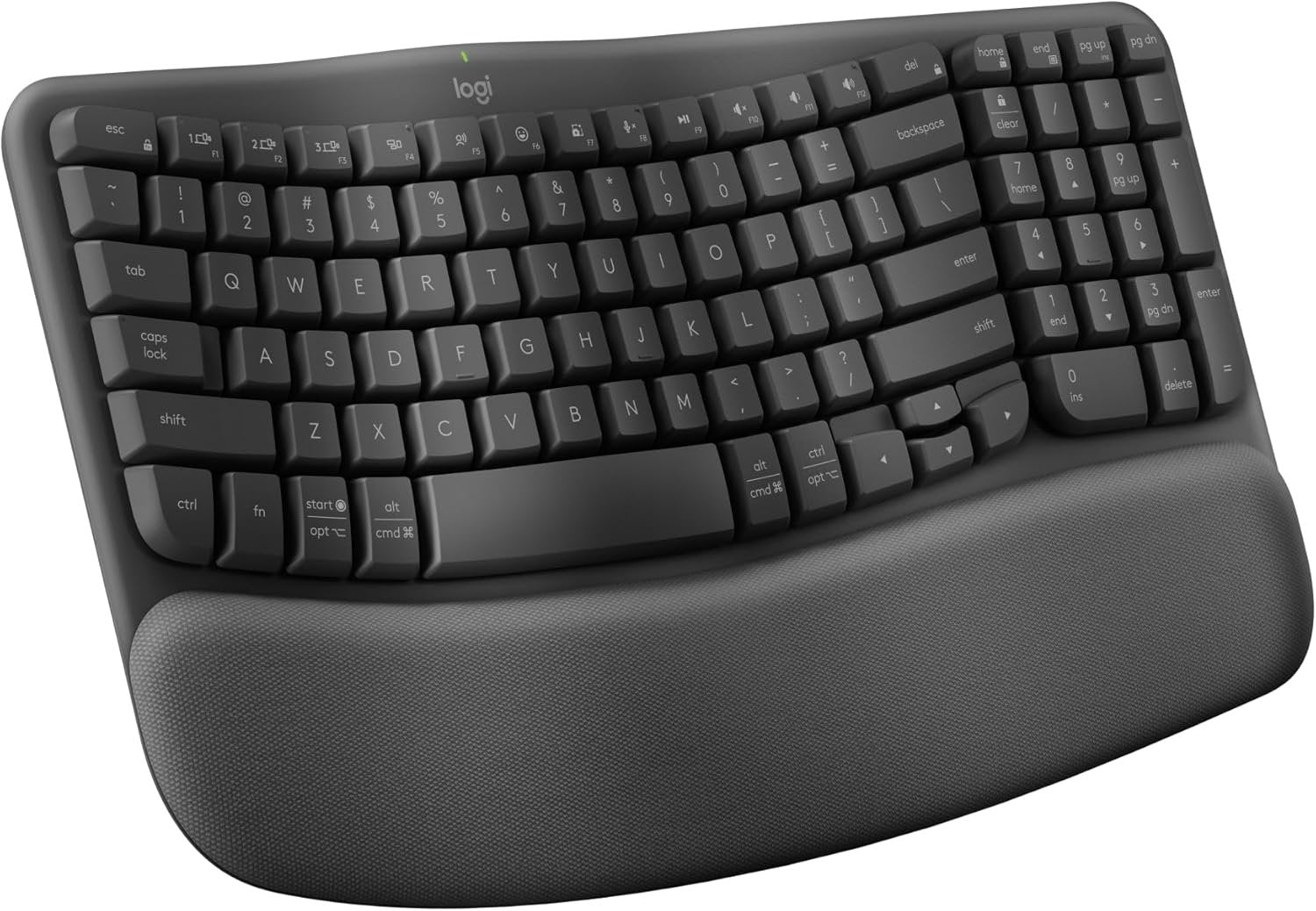
Logitech Wave Keys
Best Budget ComfortBuy if: you want most of the K860's comfort for far less money, with no learning curve to speak of
Don't buy if: you want a mechanical feel, or you need a split layout
The Logitech Wave Keys is the cheapest way to make long typing days easier. The keys follow a gentle wave that rises in the middle and curves around your hands, angling your wrists into a more natural position without a split or a steep learning curve. A built-in memory-foam palm rest supports your hands between bursts of typing. It connects over Bluetooth or Logi Bolt, and Product Bible lists it at $69.99 — about half the price of the K860.
The keys are softer and mushier than the MX Keys S, and the shape takes a few days to get used to. That is the whole trade: a membrane board with a clever shape, not a mechanical board with a clever switch. For a tight budget and aching wrists, it is the pick.
Pros
- Wave layout eases wrists without relearning to type
- Built-in memory-foam palm rest
- Quiet membrane keys
- About half the price of the K860
- Connects to three devices
Cons
- Softer, mushier keys than the MX Keys S
- Membrane, not mechanical — no switch swapping
- Takes a few days to get used to the shape
- No backlight
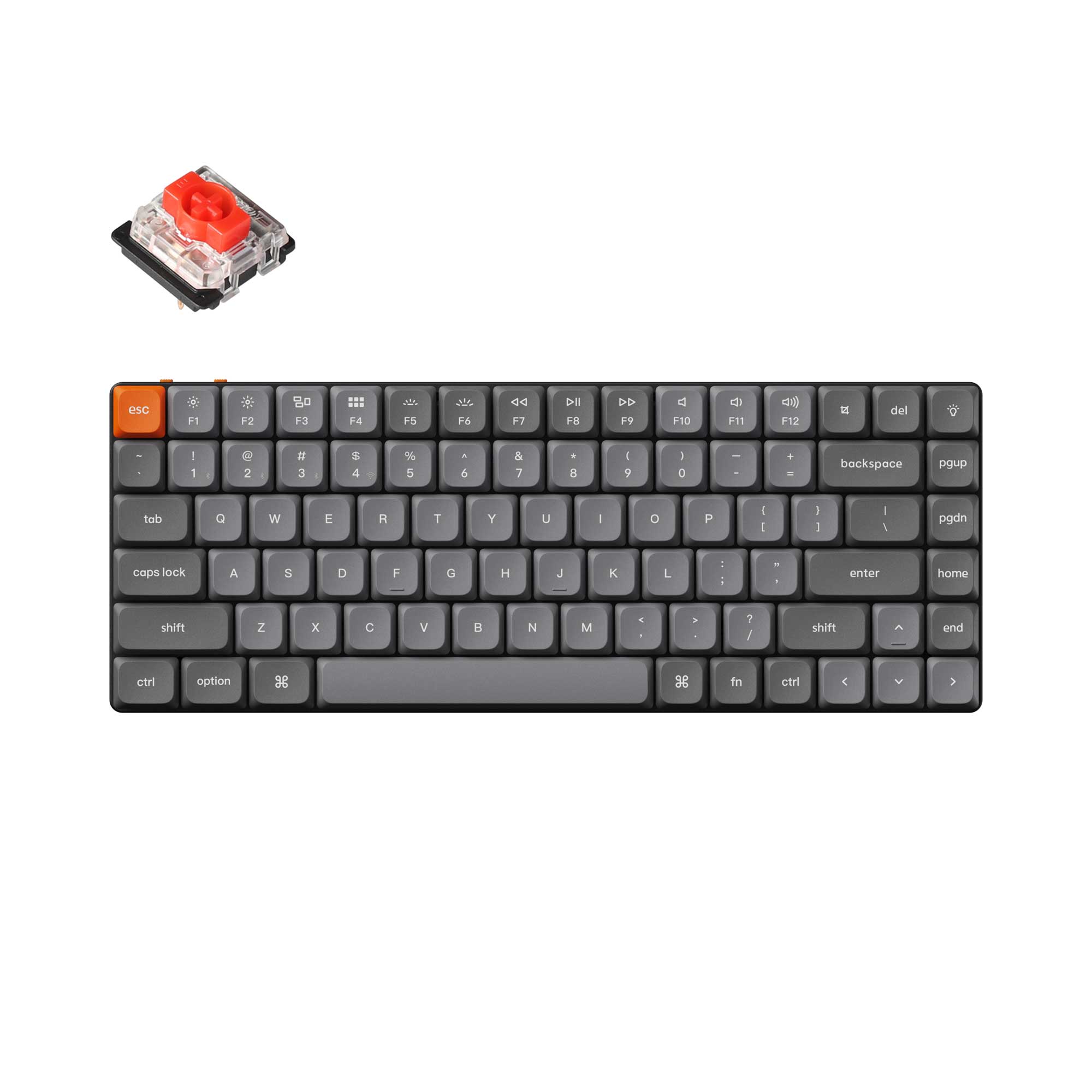
Keychron K3 Max
Best Low-Profile MechanicalBuy if: you want a mechanical feel in a slim board that keeps your wrists low and travels well
Don't buy if: you need a number pad, or you want deep key travel
The Keychron K3 Max is the low-profile mechanical pick. It is a 75 percent board — 84 keys, no number pad — just 17 millimetres tall at the front, so your wrists stay near level without a rest. It weighs 525 grams, connects over 2.4 GHz, Bluetooth to three devices, or USB-C wired, and the low-profile Gateron switches are hot-swappable. The 1550 mAh battery lasts up to 73 hours, and the maker's store price was $87.49 in November 2026, down from $109.99. Keychron's own writers' guide picks it as the best low-profile 75 percent board for writers.
Know the trade. Low-profile switches have short travel, so if you love deep, cushioned key presses, this board will feel shallow at first. And Keychron now sells newer versions — the K3 HE and K3 Ultra 8K — so check which one you are buying before you pay. For a slim mechanical board that fits in a bag and stays gentle on the wrists, it is the pick.
Pros
- 17 mm front height keeps wrists near level
- Light at 525 g — easy to carry
- Hot-swappable low-profile switches
- Three connection modes, three devices
- Picked for writers by Keychron's own guide
Cons
- No number pad — 75 percent layout
- Short travel feels shallow if you like deep keys
- Newer K3 HE and Ultra 8K versions may confuse buyers
- Battery lasts 73 hours, less than full-size boards
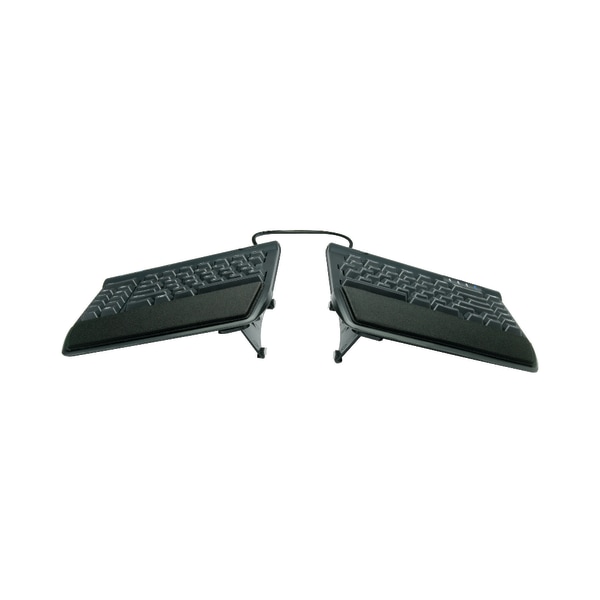
Kinesis Freestyle2
Best SplitBuy if: your shoulders are broad or your wrists angle inward, and you want each hand at its own width
Don't buy if: you want wireless, or you share the keyboard with someone else
The Kinesis Freestyle2 is the fully split pick. It separates into two halves joined by a cable, so you can set each hand at the width of your shoulders — up to 9 inches apart — instead of forcing both hands to meet in the middle. The keys are low-force membrane, about 45 grams, which keeps fingers light over long days, and optional tenting legs angle each half to keep palms upright. Product Bible lists it as the best split keyboard for typing, at about $94.
Two things to know. It is wired USB only — no Bluetooth, no battery. And a split board takes the longest to learn: give it two weeks of real work before you judge it. For broad shoulders or wrists that angle inward on every straight board, nothing else in this guide fits as well.
Pros
- Fully split — each hand at shoulder width
- Low-force keys near 45 g
- Tenting legs keep palms upright
- Named best split keyboard by Product Bible
- Simple, quiet membrane keys
Cons
- Wired USB only — no wireless
- Two weeks to get used to the split
- Membrane, not mechanical
- Takes more desk width than a straight board
How Do I Reduce Finger Fatigue While Typing?
Lighten your touch, float your hands, and rest for 30 seconds every half hour. The board helps — the technique does the rest.
To reduce finger fatigue while typing, follow these steps: 1. Lighten your touch and stop at the actuation point. 2. Float your hands and move from your elbows. 3. Take a 30-second break every half hour. 4. Lower your board or add a wrist rest.
Step by step, it goes like this. First, type lighter: press each key only until it fires, then lift. Most people press twice as hard as they need to, and the extra force is pure fatigue. Second, float your hands: keep your wrists off the desk and move from your elbows while you type. Third, every half hour, stop for 30 seconds, shake your hands out, and stretch your fingers wide. Fourth, fix the height: lower the board, fold the rear feet flat, or add a wrist rest so your wrists stay straight.
The mistake almost everyone makes is the second step in reverse: they rest their wrists on the desk edge and drag them around while they work. That bends the wrist and presses soft tissue into a hard edge at the same time — the exact strain a good setup removes. Float while you type. Rest between bursts.
One more thing worth trying before you buy anything: fold your keyboard's rear feet flat. Most boards ship with the feet up, which tilts the board toward you and bends your wrists back. Flat feet drop the front edge by a few millimetres, and for some people that alone ends the afternoon ache.
What If a New Keyboard Isn't Enough?
If the ache stays after two weeks with a well-chosen board, the shape of your desk setup is the next thing to change — not a pricier keyboard.
A keyboard fixes the keys. It does not fix a chair that is too low, a desk that is too high, or a mouse that twists your wrist sideways for eight hours. If your fingers still ache every day after two weeks with the right board, check your desk height first — it costs nothing. Sit with your elbow near 90 degrees and your forearm flat. If your desk is too high, your shoulder carries the typing arm all day, and no keyboard fixes that.
A wrist rest is the next cheap fix. Our wrist rest guide covers six picks matched to your board's height, with the rest-between-bursts rule most roundups skip. And if the ache is really in the wrist rather than the fingers, an ergonomic board is the step after that — our ergonomic keyboard guide covers six picks for wrist pain, with the honest adjustment plan.
Who Should NOT Buy a New Keyboard?
If you type for a couple of hours a day and your fingers never ache, don't buy one. A new keyboard solves a problem you don't have.
Here's the thing: most of the finger fatigue at a desk is a setup problem, not a keyboard problem. If your chair is too low, your desk is too high, or your keyboard sits a foot from your body, a new board papers over the cause. Fix the setup first — chair height, keyboard position, breaks — and the ache often goes on its own. Buy the board when the setup is right and the ache is still there.
Skip it too if you already own a good low-profile board and your fingers feel fine: the money is better spent on a better chair. And skip it if you type mostly on a laptop and like the keys — a laptop keyboard is already a low-profile scissor board, and a desktop board won't beat it for feel.
Buying Guide: What Actually Matters
After force and height, the four things worth your attention are layout, sound, connection and returns — in that order.
Force decides whether your fingers tire: aim for switches near 45 grams, tactile if you want feedback, linear if you have a light touch. Height decides whether your wrists stay straight: a front edge of 15 to 20 millimetres suits most people, and a wrist rest covers the rest. Layout decides whether the board fits your work: full-size if you use the number pad daily, tenkeyless if you want the mouse closer, 75 percent if your desk is small.
Sound decides whether the board fits your room: quiet switches for shared spaces, clicky only if you work alone. Connection decides whether the board fits your devices: Bluetooth for three devices, a 2.4 GHz receiver for the lowest lag, wired if you never want to charge. Three things not to overpay for: RGB lighting (it adds nothing to typing and drains the battery), "gaming" branding on a typing board, and a brand name on a board with the wrong height. And one thing to check before you buy: the return window. A keyboard needs two weeks of real work days to judge, so buy from a seller that gives you at least that long.
Keyboards to Skip in 2026
Heavy clicky gaming boards — a fine gaming board, and the wrong buy for long typing days. Clicky switches are loud, the keys are usually heavy, and the board is built for speed, not comfort. Buy it for games — don't buy it expecting gentle fingers at hour six.
No-name mechanical boards with no brand, no weight and no warranty — cheap for a reason. They flood low-quality roundups with inconsistent model names, stiff switches, hollow cases and no professional-review backing. The Keychron and Logitech picks above cover every budget with real verification behind them.
Ultra-cheap membrane boards with stiff rubber domes — the boards that cause the problem in the first place. A $15 membrane board needs a hard press on every key and gives no feedback on the way down. That is the fatigue this guide is trying to fix, not a bargain.
Mini 60 percent boards as a first typing board — small is not the same as comfortable. A 60 percent board drops the arrow keys and function row onto layers, which slows editing and revision work. Buy it as a second board for travel — not as the board you type on all day. Our compact keyboard guide covers the small boards that work.
The pattern is the same every time: a good product, recommended to the wrong hands — or the wrong shape entirely.
Frequently Asked Questions
What's the best keyboard for long typing sessions in 2026?
The Logitech MX Keys S for most typists. If you want a mechanical feel, get the Keychron Q6 Max; if your wrists ache, get the Logitech Ergo K860.
Is a mechanical keyboard better for long typing sessions?
Often, yes — if the switches are light. A tactile switch near 45 grams with a soft mount beats a stiff membrane board. A good scissor-switch board still beats a cheap mechanical one.
What switch is best for long typing?
A light tactile switch, around 45 grams, like Cherry MX Brown or Gateron Brown. It gives feedback without the hard bottom-out that tires fingers.
How do I stop my fingers getting tired while typing?
Type lighter, float your hands, and take a 30-second break every half hour. If the keys still feel stiff, switch to a lighter switch or a lower board.
Should I get a split keyboard for long typing sessions?
Yes, if your shoulders are broad or your wrists angle inward on a straight board. Give it two weeks — most people type slower at first.
Are low-profile keyboards better for long typing?
They help most people, because the lower front edge keeps wrists straighter. If you love deep key travel, a soft-mounted mechanical board can feel just as good.
How long does it take to get used to a new keyboard?
About one to two weeks of daily use. Judge it after two weeks, not two days — early slowness is normal, not a bad board.