1440p vs 4K for Gaming: Which Should You Buy in 2026?

You are staring at two monitor listings. One says 1440p and a huge refresh rate. The other says 4K and costs more. Every video you watched zoomed in on a leaf and called that proof.
Here's the thing: the leaf was never the question. Your graphics card, your screen size and the games you play decide this — and once you line those three up, the answer stops being close. This guide does that maths in plain words.
The short version: Buy 1440p if you play fast games, want high frame rates, or run a mid-range graphics card. Buy 4K if you play slower story games, sit close to a 32-inch screen, or read text on the same monitor all day. On a 27-inch desk setup, 1440p is the safer buy for most players.
What Is the Difference Between 1440p and 4K?
1440p vs 4K for gaming refers to choosing between a 2560 × 1440 screen and a 3840 × 2160 screen. The 4K screen packs 2.25 times as many pixels, so it looks sharper but asks far more of your graphics card. Screen size, frame rate and budget decide the winner.
Whether 1440p or 4K is better for gaming depends on your screen size, your graphics card and the frame rate you want to hold. A 4K frame carries 2.25 times the pixels of a 1440p frame, so native 4K costs far more GPU power for a sharpness gain you notice most up close.
How much sharper 4K looks than 1440p depends on how big the screen is and how close you sit. According to ASUS, a 32-inch 4K monitor packs more pixels into each inch than a 27-inch 1440p monitor, which is why 4K earns its keep on larger screens and in work that mixes text with games.
Pixels cost frames.
Resolution just means how many pixels — the tiny dots that build the picture — fit across and down the screen. A 1440p screen, also called QHD, holds 2560 across and 1440 down, which is about 3.7 million dots in every frame. A 4K screen, also called UHD, holds 3840 across and 2160 down, which is about 8.3 million dots. Your graphics card has to draw every one of those dots, every frame, which is why the jump from 1440p to 4K is a performance decision first and a picture decision second.
Sharpness per inch matters more than the headline number. On a 27-inch screen, 1440p works out to about 109 pixels per inch and 4K to about 163. Stretch both to 32 inches and 1440p drops to about 93 while 4K holds about 140 — that drop is where 1440p starts to look soft, and it is the single best reason to pay for 4K.
Can You Actually See the Difference at 27 Inches?
Yes, but it is a small step, not a leap. At 27 inches from a normal desk distance, 4K text and distant detail look cleaner. In a fast game, mid-fight, most players stop noticing within minutes.
How hard 4K pushes a graphics card drops sharply once upscaling is switched on. According to NVIDIA's documented DLSS scales, Quality mode at a 4K output renders the game internally at 2560 × 1440 and rebuilds the rest, so a mid-range card can feed a 4K screen without drawing every pixel natively.
1440p vs 4K: 1440p is better suited for fast, competitive games because it holds high frame rates on mid-range graphics cards. 4K works better when you play slower story games, sit close to a large screen, or read text all day. The key difference is pixels traded for frames.
Distance hides pixels.
Your eyes resolve fine detail only so far. Sit two to three feet from a 27-inch screen and the 1440p-to-4K step shows up most in text, menus and far-off scenery, not in the middle of a firefight where your eyes track movement instead. Or maybe I should say it this way: 4K rewards the pauses in a game — the vista, the inventory screen, the cutscene — far more than the action.
Work changes the answer. A 4K screen set to 150% scaling gives you the same desk space as a 1440p screen, with sharper letters on top. If the monitor earns its keep in documents and code all day and games at night, that sharper text is a daily win, not a spec-sheet trophy. Our 4K gaming monitors guide ranks the screens that pull off both jobs.
Size flips it again. At 32 inches, 1440p text starts to look grainy up close, while 4K stays clean. If you want the bigger panel, buy the pixels to match it — our 1440p gaming monitors guide explains where each size starts to strain.
How Much FPS Do You Lose Going From 1440p to 4K?
Roughly half, at native settings, in games where the graphics card is the limit. A card holding 120 FPS at 1440p often lands near 60 to 70 FPS at native 4K in the same game, because every frame carries 2.25 times the pixels.
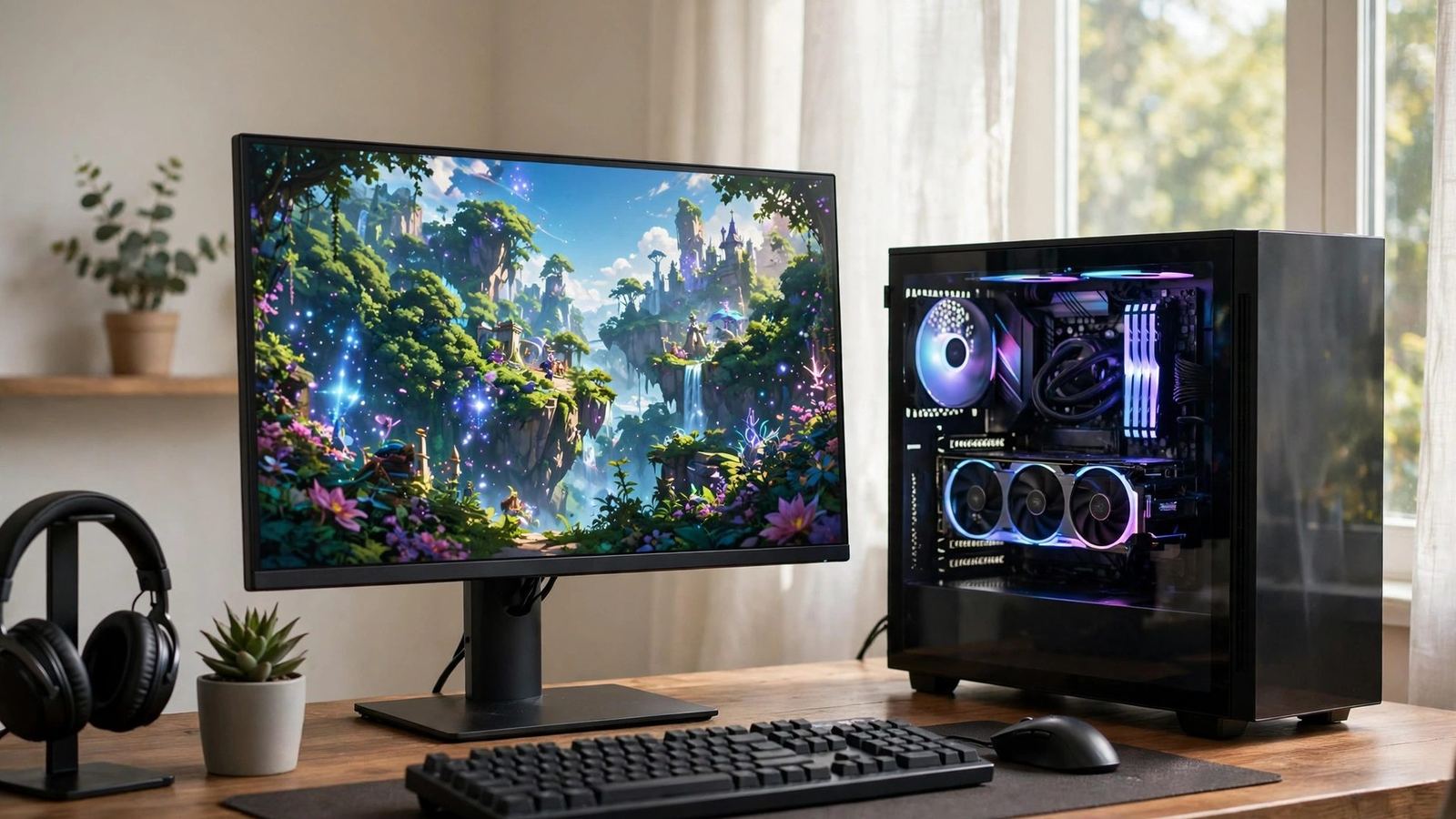
I've seen conflicting data on the exact size of the drop — some tests show a 40% loss, others show 55% or more. The spread comes from the game, the settings and whether upscaling was on, so no single number fits every setup. My read is simple: plan on losing about half your frames at native 4K, then treat anything better as a bonus your specific games gave you.
Check your own numbers first.
Your graphics card tier tells you which side of the line you live on. Mid-range cards run 1440p at high frame rates with room to spare, then lean on upscaling to survive 4K. High-end cards handle native 4K well, and only flagship cards feed high-refresh 4K without help. If your card already struggles at 1440p, a 4K screen will not fix that — our graphics cards guide matches card tiers to each resolution.
One trap catches buyers every year: a 4K monitor does not make a weak card faster. It makes the same card work 2.25 times harder per frame. Buy the screen your card can feed today, or budget for both upgrades together.
Does 4K Add Input Lag?
No — the resolution itself adds no display lag. What feels like lag at 4K is the lower frame rate that comes with it. Fewer frames per second means each frame sits on screen longer, so your inputs land later.
Frame time is the maths underneath. At 60 FPS a new frame arrives every 16.7 milliseconds. At 144 FPS one arrives every 6.9 milliseconds. Hold the same locked frame rate at both resolutions and the delay is the same — the screen is not slower, the frames are just further apart when your card cannot keep up.
Frames carry the delay.
Look — if your aim feels heavy after a move to 4K, here's what actually works: check the frame rate before you blame the monitor. If it fell by half, the resolution cost you frames, and the frames cost you response. Our guide on fixing input lag on PC walks the full chain, and raising your FPS is often the cheaper fix.
Which Is Better for Competitive Games vs Story Games?
1440p for competitive games, 4K for story games. Fast shooters reward frame rate and refresh rate, where 1440p screens run far past 240Hz. Slow, scenic games reward detail, where 4K sharpness has time to show.
Refresh rate is how many times per second the screen can show a new frame. The fastest 1440p gaming screens push toward 360Hz and beyond — our 540Hz monitors guide covers that end of the market — while 4K gaming screens top out lower. A refresh rate your card cannot reach is decoration, so match the screen to the frames you actually hold.
Speed beats sharpness in a duel.
Story games flip the trade. In an open-world game you stop, look around and read the scenery, and that is exactly where extra pixels pay off. If most of your hours go to single-player games on a big screen, 4K earns its price — start with our OLED monitors guide if contrast matters as much as sharpness.
One honest opinion: most players who buy 4K for competitive shooters end up lowering settings until the picture looks like 1440p with extra steps. Buying the 1440p screen and running it natively is the cleaner version of the same result. Our FPS monitors guide ranks the fast end.
Does Upscaling Make 4K Worth It on a Mid-Range GPU?
Often, yes. Upscaling tools like DLSS and FSR draw the game at a lower resolution, then rebuild a 4K picture from it. At 4K output in Quality mode, the game renders at 1440p internally — so your card does 1440p work for a near-4K picture.
That rebuild is why 4K looks better with upscaling than the raw numbers suggest. With so many output pixels to fill, the reconstruction has plenty to work with, and modern versions of these tools keep fine detail steadier than the blurry scalers of the past. ASUS notes that DLSS 4's newer model upscales to 4K with little visible loss in many games.
Upscaling is not magic.
It has limits you should know before you buy. Fast-moving thin objects — fences, wires, distant railings — can shimmer, and games without DLSS or FSR support fall back to native rendering. Frame generation is a different tool again: it inserts invented frames and can add delay, so it is no fix for a card that cannot hold a playable base rate.
The fair way to judge it: if your favourite games support upscaling, a mid-range card plus a 4K screen is a real option. If they do not, you are buying native 4K performance whether you planned to or not.
Is 1440p or 4K Better for PS5 and Xbox?
4K is the simpler match for PS5 and Xbox Series X, since both target 4K at up to 120Hz over HDMI 2.1. A 1440p screen still works on PS5, but you must check two conditions first: 1440p support at 60Hz or 120Hz, and an HDMI 2.1 display for VRR.
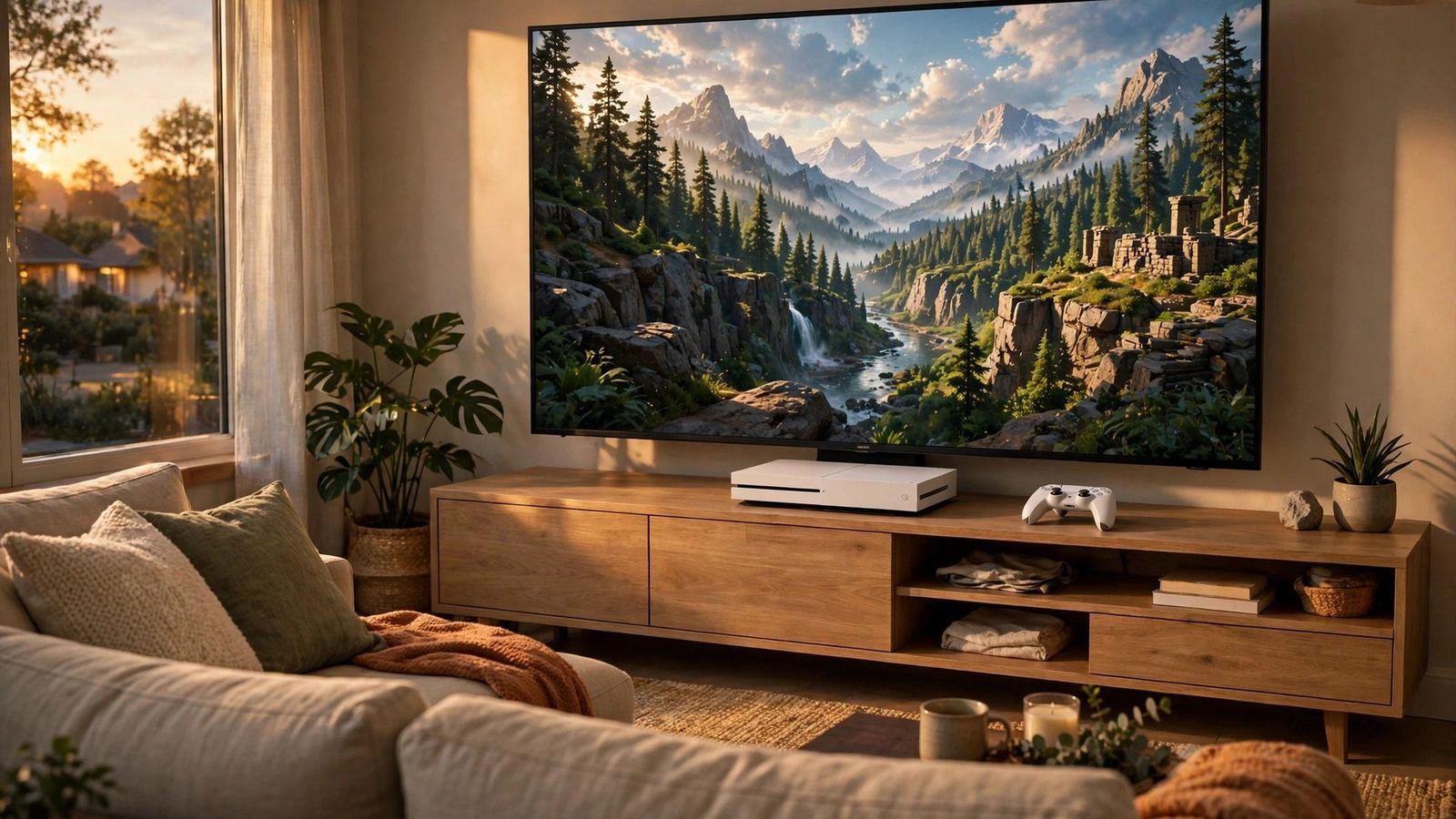
According to PlayStation, PS5 1440p output needs a TV or monitor that supports 1440p at 60Hz, or at 60Hz and 120Hz, and VRR needs an HDMI 2.1 VRR display. The console includes a built-in 1440p output test, so you can confirm your screen works instead of guessing from the box.
Consoles cap at 120Hz.
That cap changes the maths. A 240Hz PC monitor runs at 120Hz on a console, so console players gain nothing from refresh rates past 120Hz. What they gain from 4K is a direct match: the console outputs 4K, the screen shows 4K, and no scaling step sits between them. Our PS5 monitors guide lists screens that pass every console check.
On a TV across the room, the gap shrinks again. From a sofa, fine detail fades with distance, and frame rate plus VRR smoothness matter more than the last step in sharpness. If your screen tears or stutters, our screen tearing guide covers the VRR side, and the gaming TVs guide ranks the big-screen options.
How Do I Choose Between 1440p and 4K?
Start with the frame rate your graphics card holds today. If it holds high rates at 1440p, stay there and buy refresh rate. If it is a high-end card and you want a 32-inch screen, buy 4K.
To choose between 1440p and 4K, follow these steps: 1. Check the frame rate your graphics card holds now. 2. Match the screen size to your desk distance. 3. Pick high refresh for fast games. 4. Pick 4K for large screens and story games. 5. Test upscaling before you upgrade anything.
- Check your current frame rate. Turn on your game's FPS counter in real gameplay, not a menu. That number is your budget — native 4K spends about half of it.
- Match size to distance. At 27 inches on a desk, 1440p stays clean. At 32 inches up close, 1440p text turns grainy and 4K earns its keep.
- Pick refresh for fast games. Competitive shooters reward frames you can hold, so a 1440p screen with a high refresh rate beats a 4K screen your card starves.
- Pick 4K for story and work. Slow scenic games, big screens and all-day text all reward the extra pixels, and a high-end card can feed them.
- Test upscaling first. Switch on DLSS or FSR Quality in your main games. If the picture holds up, a 4K screen stays on the table even with a mid-range card.
Here is the side-by-side view:
| What matters | 1440p (2560 × 1440) | 4K (3840 × 2160) |
|---|---|---|
| Pixels per frame | About 3.7 million | About 8.3 million (2.25×) |
| Sharpness at 27 inches | About 109 pixels per inch | About 163 pixels per inch |
| Sharpness at 32 inches | About 93 pixels per inch | About 140 pixels per inch |
| Native frame rate | High rates on mid-range cards | Roughly half, same card and settings |
| Refresh rate ceiling | 360Hz and beyond | Lower, tops out sooner |
| Best games | Fast, competitive titles | Slow, scenic story games |
| Text and work | Clean at 27 inches | Sharper text, same workspace at 150% scaling |
| PS5 and Xbox | Works on PS5 with checks; capped at 120Hz | Direct match for 4K 120Hz over HDMI 2.1 |
| Graphics card needed | Mid-range is enough | High-end, or mid-range with upscaling |
Buy for the frames you hold, not the frames in the advert. A 1440p screen running at its full refresh rate looks and feels better than a 4K screen running at half its promise.
Your card decides.
Frequently Asked Questions
Is 4K worth it over 1440p for gaming?
Yes if your graphics card can feed it and you play story games or use a 32-inch screen. No if you chase high frame rates on a mid-range card, where 1440p runs faster for less.
Can you tell the difference between 1440p and 4K at 27 inches?
Yes, mostly in text and distant detail. In fast gameplay at a normal desk distance, the gap is small, and most players stop noticing it once the action starts.
How much FPS do you lose going from 1440p to 4K?
Roughly half at native settings when the graphics card is the limit. A game at 120 FPS in 1440p often lands near 60 to 70 FPS at native 4K on the same card.
Does 4K add input lag?
No. Resolution adds no display lag by itself. Lower frame rates make each frame stay on screen longer, and that longer frame time is what feels like added lag.
What GPU do I need for 4K gaming?
A high-end card for native 4K at high settings. A mid-range card can still feed a 4K screen if your games support DLSS or FSR upscaling in Quality mode.
Should I get 1440p 240Hz or 4K 144Hz?
Pick 1440p 240Hz for competitive games and mid-range cards. Pick 4K 144Hz for story games, big screens and high-end cards that can hold those frame rates.
Does the PS5 support 1440p?
Yes. The screen must support 1440p at 60Hz, or 60Hz and 120Hz, and VRR needs an HDMI 2.1 VRR display. The PS5 includes a built-in 1440p output test.