How to Fix Stick Drift on PS5 (2026 Guide)

Your character walks left when you are not touching the stick. Your camera creeps sideways in menus. Your aim drifts off target for no reason you can see. That is stick drift — and on PS5 it is a hardware problem wearing a software disguise, which is why so many guides waste your time with the wrong fixes.
The honest verdict up front: start with a 10-minute clean, reset, and test. If your controller is under a year old, claim the warranty before you open anything. Cleaning can buy you months, but it cannot un-wear a stick — the only permanent fix for a worn stick is replacing the stick module. Everything below follows that order, so you do not spend money fixing the wrong thing.
Is It Really Stick Drift, or Something Else?
Test outside a game first: if the stick moves on its own in the PS5 home menu, with your hands off the controller, it is drift. If it only happens in one game, it is probably that game's settings, not your controller.
Drift is the stick reporting movement you did not make. Three lookalikes get mistaken for it constantly:
- A game setting. A tiny dead zone, a sensitive aim curve, or a camera setting can make a healthy stick feel twitchy. If a second game feels fine, your controller is fine.
- Input lag. Lag is delay — you press, and the result arrives late. Drift is movement with no press at all. If offline play feels late rather than self-moving, read our input-lag guide instead.
- A physical stick fault that is not drift. A stick that catches, squeaks, or does not spring back to centre has a spring or cap problem. Cleaning rarely fixes that; it needs a part, not a wipe.
Run this 2-minute diagnosis before touching anything else: put the controller on a flat surface, hands off, and watch the PS5 menu. Then try a second game, and if you have one, a second controller. If the same stick misbehaves in menus, in two games, and no other controller does it, you have confirmed drift. A PC gamepad tester — a browser tool that shows raw stick position — can confirm it too: a healthy stick rests at centre, a drifting one sits off-centre or wanders while untouched.
What Actually Causes Stick Drift?
Wear, not age on a calendar. The DualSense stick reads position with a potentiometer: a small wiper slides across a resistive carbon track as you push the stick. Every push wears that track a little, and the wear sheds conductive dust onto the contacts. Eventually the sensor reports a position the stick is not actually in — and the console, quite reasonably, moves your character.
That is why drift tracks hours and pressure, not months owned. A controller played dozens of hours a week in shooters will wear faster than one used for an occasional single-player session, and why dust, crumbs, and grime around the stick base make it worse: debris adds false readings on top of the wear. It is also why drift is not a fault you caused by dropping the controller once, and why it affects every modern controller design that uses the same potentiometer sticks — it is a wear mechanism, not a PS5-only curse.
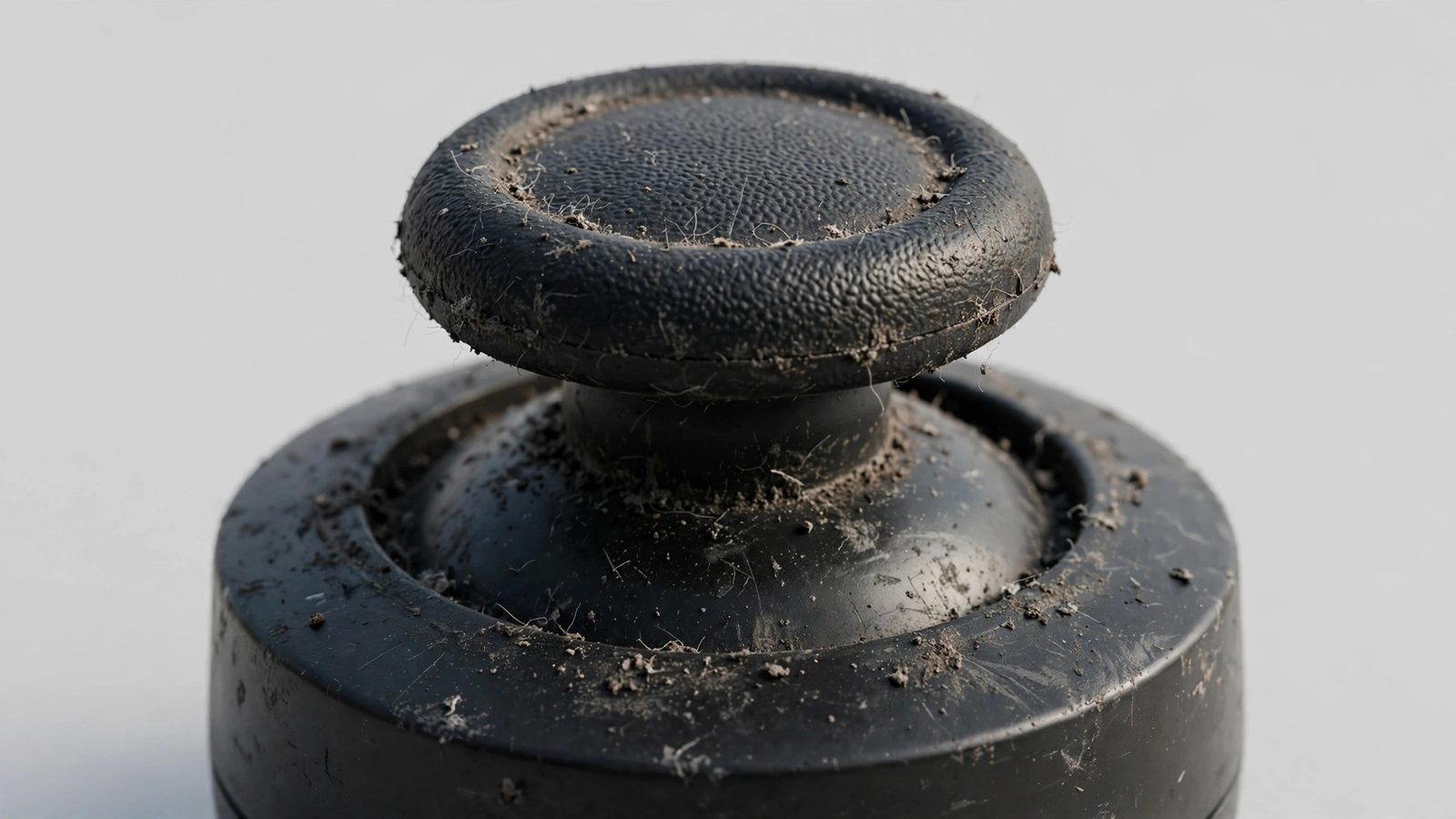
Understanding the cause changes the fix. Anything that only removes dust — compressed air, a swab, contact cleaner — can only help while dust is the problem. Once the carbon track itself is worn through, no amount of cleaning restores it. That distinction is the whole article: clean first, because dust is cheap to rule out, but do not keep cleaning a worn stick and expecting a different result.
What Should I Try First?
Do the free, warranty-safe steps in this order — they rule out software and connection glitches before you blame hardware.
- Reset the controller. Find the small pinhole button on the back, near the L2 trigger. With the controller off, press and hold it for about 5 seconds with a paperclip, then reconnect with a USB-C cable and press the PS button to re-pair.
- Update the firmware. Connect via USB, then go to Settings → Accessories → Controller (General) → DualSense Wireless Controller Device Software and install any update. Firmware will not fix a worn potentiometer, but it can fix input-handling glitches, and it costs nothing to rule out.
- Test wired. Play a few minutes over USB. If drift vanishes wired but returns on Bluetooth, you have a connection problem, not stick wear — re-pair cleanly and move interference sources (routers, USB 3.0 devices) away from the console.
One warning about a fix you will see recommended everywhere: there is no built-in stick-calibration menu on PS5 for a standard DualSense. Guides pointing you to a PS5 "Adjust Stick Calibration" menu are describing something that is not there — or a third-party PC tool. Do not chase a menu that does not exist, and do not run a web calibration tool on a worn stick without understanding it: calibrating around worn hardware can mask the problem temporarily and, once saved, is not a simple undo. Diagnosis with a tester is useful; calibration as a cure is not.
How Do I Clean a Drifting Stick Without Opening It?
Power the controller off first, work gently, and let everything dry fully before you test. External cleaning will not void your warranty; opening the shell will, so this whole section stays on the safe side of that line.
- Compressed air. Hold the can upright and give short bursts around the stick base while tilting the stick to expose the gap and rotating it slowly. Keep bursts short and the can upright — tilting it can spray liquid propellant instead of air, and blasting straight in can push dust deeper rather than out.
- Isopropyl alcohol swab. Lightly dampen a cotton swab with isopropyl alcohol — moist, never dripping — and wipe around the stick base while rotating the stick in full circles. Let it dry completely before powering on. Do not pour or spray liquid into the controller, and keep it away from buttons and ports.
- Electronic contact cleaner (optional, careful). If air and a swab do not help, a short spray of quick-drying, plastic-safe electronic contact cleaner under the stick's rubber skirt, followed by working the stick in circles for about 30 seconds and drying for 10–15 minutes, is the strongest closed-shell clean. Use a product made for electronics only — never regular WD-40 or a household lubricant, which can damage components and attract more grime.
Test after each step, not after all three at once, so you know what actually helped. If cleaning fixes it, expect relief measured in months rather than forever — and expect each repeat clean to last a little less as the track wears further. That is your signal: when you are re-cleaning every few weeks, the module is worn out, and it is time for the permanent-fix section below.
| Fix | Time | Warranty-safe? | What it actually fixes |
|---|---|---|---|
| Reset + re-pair + firmware | ~10 minutes | Yes | Software and connection glitches |
| Compressed air + swab clean | ~10 minutes | Yes | Dust and debris false readings |
| Contact cleaner under the skirt | ~20 minutes with drying | Yes, if used sparingly | Conductive dust on the sensor |
| Dead-zone increase (per game) | ~2 minutes | Yes | Hides mild drift; does not repair it |
| Warranty claim | Days to weeks with shipping | Yes — do this first if covered | Faulty controller, replaced or repaired |
| Stick module replacement | ~1 hour DIY, or a repair shop visit | No — voids warranty if opened | Worn potentiometer, permanently |
Can I Hide Stick Drift With a Dead Zone?
Yes, for mild drift — and it is the best short-term fix there is, as long as you treat it as a workaround, not a repair. The dead zone is the small area around the stick's centre where input is ignored. Widening it slightly means the stick's stray readings fall inside the ignored zone, so your character stops moving on its own.
On a standard DualSense there is no system-wide dead-zone setting on PS5 — you set it per game, usually under controller or aim settings in titles like Call of Duty, Fortnite, and Apex Legends. Raise the inner dead zone one notch at a time and stop as soon as the drift disappears while the controller sits untouched. Do not keep going: every extra step makes the first part of stick movement feel mushy and hurts fine aim. DualSense Edge owners have it easier, with system-level dead-zone profiles that apply everywhere.
Be honest with yourself about what this costs. The wear underneath continues, so drift will slowly grow past whatever dead zone you set. A dead zone that buys you months of playable casual games is a win; a dead zone so large that aiming feels dead is a controller telling you it needs a real repair.
Will Sony Fix Stick Drift for Free?
Yes, if the controller is within its one-year warranty — and that is the step to take before any repair that involves opening it. Sony's limited warranty for the DualSense covers defects in materials and workmanship for one year from purchase for the original purchaser, and drift caused by a faulty stick falls under that. You will need proof of purchase and the controller's serial number (on the back label), and you start the claim through PlayStation support — do not send anything in without a return authorisation.
Two things catch people out. First, opening the shell voids that warranty, so every warranty-safe fix in this guide comes before the repair section for a reason. Second, unlike Nintendo's Joy-Con programme, Sony has no standing free repair programme for out-of-warranty drift — once the year is up, a Sony repair is a paid service, so check the current fee at claim time rather than assuming it is free. If you are in warranty, use it: it is the only option that is both free and permanent.
If you bought the controller second-hand or cannot prove the purchase date, the warranty path may be closed to you even inside the year — in that case, skip straight to professional repair or DIY, and weigh those against a new controller in the next section.
What Is the Permanent Fix?
Replace the worn stick module — or, for DualSense Edge owners, swap the module without soldering. There is no software update, cleaning routine, or calibration that restores a worn carbon track. Replacing the part that wore out is the fix, and it comes in three forms:
- DualSense Edge module swap (no soldering). The Edge's stick modules are designed to be removed and replaced by the owner. If you already own an Edge, this is the easiest permanent repair in console gaming: swap the drifting module, keep playing. Note that Sony's stock Edge modules use the same potentiometer design, so a swap restores the controller rather than making it drift-proof.
- Standard DualSense module replacement (soldering required). The stick module is soldered to the board, so replacement means opening the controller, desoldering the old module, and soldering in a new one — roughly an hour for a first-timer with the right tools, and a real risk of board damage if done badly. Follow a reputable teardown guide (iFixit's DualSense guides are the usual reference) and do not attempt it on a controller still in warranty.
- Hall effect or TMR upgrade (the drift-resistant option). Hall effect and TMR sticks read position magnetically, with no wiper scraping a carbon track — so there is nothing to wear out in the same way. Third-party Hall effect / TMR modules for the DualSense (and for the Edge) are the closest thing to a drift-proof repair, at the cost of the same soldering work on a standard controller. For competitive players who wear through sticks regularly, this is the upgrade worth doing once, properly, rather than repeating potentiometer swaps.
A local electronics repair shop will do the standard swap for you if soldering is not your thing — get a quote first and compare it with a new controller, because the maths is the whole decision. A repair that costs most of a new controller only makes sense if the rest of your controller (battery, buttons, triggers) is still in great shape.
When Should I Just Buy a New Controller?
Buy new when the controller has more than one problem, or when repair costs approach replacement. That is the honest threshold, and it is more common than repair guides admit:
- The battery no longer holds a charge, a trigger sticks, or a button is failing as well as the drift — you are repairing a controller that is wearing out in several places at once.
- A professional repair quote lands close to a new DualSense, and your controller is already heavily used — a fresh stick on a tired battery is a short-term win.
- You need the controller back immediately for a tournament or a session, and a warranty or repair turnaround of days to weeks is not acceptable — buy new now, repair the old one later if you want a spare.
Keep the old controller either way. A drifting controller is still repairable later, and it is worth more as a future repair project — or as a second player pad after a module swap — than in the bin. Recycle it through an electronics programme if you genuinely will not repair it.
How Do I Stop the Next Controller Drifting So Soon?
You cannot prevent wear entirely — but you can slow it measurably. The levers are the same ones that cause drift in the first place:
- Store it clean and covered. Dust is the part of drift you control. Keep the controller out of bags full of crumbs, wipe the stick bases monthly if you play daily (every few months for light use), and clean it straight away after eating or playing in a dusty room.
- Ease off the thumbs. Constant heavy pressure, resting your thumbs on the sticks when you are not playing, and aggressive stick-clicking all wear the track faster. It will not ruin your game to play lighter — it will extend the stick's life.
- Buy for your drift history. If you have killed two standard controllers this way, your next purchase decision is different: a DualSense Edge buys you tool-free module swaps, and a Hall effect / TMR controller or upgrade buys you the wear-proof sensor. Paying for the right design once beats replacing the wrong one repeatedly.
None of this makes a potentiometer stick immortal. It buys you time — and time, with a controller you actually like, is the whole point.
Frequently Asked Questions
Can you fix PS5 stick drift without opening the controller?
Often, yes — for dust-caused drift. Resetting and re-pairing, updating firmware, cleaning around the stick base with compressed air and an isopropyl swab, and widening the in-game dead zone are all warranty-safe and need no tools. They cannot fix a worn carbon track, so if drift returns within weeks, the stick module itself needs replacing.
Does cleaning permanently fix stick drift?
No. Cleaning removes the conductive dust that causes false readings, but the physical wear that produces that dust continues. Expect a cleaning fix to last months rather than forever, with each repeat lasting a little less. When you are cleaning every few weeks, the module is worn out and replacement is the permanent fix.
Will Sony fix stick drift for free?
Only within the one-year limited warranty, for the original purchaser with proof of purchase. Sony repairs or replaces a faulty controller in that period, but it has no standing free repair programme for out-of-warranty drift, unlike Nintendo's Joy-Con programme. Do not open the controller before claiming, or you void the warranty.
Is there a stick calibration setting on PS5?
No, not for a standard DualSense. PS5 has no built-in stick-calibration menu, despite guides pointing to one. Dead zones are set per game (or system-wide on a DualSense Edge), and third-party PC calibration tools should be treated with care on worn sticks, since saved calibration can mask wear rather than fix it.
What is the best permanent fix for stick drift?
Replacing the worn stick module. On a DualSense Edge that is a tool-free module swap; on a standard DualSense it requires soldering, or a repair shop. Upgrading to Hall effect or TMR modules, which read position magnetically with no wearing contact, is the most drift-resistant permanent fix.
Does a bigger dead zone fix stick drift?
It hides mild drift, it does not fix it. Raise the inner dead zone one notch at a time until the drift stops while the controller is untouched, then stop — a larger dead zone makes aiming feel mushy. The wear underneath continues, so a growing dead zone is a sign the controller needs a real repair.
How do I know if it is drift or a game setting?
Test outside games. If the stick moves on its own in the PS5 home menu, in a second game, and on no other controller, it is drift. If it only happens in one game, check that game's dead-zone and sensitivity settings first. A browser gamepad tester showing a stick resting off-centre while untouched confirms hardware drift.