Best Webcam with Privacy Shutter (2026): 6 Picks

The call ended. The camera light did not.
You work from a bedroom desk, a shared flat, or a kitchen table that doubles as an office. You have tried tape, a sticky note, and the little plastic cover that fell off in your bag. The worry is simple: is that lens still open?
Best webcam with privacy shutter refers to a USB webcam with a built-in cover that blocks the lens by hand. The cover stays on the camera, so you can see it is closed without opening an app.
Every pick below has a shutter built into the camera body. Loose caps, magnetic covers and lens-down sleep modes sit in the skip section, where they belong. If you only need a general meeting camera, our online meetings guide is broader. This guide is stricter.
No prices are printed in this guide — webcam prices move often and listings change. Check the live price before buying. Specs below are the makers' own figures.
What's the Best Webcam With a Privacy Shutter?
For most desks, the Logitech MX Brio. It pairs a built-in shutter with 4K30, 1080p60, dual mics and clean low light.
The best webcam with a privacy shutter for most desks is the Logitech MX Brio. According to Logitech, it records 4K at 30 frames per second or 1080p at 60, uses dual noise-reducing mics, and has an integrated shutter you turn by hand. That mix covers calls, recordings and privacy without extra parts.
A webcam with a built-in privacy shutter is safer than a loose cap because the cover cannot fall off or get lost. According to Elgato, its Facecam Neo and Facecam MK.2 use built-in shutters, while the Facecam 4K shutter is sold separately. That small detail decides whether privacy is ready at call time.
Look — if you're in the spot where you're checking the camera light after every call and it's starting to wear you down, here's what actually works: a shutter you can see, on a camera you do not have to unplug.
Logitech MX Brio vs Logitech Brio 500: the MX Brio is better suited for recording and dim rooms because it adds 4K30 and a larger sensor. The Brio 500 works better when live calls are the main job and you want auto-framing for less. The key difference is headroom, not privacy.
Does a Privacy Shutter Mute the Microphone?
No. The shutter blocks the lens only. Your mic can still pick up sound until you mute it or unplug the camera.
A closed webcam privacy shutter blocks the lens, but it does not mute the microphone. The camera may still show a dark image if an app opens it, and the mic can still pick up sound. Close the shutter for video privacy, then mute the mic in the app or unplug the camera for full quiet.
I've seen conflicting data — some guides call the MX Brio a 4K60 camera, while Logitech's own specs list 4K30 and 1080p60. My read is simple: trust the maker on frame rates, and treat any 4K60 claim for this model as a listing error.
Here's the thing: privacy has two halves. The shutter handles sight. The mute button handles sound. A camera that does only one half still needs help from you.
My honest take: most people overbuy resolution and underbuy the shutter. A clear 1080p feed with a real cover beats a 4K feed you have to tape over. Our USB microphone guide covers the sound half if your room echoes.
Is a Built-In Shutter Better Than a Cap?
Yes. A built-in shutter stays on the camera, shows its state at a glance, and cannot fall off in a bag.
Built-in shutters come in three forms here. The MX Brio uses a dial on the lens ring. The Facecam MK.2 and Facecam Neo slide across the lens. The Anker C200 shows a red marker when closed, so you can read its state from across the desk.
Caps fail in boring ways. Magnetic covers stick to the wrong thing. Clip-on shades pop off when the camera moves. A separate cap is fine on a fixed desk, and weak everywhere else.
Or maybe I should say it this way: the best shutter is the one still attached at 9am on Monday.
Lens-down sleep modes sit in the middle. They point the lens away, which helps, but they rely on the camera moving and staying put. A hand-moved shutter needs no power and no app.
Do You Need 4K, or Is 1080p Enough?
1080p is enough for live calls. Buy 4K only if you record, crop your frame, or share desk work on camera.
Zoom, Teams and Google Meet cap live video at HD. Nobody on a normal call sees your full 4K feed. The spare pixels help when you crop, zoom, record a lesson, or tilt the camera down to show notes.
Frame rate matters more than the badge. A smooth 1080p60 feed looks better on calls than a choppy 4K30 feed in a dim room. Picks three and five lean on that point.
Field of view matters too. A tight 60-degree view hides the room behind you. A wide 95-degree view fits two people and half the flat. Solo desks should start tight.
Sensor size decides your worst calls. Big sensors stay clean after dark. Small sensors turn grainy under one ceiling bulb, whatever the box claims.
Quick Comparison
| Product | Best For | Key Specs | ||
|---|---|---|---|---|
| #1 | Logitech MX BrioBest Overall | Calls, recording, dim rooms | 4K30 / 1080p60 · dial shutter · dual mics · USB 3.0 | Check Price |
| #2 | Logitech Brio 500Best for Meetings | Daily Zoom and Teams calls | 1080p30 · integrated shutter · auto-framing · stereo mics | Check Price |
| #3 | Elgato Facecam MK.2Best 1080p60 Control | Headset users, manual control | 1080p60 uncompressed · slide shutter · HDR · no mic | Check Price |
| #4 | Anker PowerConf C200Best Value With Mics | Budget desks that need sound | 2K30 · sliding cover · 65/78/95° view · dual mics | Check Price |
| #5 | Elgato Facecam NeoBest Budget 1080p60 | Smooth motion on a budget | 1080p60 · easy-slide shutter · autofocus · no mic | Check Price |
| #6 | Logitech Brio 101Best Simple Budget | Basic calls, tight framing | 1080p30 · sliding shutter · fixed focus · USB-A | Check Price |
Read the shutter column first. Picks one, two, four and six include mics. Picks three and five need a headset or desk mic.
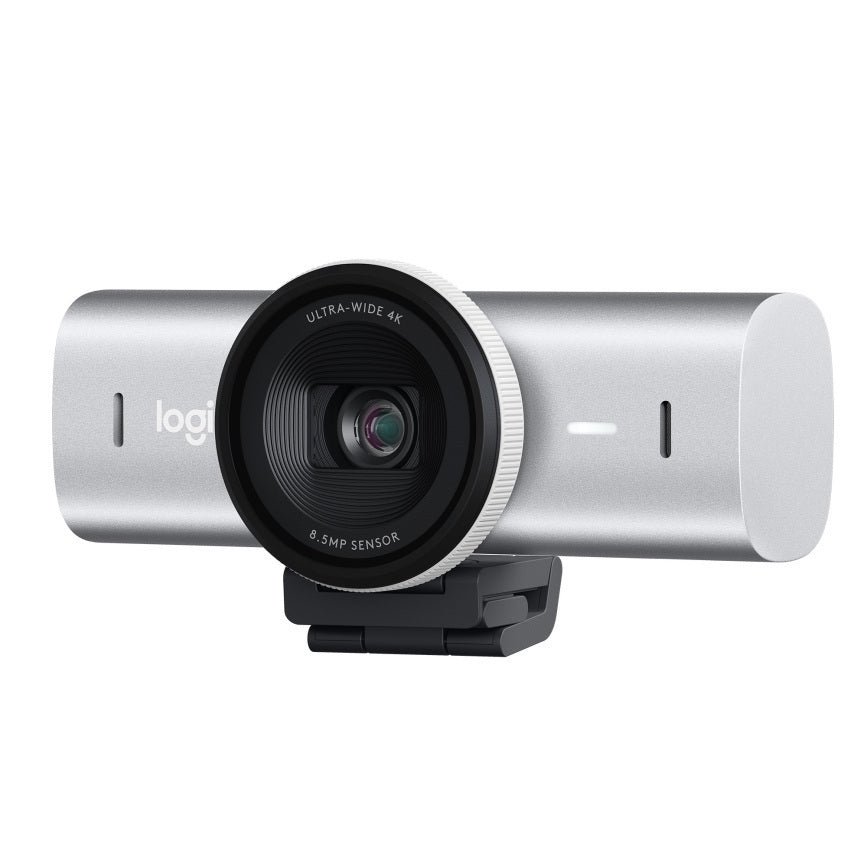
Logitech MX Brio
Best OverallBuy if: you take daily calls and record some of them
Don't buy if: you sign into Windows with your face — it drops Windows Hello
The MX Brio is the safest privacy pick for a work desk. Logitech lists 4K at 30 frames per second, 1080p at 60, an 8.5-megapixel Sony STARVIS sensor and RightLight 5 with HDR. Faces stay balanced against bright windows, and dim rooms stay clean without a lamp.
The shutter is part of the lens ring. Turn the dial and the lens is covered; turn it back and you are live. Dual beamforming mics cut background noise, Show Mode tilts down to share notes, and Logitech certifies it for Teams, Zoom and Google Meet. Full modes need USB 3.0, so use a rear port.
Pros
- Integrated dial privacy shutter
- True 4K30 and 1080p60 modes
- Big STARVIS sensor, clean low light
- Dual mics with noise reduction
Cons
- No Windows Hello sign-in
- Premium price for a webcam
- Full modes need USB 3.0
- Overkill for rare calls
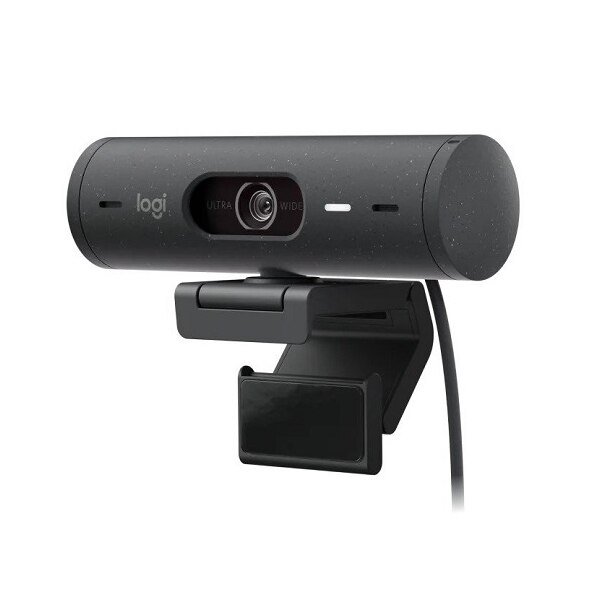
Logitech Brio 500
Best for MeetingsBuy if: your calls stay at 1080p and you want auto-framing
Don't buy if: you record in 4K or need 1080p60 motion
The Brio 500 is the meetings pick. Logitech lists 1080p at 30 frames per second, 720p at 60, autofocus, 4x digital zoom and an integrated privacy shutter. RightSight auto-framing keeps you centred when you shift in your chair, and Show Mode tilts down to share sketches or notes.
Sound is covered too. Stereo noise-reducing mics handle solo calls well, and RightLight 4 lifts dim rooms. The limits are plain: no 4K mode, and the smooth 60-frame mode drops to 720p. For live calls, that trade is fair.
Pros
- Integrated privacy shutter
- Auto-framing and Show Mode
- Stereo noise-reducing mics
- USB-C, simple setup
Cons
- 1080p caps at 30 frames
- No 4K recording mode
- Smart features need Logi Tune
- Costs more than basic 1080p cams
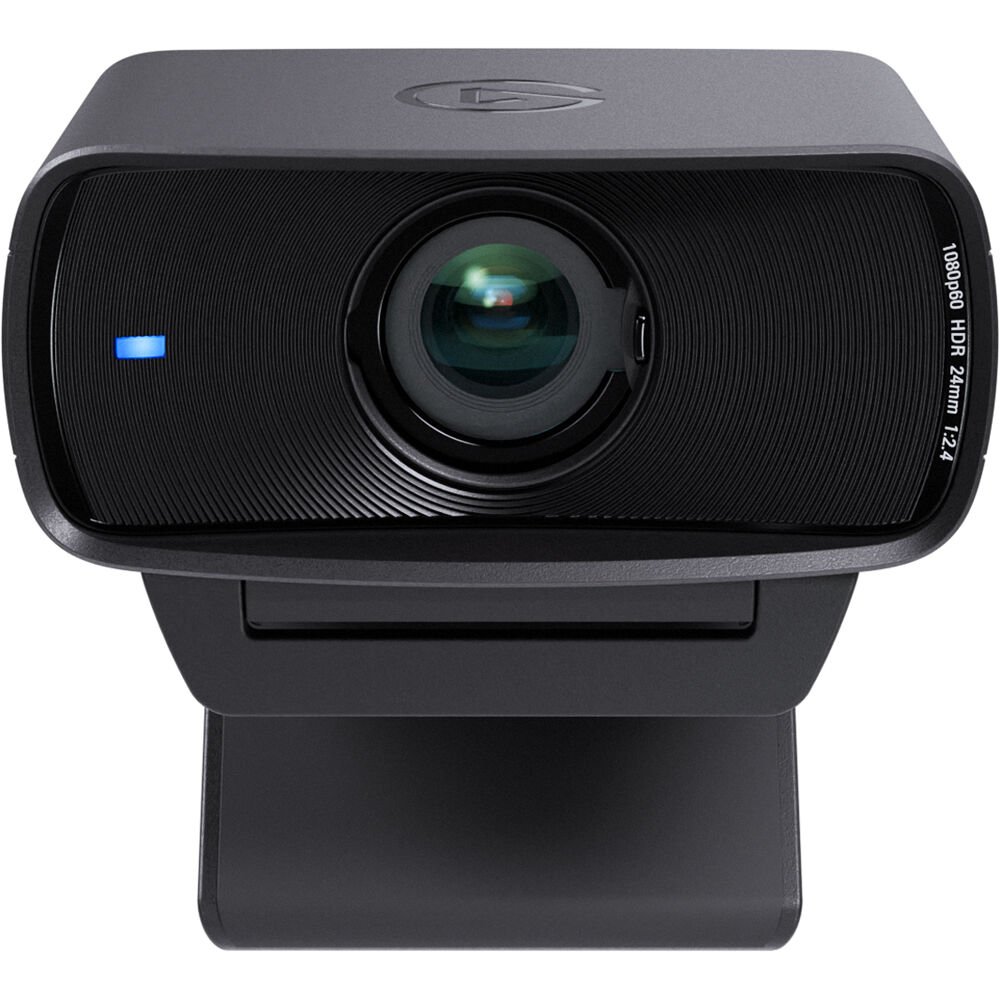
Elgato Facecam MK.2
Best 1080p60 ControlBuy if: you wear a headset and want clean 1080p60 control
Don't buy if: you need built-in mics or autofocus for close work
The Facecam MK.2 is the control pick. Elgato lists uncompressed 1080p60, a Sony STARVIS sensor, HDR support and a built-in privacy shutter that slides across the lens. Camera Hub gives manual control over exposure and colour, and settings save on the camera.
The trade-offs are clear. Focus is fixed from 30 to 120cm, so it suits a seated desk distance. There is no microphone, by design. Pair it with a headset and the picture stays smooth, sharp and private between calls.
Pros
- Built-in sliding privacy shutter
- Uncompressed 1080p60 video
- Manual Camera Hub control
- Clean STARVIS image
Cons
- No built-in microphone
- Fixed focus, 30–120cm
- Needs a headset or desk mic
- More settings than casual users need
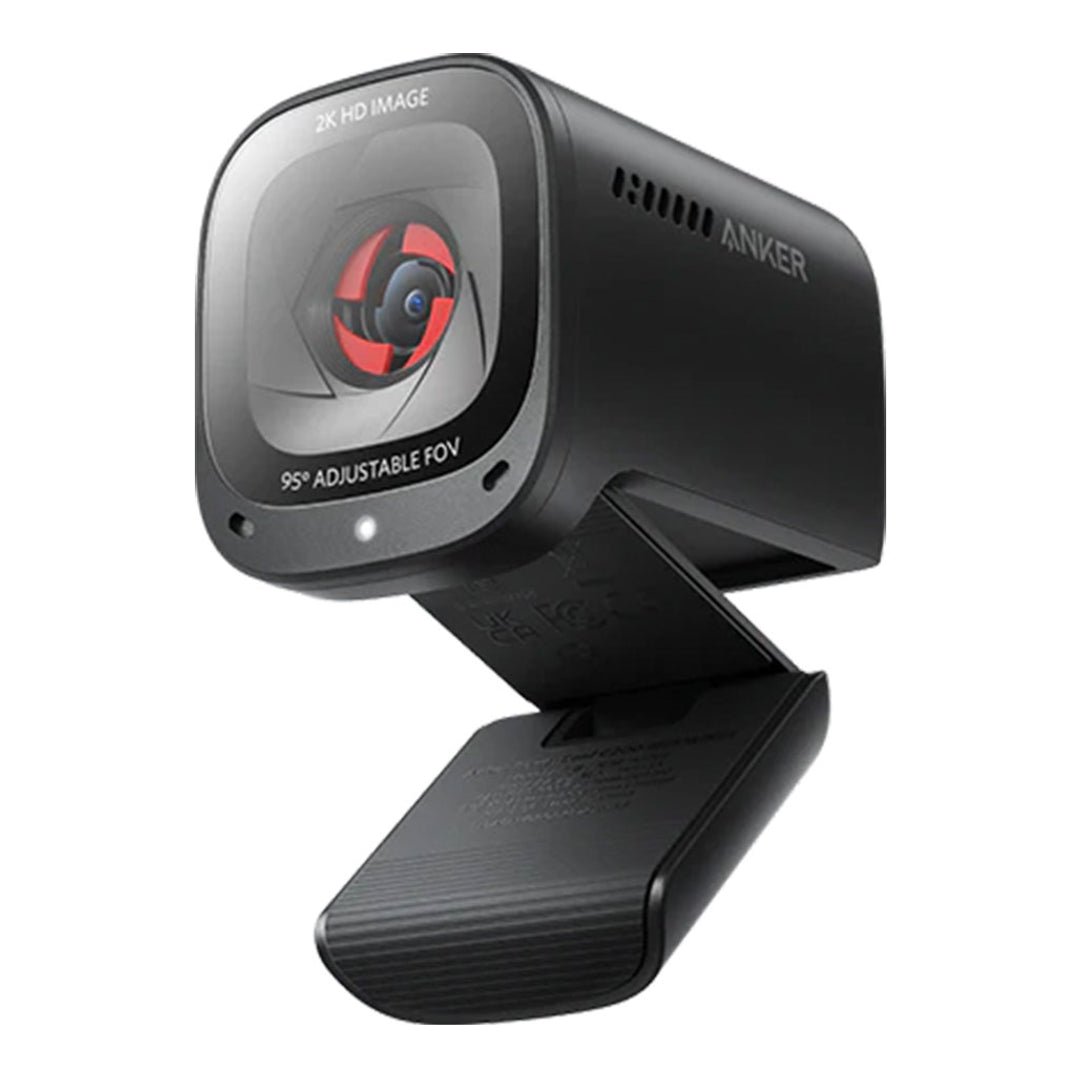
Anker PowerConf C200
Best Value With MicsBuy if: you want mics, a real cover and a fair price
Don't buy if: your room is very dark or you need 60 frames
The C200 is the value pick that still feels like an upgrade. Anker lists 2K video at 30 frames per second on a 5-megapixel sensor, autofocus, and a view you can set to 65, 78 or 95 degrees in software. Tight framing hides the room. Wide framing fits a second person.
Privacy is physical and easy to read. A built-in cover slides over the lens and shows a red marker, so you can see the camera is blocked from across the desk. Dual stereo mics with noise reduction handle solo calls well. The small sensor is the limit in dark rooms.
Pros
- Built-in sliding privacy cover
- 2K video with autofocus
- Three view angles in software
- Dual mics, tripod thread
Cons
- Small sensor, weaker low light
- 30 frames per second cap
- Older 2022 design
- View changes need the app
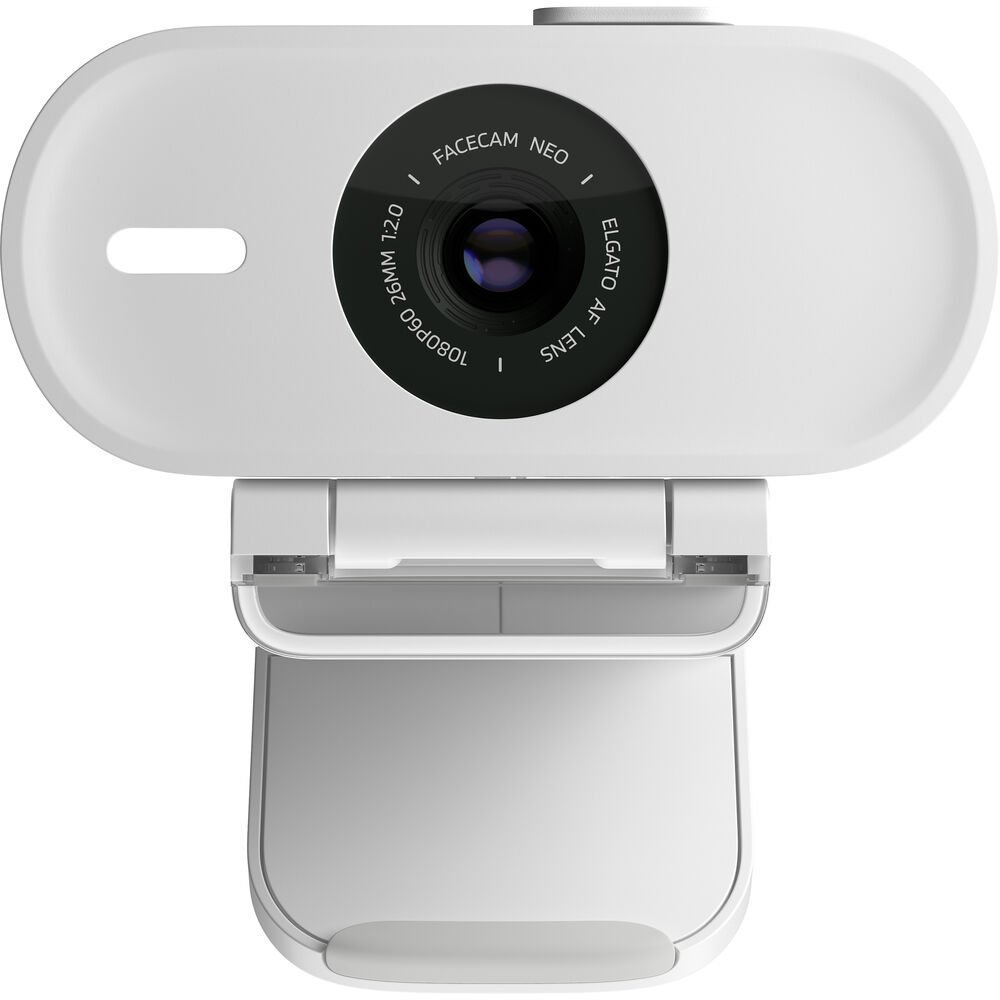
Elgato Facecam Neo
Best Budget 1080p60Buy if: you want smooth 1080p60 and autofocus for less
Don't buy if: you need built-in mics for shared-desk calls
The Facecam Neo is the budget motion pick. Elgato lists true 1080p60, autofocus from 30cm, a 77-degree view, an f/2.0 lens and a built-in easy-slide privacy shutter. Gestures and hand movement look smoother than on 30-frame cameras, which helps in lessons and demos.
Sound is the gap. There is no microphone, so headset users get the best deal here. The fixed USB-C cable is short enough to check against your desk layout. For solo calls with a headset, the value is hard to beat.
Pros
- Built-in easy-slide shutter
- True 1080p60 with autofocus
- Tight 77-degree framing
- Simple plug-and-play setup
Cons
- No built-in microphone
- Small 1/2.9-inch sensor
- Fixed USB-C cable
- Needs a headset or desk mic
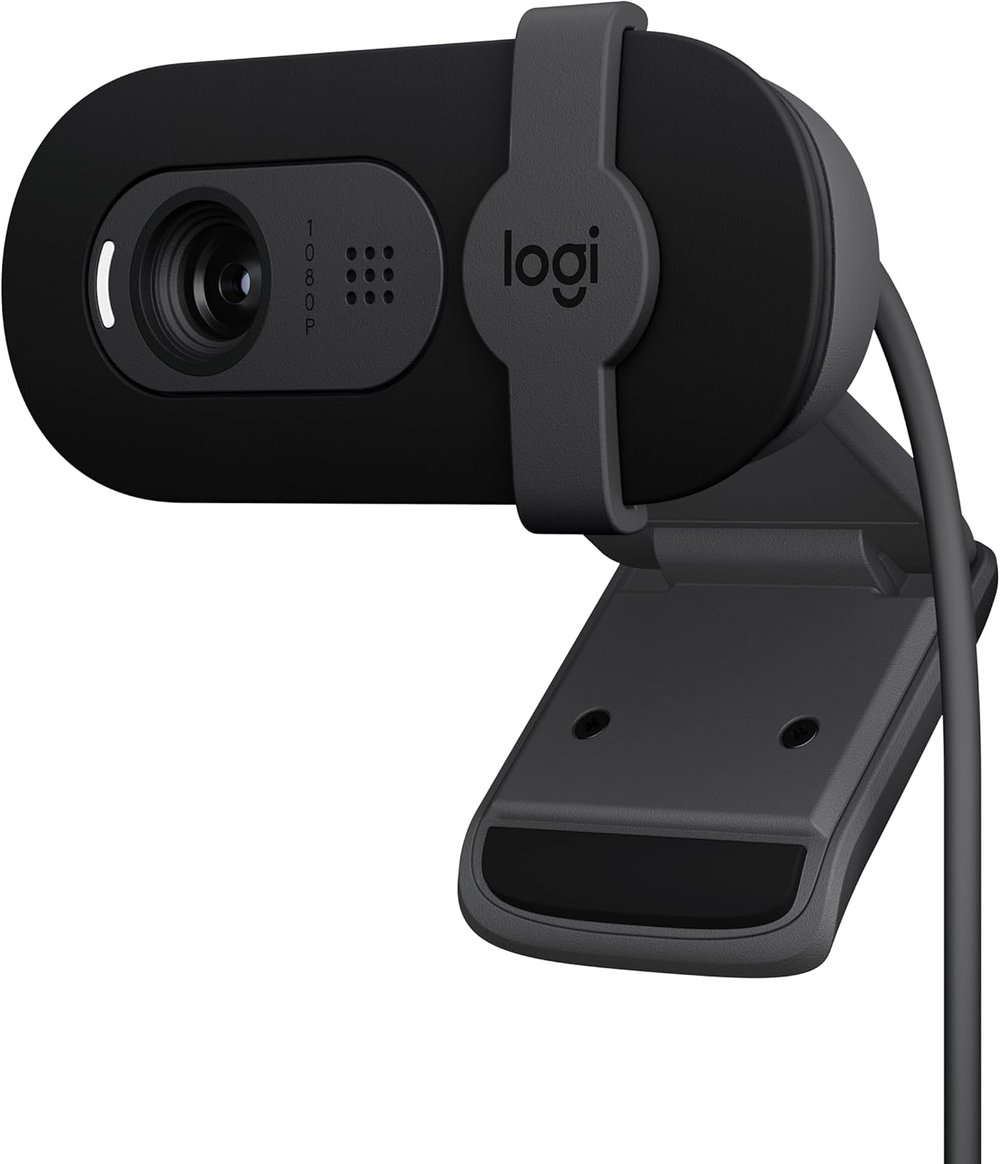
Logitech Brio 101
Best Simple BudgetBuy if: you want simple 1080p calls and tight framing
Don't buy if: you need autofocus, USB-C or a wide view
The Brio 101 is the simple pick. Logitech lists 1080p at 30 frames per second, fixed focus, a tight 58.9-degree diagonal view and RightLight 2 light balance. That narrow view hides more of the room, which suits a small desk against a wall.
The integrated shutter slides across the lens by hand, and the activity light shows when an app is using the camera. The mono mic suits desk-distance calls. Check the cable first: it is attached USB-A, so a USB-C-only laptop needs an adapter or hub.
Pros
- Integrated sliding privacy shutter
- Tight view hides the room
- Simple plug-and-play calls
- Built-in mic and activity light
Cons
- Fixed focus, narrow view
- 1080p30 only
- Attached USB-A cable
- Mono mic, short range
How to Use a Webcam Privacy Shutter
Close it after each call, open it before you join, check the preview, and mute the mic separately.
To use a webcam privacy shutter well, follow these steps: 1. Close the shutter after each call. 2. Open it before you join. 3. Check the preview. 4. Mute the mic separately. 5. Unplug the camera when away.
- Close the shutter after each call. Slide or turn the built-in shutter closed as soon as the call ends.
- Open it before you join. Open the shutter before you join the next call so the lens is clear.
- Check the preview. Look at the preview and confirm your face is framed and lit.
- Mute the mic separately. Mute the microphone in the app or headset, because the shutter does not mute sound.
- Unplug the camera when away. Unplug the webcam for long breaks if you want the camera fully disconnected.
If the preview stays black, check the shutter before you blame the app. A closed cover gives a dark image by design. Our dual monitor webcam guide covers clip fit and placement on wide desks.
Buying Guide: What Actually Matters
Four things matter most: shutter type, microphones, field of view, and light handling.
Shutter type comes first. Built-in sliding, turning and rotating covers stay ready. Attachable shades and magnetic caps work only while you can find them. Check the exact model, because some ranges mix both kinds.
Microphones come next. Picks one, two, four and six can carry a solo call alone. Picks three and five have no mic, so headset users get cleaner video for the money there.
Field of view decides how much room you show. Solo desks suit 60 to 78 degrees. Two people, whiteboards and desk demos need 90 degrees or more, plus a tidy background.
Light handling decides your worst calls. Sensor size, lens brightness and HDR matter more than a 4K badge in a dim room. Face your light first. Pixels last.
USB ports still bite. The MX Brio needs USB 3.0 for full modes, and the Brio 101 needs USB-A. Check the port before the camera arrives.
Privacy Webcams to Skip in 2026
Loose caps sold as shutters. A separate cap can work, but it is not built in. If privacy is the reason you are buying, keep the cover attached to the camera.
Old Brio 4K listings sold as current flagships. The MX Brio replaced it with larger pixels and an integrated shutter. The old model uses an attachable shade and wins only on Windows Hello.
Elgato Facecam 4K for shutter-first buyers. It is a strong 4K60 camera, but Elgato lists its privacy shutter as sold separately. Buy it for motion, not for built-in privacy.
Lens-down modes sold as full shutters. Tilting the lens away helps, yet it depends on the camera staying in place. A hand-moved cover is clearer and harder to undo by mistake.
Wide-angle budget cams for solo desks. A 110-degree view shows shelves, doors and laundry. Tight framing is a privacy feature too.
Frequently Asked Questions
What's the best webcam with a privacy shutter?
The Logitech MX Brio for most desks. It pairs a built-in shutter with 4K30, 1080p60 and dual mics.
Does a privacy shutter mute the microphone?
No. The shutter blocks the lens only. Mute the mic in your call app, use a headset switch, or unplug the camera.
Can malware see through a closed webcam shutter?
No normal image can pass through a closed opaque shutter. It still cannot protect the mic, files or other sensors.
Should I buy a built-in shutter or a stick-on cover?
Buy built-in if you can. It stays on the camera, shows its state at a glance, and cannot fall off in a bag.
Should I buy a 4K webcam or a 1080p webcam?
Buy 1080p for live calls only. Buy 4K if you record, crop your frame, or share desk work on camera.
Why does my webcam light turn on when I'm not on a call?
An app, browser tab or background service may be using the camera. Close the shutter, then check camera permissions.
How do I use a webcam privacy shutter well?
Close it after each call, open it before you join, check the preview, and mute the mic separately.