Best 4K Webcam for Home Office (2026): 6 Picks

Your preview looks sharp. The call does not.
You bought the 4K badge, plugged the camera into a hub, and still look soft on Zoom. The fault is rarely the badge. Call apps cap live video, slow USB ports cap the camera, and small sensors turn dim rooms to grain. This guide sorts those three traps out.
The best 4K webcam for home office use is a USB camera that records 3840 by 2160 video and still looks clean on live calls. It pairs that 4K mode with a large sensor, good light handling, and a real privacy cover for a work desk.
Every pick below shoots true 4K. If you only need live calls at 1080p, our online meetings guide covers cheaper picks. Here, each camera earns its 4K mode for recording, cropping, or desk sharing.
No prices are printed in this guide — webcam prices move often and listings change. Check the live price before buying. Specs below are the makers' own figures.
What's the Best 4K Webcam for a Home Office?
For most desks, the Logitech MX Brio. It gives true 4K30, clean low light, dual mics, and a shutter in one camera.
The best 4K webcam for a home office is the Logitech MX Brio for most people. According to Logitech, it records 4K at 30 frames per second or 1080p at 60, with an 8.5-megapixel Sony STARVIS sensor, dual noise-reducing mics and a built-in privacy shutter. That mix suits daily calls and recorded training clips.
A 4K home office webcam needs light handling more than a pixel count. According to Insta360, the Link 2C uses a 1/2-inch sensor at f/1.8 with HDR in every mode, so faces stay clear against bright windows. Bigger sensors gather more light. That is why they look cleaner after dark.
Look — if you're in the spot where you're lit by one ceiling bulb and it's making you look tired on every call, here's what actually works: a bigger sensor first, a lamp second, 4K last.
Logitech MX Brio vs Insta360 Link 2C: the MX Brio is better suited for fixed desk calls because its mics, shutter and software need the least fuss. The Link 2C works better when you teach or present and want auto-framing for less money. The key difference is desk polish, not 4K output.
Is a 4K Webcam Worth It for Zoom and Teams?
Yes, if you crop, zoom, or record. No, if live calls are all you do. Live calls send HD video at most.
A 4K webcam is worth it for Zoom and Teams when you crop or record. Zoom and Teams cap live video at HD, so nobody sees your full 4K feed. The spare pixels still help when the camera zooms in, when you share your desk, or when you record a call for later.
I've seen conflicting data — most guides put the live cap at 1080p, while some support notes list 720p for group calls and weak links. My read is simple: plan for HD live, and treat 4K as headroom you spend on crops and recordings.
Here's the thing: a clean 1080p feed from a big sensor beats a noisy 4K feed from a small one. Downscaled 4K can look sharper, but only when the sensor and lens were good in the first place.
My honest take: half the people shopping for 4K should buy a lamp and a good 1080p camera instead. A desk lamp facing you lifts every call. 4K on a dim desk just records the gloom in more detail.
Why Does My 4K Webcam Only Show 1080p?
Usually the USB port. Many 4K modes need USB 3.0, and a USB 2.0 hub can cap the camera without warning.
Check the port before you blame the camera. Elgato lists USB 2.0 modes for the Facecam 4K at 1080p60 and below, while 2160p modes need USB 3.0. Dell says the same for the WB7022: 4K needs a USB 3.0 port. Rear ports on the computer beat front hub ports here.
The call app is the second cap. Even with 4K set in the camera app, Zoom or Teams may send 720p or 1080p to other people. Your local recording can still be 4K. The live feed and the recording are two different paths.
Or maybe I should say it this way: set 4K for the file, and judge the live call at HD.
Hub choice matters at a busy desk. A powered hub keeps cameras and drives from starving each other. Our home office USB hub guide explains the watts and port traps in plain terms.
Do I Need a Microphone With a 4K Webcam?
Check the pick. Three cameras here have no mic at all. Headset users can ignore that. Shared desks cannot.
Headset users get the widest choice. The Razer Kiyo Pro Ultra, Elgato Facecam 4K and Dell WB7022 all skip built-in mics. Elgato says webcam mics sit too far from your mouth to sound good, so its camera expects a headset or desk mic.
Shared desks need real mics. The MX Brio, Link 2C and OBSBOT Tiny 2 carry dual mics with noise reduction. Two people at one desk stay clear without passing a headset around.
Quick note: sound carries the meeting. A sharp picture with thin audio still feels cheap. Budget for audio before you chase 4K60.
Privacy splits the same way. Built-in shutters and switches beat caps you can lose. Check that detail before you buy.
Quick Comparison
| Product | Best For | Key Specs | ||
|---|---|---|---|---|
| #1 | Logitech MX BrioBest Overall | Daily calls, recordings | 4K30 / 1080p60 · STARVIS sensor · dual mics · shutter | Check Price |
| #2 | Insta360 Link 2CBest 4K Value | Teachers, presenters | 4K30 · 1/2-inch sensor · AI framing · privacy switch | Check Price |
| #3 | Razer Kiyo Pro UltraBest Low Light | Dark rooms, headset users | 4K30 / 1080p60 · 1/1.2-inch sensor · f/1.7 · no mic | Check Price |
| #4 | Elgato Facecam 4KBest 4K60 | Recording, smooth motion | 4K60 · 1/1.8-inch STARVIS 2 · fixed focus · no mic | Check Price |
| #5 | OBSBOT Tiny 2Best AI Tracking | Standing, moving presenters | 4K30 / 1080p60 · 1/1.5-inch sensor · 2-axis gimbal · dual mics | Check Price |
| #6 | Dell UltraSharp WB7022Best for Windows Hello | Windows desks, face sign-in | 4K30 / 1080p60 · STARVIS sensor · Windows Hello · no mic | Check Price |
The Best For column decides the shortlist. Picks one and two suit fixed desks. Pick three suits dark rooms. Picks four and five suit recording and movement.
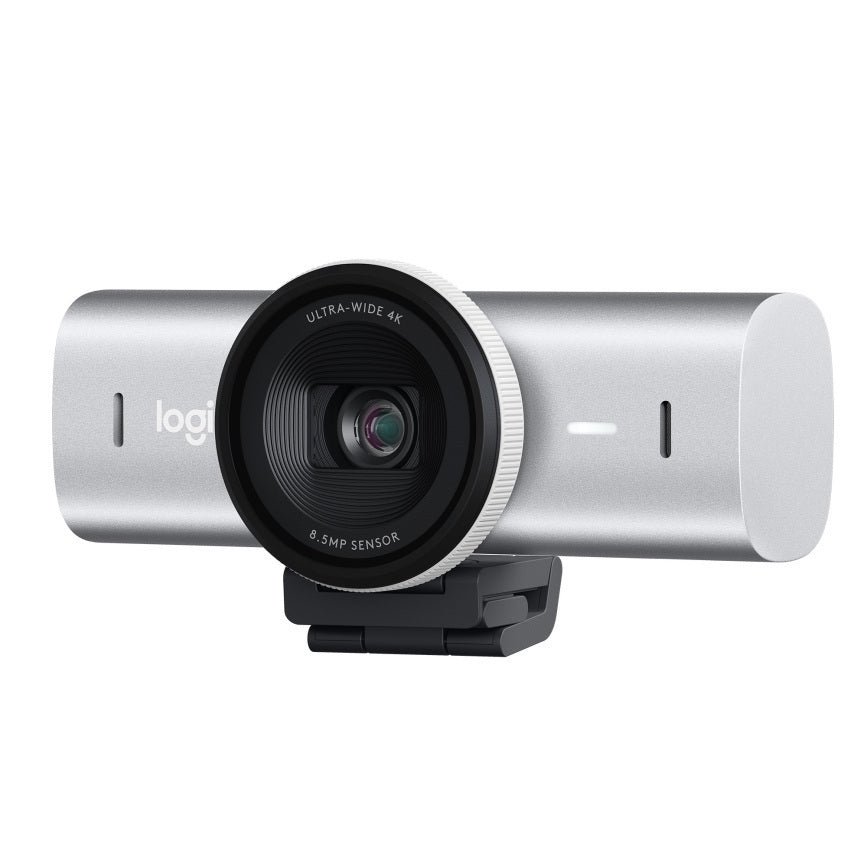
Logitech MX Brio
Best OverallBuy if: you take daily calls and record some of them in 4K
Don't buy if: you sign into Windows with your face — it drops Windows Hello
The MX Brio is the safest 4K pick for a work desk. Logitech lists 4K at 30 frames per second, 1080p at 60, an 8.5-megapixel Sony STARVIS sensor and RightLight 5 with HDR. Faces stay balanced against bright windows, and dim rooms stay clean without a lamp.
Desk details are covered too. Dual beamforming mics cut background noise, the built-in shutter closes with a twist, and Show Mode tilts down to share notes on your desk. Logitech certifies it for Teams, Zoom and Google Meet. Full modes need USB 3.0, so use a rear port.
Pros
- True 4K30 and 1080p60 modes
- Big STARVIS sensor, clean low light
- Dual mics with noise reduction
- Built-in privacy shutter
Cons
- No Windows Hello sign-in
- Premium price for a webcam
- Full modes need USB 3.0
- Overkill for rare calls
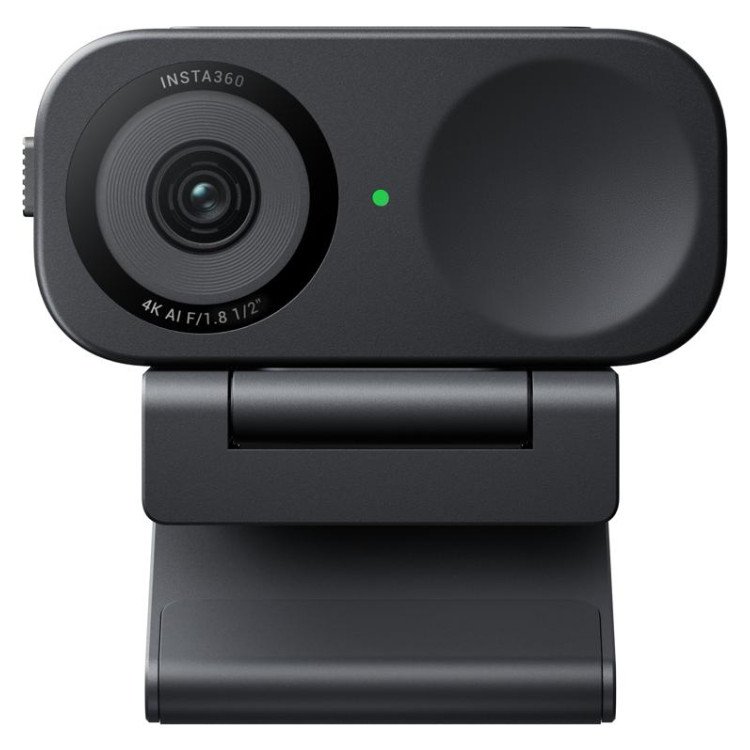
Insta360 Link 2C
Best 4K ValueBuy if: you teach, present, or crop your feed and want 4K value
Don't buy if: your computer is old or runs ARM-based Windows
The Link 2C brings a big sensor to a fair price. Insta360 lists a 1/2-inch sensor at f/1.8, 4K at 30 frames per second, 1080p at 60, HDR in every mode and phase-detection autofocus. Auto-framing zooms and crops to keep you centred, and the spare 4K pixels keep that crop sharp.
Whiteboard Mode squares up a board behind you, and DeskView shows your desk from above. Audio uses AI noise cancelling, and a physical switch blocks the lens. Check your computer first — Insta360 asks for a 5th-generation Core i5 or later, and ARM-based Windows is not supported.
Pros
- Large 1/2-inch sensor, f/1.8 lens
- AI framing uses the 4K headroom
- HDR in all modes
- Physical privacy switch
Cons
- No motorised gimbal tracking
- Needs a fairly modern computer
- Best features need its app
- USB 2.0 connection
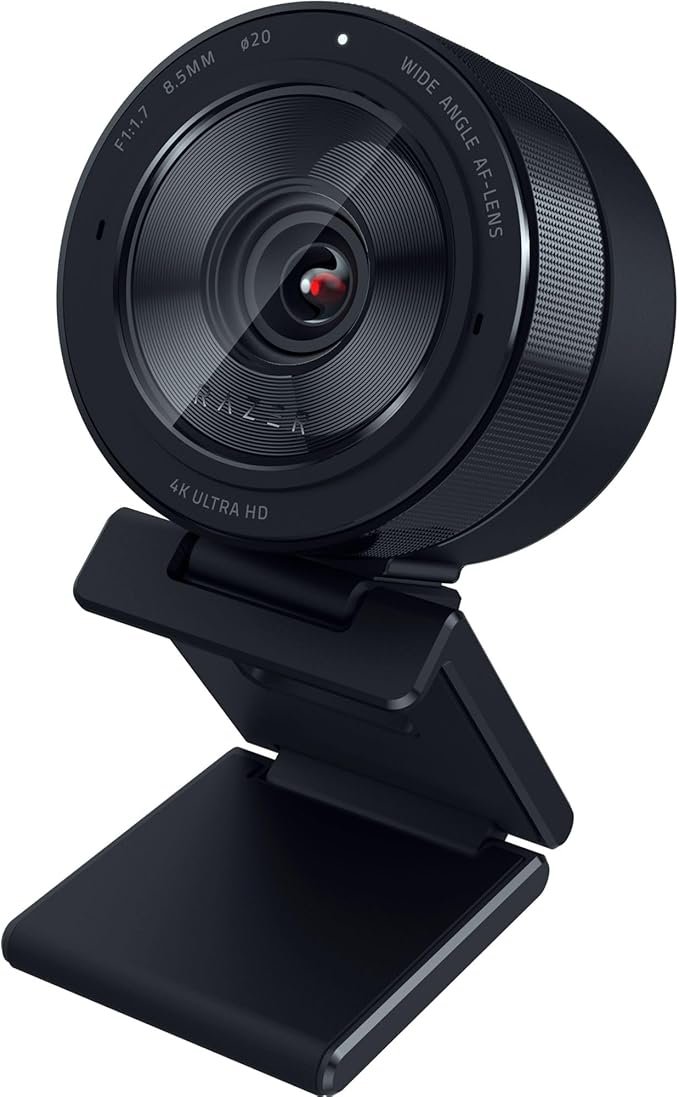
Razer Kiyo Pro Ultra
Best Low LightBuy if: your room stays dim and you already wear a headset
Don't buy if: you need built-in mics for a shared desk
The Kiyo Pro Ultra is the dark-room specialist. Razer lists a 1/1.2-inch Sony STARVIS 2 sensor with an f/1.7 lens, 4K at 30 frames per second and 1080p at 60 with HDR. That sensor is the largest here, so evening calls stay clean where smaller cameras turn to grain.
The catch is sound: there is no built-in microphone. Budget for a headset or desk mic, or pick one, two or five instead. The body is also tall and heavy for thin laptop lids. On a fixed monitor with a headset, nothing here beats its picture after dark.
Pros
- Largest sensor here, f/1.7 lens
- Cleanest low-light picture
- 4K30 and 1080p60 with HDR
- Strong autofocus
Cons
- No built-in microphone
- Big, heavy body
- Premium price
- Needs separate audio gear
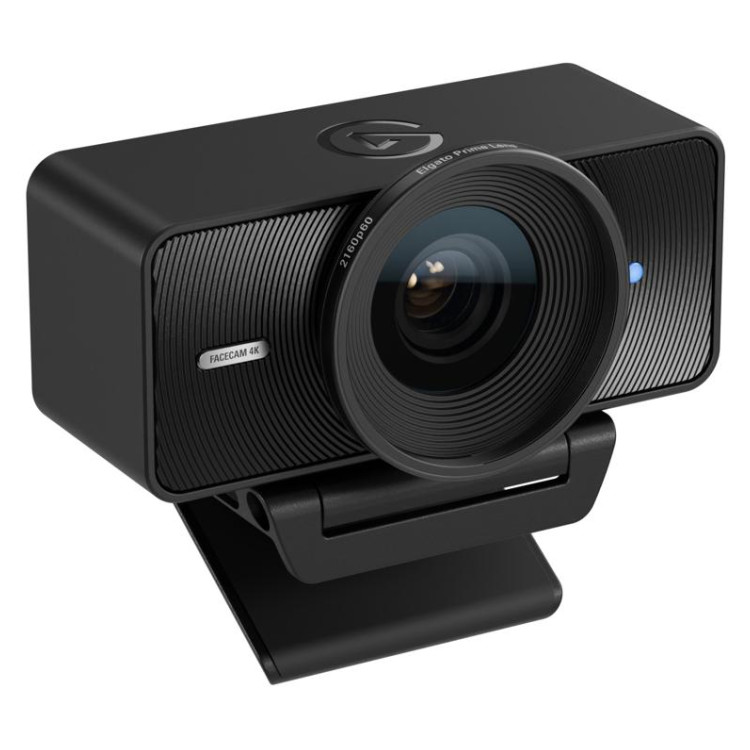
Elgato Facecam 4K
Best 4K60Buy if: you record in 4K and want smooth 60-frame motion
Don't buy if: you need a mic, autofocus, or a built-in shutter
The Facecam 4K is the motion pick. Elgato lists 4K at 60 frames per second on a 1/1.8-inch Sony STARVIS 2 sensor, with HDR up to 4K30 and a 90-degree view. Recorded lessons and demos look smooth, and the camera takes standard 49mm lens filters to cut glare.
Trade-offs are plain. Focus is fixed from 30 to 120cm at 4K, so lean-in close-ups stay sharp only inside that band. There is no microphone, and the privacy cap is a separate part. Use a USB 3.0 port or the 4K modes close. Elgato also says it works best with good light.
Pros
- Only 4K60 pick here
- HDR up to 4K30
- Takes 49mm lens filters
- No focus hunting at a desk
Cons
- No built-in microphone
- Fixed focus, 30–120cm at 4K
- Privacy cap is separate
- Needs good light and USB 3.0
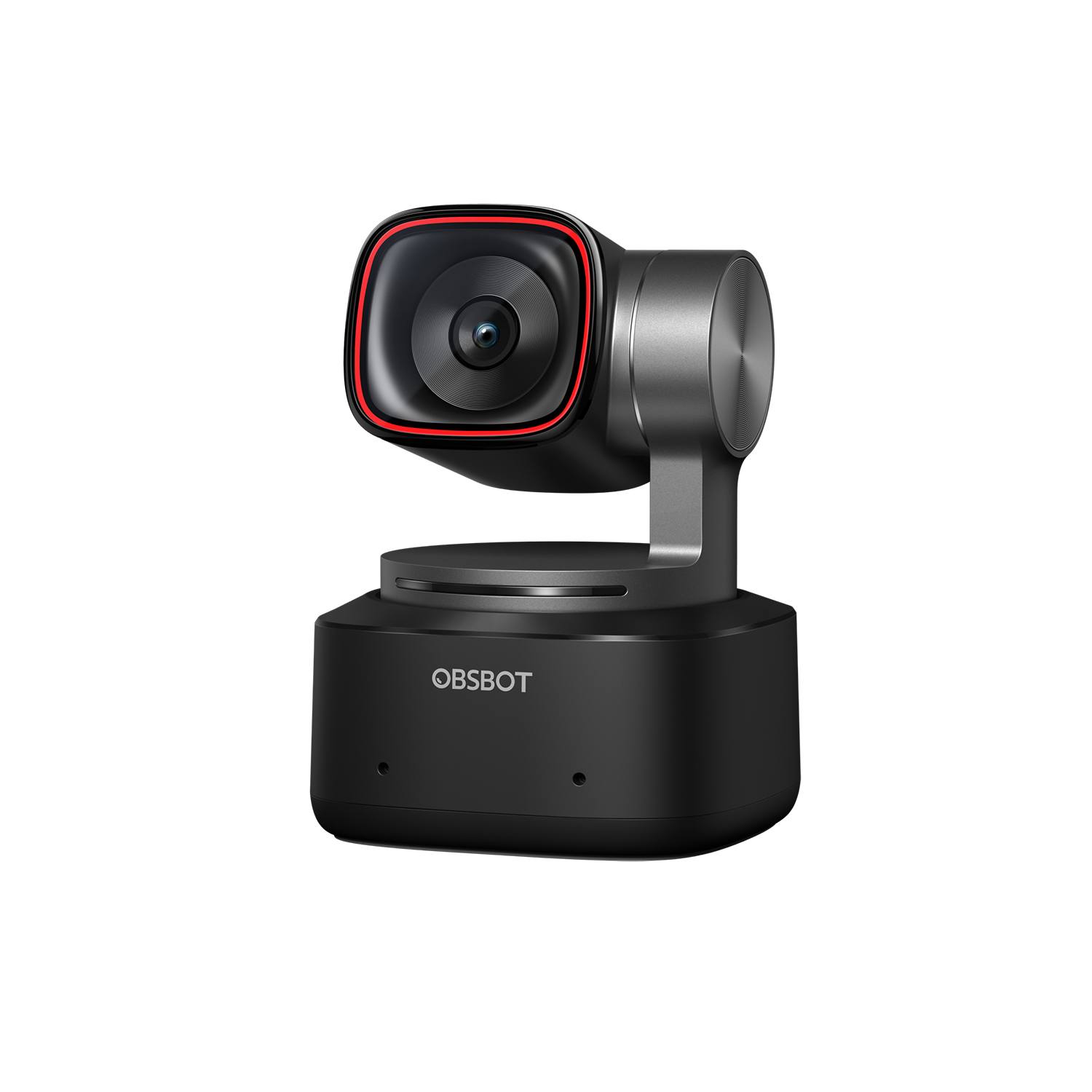
OBSBOT Tiny 2
Best AI TrackingBuy if: you stand, move, or present away from your chair
Don't buy if: you sit still all day and want the simplest setup
The Tiny 2 moves so you can. OBSBOT lists a 1/1.5-inch 50-megapixel sensor at f/1.9, 4K at 30 frames per second, 1080p at 60, and a 2-axis gimbal with AI tracking and auto zoom. Stand up to use a whiteboard and the camera follows you.
Gesture and voice control change modes hands-free, and dual mics with noise reduction cover solo calls. Privacy mode tilts the lens down, which you can see from across the room. The gimbal is the point — seated users pay for movement they never use.
Pros
- Gimbal tracking with auto zoom
- Large 1/1.5-inch sensor, f/1.9
- Gesture and voice control
- Dual mics with noise reduction
Cons
- Overkill for seated calls
- Best features need its app
- Premium price
- Moving head can distract
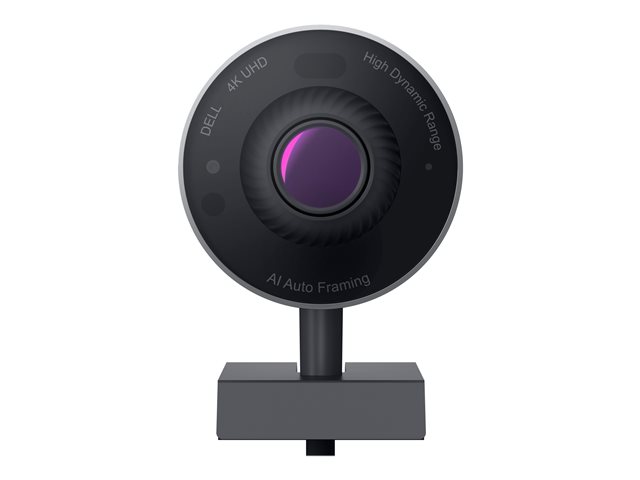
Dell UltraSharp WB7022
Best for Windows HelloBuy if: you want face sign-in on a Windows desk
Don't buy if: you need built-in mics or use a Mac as your main desk
The WB7022 is the Windows-desk pick. Dell lists 4K at 30 frames per second, 1080p at 60, an 8.3-megapixel Sony STARVIS sensor, HDR, AI auto-framing, and view angles of 65, 78 or 90 degrees. Windows Hello face sign-in and presence sensing lock and unlock the PC as you come and go.
Sound is the gap: Dell lists no microphone, so pair it with a headset. The privacy cover is a magnetic cap, which is easy to misplace. Dell certifies it for Teams and Zoom, and 4K needs a USB 3.0 port. For Windows users who miss face sign-in, this fills the gap the MX Brio leaves.
Pros
- Windows Hello face sign-in
- Presence lock and unlock
- AI auto-framing, three views
- Teams and Zoom certified
Cons
- No built-in microphone
- Magnetic cap can be lost
- Older 2021 design
- 4K needs USB 3.0
How to Set Up a 4K Webcam for a Home Office
Use USB 3.0, mount at eye level, face the light, then test one real call.
To set up a 4K webcam for a home office, follow these steps: 1. Plug into a USB 3.0 port. 2. Clip the webcam at eye level. 3. Face your light source. 4. Pick 4K30 or 1080p60. 5. Test one real call.
- Plug into a USB 3.0 port. Use a rear USB 3.0 port on the computer, not a slow hub, so 4K modes stay open.
- Clip the webcam at eye level. Centre it on your main monitor so you look straight at the lens.
- Face your light source. Put a window or lamp in front of you, never behind you, for a clear face.
- Pick 4K30 or 1080p60. Use 4K30 for recording and cropping, and 1080p60 for smooth live calls.
- Test one real call. Join a test meeting and check your face, voice and framing in the preview.
If the picture freezes mid-call, the hub is the usual suspect. Our powered hub guide goes deeper on watts, and the dual monitor webcam guide covers wide desks.
Buying Guide: What Actually Matters
Four things matter most: sensor size, USB speed, microphones, and a real privacy cover.
Sensor size comes first because it decides your worst calls, not your best. A 1/2-inch or larger sensor gathers far more light than the small sensors in cheap 4K cameras. In a bright room every pick here looks fine. At 6pm in winter, sensor size is the whole story.
USB speed comes next. True 4K needs more bandwidth than USB 2.0 gives most cameras. Elgato and Dell both cap modes on USB 2.0. A rear USB 3.0 port keeps every mode open and avoids silent caps.
Microphones matter when headsets stay off. Dual mics on picks one, two and five focus on your voice and cut keyboard clatter. Picks three, four and six have no mic, so headset users get the best picture per pound there.
A physical cover closes the privacy question. Built-in shutters and switches beat caps and clip-on covers, which fall off or get lost. Software toggles alone leave the lens open to mistakes.
Light first. Pixels last.
4K Webcams to Skip in 2026
Cheap 4K cameras with tiny sensors. The pixel count hides a small, noisy sensor. Check the sensor size in the maker's specs before you pay for the 4K badge.
Old Brio 4K listings sold as new flagships. The MX Brio replaced it with larger pixels and better light handling. Buy the old model only at a clear discount.
Discontinued 4K60 models at full price. Elgato's Facecam Pro is end-of-life, and the Facecam 4K takes its place. Check current listings before you pay flagship money.
Streamer cameras bought only for meetings. Capture cards and 4K60 modes serve broadcasts first. Our streaming guide covers that desk; this one covers yours.
Frequently Asked Questions
What's the best 4K webcam for a home office?
The Logitech MX Brio for most desks. It pairs 4K30 with a large sensor, dual mics and a privacy shutter.
Is a 4K webcam worth it for Zoom and Teams?
Yes, if you crop, zoom or record calls. Live calls send HD at most, so 4K helps as headroom, not as the live picture.
Why does my 4K webcam only show 1080p?
Check the USB port first. Many 4K modes need USB 3.0, and a USB 2.0 hub can cap the camera at 1080p.
Do I need a microphone with a 4K webcam?
Some picks have no mic at all. Use a headset or desk mic with the Kiyo Pro Ultra, Facecam 4K and Dell WB7022.
What's the best 4K webcam for low light?
The Razer Kiyo Pro Ultra. Its 1/1.2-inch sensor and f/1.7 lens gather more light than the other picks here.
Should I buy a 4K webcam or a 1080p webcam?
Buy 1080p for live calls only. Buy 4K if you record, crop or share your desk on camera.
How do I get the sharpest picture from a 4K webcam?
Use a USB 3.0 port, face your light, and set 4K30 for recording or 1080p60 for smooth live calls.