Best Vertical Monitor for Coding (2026): 6 Picks

You code all day on a laptop and one landscape screen. You scroll through long files, lose your place between a function and where it is used, and half the screen's width goes to IDE side panels while your code wraps or gets cut off. You have already tried shrinking the font, widening the editor and splitting panes side by side — and none of it fixed the scrolling. This guide is written for you. It answers the three questions you are actually stuck on: is portrait worth it, 24 or 27 inches, and which monitor to buy.
Best vertical monitor for coding refers to a screen that turns 90 degrees into portrait mode, so long files of code run top to bottom instead of wrapping across the screen. The stand pivots, or the screen mounts on a VESA arm. Portrait shows more lines at once, with less scrolling.
The top 10 results for "best vertical monitor for coding" are mostly thin listicles that crown 1080p panels and move on. Several of them call monitors "vertical" that need a separate bracket to rotate at all, and none of them warns you that a USB-C port does not always charge your laptop. This guide checks every spec against the maker's own page, labels every pick "pivots in the box" or "needs an arm", and says where the sources disagree. If you want the wider desk picture — landscape 4K, ultrawide and eye-care picks — our 4K productivity guide covers those.
No prices are printed in this guide — monitor prices move by seller and week, so check the live price before buying. Specs and USB-C wattage figures come from the makers' own spec pages, and where sources disagree, the disagreement is stated on the card.
Are Vertical Monitors Actually Worth It for Coding?
Yes — if you read long files all day. A portrait screen shows roughly twice as many lines of code as the same panel in landscape, so you scroll less and keep a function's definition and its use on screen together.
Are vertical monitors worth it for coding? Yes, for most developers — a portrait screen shows roughly twice as many lines of code as the same panel in landscape, so you scroll less. According to TechRadar, the Dell UltraSharp U2723QE is the best vertical monitor overall, and its hands-on testing backs the portrait setup for code.
Do the maths on one panel and the win stops being vague. Take a 27-inch 4K screen at 150% scaling with 14px code. In landscape it shows about 60 lines. Turn it sideways and the same maths gives you about 110. Same panel, same font, same eyes. The catch is the width: a 16:9 panel turned portrait is narrow, so long lines wrap. That is why the 3:2 and 16:10 picks in this guide matter — they give you back the width that portrait takes away.
Look — if you're reading this on a laptop right now, scrolling through a file that is 400 lines long, here's what actually works: a portrait screen beside your laptop, holding the whole file while your laptop holds the terminal. It's not a second screen you glance at. It's the screen you read on.
One honest limit: portrait helps reading, not writing. If your day is mostly typing short functions and running tests, a big landscape screen serves you just as well. Portrait earns its desk space when you read more code than you write — reviews, debugging, and long files you did not write yourself.
Should You Buy a 24-Inch or a 27-Inch Vertical Monitor?
24 inches for shallow desks and second screens. 27 inches only if your desk is deep enough to sit back — a 27-inch portrait panel stands about 60 cm tall, and on a shallow desk the top sits above your eyes.
Should you buy a 24-inch or 27-inch vertical monitor? Buy 24 inches if your desk is shallow or the screen sits beside a landscape monitor, because the top of a 27-inch portrait panel rises about 60 cm and forces you to look up. According to BenQ's coding guide, a 24-inch 16:10 panel is the sweet spot for most desks.
24-inch vs 27-inch vertical monitor: 24 inches is better suited for shallow desks and as a second screen because the top stays near eye level. 27 inches works better when it is your only screen and your desk is deep enough to sit back from it. The key difference is height, not width — a 27-inch portrait panel stands about 60 cm tall.
Height is the whole decision, and no roundup in the top 10 gives you a rule for it. Here is one: sit where you work, look straight ahead, and find the top of your view. The top of the screen should sit at or just below your eye level. A 24-inch portrait panel tops out around 55 cm, which fits most people at a normal desk. A 27-inch portrait panel tops out near 60 cm, and on a desk under 70 cm deep you sit too close to see all of it without tilting your head back.
I've seen conflicting data — some sources say 27 inches is the only sensible portrait size, others say it strains your neck. My read is that both are right for different desks: 27 inches wins when you can sit 70 cm back, 24 inches wins everywhere else. Or maybe I should say it this way: buy the height your desk fits, not the size the photos sell.
Quick note: a monitor arm buys back desk depth. A cheap arm lets the screen sit lower and further back than its factory stand allows — and our monitor arm guide covers which ones hold up on a small desk.
Can Any Monitor Go Vertical — or Does It Need a Pivot Stand?
Any monitor with a VESA mount can rotate on an arm. Only some stands pivot in the box. All six picks here pivot on the included stand, so nothing extra is needed — but check the stand spec before you buy anything else.
Can any monitor be used vertically? Most monitors with a VESA mount can rotate on an arm, but only some stands pivot in the box. All six picks in this guide pivot on the included stand, so nothing extra is needed. Check the stand spec before you buy, or budget for a VESA arm.
Here is the trap the thin listicles hide. Several of their "vertical" picks — the HP 24mh, the AOC 24G4, the Philips 27E1N5900R — ship with stands that tilt and swivel but do not rotate. To use one in portrait you need a VESA bracket or an arm, which costs another $20 to $30 and a trip to the fixings drawer. The monitor itself is fine. The listing is the problem: it sells you a vertical setup and hands you a landscape stand.
Two checks before you trust any "vertical" label. First, look for "pivot" or "rotation 90°" on the maker's spec page — tilt and swivel are not pivot. Second, check the VESA pattern: 100×100 mm is the standard, and every pick here has it, so any arm you already own will fit. If the stand pivots, you are done in two minutes. If it doesn't, you are buying an arm.
Is 1080p Enough, or Do You Need 1440p or 4K for Code?
At 24 inches, 1080p is just about enough. At 27 inches, no — text goes soft. Buy 1440p or 4K at 27 inches, and 4K if you read code for eight hours a day.
PPI means pixels per inch — how tightly the dots are packed, and how crisp small text looks. A 24-inch 1080p panel packs about 92 PPI. A 27-inch 1440p panel packs 109. A 27-inch 4K panel packs 163. Your eyes notice the difference the moment you read 12-point code for an hour. At 82 PPI — a 27-inch 1080p screen — the letters blur at the edges, and that blur is what tires your eyes by four o'clock.
Here's the thing: refresh rate barely matters for code. A 60Hz panel with sharp text beats a 144Hz panel with soft text every single time. Several roundups push 120Hz and 240Hz gaming panels for a text task, and that is money spent on the wrong number. Buy PPI first, then USB-C, then everything else.
| Size / Resolution | PPI | Verdict for code |
|---|---|---|
| 24-inch 1080p | ~92 | Just about enough — fine as a second screen |
| 24-inch 1920×1200 (16:10) | ~94 | A little sharper, plus extra height in portrait |
| 27-inch 1440p | ~109 | The sweet spot — crisp enough for all-day code |
| 27-inch 4K | ~163 | Printed-looking text; the best you can buy for reading |
| 28-inch 3840×2560 (3:2) | ~164 | 4K sharpness with a taller, wider canvas |
| 27-inch 1080p | ~82 | Too soft — skip it for code |
If you use a Mac, one more thing matters. macOS renders text best at very high pixel density — about 218 PPI at 27 inches, which means a 5K panel. A 27-inch 4K screen still looks good on a Mac, just not as razor-sharp as on Windows. If you code on a Mac and want the sharpest text possible, the BenQ PD2730S is the 5K pick TechRadar names for Mac users. On Windows, 163 PPI is plenty.
How Do I Set Up a Vertical Monitor on Windows and Mac?
Turn the screen 90 degrees, then change the orientation to Portrait in your display settings. Two minutes, no extra software — the monitor's own menu does nothing here, the operating system does the work.
To set up a vertical monitor for coding, follow these steps: 1. Turn the screen 90 degrees on its stand or arm. 2. Open Display settings on Windows, or Displays on a Mac. 3. Change the orientation to Portrait. 4. Set scaling to 150% on a 27-inch 4K screen. 5. Drag the screen to the right side in the layout diagram.
- Turn the screen. Rotate the monitor 90 degrees on its stand — clockwise for most stands, either way on the Dell and BenQ picks here.
- Open display settings. On Windows, right-click the desktop and open Display settings. On a Mac, open System Settings, then Displays.
- Change the orientation. Set Display orientation to Portrait on Windows, or Rotation to 90° on a Mac. The screen will flip — accept the change within 15 seconds or it flips back.
- Set the scaling. Use 150% on a 27-inch 4K screen, 125% on a 27-inch 1440p screen, and 100% on a 24-inch 1080p screen, so text stays readable.
- Arrange the screens. Drag the portrait screen to the side it actually sits on in the layout diagram, so your mouse moves between screens the way your hands expect.
- Set the main display. Keep your laptop or landscape screen as the main display, so menus and new windows open where you expect them.
Two small fixes for the two small problems people hit. First, if the picture is upside down, you rotated the screen the wrong way — rotate it back and try the other direction, or pick Portrait (flipped) in the settings. Second, if your code editor's text looks blurry after the flip, restart the editor: a few apps cache their text rendering and need a fresh start to draw sharply in portrait.
Will a Vertical Monitor Hurt Your Neck?
Only if the top sits above your eyes. Keep the top of the screen at or just below eye level, the screen at arm's length, and your code centred in the middle of the screen — not at the top.
A 27-inch portrait panel is about 60 cm tall. That is the whole risk. If the top of it rises above your eyes, you tilt your head back to read the top lines, and that tilt is what hurts by the end of the day. The fix is not a smaller screen. It is a lower screen.
Three rules, and they work for any size. First, lower the stand or the arm until the top of the screen sits at or below eye level — on a 27-inch portrait panel that usually means the lowest stand setting, or an arm. Second, sit at arm's length, about 25 inches, so the whole screen fits in your view without turning your head. Third, centre your code in the middle of the screen: scroll so the line you are reading sits at eye height, not at the top edge. Your editor's "centre on cursor" setting does this for you.
One more thing worth doing: look away every 20 minutes. The 20-20-20 rule — every 20 minutes, look at something 20 feet away for 20 seconds — is the best-studied fix for screen fatigue there is, and it matters more than any eye-care mode on the box. The flicker-free backlights and low blue light modes on every pick here help. Distance and breaks help more.
Quick Comparison
| Product | Size / Resolution / Panel | USB-C Watts | Best For | ||
|---|---|---|---|---|---|
| #1 | Dell UltraSharp U2723QEBest Overall | 27" / 4K / IPS Black, 60Hz | 90W | Most coders, one-cable docking | Check Price |
| #2 | BenQ RD280UBest for Coding | 28.2" / 3840×2560 3:2 / IPS, 60Hz | 90W | Long files, tall canvas | Check Price |
| #3 | Dell UltraSharp U2724DBest QHD for Dark Mode | 27" / QHD / IPS Black, 120Hz | None — data only | Dark-mode code, smooth scrolling | Check Price |
| #4 | Dell 27 Plus S2725DCBest Budget 27" | 27" / QHD / IPS, 144Hz | 65W | Budget 27-inch with charging | Check Price |
| #5 | Asus ProArt PA248QVBest 16:10 Budget | 24.1" / 1920×1200 / IPS, 75Hz | None | Small desks, accurate colour | Check Price |
| #6 | BenQ GW2486TCBest Cheap Second Screen | 23.8" / 1080p / IPS, 100Hz | 65W | Second screen, tight budgets | Check Price |
USB-C wattage is the power delivery figure from each maker's own spec page. The U2724D's USB-C port carries data only — it does not charge a laptop. No prices are printed — check the live price before buying.
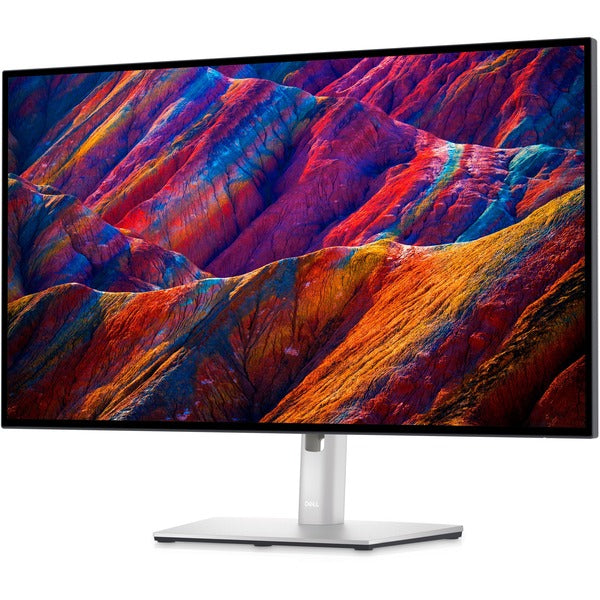
Dell UltraSharp U2723QE
Best OverallBuy if: you want the best all-round vertical coding monitor — 4K IPS Black, 90W charging and a pivot stand in one screen
Don't buy if: your desk is under 70 cm deep, or you want 120Hz scrolling
The U2723QE is TechRadar's best vertical monitor overall, and it earns the spot. A 27-inch 4K IPS Black panel — 2000:1 contrast, so dark code editors look black instead of grey — at 163 pixels per inch, with 100% sRGB and 98% DCI-P3, 400 nits and DisplayHDR 400. USB-C delivers 90W, enough to charge a 14- or 16-inch Pro laptop over the same cable that carries the picture. There is a KVM switch, picture-by-picture and picture-in-picture, an RJ45 ethernet port, and a DisplayPort output for daisy-chaining a second screen.
The stand pivots 90 degrees both ways, with 150 mm of height adjustment, tilt and swivel, so the screen drops low enough for a 27-inch portrait panel to sit at eye level. That is the part that matters most for this guide: a 4K screen that cannot sit low enough is a neck ache, and this one can.
Two honest limits. First, 60Hz — scrolling is less smooth than the 120Hz Dell U2724D. Second, TechRadar notes the USB-C cable in the box is short, so check the length before you route it around a deep desk.
Pros
- IPS Black panel — 2000:1 contrast, real blacks in dark mode
- USB-C with 90W charging, KVM, ethernet, daisy-chain
- Pivots 90° both ways, 150 mm height adjustment
- 163 PPI — very sharp code
Cons
- 60Hz only
- Short USB-C cable in the box
- Needs a deep desk in portrait — measure first
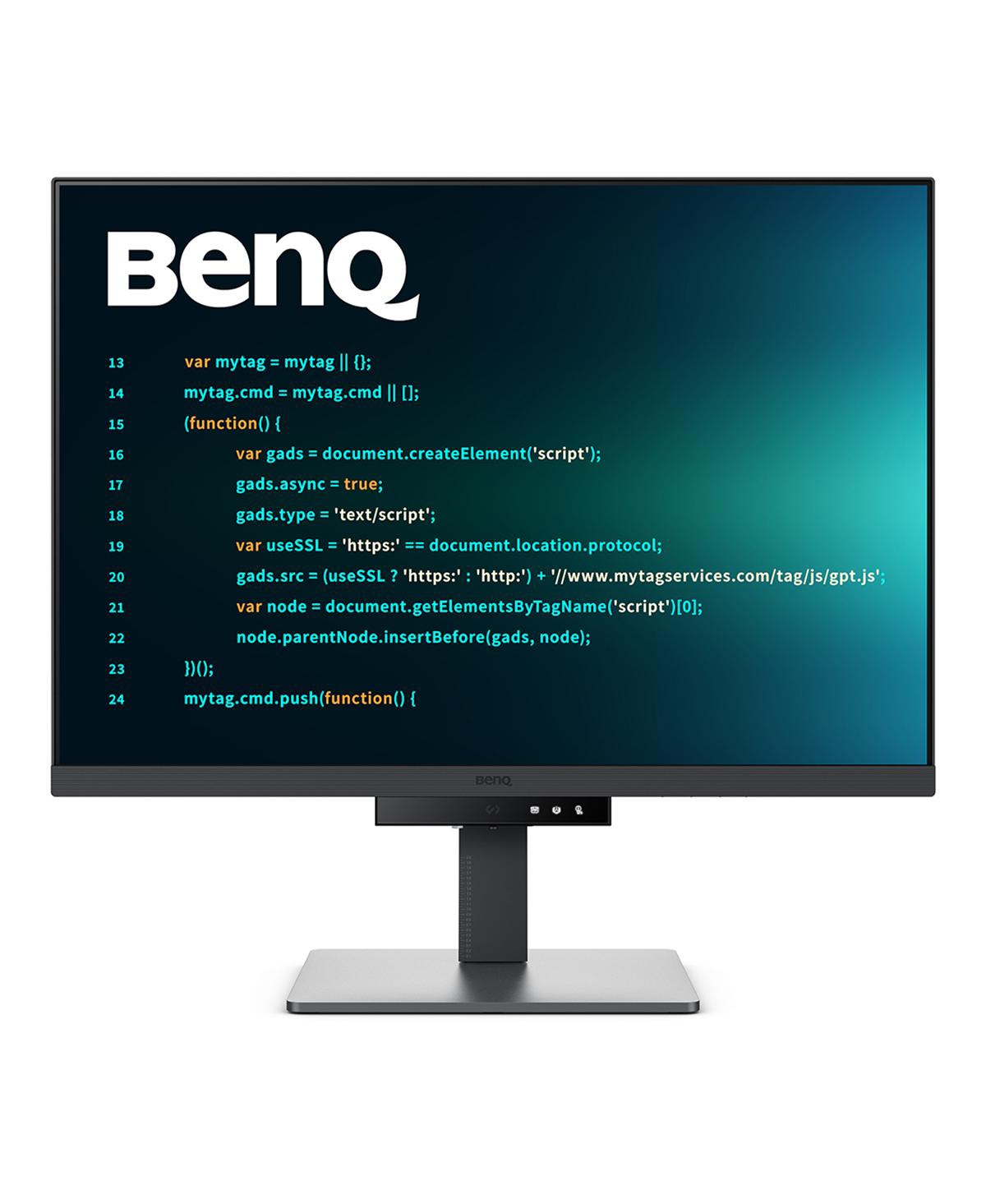
BenQ RD280U
Best for CodingBuy if: you want a screen built for code — a tall 3:2 panel, Coding Mode and a backlight that keeps the desk lit at night
Don't buy if: you need 120Hz, or you want a 16:9 screen for video on the side
The RD280U is the only pick here designed for programmers first. A 28.2-inch IPS panel at 3840×2560 — a 3:2 ratio, taller and wider than 16:9 — at 164 pixels per inch, with 95% DCI-P3, 350 nits and DisplayHDR 400. The 3:2 shape is the point: in portrait it is wider than a 16:9 panel, so long lines wrap less, and in landscape it is taller, so you see more of the file either way.
BenQ's coding features are real, not a label. Coding Mode tunes the picture for dark and light editor themes, the Coding HotKey switches modes without digging through menus, and the MoonHalo backlight lights the desk behind the screen for night sessions. USB-C delivers 90W and daisy-chains a second monitor, and the Nano Matte coating cuts glare without the grainy look older matte screens had.
Two things to get right before you buy. First, buy the RD280U — the stand version. The RD280UA is the same panel on an ergo arm, and the RD280UG is a different panel at 120Hz with a 3840×2400 resolution. Listings for all three sit side by side, and the wrong one costs more. Second, 60Hz — this is a reading screen, not a gaming one.
Pros
- 3:2 panel — taller and wider than 16:9 in portrait
- Coding Mode, HotKey and MoonHalo backlight
- USB-C 90W with daisy-chain
- 164 PPI, Nano Matte anti-glare
Cons
- 60Hz only
- Three near-identical model names — check the exact SKU
- Premium pick — check the live price first
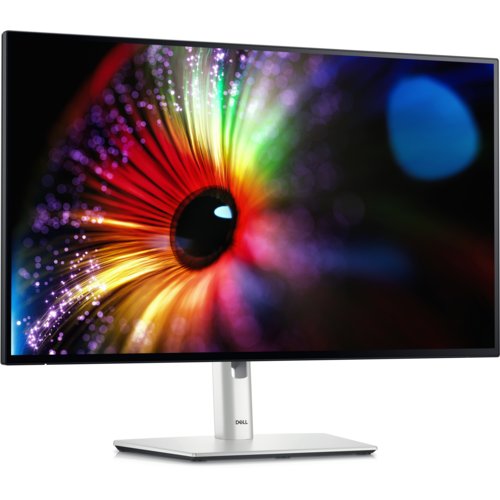
Dell UltraSharp U2724D
Best QHD for Dark ModeBuy if: you code in dark mode all day and want IPS Black contrast with 120Hz smooth scrolling
Don't buy if: you charge your laptop from your monitor — this one's USB-C port does not charge at all
The U2724D is the dark-mode pick. A 27-inch QHD IPS Black panel — 2000:1 contrast, so a dark editor stays black instead of glowing grey — at 120Hz, with 100% sRGB and 98% DCI-P3, 350 nits and a five-star eye-comfort rating from TÜV. The 120Hz refresh rate is the quiet win here: scrolling through long files feels smooth instead of juddery, and that smoothness adds up over eight hours. An ambient light sensor adjusts the brightness to the room.
Now the part other guides get wrong. This monitor has a USB-C port, and that port does not charge a laptop. Dell's own spec page lists the USB-C upstream port as data-only — no power delivery at all. Only the downstream USB-C port gives 15W, which charges a phone, not a laptop. Several roundups imply USB-C means charging. On this monitor, it doesn't. Buy it for a desktop PC, or keep your laptop charger on the desk, and it is a superb screen. Buy it expecting one-cable charging, and you will be disappointed on day one.
The stand pivots 90 degrees both ways with 150 mm of height adjustment, and a DisplayPort output daisy-chains a second screen. For a desktop setup with a separate charger, this is the best-value IPS Black screen in the list.
Pros
- IPS Black, 2000:1 — best dark-mode contrast at this tier
- 120Hz — smooth scrolling through long files
- Pivots 90° both ways, daisy-chain DisplayPort out
- Ambient light sensor, five-star eye comfort
Cons
- USB-C is data-only — no laptop charging
- QHD, not 4K — 109 PPI, less sharp than the top two picks
- No KVM switch
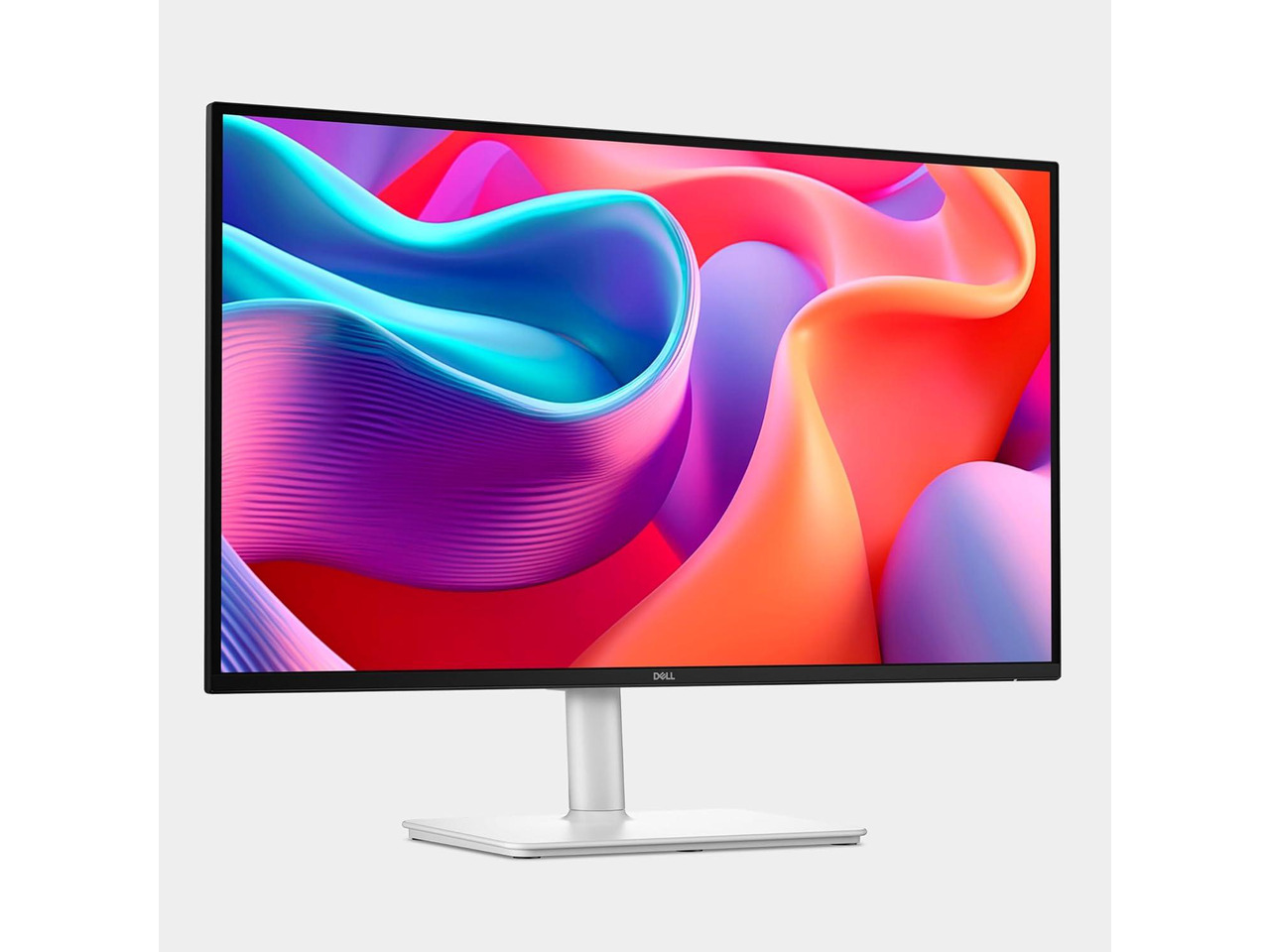
Dell 27 Plus S2725DC
Best Budget 27"Buy if: you want a 27-inch QHD screen that pivots and charges your laptop, for the least money in this list
Don't buy if: you need 4K sharpness, or you work with colour-critical files
The S2725DC is the budget pick, and it is TechRadar's five-star budget choice for a reason. A 27-inch QHD IPS panel at 109 pixels per inch — crisp enough for all-day code — at 144Hz, with 99% sRGB, 350 nits and AMD FreeSync. USB-C delivers 65W, enough to charge a MacBook Air or a Windows ultrabook over the same cable that carries the picture. There are two 3W speakers built in, and a pop-out quick-access USB-C port on the front for a phone or a drive.
The stand pivots 90 degrees both ways with 110 mm of height adjustment, so the screen drops low enough for portrait work on a normal desk. That combination — pivot, 65W charging and 144Hz at this tier — is what the other budget picks in the top 10 don't offer. Most of them give you two of the three.
Two honest limits. First, 109 PPI is good, not superb — next to a 4K panel the text is visibly softer, and if you read code for eight hours a day the sharper Dell U2723QE is worth the step up. Second, contrast is 1500:1, a step below the IPS Black picks, so dark mode looks good rather than great.
Pros
- USB-C 65W charging — one cable for laptop users
- Pivots 90° both ways, 144Hz
- 99% sRGB, built-in speakers, quick-access USB-C port
- TechRadar five-star budget pick
Cons
- 109 PPI — softer text than the 4K picks
- 1500:1 contrast — dark mode is good, not great
- 65W won't charge a big Pro laptop
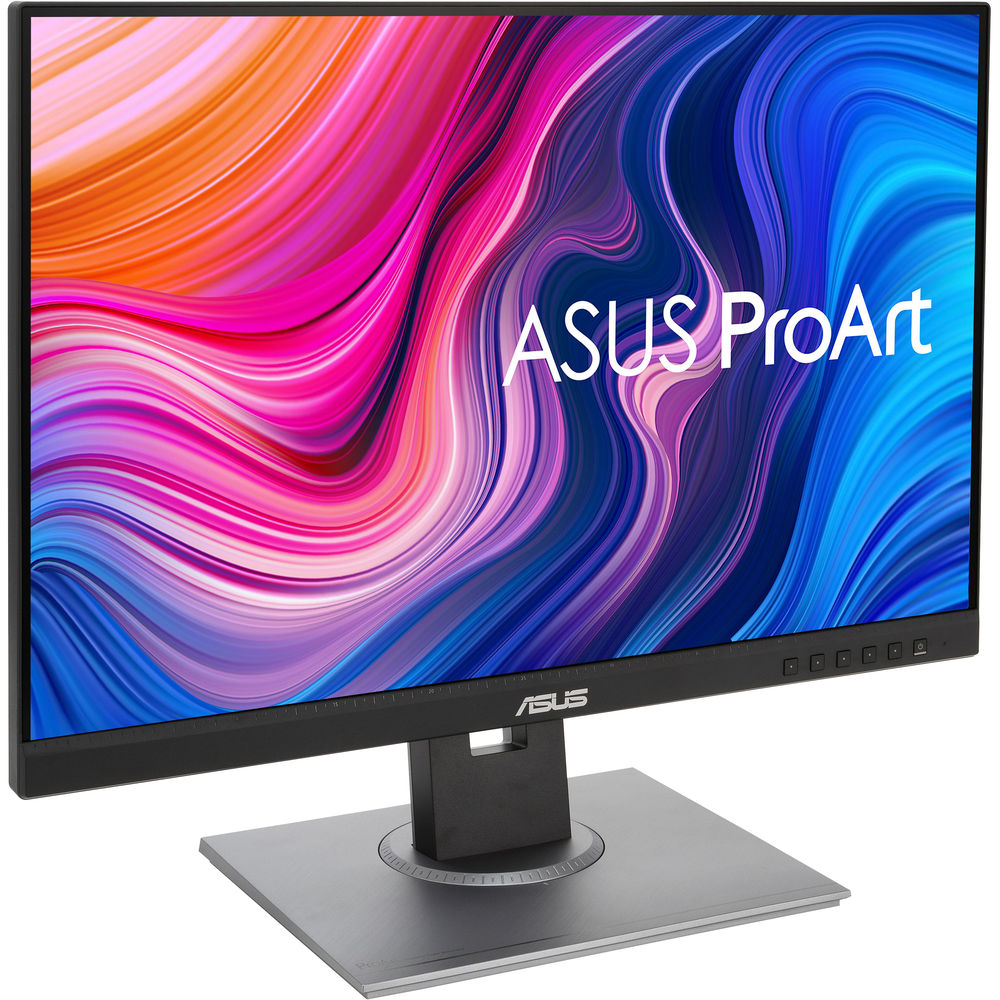
Asus ProArt PA248QV
Best 16:10 BudgetBuy if: your desk is small and you want a 16:10 screen with colour you can trust, for the least money here
Don't buy if: you need USB-C — this monitor has no USB-C port at all
The PA248QV is the small-desk pick. A 24.1-inch IPS panel at 1920×1200 — a 16:10 ratio, so it is taller than a 16:9 screen of the same width — at 94 pixels per inch, with 100% sRGB, a Delta E under 2 and Calman verification. Delta E is the measure of colour error, and under 2 means the colours you see match the file. That is colour accuracy you normally pay twice as much for, and it is why this screen suits coders who also edit photos or design on the side.
The stand pivots 90 degrees both ways with 130 mm of height adjustment and a quick-release mount, so it turns portrait in seconds and sits low enough for a shallow desk. At 24 inches the top of the portrait panel stays near eye level without an arm — the size this guide recommends for most desks.
Two things to get right. First, there is no USB-C port — HDMI, DisplayPort and DVI-D only, plus a four-port USB 3.0 hub. A USB-C-only laptop needs an adapter. Second, buy the original PA248QV, not the Gen2 PA248QFV: the Gen2 is a different screen at 100Hz with a different stand, and listings for the two sit side by side. Check the model number before you pay.
Pros
- 16:10 panel — taller in portrait, less line wrapping
- Factory-calibrated, ΔE < 2, Calman Verified
- Pivots 90° both ways, quick-release stand
- 24 inches — the right height for shallow desks
Cons
- No USB-C — laptop users need an adapter
- 75Hz only
- Gen2 model trap — check the exact model number
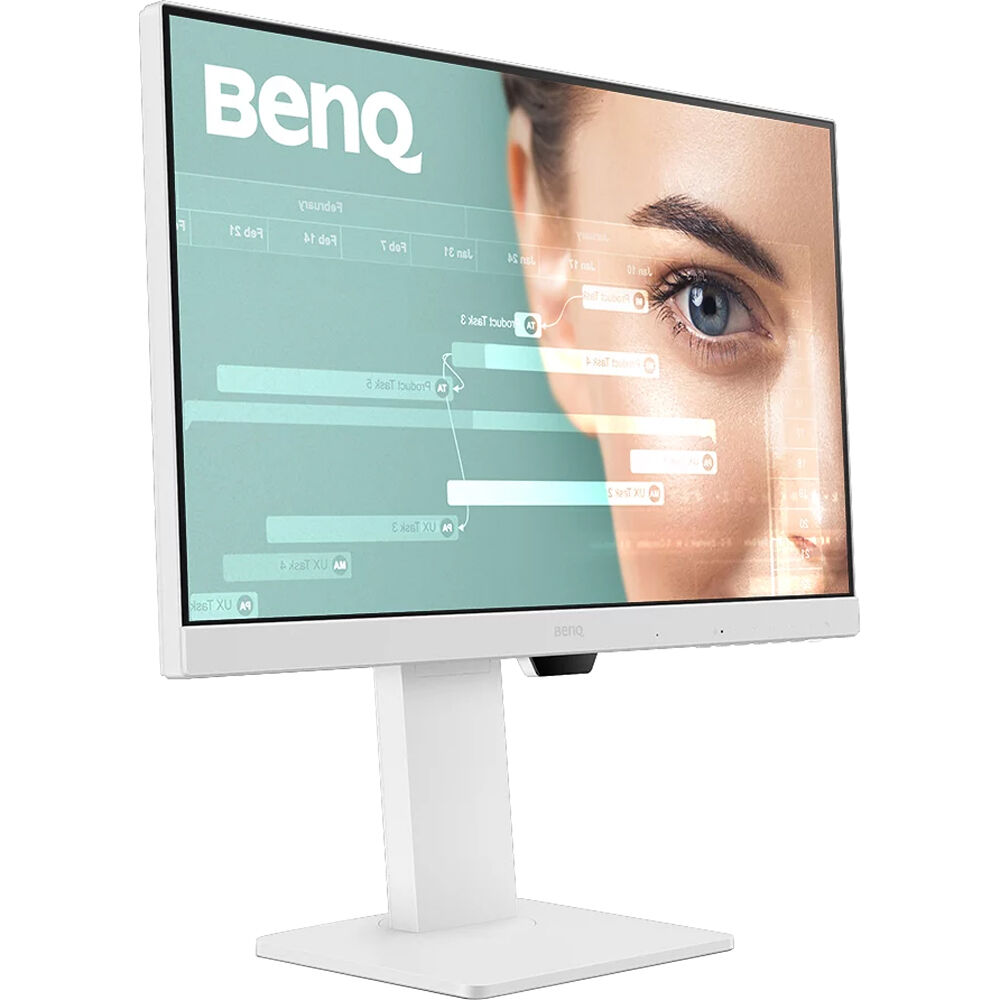
BenQ GW2486TC
Best Cheap Second ScreenBuy if: you want the cheapest portrait screen in this list — a second screen for code, with USB-C charging
Don't buy if: this is your only screen — 1080p is too soft for a main monitor
The GW2486TC is the cheapest way into a portrait coding setup, and TechRadar's coding pick at this tier. A 23.8-inch IPS panel at 1920×1080 — 93 pixels per inch, fine at this size — at 100Hz, with 99% sRGB, 250 nits and a 1300:1 contrast ratio. USB-C delivers 65W, enough to charge an ultrabook, and a DisplayPort output daisy-chains a second screen. Coding Mode and ePaper mode tune the picture for long reading sessions, and a noise-cancelling microphone sits on the front for calls.
The stand pivots 90 degrees both ways with 130 mm of height adjustment, and the whole screen is small enough that the top of the portrait panel stays near eye level on any desk. That is the honest use for it: a second screen beside your laptop or landscape monitor, holding the file you are reading while the big screen holds the work.
Two honest limits. First, 1080p only — as a main screen it is too soft for eight hours of code, and the 24-inch ProArt pick above is the better buy for that job. Second, no KVM switch and no cable management, so two computers means two sets of cables. One spec note: a single retailer bullet says 60W USB-C, but BenQ's own spec page says 65W, and that is the figure used here.
Pros
- USB-C 65W charging — rare at this price
- Coding Mode, ePaper mode, noise-cancelling mic
- Pivots 90° both ways, daisy-chain DisplayPort out
- Cheapest portrait screen in this list
Cons
- 1080p only — too soft as a main screen
- No KVM, no cable management
- 250 nits — dim for a bright room
Buying Guide: What Actually Matters
After size, the four things worth your attention are aspect ratio, resolution, USB-C wattage and the stand — in that order.
Aspect ratio decides how much code fits. A 16:9 panel in portrait is a narrow slot — long lines wrap. A 16:10 panel is taller and a little wider. A 3:2 panel is taller and wider still. That is why the BenQ RD280U leads this list for coding even though it costs more than the Dell QHD picks: the shape does more for your code than the extra pixels do.
Resolution decides how sharp your text is: 1080p at 24 inches, 1440p at 27 inches, 4K at 27 inches and above. USB-C wattage decides whether the monitor charges your laptop — check the maker's spec page for the wattage, not just the port. The Dell U2724D proves the point: it has a USB-C port and charges nothing. The tiers are simple: 65W covers an ultrabook, 90W covers a 14- or 16-inch Pro laptop, and 140W covers a workstation. The stand decides whether the screen sits at eye level — pivot in the box is the feature to check, and every pick here has it.
Two more checks before you buy. First, eye care: flicker-free backlights and low blue light modes help, and every pick here has both — but they are the garnish, not the meal. The meal is distance, brightness and breaks. Second, availability: the BenQ RD240Q looks like the ideal compact 16:10 coding screen on paper, but major retailers list it as discontinued. Don't buy a monitor you can't find. If it comes back in stock, it belongs on this list.
Monitors to Skip in 2026
27-inch 1080p monitors — too coarse for code. At 27 inches, 1080p text is 82 pixels per inch, and it looks soft at arm's length. 1080p belongs on a 24-inch screen or smaller. If the price looks tempting, remember you will read that screen for eight hours a day.
"Vertical" monitors that need a separate bracket — the HP 24mh and AOC 24G4. Good screens, honest prices, and stands that do not rotate. The listing calls them vertical and hands you a landscape stand, then charges you another $20 to $30 for the arm that makes it true. Buy one of the six picks here instead, or budget for the arm up front.
240Hz gaming panels — the wrong number for a text task. A 240Hz screen costs real money for a refresh rate your code editor will never use. Spend it on pixels instead: the same money buys a 4K panel at 60Hz, and your eyes will thank you every day.
Gaming OLEDs — gorgeous, and the wrong tool for code. A QD-OLED looks superb in a shop demo, and static editor chrome, taskbars and line numbers are exactly what OLED panels hate. Burn-in risk, a price that buys two good office monitors, and no USB-C hub on most models. Keep the OLED for the games room.
The pattern is the same every time: a good monitor, recommended for the wrong setup.
Frequently Asked Questions
What's the best vertical monitor for coding in 2026?
The Dell UltraSharp U2723QE — 27-inch 4K, 90W USB-C, pivots in the box. For coding-first features, the BenQ RD280U.
Are vertical monitors worth it for coding?
Yes, if you read long files all day. Portrait shows roughly twice as many lines, so you scroll less.
Should I get a 24-inch or 27-inch vertical monitor?
24 inches for shallow desks or a second screen. 27 inches only if you can sit far enough back.
Can I rotate any monitor to vertical?
Any monitor with a VESA mount can turn on an arm. Stands that pivot in the box are the easy route — all six picks here do.
Is 1080p enough for a vertical coding monitor?
At 24 inches, just about. At 27 inches, no — text goes soft. Buy 1440p or 4K at 27 inches.
Can a vertical monitor charge my laptop over USB-C?
Only if the port delivers power. The Dell U2724D's USB-C is data-only — check the wattage, not just the port.
Is a vertical monitor better than an ultrawide for coding?
For reading long files, yes. For three windows side by side, an ultrawide wins.