Best 4K Monitor for Productivity (2026): 6 Picks

You work from a laptop at a home desk. By mid-afternoon the text goes fuzzy, you keep alt-tabbing between a spreadsheet, a document and Slack because nothing fits side by side, and every "best monitor" list you open is either gaming specs you don't need or a wall of numbers that mean nothing — HDR400, 0.03ms, 99% of what? That is the reader this guide is written for. It answers the three questions you are actually stuck on: 27 or 32 inches, 4K or 1440p, and whether USB-C charging really works with your laptop.
Best 4K monitor for productivity refers to a 3840×2160 screen picked for work, not games: sharp small text, enough space for two windows side by side, and a stand that adjusts to eye level. The best ones charge a laptop over one USB-C cable. Size matters more than brand — measure your desk first.
The top 10 results for "best 4K monitor for productivity" are mostly template farms that list the same monitors and move on. Several of them print specs that are simply wrong — one claims a 0.03ms response time for an IPS panel, another lists USB-C on a monitor that has no USB-C port at all, and one puts a 1080p monitor in a 4K roundup. This guide checks every spec against the maker's own page, and where sources disagree, the disagreement is stated on the card. If you want the wider home-office picture — ultrawide, budget and eye-care picks — our general home-office guide covers those.
No prices are printed in this guide — monitor prices move by seller and week, so check the live price before buying. Specs and USB-C wattage figures come from the makers' own spec pages, and where sources disagree, the disagreement is stated on the card.
Is a 4K Monitor Worth It for Productivity?
Yes — if you read small text all day. A 27-inch 4K screen shows the same windows as 1440p, only sharper. If your day is email and video calls, 1440p is fine, and the money you save buys a better stand.
Is a 4K monitor worth it for productivity? Yes, for most workers — if you read small text all day. A 27-inch 4K screen packs 163 pixels into every inch, against 109 on a 1440p screen, so letters stay crisp at arm's length. According to RTINGS, the best work monitors are 4K panels, led by the Dell UltraSharp U2725QE.
Is 4K better than 1440p for office work? For text-heavy work, yes. A 4K panel shows the same windows as 1440p at 27 inches, but every letter is sharper — which matters when you read code or spreadsheets all day. According to Dell, its 27-inch 4K UltraSharp panels are built for all-day text work. The catch is scaling.
The sharpness win is real, and it has a number behind it. PPI means pixels per inch — how tightly the dots are packed. A 27-inch 4K panel packs 163 PPI. A 27-inch 1440p panel packs 109. A 32-inch 4K panel sits between them at about 140. Your eyes notice the difference the moment you read 10-point text for an hour. Letters stop looking slightly soft. That is the whole productivity case for 4K: not more windows, but clearer ones.
Look — if you're reading this on a laptop screen right now, squinting at 13 inches of spreadsheet, here's what actually works: a 27-inch 4K screen at arm's length, scaled to 150%, with your document on one side and your inbox on the other. It's not the size that's wrong — it's the distance, and you can't fix that with a bigger box.
I've seen conflicting data — some sources say 32 inches is the only sensible 4K size, others say 27 inches is the sweet spot. My read is that both are right for different desks: 27 inches wins on a normal desk, 32 inches wins only when you can sit far enough back to see all of it at once.
27-Inch 4K vs 1440p — Which Wins for Work?
4K wins for text, code and spreadsheets. 1440p wins for tight budgets and email-only days. At 27 inches they show the same workspace — 4K is sharper, not bigger.
Should I buy a 4K or 1440p monitor for work? Buy 4K if you read small text, write code, or work in spreadsheets. The pixels keep letters crisp at arm's length. According to the American Academy of Ophthalmology, about 25 inches is the right viewing distance — and the sharper panel shows. Buy 1440p for email and calls.
4K vs 1440p for productivity: 4K is better suited for small text, code and spreadsheets because its denser pixels keep letters crisp at arm's length. 1440p works better when your budget is tight and your day is mostly email and video calls. The key difference is sharpness, not space — at 27 inches both show the same workspace once scaling is set.
Here is the trap nobody in the top 10 explains properly. At 27 inches, a 4K screen at 100% scaling shows text so small it is hard to read, so Windows and macOS scale it up — usually to 150%. At 150%, a 4K screen shows exactly the same workspace as a 1440p screen: 2560×1440 logical pixels. Same windows, same layout, same number of columns in your spreadsheet. The difference is that every letter is drawn with more dots, so it looks printed instead of painted.
That is why "4K gives you more space" is wrong at 27 inches. It gives you sharper space. Real extra space arrives at 32 inches, where 125% scaling leaves you with a bigger logical desktop. If you want more room, buy the bigger screen. If you want crisper text, buy the denser one.
Where 4K genuinely loses: a 1440p panel needs no scaling, so older apps never blur, and it costs less. Where 1440p genuinely loses: text. Small fonts, dense code, long documents — 109 PPI looks soft next to 163 PPI, and once you have read on the sharper screen, going back feels like a downgrade. For photo and video work, 4K is not a debate at all. Your image is 3840 pixels wide. Show it at full size.
27 vs 32 Inch 4K Monitor — Which Size?
27 inches for most desks. 32 inches only if your desk is 70 cm or deeper and you sit 28 to 32 inches from the screen. A 32-inch panel on a shallow desk is a mistake you will feel in your neck.
Size is a distance question. Sit where you work and stretch your arm out — your fingertips land about 25 inches away, and that is roughly where the screen should sit. According to the American Academy of Ophthalmology, about 25 inches is the right viewing distance, and OSHA puts the range at 20 to 40 inches. A 32-inch screen at that distance fills too much of your view. You turn your head to read the corners. That is not a big monitor. That is a monitor that is too close.
| Desk depth | Best size | Why |
|---|---|---|
| Under 60 cm | 27 inches | Fits the distance; 32 inches crowds a shallow desk |
| 60–75 cm | 27 inches | The sweet spot — full screen in view without turning your head |
| 70–85 cm | 32 inches | Needs a deep desk; superb for split-screen work at the right distance |
| 85 cm or more | 32 inches, or two 27s | Room for a big canvas, or a second screen beside it |
Here's my honest take: a 32-inch 4K monitor on a normal 60 cm desk is a mistake. It looks superb in photos, and in real life you sit 45 cm from a screen that wants 70 cm of distance. Your eyes dart. Your neck turns. The extra workspace you paid for becomes the reason you are tired at four o'clock. Or maybe I should say it this way: buy the size your desk fits, not the size the photos sell.
Quick note: a monitor arm buys back desk depth. A cheap arm lets the screen sit further back than its factory stand allows — and our monitor arm guide covers which ones hold up on a small desk.
What Scaling Should I Use on a 4K Monitor?
150% on a 27-inch screen, 125% on a 32-inch screen. On a Mac, use the "looks like 2560×1440" setting. If text still looks small, go up one step — don't lean in.
Scaling means the operating system draws everything bigger so 4K text stays readable. At 100% scaling, a 27-inch 4K screen shows tiny text. At 150%, it shows the same layout as a 1440p screen, only sharper. At 200%, it shows the same layout as a 1080p screen — huge text, very little space. The setting lives in Windows under Display settings, and on a Mac under Displays.
Here's the thing: scaling is not a compromise. It is the whole point. A 4K panel at 150% is a 1440p workspace drawn with four times the dots. That is why the text looks printed. The wrong move is running 4K at 100% and leaning in to read it. Leaning in is what hurts your neck, not the screen.
One warning for Windows users: a few older apps still blur when scaled. Modern apps are fine, and the problem has shrunk every year, but if you run one legacy tool all day, test it first. On a Mac, scaling works differently — macOS renders at a higher resolution and shrinks it down, which keeps text crisp but costs a little graphics power. Any modern laptop handles it.
How Much USB-C Power Do You Need?
65W covers a MacBook Air or a Windows ultrabook. A 14- or 16-inch Pro laptop needs 90–96W. A big workstation laptop needs 140W. Buy the wattage your laptop actually draws, not the wattage the listing implies.
USB-C power delivery — PD for short — is the wattage a monitor sends down the same cable that carries the picture. It replaces your laptop charger. The tiers are simple, and no competitor page explains them properly, so here they are: 18W will not charge a laptop at all, it only carries video and data. 65W covers most ultrabooks. 90–96W covers 14- and 16-inch Pro laptops. 140W, over Thunderbolt, covers nearly everything, including workstation laptops.
| Your laptop | Watts you need | Picks here |
|---|---|---|
| MacBook Air, ultrabook, Chromebook | 45–65W | Any USB-C pick here |
| 14–16-inch Pro laptop (MacBook Pro, XPS 14/16) | 90–96W | BenQ PD3225U (90W), ProArt PA279CRV (96W), ViewSonic VP2768a-4K (90W) |
| Workstation laptop, 16-inch gaming laptop | 140W | Dell UltraSharp U2725QE (140W) |
| Desktop PC, or laptop with its own charger | 0W — any port works | Any pick, including the Dell S2725QS and LG 27UP650-W (no USB-C) |
Two checks before you trust any wattage number. First, check the maker's spec page, not a roundup — roundups copy the wrong model's number all the time. Second, check your laptop's own charger: if it ships with a 96W brick, a 65W monitor will not replace it. A monitor rated below your laptop's need will still show a picture. It just won't keep the battery full.
The Dell S2725QS and the LG 27UP650-W have no USB-C at all. Say that plainly, because other guides don't: if you buy either for a laptop, you still need a charger, a cable and a hub on your desk. Buy them for a desktop PC, where USB-C doesn't matter, and they are excellent value. Buy them for a laptop, and you have kept the whole mess this guide exists to remove.
What Is IPS Black, and Is It Better?
Yes — for all-day text work. IPS Black is an IPS panel with roughly three times the contrast of a normal IPS panel, so blacks look black instead of grey. It is the single best panel upgrade for a work monitor.
IPS is the panel type in most good work monitors: wide viewing angles, honest colour. Its weakness is contrast — a normal IPS panel manages about 1000:1, which means a black screen glows dark grey in a dim room. IPS Black is a newer version of the same technology that reaches about 3000:1. Dark spreadsheets, dark code editors and night-time work all look cleaner. Two picks here use it: the Dell UltraSharp U2725QE and the BenQ PD3225U.
VA panels also reach 3000:1, and they cost less. The trade is viewing angles: colours shift when you sit off-centre, and text can look smeary when you scroll fast. For spreadsheets and documents that rarely matters. For design work it does. IPS Black gives you the contrast of VA with the angles and colour of IPS. That is why it costs more, and why it is worth it if you read text for eight hours a day.
One honest limit: IPS Black does not make a monitor good for HDR video. The Dell U2725QE carries a DisplayHDR 600 badge, and it is brighter than most office screens, but real HDR needs far more. Buy IPS Black for contrast and text. Buy something else for movies.
Is a 4K Monitor Worth It for Coding?
Yes. Code is small text, and 163 pixels per inch keeps it crisp for hours. A 27-inch 4K screen fits two code panes side by side, and a 32-inch 4K screen fits three.
Coders are the audience the top-10 roundups ignore, and they are the people 4K helps most. Code is dense, small and read for hours at a time. At 109 PPI the letters blur at the edges. At 163 PPI they stay sharp. The difference shows up as less eye fatigue at the end of the day, not as a bigger screen.
Two setup tips from the programming guides. First, run the screen in portrait now and then: a 27-inch 4K panel turned sideways shows more lines of code than any landscape screen, and every pick here pivots. Second, use the monitor's split-screen software — Dell Display Manager, LG Switch or BenQ Display Pilot — to snap two panes side by side without dragging windows around. The Dell U2725QE and the BenQ PD3225U both have KVM switches, which let one keyboard and mouse drive two computers — work laptop and personal machine — on the same screen.
KVM means keyboard, video and mouse switch. One button swaps the screen, keyboard and mouse between two computers. If you work on a company laptop and a personal machine at the same desk, it is the feature you will use every day and never think about again.
Do 4K Monitors Reduce Eye Strain?
Sharper text helps, but distance, brightness and breaks matter more. Sit at arm's length, match the screen to the room, and look away every 20 minutes.
The 20-20-20 rule is the one worth remembering: every 20 minutes, look at something 20 feet away for 20 seconds. It sounds too simple to work, and it is the single best-studied fix for screen fatigue. Pair it with the right distance — about 25 inches, or an arm's length, per the American Academy of Ophthalmology — and the top of the screen at or just below eye level, so your eyes look slightly down.
Brightness matters more than blue light. A screen brighter than the room forces your eyes to work; a screen dimmer than the room makes them strain the other way. Match the monitor to the room, and use the ambient light sensor if it has one. Flicker-free backlights and low blue light modes help, and every pick here has both — but they are the garnish, not the meal. The meal is distance, brightness and breaks.
Where 4K does help: sharper text means your eyes work less hard to read it. Where it doesn't: a 4K screen at the wrong distance, with the wrong brightness, will tire your eyes just as fast as any other screen. If your eyes still ache after a week at the right distance, check the scaling. Text that is too small makes you lean in, and leaning in is what hurts.
How Do I Set Up a 4K Monitor With One Cable?
Use a USB-C cable from the monitor's upstream port to a USB-C port on your laptop that supports DisplayPort Alt Mode or Thunderbolt. One cable then carries the picture, the charging and the USB hub.
To set up a 4K monitor for work, follow these steps: 1. Connect one USB-C cable from the monitor to your laptop. 2. Set scaling to 150% on a 27-inch screen or 125% on a 32-inch screen. 3. Put the monitor at arm's length with the top at eye level. 4. Turn on the monitor's KVM if you use two computers. 5. Arrange two windows side by side and start work.
- Check the port supports video. Check your laptop's USB-C port supports DisplayPort Alt Mode or Thunderbolt — a charging-only port won't drive a monitor.
- Plug the cable into the monitor. Plug the cable into the monitor's USB-C upstream port, not the downstream hub ports.
- Plug the cable into the laptop. Plug the other end into your laptop — the screen should light up and the battery icon should show charging.
- Choose Extend. Choose Extend in display settings, so the monitor adds space instead of mirroring your laptop.
- Set the scaling. Set scaling to 150% on a 27-inch screen or 125% on a 32-inch screen, so text is readable.
- Set the main display. Set the monitor as your main display, so new windows open on the big screen.
The catch is step one. Not every USB-C port carries video. Some laptop ports are charging-only, and some carry data but no DisplayPort signal. Check your laptop's spec page for "DisplayPort Alt Mode" or "Thunderbolt" next to the port — if neither is listed, the port won't drive a monitor, and you need an HDMI or DisplayPort cable instead. A Thunderbolt port always works. A port marked with a small "D" or lightning symbol works too.
Once it is connected, close the laptop lid if you want clamshell mode — the laptop keeps running on the monitor alone. If the screen stays black, try the other USB-C port on the laptop. Most machines have one port with video and one without.
Quick Comparison
| Product | Size / Resolution / Panel | USB-C Watts | Best For | ||
|---|---|---|---|---|---|
| #1 | Dell UltraSharp U2725QEBest Overall | 27" / 4K / IPS Black, 120Hz | 140W | Most desks, one-cable docking | Check Price |
| #2 | BenQ PD3225UBest 32-Inch for Design | 31.5" / 4K / IPS Black, 60Hz | 90W | Design, big canvas | Check Price |
| #3 | Asus ProArt PA279CRVBest Creator Value | 27" / 4K / IPS, 60Hz | 96W | Photo and design work | Check Price |
| #4 | Dell S2725QSBest Budget 27" 4K | 27" / 4K / IPS, 120Hz | None | Desktop PCs, sharp text for less | Check Price |
| #5 | LG 27UP650-WBest Value Sharp Text | 27" / 4K / IPS, 60Hz | None | Desktop PCs, colour on a budget | Check Price |
| #6 | ViewSonic VP2768a-4KBest Colour-Accurate Docking | 27" / 4K / IPS, 60Hz | 90W | Colour work + one-cable dock | Check Price |
USB-C wattage is the power delivery figure from each maker's own spec page. No prices are printed — check the live price before buying.
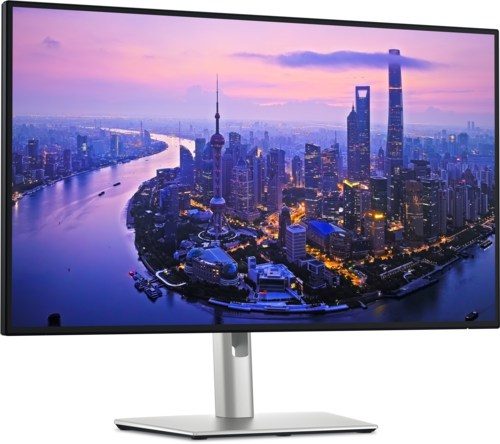
Dell UltraSharp U2725QE
Best OverallBuy if: you want the best all-round 4K work monitor — IPS Black, 120Hz and a 140W Thunderbolt dock in one screen
Don't buy if: your desk is under 60 cm deep and you need a 32-inch screen, or you want built-in speakers
The U2725QE is RTINGS' best USB-C monitor and its number-two work monitor overall, and it earns both. A 27-inch 4K IPS Black panel — 3000:1 contrast, so blacks look black instead of grey — at 120Hz with 99% DCI-P3, 450 nits and DisplayHDR 600. Thunderbolt 4 with up to 140W power delivery, a downstream Thunderbolt port for daisy-chaining a second 4K monitor, a 2.5GbE ethernet port, a USB hub and a KVM switch that lets one keyboard and mouse serve two computers.
That 140W figure matters. It is the only pick here that charges a big workstation laptop at full speed while driving the screen. The IPS Black panel matters too: on a normal IPS panel, a dark spreadsheet at night glows grey at the edges. This one doesn't. The 120Hz refresh rate is a quiet win for all-day work — scrolling through long documents feels smoother, and that smoothness adds up over eight hours.
Two honest limits. First, there are no speakers, so budget for a pair or a headset. Second, the stand is fully ergonomic — height, tilt, swivel and pivot — but check the exact adjustment ranges on Dell's spec page before you buy.
Pros
- IPS Black panel — 3000:1 contrast, real blacks
- Thunderbolt 4 with 140W charging
- 2.5GbE ethernet, KVM, daisy-chain support
- 99% DCI-P3, 120Hz, 450 nits
Cons
- No built-in speakers
- Premium pick — check the live price first
- Stand ranges — check Dell's spec page
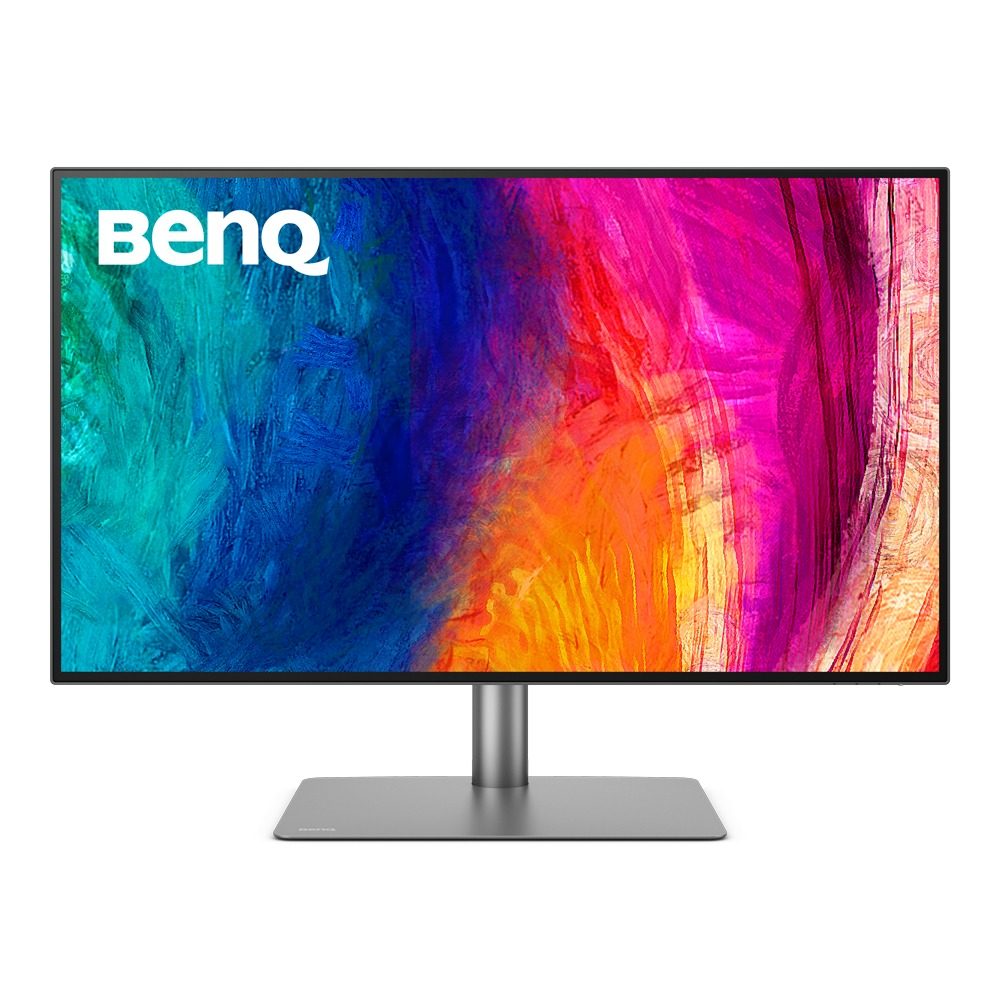
BenQ PD3225U
Best 32-Inch for DesignBuy if: you design for a living and want a big, colour-trustworthy canvas with a design timeline, tool palettes and reference side by side
Don't buy if: your desk is under 70 cm deep, or you want 120Hz
The PD3225U is TechRadar's pick for best 4K design monitor. A 31.5-inch 4K IPS Black panel at about 140 PPI, 2000:1 contrast, 400 nits and DisplayHDR 400, covering 98% DCI-P3 and 99% sRGB, factory calibrated to a Delta E of 2 or better — Delta E is the measure of colour error, and under 2 means the colours you see match the file. CalMAN Verified, Pantone validated, with a Hotkey Puck G2 for switching colour modes without digging through menus.
The Thunderbolt 3 port delivers 90W of power delivery, per BenQ's own spec data — enough to charge a 14- or 16-inch Pro laptop over the same cable that carries the picture. There is a KVM switch, a Display Pilot 2 app, M-Book mode for Mac users, and picture-in-picture for a second source. The 32-inch canvas is the point: a full design timeline plus palettes plus a reference image, all visible at once, with no alt-tabbing.
Two honest limits. First, 60Hz — scrolling is less smooth than the 120Hz Dell picks. Second, desk depth: 32 inches needs 70 to 85 cm of desk, and on a shallow desk it will sit too close. Measure first.
Pros
- IPS Black, 98% DCI-P3, factory calibrated ΔE ≤ 2
- Thunderbolt 3 with 90W charging (BenQ's figure)
- Hotkey Puck G2, KVM, M-Book mode
- 32-inch canvas fits timeline + palettes + reference
Cons
- 60Hz only
- Needs a deep desk (70–85 cm)
- 2× 2.5W speakers are small
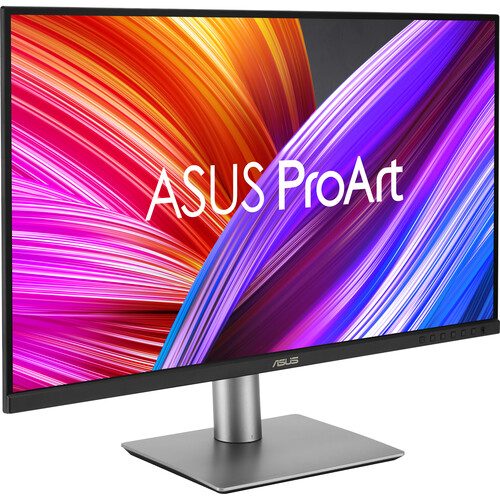
Asus ProArt PA279CRV
Best Creator ValueBuy if: you edit photos or design for a living and need accurate colour without paying for a reference monitor
Don't buy if: you want 120Hz, or you work in a bright room — brightness and contrast are average
The PA279CRV is the colour pick. A 27-inch 4K IPS panel at 163 pixels per inch, factory-calibrated, covering 100% sRGB, 99% DCI-P3 and 99% Adobe RGB — Adobe RGB is the colour range printers use, and 99% of it at this tier is rare. That is the widest colour coverage per dollar in this list, and it is why RTINGS names it the best mid-range work monitor. USB-C delivers 96W, there are two DisplayPort 1.4 inputs — one supports daisy-chaining a second monitor — plus two HDMI 2.0 ports and a three-port USB-A hub.
Say it plainly, though: the panel has limits. Contrast and brightness are average at 1000:1 and 350 nits, HDR is sub-par, and 60Hz is the ceiling. In a bright room the screen can look washed out next to the Dell IPS Black panel. None of that matters for colour accuracy — the calibration is what you pay for, and a calibration report ships in the box — but don't buy it expecting a bright, punchy display.
For photographers and designers, the daisy-chain DisplayPort is a quiet win: two ProArt screens on one cable from the laptop, with the second screen carrying the tools while the first holds the image. For everyone else, the Dell U2725QE is the better all-rounder.
Pros
- Factory-calibrated, 100% sRGB / 99% DCI-P3 / 99% Adobe RGB
- 96W USB-C charging
- DisplayPort daisy-chain for a second screen
- 163 PPI — very sharp text
Cons
- 60Hz only
- Average contrast and brightness
- Sub-par HDR
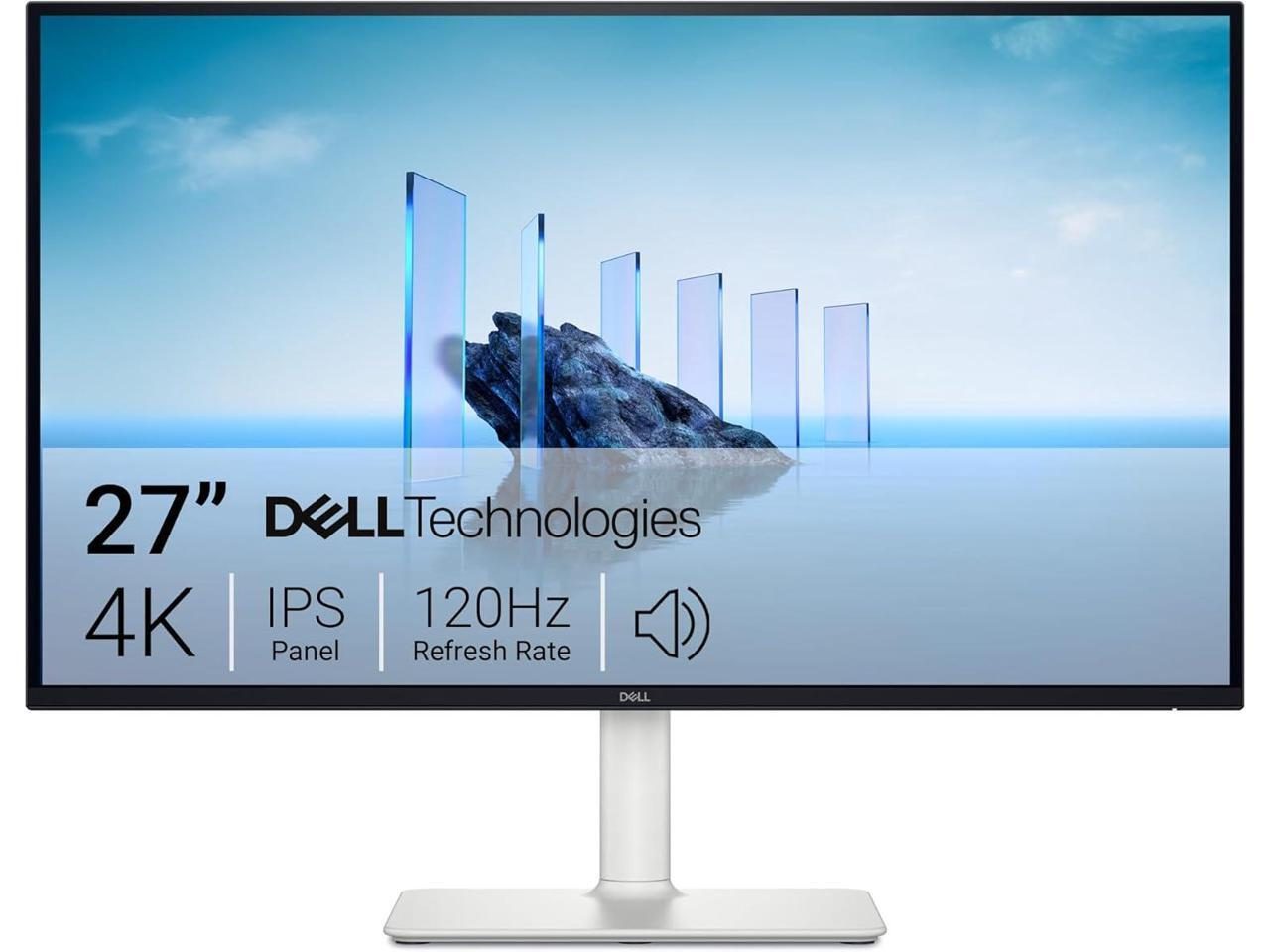
Dell S2725QS
Best Budget 27" 4KBuy if: you use a desktop PC and want the cheapest route to 27-inch 4K at 120Hz
Don't buy if: you charge a laptop from your monitor — this one has no USB-C at all
The S2725QS is the budget pick, and it is the cheapest route to 27-inch 4K at 120Hz in this list. A 27-inch 4K IPS panel at 163 PPI, 1500:1 contrast, 350 nits and 99% sRGB, with AMD FreeSync Premium, ComfortView Plus blue-light filtering and 2×5W built-in speakers. Smooth scrolling is a genuine all-day comfort win, not just a gaming spec — long documents glide instead of juddering.
Now the part other guides get wrong. This monitor has no USB-C port. Dell's own spec page lists two HDMI 2.1 ports and one DisplayPort 1.4 — nothing else. Several template farms claim USB-C, and they are wrong, most likely confusing it with the S2725QC. If you buy the QS for a laptop, you still need a charger, a cable and a hub. Buy it for a desktop, where USB-C doesn't matter, and it is a superb value.
One more correction worth printing: a popular roundup claims a 0.03ms response time for this monitor. That figure belongs to OLED panels. Dell lists 4 to 8ms by mode for this IPS screen, and for office work the number is irrelevant anyway.
Pros
- 27-inch 4K IPS at 120Hz — sharp text, smooth scrolling
- 99% sRGB, 1500:1 contrast, built-in speakers
- Fully adjustable stand
- Cheapest 4K 120Hz route in this list
Cons
- No USB-C — laptop users still need a charger and hub
- Some roundups wrongly claim USB-C and 0.03ms
- HDMI and DisplayPort only
LG 27UP650-W
Best Value Sharp TextBuy if: you use a desktop PC and just want crisp 4K text and good colour for less
Don't buy if: you need USB-C — this monitor has no USB ports at all, so a USB-C-only laptop needs an adapter
The 27UP650-W is the sharpest text per dollar in this list. A 27-inch 4K IPS panel at 163 PPI with 95% DCI-P3 — DCI-P3 is the wide colour range video uses, and 95% of it at this tier is generous — plus 400 nits, DisplayHDR 400 and a factory colour calibration from LG. AMD FreeSync, Dynamic Action Sync and Black Stabilizer come along for the ride, and the LG Switch app splits the screen up to six ways for multitasking.
The trade is connectivity. LG's official spec lists two HDMI 2.0 ports, one DisplayPort 1.4 and a headphone jack — and no USB ports at all. A USB-C-only laptop needs an adapter or a cable to connect, and it keeps its own charger. Say that plainly: this is a desktop-PC monitor, not a laptop dock. For a desktop user who doesn't need USB-C, that trade buys a lot of picture for the money.
One naming trap to avoid: the closely related 27UP650K-W is the 2025 refresh, and listings for the two models sit side by side. Same panel, different model number. Check the listing says 27UP650-W before you pay.
Pros
- 95% DCI-P3, 400 nits, DisplayHDR 400
- 163 PPI — very sharp text
- Height, tilt and pivot stand
- LG Switch app splits the screen six ways
Cons
- No USB ports at all — no USB-C charging or hub
- 60Hz only
- Suffix trap: W, K-W and P-W listings all exist
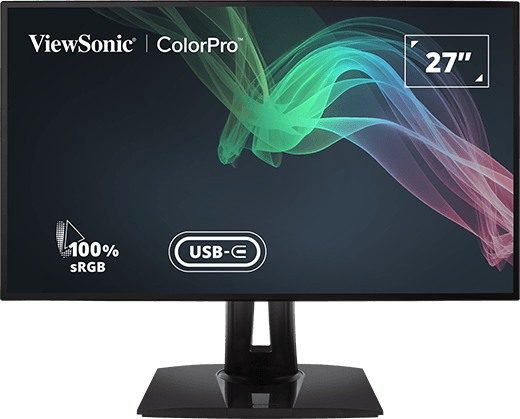
ViewSonic VP2768a-4K
Best Colour-Accurate DockingBuy if: you want one cable to carry video, 90W charging and ethernet — and colour you can trust for client-facing design or photo work
Don't buy if: you want 120Hz, or you need a bright screen for a sunny room
The VP2768a-4K is the only pick here with 90W USB-C and ethernet in one cable. A 27-inch 4K SuperClear IPS panel at 163 PPI, 100% sRGB, factory calibrated to a Delta E under 2 with a calibration report in the box, Pantone validated and a 14-bit 3D LUT — a lookup table that maps colours precisely, so what you see is what the file holds. The USB-C port delivers 90W, and an RJ45 ethernet port passes the network through the monitor, so the screen replaces a docking station.
That combination is the point. Laptop users who also need colour they can trust usually buy a monitor and a dock. This one is both. There is a USB hub, a DisplayPort output for daisy-chaining a second screen, HDMI 2.0, flicker-free backlighting and a blue-light filter, and a full ergonomic stand — height, tilt, swivel and 90-degree pivot.
Two honest limits. First, 60Hz — scrolling is less smooth than the 120Hz Dell picks. Second, 350 nits and 1300:1 contrast are solid rather than spectacular, so a bright room will wash it out a little. For colour work in a normal room, neither matters.
Pros
- 90W USB-C plus ethernet — a real one-cable dock
- 100% sRGB, ΔE < 2, Pantone validated, calibration report included
- DisplayPort out for daisy-chaining
- Full ergonomic stand
Cons
- 60Hz only
- 350 nits — average brightness for a sunny room
- Hardware calibration kit sold separately
Buying Guide: What Actually Matters
After size, the four things worth your attention are resolution, USB-C wattage, panel type and the stand — in that order.
Resolution decides how sharp your text is: 4K at 27 inches, 4K at 32 inches, and 4K with 125% scaling on the bigger screen. USB-C wattage decides whether the monitor charges your laptop — check the maker's spec page, and match it to your laptop's own charger. Panel type decides the picture: IPS for colour and viewing angles, IPS Black for contrast, VA for deep blacks on a budget. The stand decides whether the screen sits at eye level — height adjustment is not optional for eight-hour days, and every pick here has it.
Colour is the part most buyers overthink. sRGB is the colour range of the web — 99% or 100% sRGB covers office work, documents and web design. DCI-P3 is the wider range video uses, and Adobe RGB is the range printers use. You need DCI-P3 or Adobe RGB only if you edit video or print photos. For everyone else, 99% sRGB is enough, and the money is better spent on the panel and the stand.
Three things not to overpay for: refresh rate above 120Hz on an office monitor (you will never use it), HDR on a DisplayHDR 400 panel (a label, not a feature), and built-in speakers on a monitor you will use with headphones anyway. And one thing to check before you buy anything: measure your desk. A monitor that doesn't fit your desk is a return, not a purchase.
Monitors to Skip in 2026
27-inch 1080p monitors — too coarse for desk work. At 27 inches, 1080p text looks soft at arm's length. 1080p belongs on a 24-inch screen or smaller. If the price looks tempting, remember you will read that screen for eight hours a day.
Gigabyte M27U — USB-C that won't charge your laptop. A good 27-inch 4K panel at 160Hz with a KVM switch, and a USB-C port that delivers only 18W. That is a video port, not a charger — your laptop will drain while you work. Retailers also list it as discontinued, so availability is a gamble. Buy it only for a desktop PC, and only if you can actually find one.
43-inch 4K smart monitors — a TV pretending to be a monitor. At desk distance a 43-inch screen is too big, you turn your head to read the edges, and the smart-TV features add lag and menus you will never use at work. Buy a 32-inch 4K monitor instead, and sit at the right distance.
Gaming OLEDs — gorgeous, and the wrong tool for office work. A 240Hz QD-OLED looks superb in a shop demo, and static taskbars and spreadsheet grids are exactly what OLED panels hate. Burn-in risk, a price that buys two good office monitors, and no USB-C hub on most models. Keep the OLED for the games room.
The pattern is the same every time: a good monitor, recommended for the wrong setup.
Frequently Asked Questions
What's the best 4K monitor for productivity in 2026?
The Dell UltraSharp U2725QE — 27-inch 4K, 120Hz, one-cable USB-C charging. For a bigger desk and budget, the BenQ PD3225U.
Is a 4K monitor worth it for work?
Yes, if you read small text, code or spreadsheets all day. For email and video calls only, 1440p is fine and cheaper.
Should I buy a 27-inch or 32-inch 4K monitor?
27 inches for desks 60–75 cm deep. 32 inches only if your desk is 70 cm or deeper, so you can sit far enough back.
What scaling should I use on a 4K monitor?
150% on a 27-inch screen, 125% on a 32-inch screen. On a Mac, use the 'looks like 2560×1440' setting.
Do 4K monitors reduce eye strain?
Sharper text helps, but distance, brightness and breaks matter more. Sit at arm's length and look away every 20 minutes.
How much USB-C power do I need to charge my laptop?
65W covers an ultrabook. A 14- or 16-inch Pro laptop needs 90–96W, and a workstation laptop needs 140W.
Is a 4K monitor worth it for coding?
Yes. Code is small text, and 163 pixels per inch keeps it crisp. A 27-inch 4K screen fits two code panes side by side.