Best Mechanical Keyboard for Programming in 2026: 6 Picks

If you've been typing on a laptop keyboard for years, you're not imagining the ache — it's real, and it's fixable. Flat keys, no feedback, wrists bent over a 13-inch deck. By late afternoon your fingers feel heavy and the typos creep in. Then you open a "best keyboard" list and it reads like a gaming roundup: polling rates, RGB lighting, switches named after colours with no explanation of what they do to your hands.
This guide does the opposite. It starts with code — eight hours of brackets, symbols and shortcuts — and matches a board to it. Six picks, all chosen for programming. No gaming boards leaked in, no invented models, and every switch and layout figure is the maker's own spec.
No prices are printed in this guide — keyboard prices move by seller and week, so check the live price before buying. Switch and layout figures are the makers' own specs, and where sources disagree — the K2 Pro's price — the disagreement is stated on the card.
Is a Mechanical Keyboard Good for Programming?
Yes — for comfort, accuracy and durability. A mechanical keyboard will not make you a better programmer, but it will make the 8+ hours you spend typing far easier on your hands.
A mechanical keyboard for programming is a keyboard with a separate switch under every key, built for long typing days: clear feedback on each keypress, keys you can remap, and switches you can swap. It trades the flat laptop keyboard for feel, durability and control.
A mechanical keyboard is good for programming because each key has its own switch, so you feel every press register and make fewer typos. According to Cherry, MX switches are rated for 50 million keystrokes — years of daily coding. A laptop keyboard wears out far sooner and gives you no feedback at all.
The best mechanical keyboard for programming is the Keychron Q5 Max, a 96% board with hot-swap switches, QMK/VIA remapping and a solid aluminium case. According to the top guides for this query, it is the most-cited pick for developers in 2026, with the K2 Pro as the cheaper alternate.
Look — if you're on calls all day and your current board clicks through every meeting, here's what actually works: a tactile switch, not a clicky one. The click is the problem, not the keyboard. And if your wrists hurt, no switch type fixes that — only a split layout does, which is why the Advantage360 is pick five.
Here's my honest take: for most programmers, a split keyboard is overkill. A good 75% board and a wrist rest get you most of the comfort for a third of the price. Ergonomic fans will push back on that, and they have a point if your pain is real. But if your wrists only ache a little, start with the board, not the split.
Which Switch Is Best for Programming?
Tactile switches — Cherry MX Brown or its equivalents. You feel a small bump when the key registers, without the loud click. Start here if you are unsure.
Tactile switches are the best switches for programming because the small bump confirms each keypress without a loud click. Most developers pick Cherry MX Brown or its equivalents for long sessions, since the feedback cuts typos without annoying anyone on a call or in a shared office.
Tactile vs linear switches: tactile is better suited for programming because the small bump tells your fingers each key registered, which cuts typos on long sessions. Linear works better when you type fast and bottom out anyway. The key difference is feedback: tactile confirms, linear glides.
Three switch types cover almost every board. Tactile (Brown) has a bump you feel and a soft sound — the default for code. Linear (Red) presses straight down with no bump — smooth and quiet, good if you type fast and hate resistance. Clicky (Blue) adds a loud click to the bump — fun alone, terrible on a call. Cherry lists the same 45 g actuation force for its Red and Brown switches; the only difference is Brown's bump, which peaks near 55 g just before the key registers.
Quick note: switch names repeat across brands. Gateron Brown, Kailh Brown and Cherry MX Brown all feel close, and any of them is fine for a first board. Buy the board, not the brand of switch. And if you pick a hot-swap board — five of the six here are — you can pull the switches out by hand later and try another type for a few dollars, no soldering.
What Layout Is Best for Programming?
75% or tenkeyless (TKL). Both keep the function row and arrow keys your editor needs, drop the number pad you rarely use for code, and pull your mouse closer to your body.
A 75% board squeezes the TKL layout tighter — function keys, arrows and navigation keys in one compact block. A TKL keeps the same keys with more space between them. Either is the sweet spot for code. Full-size boards add a number pad most programmers never touch, and push the mouse further right, which opens your shoulder up over a long day.
Here's the thing: the function row matters more than the number pad. F5 runs the debugger in VS Code, F2 renames, F10 steps over — and on a 65% or 60% board those keys live on a function layer you have to hold to reach. That is fine for daily typing and annoying the moment you debug. Keep the function row physical. Keep the arrows physical too, unless you live in Vim — then a 65% board with Fn+HJKL arrows works, and the Moonlander is built for exactly that.
Or maybe I should say it this way: layout is the decision you live with, switches are the decision you can change. A hot-swap board lets you fix a wrong switch choice in ten minutes. A wrong layout means buying another keyboard. Choose the layout first, the switch second.
Quick Comparison
| Product | Switch / Layout / Connection | ||
|---|---|---|---|
| #1 | Keychron Q5 MaxBest Overall | Gateron tactile / 96%, numpad / tri-mode wireless | Check Price |
| #2 | Keychron K2 ProBest for Most Programmers | K Pro Brown tactile / 75% / tri-mode wireless | Check Price |
| #3 | Keychron V1Best Budget | K Pro tactile or linear / 75% / wired USB-C | Check Price |
| #4 | Royal Kludge RK84Best Under $75 | Red / Brown / Blue / 75% / tri-mode wireless | Check Price |
| #5 | Kinesis Advantage360Best Split Ergonomic | Cherry MX Brown / split contoured / wired USB | Check Price |
| #6 | ZSA MoonlanderBest for Vim / Emacs Users | Cherry MX / Kailh, hot-swap / split ortholinear / wired USB-C | Check Price |
Five of the six boards are hot-swappable — the Advantage360 is the exception, with soldered Cherry MX switches. All six ship with Mac and Windows keycaps or a layout toggle, except the Moonlander, which is remapped in software instead.
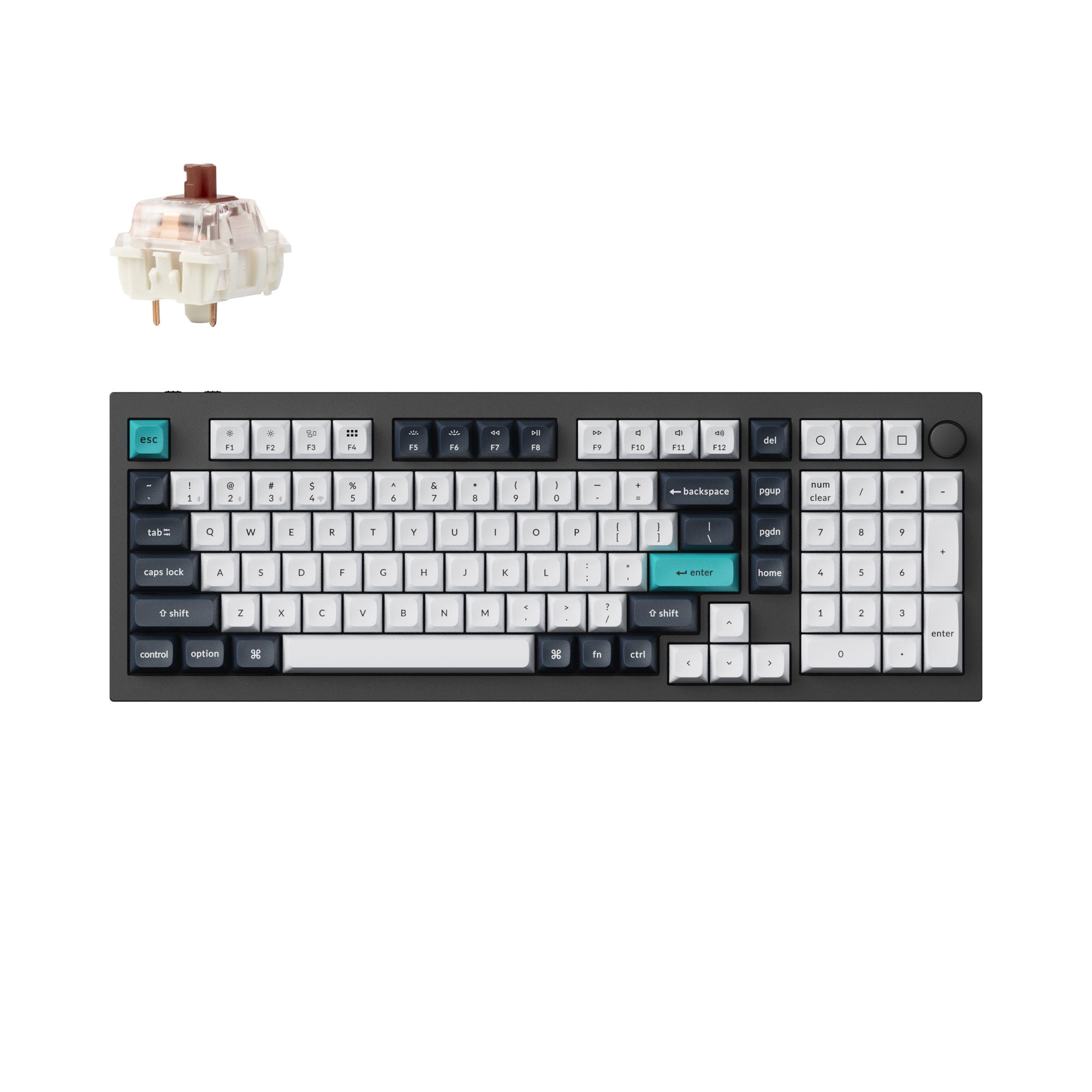
Keychron Q5 Max
Best OverallBuy if: you want one board for code and numbers, built to last for years
Don't buy if: you travel light, or you want the cheapest way into mechanical keyboards
The Q5 Max is the board most programming guides crown best overall, and the reasons stack up fast. A 96% layout keeps the number pad without the width of a full-size board. The case is CNC-machined aluminium with a gasket mount, so it feels solid and sounds deep, not hollow. Hot-swap sockets take almost any 3- or 5-pin MX switch. Full QMK/VIA remapping runs in the browser through Keychron Launcher. Tri-mode covers every desk: Bluetooth 5.1, 2.4 GHz, and wired USB-C, with a volume knob on the corner.
I've seen conflicting data — some sources list the Q5 Max near $219, others near $240. My read is the street price moves by seller, layout and switch choice, so check the live price before you buy. The 96% layout itself takes a day to learn: the number pad is squeezed in, so a few keys sit where your fingers don't expect them. And it is the heaviest board here — a desk board, not a travel board.
Pros
- Keeps the number pad without full-size width
- Full aluminium case, gasket-mounted feel
- Hot-swap switches + full QMK/VIA remapping
- Tri-mode: Bluetooth, 2.4 GHz, wired USB-C
Cons
- Priciest Keychron here
- 96% layout takes a day to learn
- Heavy — a desk board, not a travel board
- Knob sits where a stray palm can bump it
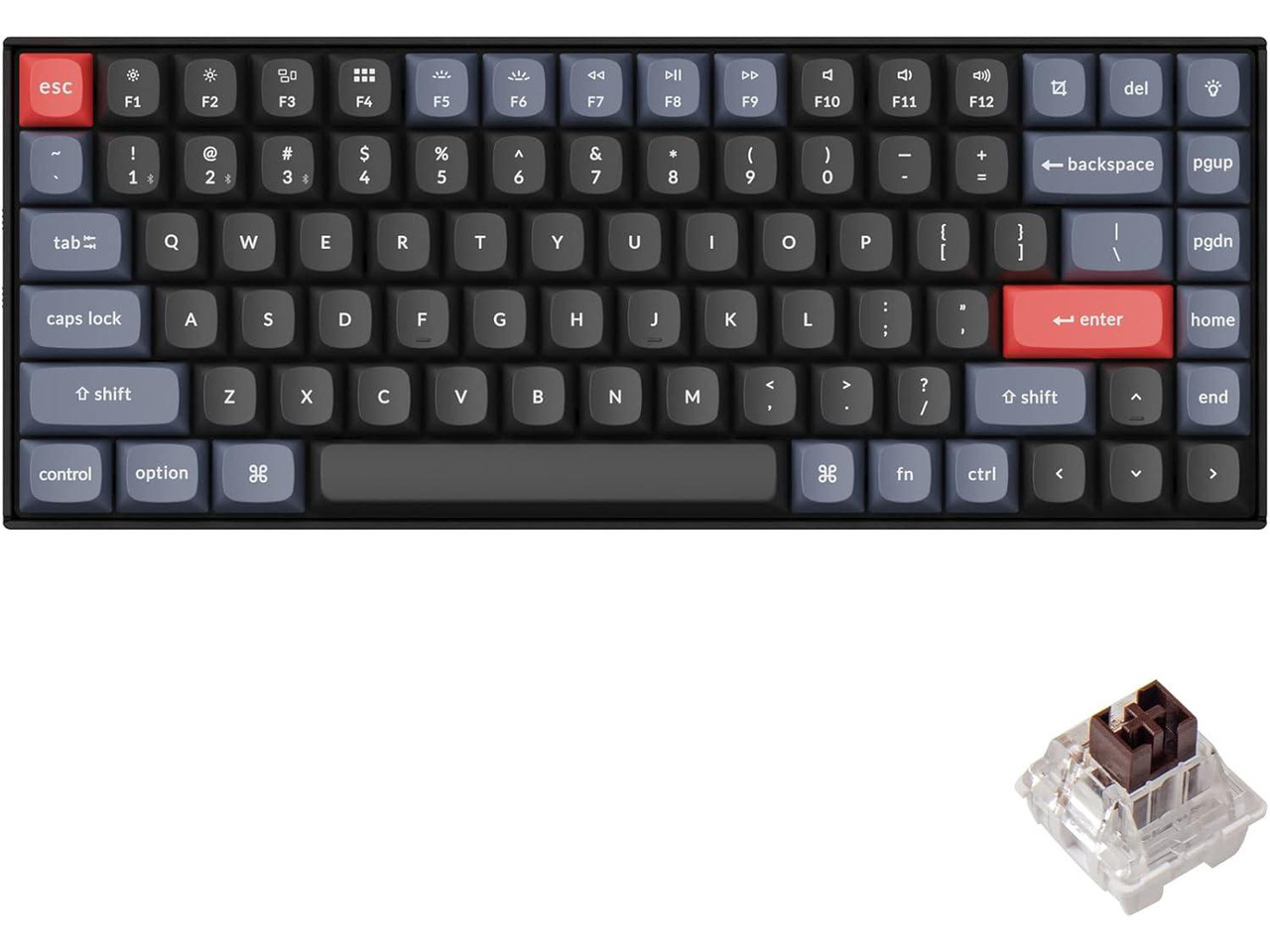
Keychron K2 Pro
Best for Most ProgrammersBuy if: you want the default recommendation — 75%, hot-swap, QMK/VIA, Mac and Windows
Don't buy if: you need a number pad, or you want an aluminium case
The K2 Pro is the board I would hand to a programmer buying their first mechanical keyboard. A 75% layout (84 keys) keeps the function row and arrows while saving desk space. Hot-swap sockets, QMK/VIA remapping, tri-mode wireless, and both Mac and Windows keycaps in the box with a layout toggle — it works on either machine without a second purchase. The K Pro Brown switches ship by default: tactile, quiet enough for calls, and the safe first choice.
I've seen conflicting data on this one too — one listing shows the K2 Pro near $90, while several guides put it at $129–199. My read is the price swings by seller, layout and switch choice, so check the live price before you buy. The case is plastic, not the Q Max line's aluminium, so it feels lighter and sounds a little higher-pitched. And there is no number pad — if you type numbers all day, the Q5 Max above is the better pick.
Pros
- The default recommendation across programming guides
- Mac and Windows keycaps in the box
- Hot-swap switches + full QMK/VIA remapping
- Tri-mode: Bluetooth, 2.4 GHz, wired USB-C
Cons
- No number pad
- Plastic case, not aluminium
- Price varies a lot by seller and switch
- Stock keycaps are ABS, not PBT
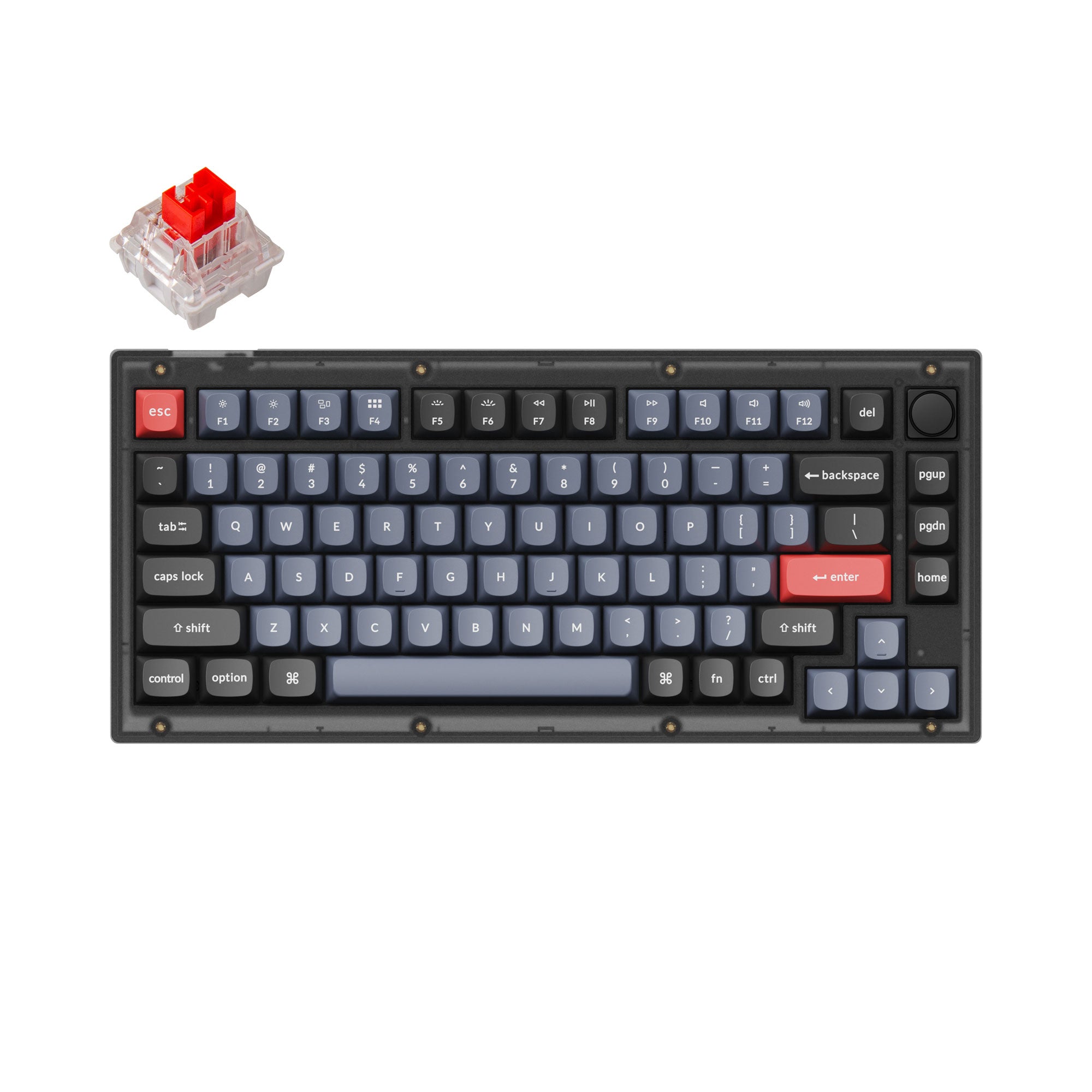
Keychron V1
Best BudgetBuy if: you want full QMK/VIA and hot-swap switches at the lowest price here
Don't buy if: you need wireless, or you want a premium-feeling case
The V1 is the cheapest way to get the two features that matter most for code: hot-swap switches and QMK/VIA remapping. A 75% layout with a volume knob, PBT keycaps, south-facing RGB, and a solid build for the price. It is wired USB-C only, which is the trade — no Bluetooth, no 2.4 GHz, no battery to think about. For a desk that never moves, that is not a trade at all.
Don't buy it if you switch between a laptop and a desktop, or you type from the couch. The V1 stays on one desk. The case is plastic, and the typing feel is competent rather than luxurious — but the switches are the same K Pro line as the K2 Pro, so the keys under your fingers feel the same. If your budget is tight and your desk is fixed, this is the board.
Pros
- Cheapest full QMK/VIA + hot-swap board here
- 75% layout with a volume knob
- PBT keycaps, south-facing RGB
- No battery to charge — wired only
Cons
- Wired only — no wireless at all
- Plastic case feels plain next to the Q Max line
- Stays on one desk
- Stock stabilisers are the first thing owners upgrade
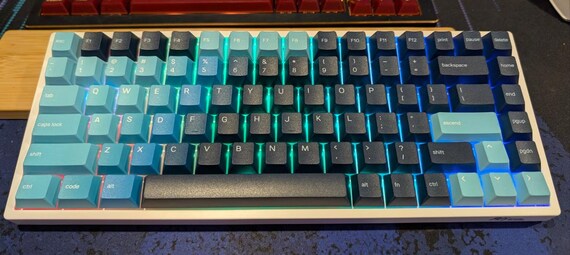
Royal Kludge RK84
Best Under $75Buy if: you want tri-mode wireless and hot-swap switches for the least money
Don't buy if: you want QMK/VIA layers, or you want a premium-feeling board
The RK84 is the budget entry point, and it is the cheapest tri-mode board here: Bluetooth, 2.4 GHz and wired USB-C, with hot-swap sockets and a 75% layout. It comes in Red, Brown and Blue switch versions, so you can start on tactile Browns and swap later without soldering. For a first mechanical keyboard — or a second board for a home desk — it gets you in for less than a dinner out.
The trade is software. Remapping runs through Royal Kludge's own software, not QMK/VIA, so layers and macros are basic compared with the Keychrons above. If you plan to build coding layers with brackets under your home row, the V1 costs a little more and does it properly. The case is light plastic, and the keycap legends vary by colourway — check the listing photos before you buy.
Pros
- Cheapest tri-mode wireless board here
- Hot-swap switches in Red, Brown or Blue
- 75% layout keeps the function row
- RGB backlight included
Cons
- No QMK/VIA — remapping is basic
- Light plastic case
- Keycap legends vary by colourway
- Software is weaker than Keychron Launcher
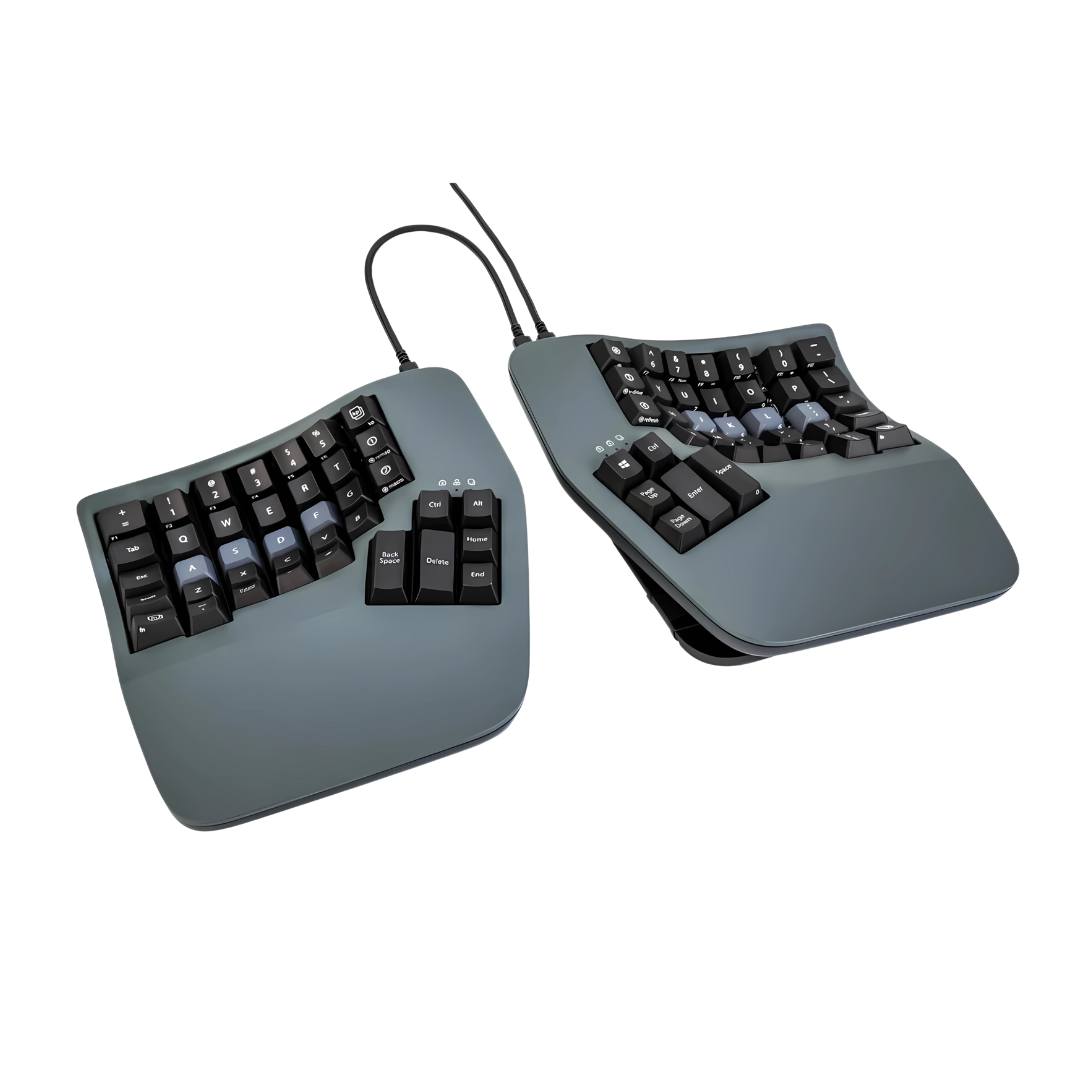
Kinesis Advantage360
Best Split ErgonomicBuy if: your wrists already hurt and you want the most ergonomic board for code
Don't buy if: you want a quick learn, a low price, or a number pad
The Advantage360 is where engineers go when they start getting wrist pain and realise a normal keyboard might be part of the problem. Two split halves with concave key wells, so your fingers rest in scoops instead of reaching across a flat row. Thumb clusters put Enter, Space, Backspace and Delete under your thumbs — the keys your pinkies strain for on a normal board. Cherry MX Brown switches, rated for 50 million keystrokes, and full programmability through open-source ZMK firmware. The wired USB version and the wireless Pro version both exist; check which one the listing sells.
Be honest with yourself before buying. The learning curve is weeks, not days, and your typing speed will drop hard at first. The switches are soldered, so you cannot swap them later — pick Brown and commit. And it is the priciest board here by a wide margin, with no number pad and a footprint that needs real desk space. But if your wrists are the reason you are reading this guide, no other pick changes your hand position at all.
Pros
- Only pick that changes wrist and finger position
- Thumb clusters for Enter, Space and Backspace
- Cherry MX switches rated 50M keystrokes
- Fully programmable with open-source firmware
Cons
- Steep learning curve — weeks, not days
- Switches are soldered — no swapping later
- Priciest board here by a wide margin
- No number pad, needs real desk space

ZSA Moonlander
Best for Vim / Emacs UsersBuy if: you live in Vim or Emacs and want layers, tenting and total remapping
Don't buy if: you want a normal staggered layout, or you need a number row on the top
The Moonlander is the split board for people who already think in layers. Two ortholinear halves — keys in straight columns, not staggered rows — with tenting legs that angle each half toward your hands, thumb clusters, and hot-swap switches. Every key is remappable through ZSA's Oryx configurator, which sits on QMK, so your brackets, symbols and navigation live on layers under your home row instead of a stretch away. It folds flat for travel, which the Advantage360 does not.
Ortholinear is a relearn. Your fingers expect staggered keys, and for the first week they will miss. Numbers live on a layer by default — Vim users love that, everyone else needs a week to stop reaching for a number row that isn't there. It is wired USB-C only, and it is a premium price for a board with no number pad. But if your editor is Vim or Emacs and you already remap everything, this is the board built for you.
Pros
- Ortholinear columns + layers suit Vim and Emacs
- Tenting legs angle each half to your hands
- Hot-swap switches, fully programmable
- Folds flat for travel
Cons
- Ortholinear layout is a full relearn
- Numbers live on a layer by default
- Wired USB-C only
- Premium price with no number pad
How Do I Set Up QMK Layers for Coding?
Open VIA or Keychron Launcher in your browser, put brackets and symbols on a layer under your home row, and put the layer key under your thumb. Ten minutes, and your most-typed symbols stop being a stretch.
To set up QMK layers for coding, follow these steps: 1. Open VIA or Keychron Launcher in your browser. 2. Pick a spare layer for symbols and brackets. 3. Map brackets, braces and arrows under your home row. 4. Put the layer key under your thumb. 5. Test it in your editor.
Layers are the feature the top 10 barely explains, and they are the whole point of a programmable board for code. Code is mostly symbols — brackets, braces, parentheses, semicolons — and on a normal layout those keys sit on the far edges, under your weakest fingers. A layer moves them. Hold a thumb key and your home row becomes brackets and arrows. Release it and the keys are letters again. No reaching, no pinky strain.
Start small. One layer, four keys: left bracket, right bracket, left brace, right brace under your right hand's home row. Use it for a week before you add more. The RK84 can't do this properly — its software has no real layers — which is why it sits below the Keychrons here despite the lower price. The Moonlander and Advantage360 live on layers too, through Oryx and ZMK, and their thumb clusters make the layer key easier to reach than on any normal board.
Should I Get a Wired or Wireless Keyboard for Coding?
Either. Typing has no latency problem — wireless lag is a gaming worry, not a coding one. Pick wireless if you move between machines, wired if you hate charging.
Wired vs wireless for coding: wireless is better suited for moving between a laptop and a desktop because one board covers both machines. Wired works better when you hate charging or you flash firmware often, since QMK updates run over USB. The key difference is the cable: wireless trades a battery for freedom, wired trades freedom for zero upkeep.
Bluetooth is fine for code. The first keystroke after wake can go missing on some Mac setups, which is a small, real annoyance — a 2.4 GHz receiver avoids it. The Q5 Max, K2 Pro and RK84 all ship with a receiver as well as Bluetooth, so use the receiver for your main machine and Bluetooth for the spare. If you only ever type at one desk, the V1's wired-only design saves you money and a battery you would never use.
Keyboards to Skip in 2026
Clicky Blue switches in a shared office — the single most common wrong buy for programmers who work around other people. They sound great alone and terrible on a call. Tactile Brown or scissor only.
60% boards for programmers. No function row means F5, F2 and F10 live on a layer you have to hold to reach — fine for typing, annoying the moment you debug. The Moonlander is the exception, because its layers are the whole design.
"Mechanical-feel" membrane boards. Rubber domes with a spring sound, no real switch under the key. They wear out fast, feel mushy after a year, and cost nearly as much as the RK84, which has real switches.
RGB gaming boards in "programming" roundups. Several top-10 lists for this query include gaming boards with polling rates and per-key RGB. A 1,000 Hz polling rate does nothing for code. Programming lists should stay programming-only.
The original Keychron K2 (non-Pro). Still pushed by stale lists, superseded by the K2 Pro. Same shape, no hot-swap, no QMK/VIA. Buy the Pro.
Buying Guide: What Actually Matters
After the layout, the four things worth your attention are switch type, programmability, connection and build — in that order.
Switch type is the feel under your fingers. Tactile Brown is the safe first choice: a bump you feel, no click. Linear Red is smoother and quieter, good if you type fast and bottom out anyway. Clicky Blue is for a room of one. If the board is hot-swap, the switch choice is reversible — buy tactile first, try linear later for a few dollars.
Programmability decides whether the board grows with you. QMK/VIA (the Keychrons, the Moonlander through Oryx, the Advantage360 through ZMK) lets you remap keys and build layers. Without it, you get the layout the factory chose. Connection decides whether the board works on your desk at all: tri-mode covers every machine, wired-only saves money. Build decides how it sounds and lasts: aluminium and gasket mounts feel solid and deep, plastic is lighter and cheaper, PBT keycaps outlast ABS ones that shine after a year.
One last check before you buy: Mac or Windows. The Keychrons ship both keycap sets and a toggle, so either machine works out of the box. The split boards are remapped in software, so they work on either too — but check the listing for the switch type, because a Brown listing and a Blue listing look identical in a thumbnail.
Frequently Asked Questions
What's the best mechanical keyboard for programming in 2026?
The Keychron Q5 Max — aluminium case, hot-swap switches, QMK/VIA remapping and a number pad. The Keychron K2 Pro is the cheaper 75% alternate.
What switch is best for programming?
Tactile switches like Cherry MX Brown. The small bump confirms each keypress without a loud click, which cuts typos on long sessions.
Is a mechanical keyboard good for coding?
Yes — for comfort, accuracy and durability. It won't make you a better programmer, but it makes 8+ hours of typing far easier on your hands.
What layout is best for programming?
75% or tenkeyless (TKL). Both keep the function row and arrows your editor needs and drop the number pad most programmers never use.
Should I get a hot-swappable keyboard?
Yes, especially for a first board. You can pull switches out by hand and try another type for a few dollars, with no soldering.
Is QMK/VIA worth it for coding?
Yes. It lets you put brackets, braces and arrows on a layer under your home row, so your most-typed symbols stop being a stretch.
Are clicky switches OK for programming?
Only if you work alone in a closed room. Clicky switches are loud on calls and in shared offices — tactile switches are the safe pick.