Best USB C to HDMI Adapter for 4K Monitor (2026): 6 Picks

The screen is sharp. The mouse is not. It trails, jumps and drags like the desk is made of glue.
You bought a cheap adapter marked "4K" and it worked — at 30Hz. You changed the settings, swapped the cable, and got the same laggy picture. The fix is an adapter rated for 4K at 60Hz, plus a chain that can carry it.
A USB C to HDMI adapter for a 4K monitor is a short dongle that turns a video-capable USB-C port into an HDMI socket. You plug the USB-C end into the laptop and an HDMI cable into the other end. The laptop still sets the real limit.
This guide ranks six single-screen adapters by true refresh rate, charging and support. Our USB-C hub with Ethernet and HDMI guide covers hubs with extra ports; this one is for one 4K screen done properly.
No prices are printed in this guide — adapter prices move often and listings disagree on the same model. Check the live price before buying. All specs are the makers' own figures — never a guess.
What's the Best USB C to HDMI Adapter for a 4K Monitor?
The Anker 310. It gives true 4K at 60Hz in a small aluminium dongle with a braided cable, and it works with a long list of laptops, tablets and phones. It does not pass through charging.
The best USB C to HDMI adapter for a 4K monitor is the Anker 310 for most buyers. According to Anker, it supports up to 4K at 60Hz, with 2K at 60Hz and 1080p at 60Hz below that. It has one HDMI port, a braided cable and no charging pass-through, so charge your laptop separately.
Refresh rate is the whole game here. A 4K picture at 60Hz redraws twice as often as one at 30Hz, so the cursor, scrolling and dragged windows feel smooth. The sharpness is the same. The feel is not.
You don't need a dock, you don't need eight ports, and you don't need to guess. You need 4K at 60Hz, a video-capable port, and an HDMI cable that matches. That is the whole job.
Look — if you're in the spot where the picture looks fine but the mouse feels broken, here's what actually works: check the refresh rate first, then replace the weakest link.
Will a USB-C to HDMI Adapter Work With My Laptop?
Only if the USB-C port sends video. The port needs DisplayPort Alt Mode, USB4 or Thunderbolt video output. A USB-C plug shape alone proves nothing, so check the laptop spec page before you order.
A USB-C to HDMI adapter works only when the laptop port sends video. According to Plugable, the port must support DisplayPort Alt Mode, USB4 or Thunderbolt video output. The plug shape alone proves nothing, because some USB-C ports carry data and charging only. Check your laptop spec page before you order any adapter here.
A 4K monitor stuck at 30Hz usually lacks bandwidth somewhere in the chain. According to Plugable, an HDMI 1.4 cable, port or adapter caps 4K at 30Hz, while 4K at 60Hz needs roughly double the data. Check the adapter rating, the HDMI cable, the monitor input and the refresh-rate setting in that order.
These adapters also run one way only. They take video from a USB-C laptop to an HDMI screen. They cannot take an HDMI signal into a USB-C monitor, and they cannot add video to a data-only port.
Quick note: you still need an HDMI cable. Every pick here ends in an HDMI socket, so the cable is a separate buy unless your monitor came with one.
Why Does My 4K Monitor Only Show 30Hz?
One link in the chain is too slow. The adapter, the HDMI cable, the monitor input and the laptop port must all support 4K at 60Hz. The slowest link wins.
"4K" on a box often means 4K at 30Hz. That is the oldest trap in this product class. Read the full rating: 3840 × 2160 at 60Hz. If the maker hides the refresh rate, treat the adapter as a 30Hz part.
The cable matters just as much. An old HDMI 1.4 cable caps 4K at 30Hz even with a perfect adapter. For 4K at 60Hz, use a Premium High Speed HDMI cable or better. Above 60Hz, use a certified Ultra High Speed cable.
Some monitors hide the fix in their own menu. A few 4K screens need a setting turned on before an HDMI input accepts full bandwidth. Check the monitor menu before you blame the adapter.
I've seen conflicting data — one Belkin listing claims 100W charging for this adapter class, while Belkin's own spec sheet for the AVC002 says 60W. My read is simple: trust the maker's spec sheet and plan around 60W.
Slowest link wins. Every time.
Do I Need HDMI 2.1 or Is 4K at 60Hz Enough?
For a normal 4K monitor, 60Hz is enough. HDMI 2.1 only pays off with a screen that runs above 60Hz, plus a laptop and cable that can feed it.
Anker 310 vs Cable Matters 48Gbps: the Anker is better suited for a normal 4K 60Hz monitor because it is small, simple and proven. The Cable Matters works better when you own a high-refresh HDMI 2.1 screen. The key difference is headroom above 60Hz.
My honest take: most people with a 60Hz office monitor should not pay for HDMI 2.1 headroom they cannot see. Buy the 2.1 adapter for a 120Hz or 144Hz screen, a gaming TV, or a planned screen upgrade. Otherwise the plain 4K 60Hz picks do the same job.
Or maybe I should say it this way: buy for the screen on your desk, not the screen in next year's advert.
Quick Comparison
| Product | Max output | Charging | Best for | ||
|---|---|---|---|---|---|
| #1 | Anker 310Best Overall | 4K at 60Hz | None | Most 4K desks | Check Price |
| #2 | Cable Matters 48GbpsBest High-Refresh | 8K at 60Hz / 4K at 240Hz | None | HDMI 2.1 screens | Check Price |
| #3 | Belkin USB-C to HDMI + ChargeBest With Charging | 4K at 60Hz | 60W pass-through | One-port laptops | Check Price |
| #4 | Plugable USBC-HDMIBest for Work | 4K at 60Hz, HDR | None | Office and meeting rooms | Check Price |
| #5 | UGREEN 70444Best Braided Value | 4K at 60Hz | None | Simple spare adapter | Check Price |
| #6 | StarTech CDP2HD4K60Best Office HDR | 4K at 60Hz, HDR10 | None | HDR10 office screens | Check Price |
The output column is the honest summary: five picks top out at 4K 60Hz, and one goes far beyond it. Match that column to your screen before you count anything else.
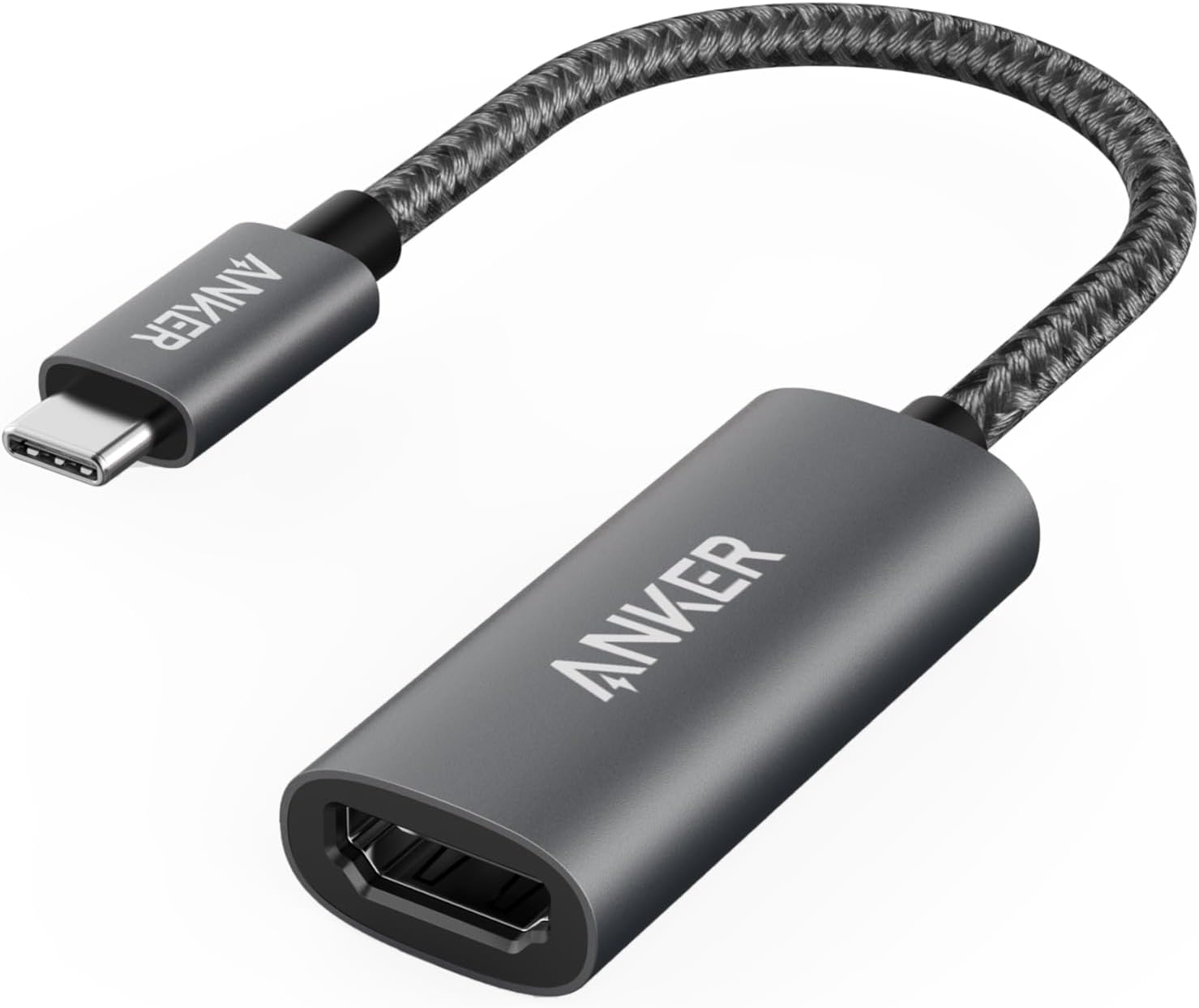
Anker 310 USB-C Adapter (4K HDMI)
Best OverallBuy if: you want the simple, proven 4K 60Hz dongle for one screen
Don't buy if: you need charging through the same port
The 310 is the safest buy here. Anker lists resolutions up to 4K at 60Hz, plus 4K at 30Hz, 2K at 60Hz and 1080p at 60Hz. The body is matte aluminium, the cable is braided, and the whole adapter weighs 0.64 ounces, so it lives happily in a laptop bag.
Two limits matter. There is no charging support, so a one-port laptop needs its charger elsewhere. And Anker caps iPad Pro output at 2K at 60Hz, so tablet buyers should read that line twice. For a laptop and a 4K monitor, neither limit bites.
Pros
- True 4K at 60Hz
- Braided cable, aluminium body
- Long compatibility list
- Very light at 0.64 ounces
Cons
- No charging pass-through
- iPad Pro capped at 2K 60Hz
- HDMI cable sold separately
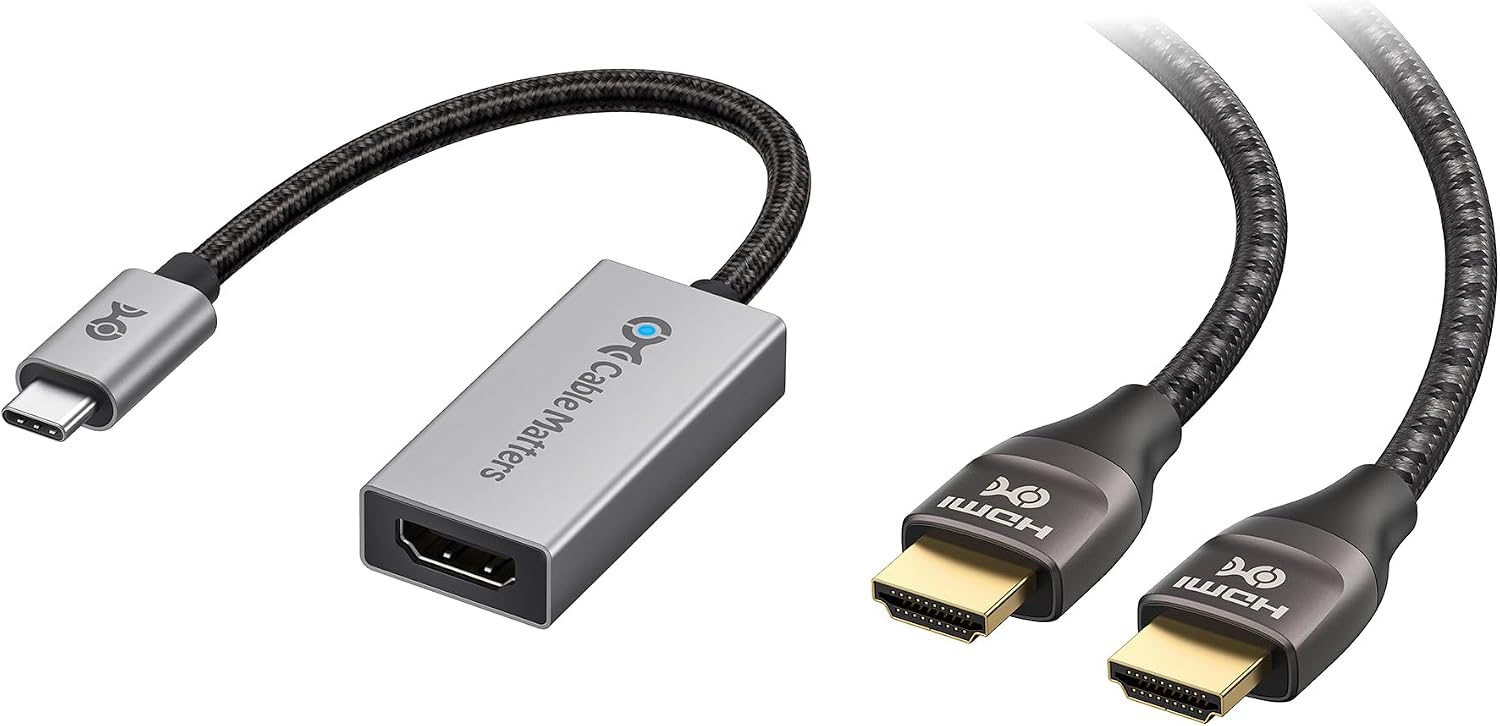
Cable Matters 48Gbps USB-C to HDMI 2.1 Adapter
Best High-RefreshBuy if: your screen runs above 60Hz and your laptop can feed it
Don't buy if: you use a Mac and want more than 4K at 60Hz
This is the headroom pick. Cable Matters lists 48Gbps HDMI 2.1 bandwidth, up to 8K at 60Hz or 4K at 240Hz, with HDR and Auto Low Latency Mode. The top modes need a strong graphics chip, an HDMI 2.1 display and a certified HDMI 2.1 cable.
Read the fine print before you dream big. Cable Matters caps macOS at 4K at 60Hz on this model, and VRR, G-Sync and FreeSync are not supported. On a Windows laptop with an RTX 2060 or newer, an RX 6000 series card or Intel Iris Xe graphics, the high modes are real.
Pros
- 8K at 60Hz / 4K at 240Hz ceiling
- HDR and ALLM support
- Thunderbolt 3, 4 and 5 compatible
- Braided cable, aluminium body
Cons
- macOS capped at 4K 60Hz
- No VRR, G-Sync or FreeSync
- Top modes need strong graphics
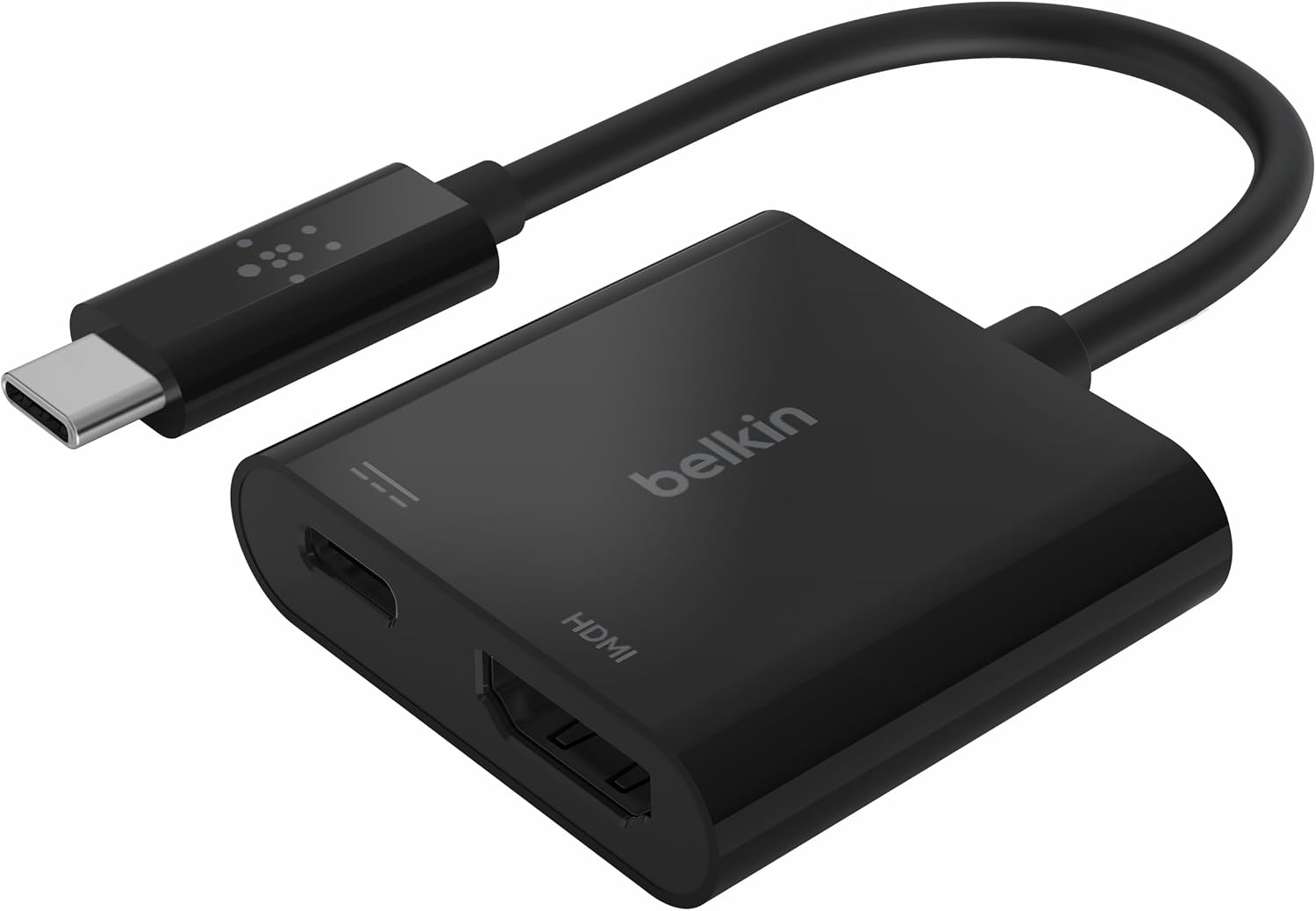
Belkin USB-C to HDMI + Charge Adapter
Best With ChargingBuy if: your laptop has one free USB-C port and must charge while it displays
Don't buy if: your laptop needs more than 60W to charge well
The Belkin solves the one-port problem. It gives an HDMI socket for video up to 3840 × 2160 at 60Hz, plus a USB-C power port that passes through up to 60W. One laptop port runs the screen and the charge at the same time.
The charger is not in the box. You need your own USB-C power supply and charging cable, and 60W suits thin laptops and tablets better than big 16-inch machines. Belkin backs it with a 2-year warranty, and the tethered cable is 5.1 inches long.
Pros
- 4K at 60Hz plus 60W charging
- One port does both jobs
- 2-year warranty
- Plug and play on Mac and Windows
Cons
- Charger and cable sold separately
- 60W ceiling for charging
- No output above 60Hz
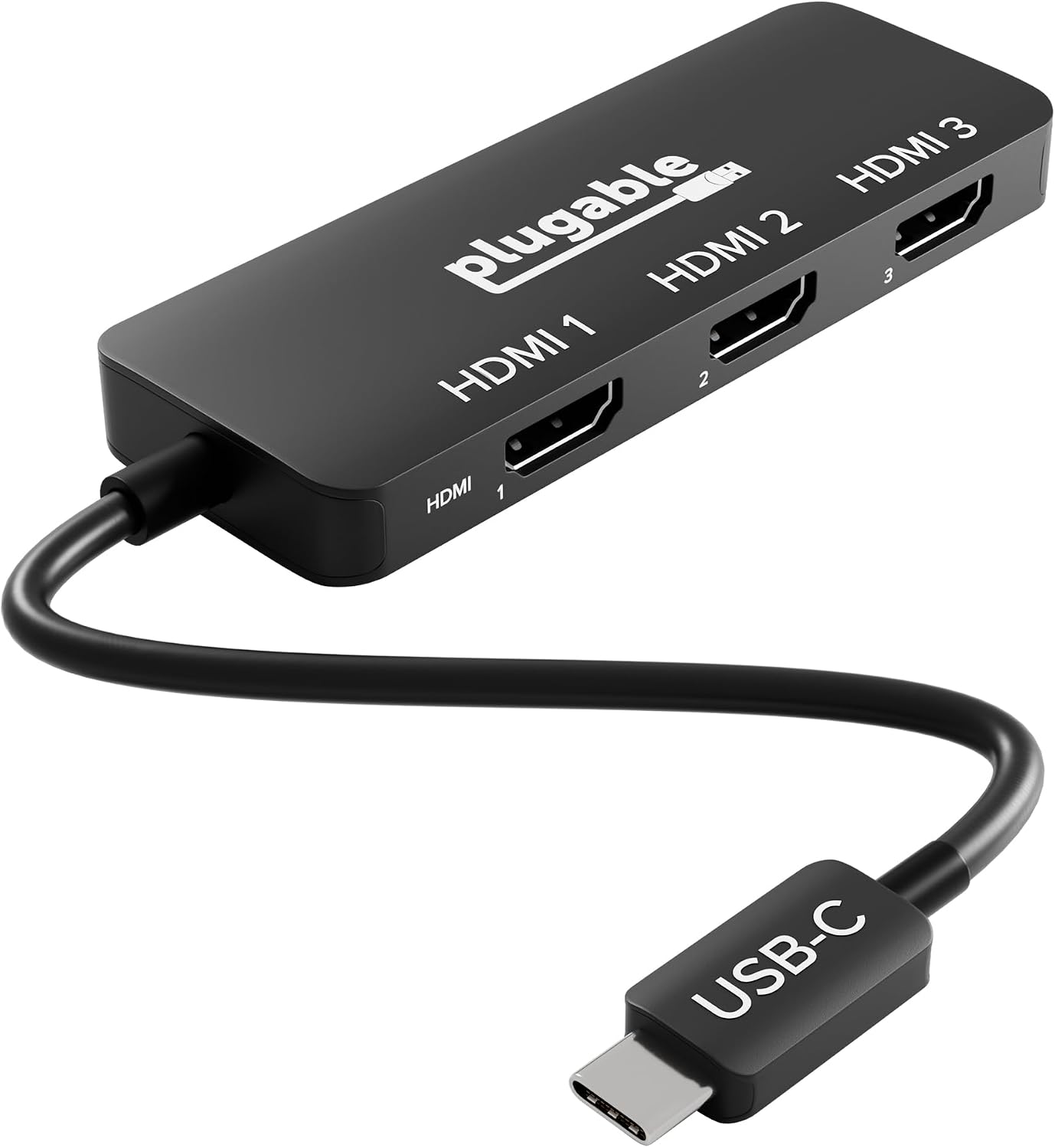
Plugable USBC-HDMI USB-C to HDMI 2.0 Adapter
Best for WorkBuy if: you want clear compatibility rules and strong support
Don't buy if: you need surround audio beyond LPCM
The Plugable is the office-safe pick. It uses HDMI 2.0 bandwidth for 3840 × 2160 at 60Hz with HDR and HDCP support, and it works plug-and-play on Windows, macOS and ChromeOS systems with a video-capable USB-C, USB4 or Thunderbolt port.
Plugable states the chain rules plainly: an HDMI 2.0 system, cable and display are required for 4K at 60Hz, and some displays need a menu setting first. Audio is LPCM only for multi-channel sound. The adapter is 7.8 inches long, with a 2-year warranty and lifetime support.
Pros
- 4K at 60Hz with HDR and HDCP
- Windows, macOS and ChromeOS
- 2-year warranty, lifetime support
- Clear compatibility guidance
Cons
- Multi-channel audio is LPCM only
- No charging pass-through
- HDMI 2.0 ceiling at 60Hz
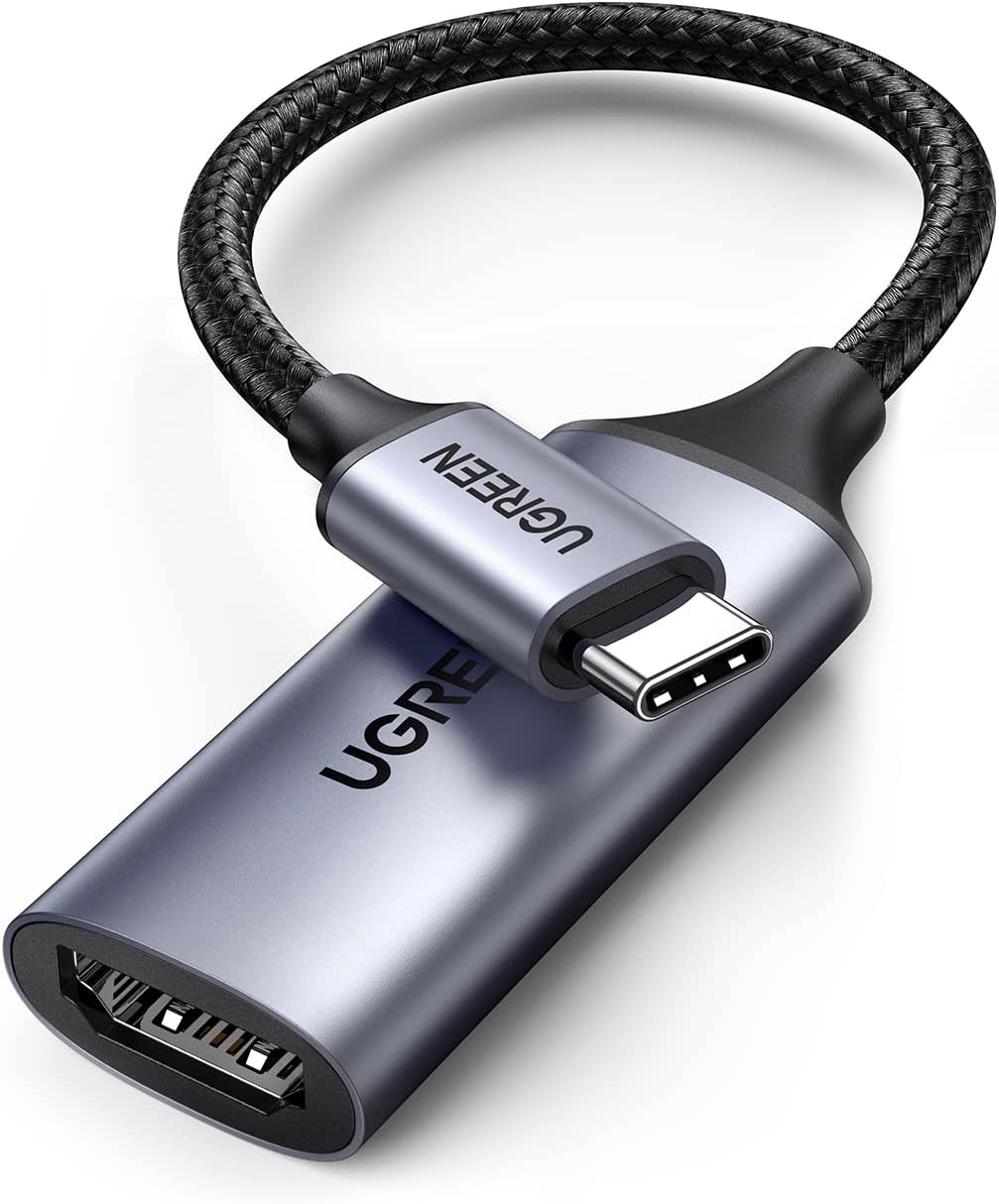
UGREEN USB C to HDMI Adapter 70444
Best Braided ValueBuy if: you want a simple braided spare that still does 4K at 60Hz
Don't buy if: you need charging or output above 60Hz
The UGREEN keeps it simple. The 70444 supports video up to 4K at 60Hz from USB-C and Thunderbolt 3 devices with DisplayPort Alt Mode, in a heat-resistant aluminium case with a nylon braided cable. UGREEN lists VL100 and PS176 chipsets for a stable signal.
There is no charging port and no high-refresh headroom. It is a one-job dongle, and it does that job at the right refresh rate. Keep one in a bag or a meeting room and the 30Hz trap stays closed.
Pros
- 4K at 60Hz output
- Aluminium case, braided cable
- DisplayPort Alt Mode support
- Simple one-job design
Cons
- No charging pass-through
- No output above 60Hz
- HDMI cable sold separately
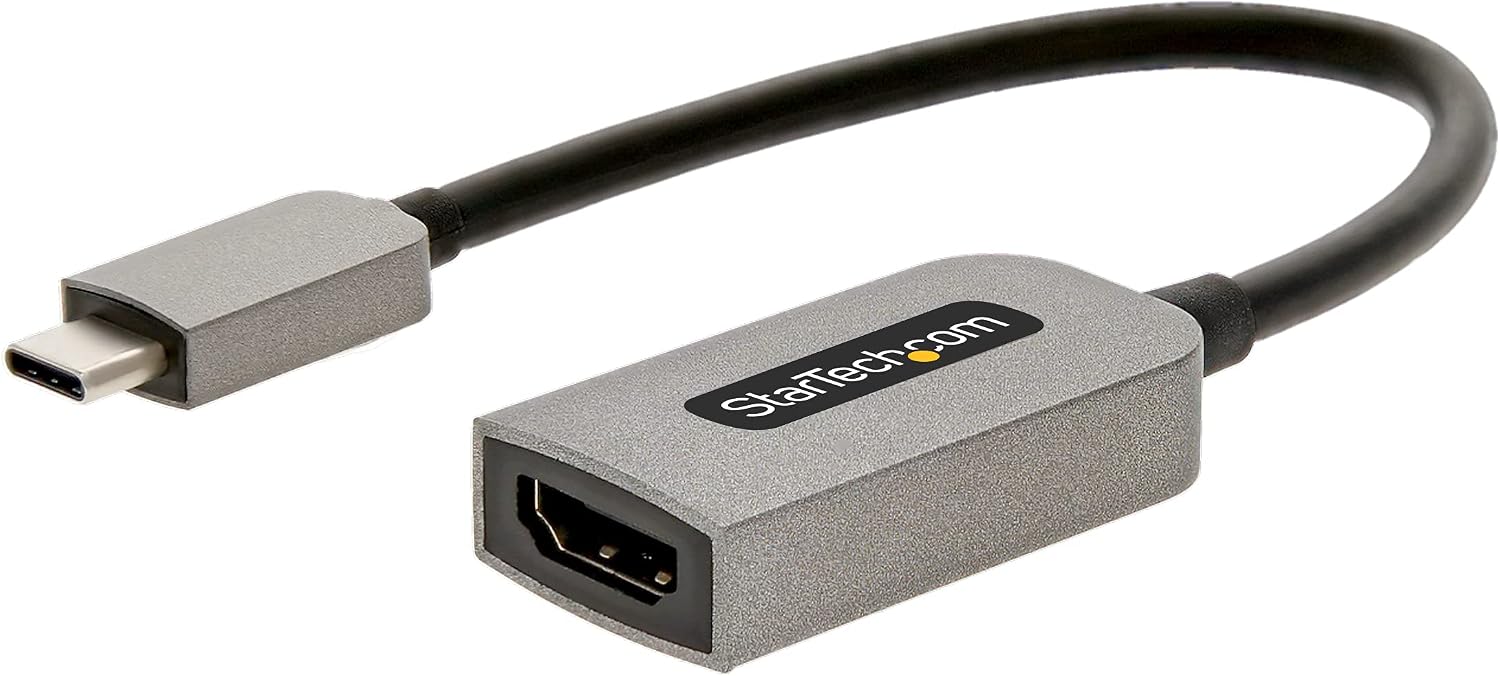
StarTech USBC-HDMI-CDP2HD4K60 USB-C to HDMI Adapter
Best Office HDRBuy if: you want HDR10 and a 3-year warranty for an office screen
Don't buy if: your laptop port lacks DisplayPort 1.4 for full colour
The StarTech is the spec-sheet pick. It supports 4K at 60Hz with HDR10, HDCP 2.2 and 7.1-channel audio over HDMI 2.0b. StarTech backs it with a 3-year warranty, the longest here, which suits a fixed desk or a shared meeting room.
Full quality has conditions. HDR needs a DisplayPort 1.4 source and an HDMI 2.0b display, and full 4:4:4 colour also needs DisplayPort 1.4 on the laptop. On an older DisplayPort 1.2 laptop it still displays, with less colour detail.
Pros
- 4K at 60Hz with HDR10
- HDCP 2.2 and 7.1 audio
- 3-year warranty
- Full 4:4:4 colour on DP 1.4
Cons
- HDR needs DP 1.4 and HDMI 2.0b
- No charging pass-through
- Model names are easy to mix up
How to Connect a USB-C Laptop to a 4K Monitor in 5 Steps
Check the port first, plug in the adapter, then set 4K at 60Hz. Five steps, and the laggy mouse is gone.
To connect a USB-C laptop to a 4K monitor, follow these steps: 1. Check the laptop port sends video. 2. Plug the adapter into the laptop. 3. Connect an HDMI 2.0 or better cable. 4. Select the monitor input. 5. Set 3840 × 2160 at 60Hz in display settings.
- Check the laptop port sends video. Confirm DisplayPort Alt Mode, USB4 or Thunderbolt video output on the laptop spec page.
- Plug the adapter into the laptop. Push the USB-C plug fully into the video-capable port.
- Connect an HDMI 2.0 or better cable. Use a Premium High Speed cable for 4K at 60Hz, or Ultra High Speed above 60Hz.
- Select the monitor input. Pick the HDMI input you used, and enable full HDMI bandwidth in the monitor menu if offered.
- Set 3840 × 2160 at 60Hz. Open display settings and choose the 4K resolution with a 60Hz refresh rate.
Quick note: if 60Hz is missing from the list, do not force it. One link is too slow, and the list is telling you the truth.
Buying Guide: What Actually Matters
Four things matter most: the laptop port, the refresh rate, the HDMI cable and charging — in that order.
The laptop port comes first because it gates everything. No adapter can add video to a data-only USB-C port. Our Thunderbolt docking station guide covers the fixed-desk step up when one screen is not enough.
The refresh rate comes next. Demand the full rating in writing: 3840 × 2160 at 60Hz. A bare "4K" claim with no refresh rate is a 30Hz warning. Our 4K monitor for productivity guide helps match the screen to the adapter.
The HDMI cable is the silent failure. Premium High Speed covers 4K at 60Hz. Ultra High Speed covers the high-refresh modes. An old cable in a drawer can undo a good adapter in one plug.
Charging comes last. Only the Belkin here passes power through, at up to 60W, with the charger sold separately. If you need ports, power and screens together, our USB-C hub for laptop guide covers that class.
Port first. Refresh rate second.
Adapters to Skip in 2026
Adapters that say "4K" with no refresh rate. If the maker will not state 60Hz, skip it. The missing number is the product.
Adapters sold as two-way. These dongles run from USB-C to HDMI only. A listing that promises HDMI into a USB-C monitor is selling the wrong tool.
HDMI 2.1 adapters for a 60Hz screen. The headroom cannot show on a 60Hz panel. Spend the difference on a better HDMI cable instead.
Hubs with a hidden 30Hz HDMI port. Many cheap hubs cap HDMI at 4K 30Hz while sharing lanes with USB data. Our dual-monitor docking station guide covers the honest multi-screen options.
Frequently Asked Questions
What's the best USB C to HDMI adapter for a 4K monitor?
The Anker 310 for most buyers. It gives 4K at 60Hz in a small braided dongle, with no charging pass-through.
Will any USB-C port work with these adapters?
No. The port must send video through DisplayPort Alt Mode, USB4 or Thunderbolt. Check your laptop spec page first.
Why does my 4K monitor only show 30Hz?
One link lacks bandwidth. Check the adapter rating, HDMI cable, monitor input and refresh-rate setting, in that order.
Do I need an HDMI cable as well?
Yes. These adapters end in an HDMI socket, so you still need an HDMI cable rated for 4K at 60Hz or better.
Should I buy an HDMI 2.1 adapter?
Only for a screen above 60Hz. A normal 4K 60Hz monitor gains nothing from HDMI 2.1 headroom.
Can I charge my laptop through the adapter?
Only with the Belkin pick here. It passes through up to 60W, and the charger and cable are sold separately.
Does a USB-C to HDMI adapter work in reverse?
No. These adapters run one way, from a USB-C laptop to an HDMI screen. They cannot feed a USB-C monitor.