Best Thunderbolt Docking Station for Laptop (2026): 6 Picks

Every morning starts the same way. Charger. Monitor cable. Drive cable. Ethernet. One loose plug and the desk stops working.
You have tried a cheap USB-C hub. It ran one screen at a low refresh rate, charged slowly, and left the fast SSD with nowhere to go. A proper Thunderbolt dock fixes that in one plug.
A Thunderbolt docking station is a powered desk dock that connects monitors, storage, network and USB devices to a laptop through one Thunderbolt cable. It also charges the laptop. Thunderbolt 4 runs at 40Gbps, while Thunderbolt 5 runs at 80Gbps with higher display bandwidth.
This guide ranks six Thunderbolt-only docks by laptop generation, charging watts, display sockets and port speed. Our dual-monitor docking station guide covers DisplayLink and USB-C docks for two screens; this one is for buyers who know they want Thunderbolt.
No prices are printed in this guide — dock prices move often and listings disagree on the same model. Check the live price before buying. All specs are the makers' own figures — never a guess.
What's the Best Thunderbolt Docking Station for a Laptop?
The CalDigit TS5. It gives 15 ports, three downstream Thunderbolt 5 ports, 2.5Gb Ethernet, fast card readers and up to 140W of laptop charging. It works with Thunderbolt 5 and Thunderbolt 4 laptops, so it suits new desks and recent ones.
The best Thunderbolt docking station for a laptop is the CalDigit TS5 for most buyers. According to CalDigit, it gives 15 ports, three downstream Thunderbolt 5 ports, 2.5Gb Ethernet, UHS-II card readers and up to 140W host charging. It also works with Thunderbolt 4 laptops, at Thunderbolt 4 speed.
Three downstream Thunderbolt ports matter more than a long USB list. They take fast SSDs, high-refresh monitors and Thunderbolt accessories without adapters. The TS5 has no HDMI or DisplayPort socket, so screens connect through those ports with the right cable.
You don't need 10Gb Ethernet, you don't need 20 ports, and you don't need to guess. You need the right generation, enough charging watts, and display cables that match your monitors. That is the whole job.
Look — if you're in the spot where a USB-C hub keeps dropping to one slow screen, here's what actually works: check the laptop chip, then buy the Thunderbolt dock that matches it.
Thunderbolt 4 or Thunderbolt 5 — Which Do You Need?
Match the laptop. A Thunderbolt 5 laptop can use a Thunderbolt 5 dock at full speed. A Thunderbolt 4 laptop runs the same dock at Thunderbolt 4 speed, so the extra bandwidth stays unused until you upgrade.
Thunderbolt 5 is worth it when your laptop, displays or storage can use the extra bandwidth. According to Kensington, Thunderbolt 5 gives 80Gbps, up to 120Gbps for video, and support for triple 4K at 144Hz on suitable Windows laptops. Thunderbolt 4 laptops gain charging headroom, not full speed.
A Thunderbolt dock cannot add displays your laptop chip does not support. Base Apple silicon models have strict external-display limits, and older Thunderbolt 3 Windows laptops are not supported by CalDigit's TS5 docks. Check the laptop chip and port first. Then match the dock, cable and monitors to that limit.
CalDigit TS5 vs CalDigit TS4: the TS5 is better suited for new Thunderbolt 5 laptops because it gives 140W charging and faster ports. The TS4 works better when your laptop is Thunderbolt 4 and you want a DisplayPort socket. The key difference is host generation.
My honest take: most Thunderbolt 4 laptop owners should not pay flagship Thunderbolt 5 money yet. The dock will work, but the headline speed will not. Buy Thunderbolt 5 now only for a Thunderbolt 5 laptop, a planned upgrade, or 140W charging you truly need.
Or maybe I should say it this way: buy the dock for the laptop on your desk, not the laptop in next year's advert.
Will a Thunderbolt Dock Work With My Laptop?
Only if the laptop has Thunderbolt 4, Thunderbolt 5 or a full USB4 port, and its chip supports the screens you want. A USB-C shape alone proves nothing. Check the laptop spec page before you order.
Thunderbolt and USB-C use the same plug shape, which causes most bad buys. Thunderbolt adds guaranteed bandwidth, display support and fast storage. A plain USB-C port with no video support cannot drive a monitor through any dock here.
Mac limits need care. Base M1, M2 and M3 models support fewer external displays than Pro, Max and Ultra models, and M3 base models need the lid closed for two displays on some docks. Kensington lists the exact chip rules for the SD5780T, so read them before buying for two screens.
Quick note: Thunderbolt 3 Macs work with some docks here, but CalDigit states its TS5 docks do not support Thunderbolt 3 Windows PCs. Old Windows laptops need a Thunderbolt 4 dock or a different product class.
How Much Charging Power Does My Laptop Need?
Most thin laptops charge well at 96W to 100W. Large 16-inch laptops can use 140W. The Thunderbolt 5 picks here give up to 140W, while the Thunderbolt 4 picks give 96W or 98W.
Host charging is the power the dock sends back to the laptop. It is not the size of the power brick. The CalDigit TS5 Plus uses a 330W supply, yet the laptop still gets up to 140W. The rest feeds ports and accessories.
I've seen conflicting data — Windows Central lists the Kensington SD5780T with Gigabit Ethernet, while Kensington and XDA list 2.5Gb Ethernet. My read is simple: trust Kensington's own spec page and plan around 2.5Gb.
Watts first. Port count second.
Quick Comparison
| Product | Thunderbolt | Charging | Ethernet | Best for | ||
|---|---|---|---|---|---|---|
| #1 | CalDigit TS5Best Overall | Thunderbolt 5 | 140W | 2.5GbE | Most Thunderbolt desks | Check Price |
| #2 | CalDigit TS5 PlusBest Premium | Thunderbolt 5 | 140W | 10GbE | Maximum ports, fast network | Check Price |
| #3 | Kensington SD5000T5 EQBest Triple 4K TB5 | Thunderbolt 5 | 140W | 2.5GbE | Three downstream TB5 ports | Check Price |
| #4 | Plugable TBT-UDT3Best Value TB5 | Thunderbolt 5 | 140W | 2.5GbE | Value Thunderbolt 5 desks | Check Price |
| #5 | CalDigit TS4Best Thunderbolt 4 | Thunderbolt 4 | 98W | 2.5GbE | Thunderbolt 4 laptops, 18 ports | Check Price |
| #6 | Kensington SD5780TBest Value TB4 | Thunderbolt 4 | 96W | 2.5GbE | HDMI socket, lower cost | Check Price |
The generation column is the honest summary: four docks run Thunderbolt 5, two run Thunderbolt 4. Match that column to your laptop before you count ports.
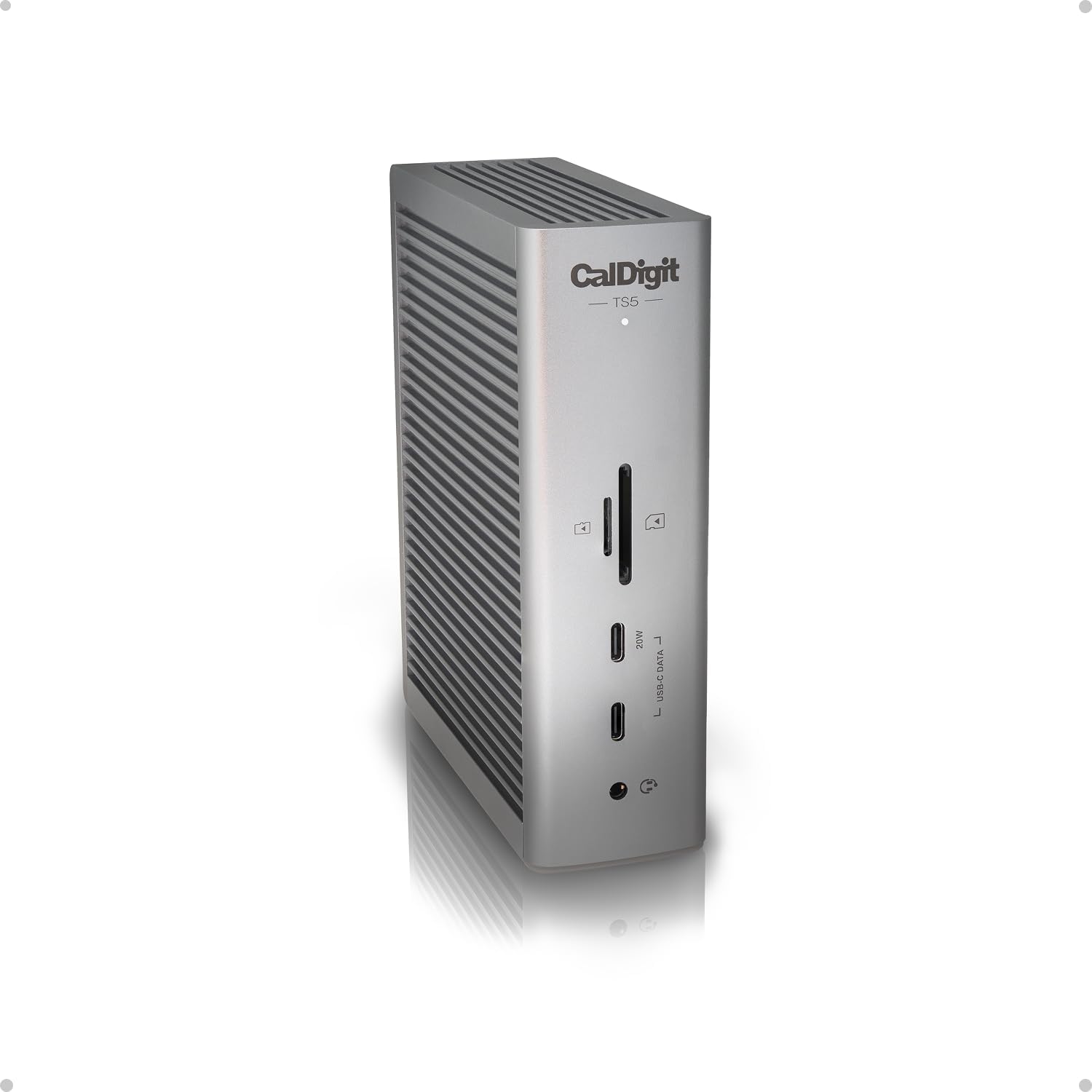
CalDigit TS5 Thunderbolt 5 Dock
Best OverallBuy if: you want the balanced Thunderbolt 5 dock for a modern laptop
Don't buy if: you need a built-in HDMI or DisplayPort socket
The TS5 is the safest Thunderbolt buy here. CalDigit lists 15 ports: one host Thunderbolt 5 port, three downstream Thunderbolt 5 ports, three 10Gbps USB-C ports, two USB-A ports, SD and microSD UHS-II readers, 2.5Gb Ethernet and audio ports. Host charging reaches 140W, enough for a 16-inch MacBook Pro.
Displays connect through the downstream Thunderbolt ports, not a display socket. CalDigit supports up to dual 4K at 240Hz on Macs that support those modes, and Windows Central lists dual 8K or triple 4K at 144Hz. Your laptop chip still sets the real limit. Thunderbolt 3 Windows PCs are not supported.
Pros
- 140W laptop charging
- Three downstream Thunderbolt 5 ports
- 2.5Gb Ethernet
- UHS-II SD and microSD readers
Cons
- No HDMI or DisplayPort socket
- Only two USB-A ports
- No Thunderbolt 3 Windows support
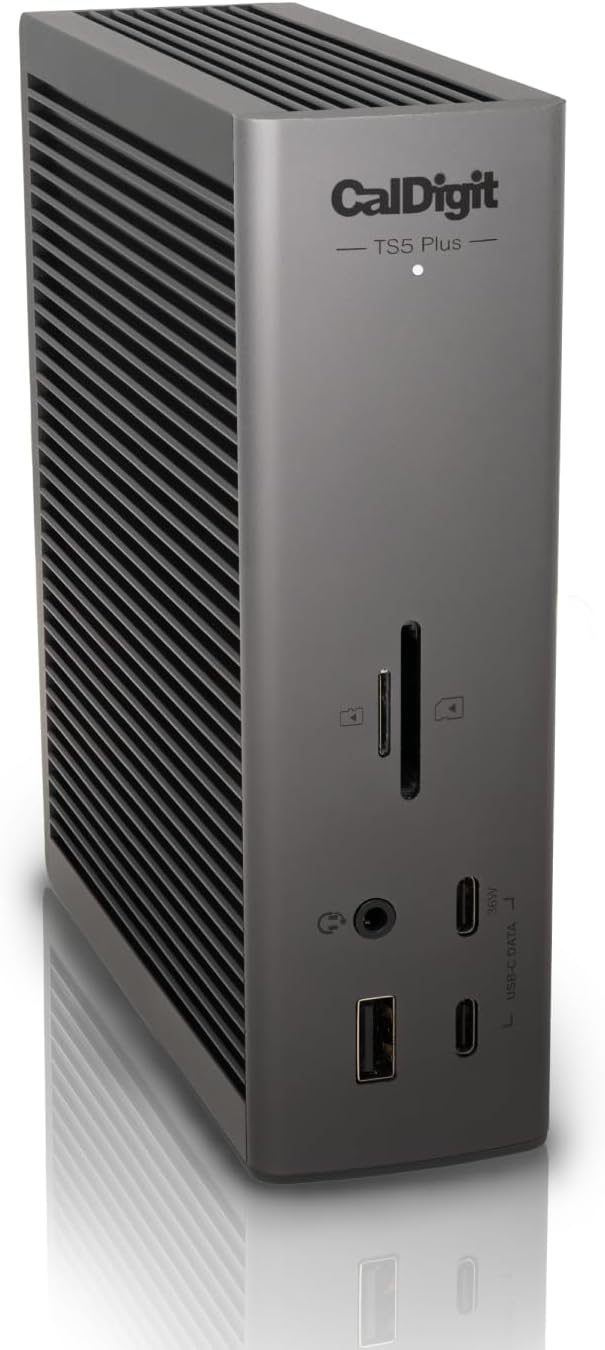
CalDigit TS5 Plus Thunderbolt 5 Dock
Best PremiumBuy if: you need 10Gb Ethernet, DisplayPort 2.1 and the most ports
Don't buy if: your network stops at Gigabit or 2.5Gb
The TS5 Plus is the maximum-port pick. CalDigit lists 20 ports, two downstream Thunderbolt 5 ports at 36W each, five USB-C and five USB-A ports at 10Gbps, DisplayPort 2.1, UHS-II card readers and 10Gb Ethernet. Host charging reaches 140W from a 330W power supply.
The 10Gb Ethernet port only pays off with a 10Gb switch, server or fast local network. On a normal home network it runs at the slower network speed. There is no HDMI socket, and the body and power brick are large. Windows Central calls it the top Thunderbolt 5 dock, with price as the main cost.
Pros
- 20 ports
- 10Gb Ethernet
- DisplayPort 2.1 socket
- 36W downstream Thunderbolt ports
Cons
- No HDMI socket
- Large 330W power supply
- 10GbE wasted on most homes
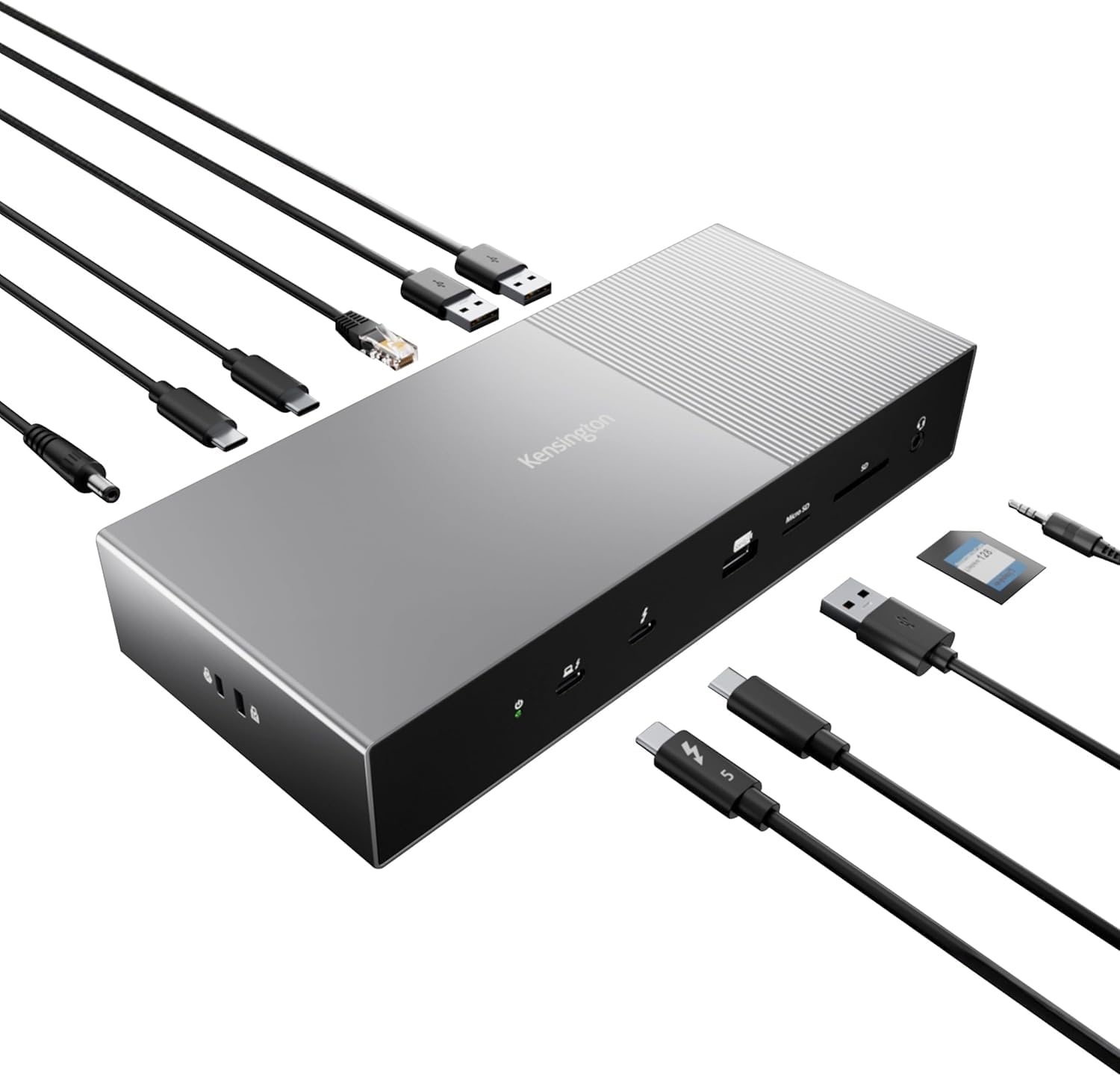
Kensington SD5000T5 EQ Thunderbolt 5 Dock
Best Triple 4K TB5Buy if: you want three downstream Thunderbolt 5 ports and a 60W front port
Don't buy if: you need many USB-C data ports or a display socket
The SD5000T5 EQ keeps the port list focused. Kensington lists 11 ports: one Thunderbolt 5 host port, three downstream Thunderbolt 5 ports, three USB-A ports, UHS-II SD and microSD readers, audio and 2.5Gb Ethernet. Host charging reaches 140W, and one front Thunderbolt port gives 60W for a phone, tablet or second device.
Kensington rates it for triple 4K at 144Hz or dual 8K at 60Hz on Windows, with Mac limits set by the chip. There are no HDMI or DisplayPort sockets and no USB-C data ports beyond Thunderbolt. Macworld calls it a strong entry Thunderbolt 5 dock, with fewer ports than premium rivals.
Pros
- Three downstream Thunderbolt 5 ports
- 60W front Thunderbolt port
- 140W laptop charging
- 2.5Gb Ethernet
Cons
- No display socket
- No extra USB-C data ports
- 180W supply leaves less headroom
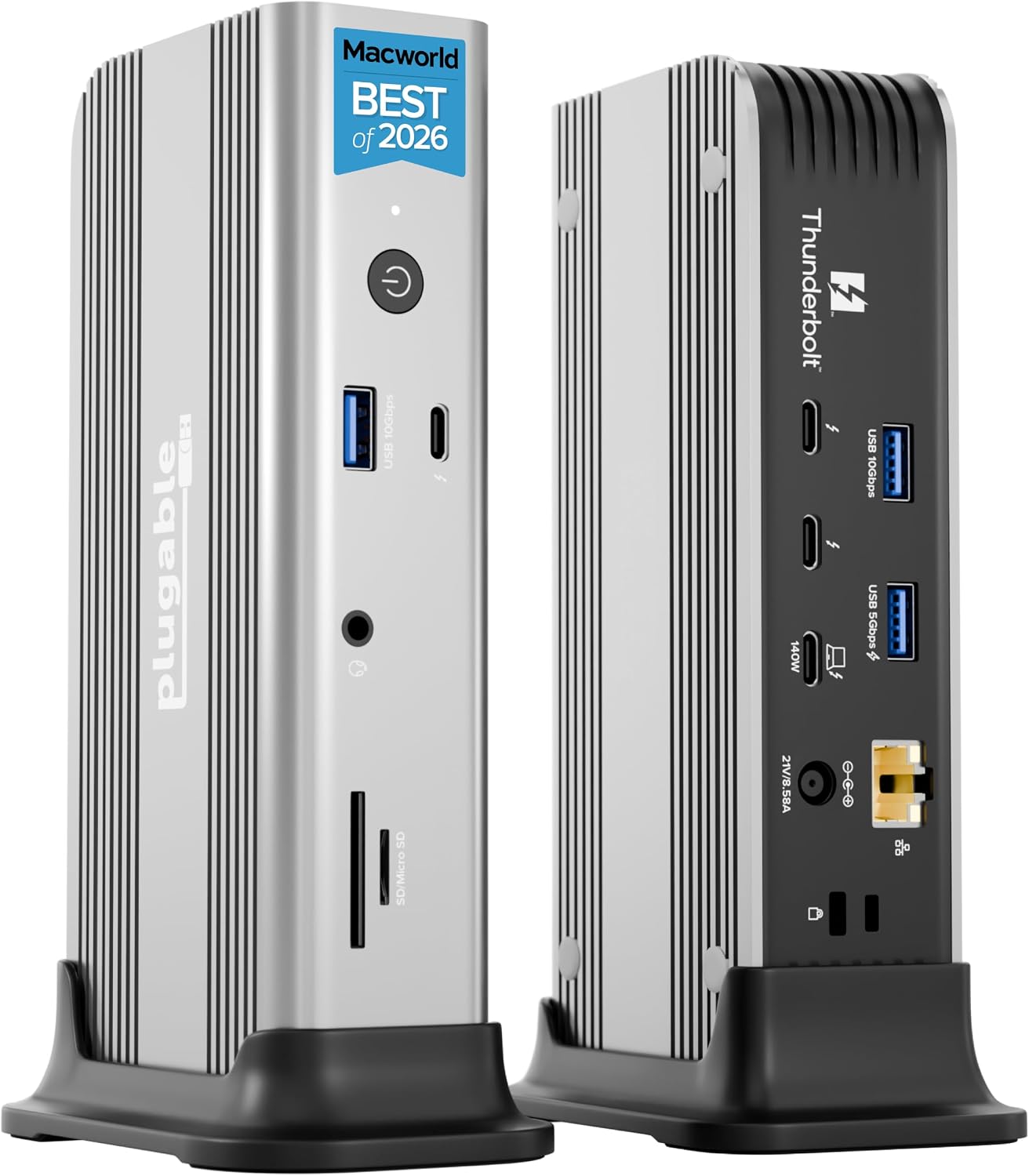
Plugable TBT-UDT3 Thunderbolt 5 Docking Station
Best Value TB5Buy if: you want Thunderbolt 5 speed and 140W charging for less
Don't buy if: you need built-in HDMI or DisplayPort sockets
The TBT-UDT3 is the value Thunderbolt 5 pick. Plugable lists an 11-in-1 dock with three downstream Thunderbolt 5 ports, 140W host charging, 2.5Gb Ethernet, UHS-II SD and microSD readers, three USB-A ports and Thunderbolt Share. It is driverless on supported Mac and Windows systems.
Display cables cost extra. There are no HDMI or DisplayPort sockets, so most monitors need USB-C to HDMI or USB-C to DisplayPort cables. Plugable lists dual 8K or dual 4K at 144Hz on Thunderbolt 5 Windows systems, with Mac limits by chip. Thunderbolt 3 systems are not supported.
Pros
- 140W laptop charging
- Three downstream Thunderbolt 5 ports
- 2.5Gb Ethernet
- Thunderbolt Share support
Cons
- Display cables sold separately
- Only USB-A data ports
- No Thunderbolt 3 support
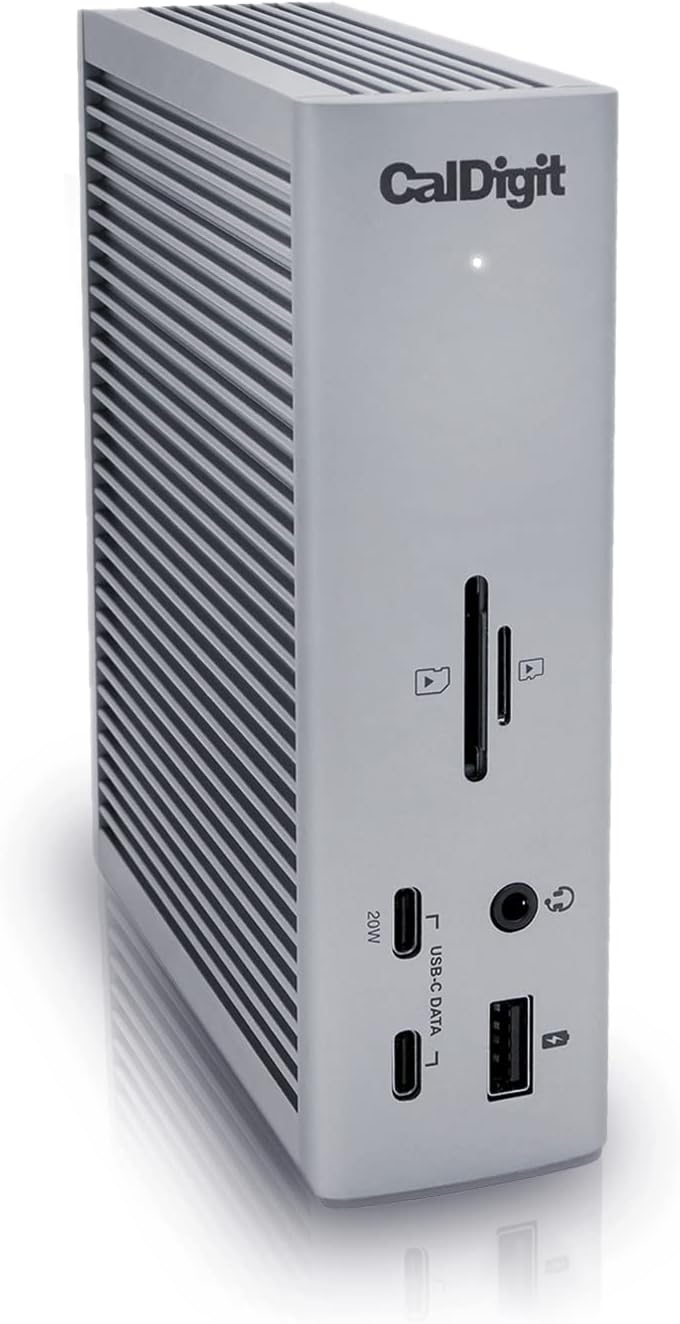
CalDigit TS4 Thunderbolt 4 Dock
Best Thunderbolt 4Buy if: your laptop is Thunderbolt 4 and you want 18 ports
Don't buy if: you need 140W charging or Thunderbolt 5 speed
The TS4 remains the Thunderbolt 4 workhorse. CalDigit lists 18 ports: three Thunderbolt 4 ports, three USB-C ports, five USB-A ports, DisplayPort 1.4, 2.5Gb Ethernet, UHS-II card readers and three audio ports. Host charging reaches 98W. All USB data ports run at 10Gbps.
The built-in DisplayPort socket is the practical edge over the Thunderbolt 5 picks. One monitor plugs straight in, and a second can use a downstream Thunderbolt port where the laptop supports it. Charging stops at 98W, so the largest laptops charge slower under heavy load.
Pros
- 18 ports
- Built-in DisplayPort 1.4
- 2.5Gb Ethernet
- Eight 10Gbps USB ports
Cons
- 98W charging ceiling
- Thunderbolt 4 speed only
- No HDMI socket
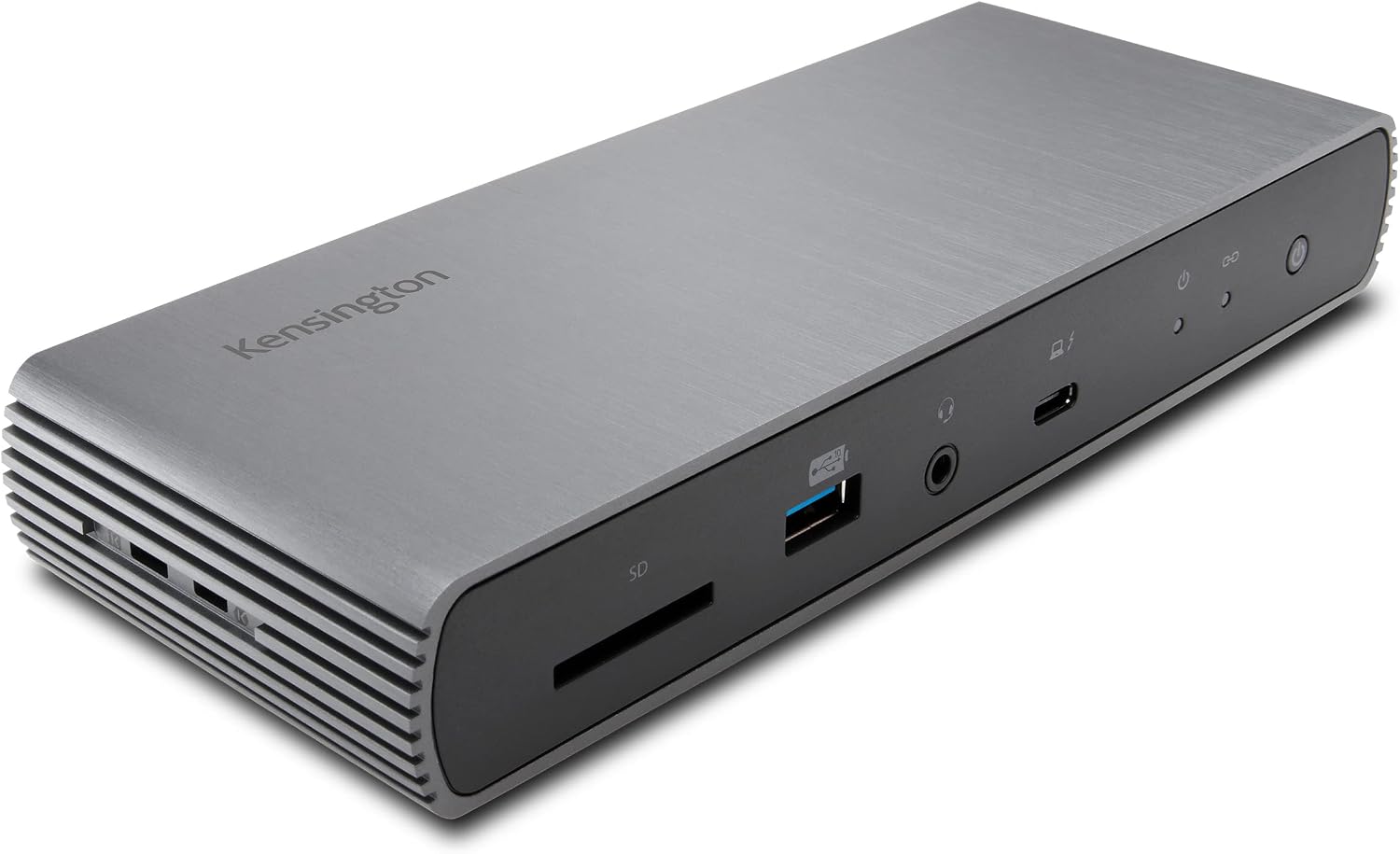
Kensington SD5780T Thunderbolt 4 Dock
Best Value TB4Buy if: you want a Thunderbolt 4 dock with an HDMI 2.1 socket
Don't buy if: you need USB-C data ports or card readers beyond SD
The SD5780T is the value Thunderbolt 4 pick with the display socket many desks want. Kensington lists 96W charging, HDMI 2.1, two downstream Thunderbolt 4 ports, four USB-A ports, 2.5Gb Ethernet and a UHS-II SD reader. It supports dual 4K at 60Hz or single 8K at 60Hz on suitable hosts.
The second screen needs a Thunderbolt or USB-C display path, and Mac display counts depend on the chip. There is no microSD reader and no USB-C data port beyond Thunderbolt. PCWorld rates it the best overall Thunderbolt dock for value, with the single display socket as the main caveat.
Pros
- HDMI 2.1 socket
- 96W laptop charging
- 2.5Gb Ethernet
- Four USB-A ports
Cons
- Second screen needs Thunderbolt path
- No microSD reader
- No extra USB-C data ports
How to Set Up a Thunderbolt Dock in 5 Steps
Check the laptop first, connect everything to the dock, then plug in one Thunderbolt cable. Five steps, and the desk runs from a single connection.
To set up a Thunderbolt docking station, follow these steps: 1. Check your laptop port and display limit. 2. Place the dock and connect its power supply. 3. Connect monitors, Ethernet and USB devices. 4. Plug one Thunderbolt cable into the laptop. 5. Check charging, displays and network speed.
- Check your laptop port and display limit. Confirm Thunderbolt 4, Thunderbolt 5 or USB4, plus how many external displays your chip supports.
- Place the dock and connect its power supply. Keep vents clear and use the power supply in the box.
- Connect monitors, Ethernet and USB devices. Use Thunderbolt, USB-C to DisplayPort or USB-C to HDMI adapters where the dock has no display socket.
- Plug one Thunderbolt cable into the laptop. Use the host port on the dock, not a downstream port.
- Check charging, displays and network speed. Confirm the laptop is charging, set each monitor refresh rate, and read the wired link speed.
Quick note: if a screen stays dark, check the cable type first. A charge-only USB-C cable carries power, not a Thunderbolt display signal.
Buying Guide: What Actually Matters
Four things matter most: laptop generation, charging watts, display sockets and Ethernet speed — in that order.
Laptop generation comes first because it caps everything else. Thunderbolt 5 gives 80Gbps and up to 120Gbps for video. Thunderbolt 4 gives 40Gbps. A Thunderbolt 5 dock on a Thunderbolt 4 laptop runs at Thunderbolt 4 speed, so pay for the speed your laptop can use.
Charging watts come next. The Thunderbolt 5 picks here give up to 140W, which suits large laptops. The Thunderbolt 4 picks give 96W or 98W, which suits most thin laptops. Read host charging, not the power brick size.
Display sockets decide your cable bill. The TS4 has DisplayPort, the TS5 Plus has DisplayPort 2.1, and the SD5780T has HDMI 2.1. The TS5, SD5000T5 EQ and Plugable need Thunderbolt or USB-C display cables. Our USB-C hub with Ethernet and HDMI guide covers the smaller desk option.
Ethernet speed comes last for most desks. Every pick here gives 2.5Gb Ethernet except the TS5 Plus, which gives 10Gb. The faster port needs a matching router, switch or server. Our home office monitor guide helps match the screens to the dock.
Generation first. Features second.
Thunderbolt Docks to Skip in 2026
Docks sold as Thunderbolt with no generation stated. If the maker will not state Thunderbolt 4 or Thunderbolt 5, skip it. The generation sets speed, displays and charging.
Thunderbolt 5 docks for Thunderbolt 3 Windows laptops. CalDigit states its TS5 docks do not support those hosts. Check the host list, not the plug shape.
Docks that promise three screens for every Mac. The laptop chip sets the display count. Base Apple silicon models support fewer screens than Pro, Max and Ultra models.
USB-C hubs dressed as docks. A hub with no power supply and 10Gbps ports cannot match a Thunderbolt dock for fast storage and high-refresh screens. Our USB-C hub for laptop guide covers the travel class.
Frequently Asked Questions
What's the best Thunderbolt docking station for a laptop?
The CalDigit TS5 for most buyers. It gives 140W charging, three downstream Thunderbolt 5 ports and 2.5Gb Ethernet.
Should I buy Thunderbolt 4 or Thunderbolt 5?
Match your laptop. Thunderbolt 5 laptops use the full speed; Thunderbolt 4 laptops run a Thunderbolt 5 dock at Thunderbolt 4 speed.
How do I know if my laptop has Thunderbolt?
Check the laptop spec page for Thunderbolt 4, Thunderbolt 5 or USB4. A USB-C port alone does not prove Thunderbolt support.
Why does my Thunderbolt dock show only one monitor?
Your laptop chip likely sets the limit. Base Apple silicon models support fewer external displays than Pro, Max and Ultra models.
Do I need 140W charging from my dock?
Only larger laptops need it. Most thin laptops charge well at 96W to 100W; big 16-inch models can use 140W.
Should I buy a Thunderbolt dock or a USB-C hub?
Buy the dock for a fixed desk, fast storage or high-refresh screens. A hub suits one monitor and travel.
When should I choose the CalDigit TS4 instead?
Choose the TS4 with a Thunderbolt 4 laptop when you want 18 ports and a built-in DisplayPort socket.