How to Fix a PS5 Controller That Keeps Disconnecting (2026 Guide)

Your DualSense cuts out mid-match, the light bar flashes, and for a few seconds you have no control at all. Then it comes back — until it happens again. It is one of the most reported PS5 controller problems, and it is also one of the most misdiagnosed: most guides hand you the same generic fix list, and none of them tell you which cause is yours.
This guide starts with a two-minute test that splits the problem in half, then works through the causes in order of likelihood — Bluetooth interference, battery, pairing, and finally hardware. Most disconnects are fixed in the first three sections, with no new hardware and no repair.
Why Does My PS5 Controller Keep Disconnecting?
Most often it is a wireless problem, not a broken controller: Bluetooth interference on the crowded 2.4 GHz band, a low or worn battery, or a lost pairing. The DualSense talks to the PS5 over Bluetooth 5.1 when it is not plugged in, and that link shares its radio band with your Wi-Fi router, other Bluetooth devices, microwaves, and cordless phones. Any of them can knock it out for a moment — and a moment is all it takes to lose a fight.
Before changing anything, run the wired test. It takes two minutes and tells you which half of the problem you are in:
- Plug the controller into the PS5 with a USB-C cable and play for a few minutes. Use a data cable, not a charge-only one, and the cable that came with the controller if you still have it.
- If it stays connected wired, the fault is in the wireless link — interference, battery, or pairing. Everything from the interference section onwards applies.
- If it still drops while wired, the fault is in the controller, the cable, or the console's USB port — try a different cable and a different front USB port before anything else. A frayed or dirty cable is a common culprit, and it costs nothing to rule out.
Match your symptom to the cause with this table, then jump to the matching section:
| What happens | Most likely cause | Go to |
|---|---|---|
| Drops wirelessly, fine when wired | Bluetooth interference or a lost pairing | Interference walkthrough |
| Drops after an hour or so of wireless play | Low or worn battery | Battery test |
| Connects for a few seconds, then drops | Failed pairing — re-pair over USB, then reset | Reset section |
| Light bar keeps flashing blue, never settles | Pairing is not completing | Flashing blue section |
| Drops in one game only | That game, not the controller | One-game section |
| Drops wired and wirelessly, after a reset, fully charged | Hardware fault — repair or replace | When nothing fixes it |
What Are the Fastest Fixes?
If you only have five minutes, do these four things in this order — they solve the large majority of PS5 controller disconnects.
- Charge the controller fully, then test. A controller running low on charge can drop its Bluetooth connection before it shuts down. If the disconnects vanish on a full charge, the battery was the cause — and if they come back partway through every session, the battery is wearing out (see the battery test below).
- Restart the PS5 properly. Power it down completely — not rest mode — wait 30 seconds, and turn it back on. This clears temporary glitches in the console's Bluetooth stack that a rest-mode cycle does not.
- Re-pair the controller over USB. Connect it to the PS5 with the USB-C cable and press the PS button. A fresh wired pairing often restores a wireless connection that has silently lost sync.
- Update the system software. Go to Settings → System → System Software → Check for Updates. DualSense device software updates arrive with PS5 system software updates, so keeping the console current is also how the controller gets its fixes. You can also check the controller's software directly under Settings → Accessories → Controller (General) → DualSense Wireless Controller Device Software.
If the controller holds after that, you are done. If it still drops, the next sections find the actual cause instead of guessing.
How Do I Reset My PS5 Controller?
Use PlayStation's own reset procedure: turn off the PS5, press the small reset button in the hole next to the Sony logo on the back of the controller for at least 5 seconds, then reconnect over USB and press the PS button. It is the first step PlayStation itself recommends for controller issues, and it is worth doing properly — most guides that mention the reset get the location or the hold time wrong.
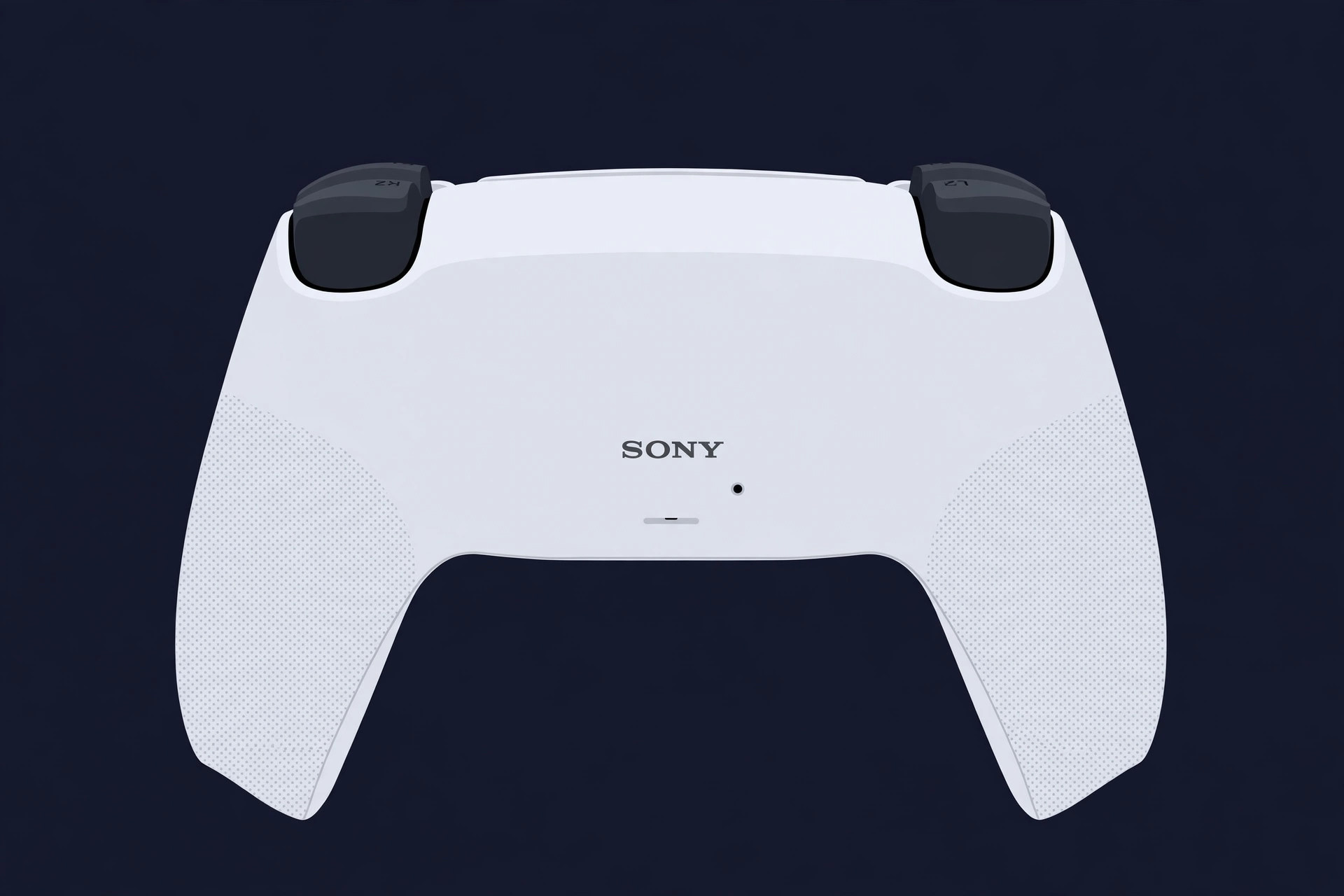
- Turn off your PS5 console completely.
- Disconnect the DualSense from the USB cable.
- Find the reset button inside the small hole next to the Sony logo on the back of your controller.
- Use a pin or a similar tool to press and hold the reset button for at least 5 seconds.
- Connect the controller to the PS5 using the official USB cable that came with your controller, and press the PS button.
PlayStation confirms the reset will not reconfigure the controller or affect pairing and profile settings — it clears the controller's connection state and forces a clean re-pair. If the controller still drops after a reset, a full charge, and the interference fixes below, you have ruled out software and pairing, and the fault is almost certainly hardware.
One thing the reset does not do: fix stick drift. Drift is a hardware fault in the stick module, and no reset or setting repairs it. If your character moves on its own in menus, that is drift, not a connection problem — see our guide to fixing PS5 stick drift for the real options.
Why Does My Controller Disconnect Only Wirelessly?
Because something else in the room is crowding the 2.4 GHz band your controller uses, or the signal path between controller and console is blocked. Bluetooth shares its band with most Wi-Fi networks and household devices, and the PS5's Bluetooth radio has to fight for airtime. When it loses, you get a dropout.
Work through the interference checklist in order — most players find their culprit in the first three items:
- Move the router away from the PS5, or switch your Wi-Fi to 5 GHz. A router sitting right beside or behind the console is the single most common cause: its 2.4 GHz signal drowns out the controller. Moving it even a short distance helps, and putting your devices on the router's 5 GHz band takes them off the controller's frequency entirely. Do not turn off your Wi-Fi or your router — that kills your online play and does nothing the 5 GHz switch does not do better.
- Clear the line of sight. Play in the same room with nothing large between you and the console. Thick furniture, metal objects, and closed cabinet doors all weaken the signal, and a PS5 shut inside a closed media cabinet is a classic setup for dropouts.
- Cut the other Bluetooth traffic. Turn off Bluetooth headsets, speakers, and phones you are not using while you play. Each one is another device competing for the same band.
- Move USB 3.0 devices away from the console. External drives and USB hubs plugged into the PS5's rear ports can radiate interference in the 2.4 GHz band. If you use an external drive, try a front port or a longer cable that puts it further from the console.
- Check for a microwave or cordless phone in the path. Both transmit on 2.4 GHz. If disconnects happen at the same time someone uses the microwave, you have found it.
Test after each change with a few minutes of wireless play. When the dropouts stop, you have your answer — and it is a setup fix, not a controller fault, so it will not come back unless the setup changes again.
Why Does My Controller Disconnect After an Hour of Play?
Because the battery can no longer hold a stable charge through a session — and a controller low on power drops its Bluetooth connection before it shuts down. This is the pattern that fools people most: the controller works fine at the start of the evening, then starts cutting out an hour or two in, and a reset does nothing because there is nothing wrong with the pairing.
Run the battery test:
- Charge the controller to full, then play wirelessly and note when the first dropout happens. If it holds for a full session on a full charge but drops when the battery indicator falls, the battery is the suspect.
- Play the same session wired. If wired play never drops, the battery is confirmed as the wireless-only weak point — the cable supplies power directly, so a worn battery cannot interrupt the connection.
- Watch for the shortening pattern. A battery that used to last a whole evening and now drops out after an hour or two is degrading. Heavy haptic feedback and adaptive triggers drain it faster, so a game that leans on both will expose a weak battery sooner than a quieter one.
A worn battery is a repair, not a settings fix — but it is a cheap one on a standard DualSense, and it is far cheaper than replacing the controller. If the controller is still under warranty, contact PlayStation support first rather than opening it yourself.
What Does a Flashing Blue Light Mean?
A flashing blue light bar means the controller is searching for a Bluetooth connection and has not paired yet. It is the controller telling you the pairing is not completing — not that the controller is broken.
If the light keeps flashing and never settles into a solid player-indicator light:
- Re-pair over USB first. Connect the controller with the USB-C cable and press the PS button. A wired pairing re-establishes the link the wireless search is failing to find.
- Then reset, using the procedure above. A reset followed by a USB re-pair clears a stuck pairing state that a simple reconnect does not.
- Then forget the device on the console. Go to Settings → Accessories → General → Bluetooth Accessories, select the controller, and choose Delete. Re-pair from scratch over USB. This clears a corrupted pairing record on the console side, which the controller-side reset cannot reach.
- Try a second controller. If another DualSense pairs and holds without trouble, the fault is in the first controller. If the second one flashes blue too, the fault is in the console's Bluetooth, and a console-side issue needs PlayStation support.
A controller that pairs, plays, and then starts flashing blue again mid-session is a different symptom — that is a dropout, not a failed pairing, and the interference and battery sections above are where to look.
Why Does My Controller Disconnect Only in One Game?
Then it is almost certainly that game, not your controller. If the DualSense holds a connection in menus, in other games, and on the home screen, but drops in one title, the controller's radio and battery are fine — something in that game's controller handling is at fault.
Check in this order:
- Update the game. Controller-handling bugs are usually fixed in patches, and a game that has not been updated is the most likely suspect — especially if the disconnects started after a game update, which points at a regression in that patch.
- Check the game's community pages. If other players report the same disconnects in the same game, it is a known bug, and no controller fix will help until the developer patches it.
- Reinstall the game if it persists. A corrupted install can produce exactly this pattern — stable everywhere else, broken in one title. It is a last resort because of the download size, but it is cheaper than a new controller you do not need.
Do not buy a replacement controller over a one-game problem. The wired test is the proof: if the controller holds wired in that same game, the wireless link is fine and the game is the fault.
How Do I Fix a PS5 Controller That Keeps Disconnecting on PC?
On PC the causes are different, and they are almost all on the computer's side: Windows power management, Steam Input conflicts, and Bluetooth antenna problems. The DualSense works on PC, but Windows treats it as a generic Bluetooth device, and three PC-specific traps cause most dropouts.
- Stop Windows putting the Bluetooth adapter to sleep. In Device Manager, find your Bluetooth adapter and each USB root hub, open Properties → Power Management, and uncheck "Allow the computer to turn off this device to save power". Windows suspends idle Bluetooth radios by default, and a controller that goes quiet for a moment can be suspended mid-game.
- Update the firmware with Sony's PlayStation Accessories app. Sony publishes DualSense firmware updates for Windows through the PlayStation Accessories app (formerly the Firmware updater for DualSense wireless controller). Connect over USB, run the app, and install any available update — the same Bluetooth stability fixes that ship with PS5 system software reach PC players this way.
- Resolve Steam Input conflicts. If Steam Input, DS4Windows, and RGB software are all trying to claim the controller at once, the connection can reset repeatedly. Pick one input layer — usually Steam Input alone — and close the others before launching the game.
- Check the antenna and the USB ports. Many desktop motherboards ship with a small Bluetooth/Wi-Fi antenna that must be screwed into the rear I/O panel — without it, Bluetooth range collapses. And keep the Bluetooth dongle or antenna away from USB 3.0 ports, which radiate interference in the same 2.4 GHz band.
- Rule out a low battery the same way as on console. If dropouts start when the battery falls and vanish on a full charge, the battery is the cause, not Windows.
If the controller holds on the PS5 but drops on the PC, the controller is fine — the PC setup is the problem, and the fixes above are where to start.
What If Nothing Fixes It?
Then isolate the hardware, because you have eliminated everything else. Work through this in order:
- Try a second controller. If another DualSense holds a connection in the same room, on the same console, your controller has a hardware fault — a failing Bluetooth radio, antenna, or battery — and needs repair or replacement.
- Try the controller on another console or PC. If it drops everywhere, the fault travels with the controller. If it only drops on your PS5, the fault is in the console's Bluetooth.
- Check the warranty before opening anything. A DualSense still under warranty should go back through PlayStation support — opening it yourself can void the warranty, and a battery or radio repair is exactly what the warranty exists for. PlayStation's Repairs diagnostic tool will walk you through the claim.
- Do not keep buying cables. If a known-good data cable, a reset, a full charge, and a clear wireless path have all failed, the problem is inside the controller, and no accessory fixes it.
Most players never reach this section. The wired test plus the interference walkthrough and a full charge resolve the large majority of disconnects — and if you worked through all of it, you now know exactly which component is at fault, which is a much better position than buying a replacement blind.
Frequently Asked Questions
Why does my PS5 controller keep disconnecting?
Most often it is a wireless problem, not a broken controller: Bluetooth interference on the crowded 2.4 GHz band, a low or worn battery, or a lost pairing. Run the wired test first — plug the controller in with a USB-C cable and play for a few minutes. If it stays connected wired, the fault is in the wireless link, and the interference and battery checks below will find it.
How do I reset my PS5 controller?
Turn off the PS5, disconnect the USB cable, and press the small reset button in the hole next to the Sony logo on the back of the controller with a pin, holding it for at least 5 seconds. Then reconnect with the official USB cable and press the PS button. PlayStation confirms the reset does not reconfigure the controller or affect pairing and profile settings.
Why is my PS5 controller blinking blue and disconnecting?
A flashing blue light bar means the controller is searching for a Bluetooth connection and has not paired. If it keeps flashing and never settles, the pairing is not completing — re-pair over USB, then reset the controller if it still will not hold a connection.
Does resetting a PS5 controller fix drift?
No. The reset only restores the controller's connection and pairing settings. Stick drift is a hardware fault in the stick module, and no reset or setting fixes it — see our guide to fixing PS5 stick drift for the real options.
Why does my controller disconnect only during certain games?
If it drops in one game and holds everywhere else, it is almost certainly that game, not your controller — a bug in the game's controller handling or a corrupted install. Check for a game update, and if the problem started after an update, check the game's community pages for other reports before blaming hardware.
Can a low battery make my PS5 controller disconnect?
Yes. A controller running low on charge can drop its Bluetooth connection before it shuts down, and a worn battery does the same thing partway through a session. If disconnects start after the controller has been on for a while and vanish when it is fully charged, the battery is the suspect.
Does the DualSense Edge reset the same way?
Yes. PlayStation's troubleshooting steps for the DualSense Edge are identical: turn off the PS5, press the reset button on the back with a pin, then reconnect over USB and press the PS button. The Edge's replaceable stick modules are a separate matter — they help with drift, not with disconnects.