How to Fix OBS Dropping Frames While Streaming (2026 Guide)

Your game runs perfectly on your screen — and your viewers are watching a slideshow. That gap is the whole story of OBS dropped frames: your PC renders the game fine, but something between OBS and your viewers is losing frames along the way.
Before you change a single setting, diagnose. OBS tracks three different problems under three different counters, and each one has a different fix. Change the wrong thing and you will spend an evening "fixing" a network problem with encoder settings. This guide is built around OBS Studio 33.0.1, the current release (29 October 2026), and it starts with a 60-second test that tells you which branch you are in.
The 60-second diagnosis: in OBS, go to View → Stats and stream or record for 30 seconds. If Dropped Frames (Network) is climbing, your upload path is the problem — jump to the network fixes. If Skipped Frames (Encoding Lag) is climbing, your encoder is overloaded. If Missed Frames (Rendering Lag) is climbing, your GPU is too busy. Fix only the branch that matches.
Why Is OBS Dropping Frames Even Though My Internet Is Fine?
Because "dropped frames" in OBS almost never means your download speed. Streaming uses upload, and OBS drops frames for three separate reasons — only one of them is your connection.
| Counter in View → Stats | What it means | The fix lives in |
|---|---|---|
| Dropped Frames (Network) | OBS encoded the frame fine, but the connection to the ingest server could not take it in time | The network fixes below |
| Skipped Frames (Encoding Lag) | The encoder could not compress frames fast enough | The encoding section below |
| Missed Frames (Rendering Lag) | The GPU was too busy to render the scene in time | The high-end PC section below |
That is why "my internet is fine" is the most common complaint in the OBS forums — and the least useful diagnosis. A 500 Mbps download plan says nothing about upload. Most home connections are asymmetric: 500 down and 20 up is normal, and a 6,000 Kbps stream plus a game update plus cloud sync can saturate 20 Mbps of upload without you noticing. And even with plenty of upload, a bad ingest server or Wi-Fi interference drops frames while a speed test looks perfect.
One test splits the problem in half before you touch any setting: record locally for a minute without streaming. If the recording stutters, the problem is in your PC — rendering or encoding. If the recording is smooth and only the live stream stutters, it is the network.
How Do I Tell Which Kind of Frame Drop I Have?
Open View → Stats in OBS and watch the three counters while you stream or record for 30 seconds. Whichever counter climbs is your problem.
- The status bar tells you the headline. The bottom-right corner of the OBS window shows your live frame rate, CPU usage, and the dropped-frames percentage while you stream. If it shows "Encoding overloaded!" in red, you are in the encoding branch — skip straight there.
- The Stats window tells you the truth. View → Stats breaks out all three counters separately, as percentages: dropped frames (network), skipped frames due to encoding lag, and missed frames due to rendering lag. A counter sitting at 0% is a clean bill of health for that branch; a counter climbing steadily is your culprit.
- Judge the trend, not a single number. A few dropped frames in the first seconds of a stream are normal — the connection is settling. A counter that keeps climbing minute after minute is a real problem; a counter that spikes once and settles is not.
Write down which counter is climbing before you change anything. Every fix below is labelled by counter, and the whole point of this guide is that you only follow the branch that matches.
How Do I Fix Network Dropped Frames?
Lower the bitrate until it fits your real upload, switch to Ethernet, and test a different ingest server — in that order.
Do the bitrate maths first
Your bitrate must fit inside your tested upload with room to spare. The OBS Project's own guidance is to keep your bitrate at 75% of your upload speed; a safer rule many streamers use is 60% — equivalently, your upload should be at least 1.5 times your bitrate. A 6,000 Kbps stream needs roughly 9–10 Mbps of stable upload, not 6. If your upload is 10 Mbps, 6,000 Kbps leaves almost no headroom: stream at 4,500 Kbps instead and the drops will usually stop.
Set it in Settings → Output → Video Bitrate, and change it in small steps — 500 to 1,000 Kbps at a time, testing for a minute between changes. The full bitrate table for Twitch and YouTube is further down this guide.
Test your connection to Twitch, not to a speed-test server
A generic speed test measures your connection to the nearest test server. It says nothing about your route to Twitch's ingest servers. Use TwitchTest, a free, open-source Windows tool that tests your upload to every Twitch ingest server: download it, run it as administrator, and look for a server with a Quality score of 100 and bandwidth comfortably above your bitrate. Then, in OBS, go to Settings → Stream → Server and pick that server instead of Auto — Auto does not always pick the best one, and servers have bad days.
Switch to Ethernet, even just to test
Wi-Fi is the single most common cause of intermittent network drops. Signal interference, neighbours' networks, distance from the router — all of it shows up as frames your viewers never see, while a speed test taken a minute later looks fine. Run a temporary Ethernet cable for one test stream. If the drops stop, you have your answer: the fix is a wired connection, a powerline adapter, or a closer access point — not a new encoder setting.
Turn on Dynamic Bitrate
In Settings → Advanced → Network, tick "Dynamically change bitrate to manage congestion". When your connection chokes, OBS lowers the bitrate on its own instead of dropping frames. You trade a brief dip in picture quality for a stream that stays live — almost always the right trade.
Close the upload hogs
Cloud sync (OneDrive, Dropbox, Google Drive), game updates, Windows Update, and anyone else in the house uploading photos or video all share your upload. Pause sync and updates before you go live, and check no other device is mid-upload. This is the fix for drops that appear out of nowhere mid-stream.
Check the software sitting between OBS and the internet
VPNs add an extra hop and can throttle or reroute your stream — test one stream with the VPN off. Security software, firewalls, and "gaming network optimiser" tools (Killer NIC software, Lenovo Vantage network boost, motherboard LAN utilities) have all been flagged in OBS's own troubleshooting docs as interfering with the stream connection. Disable them for a test stream; if the drops stop, you have found it. Our VPN for gaming guide covers the honest cases where a VPN helps — fixing OBS drops is not one of them. If you suspect packet loss rather than pure bandwidth, our packet-loss guide walks through the same diagnosis for games.
What Does "Encoding Overloaded" Mean — and How Do I Fix It?
"Encoding overloaded" means OBS's encoder cannot compress video as fast as frames arrive, so it skips frames. Fix it by moving the work off your CPU onto your GPU's hardware encoder — or by giving the encoder less work.
Check the encoder dropdown first
Go to Settings → Output → Encoder and read what it literally says right now. After OBS updates, streamers have reported the encoder silently falling back to x264 software encoding — one November 2026 forum case had a Ryzen 9 9800X3D + RX 9070 XT rig at 61% encoding lag because of exactly that. If the dropdown says x264 and you own a modern GPU, that is your problem: switch it back to your hardware encoder before touching anything else.
Pick the right encoder for your GPU
| Your GPU | Use this encoder | Codec | Why |
|---|---|---|---|
| NVIDIA RTX 40- or 50-series | NVIDIA NVENC AV1 | AV1 | Best quality per bit; use for YouTube or Twitch Enhanced Broadcasting |
| Any NVIDIA GPU | NVIDIA NVENC H.264 | H.264 | Universal — works on every platform; the safe default |
| NVIDIA GTX 10 / RTX 20 / 30-series | NVIDIA NVENC H.264 | H.264 | These cards have no AV1 encoder — AV1 is RTX 40-series and newer only |
| AMD RX 7000-series or newer | AMD HW AV1 | AV1 | Hardware AV1; older AMD cards use AMD HW H.264 |
| Intel Arc (or newer Intel integrated) | Quick Sync AV1 / H.264 | AV1 / H.264 | Arc has a hardware AV1 encoder |
| No dedicated GPU | x264 | H.264 | Software only — keep the stream at 720p |
Hardware encoding runs on a dedicated chip on your graphics card, so your CPU stays free for the game. That is the whole point: x264 uses your CPU, and your CPU is already running the game.
Loosen the preset, then lower the resolution
If you are on NVENC, set the preset to P5 or P6 — the quality presets most streamers use. If you are stuck on x264, the default veryfast preset is the starting point, and moving to a faster preset (superfast, then ultrafast) cuts CPU load at some quality cost. Slower x264 presets look better but cost more CPU — the wrong direction when you are already overloaded. On AMD cards, if you are overloaded, try turning look-ahead off first: forum log analysis has flagged it as a contributor on some setups.
Then lower the work itself: in Settings → Video, set Output (Scaled) Resolution to 1280×720. A 720p60 stream at a healthy bitrate looks better than a 1080p60 stream that keeps skipping frames — and if high CPU usage while gaming is part of your problem, our CPU guide covers the per-core diagnosis.
Why Does OBS Drop Frames on a High-End PC?
Because a powerful PC can still starve OBS of GPU time. An uncapped game will happily use 99% of your GPU, leaving OBS nothing to render your scene with — and the game will look perfect on your monitor while the stream stutters for everyone else.
Cap the game's frame rate
This is the single most effective fix on high-end rigs. In the game's own settings, cap the frame rate at your stream's frame rate (60) or at 120. The game loses nothing you can see — your monitor still shows every frame OBS sends — and OBS finally gets the GPU time it needs to render the scene. Uncapped frame rates are the number-one cause of missed frames on machines that should have no trouble at all.
Run OBS as administrator
Right-click OBS and choose Run as administrator. Windows gives administrator processes priority access to the GPU, which is exactly what OBS needs when a game is competing for it. Do this every time — or set it in the shortcut's properties so you never forget.
Turn off Hardware-Accelerated GPU Scheduling
Go to Settings → System → Display → Graphics → Default graphics settings, and turn Hardware-accelerated GPU scheduling (HAGS) off, then restart. OBS forum staff cite HAGS as a known cause of rendering lag in thread after thread — and Windows and driver updates re-enable it, so check it after any update, especially if drops started "suddenly". Leave Windows Game Mode on: it is usually fine, but if you have tried everything else, test one stream with it off — it changes how Windows schedules GPU time.
Simplify the scene
Browser sources (alerts, chat widgets, animated overlays) each cost GPU time, especially with hardware acceleration enabled. Keep the ones you need, drop the rest, and never put Game Capture and Display Capture in the same scene — they fight over the same frames. One capture source per scene, and close the browser tabs you are not using.
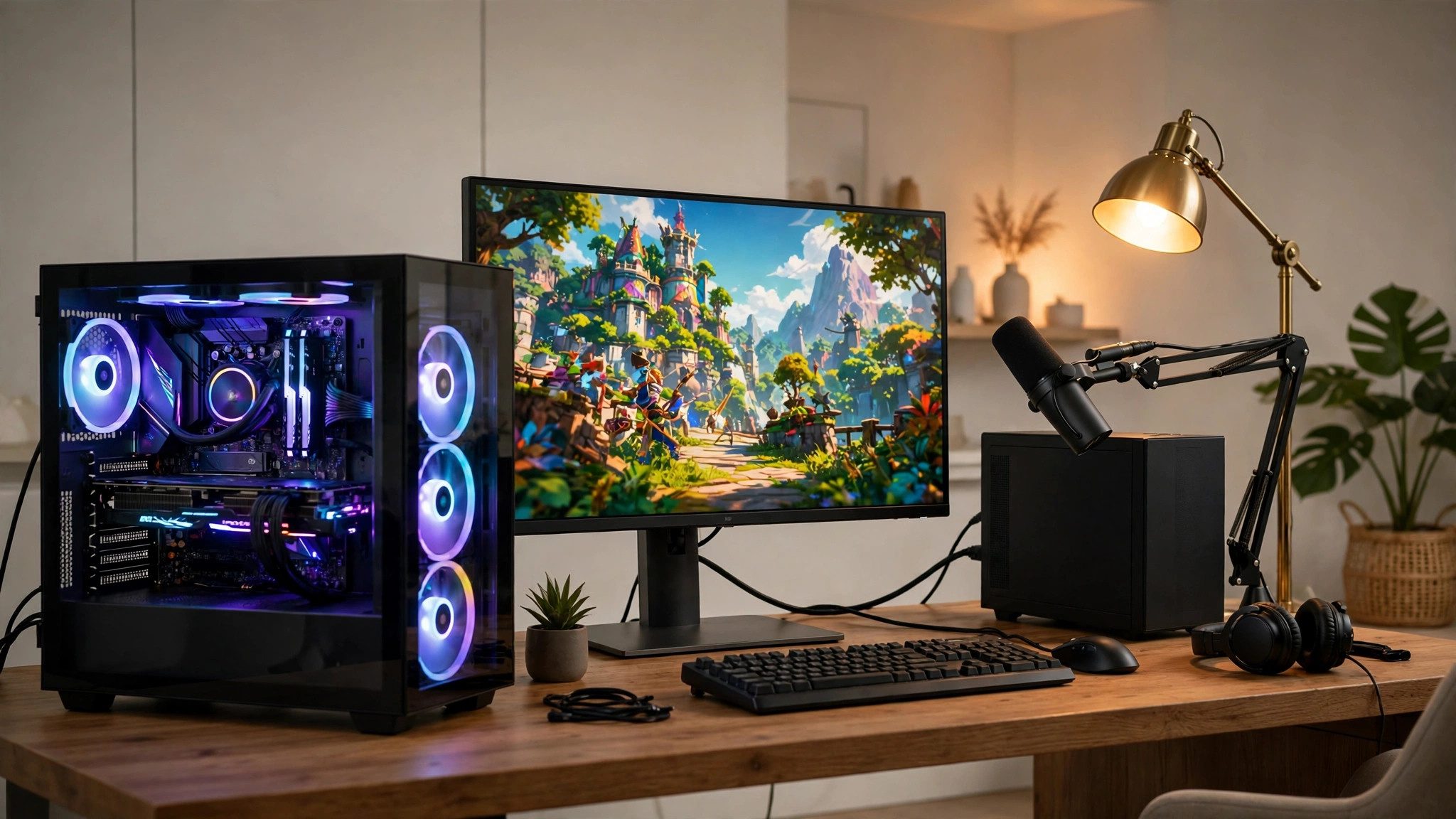
The permanent fix, if one PC cannot do both jobs, is to split them: a second PC — or a capture card feeding a streaming PC — takes the encoding entirely off your gaming rig. It is the setup every serious streamer ends up with, and it removes the whole class of "my PC is fast but my stream stutters" problems at the root.
Finally, update OBS itself: Help → Check for Updates. The current release is 33.0.1 (29 October 2026), a hotfix that also overhauled the embedded browser engine behind browser sources — the part that renders your alerts and chat widgets — from Chromium 127 to 150. Download it only from the official site, obsproject.com/download. And update your GPU drivers while you are at it: an old driver is a boring cause, but it is a real one.
Why Does OBS Drop Frames Only Sometimes?
Intermittent drops are almost always the network varying, not your PC changing. Wi-Fi interference, peak-hour congestion, and background uploads all come and go — which is exactly why the drops do too.
- Wi-Fi. Neighbours' networks, microwaves, walls, distance from the router. If drops vanish on Ethernet, Wi-Fi was the cause — full stop.
- Peak hours. If drops cluster between roughly 7pm and 11pm and vanish late at night, your ISP's local node is congested. Nothing in OBS fixes that; a lower bitrate rides it out, and a complaint to your ISP with timestamps is the long-term answer.
- Background uploads. Cloud sync, game patches, and Windows Update start without asking. Check the system tray and your router's traffic view when drops begin — a background upload is the most common "it was fine yesterday" cause there is.
- A bad ingest server day. Run TwitchTest again and switch servers. Ingest servers have bad days, and Auto does not always notice.
- Heat. If drops start 20 minutes into a stream and get worse, check CPU and GPU temperatures: sustained heat makes hardware throttle mid-stream, and throttling looks exactly like a sudden encoder problem.
- Drops only at stream start. Normal — the connection is settling. Dynamic Bitrate (in the network section above) smooths exactly this.
What Bitrate Should I Use for Twitch and YouTube?
On Twitch, 6,000 Kbps is the ceiling for most streamers. On YouTube, you can go much higher — but only if your upload supports it.
| Stream | Twitch (video bitrate) | YouTube Live (H.264) |
|---|---|---|
| 720p @ 30fps | 3,000–4,500 Kbps | — |
| 720p @ 60fps | 4,500–6,000 Kbps | — |
| 1080p @ 30fps | 4,500–6,000 Kbps | 5,000–14,000 Kbps (14,000 recommended) |
| 1080p @ 60fps | 6,000 Kbps (cap) | 6,000–17,000 Kbps (17,000 recommended) |
Twitch caps non-partner ingest at 6,000 Kbps for video plus audio combined; Partners and Enhanced Broadcasting accounts can go to 8,000 Kbps. Audio is 160 Kbps on Twitch and 128 Kbps stereo on YouTube. Both platforms want CBR rate control and a 2-second keyframe interval.
That Twitch cap is why many streamers choose 936p or 720p at 60fps instead of full 1080p60: at 6,000 Kbps the extra pixels cannot be fed enough bits to look better, so the lower resolution often looks sharper. On YouTube the maths is different — YouTube transcodes everything it receives, so a higher source bitrate genuinely helps, up to its recommended figure. With AV1 or HEVC on YouTube, the recommended 1080p60 figure drops to 12,000 Kbps, because the newer codecs do more with fewer bits.
And the upload rule, one more time: keep your bitrate at 60–75% of your tested upload speed. A 6,000 Kbps stream needs roughly 9–10 Mbps of stable upload. If your upload is only just above your bitrate, drop a tier — a stable 4,500 Kbps stream beats a 6,000 Kbps stream that drops frames every evening.
What If Nothing Works?
Upload your OBS log file and let the log tell you. Most stubborn cases are solved from the log in minutes, by people who do this every day.
- Upload the log. In OBS, go to Help → Log Files → Upload Current Log (or Upload Last Log if the problem stream already ended). Copy the link and post it in the OBS forums with your specs. Forum helpers diagnose from logs daily — including the silent x264 fallback, audio sample-rate mismatches (OBS runs at 48 kHz), and plugin conflicts you would never find by guessing.
- Remove recently added plugins. Multistream plugins encode your stream twice — one March 2026 forum case traced 50%+ dropped frames to exactly that. If drops started when a plugin arrived, remove the plugin and test.
- Reinstall clean. As a last resort, uninstall OBS, delete its configuration folder, and reinstall fresh from the official download page. A corrupted scene collection or a plugin left over from an old version is occasionally the whole story.
- Suspect the ISP. Drops at the same time every evening, on Ethernet, with a clean log, across ingest servers — that is a line fault, not an OBS fault. Tell your provider you see sustained packet loss at peak hours, with timestamps, and you will get past the scripted troubleshooting. Our guide to lowering ping and our gaming router guide cover the network side in more depth, including what to check on your own router first.
Most streamers never reach this section. The Stats window plus one branch of fixes resolves the large majority of dropped-frame complaints — and once you know which counter was climbing, you also know exactly what to watch next time it happens.
Frequently Asked Questions
Does a better PC fix dropped frames?
Only half the problem. A better PC fixes encoding and rendering lag — the skipped and missed frames. It does nothing for network dropped frames, which are about your upload and the ingest server. If your Stats window shows network drops, spend the money on a better connection, not a better GPU.
Why does OBS drop frames when my game runs smoothly?
Your game runs on your PC; your stream runs on your upload and your encoder. The game can be flawless while the encoder is overloaded or the upload is saturated — viewers see the stream, not your monitor. Check which counter is climbing in View → Stats.
Can OBS drop frames even if my stream looks fine?
Yes. A few dropped frames are invisible — the Stats window shows them before your viewers can see them. Small, occasional drops do not matter; a steadily climbing counter does. Judge by the trend over a few minutes, not by a single number.
Does closing background apps actually help?
Yes, when they use the resources OBS needs: cloud sync and game updaters eat upload; browsers with video tabs and RGB utilities eat CPU and GPU. Close the upload hogs first — they are the ones that cause network drops. Then the CPU hogs.
Should I use NVENC or x264?
NVENC if you have a modern NVIDIA GPU — it encodes on a dedicated chip, so your CPU stays free for the game. x264 only makes sense if you have no hardware encoder or a CPU with cores to spare, and then only at the veryfast preset or faster. On AMD, use the AMD hardware encoder; on Intel Arc, Quick Sync.
Why did OBS start dropping frames suddenly when nothing changed?
Something did change — usually an update. Check three things: your encoder dropdown (updates can silently fall back to x264), Hardware-accelerated GPU scheduling (Windows and driver updates re-enable it), and your ingest server (run TwitchTest — servers have bad days). If all three check out, look for peak-hour congestion or a background upload that started without you noticing.