Best USB C Cable for External Monitor (2026): 6 Picks

The monitor stays black. The laptop charges fine.
You swapped ports. You restarted twice. The cable came free with a phone, so it must be the right one — that is the trap this whole guide exists to disarm.
A USB-C cable for an external monitor is a USB-C to USB-C cable built to carry a video signal, not just power and slow data. It links a laptop to a USB-C monitor input and can carry picture, sound, data and charging in one lead.
This guide ranks six video-capable cables by video mode, length and charging. It covers USB-C monitors only. If your screen has HDMI or DisplayPort sockets and no USB-C input, our USB-C to HDMI adapter guide is the right page instead.
No prices are printed in this guide — cable prices move often and listings disagree on the same model. Check the live price before buying. All specs are the makers' own figures — never a guess.
What's the Best USB C Cable for an External Monitor?
The Cable Matters 20Gbps Monitor Cable in the 6ft size. It reaches across a normal desk, carries 4K at 120Hz, and charges at up to 240W when the monitor and laptop support it.
The best USB-C cable for an external monitor is a full-featured cable rated for your screen's resolution and refresh rate. According to Cable Matters, its 20Gbps monitor cable carries 8K at 30Hz or 4K at 120Hz video with 240W charging. Video still needs a USB-C port with DisplayPort Alt Mode on the laptop.
A USB-C monitor cable works only when three parts agree: the cable, the laptop port and the monitor input. According to Dell, a USB-C port with DisplayPort Alt Mode carries video, audio, data and power in one cable. A port with no video mode gives a black screen with every cable.
You don't need 8K, you don't need 80Gbps, and you don't need a cable with lights. You need a stated video mode, enough length for your desk, and charging that matches your monitor.
Look — if you're in the spot where the screen works at 4K 30Hz and scrolling feels like wading through mud, here's what actually works: a cable rated for 4K 60Hz or better, on a port that can send it.
Why Does My USB-C Cable Charge but Show No Picture?
Because charging cables and video cables are built differently. A USB 2.0 charging cable has no high-speed video wires inside, so it powers the laptop and sends no picture at all.
USB-C is a plug shape, not a promise. Phone cables often carry power and slow USB 2.0 data only. A monitor cable needs the high-speed wires that carry DisplayPort Alt Mode video, and the laptop port and monitor input need that mode too. That three-part check explains most black screens.
I've seen conflicting data — some listings print 4K 144Hz in a bullet and 4K 60Hz in the title of the same cable, while the maker's own page lists one clear figure. My read is simple: trust the maker's spec page over a marketplace headline, every time.
Check the port before you blame the cable. Look for a DisplayPort or Thunderbolt mark beside the laptop socket, or find "DisplayPort Alt Mode" in the laptop spec list. No video mode on the port means no cable and no adapter can add a picture.
Quick note: a monitor USB-C socket can be data-only too. Some screens take video on HDMI and use USB-C only for their built-in USB ports. The manual calls the video socket an upstream or DP input.
Or maybe I should say it this way: three yeses, or no picture.
How Long Can a USB-C Monitor Cable Be?
Shorter is safer as speed rises. Full-speed 40Gbps passive cables stay near 3ft, while certified active cables and 20Gbps cables reach 6ft or more with no drop in video mode.
Length fights bandwidth. A long, cheap cable can drop a 4K picture to 30Hz or cut out at random. Pick one below shows the trap in plain sight: Cable Matters rates its 0.9m and 1.8m sizes at 20Gbps, and the 2.5m size at only 5Gbps data.
USB4 40Gbps vs 20Gbps USB-C: USB4 is better suited for 4K 144Hz screens and fast docks because its extra bandwidth leaves headroom. A 20Gbps cable works better when the desk needs six feet of reach at 4K 120Hz or less. The key difference is length at full speed.
Measure the real path, not the straight line. Cable runs down the desk edge, round a stand and up to the monitor socket. A 3.3ft cable that looks fine on paper often ends up pulled tight in real life.
Need more reach than six feet? Our USB-C extension cable guide covers the honest limits of joining cables end to end.
Why Is My Monitor Stuck at 4K 30Hz?
One link in the chain caps the picture. A DisplayPort 1.2 port, a cable rated only for 4K 30Hz, or video sharing lanes with USB data can each hold a 4K screen at 30Hz.
DisplayPort 1.2 over USB-C tops out at 4K 60Hz with all lanes on video. DisplayPort 1.4 with compression goes further, which is how 4K 120Hz and 144Hz happen. A 4K 30Hz reading usually means half the lanes carry USB data for the monitor hub instead.
Some monitors offer a setting for this split. A "USB 3.0" or "high data speed" option trades picture lanes for faster monitor USB ports. Turn it off, or pick the 4K 60Hz display mode, when the picture matters more.
Check the cable rating last. A cable sold as "4K" with no refresh rate often means 4K 30Hz. Every pick below states its refresh rate in the maker's own figures.
Port first. Cable second. Settings third.
Quick Comparison
| Product | Length | Top Video | Best for | ||
|---|---|---|---|---|---|
| #1 | Cable Matters 20Gbps Monitor CableBest Overall | 6ft / 1.8m | 4K 120Hz, 240W | Normal desks | Check Price |
| #2 | Anker 515 USB4 CableBest for 4K 144Hz | 3.3ft / 1m | 4K 144Hz, 240W | Close gaming desks | Check Price |
| #3 | Plugable USB4-240W-1MBest Certified Short Cable | 3.3ft / 1m | 8K 60Hz, 240W | Docks and workstations | Check Price |
| #4 | Belkin Thunderbolt 4 Cable 2mBest Long Certified Run | 6.6ft / 2m active | 8K video, 100W | Wide desks, full speed | Check Price |
| #5 | StarTech USB315C5C6Best for 4K 60Hz Office | 6ft / 1.8m | 4K 60Hz, 100W | Office screens | Check Price |
| #6 | Plugable Right-Angle CableBest for Tight Spaces | 2.6ft / 0.8m | 8K 60Hz, 240W | Ports against a wall | Check Price |
The length column decides more purchases than the video column. A 40Gbps cable that cannot reach the monitor socket is worth less than a 20Gbps cable that can.
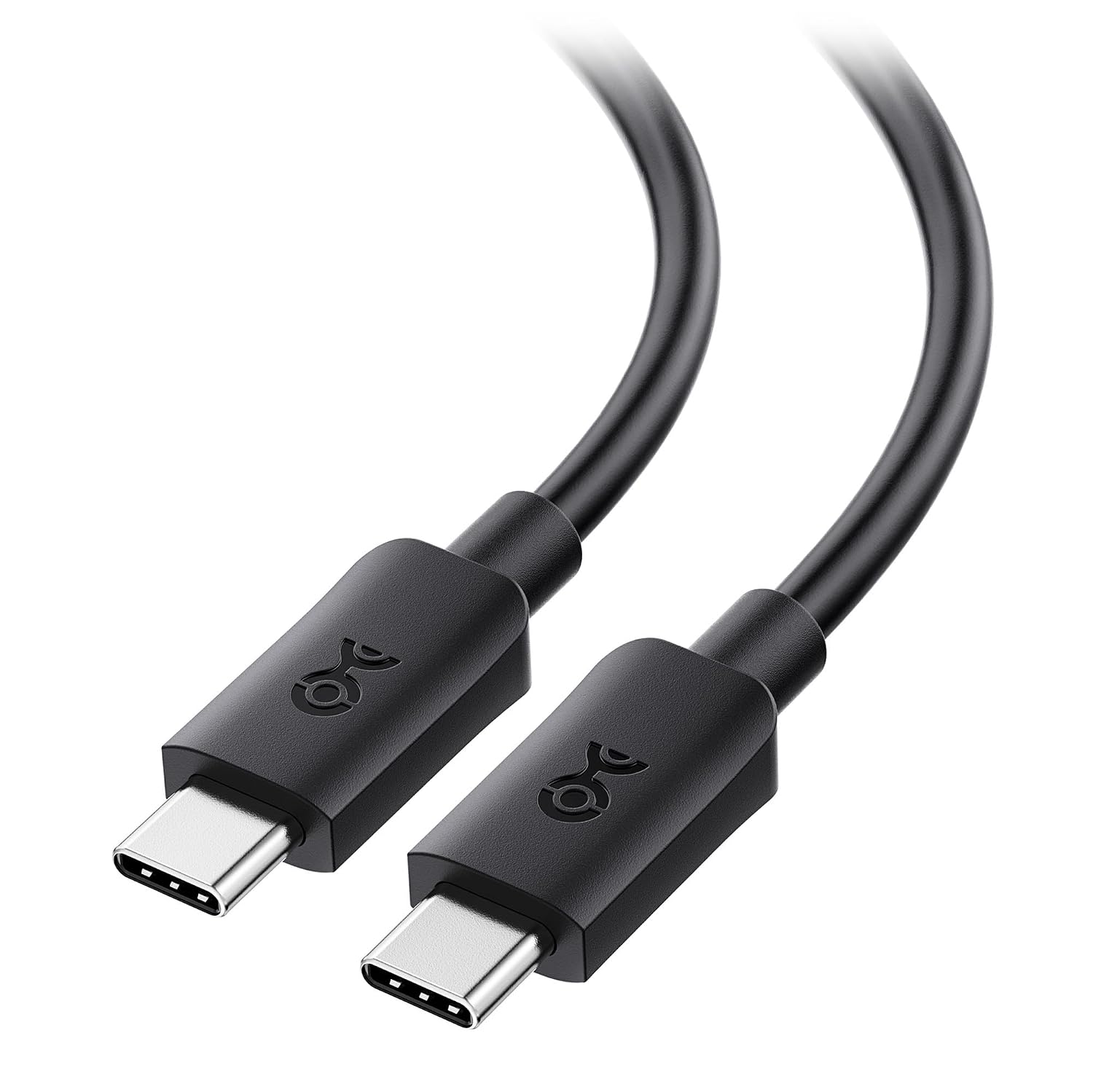
Cable Matters 20Gbps USB-C Monitor Cable, 6ft
Best OverallBuy if: your desk needs six feet and 4K 120Hz or less
Don't buy if: your screen runs 4K at 144Hz
This is the cable most desks should start with. Cable Matters lists 20Gbps data, 8K at 30Hz or 4K at 120Hz video, and 240W charging, with Dell and HP USB-C monitors named as compatible. Six feet covers a laptop beside a monitor stand with slack to spare.
Buy the right size. The maker rates the 0.9m and 1.8m versions at 20Gbps and the 2.5m version at only 5Gbps data, so the longest size is not the fastest one. Video still needs DisplayPort Alt Mode on the laptop port and the monitor input.
Pros
- 6ft reach at full 20Gbps
- 4K 120Hz and 240W charging
- Dell and HP monitors listed
- Works with docks and SSDs
Cons
- 2.5m size drops to 5Gbps
- No 4K 144Hz headroom
- Needs DP Alt Mode both ends
- Plain straight plugs
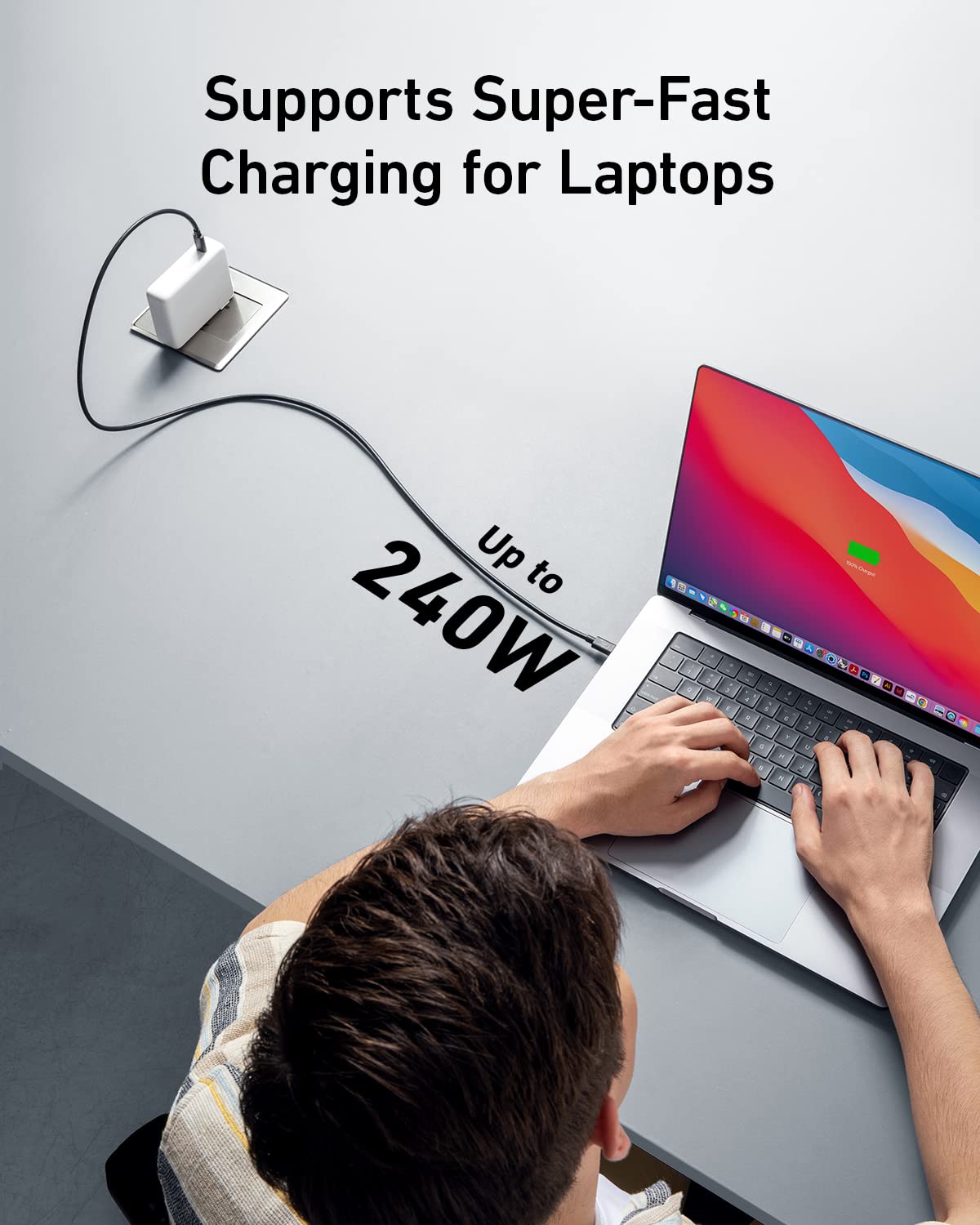
Anker 515 USB-C to USB-C Cable (USB4)
Best for 4K 144HzBuy if: your 4K 144Hz monitor sits close to the laptop
Don't buy if: the cable must cross a wide desk
The Anker 515 is the high-refresh pick. Anker lists 40Gbps data, video up to 8K at 60Hz or 4K at 144Hz, 240W charging and an 18-month warranty, with lab testing past 5,000 bends. Model number A8487 pins down the exact cable.
Two checks matter. The cable runs 3.3ft, so measure before ordering. Anker also notes this USB4 cable is not a Thunderbolt 4 cable and drops to Thunderbolt 3 behaviour on Thunderbolt 4 gear — fine for one monitor, worth knowing for docks.
Pros
- 4K 144Hz and 8K 60Hz video
- 40Gbps data, 240W charging
- 18-month warranty
- Tested past 5,000 bends
Cons
- Only 3.3ft long
- Not a Thunderbolt 4 cable
- TB4 gear drops to TB3 mode
- Single-cable pack is easy to misorder
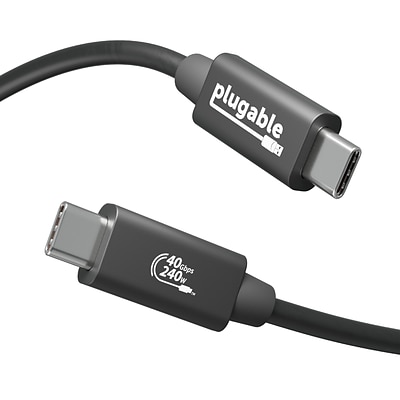
Plugable USB4 240W EPR Cable (USB4-240W-1M)
Best Certified Short CableBuy if: certification and dock use matter most
Don't buy if: one metre cannot reach your screen
The Plugable is the paperwork pick, in a good way. Plugable lists USB-IF certification, 40Gbps data, 240W Extended Power Range charging and video up to dual 4K 120Hz or single 8K 60Hz, with DisplayPort 1.4 Alt Mode support. A cable wrap comes in the box.
The trade is reach and naming. One metre suits a dock beside the laptop, not a monitor across the desk. Plugable also sells near-identical Thunderbolt and 20Gbps cables, so order by the USB4-240W-1M code, not by the photo.
Pros
- USB-IF certified USB4
- 40Gbps and 240W EPR
- Dual 4K 120Hz via docks
- DP 1.4 Alt Mode listed
Cons
- Only 1m long
- Lookalike models confuse ordering
- Dual screens need a dock
- Overkill for 4K 60Hz desks
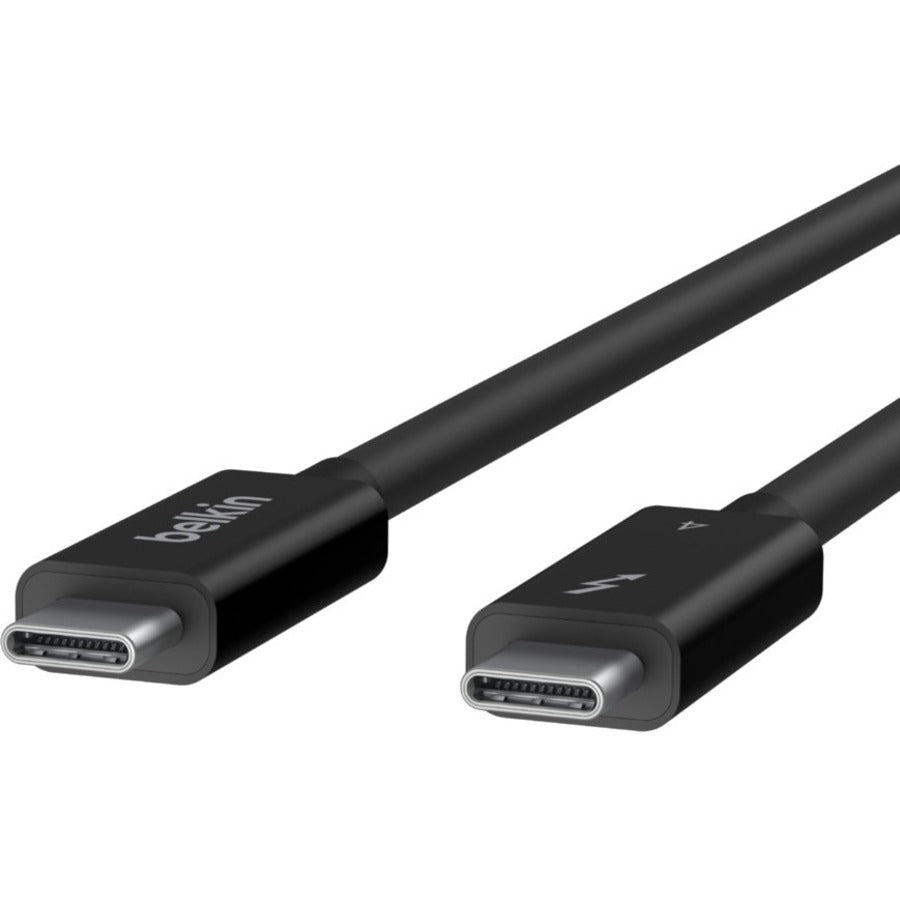
Belkin Thunderbolt 4 Cable, 2m Active
Best Long Certified RunBuy if: you need 40Gbps across a wide desk
Don't buy if: your laptop needs more than 100W charging
The Belkin solves the length problem with electronics. Belkin lists a certified 2m active Thunderbolt 4 cable with 40Gbps data, 8K video and 100W Power Delivery, compatible with Thunderbolt 3, USB4 and older USB standards. Active cables keep full speed where passive ones fade.
Charging is the cap. 100W suits most laptops, but a gaming laptop that charges at 140W or more will draw less through this cable. Model INZ002 is the 2m active version; the 1m passive cable shares the same product name.
Pros
- Full 40Gbps at 2m
- Thunderbolt 4 certified
- Active design, no speed fade
- Wide backward compatibility
Cons
- Charging caps at 100W
- Costs more than passive cables
- 1m passive version shares the name
- Active cables dislike sharp bends
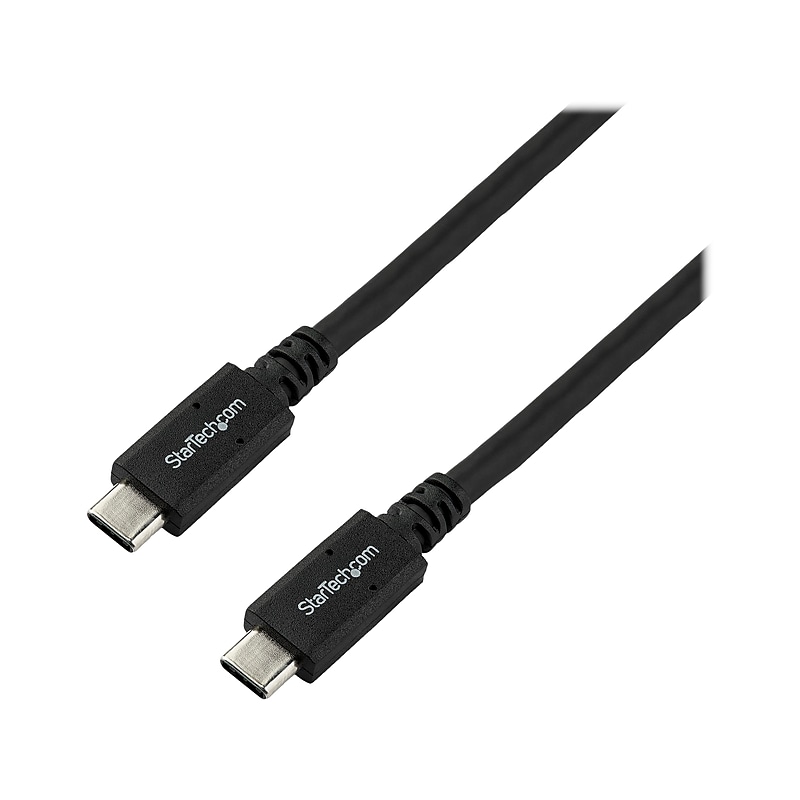
StarTech USB-C Cable USB315C5C6, 6ft
Best for 4K 60Hz OfficeBuy if: your screen is 4K 60Hz and data speed is secondary
Don't buy if: fast SSD transfers share the cable
The StarTech is the honest office pick. StarTech lists DisplayPort Alt Mode video up to 4K 60Hz, 100W Power Delivery, 5Gbps data, USB-IF certification and Works With Chromebook certification in a 6ft cable. For calls, documents and one 4K screen, that is enough.
Data is the trade. 5Gbps moves files at a fraction of USB4 speed, so an external SSD on the same cable feels slow. High-refresh screens also outgrow it. Within its lane, the certification story is cleaner than most no-name cables.
Pros
- 6ft with 4K 60Hz video
- USB-IF and Chromebook certified
- 100W charging
- Clear, modest spec list
Cons
- Data caps at 5Gbps
- No high-refresh headroom
- 100W charging ceiling
- Plain office design
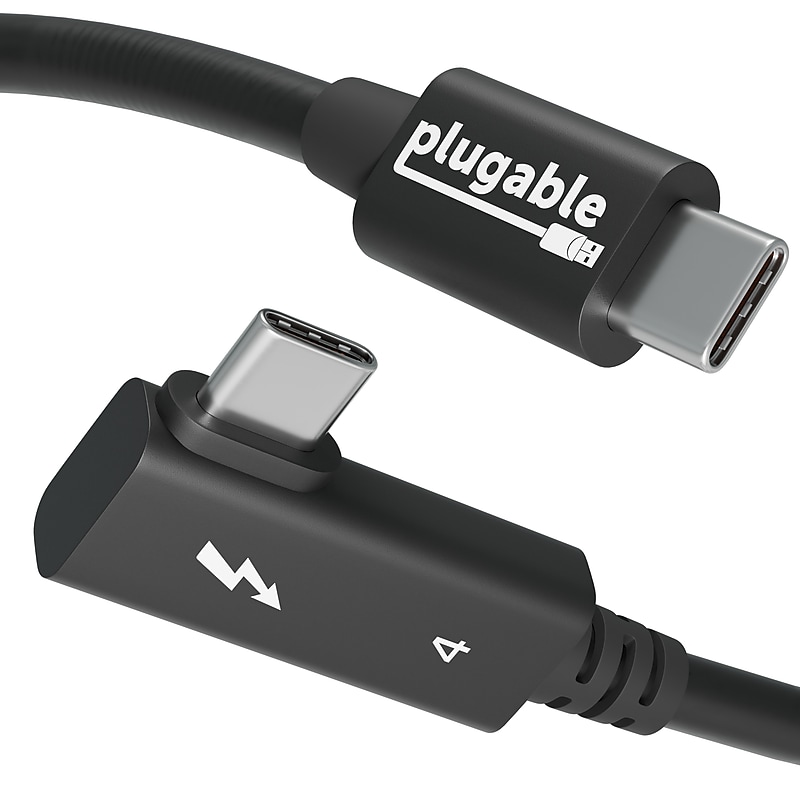
Plugable Thunderbolt 4 Right-Angle Cable
Best for Tight SpacesBuy if: a straight plug juts into a wall or stand
Don't buy if: the run is longer than arm's reach
The right-angle Plugable fixes geometry, not specs. Plugable lists one right-angle end, Thunderbolt certification, 40Gbps data, 240W charging and video up to dual 4K 120Hz or single 8K 60Hz, with 4K 144Hz support noted. The bent plug hugs a laptop side or a monitor back panel.
Length is the price. At 2.6ft it suits a portable monitor beside the laptop or a dock tucked behind a stand. Check the bend direction against your port layout before ordering — a right angle pointing the wrong way helps nobody.
Pros
- Right-angle plug saves space
- Thunderbolt certified, 40Gbps
- 240W charging
- 4K 144Hz support listed
Cons
- Only 2.6ft long
- One bent end only
- Bend direction must suit the port
- Short runs only
How to Connect an External Monitor With a USB-C Cable
Check the port, plug in, pick the input, confirm the refresh rate. Five steps, and the black screen is gone.
To connect an external monitor with USB-C, follow these steps: 1. Confirm the laptop port carries video. 2. Plug the cable into the monitor input. 3. Select the USB-C input on screen. 4. Set the resolution and refresh rate. 5. Test charging through the monitor.
- Confirm the laptop port carries video. Look for DisplayPort Alt Mode, Thunderbolt or USB4 in the laptop spec list.
- Plug the cable into the monitor input. Use the USB-C socket marked DP, upstream or video in, not a data-only port.
- Select the USB-C input on screen. Open the monitor menu and choose the USB-C source by hand if auto-switch misses it.
- Set the resolution and refresh rate. Open display settings and confirm 4K at 60Hz or your screen's rated mode, not 30Hz.
- Test charging through the monitor. Check the battery icon; the monitor's wattage, not the cable's, sets the charge speed.
Quick note: a portable monitor that restarts in a loop usually wants more power than the laptop port gives. Plug its second USB-C power socket into a wall charger.
Buying Guide: What Actually Matters
Four things matter most: a stated video mode, the right length, charging that matches the monitor, and a maker who publishes real specs.
Video mode comes first because it can cancel the purchase. Look for DisplayPort Alt Mode, USB4 or Thunderbolt on the cable spec, plus a refresh rate beside the resolution. "4K" alone often means 4K 30Hz.
Length comes next, and it trades against speed. Short passive cables hold 40Gbps; longer runs need 20Gbps ratings or active electronics. Our portable monitor guide covers screens that travel with the cable.
Charging is set by the monitor, not the cable. A 240W cable on a 65W monitor still charges at 65W. Match the cable rating to the monitor's USB-C power figure, then stop paying for watts you cannot use.
Certification is the tie-breaker. USB-IF and Thunderbolt marks mean the cable passed lab tests for its claims. My honest take: most buyers should skip the 8K headline and buy the certified cable in the right length instead.
Mode first. Length second.
Cables to Skip in 2026
Phone charging cables. A USB 2.0 cable from a phone box carries no video wires. It will charge all day and show nothing, which is how this problem starts.
"4K" cables with no refresh rate. The missing number is usually 30Hz. Every pick above states its refresh rate in the maker's own figures.
Long passive 40Gbps claims. Full-speed passive USB4 stays short for a reason. A cheap 10ft cable promising 40Gbps and 8K is promising physics it cannot keep.
USB-C to HDMI cables bought for a USB-C monitor. The plugs differ for a reason. Match the cable to the monitor input you own; our USB-C to HDMI adapter guide covers HDMI screens.
Frequently Asked Questions
What's the best USB-C cable for an external monitor?
The Cable Matters 20Gbps Monitor Cable in 6ft. It carries 4K 120Hz video and 240W charging across a normal desk.
Why doesn't my USB-C cable work with my monitor?
Usually the cable is a charging-only USB 2.0 lead, or the laptop port has no video mode. Check both before replacing the monitor.
Do I need a Thunderbolt cable, or will USB-C work?
USB-C with DisplayPort Alt Mode works for most screens. Thunderbolt cables matter for docks, dual displays and the fastest data speeds.
Why is my monitor stuck at 4K 30Hz?
A DisplayPort 1.2 port, a 4K 30Hz cable rating, or lanes shared with USB data can cap the picture. Check the monitor's USB mode setting.
Can a USB-C cable charge my laptop through the monitor?
Yes, when the monitor supplies power over USB-C. The monitor's wattage sets the speed; the cable only needs to match or beat it.
How long can a USB-C monitor cable be?
About 3ft for full-speed passive USB4, and 6ft or more for 20Gbps or certified active cables. Longer cheap cables drop refresh rates.
Should I buy a USB-C cable or a USB-C to HDMI adapter?
Buy the cable when the monitor has a USB-C video input. Buy the adapter when the monitor offers HDMI or DisplayPort sockets only.