Best Portable Monitor for Laptop (2026): 6 Picks

You work from a laptop because your office is wherever you sit down. Then the screen starts to feel small — a video call on one side, a document on the other, and a spreadsheet hiding behind both. You alt-tab all day. Your neck bends down. A desktop monitor would fix it, but it doesn't fit in your bag. That is the gap a portable monitor fills: a second screen that travels with the laptop you already carry.
Best portable monitor for laptop refers to a second screen that runs off your laptop's USB-C port, adding a display to a bag you already carry. Most are 14 to 16 inches, weigh under a kilogram, and need no wall power — the laptop charges them through the same cable that carries the picture.
The top 10 results for "best portable monitor for laptop" are mostly a manufacturer blog selling its own screen, thin affiliate farms, and small AI-written roundups. None of them check whether the screen works with your laptop before recommending it, none of them do the power math, and none of them weigh the whole kit you actually carry. This guide does all three: every spec comes from the maker's own page, every pick carries its real carry weight, and every trap is named.
No prices are printed in this guide — portable monitor prices move by seller and week, so check the live price before buying. Spec figures come from the makers' own spec pages, and where sources disagree, the disagreement is stated on the card. If you mainly game, see our gaming portable monitors guide instead — these six picks are judged on laptop work, not frame rates.
Will a Portable Monitor Work With My Laptop?
Yes, if your laptop's USB-C port carries video. Check for "DisplayPort Alt Mode" or "Thunderbolt" on your laptop's spec page — if neither is listed, the port charges only, and the screen stays black.
A portable monitor works with most laptops made since 2016, as long as the USB-C port carries video. According to ViewSonic, the port must support DisplayPort Alt Mode, which most modern ultrabooks and MacBooks do. Check your laptop's spec page for those words; if they are missing, the port may charge only, and the screen will stay black.
Will a portable monitor drain my laptop battery? Yes, by about a fifth to a third, according to MacBook battery tests cited across the guides I read. A 12-watt screen on a 60-watt-hour battery takes a fifth of the charge per hour before the laptop itself draws anything. Plug the charger into the monitor's passthrough port and the drain stops.
The two-minute check takes less time than reading the rest of this guide. Look at the USB-C ports on your laptop. A tiny lightning bolt means Thunderbolt — it always works. A small "D" logo means DisplayPort — it works too. No logo at all means you check the spec page, because the port could be video, data, or charging-only, and the shape alone tells you nothing. This is the number-one setup failure in the category, and it is also the easiest to avoid.
Look — if your laptop has one USB-C port and it's already taken by the charger, a monitor with passthrough charging is the only one-cable setup that works. The charger plugs into the monitor, the monitor plugs into the laptop, and one cable carries the picture and the power. Without passthrough, you need two ports: one for the screen, one for the charger. Most ultrabooks have exactly two ports, so that still works — it just leaves nothing spare.
| Your laptop | What to check | What works |
|---|---|---|
| MacBook (2016 or newer) | All USB-C ports carry video | Any pick here, one cable |
| Windows ultrabook (Dell XPS, HP Spectre, Lenovo Yoga) | Look for Thunderbolt or DP Alt Mode on the spec page | Any pick here, one cable |
| Budget Windows laptop (USB-C, no Thunderbolt) | Check the spec page for "DisplayPort Alt Mode" | One cable if listed; HDMI pick if not |
| Older laptop (HDMI only, no USB-C video) | HDMI port on the side | MB16QHG, Z1RC or VG1655 over mini-HDMI |
| Chromebook | Most USB-C Chromebooks support DP Alt Mode | Any pick here, one cable |
You won't need a wall socket, you can't skip the cable check, and you don't have to spend much to get a sharp screen. But you do need to know your port before you buy. A monitor that can't talk to your laptop is a very expensive placemat.
What Size Portable Monitor Should I Get?
15.6 to 16 inches for most people. Go 14 inches if you fly every week, and don't go bigger than 16 — a bigger screen stops being portable.
The best portable monitor size is 15.6 to 16 inches for most people. According to the buying guides I read, that size matches a 15- or 16-inch laptop lid, shows a full spreadsheet side by side, and still fits in a laptop sleeve. A 14-inch screen suits frequent flyers; anything bigger than 16 inches defeats the point of travelling light.
Size is a bag question, not a screen question. A 16-inch portable monitor slides into the same sleeve as a 16-inch laptop, and the two together weigh about what a thick textbook weighs. A 14-inch screen saves real weight — the ThinkVision M14 is 598 g against 1.2 kg for the brightest 16-inch pick — but it shows less: a spreadsheet at 14 inches means more scrolling, and two windows side by side get cramped. For a café table or a co-working desk, 16 inches is the size that stops feeling like a compromise.
Or maybe I should say it this way: buy the screen your bag fits, not the one the spec sheet sells. A 17-inch portable monitor exists, and it is a fine screen. It is also a screen that needs its own bag.
| Size | Best for | Trade-off |
|---|---|---|
| 14 inches | Frequent flyers, tight bags | Less room for split-screen work |
| 15.6 inches | Most laptop workers | Matches most laptop lids |
| 16 inches | Code, spreadsheets, design | Heavier — weigh the kit, not the panel |
One more thing on weight: the number on the box is the bare panel. The number that matters is the kit — panel, stand or cover, cable, and charger. The TD1656-2K is 0.8 kg on its own and about 1.3 kg with its stand. The LG gram +view is 670 g bare and close to a kilogram with its folio. Check the kit weight before you judge a screen "light".
Is 1600p Worth It Over 1080p?
Yes, for most laptop work. A 16:10 2560×1600 screen shows roughly a third more lines of text than 1080p, and small text stays sharp. 1080p only wins on battery and price.
1600p vs 1080p: 1600p is better suited for laptop work because its 16:10 shape shows more lines of text and code, and small text stays sharp at 125% scaling. 1080p works better when battery life matters most, since it draws less power. The key difference is vertical space: 1600p buys you roughly a third more lines on screen.
The 16:10 shape matters as much as the pixels. A 1080p screen is 16:9 — wide and short. A 1600p screen is 16:10 — taller, so documents, code and web pages show more lines before you scroll. On a 16-inch panel, 1080p text at 100% scaling looks fine. At 125% scaling, which most people use, 1080p starts to look soft. 1600p stays crisp.
Here's my honest take: most laptop workers should skip 120Hz on a portable screen. It makes scrolling smoother, and that is all it does for documents and email — while the panel draws more power and the laptop battery pays for it. Spend the money on resolution and brightness instead. The one exception is the MB16QHG below, where 120Hz comes with 500 nits and native HDMI, so the trade is worth it.
Set the scaling to 125% on a 1600p panel and 100% on a 1080p panel. Windows and macOS both handle this well now, and it is the difference between text that looks printed and text that looks photocopied.
Does a Portable Monitor Drain Your Laptop Battery?
Yes — expect 20–30% shorter battery life with no charger attached. A screen drawing 8–12W takes that much from your battery every hour. Plug your charger into the monitor's passthrough port and the drain stops.
Here's the thing: the screen has no battery of its own. Every watt it uses comes from your laptop. The picks here draw between 5 and 13 watts, and the laptop itself draws 10 to 20 watts while you work. Add them together and a 60-watt-hour battery that lasted eight hours alone lasts about five and a half with a screen attached. That is the honest math, and it is why the passthrough port matters more than the brightness slider.
| Pick | Power draw | Passthrough charging |
|---|---|---|
| ViewSonic TD1656-2K | 7.8W typical | 65W two-way |
| ASUS ZenScreen MB16QHG | Under 13W | Not published — needs its adapter |
| Lenovo ThinkVision M14 | 8W | 65W passthrough |
| Arzopa Z1RC | ~5–8W owner-reported | Charges over USB-C |
| LG gram +view 16MR70 | 8W | 45W from a 65W charger |
| ViewSonic VG1655 | Not published | 60W two-way |
Two traps hide in the wattage. First, passthrough wattage is not laptop wattage: the monitor takes its cut first, so a 65W charger through the LG gram +view delivers 45W to the laptop — enough for an Air or ultrabook, not enough to fast-charge a 14-inch Pro under load. Second, brightness is the biggest power lever you control. A screen at 100% brightness draws far more than the same screen at 60%, which is why some monitors go black at full brightness on a weak port — the port can't feed them. If your screen disconnects at high brightness, turn the brightness down before you blame the cable.
For a full workday away from a socket, carry a small GaN charger. Plug it into the monitor, the monitor into the laptop, and the battery stays full all day. That is the whole power strategy: one charger, one cable, no drain.
Quick Comparison
| Product | Size / Resolution / Refresh | Carry Weight | Best For | ||
|---|---|---|---|---|---|
| #1 | ViewSonic TD1656-2KBest Overall | 16" / 2560×1600 / IPS, 60Hz | 0.8 kg bare, ~1.3 kg with stand | Most laptop workers | Check Price |
| #2 | ASUS ZenScreen MB16QHGBest for Developers | 16" / 2560×1600 / IPS, 120Hz | 1.2 kg | Code, bright rooms, HDMI laptops | Check Price |
| #3 | Lenovo ThinkVision M14Best Ultraportable | 14" / 1920×1080 / IPS, 60Hz | 598 g | Frequent flyers | Check Price |
| #4 | Arzopa Z1RCBest Budget 2.5K | 16" / 2560×1600 / IPS, 60Hz | 810 g | Sharp text on a budget | Check Price |
| #5 | LG gram +view 16MR70Best Lightweight Premium | 16" / 2560×1600 / IPS, 60Hz | 670 g bare, ~0.92–0.99 kg with folio | Light 16-inch 1600p, photo work | Check Price |
| #6 | ViewSonic VG1655Best Built-In Stand Value | 15.6" / 1920×1080 / IPS, 60Hz | 0.8 kg | Practical pick, HDMI fallback | Check Price |
Carry weight is the panel plus its stand or cover where the maker publishes it. No prices are printed — check the live price before buying.
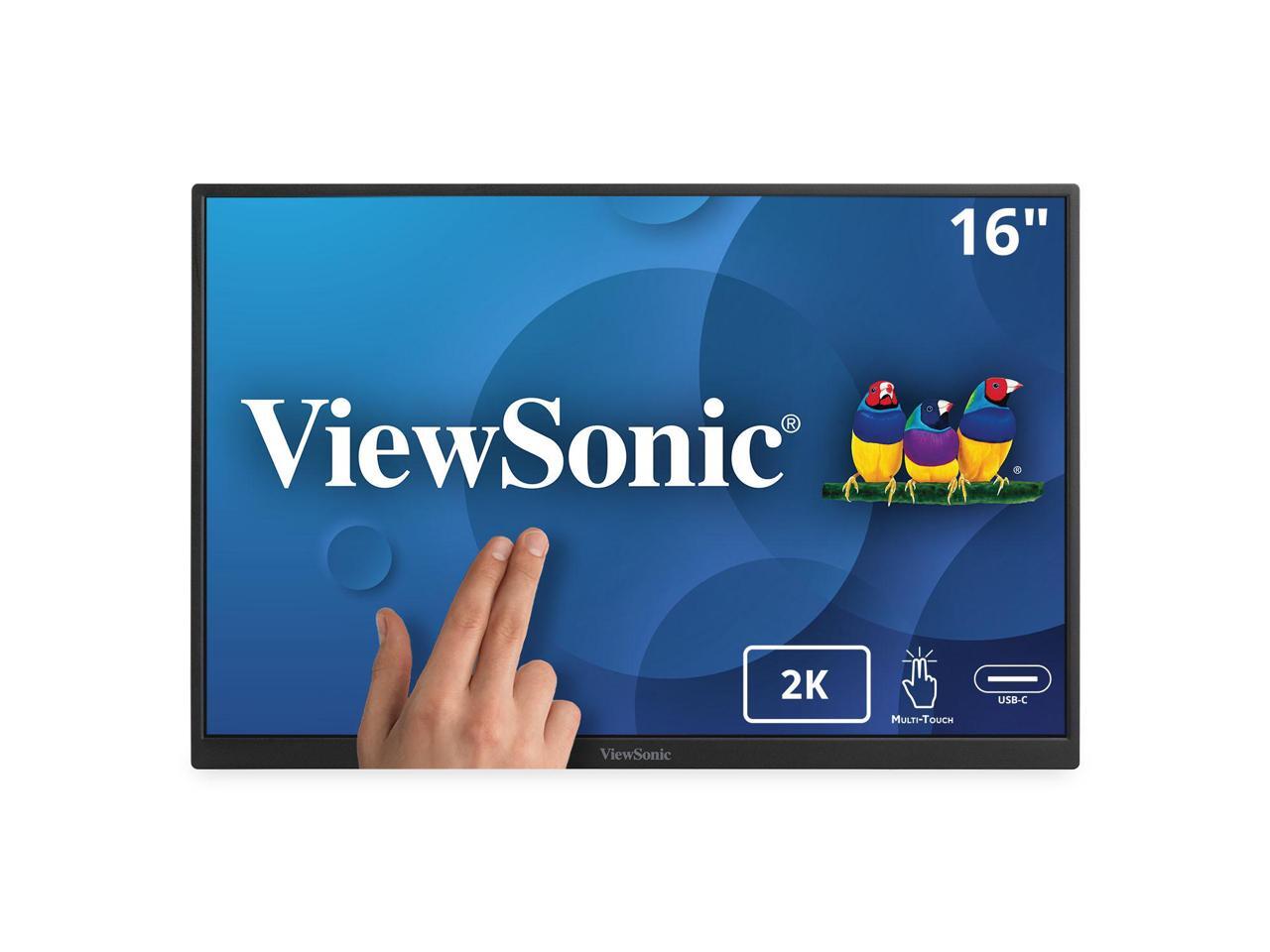
ViewSonic TD1656-2K
Best OverallBuy if: you want the widest-use laptop screen — sharp 1600p text, touch for Windows, and 65W charging over one cable
Don't buy if: your laptop only has HDMI, or you need a screen that works without its stand
The TD1656-2K is the most-recommended portable monitor of 2026 across the roundups I read, and it earns that spot. A 16-inch IPS panel at 2560×1600, 330 nits, 99% sRGB, with 10-point touch and a passive stylus. Two USB-C ports carry video and power, with 65W two-way power delivery — enough to charge most ultrabooks through the same cable that carries the picture. Two 2W speakers, a magnetic smart cover that doubles as a stand, and portrait support for reading long documents.
I've seen conflicting data — ViewSonic's own site says 1,200:1 contrast, while B&H, Newegg and Tom's Hardware list 1,500:1. My read is that the maker's number is the honest one, and the difference is small enough not to matter for text work. Brightness is the same story in reverse: rated 330 nits, Tom's Hardware measured about 363. Either way, it is bright enough for a café table near a window.
Two honest limits. First, there is no HDMI input — USB-C video only, so an HDMI-only laptop can't use it. Second, the weight: 0.8 kg is the bare panel, and with the stand it is about 1.3 kg. That is still light for a 16-inch screen, but it is not the featherweight the box implies.
Pros
- 16-inch 1600p IPS, 99% sRGB — sharp text
- 10-point touch, useful on Windows
- 65W two-way USB-C charging
- Dual USB-C ports for cable routing
Cons
- No HDMI input — USB-C video only
- ~1.3 kg with the stand, not 0.8 kg
- Contrast figures disagree between sources
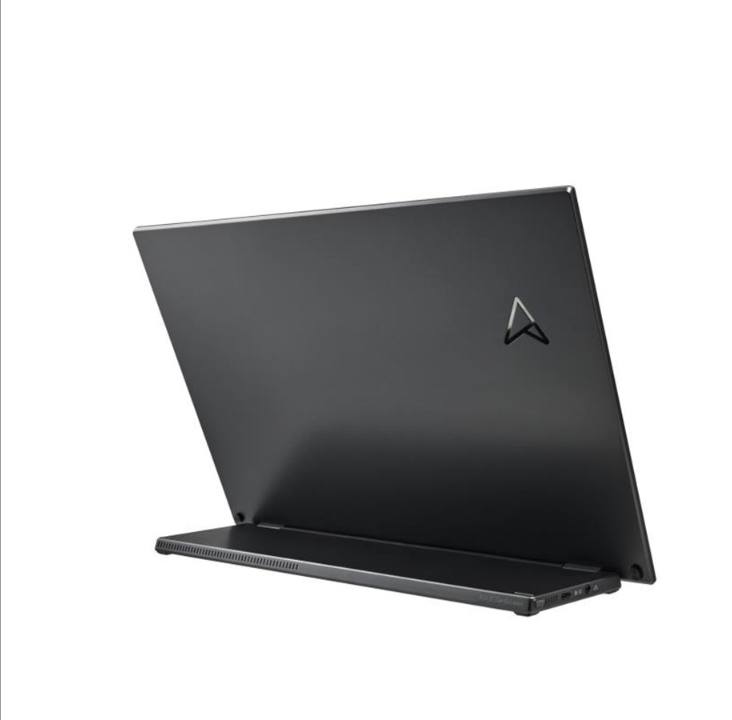
ASUS ZenScreen MB16QHG
Best for DevelopersBuy if: you write code all day, work near windows, or your laptop only has HDMI
Don't buy if: you carry your bag on foot all day — at 1.2 kg it is the heaviest pick here
The MB16QHG is the developers' pick. A 16-inch IPS panel at 2560×1600 and 120Hz, 500 nits, 100% DCI-P3, with HDR10 and a DisplayHDR 400 badge. Two USB-C ports plus a native HDMI 2.0 input — the only pick here with HDMI built in, so it covers HDMI-only laptops without an adapter. An L-shaped kickstand works in landscape and portrait, there is a tripod socket on the back, and the box includes a sleeve, a power adapter and an HDMI cable.
The 500-nit brightness is the real story. Most portable screens are 250 to 350 nits, which is fine indoors and washed out near a window. At 500 nits this one stays readable in bright rooms and cafés. The 120Hz refresh makes scrolling smoother, though for documents it is a bonus, not a need — and it costs battery, drawing under 13W against the 8W of the lighter picks.
One thing ASUS does not publish: the passthrough charging wattage. The spec page lists no power-delivery figure for this model, so don't buy it expecting 65W charging like the ViewSonic. It ships with a power adapter, and until a wattage is published, treat it as a screen that needs its adapter for full brightness. Also note the name: the MB16QHG is not the MB16ACV (1080p, 250 nits) or the MB16AHG (1080p, 144Hz). Same family, very different screens.
Pros
- 500 nits — genuinely usable near windows
- 1600p at 120Hz, 100% DCI-P3
- Native HDMI 2.0 — covers older laptops
- Kickstand works in portrait too
Cons
- 1.2 kg — the heaviest pick here
- No published passthrough wattage
- No speakers, no touch
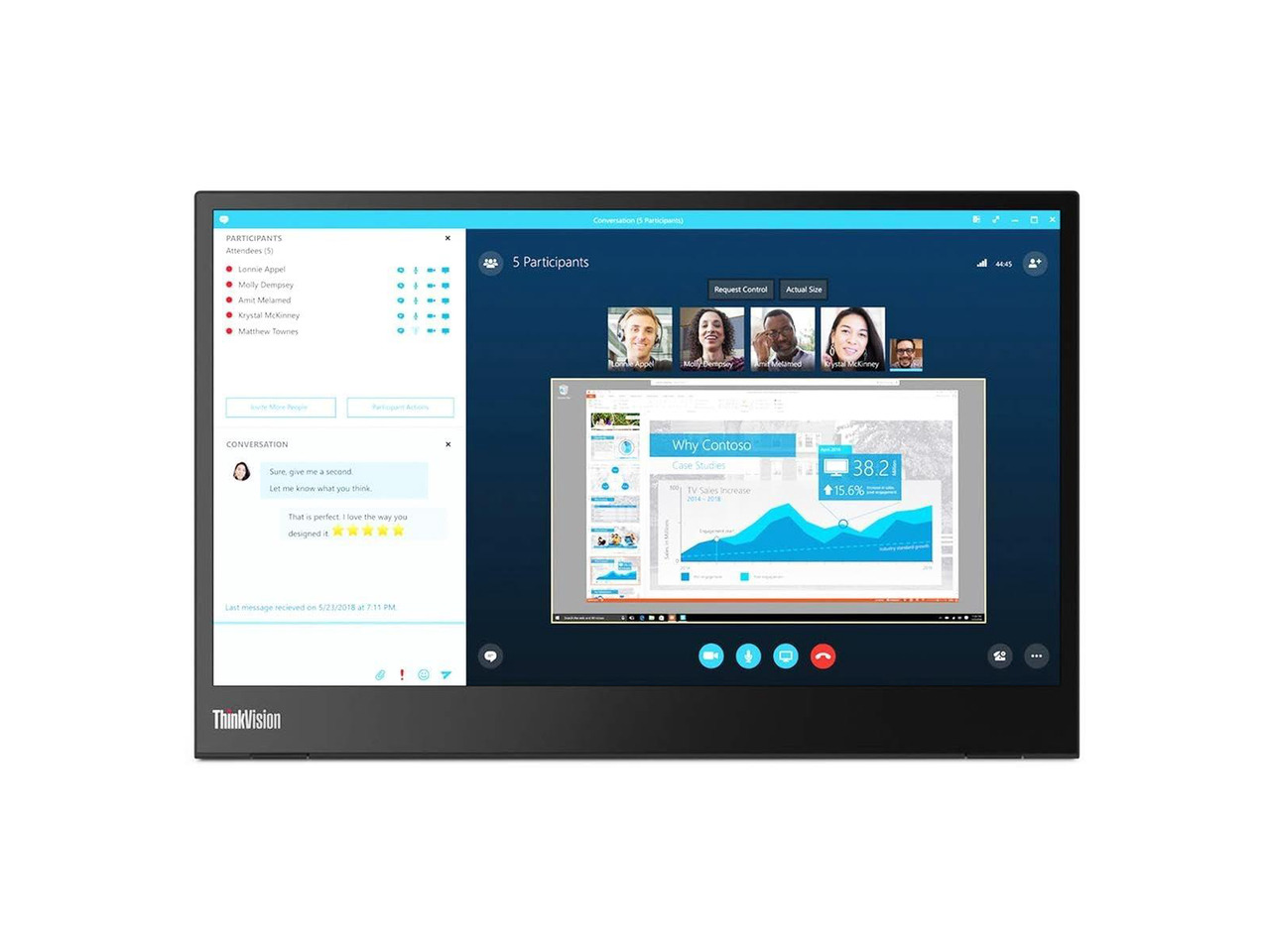
Lenovo ThinkVision M14
Best UltraportableBuy if: you fly every week and want the lightest name-brand screen that still feels like a real monitor
Don't buy if: you split spreadsheets side by side — 14 inches is small for that job
The M14 is the screen road warriors actually carry. A 14-inch IPS panel at 1920×1080, 300 nits, with two USB-C ports and 65W passthrough charging, drawing just 8W. At 598 g it is the lightest pick here by a wide margin, and it is 4.4 mm thin at the panel. A built-in adjustable tilt stand and a sleeve come in the box, and the whole kit disappears into a laptop bag.
The trade is size. Fourteen inches is fine for email, calls and documents, and it is cramped for two windows side by side. A spreadsheet at 14 inches means more scrolling than on any 16-inch pick. The resolution is 1080p only, and there is no HDMI fallback — USB-C video or nothing.
One flag worth stating: the M14 is a 2019 model, and its successor, the ThinkVision M14t Gen 2, is the travel pick CNET now names. Some retailers list the M14 as discontinued, but it is still in stock at authorised retailers — verified today — so it stays the pick. If the M14 sells out where you shop, the M14t Gen 2 is the same idea with a touch screen and a sharper 2240×1400 panel.
Pros
- 598 g — lightest name-brand pick by far
- 65W passthrough charging
- Built-in tilt stand, sleeve included
- Only 8W draw — kind to laptop batteries
Cons
- 14 inches is small for split-screen work
- 1080p only, no HDMI fallback
- 2019 model — successor exists
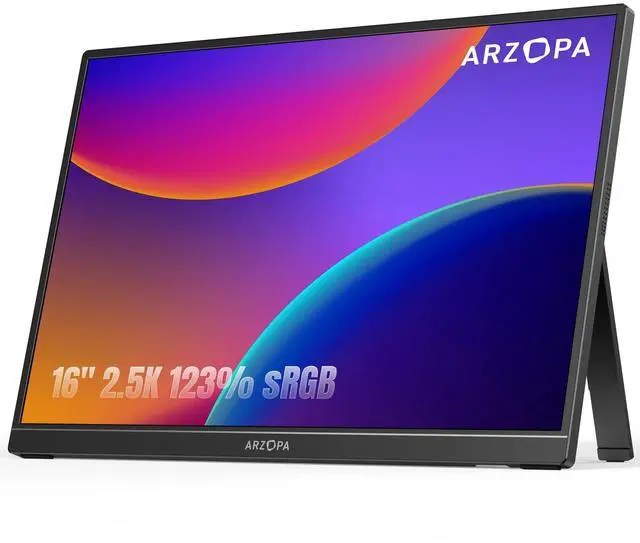
Arzopa Z1RC
Best Budget 2.5KBuy if: you want sharp 1600p text at the lowest honest price, with a screen that barely touches your battery
Don't buy if: you want touch, or a stand that feels like it will last years
The Z1RC is the cheapest honest route to a sharp screen. A 16-inch IPS panel at 2560×1600, 350 nits, 123% sRGB, with two USB-C ports and a mini-HDMI input. It draws about 5 to 8 watts in real use according to owners — the lowest here — which means it barely touches your laptop battery. An aluminium body and a built-in stand round out a screen that does the core job for far less than the big brands.
Two things to check before you buy. First, the brightness: Arzopa's own spec table says 350 nits, and one of its own page addresses says 500. The 500 figure is a stale marketing slug, not a spec — use 350. Second, the name: the Z1RC is the 1600p 60Hz work screen. The Z1FC is the 1080p 144Hz gaming screen, and the Z3FC is the 1440p 180Hz gaming screen. Same brand, same size, different monitors entirely.
The limits are honest ones: 60Hz, no touch, no FreeSync, and a thin folding stand with no protective cover in the box. For laptop work, none of those matter much. What matters is the text, and the text is sharp.
Pros
- 1600p at a budget price
- ~5–8W draw — kindest to laptop batteries
- Mini-HDMI covers older laptops
- 123% sRGB, aluminium body
Cons
- 60Hz, no touch
- Thin folding stand, no cover included
- Brightness slug says 500 nits — spec says 350
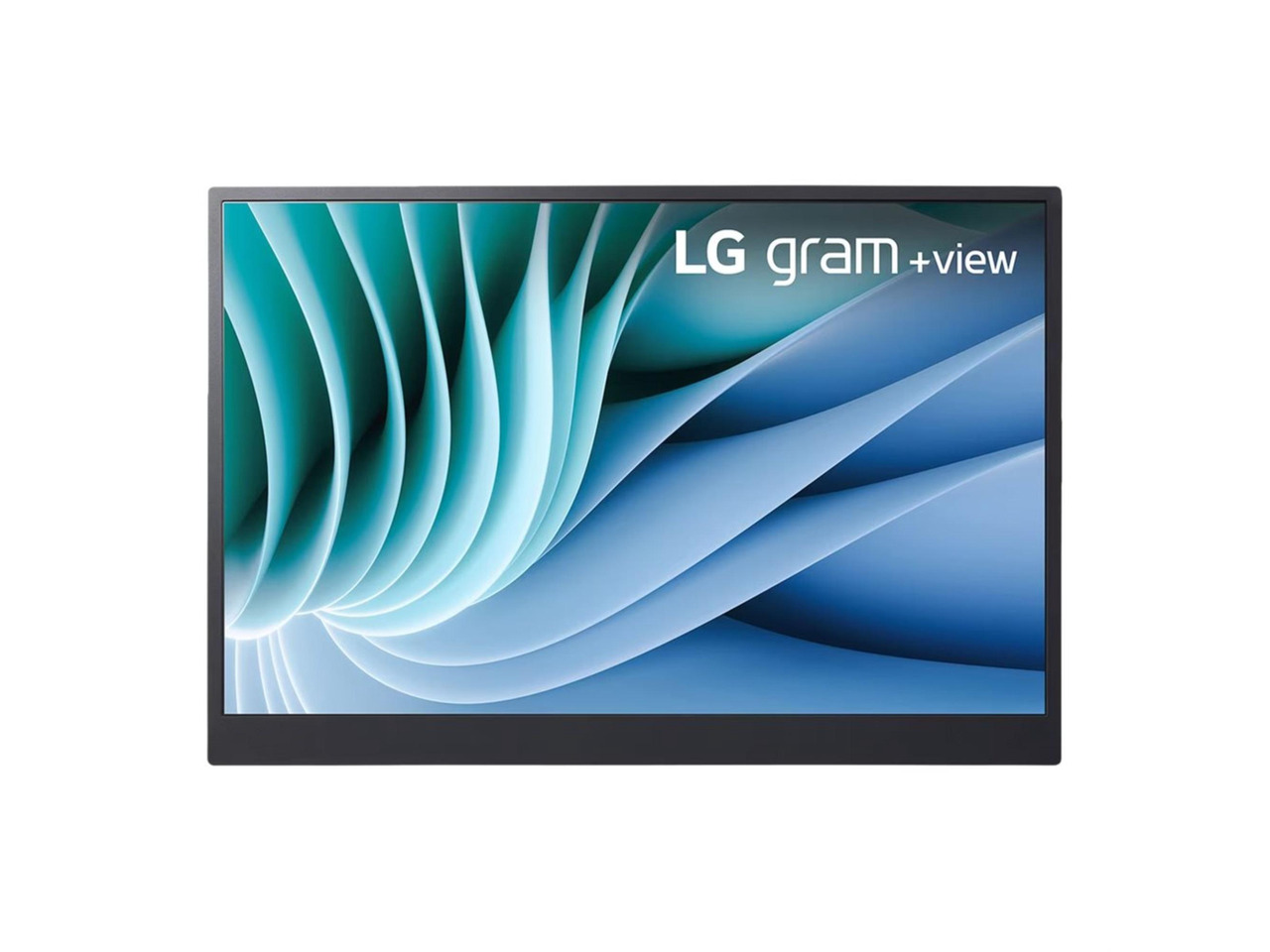
LG gram +view 16MR70
Best Lightweight PremiumBuy if: you want a 16-inch 1600p screen at roughly half the carry weight of the big picks, with colour good enough for photo work
Don't buy if: your laptop needs more than 45W to charge, or you only have HDMI
The 16MR70 is the lightest 16-inch 1600p screen here. A 16-inch IPS panel at 2560×1600, 350 nits, 99% DCI-P3, with an anti-glare finish and a folio cover that doubles as a stand. At 670 g bare — under a kilogram with the folio — it gives you the same sharpness as the big picks at roughly half the carry weight. Colour coverage is good enough for photo work, and it draws just 8W.
The charging is the catch. Passthrough delivers up to 45W from a 65W charger, because the monitor takes its cut first. That charges a MacBook Air or an ultrabook fine. A 14-inch Pro laptop with a 96W charger will charge slowly, and under heavy load it may drain anyway. Check your laptop's own charger before you buy: if it ships with a 65W brick or smaller, this screen replaces it. If it ships with 96W, it doesn't.
Watch the name. The 16MR70 is the 2023 model with two-way power delivery. The 16MQ70 is the 2022 model without it — and the older model is the one a popular guide actually names. Same screen size, same brand, different charging. Buy the MR70, and check the listing says so before you pay.
Pros
- 670 g bare — lightest 16-inch 1600p screen
- 99% DCI-P3, anti-glare
- Only 8W draw
- Folio cover and cable in the box
Cons
- 45W passthrough won't fast-charge a Pro laptop
- No HDMI input
- 60Hz only
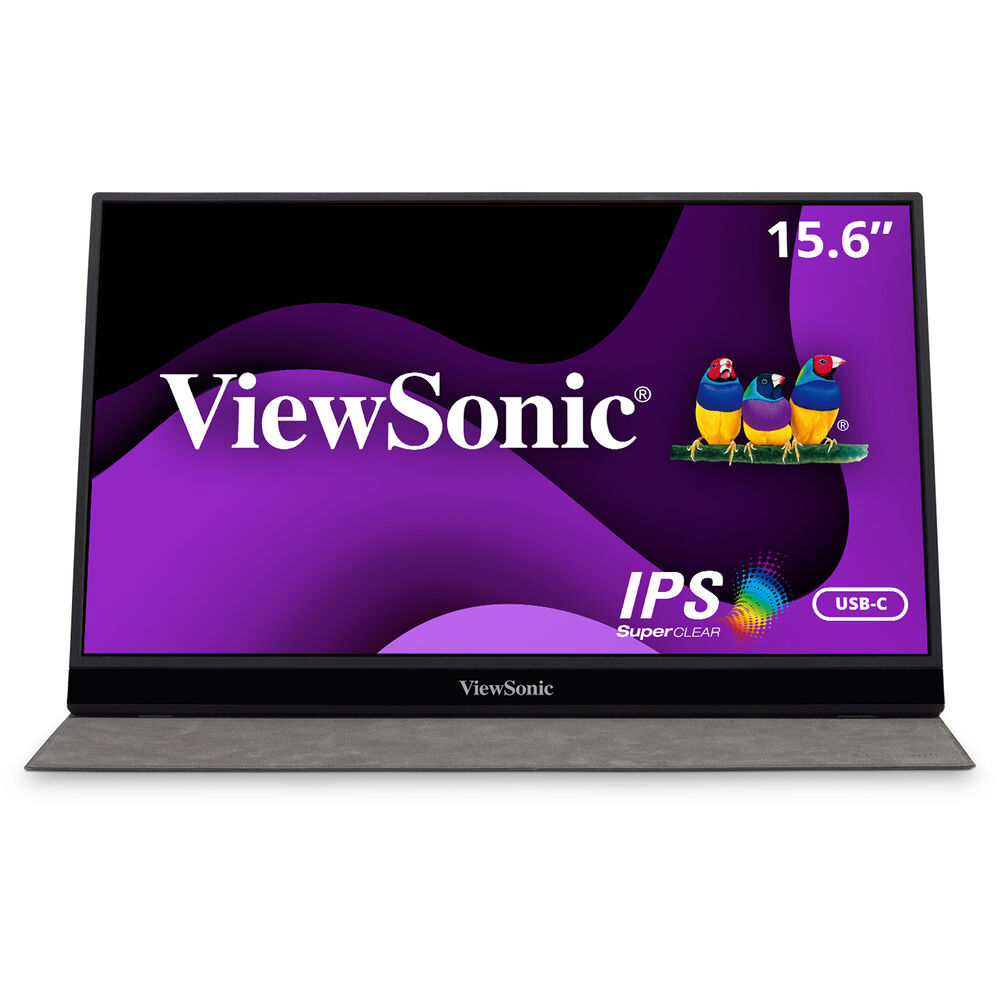
ViewSonic VG1655
Best Built-In Stand ValueBuy if: you want the practical pick — 60W charging, an HDMI fallback, and a stand that actually works, from a monitor brand
Don't buy if: you work near windows, or you do colour-critical photo work
The VG1655 is the practical pick. A 15.6-inch IPS panel at 1920×1080, 250 nits, with two USB-C ports and a mini-HDMI input, 60W two-way USB-C power, dual speakers, and a built-in stand with a magnetic cover. At 0.8 kg and 0.6 inches thick, it is the screen that does everything adequately and nothing badly — and it is the one a manufacturer guide names as its own value pick.
The limits are the price of the budget. At 250 nits it is dim near windows — this is an indoor screen. At 1080p it is fine for email and documents, and it is not the screen for photo work: the colour gamut is narrow, and small text is softer than on any 1600p pick here.
One correction worth making: a major retailer's spec summary calls this panel TN. It is IPS — ViewSonic and its own datasheet both say so. Don't let a wrong listing talk you out of a good screen. And don't confuse it with the VX1655-4K-OLED, a 15.6-inch 4K OLED at roughly twice the price, or the VX1755, the 17-inch gaming screen in our gaming guide. Same maker, three different monitors.
Pros
- 60W two-way USB-C charging
- Mini-HDMI fallback for older laptops
- Built-in stand that actually works
- Dual speakers, aluminium design
Cons
- 250 nits — indoor use only
- 1080p, narrow colour gamut
- One retail listing wrongly calls it TN
Two more worth knowing, briefly. The Mobile Pixels Duex Float 2 Pro stacks its 16-inch 1600p 120Hz screen above your laptop instead of beside it — clever for eye level, but at 2.9 lb it is the heaviest screen in this category. The HP Series 5 Pro 514pn is the colour-critical travel pick: a 14-inch 1600p IPS Black panel with 100% Adobe RGB, 400 nits and 65W charging, for photographers who need accurate colour on the road.
How Do I Connect a Portable Monitor to My Laptop?
Use the monitor's USB-C cable from its upstream port to a USB-C port on your laptop that supports DisplayPort Alt Mode or Thunderbolt. One cable then carries the picture and the charging.
To connect a portable monitor to your laptop, follow these steps: 1. Check your laptop's USB-C port supports DisplayPort Alt Mode. 2. Plug the monitor's USB-C cable into that port. 3. Choose Extend in your display settings. 4. Set the scaling to 125% for sharp text. 5. Plug your charger into the monitor's passthrough port.
Step one is the catch, and it is worth repeating: not every USB-C port carries video. Some laptop ports are charging-only, and some carry data but no DisplayPort signal. On Windows, plug in and watch for "Display connection might be limited" — that message means the port has no video. On a Mac, any USB-C port made since 2016 works. Once it is connected, set the monitor as an extended display so new windows open on the big screen, and close the laptop lid if you want clamshell mode.
If the screen stays black, try the other USB-C port on the laptop. Most machines have one port with video and one without. If it still stays black, swap the cable — the cable in the drawer that charges your phone carries no video at all. You need a full-featured USB-C cable, and the one in the monitor's box is the safe bet.
What If My Laptop's USB-C Port Has No Video?
Use HDMI instead — the MB16QHG, Z1RC and VG1655 all have a mini-HDMI input. If your laptop has no HDMI either, a DisplayLink adapter is the last resort, and it has real limits.
An HDMI port on your laptop is a full fallback. Three picks here take mini-HDMI: the ASUS MB16QHG, the Arzopa Z1RC and the ViewSonic VG1655. Plug in over HDMI for the picture, then plug the monitor's USB-C cable in for power — two cables, but it works. The screen runs at 60Hz over HDMI, which is fine for work.
DisplayLink is the other path: a small USB adapter that drives a screen over plain USB data. It works on laptops with no video port at all, including some locked-down work machines. The cost is real: it uses your CPU to compress the picture, it adds lag, and on Macs it blocks DRM streaming — Netflix and similar services show a black screen. Buy a DisplayLink adapter only when HDMI is not an option, and never buy a portable monitor expecting DisplayLink to feel like a direct connection. It doesn't.
If your laptop has neither a video-capable USB-C port nor HDMI, don't buy a portable monitor yet. Buy the adapter first, test it with a borrowed screen, and only then spend money on the monitor. A screen you can't connect is a return, not a purchase.
What About MacBooks?
Every pick here works with a MacBook — the screen shows a picture over any USB-C port. Touch is the part that doesn't just work: it needs extra software, and some models don't support it at all.
MacBooks are the easy case for video: every USB-C port on a MacBook made since 2016 carries DisplayPort video, so any pick here connects with one cable. The hard cases are touch and display count. The TD1656-2K's touch needs ViewSonic's vTouch software on macOS, and it doesn't work on iOS or iPadOS at all. If touch on a Mac matters to you, the espresso Displays line handles it properly with its own Flow software — that is a different purchase, and it costs more.
The display count matters more. An M1 or M2 MacBook Air supports only one external display without extra hardware. A portable monitor counts as that one display, so it works — but you can't add a second one. M1 and M2 Pro and Max machines support more. DisplayLink adapters can add a second screen to an M1 Air, but they block DRM streaming, so video services go black. Know your chip before you buy a second screen.
One Mac-specific tip: set the scaling to "looks like 1600×1000" on a 1600p panel. macOS scaling stays sharp on these screens, and that setting is the sweet spot between text size and screen space.
Portable Monitors to Skip in 2026
Same-name models with the wrong specs — the LG 16MQ70, the ASUS MB16ACV sold as a 1600p screen, and any "500-nit" Arzopa listing. A good screen, recommended under the wrong name, is the wrong purchase.
LG gram +view 16MQ70 — the older model without two-way charging. A fair screen, and the wrong one to buy in 2026. The 16MQ70 is the 2022 model with no passthrough power delivery, while the 16MR70 charges your laptop through the monitor. One popular guide names the older model as its pick. Buy the MR70.
ASUS ZenScreen MB16ACV sold as a premium 1600p screen — it is 1080p at 250 nits. A decent basic screen from 2020, and a trap at premium prices. It is 15.6 inches, 1080p, 60Hz, and dim by 2026 standards. If the listing price looks like a 1600p screen's price, walk away.
Any portable monitor with an HDR10 badge on a 250–300-nit panel — the badge is a format, not a feature. HDR10 on the box means the screen accepts an HDR signal. It does not mean the screen shows HDR. Real HDR needs a bright panel or an OLED with true blacks, and a 300-nit IPS panel has neither. Don't pay extra for the badge.
Charging-only USB-C cables sold as monitor cables. The cable that charges your phone will not drive a monitor, and the listing won't always say so. If a cable costs very little and promises nothing about video, it carries no video. Use the cable in the monitor's box.
The pattern is the same every time: a good product, sold under a confusing name, at a price that belongs to a better one.
Buying Guide: What Actually Matters
After compatibility, the four things worth your attention are resolution, brightness, the stand, and the weight of the whole kit — in that order.
Resolution decides how sharp your text is: 1080p at 14 inches, 1600p at 16 inches, and 4K only if you edit photos on the road. Brightness decides where you can work: 250 nits is indoor-only, 300 nits handles a café, and 500 nits works near a window. The stand decides whether the screen stays up — the folding folio cover is the number-one owner complaint in this category, so a built-in kickstand is worth real money. And the kit weight decides whether you actually carry it: a screen that stays home because it is heavy is a screen you wasted money on.
Three things not to overpay for: refresh rate above 60Hz on a work screen (you will never use it), an HDR badge on a dim panel (a label, not a feature), and touch on a screen you will use with a mouse anyway. And one thing to check before you buy anything: your laptop's USB-C port. A monitor that can't talk to your laptop is a return, not a purchase.
Frequently Asked Questions
What's the best portable monitor for a laptop in 2026?
The ViewSonic TD1656-2K — 16-inch 1600p touch, 65W charging, one cable. For the lightest bag, the Lenovo ThinkVision M14 at 598 g.
Does a portable monitor drain my laptop battery?
Yes, by about 20–30%. A screen drawing 8–12W takes that much from your battery each hour. Plug your charger into the monitor's passthrough port and the drain stops.
Do I need 120Hz for remote work?
No. 60Hz is fine for documents, email and video calls. 120Hz only makes scrolling smoother, and it costs battery life on the road.
Will a portable monitor work with any laptop?
Almost any laptop with a video-capable USB-C port or an HDMI port. The port must support DisplayPort Alt Mode or Thunderbolt — a charging-only USB-C port shows nothing.
Is one USB-C cable really enough to run a portable monitor?
Yes, if three things line up: a video-capable USB-C port, a full-featured USB-C cable, and enough power. A charging-only cable carries no video at all.
Does a touchscreen portable monitor work on a MacBook?
The screen works, but touch needs extra software — ViewSonic's vTouch on macOS, for example. M1 and M2 MacBook Airs also support only one external display.
Is a portable monitor worth it?
Yes, if you work from a laptop away from a desk most days. A second screen cuts window-switching all day; if you only work at one desk, buy a full-size monitor instead.