Best KVM Switch for Dual Monitors (2026): 6 Picks

Work laptop all day. Personal PC all night.
Two monitors serve both, so every switch starts the same way: swap two video cables, move the keyboard plug, drag every window back to its screen, and hope nothing flickers. A dual monitor KVM ends that routine — if the wiring fits your desk.
A KVM switch for dual monitors is a box that lets two computers share two monitors, one keyboard and one mouse. Press one button and both screens plus your controls move to the other computer. Each computer must send two video signals.
This guide ranks six KVM switches for a two-computer, two-monitor desk by wiring, refresh rate and EDID — the monitor ID card that keeps windows in place. Our HDMI switch for two computers guide covers the one-monitor desk; this one is only about sharing two screens.
No prices are printed in this guide — KVM prices move often and listings disagree on the same model. Check the live price before buying. All specs are the makers' own figures — never a guess.
What's the Best KVM Switch for Dual Monitors?
The TESmart DKS202-M24, for DisplayPort desks. It shares two monitors between two PCs at up to dual 4K 144Hz, with EDID emulation that keeps each desktop where you left it.
The best KVM switch for dual monitors for most DisplayPort desks is the TESmart DKS202-M24. According to TESmart, it shares two DisplayPort monitors between two PCs at up to dual 4K 144Hz with EDID emulation on every input. Each computer needs two DisplayPort cables plus one USB cable, so wiring decides the winner.
A dual monitor KVM switch lets two computers share two monitors, one keyboard and one mouse. According to AV Access, its iDock C20 gives each of two laptops one USB-C cable for dual 4K 60Hz video, 60W charging and shared Ethernet. Windows laptops extend both screens, while many Macs mirror them instead.
You don't need 8K, you don't need four computers, and you don't need RGB lights. You need two video paths per computer, enough speed for both screens at once, and a switch that keeps your windows put.
Look — if you're in the spot where both machines stay on all day and you flip between them ten times, here's what actually works: a KVM whose EDID stays on for the sleeping computer, not a cheaper box that lets Windows rebuild your desktop on every switch.
Will a Dual Monitor KVM Switch Work With My Mac?
Only if the Mac can drive two separate screens through that switch. Many USB-C KVM docks mirror both monitors on a Mac instead of extending them. A DisplayLink dock is the safe route for dual extended Mac screens.
A dual monitor KVM switch works with a Mac only when the Mac can drive two separate external displays through that switch. According to AV Access, macOS does not support USB-C MST, so its iDock C20 shows duplicate content on Mac screens. DisplayLink docks such as the StarTech 129N extend both displays instead.
Here is the plain version. MST splits one video signal into two screens. Windows handles that split well, but macOS shows the same picture twice. Two monitor sockets on the box prove nothing for a Mac — the video path inside decides.
Quick note: a base M1 or M2 MacBook drives one external screen natively, no matter which KVM you buy. DisplayLink adds the second screen through a driver. Native DisplayPort KVMs help only when the Mac itself can send two separate video signals.
Pick four below is the Mac escape hatch. The other picks assume Windows PCs, or a Mac that already drives two screens on its own.
Why Do My Windows Move After I Switch Computers?
Your computer thinks a monitor vanished. When a KVM cuts the display signal, Windows gathers every window onto the screen that remains. EDID emulation keeps the monitor present, so windows stay where you left them.
EDID is the ID card a monitor sends to a computer. It lists the screen's name, size and supported modes. A KVM with EDID emulation keeps sending that ID card to the computer you switched away from, so the computer never rebuilds the desktop.
Without it, every switch is a small earthquake. Icons shuffle. Apps pile onto one screen. The resolution can even drop until you fix it by hand.
I've seen conflicting data — some guides call any EDID label a full fix, while StarTech's own FAQ says interrupted display communication can still make Windows fall back to a basic layout. My read is simple: buy EDID emulation on every input, then test window positions on day one.
Windows 11 can soften the blow. Its window-memory settings restore positions when a monitor reconnects. That is recovery after the shuffle, not prevention — the KVM decides whether the shuffle happens at all.
How Many Cables Does Each Computer Need?
Three, for most dual monitor KVMs: two video cables plus one USB cable per computer. USB-C KVM docks cut that to one cable per laptop, with charging included. Count cables before you compare anything else.
DisplayPort KVM vs USB-C KVM dock: a DisplayPort KVM is better suited for two desktop PCs because it keeps high refresh rates and needs no drivers. A USB-C KVM dock works better when two laptops need charging from one cable each. The key difference is wiring.
Desktop KVMs are honest about the trade. Two video cables per PC means six video cables on the desk once both monitors join in. In return, each screen keeps its full native signal, fast refresh rates included.
USB-C docks trade speed for neatness. One cable per laptop carries video, USB and power, but dual 4K usually caps at 60Hz, and Macs may mirror. Or maybe I should say it this way: desktops buy bandwidth, laptops buy tidiness.
One more check. A laptop with one USB-C port and no dock cannot feed a desktop KVM on its own. Our dual monitor docking station guide covers that first link in the chain.
Quick Comparison
| Product | Wiring | Dual-Screen Ceiling | Best for | ||
|---|---|---|---|---|---|
| #1 | TESmart DKS202-M24Best Overall | 2× DP + USB per PC | Dual 4K 144Hz | Two DisplayPort PCs | Check Price |
| #2 | TESmart HKS202-M24-V2Best HDMI 2.1 | 2× HDMI + USB per PC | Dual 4K 144Hz | HDMI gaming desks | Check Price |
| #3 | AV Access iDock C20Best for Two Laptops | 1× USB-C per laptop | Dual 4K 60Hz | Two Windows laptops | Check Price |
| #4 | StarTech 129N KVM DockBest for Mac | 1× USB-C per laptop | Dual 4K 60Hz | Mac dual extended | Check Price |
| #5 | UGREEN 85100 HDMI KVMBest Budget HDMI Kit | 2× HDMI + USB per PC | Dual 4K, plan 120Hz | Value HDMI desks | Check Price |
| #6 | IOGEAR GCS1942Best Office DisplayPort | 2× DP + USB per PC | Dual 4K 60Hz | Office 4K60 desks | Check Price |
The wiring column is the honest summary: desktop KVMs need three cables per computer, laptop docks need one. The ceiling column counts both screens at once, not one screen alone.
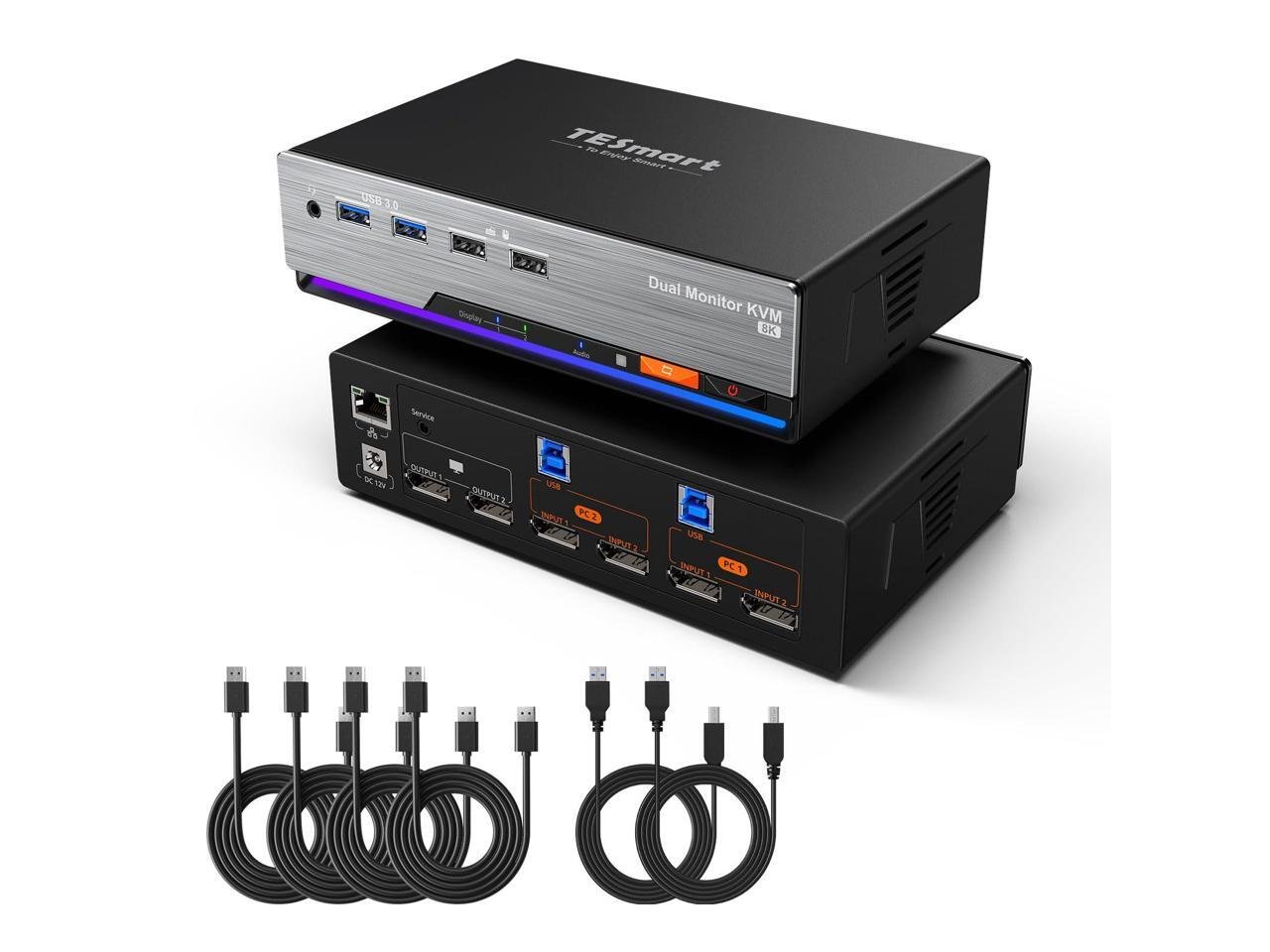
TESmart DKS202-M24 DP 1.4 KVM Switch
Best OverallBuy if: two DisplayPort PCs share two fast monitors
Don't buy if: either computer is a USB-C-only laptop
The DKS202-M24 is the dual monitor KVM in its strongest form. TESmart lists DisplayPort 1.4 with up to dual 8K 60Hz or 4K 144Hz, EDID emulation on every input, USB 3.2 sharing at 5Gbps and a shared Gigabit Ethernet port. Both screens can follow one PC, or each screen can show a different PC.
Two limits matter. Each PC needs two DisplayPort cables plus one USB cable, so the desk carries six video cables in total. And there is no laptop charging — this is a video KVM, not a dock. TESmart also listed this model as a pre-order shipping around late November when we checked, so confirm stock before ordering.
Pros
- Dual 4K at 144Hz support
- EDID emulation on every input
- Shared Gigabit Ethernet
- Hotkeys, remote and buttons
Cons
- Three cables per computer
- No laptop charging
- DisplayPort monitors only
- Check stock before ordering
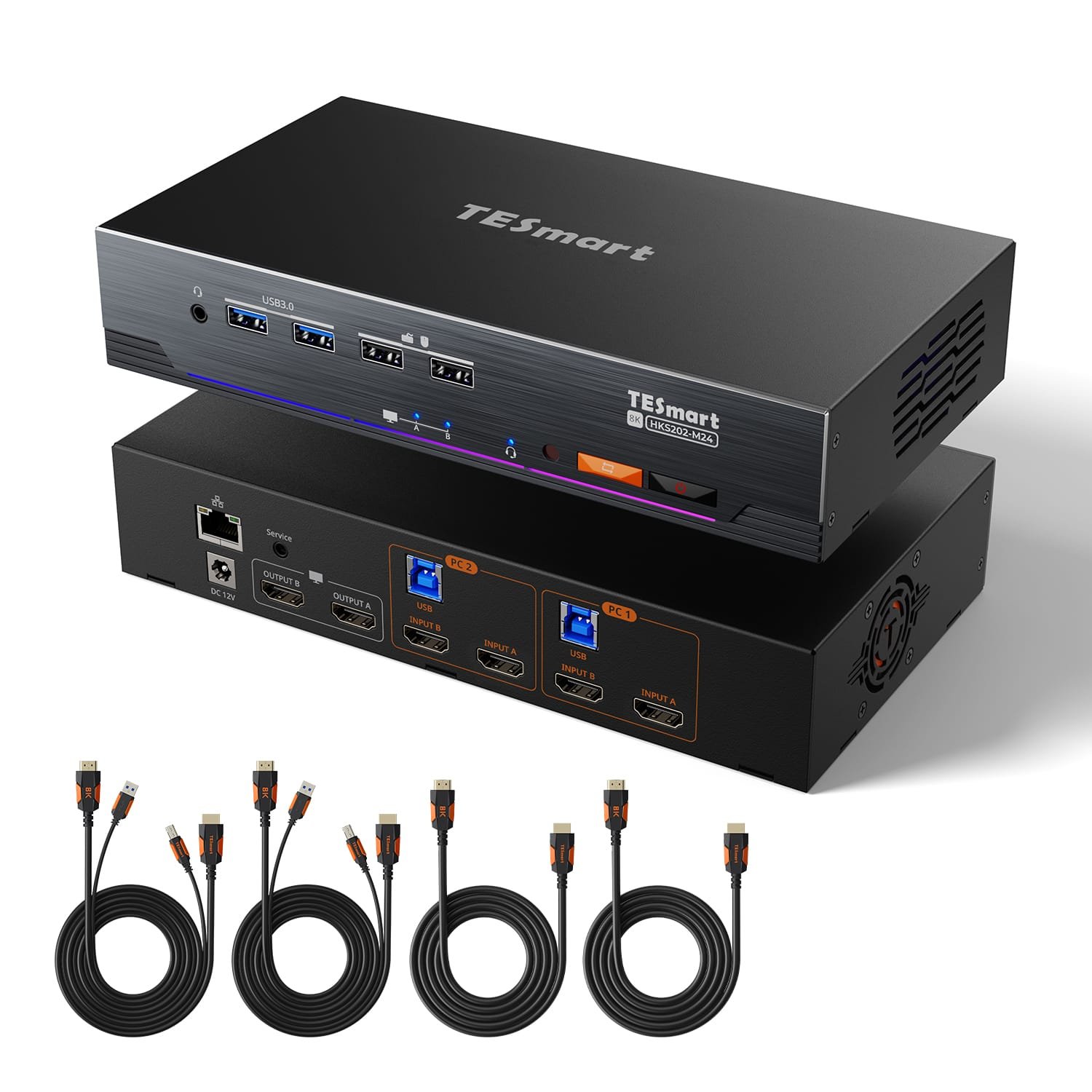
TESmart HKS202-M24-V2 HDMI 2.1 KVM
Best HDMI 2.1Buy if: both monitors and PCs speak HDMI 2.1
Don't buy if: your screens need DisplayPort inputs
This is the HDMI twin of pick one. TESmart lists HDMI 2.1 at 40Gbps with up to 8K 60Hz, 4K at 144Hz, EDID emulation, VRR and ALLM for gaming, plus shared Gigabit Ethernet. A gaming PC keeps its fast refresh rate on both screens, and the work PC shares the same desk.
Read the deal honestly. Plan around dual 4K 144Hz, which TESmart documents for both screens together, rather than the single-screen 8K headline. Each PC still needs two HDMI cables plus one USB cable, and laptops get no charging from this box.
Pros
- HDMI 2.1, dual 4K 144Hz
- EDID emulation built in
- VRR and ALLM for gaming
- Shared Gigabit Ethernet
Cons
- Three cables per computer
- No laptop charging
- HDMI monitors only
- 8K headline is single-screen
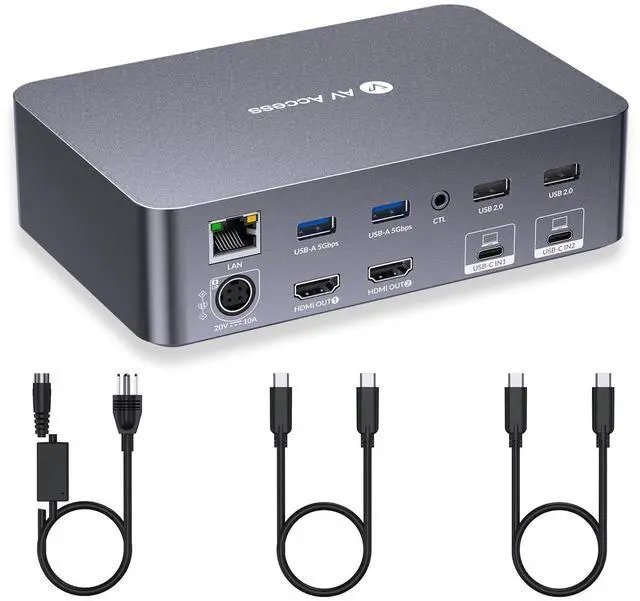
AV Access iDock C20 KVM Docking Station
Best for Two LaptopsBuy if: two Windows laptops share one desk
Don't buy if: a Mac must extend both screens
The iDock C20 is the tidy-desk pick. AV Access lists one USB-C cable per laptop carrying dual 4K 60Hz video, 60W charging and shared Gigabit Ethernet, with two HDMI outputs, EDID emulation and a 12-in-1 dock layout. Switching takes about 2–3 seconds by panel button.
The limits are stated by the maker, which we respect. AV Access warns that macOS does not support USB-C MST, so Mac screens show duplicate content. Dual 4K caps at 60Hz, and 60W charging suits most 14-inch laptops while bigger models charge slowly under load.
Pros
- One cable per laptop
- 60W charging for each laptop
- EDID emulation and Ethernet
- 1440p at 144Hz support
Cons
- Macs mirror both screens
- Dual 4K caps at 60Hz
- HDMI monitor outputs only
- Remote controller not included
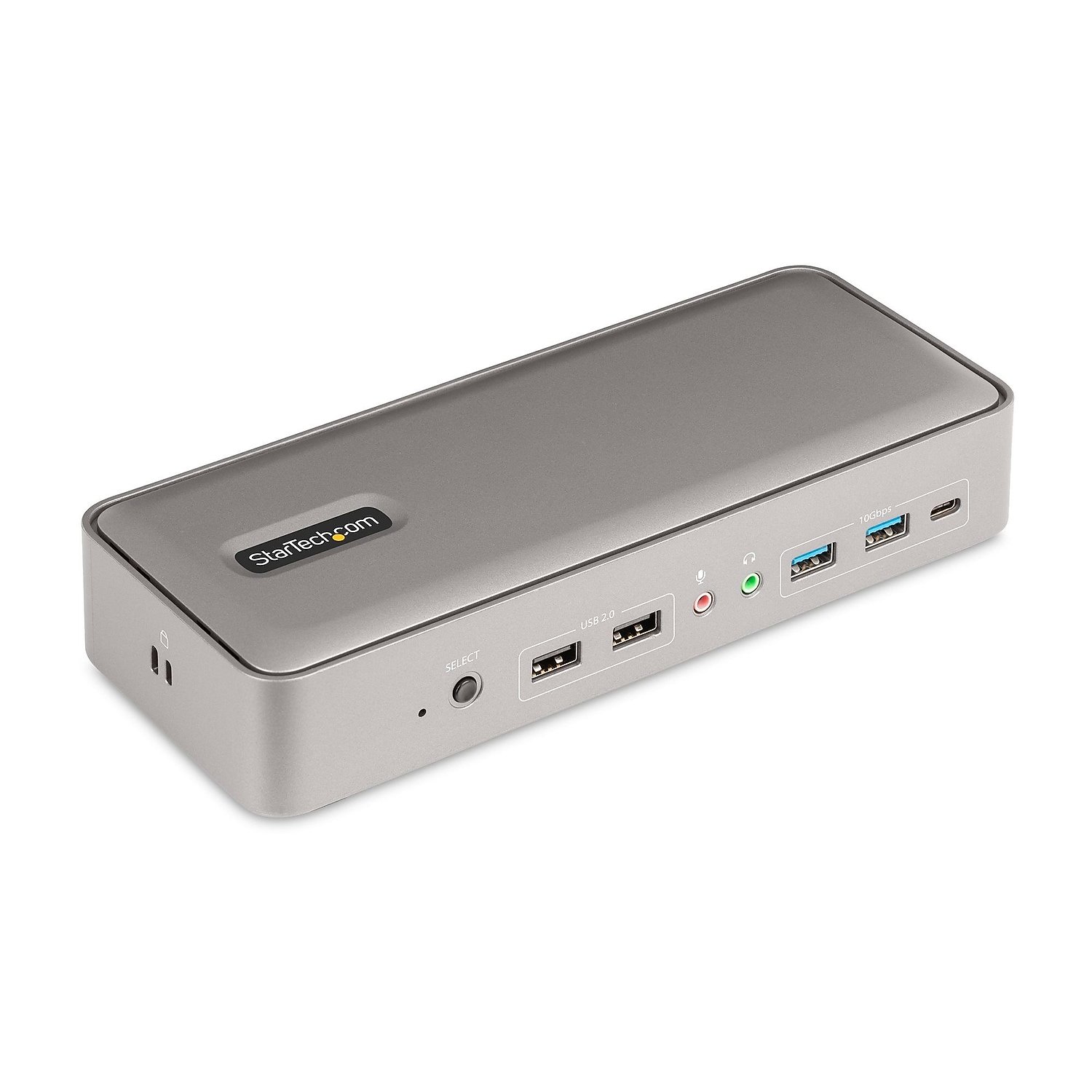
StarTech 129N-USBC-KVM-DOCK
Best for MacBuy if: a MacBook must extend two screens
Don't buy if: the shared screens are for gaming
The 129N solves the Mac problem the others dodge. StarTech lists DisplayLink certification with dual 4K 60Hz over two DisplayPort outputs, extended dual displays on M1 and M2 MacBooks, 90W charging for the active laptop and 45W for the standby one, plus Gigabit Ethernet and 10Gbps USB ports.
DisplayLink is software video, and that trade is real. Each computer needs a driver installed, both screens cap at 4K 60Hz, and fast gaming belongs on a native connection instead. For office work across a Mac and a Windows laptop, it is the only pick here that extends both screens on every Mac.
Pros
- Dual extended screens on Mac
- 90W active, 45W standby charging
- Dual 4K 60Hz DisplayPort
- 10Gbps USB and Ethernet
Cons
- Driver needed on each computer
- Not suited to gaming
- Dual 4K caps at 60Hz
- Costs more than basic docks
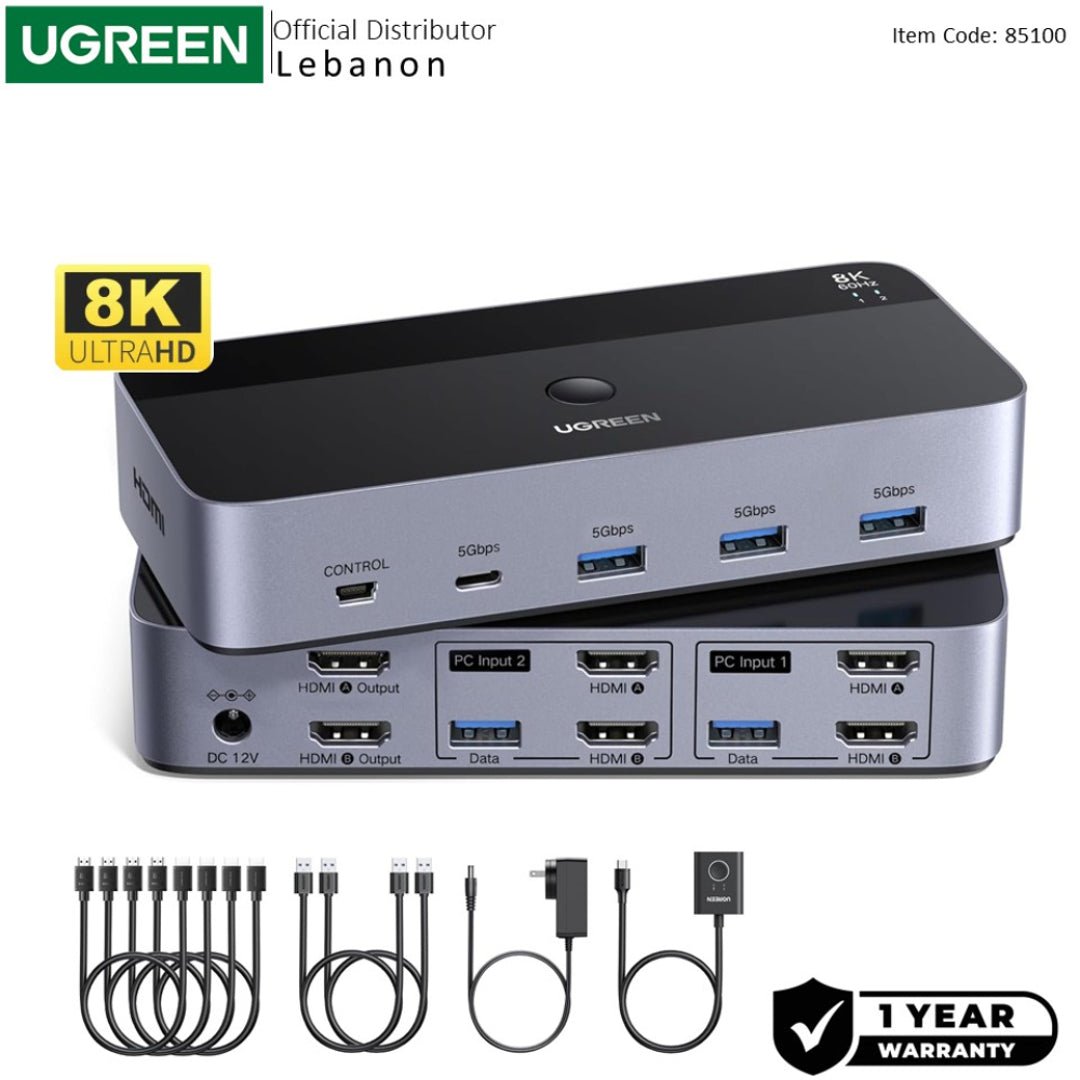
UGREEN 8K HDMI KVM Switch 85100
Best Budget HDMI KitBuy if: you want the full cable kit in the box
Don't buy if: window shuffle drives you mad
The 85100 is the value kit pick. UGREEN lists two HDMI monitors for two computers with four USB 3.0 ports at 5Gbps, extend and mirror modes, a desktop controller, and HDMI cables, USB cables and a power adapter in the box. Setup needs no driver and no extra cable run.
The missing feature is the story. The listing states EDID emulation is not supported, so windows may shuffle after a switch. Plan around 4K 120Hz rather than the fastest number on the box, keep output cables short for high modes, and test your window layout on day one.
Pros
- Cables and controller included
- Four USB 3.0 ports, 5Gbps
- Extend and mirror modes
- No driver needed
Cons
- No EDID emulation
- No keyboard hotkey switching
- Three cables per computer
- Power adapter must stay plugged in
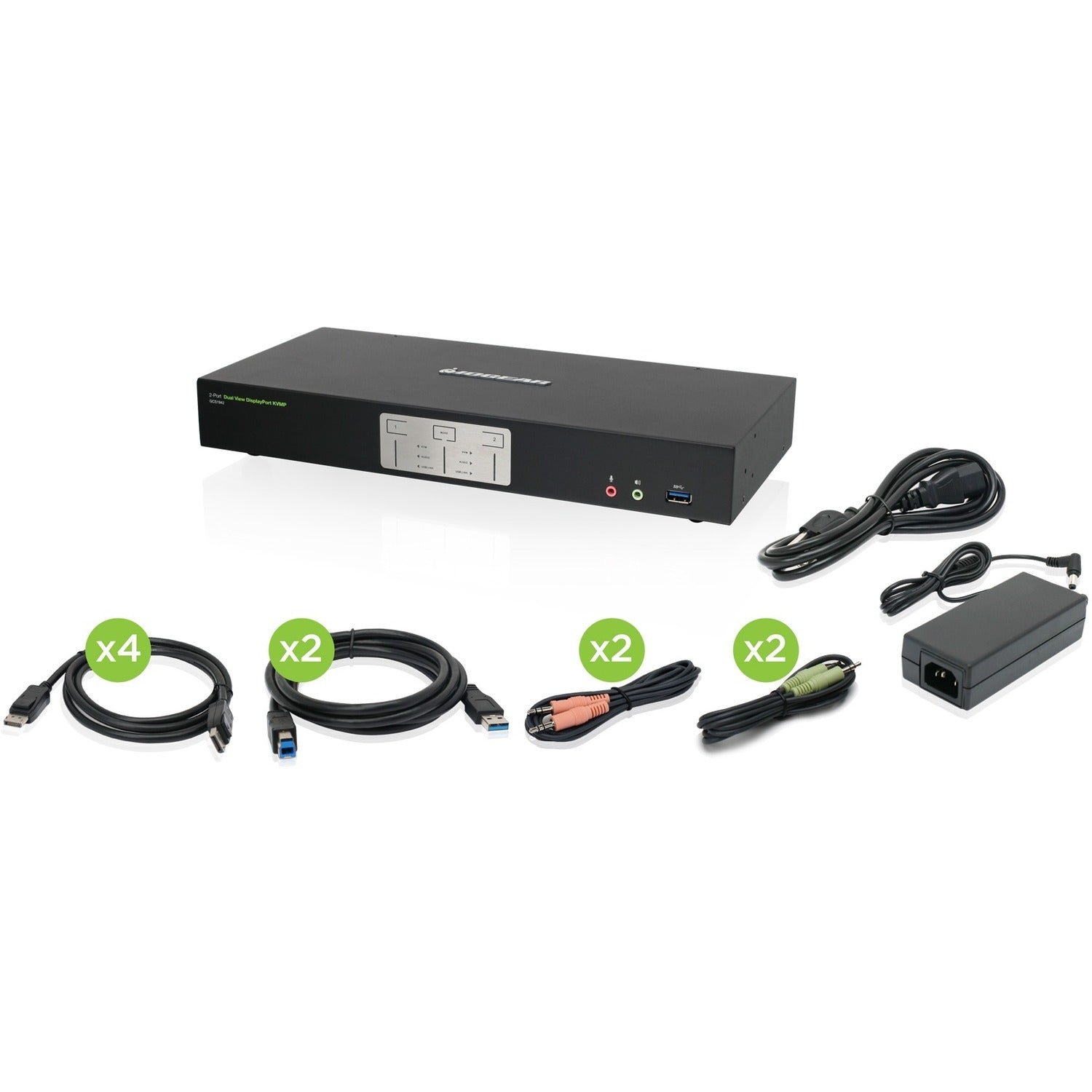
IOGEAR GCS1942 2-Port Dual View KVMP
Best Office DisplayPortBuy if: office desks run dual 4K at 60Hz
Don't buy if: either screen runs past 60Hz
The GCS1942 is the steady office pick. IOGEAR lists dual Cinema 4K at 4096×2160 60Hz over DisplayPort, two shared USB 3.0 ports at 5Gbps, independent switching for video, USB and audio, and every KVM and audio cable included. Hotkeys, front buttons and mouse switching all work.
The ceiling is the trade. DisplayPort 1.2 caps both screens at 4K 60Hz, so high-refresh gaming desks should read pick one. Each computer also needs two DisplayPort ports plus USB. For a work desk that values included cables and support over speed, that deal holds up.
Pros
- Dual 4K 60Hz DisplayPort
- All cables included
- Independent USB switching
- Hotkeys and mouse switching
Cons
- Caps fast monitors at 60Hz
- Three cables per computer
- Only two shared USB ports
- No laptop charging
How to Connect Two Computers to Two Monitors With a KVM Switch
Wire each computer fully, connect both monitors, then test both screens at full refresh rate. Five steps, and the cable swap is gone.
To connect two computers to two monitors, follow these steps: 1. Connect two video cables from each computer. 2. Connect one USB cable from each computer. 3. Connect both monitors to the KVM outputs. 4. Plug in keyboard, mouse and power. 5. Switch and test both screens.
- Connect two video cables from each computer. Use short cables rated for your refresh rate, or one USB-C cable per laptop on a KVM dock.
- Connect one USB cable from each computer. This link carries keyboard, mouse and shared USB devices.
- Connect both monitors to the KVM outputs. Match DisplayPort outputs to DisplayPort inputs, and HDMI to HDMI.
- Plug in keyboard, mouse and power. Connect shared devices and the power adapter before testing.
- Switch and test both screens. Confirm resolution, refresh rate and window positions on both computers.
Quick note: test on day one, while the return window is open. A KVM that drops refresh rate or shuffles windows shows it right away.
Buying Guide: What Actually Matters
Four things matter most: wiring, dual-screen ceiling, EDID and Mac support — in that order.
Wiring comes first because it can cancel the purchase. A desktop KVM needs two video outputs per computer. A USB-C dock needs one full-featured USB-C port per laptop. Our Thunderbolt docking station guide covers laptops that need more ports first.
The dual-screen ceiling comes next. Makers headline one-screen numbers, so check what both screens run at the same time. Dual 4K 144Hz beats a lone 8K claim for every real desk.
EDID is the daily feel. Emulation on every input keeps windows, icons and resolution steady across switches. Without it, budget time to rebuild your desktop after every flip.
Mac support is the trap with teeth. MST docks mirror on many Macs, DisplayLink docks extend, and native KVMs need a Mac that already drives two screens. Our monitor for home office setup guide covers picking screens that suit a shared desk.
Wiring first. Ceiling second.
KVM Switches to Skip in 2026
Single-monitor KVMs sold for dual desks. One video output feeds one screen, no matter what the title claims. Two shared monitors need two video paths per computer.
8K headlines with no dual-screen figure. A per-output maximum says nothing about both screens together. Every pick above states a dual-screen ceiling you can plan around.
MST docks for Mac desks. The same picture on both screens is mirroring, not a dual setup. Mac buyers need DisplayLink or a Mac that sends two native signals.
Any KVM with no EDID plan. Window shuffle is the top daily complaint on shared desks. My honest take: most buyers should skip the cheapest no-EDID box and pay for emulation, because the shuffle tax is paid ten times a day.
Frequently Asked Questions
What's the best KVM switch for dual monitors?
The TESmart DKS202-M24 for DisplayPort desks. It runs dual 4K 144Hz with EDID emulation on every input.
Can a KVM switch share two monitors between two computers?
Yes. A dual monitor KVM moves both screens, keyboard and mouse together. Each computer must send two video signals.
Why does my Mac show the same picture on both monitors?
Your dock splits one signal with MST, which macOS mirrors. Use a DisplayLink dock for two separate Mac screens.
How do I stop windows moving when I switch computers?
Buy a KVM with EDID emulation on every input. It keeps both monitors present, so windows stay in place.
Should I buy a DisplayPort KVM or a USB-C KVM dock?
Desktop PCs suit a DisplayPort KVM for speed. Two laptops suit a USB-C dock for one-cable charging.
Can I see both computers at the same time?
Some KVMs show one computer per screen. Side-by-side views on one screen need a monitor picture-by-picture feature.
Do I need a KVM if my monitors have two inputs each?
Maybe not. Monitor input buttons plus a USB sharing switch can cover the desk for less money.