Best HDMI Switch for Two Computers (2026): 6 Picks

Work laptop all day. Gaming PC all night.
One monitor serves both, so every evening starts the same way: reach behind the screen, pull the HDMI cable, plug it into the other machine, and hope the port survives another year of this. A small switch box ends the cable swap — if you buy the right kind.
An HDMI switch for two computers is a small box with two or more HDMI inputs and one HDMI output. It sends one computer's picture to one monitor at a time. It does not move your keyboard or mouse.
This guide ranks six switches for a two-computer desk by refresh rate, input count and switching method. Our monitor for home office setup guide covers picking the screen itself; this one is only about sharing it.
No prices are printed in this guide — switch prices move often and listings disagree on the same model. Check the live price before buying. All specs are the makers' own figures — never a guess.
What's the Best HDMI Switch for Two Computers?
The Anker A83H1. It switches two computers to one monitor at up to 4K 60Hz with one button press, and it skips every feature a two-computer desk does not need.
The best HDMI switch for two computers is the Anker A83H1 for most desks. According to Anker, it switches two HDMI sources to one monitor at up to 4K 60Hz with one button press. It suits a work laptop and a home PC that share one screen. Your keyboard and mouse stay with each computer, though.
An HDMI switch for two computers sends one picture at a time to one monitor. According to UGREEN, its HDMI 2.1 switch passes 48Gbps, which covers 4K at 120Hz gaming. A 4K 60Hz switch caps a fast gaming monitor at 60Hz. Match the switch to your screen, not to the box art.
You don't need five inputs, you don't need 8K, and you don't need auto-switching. You need enough inputs for your machines, enough speed for your monitor, and a button you can reach without standing up.
Look — if you're in the spot where both computers stay on all day and you flip between them ten times, here's what actually works: a manual button you control, not auto-switching that guesses.
Can an HDMI Switch Share a Keyboard and Mouse Between Two Computers?
No. An HDMI switch moves video and HDMI audio only. Your keyboard, mouse and webcam stay plugged into whichever computer they started on, unless you add a USB switch or buy a KVM switch instead.
An HDMI switch cannot share a keyboard and mouse between two computers. According to OREI, its BK-301 switch routes three HDMI sources to one display, with no USB ports at all. Video moves. Typing does not. A KVM switch moves the screen, keyboard and mouse together with one button press.
HDMI switch vs KVM switch: an HDMI switch is better suited for sharing one screen because it costs less and stays simple. A KVM switch works better when one keyboard and mouse must follow the screen. The key difference is USB control.
Quick note: HDMI cables carry no keyboard or mouse signals between computers. The picture changes, your hands keep typing on the old machine, and the first password of the day goes to the wrong screen.
Pick six below is the KVM escape hatch. The other five picks assume each computer keeps its own keyboard and mouse, or you pair the switch with a USB sharing switch.
Do You Even Need an HDMI Switch for Two Computers?
Maybe not. If your monitor has two free video inputs, plug one computer into each and switch with the monitor's own input button. Buy an HDMI switch only when the monitor has one usable input or its input menu is painfully slow.
Most desk monitors ship with at least two inputs, often HDMI plus DisplayPort. Two cables, two inputs, no extra box. The monitor becomes the switch, and the picture quality stays native because nothing sits between the computer and the screen.
My honest take: most two-computer desks with a two-input monitor should skip the HDMI switch entirely and spend the money on a USB sharing switch for the keyboard and mouse instead. The switch earns its place on a single-input screen, a TV used as a monitor, or a desk where a console joins the two computers.
Or maybe I should say it this way: count your monitor inputs before you count switch inputs.
One more check. A laptop with only USB-C ports needs an adapter or dock that outputs HDMI before any switch can help. Our USB-C to HDMI adapter guide covers that first link in the chain.
Will an HDMI Switch Work at 4K 120Hz or 144Hz?
Only an HDMI 2.1 switch will. A 4K 60Hz switch caps every computer behind it at 60Hz, even if the gaming PC and monitor both run faster. For 4K 120Hz, the switch, both cables and both computers must all support it.
Speed comes down to one number: bandwidth. HDMI 2.0 switches pass 18Gbps, which tops out at 4K 60Hz. HDMI 2.1 switches pass 48Gbps, which covers 4K 120Hz and high-refresh 1440p gaming. Your monitor's refresh rate is the ceiling you must match.
Cable length matters too. Anker asks for input and output cables of 3.3 feet or less for a stable 4K 60Hz picture through its switch. Long, thin cables are where flicker and dropouts start.
I've seen conflicting data — one UGREEN listing claims 4K at 240Hz for its HDMI 2.1 switch, while the manual's cable table lists 4K at 144Hz. My read is simple: plan around 4K 120Hz, which both sources support, and treat anything faster as a bonus.
Expect a short black screen on every switch. The monitor and computer redo their handshake — the monitor's ID card, called EDID, plus the copy-protection check — and that pause is normal, not a fault.
Quick Comparison
| Product | Inputs | Max Video | Best for | ||
|---|---|---|---|---|---|
| #1 | Anker A83H1Best Overall | 2 in, 1 out | 4K 60Hz | Exactly two computers | Check Price |
| #2 | UGREEN HDMI 2.1 SwitchBest for 4K 120Hz | 2 in, 1 out | 4K 120Hz, 8K 60Hz | Gaming PC + work PC | Check Price |
| #3 | OREI BK-301Best 3-Input 2.1 | 3 in, 1 out | 4K 120Hz, 8K 60Hz | Two computers + console | Check Price |
| #4 | UGREEN CM568Best 5-Input Value | 5 in, 1 out | 4K 60Hz | Room to grow | Check Price |
| #5 | Kinivo 550BNBest With Auto-Switch | 5 in, 1 out | 4K 60Hz | Mixed desk + TV gear | Check Price |
| #6 | UGREEN HDMI KVM SwitchBest If Keyboard Must Follow | 2 computers, 1 monitor | 4K 60Hz + USB 3.0 | One keyboard, two PCs | Check Price |
The input column is the honest summary: two computers need two inputs. Extra inputs only pay off when a console or a third machine joins the desk.
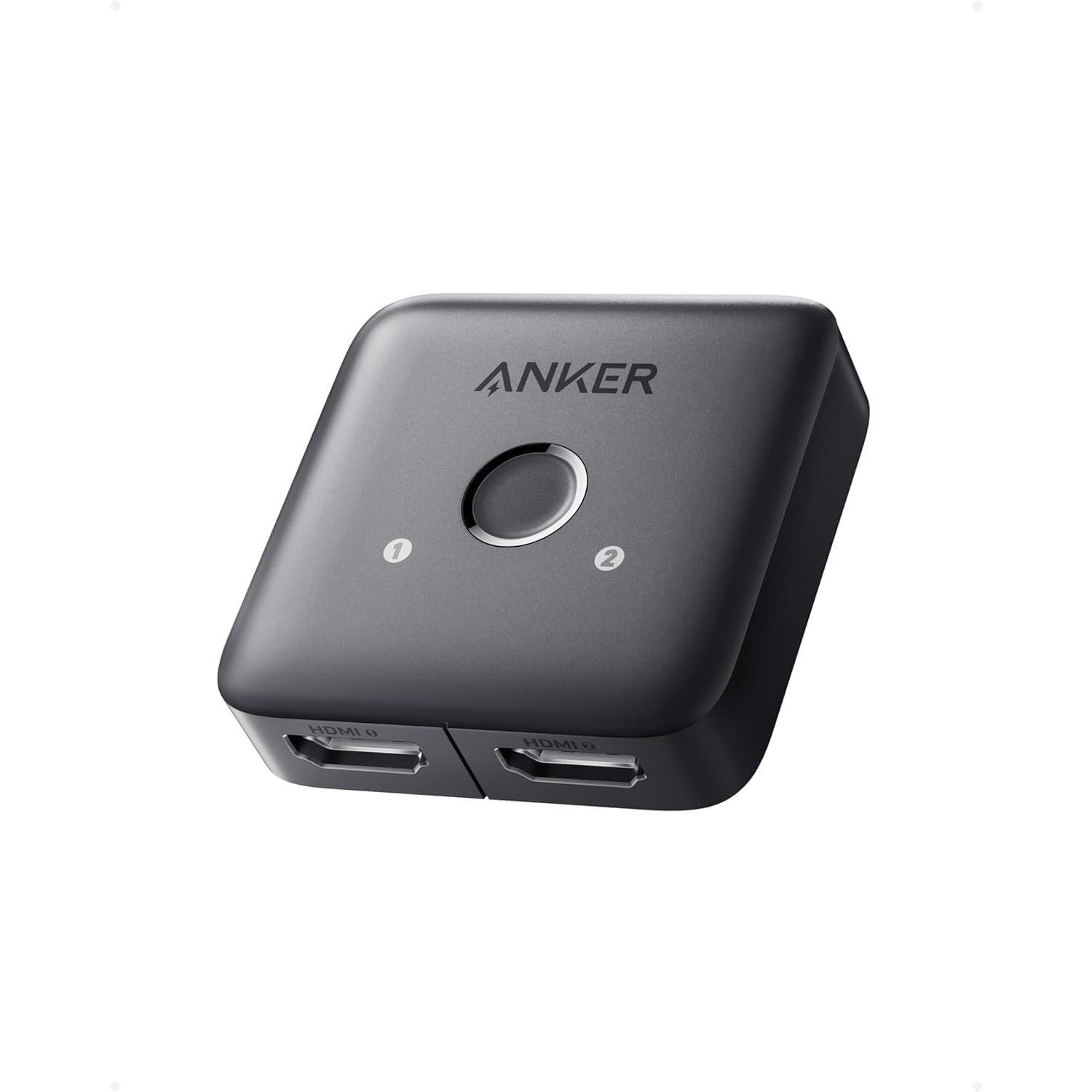
Anker A83H1 HDMI Switch 2 in 1 Out
Best OverallBuy if: exactly two computers share one 4K 60Hz monitor
Don't buy if: your gaming monitor runs faster than 60Hz
The A83H1 is the two-computer switch in its purest form. Anker lists two HDMI inputs, one output, up to 4K at 60Hz, 18Gbps bandwidth and HDCP 2.2 copy protection. One button on top picks the computer. No remote to lose, no menu to learn.
Two limits matter. The 4K 60Hz ceiling caps a 120Hz or 144Hz gaming monitor, so fast-screen owners should read pick two. And Anker asks for short cables — 3.3 feet or less on each side — for a stable 4K picture. Keep the box near the monitor and both limits stay painless.
Pros
- 4K at 60Hz, 18Gbps bandwidth
- One-button manual switching
- Tiny box, easy to hide
- HDCP 2.2 support
Cons
- Caps fast monitors at 60Hz
- No remote control
- 4K needs short cables
- Only two inputs
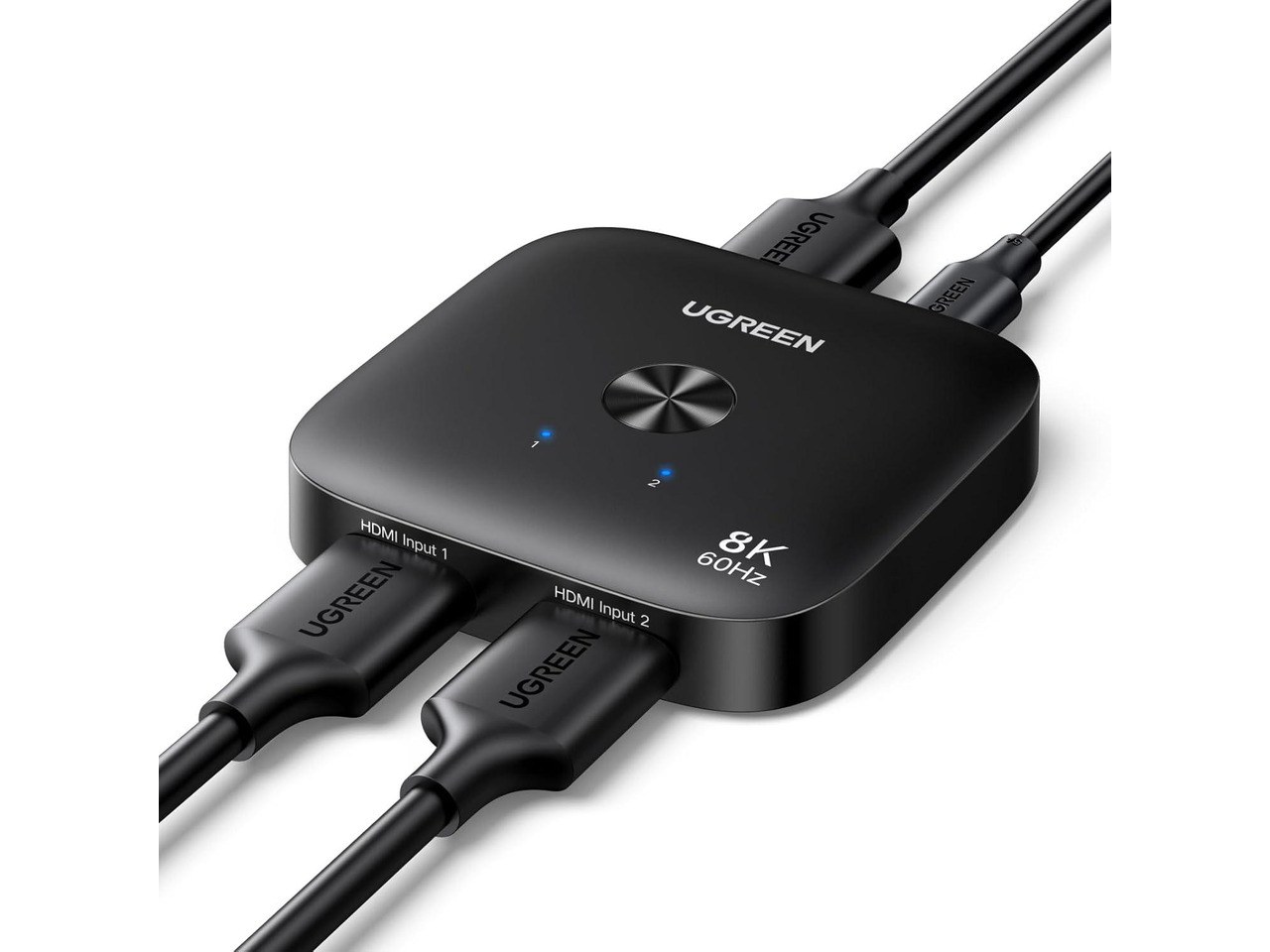
UGREEN HDMI 2.1 Switch 2 in 1 Out
Best for 4K 120HzBuy if: one computer games at 4K 120Hz or 1440p high refresh
Don't buy if: you hate extra power cables on the desk
This is the speed pick. UGREEN lists 48Gbps HDMI 2.1 bandwidth with 8K at 60Hz and 4K at 120Hz support, plus VRR, the feature that smooths frame-rate swings in games. A gaming PC keeps its fast refresh rate, and the work laptop shares the same screen.
Read the deal honestly. The switch must stay plugged into power, the power adapter and HDMI cables are not included, and switching is manual only. Buy it for the bandwidth, budget for certified HDMI 2.1 cables under 10 feet, and plan around 4K 120Hz rather than the fastest number on the listing.
Pros
- 48Gbps HDMI 2.1 bandwidth
- 4K at 120Hz support
- VRR for smoother gaming
- Two inputs, simple button
Cons
- Needs external power
- Adapter and cables not included
- No auto-switching
- Fastest claims conflict
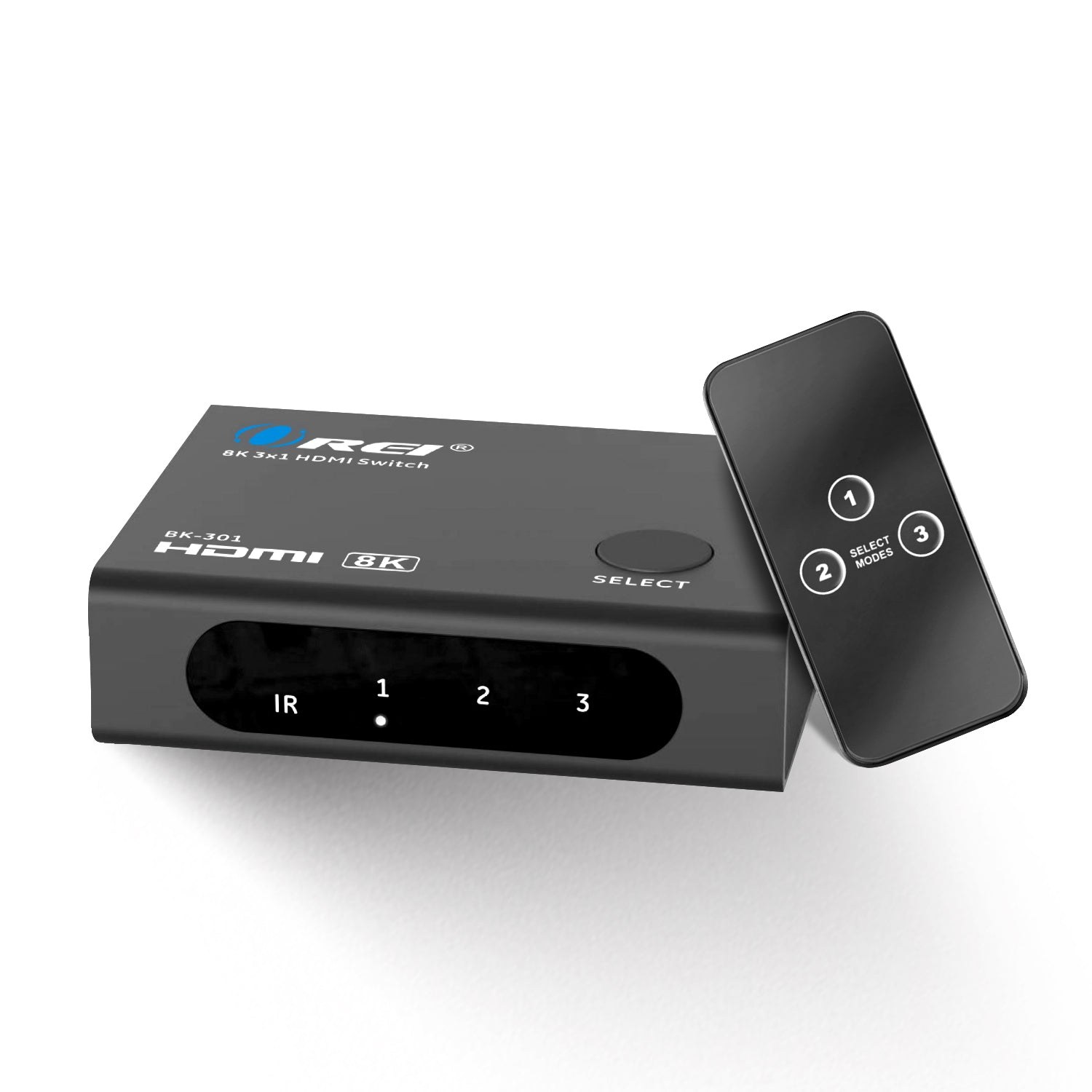
OREI BK-301 8K 3-Port HDMI Switch
Best 3-Input 2.1Buy if: two computers plus a console share one fast monitor
Don't buy if: the switch must hide behind the desk
The BK-301 adds a third input without giving up speed. OREI lists HDMI 2.1 with 48Gbps bandwidth, up to 8K at 60Hz and 4K at 120Hz, HDCP 2.3 and HDR support. Two computers and a PS5 or Xbox can share one monitor, and a remote picks the source.
OREI states no external power supply is needed, which keeps the desk clean. The trade is the remote: it works by infrared, so the switch needs a clear line of sight to receive the signal. Park it under the monitor, not behind the PC tower.
Pros
- Three inputs, 48Gbps speed
- 4K at 120Hz support
- Remote control included
- No power supply needed
Cons
- Remote needs line of sight
- No USB or keyboard sharing
- Manual switching only
- Third input may sit unused
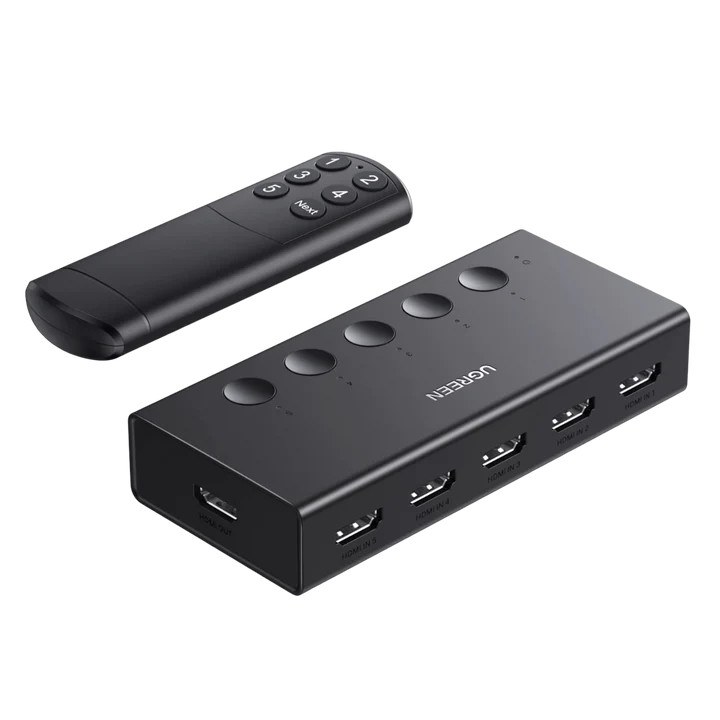
UGREEN CM568 HDMI Switch 5 in 1 Out
Best 5-Input ValueBuy if: your desk keeps gaining HDMI devices
Don't buy if: any computer games past 60Hz
The CM568 is the growth pick. UGREEN lists five HDMI inputs, 4K at 60Hz with 18Gbps bandwidth, HDR support and a remote with a 33-foot range. Two computers use two inputs today, and three spare inputs wait for a console, a streaming stick or a test machine.
The limits match the class. HDMI 2.0 caps the picture at 4K 60Hz, auto-switching is not supported, and the USB power adapter is not included. For an office desk that never games past 60Hz, none of that bites.
Pros
- Five inputs for growing desks
- Remote control included
- 4K at 60Hz with HDR
- LED input indicators
Cons
- Caps fast monitors at 60Hz
- No auto-switching
- Power adapter not included
- Spare inputs may go unused
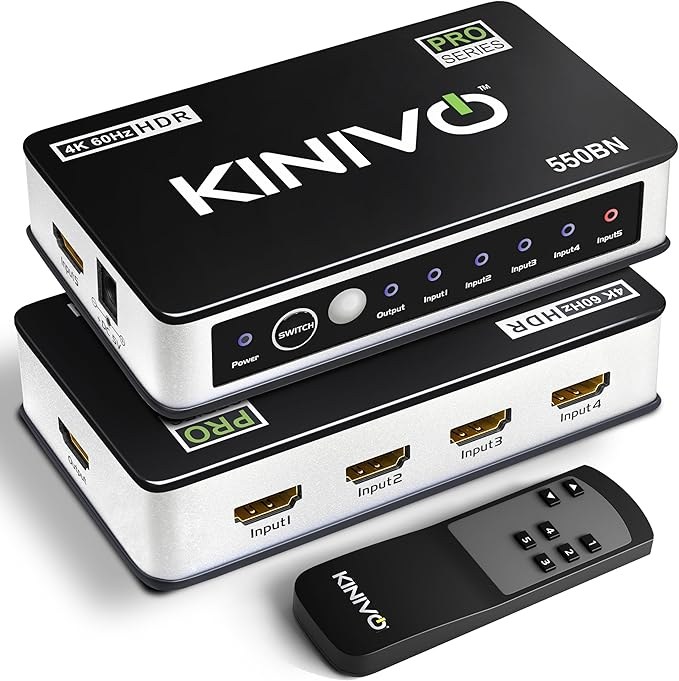
Kinivo 550BN HDMI Switch 5 in 1 Out
Best With Auto-SwitchBuy if: you want auto-switching plus a full in-box kit
Don't buy if: both computers stay awake all day
The 550BN is the complete-kit pick. Kinivo lists five inputs at 4K 60Hz with 18Gbps bandwidth, HDR and Dolby Vision support, HDCP 2.2, and a 2-year warranty. The box includes the power adapter and a remote with its battery, so setup needs only your HDMI cables.
Auto-switching is the headline and the trap. Kinivo warns that devices which keep their HDMI port active in sleep mode can defeat auto-switching — and desktop PCs do exactly that. Two always-on computers will fight the feature. Use the remote or the button, and treat auto-switching as a bonus for consoles.
Pros
- Five inputs, 4K at 60Hz
- Auto or manual switching
- Adapter and remote included
- 2-year warranty
Cons
- Auto-switch struggles with PCs
- Caps fast monitors at 60Hz
- One input sits on the side
- Costs more than basic picks
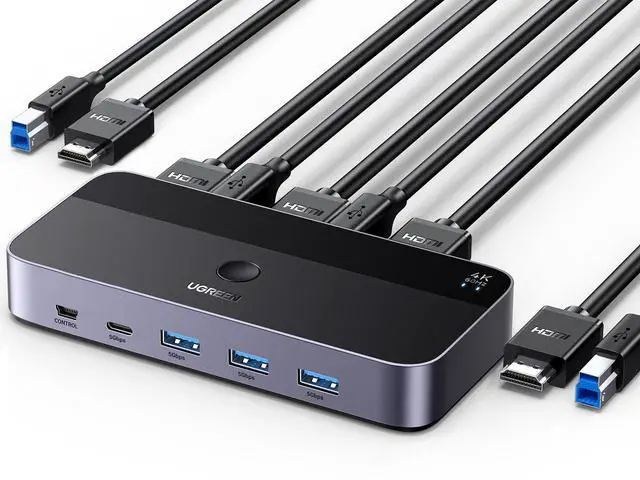
UGREEN HDMI KVM Switch 15707
Best If Keyboard Must FollowBuy if: one keyboard and mouse must control both computers
Don't buy if: you game at 4K 120Hz on the shared screen
This pick breaks the pattern on purpose. The UGREEN KVM switch moves the monitor and four USB 3.0 ports — three USB-A and one USB-C at up to 5Gbps — between two computers with one button or its desktop controller. Keyboard, mouse, webcam and printer follow the screen.
The trade-offs are stated plainly. Video caps at 4K 60Hz, each computer needs both an HDMI cable and a USB cable, and there is no EDID emulation, so windows may shuffle positions after a switch. For a work-plus-home desk at 60Hz, one button for everything beats two buttons and a guess.
Pros
- Keyboard and mouse follow screen
- Four USB 3.0 ports, 5Gbps
- Cables and controller included
- 4K at 60Hz video
Cons
- Caps fast monitors at 60Hz
- No EDID emulation
- No keyboard hotkey switching
- Two cables per computer
How to Connect Two Computers to One Monitor With an HDMI Switch
Plug each computer into an input, run one cable to the monitor, then test the picture at full refresh rate. Five steps, and the cable swap is gone.
To connect two computers to one monitor, follow these steps: 1. Plug each computer into a switch input. 2. Plug the switch output into the monitor. 3. Power the switch if it needs power. 4. Press the button to pick a computer. 5. Test picture, sound and refresh rate.
- Plug each computer into a switch input. Use short, certified HDMI cables rated for your refresh rate.
- Plug the switch output into the monitor. One cable runs from the switch to the screen.
- Power the switch if it needs power. Connect its USB or adapter power before testing.
- Press the button to pick a computer. The monitor shows the selected machine after a short pause.
- Test picture, sound and refresh rate. Confirm 4K 60Hz or 4K 120Hz in your display settings.
Quick note: test on day one, while the return window is open. A switch that drops your refresh rate shows it right away.
Buying Guide: What Actually Matters
Four things matter most: monitor inputs, bandwidth, switching method and cable length — in that order.
Monitor inputs come first because they can cancel the purchase. A two-input monitor already switches computers. Our 4K monitor for productivity guide covers screens with the inputs and USB hubs that make sharing painless.
Bandwidth comes next. Match the switch to the fastest screen in the chain: 18Gbps for 4K 60Hz, 48Gbps for 4K 120Hz. A slow switch silently caps a fast monitor.
Switching method is the daily feel. Manual buttons never guess wrong. Auto-switching sounds smart and fails with computers that never sleep. Remotes help when the box sits far from your hand.
Cable length is the silent failure. Keep every run short and certified for the speed you run. Our USB-C extension cable guide covers the laptop end of the same desk.
Inputs first. Bandwidth second.
HDMI Switches to Skip in 2026
4K 30Hz switches. Older switches cap the picture at 4K 30Hz, which makes mouse movement feel laggy on a desk monitor. Every pick above runs at least 4K 60Hz.
Splitters sold as switches. A splitter sends one computer to many screens. A switch sends many computers to one screen. The words look alike and the jobs are opposites.
Auto-switching as the main plan. Two computers that stay on all day give auto-switching nothing clean to detect. Buy a button you trust and treat auto-switching as a bonus.
Any HDMI switch for dual monitors. One output feeds one screen. Two shared monitors need a dual-monitor KVM, which is a different box. Our dual monitor docking station guide covers the two-screen desk.
Frequently Asked Questions
What's the best HDMI switch for two computers?
The Anker A83H1 for most desks. It switches two computers to one monitor at 4K 60Hz with one button press.
Can an HDMI switch share my keyboard and mouse too?
No. An HDMI switch moves video only. Add a USB sharing switch, or buy a KVM switch that moves everything together.
Can I see both computers on the screen at the same time?
No. A switch shows one computer at a time. Side-by-side views need a monitor with picture-by-picture, which is a screen feature.
Do I need an HDMI switch if my monitor has two inputs?
Probably not. Plug one computer into each input and switch with the monitor button. Buy a switch for single-input screens.
Will an HDMI switch work with a USB-C laptop?
Yes, through an adapter or dock with an HDMI output. The switch itself takes HDMI cables only, so the laptop needs that first link.
Why does the screen go black for a few seconds when I switch?
The monitor and computer redo their handshake each time. That short pause is normal and happens with every switch here.
Should I buy a 4K 60Hz switch or an HDMI 2.1 switch?
Match your monitor. A 60Hz screen needs only 4K 60Hz. A 120Hz or 144Hz gaming screen needs HDMI 2.1 bandwidth.