Best Ethernet Adapter for Laptop (2026): 6 Picks

Wi-Fi drops mid-call. Again.
Your laptop has no network socket, the router sits two rooms away, and moving closer to it helped for one afternoon. A small adapter and one cable end that problem for good — if you pick the right speed and port.
An ethernet adapter for a laptop is a small dongle that turns a USB-C or USB-A port into a wired RJ45 network socket. It gives a laptop with no network port a stable cable connection to a router, switch or wall socket.
This guide ranks six ethernet adapters by link speed, port type and driver support. Our USB-C hub with ethernet and HDMI guide covers desks that also need a monitor output; this one is only about the network socket.
No prices are printed in this guide — adapter prices move often and listings disagree on the same model. Check the live price before buying. All specs are the makers' own figures — never a guess.
What's the Best Ethernet Adapter for a Laptop?
The Plugable USBC-E2500. It fits USB-C and USB-A laptops, links at up to 2.5GbE, and its driver support is documented better than most cheap dongles.
The best ethernet adapter for a laptop is a USB-C 2.5GbE model with a USB-A option for mixed desks. According to Plugable, the USBC-E2500 links at 10, 100, 1000 or 2500 Mbps through USB-C or USB-A. It needs USB 3.0 or better for full speed, and a 2.5GbE router, switch or NAS to beat gigabit.
A laptop ethernet adapter works at the speed of the slowest link in the chain. According to TP-Link, the UE302C reaches 2.5 Gbps only with Cat5e or higher cable and a matching network port. Plug it into a gigabit switch and the same adapter runs at gigabit speed instead.
You don't need 10GbE, you don't need a hub, and you don't need RGB lights. You need the right plug for your laptop, enough speed for your network, and a driver your system already trusts.
Look — if you're in the spot where calls freeze twice a day and downloads crawl at night, here's what actually works: a wired link at gigabit or better, on a USB 3 port, with a cable that is not older than the laptop.
Do You Need 2.5GbE, or Is Gigabit Enough?
Gigabit is enough for most homes. Pay for 2.5GbE only when your internet plan, NAS or local transfers can use speeds past one gigabit.
Gigabit ethernet is enough for most laptop owners with internet at or below one gigabit. According to Plugable, its gigabit adapters still link at 1000 Mbps on normal home networks. A 2.5GbE adapter pays off for faster internet plans, a fast NAS, or large local file transfers between wired devices.
2.5GbE vs Gigabit: 2.5GbE is better suited for multi-gig internet and fast NAS transfers because it removes the one-gigabit ceiling. Gigabit works better when your router, switch and plan all stop at one gigabit. The key difference is the slowest link in your chain.
Here is the plain version. A 2.5GbE adapter on a gigabit switch runs at gigabit speed. It still works. It just cannot invent speed the switch does not have.
Gaming sits on the gigabit side for almost everyone. Games use little bandwidth; what they need is a steady link with low delay. A cable gives that steadiness at either speed.
Speed ceiling first. Brand second.
USB-C or USB-A: Which Port Does Your Laptop Have?
Match the plug to the laptop, then check the USB speed. USB-C and Thunderbolt ports suit most new laptops; USB-A picks serve older machines. USB 2.0 caps any adapter well below gigabit.
USB-C adapters fit MacBooks, thin Windows laptops and Chromebooks. Thunderbolt 3 and 4 ports accept them too. USB-A adapters fit older laptops and desktops that never gained USB-C.
The speed of the USB port matters as much as its shape. USB 3.0 carries 5 Gbps, which feeds a 2.5GbE adapter with room to spare. USB 2.0 tops out near 480 Mbps, so even a gigabit adapter runs at half speed or less.
Quick note: one USB-C port changes the maths. If that port also charges the laptop, a basic adapter blocks charging. Pick three below passes charging through, so one port does both jobs.
Or maybe I should say it this way: count your free ports before you count megabits. Our USB-C hub for laptop guide covers desks where one port must do everything.
Why Does My Ethernet Adapter Stop Working After Sleep or an Update?
Usually the driver. Sleep, wake and system updates can leave an adapter with a stale or missing driver, so the laptop sees the plug but builds no network link.
I've seen conflicting data — many listings promise plug-and-play on every system, while makers such as TP-Link list kernel and macOS floors and warn that a driver update may follow a system update. My read is simple: trust the maker's support page over the listing headline.
The chipset inside decides how smooth this feels. Most 2.5GbE adapters here use the Realtek RTL8156B; the TP-Link UE306 uses the ASIX AX88179. Windows and macOS carry drivers for both families, which is why these picks work with no install on current systems.
Old systems are the trap. TP-Link's UE302C needs macOS 10.15 or later and Linux kernel 5.13 or later for plug-and-play use. Plugable's charging model needs macOS 11 or later. Check your version before you order, not after.
One more check. Set the adapter up while Wi-Fi still works. Windows may fetch its driver from Windows Update on first plug-in, and that fetch needs a live connection.
Quick Comparison
| Product | Plug | Top Link | Best for | ||
|---|---|---|---|---|---|
| #1 | Plugable USBC-E2500Best Overall | USB-C + USB-A | 2.5GbE | Mixed laptop desks | Check Price |
| #2 | TP-Link UE302CBest Compact Travel | USB-C | 2.5GbE | Laptop-bag carry | Check Price |
| #3 | Plugable USBC-E2500PDBest With Charging | USB-C + PD in | 2.5GbE, 100W PD | One-port laptops | Check Price |
| #4 | Belkin INC012Best for Mac and Chromebook | USB-C | 2.5GbE | Certified Mac use | Check Price |
| #5 | Anker PowerExpand GigabitBest Budget Gigabit | USB-C | Gigabit | All-gigabit homes | Check Price |
| #6 | TP-Link UE306Best for USB-A Laptops | USB-A 3.0 | Gigabit | Older laptops | Check Price |
The plug column decides more purchases than the speed column. A 2.5GbE adapter on a gigabit network still runs at gigabit — it just stays ready for a faster switch later.
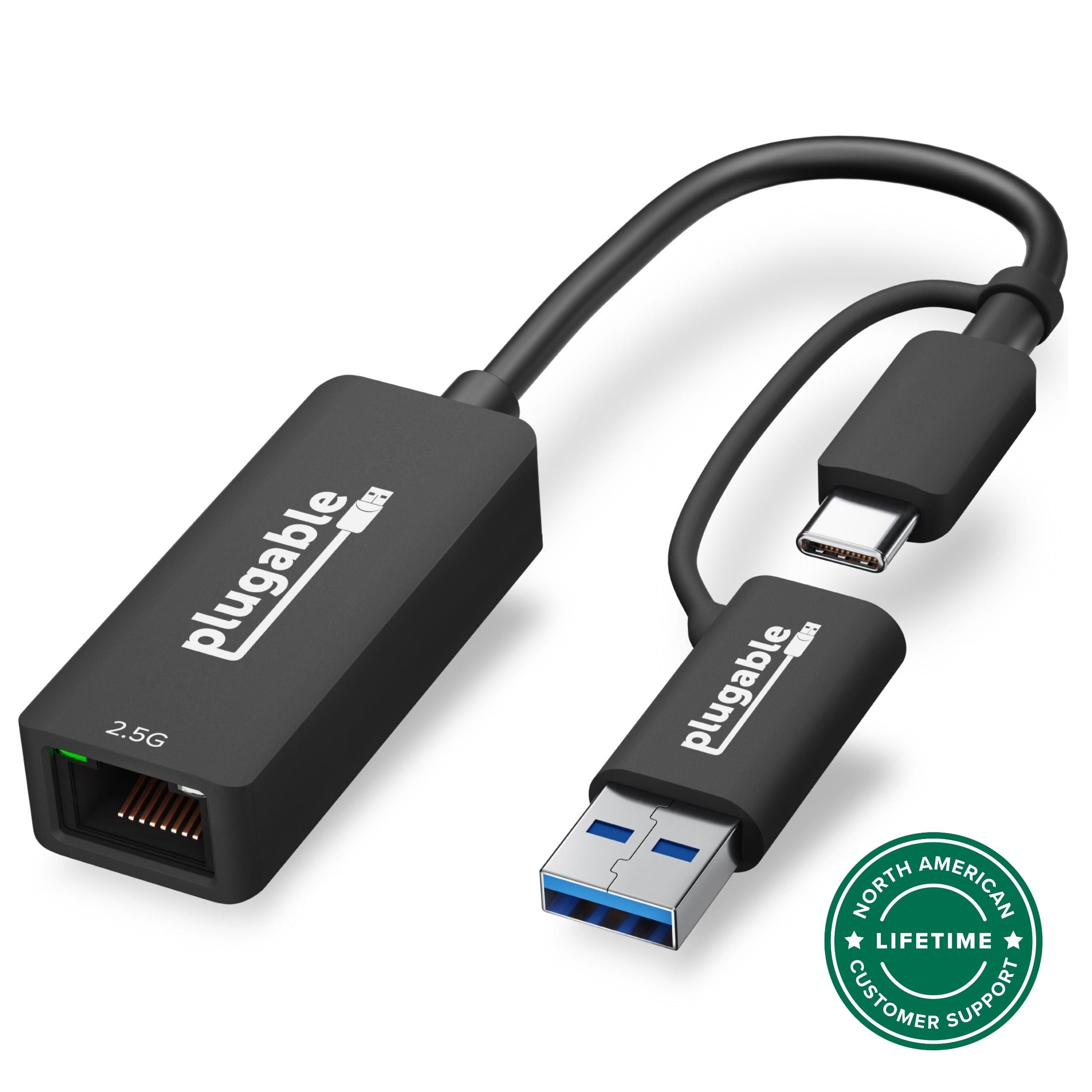
Plugable USBC-E2500 2.5G Ethernet Adapter
Best OverallBuy if: your adapter moves between USB-C and USB-A machines
Don't buy if: one port must charge and connect at once
The USBC-E2500 is the safe default. Plugable lists a Realtek RTL8156B chipset with 10/100/1000/2500 Mbps link rates, a hybrid cable that converts between USB-C and USB-A, and support across Windows, macOS, ChromeOS and Linux. One adapter covers a new laptop today and an older desktop tomorrow.
Two limits matter. Full speed needs a USB 3.0 or faster host port — USB 2.0 slows the link hard. And this base model carries no charging, so a one-port laptop needs pick three. Plugable also lists the Nintendo Switch as not compatible, so console buyers should read pick six.
Pros
- USB-C and USB-A in one adapter
- 2.5GbE with gigabit fallback
- Documented chipset and OS support
- Wake-on-LAN support listed
Cons
- No charging passthrough
- USB 2.0 ports cap speed
- Not for Nintendo Switch
- Linux full support needs newer kernels
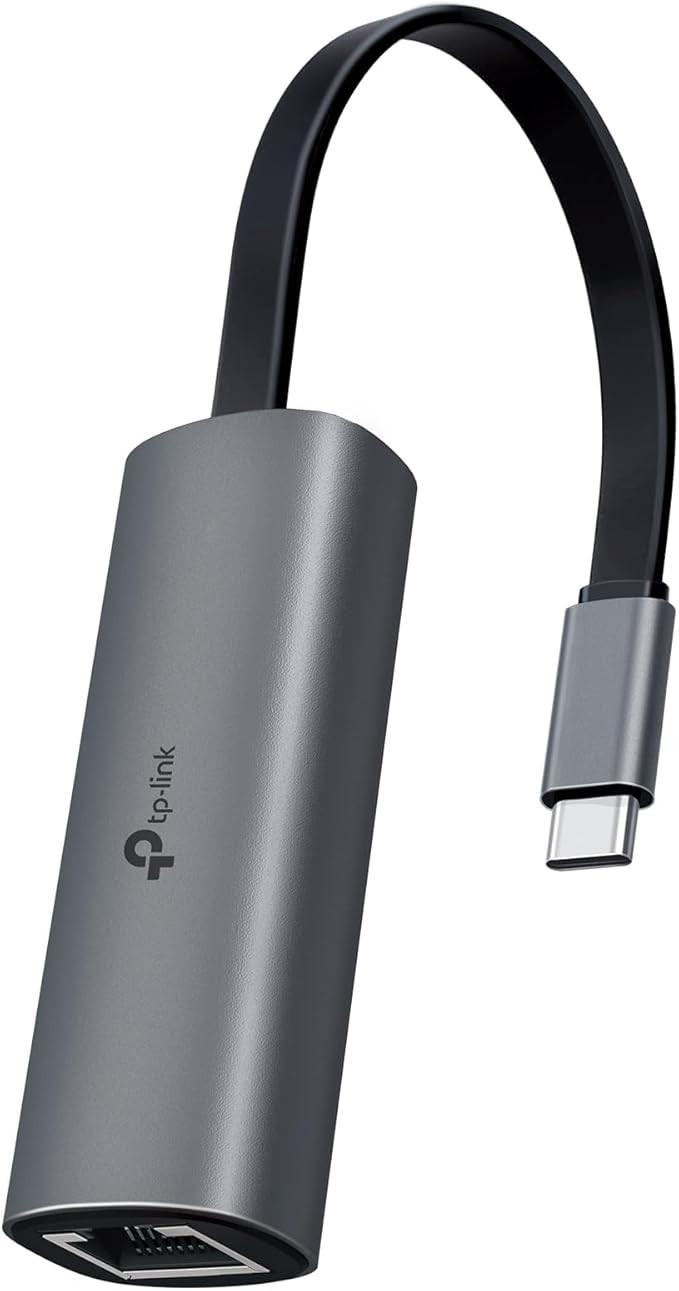
TP-Link UE302C USB-C 2.5G Adapter
Best Compact TravelBuy if: the adapter lives in a laptop bag
Don't buy if: your laptop has USB-A ports only
The UE302C is the travel pick. TP-Link lists a 27 g aluminium body, a foldable cable that stores in the case, a USB 3.0 Type-C plug and a 2.5 gigabit RJ45 port. Peak speed needs Cat5e or higher cable, which most homes already run.
Read the support floors before ordering. Plug-and-play covers Windows 11/10/8.1/8/7, macOS 10.15 or later, ChromeOS and Linux on kernel 5.13 or later, and iPadOS 13.3 or later. TP-Link also warns that a driver update may follow a system update. There is no charging and no USB-A option.
Pros
- 27 g aluminium travel body
- Foldable self-storing cable
- 2.5GbE over USB 3.0 Type-C
- Wide OS support listed
Cons
- USB-C only, no converter
- No charging passthrough
- Kernel and macOS floors apply
- Driver may need updates
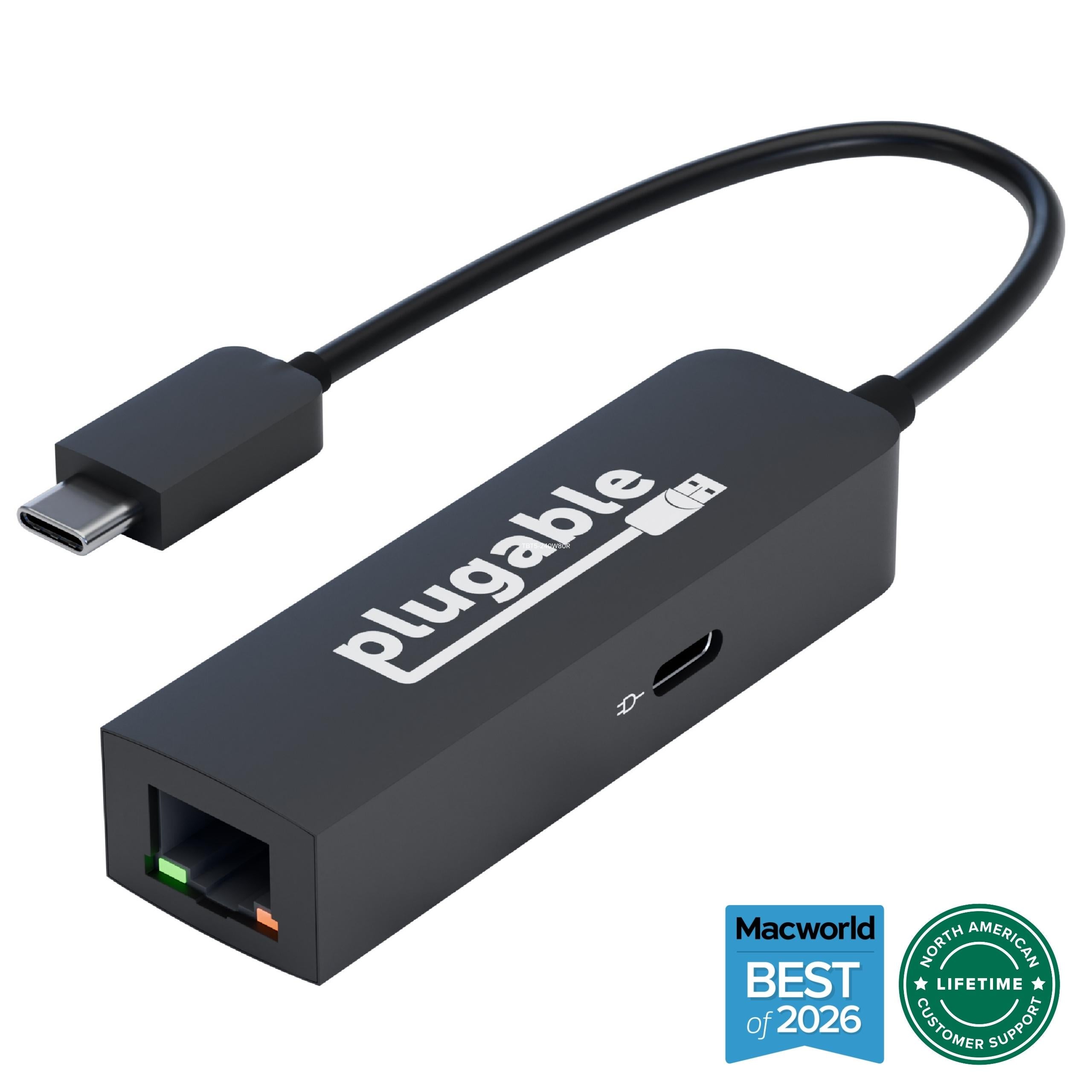
Plugable USBC-E2500PD With 100W Charging
Best With ChargingBuy if: one USB-C port must charge and connect
Don't buy if: you need a USB-A fallback plug
The E2500PD solves the one-port problem. Plugable lists 2.5Gbps ethernet plus up to 100W Power Delivery passthrough through a single USB-C connection, with the same Realtek RTL8156B chipset as pick one. Your existing laptop charger plugs into the adapter; no charger comes in the box.
Treat 100W as the supported class, not a promise. The laptop receives less after adapter and cable overhead, and a small phone charger stays a small phone charger. Check the PD suffix when ordering — the base USBC-E2500 looks similar and charges nothing. Support covers Windows 10 or later, macOS 11 or later and ChromeOS.
Pros
- Ethernet and charging, one port
- Up to 100W PD passthrough
- 2.5GbE, RTL8156B chipset
- Works without charger attached
Cons
- Charger not included
- Host gets less than charger label
- USB-C only, no USB-A piece
- PD suffix is easy to miss
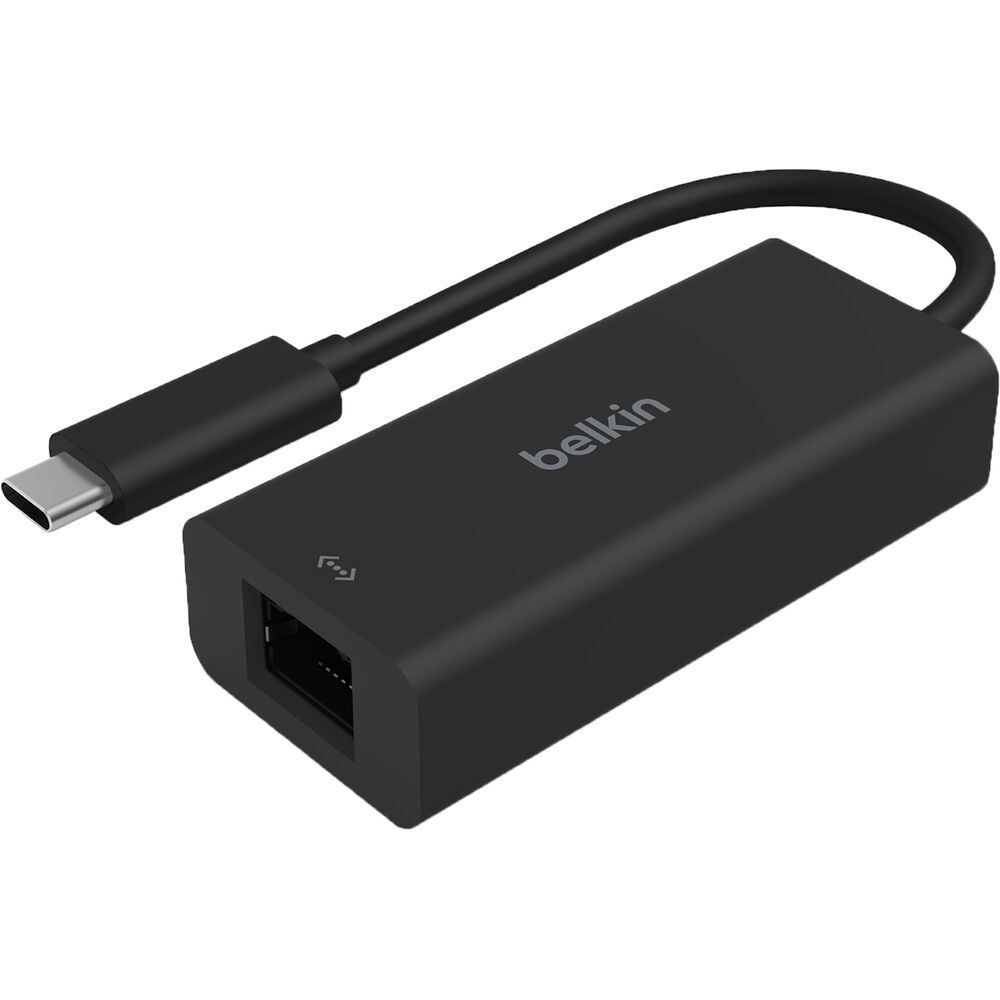
Belkin USB-C to 2.5 Gb Ethernet Adapter INC012
Best for Mac and ChromebookBuy if: certified Mac and Chromebook support matters most
Don't buy if: the cable must reach across a desk
The INC012 is the certified pick. Belkin lists 10/100/1000/2500 Mbps speeds, USB-IF certification, Works With Chromebook certification and an LED that shows link status at a glance. Thunderbolt 3 and 4 ports are supported, which suits MacBook and XPS desks.
The trade is reach. The tethered cable runs about 90 mm, so the adapter hangs close to the laptop port and the ethernet cable does the travelling. There is no charging and no extra ports — one job, done cleanly. Mac buyers who want the plainest support story start here.
Pros
- USB-IF and Chromebook certified
- 2.5GbE with gigabit fallback
- LED link indicator
- Thunderbolt 3 and 4 support
Cons
- Short 90 mm tethered cable
- No charging passthrough
- Single-purpose, no extra ports
- USB-C only
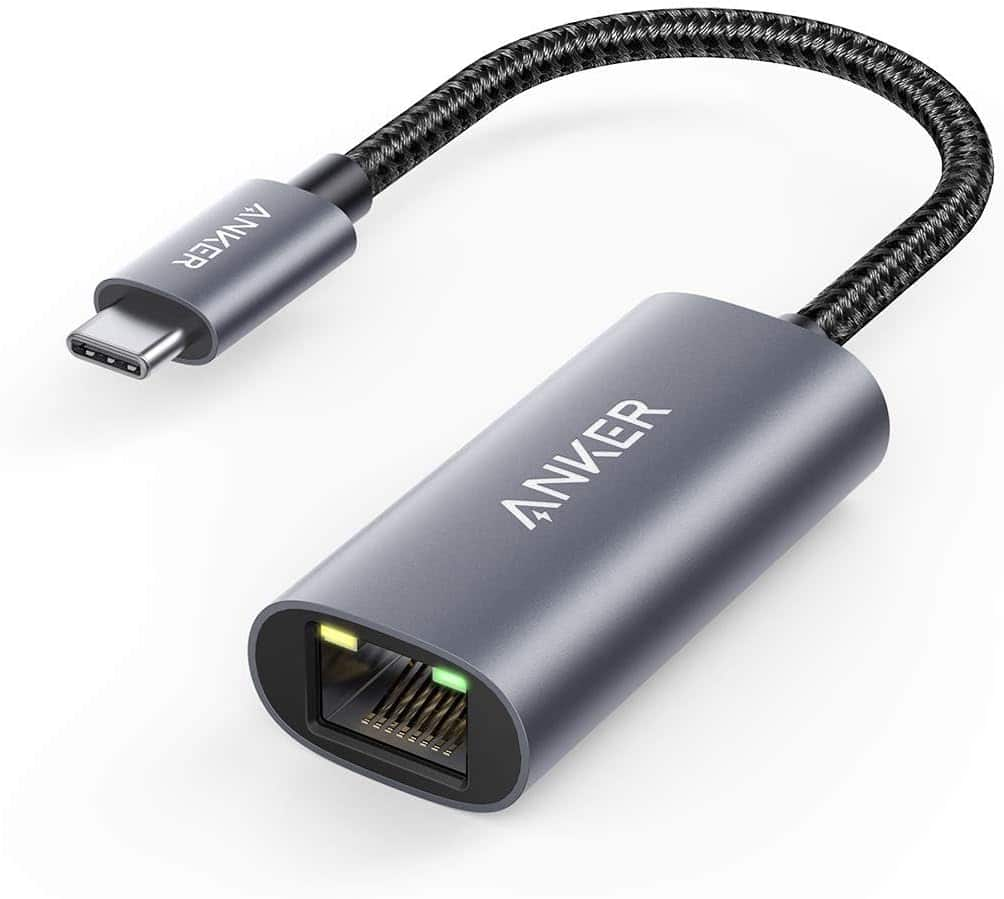
Anker PowerExpand USB-C to Gigabit Ethernet Adapter
Best Budget GigabitBuy if: your whole network stops at gigabit
Don't buy if: a 2.5GbE switch or NAS is coming
The Anker is the honest gigabit pick. Anker lists speeds up to 1 Gbps over USB-C, an aluminium body with a braided nylon cable, and an 18-month warranty. On a gigabit router and switch, it delivers the same link speed as the 2.5GbE picks above.
The ceiling is the trade. A faster internet plan or a 2.5GbE NAS leaves speed unused, and there is no charging. Console buyers should check support by exact model, since Anker's adapter notes exclude some console use. For calls, gaming and downloads on a normal home network, gigabit is plenty.
Pros
- Full gigabit link speed
- Aluminium and braided cable
- 18-month warranty
- Compact travel size
Cons
- Gigabit ceiling, no 2.5GbE
- No charging passthrough
- USB-C only
- Check console support first
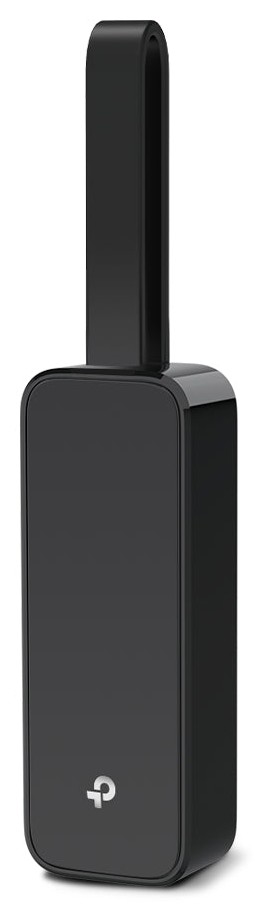
TP-Link UE306 USB 3.0 Gigabit Adapter
Best for USB-A LaptopsBuy if: your laptop has USB-A ports and no USB-C
Don't buy if: you need speeds past gigabit
The UE306 serves the laptops the others ignore. TP-Link lists a USB 3.0 Type-A plug, a 10/100/1000 Mbps RJ45 port, an ASIX AX88179 chipset and a foldable 20 g body. Supported systems include Windows, macOS, Linux and the Nintendo Switch.
Older Windows needs one extra step: TP-Link notes a driver download for Windows 7 and 8. The gigabit ceiling also stands, so multi-gig homes should read picks one to four. For an older work laptop that just needs a steady cable, this is the clean fit.
Pros
- Native USB-A 3.0 plug
- AX88179 chipset, wide support
- Nintendo Switch support listed
- Foldable 20 g body
Cons
- Gigabit ceiling
- Driver download on Windows 7/8
- No charging or extra ports
- USB-A only
How to Connect a Laptop to Ethernet With an Adapter
Plug in, cable up, check the link speed. Five steps, and the Wi-Fi drops are gone.
To connect a laptop to ethernet, follow these steps: 1. Plug the adapter into a USB 3 port. 2. Connect a Cat5e or better cable. 3. Wait for the link lights. 4. Check the link speed in settings. 5. Update the driver if needed.
- Plug the adapter into a USB 3 port. Use a USB-C or USB-A port rated USB 3.0 or faster for full speed.
- Connect a Cat5e or better cable. Run the cable from the adapter to your router, switch or wall socket.
- Wait for the link to come up. Watch for link lights on the adapter and a wired icon on screen.
- Check the link speed. Open network settings and confirm 1000 Mbps or 2500 Mbps, not 100.
- Update the driver if needed. Install the maker's driver if the adapter is missing or slow.
Quick note: a 100 Mbps reading almost never means a broken adapter. It means an old cable, a USB 2.0 port or a slow switch port — swap the cable first.
Buying Guide: What Actually Matters
Four things matter most: plug type, link speed, driver support and charging — in that order.
Plug type comes first because it can cancel the purchase. USB-C fits new laptops, USB-A fits older ones, and a hybrid such as pick one covers both. Our Thunderbolt docking station guide covers desks that outgrow a lone adapter.
Link speed comes next, and the chain decides it. Adapter, cable, switch and internet plan each carry a ceiling; the lowest one wins. Buy 2.5GbE for headroom only when the rest of the chain can follow.
Driver support is the daily feel. A named chipset with maker support pages beats a no-name dongle that breaks after every system update. Check macOS and kernel floors against your laptop before ordering.
Charging matters on one-port laptops. A Power Delivery model keeps the battery full while the cable stays in. Our 100W USB-C laptop charger guide covers the charger side of that pairing.
Plug first. Speed second.
Adapters to Skip in 2026
USB 2.0 adapters sold as gigabit. A USB 2.0 link caps near 480 Mbps, so the gigabit label can never arrive. Every pick above runs on USB 3.0 or faster.
2.5GbE headlines with no chain check. The adapter alone cannot beat a gigabit switch. Match the adapter to your router, switch and plan, not to the biggest number.
No-name dongles with no support page. When an update breaks the driver, a maker page is the fix. My honest take: most buyers should skip the cheapest unbranded adapter, because the saving vanishes at the first broken update.
Hubs bought for ethernet alone. Extra ports you never use still cost money and desk space. A lone adapter suits laptops that only lack a network socket.
Frequently Asked Questions
What's the best ethernet adapter for a laptop?
The Plugable USBC-E2500. It runs 2.5GbE through USB-C or USB-A, so one adapter covers new and old laptops.
Do I need a 2.5GbE adapter, or is gigabit enough?
Gigabit is enough when your plan, router and switch all stop at one gigabit. Choose 2.5GbE for faster plans or a fast NAS.
Will a USB-C ethernet adapter work with my MacBook?
Yes, on supported macOS versions. Check the maker's macOS floor first, then plug into a USB-C or Thunderbolt port.
Why does my ethernet adapter only connect at 100 Mbps?
A slow link usually means an old cable, a USB 2.0 port, or a 100 Mbps switch port. Swap the cable first.
Can I charge my laptop through an ethernet adapter?
Only with a Power Delivery model such as the Plugable USBC-E2500PD. Basic adapters carry network data only, with no charging.
How do I fix an ethernet adapter that stopped working?
Restart, try another USB port and cable, then update or reinstall the driver. Test on a second computer if you can.
Should I buy an adapter or a USB-C hub with ethernet?
Buy the adapter if you only lack a network port. Buy the hub when you also need HDMI, USB ports or charging.