How to Connect a PS5 Controller to PC (2026 Guide)

Yes — a PS5 controller works on PC, and in most cases it takes under five minutes to set up. Windows 10 (64-bit) and Windows 11 recognise the DualSense natively, Steam has built-in support, and you do not need a driver for basic play. The catch is that not every connection method gives you the same controller: the fancy parts — haptics, adaptive triggers, the headset jack — only work the way you expect if you pick the right method for the game you are playing.
This guide starts with a chooser so you pick once and get it right, then walks through each method step by step, explains exactly what you gain or lose with each one, and ends with the fixes for the problems that actually stop people: a controller Windows cannot see, a game that ignores it, and the Steam setting that silently switches your adaptive triggers off.
Which Way Should You Connect Your PS5 Controller to PC?
Use a USB cable if you play competitive or trigger-heavy games; use Bluetooth if you play from the couch; use Steam for your Steam library; add DS4Windows only for games outside Steam that only understand Xbox controllers. The four methods are not interchangeable — they differ in latency, features, and which games they work with.
| Method | Best for | What you get | What you lose |
|---|---|---|---|
| USB cable | Competitive play, trigger-heavy games | Lowest latency, haptics + adaptive triggers, headset jack, charges while you play | Nothing — this is the full-featured route |
| Bluetooth | Couch play, casual games | Wireless freedom, basic input in every game | Haptics, adaptive triggers, headset jack, mic — all need USB |
| Steam Input | Your Steam library | Best compatibility, remapping, per-game profiles | Can override a game's native trigger support (see below) |
| DS4Windows | Epic, GOG, Game Pass, emulators | Makes the DualSense look like an Xbox controller, so XInput-only games accept it | Haptics drop to standard rumble; never run it with Steam Input at the same time |
If you only remember one rule: wired first, wireless second, and software only when the game demands it. Most players never need more than USB plus Steam.
How Do I Connect a PS5 Controller to PC With a USB Cable?
Plug a USB-C data cable into the top of the controller and into the PC — Windows installs the drivers itself and the light bar comes on. No software, no pairing, no settings. This is the fastest route and the only one that unlocks the controller's full feature set.
- Use a USB-C to USB-A cable, or USB-C to USB-C if your PC has a USB-C port. Any data cable works — the one that came with the PS5 is fine, but a DualSense bought on its own does not ship with one.
- Plug the USB-C end into the port on top of the controller and the other end into the PC. A rear USB port on a desktop is the most reliable choice.
- Wait a few seconds. Windows plays the device-connected sound, installs the HID drivers automatically, and the light bar switches on.
- Open Steam, or launch your game. If the game supports controllers, the DualSense works immediately.
The one trap: a charge-only cable will not work. Some cheap USB-C cables carry power but no data, and Windows will charge the controller while ignoring it completely. If the light bar comes on but nothing recognises the controller, swap the cable before changing anything else — it is the most common "controller not detected" cause there is.
Wired play also charges the controller, so battery is never a concern, and it is the only connection that gives you haptics, adaptive triggers, and the headset jack on PC. If you are buying a cable for this, any short USB-C data cable will do — there is nothing special to look for beyond the word "data" in the listing.
How Do I Connect a PS5 Controller to PC via Bluetooth?
Hold the Create button and the PS button together until the light bar blinks rapidly, then add it in Windows Bluetooth settings as "Wireless Controller". It takes about a minute. Your PC needs built-in Bluetooth or a USB Bluetooth adapter — Bluetooth 5.0 is recommended for range and latency, though 4.0 works.
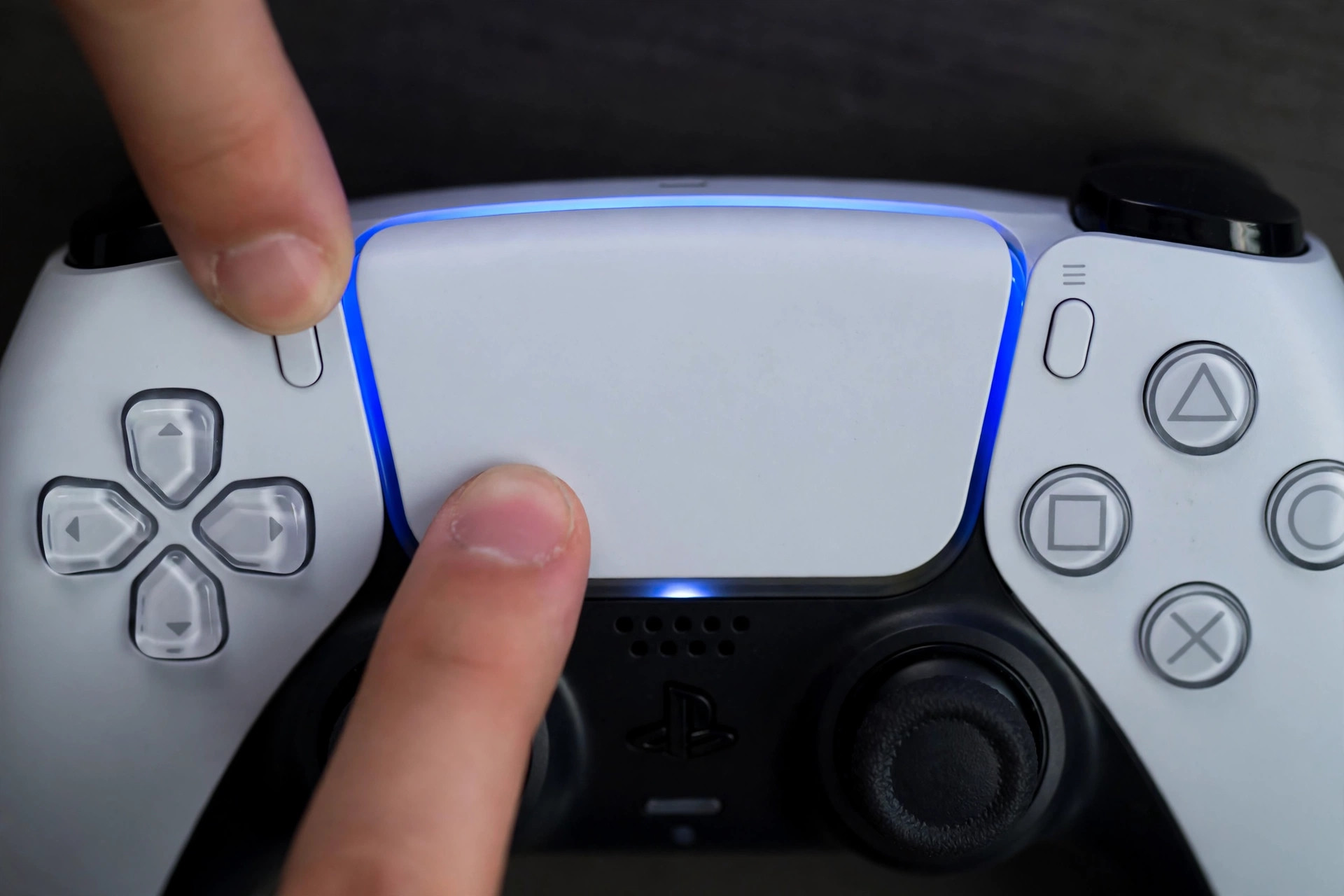
- Make sure the controller is off. If the light bar is lit, hold the PS button for about 10 seconds until it goes dark.
- Hold the Create button (the small button to the left of the touchpad) and the PS button at the same time, until the light bar starts flashing blue rapidly. This is pairing mode — a steady light means it is not pairing.
- On Windows 11, open Settings → Bluetooth & devices → Add device → Bluetooth. On Windows 10, it is Settings → Devices → Bluetooth & other devices → Add Bluetooth or other device → Bluetooth.
- When "Wireless Controller" appears in the list, click it. The controller pairs within seconds and the light bar settles to a steady glow.
Two things people get wrong about Bluetooth. First, the button is called Create, not Share — several guides still use the PS4 name, and the button sits to the left of the touchpad. Second, the old advice that a DualSense stores only one Bluetooth pairing is out of date: current firmware registers up to four devices, and you can switch between them without re-pairing (see the multi-device section below). If the controller refuses to appear in the Bluetooth list at all, it is usually still paired to a nearby PS5 — turn the console off or move out of range, then try again.
Bluetooth gives you basic input in every game, but it is a deliberately limited connection on PC: no haptics, no adaptive triggers, no headset jack, no mic. That is Sony's design, not a bug — the features that need USB are listed in the table below.
What Works Over USB but Not Bluetooth?
Over Bluetooth you get the sticks, buttons, touchpad, and standard rumble. Everything that makes the DualSense special — haptics, adaptive triggers, the headset jack, the mic and speaker — needs a USB cable on PC, per Sony's own support pages. This is the single most useful table in the guide, because it decides which connection your game actually needs.
| Feature | USB cable | Bluetooth |
|---|---|---|
| Sticks, buttons, touchpad, gyro | Yes | Yes |
| Standard rumble | Yes | Yes |
| Haptic feedback | Yes, in supported games | No — standard rumble only |
| Adaptive triggers | Yes, in supported games | No |
| Headset jack (wired headset) | Yes | No — Sony says it requires a wired connection |
| Built-in mic and speaker | Yes, where the game supports them | No |
| Charging while you play | Yes | No |
| Latency | Lowest | Low, but higher than wired |
The practical rule: if the game is why you bought the controller — a shooter with trigger resistance, a game built around haptics — play wired. If you are playing a turn-based game or a platformer from the couch, Bluetooth loses you nothing you will notice.
How Do I Use a PS5 Controller on Steam?
Connect the controller first, then open Steam → Settings → Controller and enable PlayStation Controller Support. Steam then handles the rest, including remapping and per-game profiles. Steam has supported the DualSense since 2020 and has kept improving it — it is the easiest path for anyone whose library lives on Steam, and it works for non-Steam games too if you add them to your Steam library.
- Connect the DualSense over USB or Bluetooth, as above.
- In Steam, go to Settings → Controller and turn on PlayStation Controller Support.
- Launch a game. Steam Input presents the controller to the game and lets you remap buttons, adjust the gyro, and tune the light bar from Steam's controller settings.
Here is the setting most guides never mention, and it is the one that costs people their adaptive triggers: Steam Input emulation usually disables a game's native DualSense support. Steam translates the controller into a generic Xbox-style pad so every game can use it — but an Xbox pad has no adaptive triggers, so the translation drops them. If you are playing one of the roughly 161 PC games with native DualSense support (Returnal, Death Stranding Director's Cut, Helldivers 2, Spider-Man Remastered, Metro Exodus Enhanced, Deathloop, and others, per PCGamingWiki's June 2026 list), disable Steam Input for that game specifically: right-click the game in Steam → Properties → Controller → Disable Steam Input. You lose Steam's remapping for that game, but you gain the triggers and haptics the developers built in. Leave Steam Input on for everything else.
Some games only support PlayStation controllers over USB, even through Steam — if a game ignores the controller over Bluetooth but works wired, that is why.
Do I Need DS4Windows to Use a PS5 Controller on PC?
No, not for Steam — and not for any game that accepts a generic controller. You only need DS4Windows for games outside Steam that only understand Xbox controllers. DS4Windows is a free, open-source tool that makes Windows treat your DualSense as an Xbox 360 controller, which virtually every PC game recognises natively.
- Steam games: no DS4Windows. Steam Input already does this job, and running both at once causes double input — every button press registering twice.
- Epic Games Store, GOG, Xbox Game Pass for PC, emulators: this is where DS4Windows earns its keep. Connect the controller, open DS4Windows, and it presents an Xbox controller to the game. Alternatively, add the game to Steam as a non-Steam game and let Steam Input handle it — same result, one less program.
- What you give up: DS4Windows downgrades haptics to standard rumble and cannot pass adaptive triggers through, because the Xbox controller it pretends to be does not have them. If triggers matter for that game, play it through Steam with native support instead.
Pick one input layer and stick to it for each game: Steam Input, or DS4Windows, never both. If your inputs double up or the controller behaves erratically, two input layers fighting over the same controller is the first thing to check — close one of them and the problem usually vanishes.
Do Adaptive Triggers and Haptics Work on PC?
Yes, but only in games that natively support them, and usually only over a USB cable. About 161 PC games had native DualSense support as of June 2026 (PCGamingWiki's list), and the number keeps growing — but it is still a minority of the library, so check your game before expecting trigger resistance.
- Native support is per-game, not per-platform. A game either implements the DualSense API or it does not. The supported list includes first-party ports like Returnal, Spider-Man Remastered, and Death Stranding Director's Cut, plus Helldivers 2, Deathloop, and Metro Exodus Enhanced.
- Use USB. Sony's own guidance is that haptics on PC may require a USB connection, and adaptive triggers need it in practice. Over Bluetooth you get standard rumble and nothing more.
- Disable Steam Input for native games. As above: Steam's translation layer drops the triggers. Right-click the game → Properties → Controller → Disable Steam Input, and the game's own DualSense support takes over.
- Outside Steam, the options are thinner. DS4Windows cannot pass triggers through. Third-party tools like DualSenseX (DSX) and reWASD offer per-game trigger profiles, but they are fiddly and game-specific — for most players, Steam with native support is the honest answer.
If a game is not on the supported list, no setting or program conjures triggers into it. The controller still works perfectly as a standard gamepad — you just get rumble instead of resistance.
Does the DualSense Edge Work on PC?
Yes — the DualSense Edge connects to PC exactly like the standard DualSense, over USB or Bluetooth, and its back paddles and custom profiles work on PC too. The older advice that you need a PS5 to map the paddles is out of date.
- Connection is identical. Same USB steps, same Bluetooth pairing (Create + PS), same Windows recognition. Sony lists both DualSense and DualSense Edge as supported on 64-bit Windows 10 and Windows 11.
- Profiles are managed from PC now. Sony's PlayStation Accessories app for Windows (see the firmware section below) handles Edge firmware and profile editing — you can set up back-paddle mappings, trigger-stop lengths, and stick sensitivity from your PC, no console needed.
- Fn buttons switch profiles on the fly. The Edge stores profiles on the controller itself (three custom profiles plus the default), and the Fn buttons cycle them mid-game without opening any software.
- Steam Input can remap the paddles too, if you prefer Steam's profiles to Sony's — but again, pick one layer, not both.
- The trade-offs are the same as on console: the Edge's smaller 1,050 mAh battery lasts around 5–6 hours against the standard pad's 1,560 mAh and 8–12 hours, and the trigger-stop sliders that shorten the pull are a hardware setting, not a software one.
One thing the Edge does not change on PC: its sticks are potentiometer-based like the standard DualSense, so the same drift rules apply — see our guide to fixing PS5 stick drift for what that means long-term.
How Do I Update PS5 Controller Firmware on PC?
Use Sony's free PlayStation Accessories app for Windows — it updates firmware for both the DualSense and the DualSense Edge, and you do not need a PS5 at all. Older guides that say firmware updates need a console are out of date.
- Download the PlayStation Accessories app from PlayStation's website and install it on 64-bit Windows 10 or Windows 11.
- Connect the controller to the PC with a USB cable. Firmware updates require USB — never Bluetooth.
- Open the app and follow the prompts. Update one controller at a time, and do not disconnect it while the update runs.
- When it finishes, the controller restarts itself. Re-pair over Bluetooth if you use it wirelessly — the update can reset the pairing.
Outdated firmware is a quiet cause of connection problems and missing features, so update before troubleshooting anything else. DualSense device software also arrives with PS5 system software updates if you do own a console — check under Settings → Accessories → Controller (General) → DualSense Wireless Controller Device Software — but the PC app is the route for console-free players.
Can I Use One PS5 Controller on PC and PS5 Without Re-Pairing?
Yes — current firmware lets the DualSense remember up to four Bluetooth devices, and you switch between them with the PS button plus a face button. This is the fix for the daily re-pairing annoyance, and most 2026 guides still print the old "one pairing only" rule because they have not been updated.
- To pair a slot: hold the PS button together with Triangle (slot 1), Circle (slot 2), Cross (slot 3), or Square (slot 4) for more than five seconds to enter pairing mode for that slot, then pair it from the device as normal.
- To switch: hold PS plus the face button for that slot. The controller reconnects to the device registered there.
- To go back to the PS5: connect the controller to the console with a USB cable and press the PS button — Sony's own instruction for reconnecting to a PS5 after using it elsewhere.
One caveat: if the PS5 is on and in range while you try to pair the controller to your PC, the console may grab it first. Turn the console off or move out of range before pairing, and the PC pairing will go through cleanly.
Can I Use the PS5 Controller Mic and Headset Jack on PC?
The built-in mic, the speaker, and the 3.5 mm headset jack all work on PC — but only over a USB cable. Sony's support pages are explicit that the headset jack requires a wired connection, and Bluetooth carries no audio for the DualSense on PC.
- Over USB: plug a headset into the jack and Windows sees it as a standard audio device. The built-in mic and speaker work too, where the game supports them. If the mic does not show up, check Windows Sound settings — the controller appears as a separate input device.
- Over Bluetooth: no headset audio, no mic, no speaker. The controller is an input device only. If you need voice chat wirelessly, use a separate headset connected directly to the PC — our gaming headset guide covers the options that work on both platforms.
- The mute button: it mutes the controller's own mic; whether that state reaches Windows depends on the game and the connection, so check the in-game indicator rather than trusting the orange light alone.
Why Won't My PS5 Controller Connect to My PC?
Almost always one of six things: the controller is not actually in pairing mode, it is still paired to a nearby PS5, the cable is charge-only, Windows Bluetooth discovery is set too narrowly, Windows is putting the Bluetooth radio to sleep, or the firmware is old. Work through them in order — most failures are fixed in the first three.
- Not in pairing mode. A steady light bar means the controller is connected to something, not pairing. Hold Create + PS until the light blinks rapidly. If it will not blink, turn the controller off first (hold PS for 10 seconds) and try again.
- Still paired to the PS5. If the console is on and in range, it claims the controller before the PC can. Turn the PS5 off, or take the controller out of range, then pair.
- Charge-only cable. If Windows charges the controller but never recognises it, the cable carries power and no data. Swap to a known data cable — the PS5's bundled cable is a safe test.
- Bluetooth discovery set to Default. In Windows 11, go to Settings → Bluetooth & devices → Devices and set Bluetooth discovery to Advanced. On Default, Windows can miss the controller entirely.
- Windows power management. If the controller connects then drops, Windows may be suspending the Bluetooth radio. In Device Manager, find your Bluetooth adapter and each USB root hub, open Properties → Power Management, and uncheck "Allow the computer to turn off this device to save power". Our PS5 controller disconnecting guide covers the full PC-side checklist, including the missing motherboard antenna trap — many desktops ship with a small Bluetooth/Wi-Fi antenna that must be screwed into the rear I/O panel, and without it Bluetooth range collapses.
- Old firmware. Update through the PlayStation Accessories app over USB before anything else — see the firmware section above.
- Still nothing? Reset the controller (pinhole next to the Sony logo, hold at least 5 seconds with a pin, then re-pair over USB) and try a different USB port. If a second controller connects fine in the same setup, the fault is in the first controller, not the PC.
One last check: connect the controller before launching the game. Some games only scan for controllers at startup, and a controller connected mid-session is ignored until you restart.
Frequently Asked Questions
How long does the PS5 controller battery last on PC?
A standard DualSense lasts around 8–12 hours on PC, shorter with haptics and adaptive triggers active. The DualSense Edge lasts around 5–6 hours on its smaller 1,050 mAh battery, against 1,560 mAh in the standard pad. A full recharge takes about 3 hours, and playing wired charges while you play.
Does the PS5 controller work on Epic Games and other non-Steam games?
It depends on the game. Games that accept a generic controller work with a direct USB or Bluetooth connection. Games that only understand Xbox controllers need DS4Windows, or you can add the game to Steam as a non-Steam game and let Steam Input handle it. Never run Steam Input and DS4Windows at the same time — inputs will register twice.
Why is my PS5 controller connected but the game doesn't detect it?
Most often the game is XInput-only and does not know what a DualSense is. Enable PlayStation Controller Support in Steam, or use DS4Windows for games outside Steam. Also connect the controller before launching the game, restart the game after connecting, and check the game's own controller setting — some games default to keyboard and mouse even with a controller attached.
Do I need to update my PS5 controller firmware to use it on PC?
Not strictly — a DualSense works out of the box — but you should. Sony's PlayStation Accessories app for Windows updates firmware for both the DualSense and the DualSense Edge with no PS5 needed, and outdated firmware causes connection problems and missing features. Updates require a USB connection, never Bluetooth.
Can I use PS Remote Play with a PS5 controller on PC?
Yes. Download PS Remote Play for Windows, sign in with your PlayStation account, and connect the controller to the PC with a USB cable — Sony's guidance is to use USB for Remote Play, not Bluetooth. The controller then controls your PS5 streamed to the PC.
Does a PS5 controller work on Windows 10?
Yes — Sony lists 64-bit Windows 10 and Windows 11 as supported. Note that Microsoft ended Windows 10 support on 14 October 2025, so Windows 11 is now the primary target and the menus in this guide are the Windows 11 ones, with Windows 10 paths noted where they differ.
Why does my PS5 controller keep disconnecting from my PC?
Usually Windows power management putting the Bluetooth adapter to sleep, USB 3.0 interference, a missing motherboard Bluetooth antenna, a low battery, or old firmware. Uncheck "Allow the computer to turn off this device to save power" on the Bluetooth adapter and USB root hubs in Device Manager, update the firmware over USB, and move USB 3.0 drives away from the console — the full checklist is in our guide to fixing a PS5 controller that keeps disconnecting.