Best Steam Deck Accessories in 2026

Most Steam Deck accessory roundups fail one test: they list everything that fits the handheld, as if owning a Deck meant buying a drawer of gear. The Deck already ships with the two things other handhelds charge extra for — a carrying case and a 45W charger — and most owners need only three more purchases: more storage, screen protection, and a better way to carry it. Everything else on this page earns its place by solving a specific problem: TV play, travel battery life, hand comfort, or a full library. Buy by situation, not by list order, and skip the rest until you know you need it.
The field it beats is easy to describe: the top-ranking pages for this query are long, undifferentiated lists that recommend the same dock, card, and case without saying who each one is for, and they rarely mention the traps — the underpowered power bank, the dock without charging passthrough, the screen protector that fights the OLED's etched glass. This guide names the traps first, then picks by situation.
Pick by Situation, Not by List Order
Start with how you play, not with the catalogue. This chooser is the whole guide in one table.
| Your situation | Buy first | Why it wins |
|---|---|---|
| Every new owner, no exceptions | Samsung EVO Select 512GB | Storage runs out first; this fixes it without opening the Deck |
| You carry the Deck anywhere | amFilm screen protector + JSAUX case | The screen is the one part you cannot replace cheaply |
| You want TV or desktop play | JSAUX Docking Station | HDMI, USB ports, Ethernet, and charging passthrough in one box |
| Long trips, flights, or commutes | Baseus 65W power bank | 45W is the floor — this clears it with room to spare |
| Long sessions hurt your hands | Skull & Co. NeoGrip | Grips plus a kickstand, without a bulky case |
| Your library genuinely exceeds card + internal storage | WD Black SN770M 1TB | The correct 2230 SSD — but only if you are comfortable opening the Deck |
| You mostly play docked | Xbox Wireless Controller | Propping the Deck up and holding it at the same time makes no sense |
Quick Comparison
| Product | Key Specs | ||
|---|---|---|---|
| #1 | Samsung EVO Select microSD Card (512GB)Buy First | microSDXC · UHS-I · A2 app performance · 512GB | Check Price |
| #2 | amFilm Tempered Glass Screen ProtectorBest Protection | Tempered glass · 9H hardness · Alignment frame · Multi-pack | Check Price |
| #3 | JSAUX Carrying Case for Steam DeckBest Case | Hard shell · Fitted interior · Charger and card storage | Check Price |
| #4 | JSAUX Docking Station (HB0603)Best Dock | 6-in-1 · HDMI 4K@60Hz · 3× USB-A · Ethernet · 100W PD passthrough | Check Price |
| #5 | Baseus 65W Power Bank (20,000mAh)Best Power Bank | 20,000mAh · 65W USB-C PD · Charges the Deck while you play | Check Price |
| #6 | Skull & Co. NeoGripBest Comfort Upgrade | Ergonomic grips · Detachable kickstand · Slim profile | Check Price |
| #7 | WD Black SN770M SSD (1TB)Best Advanced Upgrade | M.2 2230 · PCIe Gen4 · 1TB · Internal upgrade only | Check Price |
| #8 | Xbox Wireless ControllerBest Docked Controller | Bluetooth · USB-C · Works docked or handheld-propped | Check Price |
Samsung EVO Select microSD Card (512GB)
Buy FirstBuy if: you own a Steam Deck at all — storage is the first limit you will hit
Don't buy if: you play only small indie games and already own a large internal SSD
The single most-recommended Steam Deck accessory in the community, and the reason is arithmetic. Modern AAA games run 50–100GB each, so even a 512GB Deck holds only a handful before you are deleting games to make room for the next one. A microSD card fixes that without tools, without opening the handheld, and without risk — and the EVO Select is the community's default because it is the same card as Samsung's EVO Plus under Amazon-exclusive branding, with A2 app-performance ratings that keep game loads close to internal-storage speeds. The 512GB size is the sweet spot for most libraries: enough for five to ten major games plus a shelf of indies, at a price per gigabyte that beats the 1TB card. One warning travels with every card recommendation: buy from a reputable seller, because counterfeit cards that report more capacity than they hold are common, and a fake card does not just run slowly — it eats save data.
Pros
- A2-rated speeds keep loads near internal-drive performance
- Installs in seconds — no tools, no opening the Deck
- 512GB holds a realistic library without the 1TB premium
Cons
- Slower than the internal SSD for the largest, most demanding titles
- Counterfeit cards are common — only buy from reputable sellers
- Still not a substitute for internal storage if your library is huge
Full specifications
- microSDXC, UHS-I, A2 app performance, 512GB capacity
- Format it in the Deck itself (SteamOS handles it) before installing games
- Check the listing for today's price — card prices move with flash-market pricing
Prices change frequently — click through to see today's price.
amFilm Tempered Glass Screen Protector
Best ProtectionBuy if: your Deck ever leaves the house — one bag, one scratch, one ruined display
Don't buy if: your Deck lives on a desk and you never travel with it
The cheapest insurance on this page, and the one most owners regret skipping. The Deck's display is its most exposed part and its most expensive single part to replace, and a tempered glass protector absorbs the scrapes and jabs instead of the actual glass — when the protector cracks, you peel it off and apply a fresh one from the multi-pack. amFilm's kit is the long-running community default: an alignment frame that makes fitting it a one-shot job rather than a dust-and-bubble wrestling match, and a fit that matches both the LCD and OLED models, because the glass covering the display is the same size on both. The one genuine caveat is the OLED's etched anti-glare glass (see the OLED section below): a glossy protector will add some reflections back on etched models, so if you own one and play mostly outdoors or by bright windows, pick a matte protector instead. For everyone else, this is a ten-minute job that protects a several-hundred-dollar handheld.
Pros
- Alignment frame makes installation genuinely easy
- Multi-pack means a cracked protector costs minutes, not a repair
- Fits both LCD and OLED models
Cons
- A glossy protector slightly reduces the etched OLED's anti-glare effect
- Installation still needs a dust-free moment — rushing it leaves bubbles
- Protects against scratches, not against a hard drop onto concrete
Full specifications
- Tempered glass, 9H hardness, alignment frame included, sold in multi-packs
- Apply on a clean, dust-free surface; keep a spare from the pack for travel
- Check the listing for today's price
Prices change frequently — click through to see today's price.
JSAUX Carrying Case for Steam Deck
Best CaseBuy if: you want to carry the charger, a card case, and the Deck in one bag
Don't buy if: you never take the Deck out of the house — the included case is enough
Yes, the Deck already comes with a case — and this is the upgrade to it, not a replacement for a missing one. Valve's included case is a good zip-up shell, but it is sized for the Deck alone; the JSAUX case adds the thing owners actually miss, which is organised room for the charger, a cable, and a microSD card case, in a sturdier hard shell with a fitted interior that stops the Deck sliding around in a backpack. It is the pick the community keeps coming back to because it solves a carrying problem rather than a protection problem: the Deck survives the bag either way, but only one of these cases means you arrive with everything you need to play. If your Deck never leaves the house, skip it — the stock case is genuinely fine. If it commutes, flies, or lives in a backpack, this is the case that makes the kit feel finished.
Pros
- Hard shell with a fitted interior — the Deck does not slide around
- Room for charger, cable, and card case, not just the Deck
- Noticeably sturdier than the included case for daily bag carry
Cons
- Redundant if your Deck never leaves the house
- Bulky in a small bag — it is a case for a handheld, not a pocket
- Will not fit a Deck wearing large grips (see pick #6) — check before combining
Full specifications
- Hard-shell carrying case, fitted interior, accessory storage for charger and cards
- Remove bulky grips before packing if you use them
- Check the listing for today's price
Prices change frequently — click through to see today's price.
JSAUX Docking Station (HB0603)
Best DockBuy if: you want TV play, a desktop setup, or wired internet on the Deck
Don't buy if: you only ever play handheld — a dock is a paperweight without a TV or monitor
The accessory that turns the Deck from a handheld into a console and a PC. The HB0603 gives you HDMI output at 4K@60Hz, three USB-A ports for a keyboard, mouse, or controller receiver, a USB-C data port, and Ethernet — all while charging the Deck through 100W USB-C power-delivery passthrough, so it charges at full speed while you play on the TV. That passthrough is the spec to check on any dock, and the reason cheap docks disappoint: a dock without it either drains the Deck while you play or forces you to choose between video output and charging. JSAUX dominates this category for the same reason in every roundup — the right ports, the right passthrough, and firmware that keeps up with Deck revisions — at well under the official dock's price. One honest limit: docking does not make games run faster (see the performance section below), and driving a 4K TV at high settings will run worse than the handheld screen, not better — dock for the big screen and the peripherals, not for performance.
Pros
- Full port set: HDMI 4K@60Hz, 3× USB-A, USB-C data, Ethernet
- 100W PD passthrough — the Deck charges at full speed while docked
- Well under the official dock's price for the same core job
Cons
- Docking adds no performance — the same chip drives a bigger screen
- Needs a TV or monitor and a controller to make sense
- Cheap look-alike docks without PD passthrough are a real trap — check the spec
Full specifications
- 6-in-1: HDMI 2.0 (4K@60Hz), 3× USB-A 3.0, USB-C data port, Gigabit Ethernet
- 100W USB-C PD passthrough charging
- Check the listing for today's price
Prices change frequently — click through to see today's price.
Baseus 65W Power Bank (20,000mAh)
Best Power BankBuy if: you play away from a socket — flights, commutes, long trips
Don't buy if: you only play at home near the included 45W charger
The pick where the spec sheet actually decides everything, and where most buyers go wrong. The Deck's own charger is 45W, and that number is the floor: a power bank putting out less than 45W over USB-C PD will charge the Deck in sleep, but during a demanding game it merely slows the drain — you keep playing, but the battery still falls. At 45W you roughly hold your charge under load; at 65W you actively gain charge while playing. The Baseus 20,000mAh bank clears that bar with room to spare, which is why it keeps showing up in Deck power-bank roundups: enough capacity to roughly double a session, a 65W USB-C output that genuinely keeps up with a demanding game, and a size that still fits a bag. The two traps to avoid are the phone power bank (10,000mAh at 18W — useless for this job, however good it is for a phone) and a weak cable: a poor USB-C cable caps charging speed no matter what the bank promises, so pair it with a proper PD-rated cable.
Pros
- 65W USB-C PD — genuinely charges the Deck while you play, not just slowly
- 20,000mAh roughly doubles a gaming session
- Still bag-sized, unlike laptop-class bricks
Cons
- Pointless if you only play near a socket
- Needs a PD-rated USB-C cable — a weak cable caps the whole setup
- The cable runs from the Deck's top port, so routing takes a moment to get right
Full specifications
- 20,000mAh capacity, 65W USB-C Power Delivery output
- Pair with a PD-rated USB-C cable for full-speed charging
- Check the listing for today's price
Prices change frequently — click through to see today's price.
Skull & Co. NeoGrip
Best Comfort UpgradeBuy if: long sessions leave your hands aching, or you play propped up on a table
Don't buy if: you find the Deck comfortable already — grips fix a problem you may not have
The comfort pick, and the most personal one on this page. The Deck is a heavy handheld — over 600 grams — and for smaller hands or longer sessions its flat back becomes the limit before the battery does. The NeoGrip adds shaped ergonomic grips to the back of the Deck, making it easier to hold for hours, and includes a detachable kickstand, so you can prop the Deck on a table and play with a separate controller (pick #8) instead of holding it at all. It stays slim enough to feel like part of the handheld rather than a case around it, which is why it outranks bulkier grip-cases in most roundups. The honest check before buying: if you already play for hours without discomfort, grips solve nothing for you — and a gripped Deck may not fit your carrying case, so check the combination before you buy both.
Pros
- Shaped grips make long sessions noticeably easier on the hands
- Detachable kickstand enables propped-up, controller-based play
- Slim profile — it feels like part of the Deck, not a shell around it
Cons
- Solves a comfort problem not every owner has
- May not fit your carrying case — check the combination first
- Adds bulk if you prize the Deck's bare size
Full specifications
- Ergonomic back grips with detachable kickstand
- Check case compatibility if you also buy pick #3
- Check the listing for today's price
Prices change frequently — click through to see today's price.
WD Black SN770M SSD (1TB)
Best Advanced UpgradeBuy if: your library genuinely exceeds internal storage plus a microSD card, and you are comfortable opening electronics
Don't buy if: a microSD card (pick #1) covers your library — it does for almost everyone
The one upgrade on this page that can go wrong, and the one most owners should skip. The Deck's internal SSD is user-replaceable, but only with the short M.2 2230 size — the standard 2280 drives in most PCs physically do not fit — and the SN770M is the drive the community converges on: a 2230 Gen4 drive that is significantly faster than the factory drive in lower-tier Deck models. For the owner whose library genuinely outgrows a card, it is the right drive. But be honest about the trade: opening the Deck means stripped-screw risk, a battery connector to handle carefully, and a fresh SteamOS install or a drive clone to get through, all for storage a microSD card already provides at lower speed but zero risk. Buy the card first. Buy this only when the card is full and you have done the homework — and never buy a 2280 drive for this job, whatever the listing claims about compatibility.
Pros
- The correct 2230 size, with Gen4 speeds above the factory drive
- 1TB of fast internal storage once installed
- The community's default drive for this exact upgrade
Cons
- Opening the Deck carries real risk — stripped screws, battery handling, a botched install
- Standard 2280 SSDs do not fit, despite misleading listings
- Overkill for almost everyone — a microSD card covers the same library at zero risk
Full specifications
- M.2 2230 form factor, PCIe Gen4, 1TB capacity
- Requires opening the Deck and a SteamOS install or drive clone
- Check the listing for today's price
Prices change frequently — click through to see today's price.
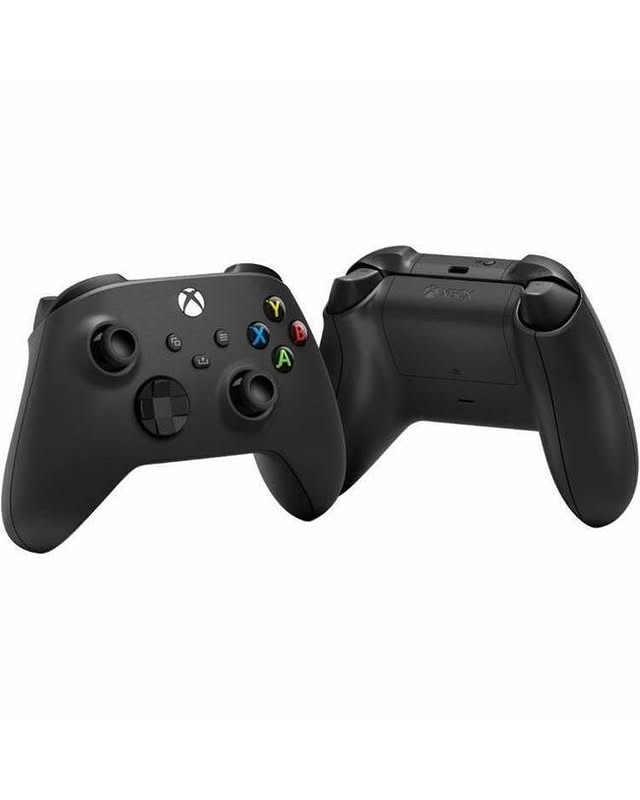
Xbox Wireless Controller
Best Docked ControllerBuy if: you play docked or propped up — holding the Deck defeats the point of both
Don't buy if: you only play handheld, or already own a PS5 or Xbox controller
The accessory that completes the dock, and the one most dock buyers forget until the first TV session. A docked Deck needs a separate controller — propping the handheld up and then picking it up to play defeats the whole setup — and if you do not already own a console controller, the Xbox Wireless Controller is the safe default: it pairs over Bluetooth, it is supported across Steam with no fuss, and its layout matches what most PC games expect. If you already own a PS5 or Xbox controller, do not buy this — both pair with the Deck over Bluetooth and do the same job for free, as the dock section above implies. The same logic covers our gaming headset guide for docked audio: check what you already own before buying anything new for the dock.
Pros
- Pairs over Bluetooth with no setup friction
- The layout most PC games expect, with broad Steam support
- Doubles as a PC and console controller — not a Deck-only purchase
Cons
- Useless if you only play handheld
- Redundant if you already own a PS5 or Xbox controller
- Needs its own batteries or rechargeable pack — factor that in
Full specifications
- Bluetooth wireless controller, USB-C connection, broad Steam support
- Pair via Bluetooth in the Deck's settings; keep a charging cable handy
- Check the listing for today's price
Prices change frequently — click through to see today's price.
What Accessories Do I Need for a New Steam Deck?
Three, in this order: a microSD card, a screen protector, and a carrying case that holds your charger. That trio covers the problems every owner actually hits — storage filling up, a scratched screen, and a bag that does not carry the kit — and it costs far less than the full drawer of accessories the long listicles imply. Everything after that is situational: a dock if you play on a TV, a power bank if you travel, grips if your hands ache, an SSD if your library is enormous, a controller if you play docked. The most common new-owner mistake is buying all of it on day one, before knowing which of those situations applies to you. Play handheld for a week first. The gaps you actually feel — the storage warning, the dead battery on a trip, the ache after a long session — will tell you which of the remaining picks to buy, and in which order.
Do I Need a Screen Protector on a Steam Deck OLED?
Yes, if the Deck ever travels — but choose the finish carefully, because the OLED's etched glass changes the answer. The higher-capacity OLED models (and the original 512GB LCD) use anti-glare etched glass: microscopic texture in the glass itself that scatters reflections. A smooth glossy protector laid over it fills that texture optically, so you keep the scratch protection but give back some of the anti-glare benefit — owners who compare side by side report noticeably more reflections with a glossy protector on an etched screen. That does not mean skipping protection: etched glass is still glass, and it still scratches. It means matching the protector to the screen: a matte protector preserves more of the anti-glare look on an etched model, while a glossy protector is fine on the standard glossy screen of the base models. And if your Deck genuinely never leaves the house, the honest answer is that you can skip it — home-only Decks rarely meet the keys, zips, and grit that do the damage.
What microSD Card Speed Do I Need for a Steam Deck?
Look for a card rated U3 and A2 as a minimum — and stop there, because the Deck's slot caps what you can use. The microSD slot supports UHS-I speeds, roughly 104MB/s in practice, so a faster UHS-II card will not load games any quicker: the slot is the bottleneck, not the card. What does matter is the A2 rating, which covers the small random reads and writes that game loading actually does, and buying a reputable brand from a reputable seller — counterfeit cards are the real speed problem, because a fake card reports capacity it does not have and corrupts data when you exceed it. Format the card in the Deck itself before installing games (SteamOS handles the format), and treat any card that arrives with impossible capacity for its price as fake on sight.
Can I Charge My Steam Deck While Playing?
Yes — provided the charger or power bank delivers at least 45W over USB-C Power Delivery. Below 45W, the Deck charges in sleep but loses ground during a demanding game, because the system prioritises running the game over charging the battery. At 45W you roughly hold your charge under load; at 65W you actively gain charge while playing, which is why pick #5 is a 65W bank rather than a 45W one. Two details catch people out: the Deck's USB-C port sits on the top of the device, so the cable routes upward (most players run it to a bank in a pocket or strapped to a bag), and a cheap cable caps the whole setup — a cable that cannot carry full PD wattage turns a 65W bank into a slow charger. If your Deck shows a slow-charger warning, the cable is the first suspect, not the bank.
Does Docking a Steam Deck Improve Performance?
No. A dock is a USB-C hub with video output, not an external GPU: it provides charging and connectivity, and the games still run on the Deck's own chip at the Deck's own speeds. In fact, docked play can run worse than handheld play if you push it: the handheld screen is 1280×800, while a TV is typically 4K, and asking the same chip to render far more pixels at high settings will cost frame rate. The fix is to dock smartly — cap the output resolution, lean on upscaling (FSR in the game's or Steam's settings), or accept medium settings on the big screen — and to dock for the reasons a dock actually helps: the big screen, the keyboard and mouse, wired internet, and a controller in your hands. Anyone selling a dock as a performance upgrade is selling you a hub with better marketing.
Do I Need Valve's Official Dock?
No — any USB-C dock works with the Deck, provided it has the two specs that matter. The official dock costs more than the third-party options, and what the extra money buys is mostly polish: a matching design, a DisplayPort output alongside HDMI, and firmware updates from Valve. What it does not buy is a capability third-party docks lack — the JSAUX dock in pick #4 does the same core job (HDMI, USB ports, Ethernet, charging passthrough) for less. The spec checklist for any dock, official or not, is short: USB-C PD passthrough charging (without it, the Deck drains while docked), an HDMI output at the resolution you actually play at, and enough USB ports for your peripherals. Skip any dock that fails the passthrough test, whatever its price or brand.
Is Upgrading the Steam Deck SSD Worth It?
For almost everyone, no — a microSD card already solves the storage problem at zero risk. The SSD upgrade earns its place only for the owner whose library genuinely exceeds internal storage plus a card, and who is comfortable opening a handheld: the drive must be the short M.2 2230 size (standard 2280 laptop drives do not fit), the install means handling the battery connector and a fresh SteamOS setup or a drive clone, and a rushed job risks stripped screws or a damaged connector. The payoff is real — faster loads than any card, and internal storage for your most-played games — but it is a payoff most owners will never feel, because the card already holds the games they actually play. Rule of thumb: if you have not yet filled a 512GB card, you do not need this upgrade. If you have, and you have done the homework, the SN770M in pick #7 is the drive to buy.
Buying Guide: What Actually Matters
Four specs decide a Steam Deck accessory purchase; everything else is packaging. First, power: any charger or power bank must deliver 45W over USB-C PD at minimum, and 65W if you want to gain charge while playing — below 45W, you are buying a slow drain, not a charger. Second, storage speed: a microSD card needs U3 and A2 ratings, and nothing more — the Deck's UHS-I slot caps speeds around 104MB/s, so paying for UHS-II is paying for speed the slot cannot use. Third, dock passthrough: any dock must pass power through while outputting video, or it drains the Deck while you play — check this spec before the port count. Fourth, fit: screen protectors fit both LCD and OLED models (the display glass is the same size), but grips and cases interact — a gripped Deck may not fit its case, so check the combination, not just each item. Ignore headline wattages on phone chargers, headline speeds on UHS-II cards, and dock listings that hide their passthrough wattage: those are the three numbers that actually decide whether the accessory works.
Frequently Asked Questions
What accessories do I need for a new Steam Deck?
A microSD card, a screen protector, and a case that holds your charger — in that order. A dock, power bank, grips, SSD, or controller are situational buys: add them when the situation they solve actually applies to you, not on day one.
Do I need a screen protector on a Steam Deck OLED?
Yes, if the Deck ever travels — etched glass still scratches. Choose a matte protector on etched-glass models to preserve more of the anti-glare effect; a glossy protector adds some reflections back. If the Deck never leaves the house, you can skip it.
What microSD card should I buy for a Steam Deck?
A reputable-brand card rated U3 and A2 — the Samsung EVO Select 512GB is the community default. Do not pay extra for UHS-II speeds, because the Deck's UHS-I slot caps throughput around 104MB/s, and buy only from reputable sellers to avoid counterfeit cards.
Can I charge my Steam Deck while playing?
Yes, if the charger or power bank delivers at least 45W over USB-C Power Delivery. Below 45W the battery still drains during demanding games; at 65W you actively gain charge while playing. Use a PD-rated cable — a weak cable caps charging speed.
Does docking a Steam Deck improve performance?
No. A dock provides charging and connectivity only; games still run on the Deck's own chip. Dock for the big screen, peripherals, and wired internet — and cap the output resolution or use upscaling, because driving a 4K TV at high settings will run worse than the handheld screen.
Is upgrading the Steam Deck's SSD worth it?
Only if your library exceeds internal storage plus a microSD card and you are comfortable opening the Deck. The drive must be M.2 2230 — standard 2280 drives do not fit — and the install carries real risk. For almost everyone, a microSD card is the right answer.
Do Steam Deck accessories work with other handhelds?
The portable ones do: microSD cards, power banks, docks, and controllers work with other USB-C handhelds like the ROG Ally and Legion Go. Cases, grips, and screen protectors are Deck-shaped and do not transfer — if you may switch handhelds, spend on the portable items first.
Conclusion
The Steam Deck's accessory story is refreshingly short: storage first, protection second, and everything else by situation. The Samsung EVO Select 512GB is our top pick because it solves the problem every owner hits first, without tools or risk. The JSAUX dock is the pick that changes how you play, turning a handheld into a TV console and a desktop PC — provided you check its charging passthrough before buying. And the Baseus 65W bank is the pick that saves a trip, because 45W is a floor, not a target. Buy those three situations in the order you feel them, skip the drawer of extras, and let the Deck stay what it is: a handheld that needs very little help to be great.