How to Fix Slow Download Speed on Xbox Series X/S (2026 Guide)

You've been staring at a download bar that says eight hours for a game you wanted to play tonight. You restarted the console. Maybe you changed the DNS to 8.8.8.8 because every forum post told you to. Still slow.
Here's the thing: your Xbox is almost certainly not broken — and your internet plan probably isn't the problem either. In most cases the bottleneck is one of four things: a game is running in the background, the Xbox is on the wrong Wi-Fi band, something else in the house is using the connection, or Microsoft's servers are busy. This guide measures first, then fixes in order of impact.
The short version: run the Xbox's own network test, compare it with a phone speed test taken next to the router, and quit any running game. Those three checks find most slow downloads — and DNS and MTU changes, the two most-repeated "fixes" online, cannot add speed to a connection that is already limited elsewhere.
Slow Xbox downloads refer to an Xbox pulling far less speed than your internet plan provides — for example, 12 Mbps on a 200 Mbps plan. The gap usually comes from the console's connection to Microsoft's download servers, not your plan itself.
How Slow Is My Xbox Download, Really?
Measure before you fix anything — "slow" is often a maths problem, not a fault. The Xbox shows download speed in megabits per second (Mbps) in the queue, and the time estimate divides the remaining size by the current speed. A brief dip to near-zero speed makes the maths absurd — that is how a download with hours left suddenly claims "1 year left". Wait a minute before believing any estimate.
Measure first. Fix second.
Run the Xbox's own test: Profile & system > Settings > General > Network settings > Test network speed & statistics. Pause your downloads and quit any running game first, or the test measures a throttled console. Run it two or three times and take the typical figure — a single reading can catch a momentary dip. Then run a speed test on your phone while standing next to the router. If the phone is fast and the Xbox is not, the problem is the Xbox's connection, not your plan. If both are slow, the problem is upstream: the router, the plan, or your provider.
Then check the maths. Modern games are 50–212 GB, and at ordinary speeds that is hours, not minutes. These are best-case times — real downloads run slower once you add network overhead, server load, and the install phase:
| Game size | At 50 Mbps | At 100 Mbps | At 300 Mbps |
|---|---|---|---|
| 50 GB | 2 hours 13 minutes | 1 hour 7 minutes | 22 minutes |
| 70 GB | 3 hours 7 minutes | 1 hour 33 minutes | 31 minutes |
| 100 GB | 4 hours 27 minutes | 2 hours 13 minutes | 44 minutes |
| 212 GB (GTA 6) | 9 hours 25 minutes | 4 hours 43 minutes | 1 hour 34 minutes |
If your Xbox tests at 100 Mbps and a 100 GB game is quoting two hours, nothing is wrong — that is what 100 Mbps buys. The fix for that is a faster plan or a better connection, not a settings tweak. If the same game quotes six hours at a 100 Mbps plan, something is throttling the Xbox specifically, and the next sections find it.
How slow your Xbox download really is depends on what you measure. According to Microsoft, a 70 GB game takes about 1.6 hours at 100 Mbps and about 3 hours at 50 Mbps. Run the network test, compare it with a phone speed test at the router, and check the table above to see if your speed matches your plan.
Whether your Xbox is actually slow depends on which number you trust. According to the Whirlpool Xbox wiki, the speed shown in the download queue is often an average rather than a live reading. The network test and the Bandwidth Usage screen give the truer figure — use those before changing any setting.
Why Is My Xbox Download So Slow When My Internet Is Fast?
Because your Xbox's speed is decided by the weakest of four links — and your plan is only one of them. Match your symptom to the link before changing anything:
| What you see | Most likely bottleneck | Check first |
|---|---|---|
| Everything downloads slowly, all the time | Wi-Fi: wrong band, weak signal, or interference | Ethernet test, then the 5 GHz section below |
| Fast in the morning, slow in the evening | Household congestion or Xbox server peak load | What else is streaming; try off-peak |
| Slow only on one big launch day | Xbox server congestion | Xbox status page — wait it out |
| Phone at the router is slow too | Plan, router, or provider | Restart the router; check your plan speed |
| Download finished, but the game won't start | Storage, not network | Free space — GTA 6 needs up to 212 GB free |
Check Xbox status first. Open support.xbox.com/xbox-live-status and look for service issues before touching your router. If Xbox services are degraded, no home fix will help. Big launches slow everyone down — when millions of players download the same game at once, Microsoft's servers are congested and speeds drop no matter how good your home setup is. Trying again off-peak is often the fastest fix of all.
No home fix beats busy servers.
Then check what else is using the connection. A 4K stream, a cloud backup, or another console downloading in the next room all share the same pipe. Pause the other downloads and streams, then re-run the Xbox network test. If the number jumps, you found it — and the fix is scheduling, not hardware.
Why your Xbox downloads slowly when your internet is fast comes down to four links: a running game, the Wi-Fi band, household congestion, and server load. According to Microsoft, a running game constrains background downloads by design, so quit the game first. If the test is fine and only downloads crawl, the fault is Microsoft's servers, not your plan.
Is a Game Running in the Background Slowing My Download?
Yes — and it is the first thing to check, because Microsoft throttles downloads while a game runs on purpose. Background downloads are constrained while a game is running, so the console can give the game the connection and the hardware it needs. That includes a game sitting suspended in Quick Resume: it looks idle, but the Xbox still treats it as running.
If you're downloading while a game's suspended in Quick Resume, you're still throttled. Quit it properly: highlight the game on the home screen, press the Menu button, and choose Quit. Or open the download queue, highlight the download, press Menu, and choose "Suspend my game".
Look — if you're downloading GTA 6 while a game sits suspended in Quick Resume, here's what actually works: quit the game, then check the queue speed. The number usually jumps within a minute.
Quit the game. Watch the number jump.
How Do I Put the Game I Want First in the Download Queue?
Xbox installs one item at a time — so the queue order is the download order. If five patches and two games are all queued, the one you want may be waiting behind all of them.
Open My games & apps > See all > Manage > Queue. It shows each item's status, how many GB have downloaded, the percentage, and the live speed. To prioritise one game, highlight it, press Menu, and choose "Install now". Pause the rest with "Pause installation" so the game you want gets the full connection.
This matters most in a big week. A 212 GB preload fighting a queue of patches and updates gets a fraction of your speed. Pause everything else, put the game you want first, and let it have the pipe.
One download at a time.
Will an Ethernet Cable Make My Xbox Download Faster?
Yes — it is the single biggest speed fix available, and the one to try first. A cable removes Wi-Fi from the equation entirely: no band confusion, no wall interference, no neighbour's network crowding your channel. Both the Series X and the Series S have a gigabit Ethernet port, so a wired connection can use the full speed of most home plans.
Look — if you're on Wi-Fi in another room from the router, here's what actually works: run a cable, even a temporary one, and test. If the number jumps, you've found it. Any Cat5e cable or better is enough for gigabit speeds — you do not need an expensive "gaming" cable, and a Cat6 Ethernet cable costs less than most of the settings tweaks guides sell you.
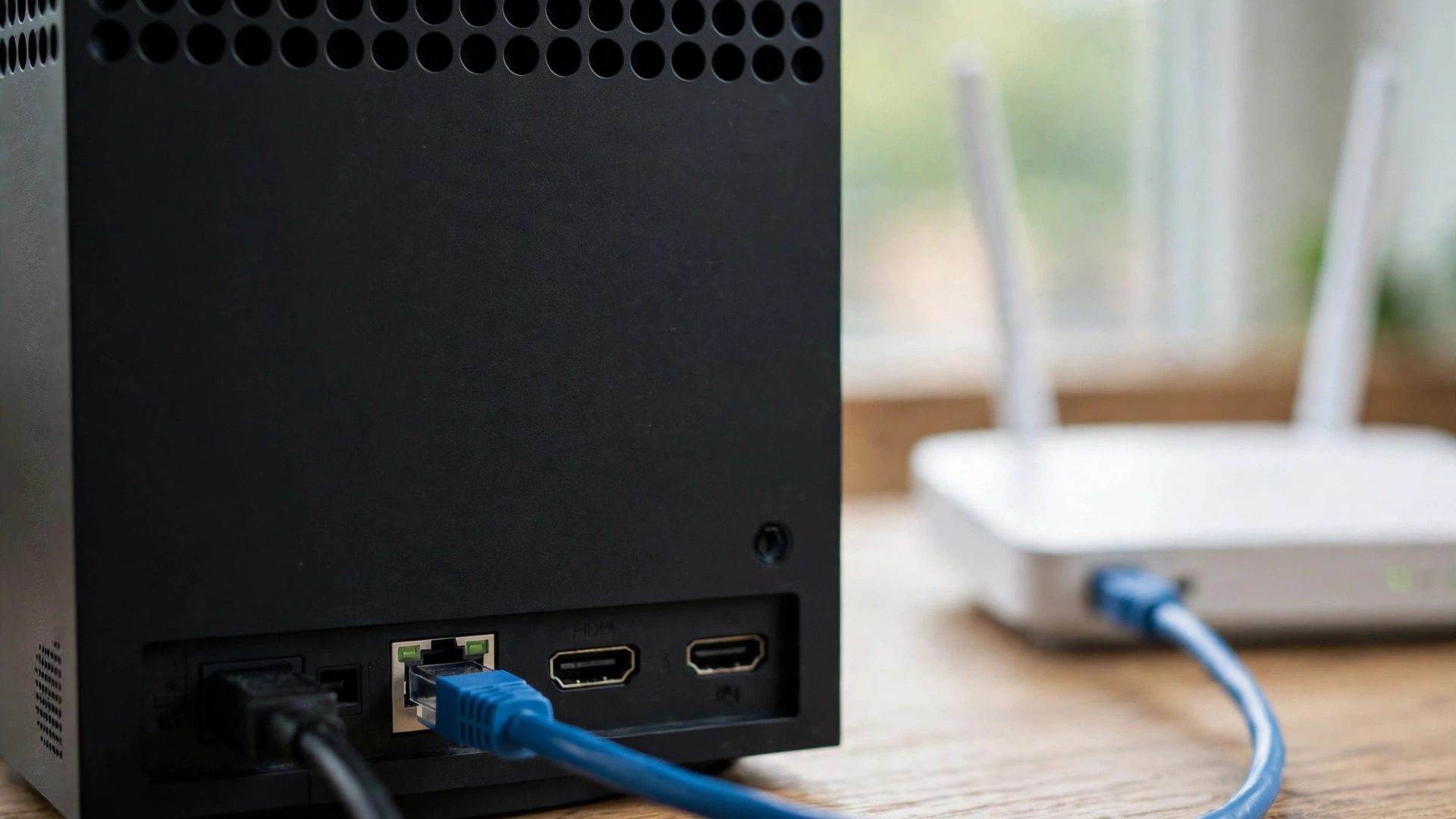
If a cable genuinely cannot reach the console, a mesh Wi-Fi node placed in the same room as the Xbox, with the console wired to that node, is the next best thing. Powerline adapters are a lottery: they work well in some homes and poorly in others, depending on the wiring. Quick note: a mesh node only helps if the Xbox is wired to it — the node on its own is still Wi-Fi.
On Wi-Fi, the band is the fix. The Series X and S use Wi-Fi 5, not Wi-Fi 6, so the band matters more than on newer hardware. 5 GHz is much faster but has shorter range and passes through walls poorly; 2.4 GHz reaches further but is slower and more crowded. If the console is in the same room as the router, 5 GHz is the clear choice. If it is two rooms away, 5 GHz may be worse than 2.4 GHz — try both and keep whichever tests faster on the Xbox's network test. Do not assume: measure.
Or maybe I should say it this way: if your router broadcasts one network name for both bands, your Xbox may sit on 2.4 GHz for weeks without you knowing. Split the bands into separate network names on the router, connect the Xbox to the 5 GHz name, and test again.
Ethernet vs 5 GHz Wi-Fi: Ethernet is better suited for an Xbox near the router because it removes Wi-Fi — no band confusion, no wall interference. 5 GHz Wi-Fi works better when a cable can't reach the console and it's in the same room as the router. The key difference is that Ethernet is consistently fast, while Wi-Fi speed depends on distance and walls.
Does Pausing and Resuming a Download Actually Help?
Sometimes — and it costs nothing to try, because it forces the Xbox to reconnect to a different download server. Pausing and resuming triggers fresh DNS lookups, so if the Xbox was stuck on one slow content server, the resume can land on a faster one. That is the whole mechanism — no settings change, no restart.
To speed up a stuck Xbox download, follow these steps: 1. Quit the running game. 2. Pause the download and wait 60 seconds. 3. Resume it and watch the queue speed. 4. If it stays slow, plug in an Ethernet cable. 5. Re-run the network test to confirm the fix.
Do it from the queue: My games & apps > See all > Manage > Queue, highlight the download, choose "Pause installation", wait 15–60 seconds, then resume it. If the speed jumps, you were on a slow server. If nothing changes, the bottleneck is elsewhere — work the other sections in order.
Never cancel to fix a slow download. Pausing keeps your progress; cancelling wipes it. Cancel only when a download is genuinely stuck, not merely slow.
Pause. Wait. Resume.
Does Xbox Download Faster in Sleep Mode?
No. Sleep mode does not make downloads faster — it just lets them keep running while the console idles. The connection is the same speed; the waiting is what changes. For a 212 GB game, start the download, put the console in Sleep, and let it work overnight.
The mode still matters, just not for speed. Sleep (Instant-On) keeps queued downloads running and allows remote wake. Shutdown (Energy Saver) still installs automatic console and game updates on Microsoft's schedule, but don't count on it to finish a big game you just queued. And one setting can silently stop everything: Settings > General > Power options > "When Xbox is off, turn off storage" must stay unchecked, or background installs stop.
I've seen conflicting data — some guides say Energy Saver stops all downloads, others say Microsoft updated it so background downloads still work. My read is that automatic updates land in both modes, but a queued 212 GB game is only safe in Sleep mode — so use Sleep for downloads and stop guessing.
Let it work overnight.
What DNS Should I Use on Xbox — and Will It Speed Up Downloads?
A different DNS will not make your connection faster — it can only point your Xbox at a different download server. DNS translates names into addresses. It is the phone book, not the road.
The DNS server you use is the key factor in which content server Xbox picks for a download. A nearer server can help if your current one is overloaded; a farther one can slow things down. It is a routing lottery, not a speed upgrade — and that is why one guide calls DNS "one of the most effective tweaks" while another says it does nothing. Both can be right on different networks, on different days.
The two servers everyone quotes are Google's (8.8.8.8 and 8.8.4.4) and Cloudflare's (1.1.1.1 and 1.0.0.1). OpenDNS (208.67.222.222 and 208.67.220.220) is the third common pick. Set one in Settings > General > Network settings > Advanced settings > DNS settings > Manual, run the network test, and compare it with the Automatic setting. If the number does not move, change it back — a DNS change that does nothing is just a setting to forget about.
My opinion, and some readers will disagree: skip the DNS and MTU tweaks entirely. They're the first thing most guides tell you to try and the last thing that actually helps — the settings that matter are the cable, the queue, and the running game, not a three-digit number buried in Advanced Settings. Our best DNS for gaming guide covers the same question for PS5, Xbox, and PC, including when DNS genuinely matters (it is about store errors and failed connections, not speed).
Should I Change My MTU or Fix My NAT to Download Faster?
No. Neither setting adds download speed — and one of them has nothing to do with downloads at all.
Leave MTU at 1500. The 1472 tweak is an old fix that does not speed up downloads on a normal connection, and one test found changing MTU from 1500 had no impact — or a negative impact — on Xbox downloads. The only exception is PPPoE, where 1492 is the correct value — and even then it is about the connection working, not speed.
NAT is not a download fix. Game and patch downloads do not use inbound connections, so your NAT type has no effect on download speed. NAT matters for multiplayer and party chat, not for the queue. If multiplayer is the problem, that is a different fix: enable UPnP on the router first, then port forwarding (TCP 3074; UDP 88, 500, 3074, 3544, 4500). Our Xbox input lag guide covers the NAT side in detail.
MTU and NAT are not download fixes.
How Long Should My Game Take to Download?
Check the table before you call it slow — a 212 GB game takes hours even on a fast plan. Rockstar says GTA 6 needs up to 212 GB of free space. It launched on 19 November 2026, with preloading from 10 November, and at 100 Mbps that download is the best part of five hours even if everything goes right. Keep 15–25 GB of headroom above the game's size too, so the console has room to unpack files and install updates without throwing a storage error.
Use the table in the first section as your reality check: a 50 GB game at 50 Mbps is over two hours, and GTA 6 at 50 Mbps is over nine. Microsoft's own benchmark agrees — about 1.6 hours for a 70 GB game at 100 Mbps, and about 3 hours at 50 Mbps. If your download matches the table, your Xbox is fine and the only fix is a faster plan or a better connection.
A near-full drive can slow things down on its own. A nearly full SSD writes slower, which throttles the download regardless of your internet speed — so if the console is almost full, free up space before blaming the network.
Hours, not minutes — for a 212 GB game, that's normal.
What If My Download Is Stuck or Won't Start?
Work this ladder in order — each step is cheaper than the next. You've paused it, you've restarted it, and it's still stuck — most downloads clear at step one or two.
- Check Xbox status first. support.xbox.com/xbox-live-status will tell you if services are degraded. If they are, wait — nothing on your side fixes a server problem.
- Pause and resume. Open the queue, pause the download, wait 15–60 seconds, then resume it. It forces a fresh server connection without losing progress.
- Quit the game you are playing. A running game throttles downloads. Close it fully and re-check the speed.
- Full power cycle. Hold the front power button for about 10 seconds until the console shuts off, unplug it for 30 seconds, then plug it back in and restart. A full cycle clears transient network state that a normal restart does not.
- Clear the alternate MAC address. Settings > General > Network settings > Advanced settings > Alternate MAC Address > Clear, then restart. It forces a fresh DHCP lease from the router.
- Cancel and re-download — last resort only. If nothing else works, cancel the download and start it again from My games & apps. Know that cancelling deletes the progress, so only do this when the download is genuinely stuck, not merely slow.
Work the ladder. Don't skip steps.
If downloads keep failing, check the storage before anything else — a game that needs 212 GB free will not start on a console with 40 GB free, and no network fix changes that.
Frequently Asked Questions
What's the best DNS for Xbox?
Google (8.8.8.8) or Cloudflare (1.1.1.1) are the usual picks, but DNS won't make downloads faster — it only changes which server Xbox picks. Test it, and switch back to Automatic if nothing improves.
How do I make my Xbox Series S download faster?
Quit any running game, plug in an Ethernet cable, and pause the other downloads in the queue. The Series S has the same gigabit port as the Series X, so the same fixes apply.
Why does my Xbox say 1 year left on a download?
The estimate divides the remaining size by the current speed, so a brief dip to near-zero makes the maths absurd. Wait a minute — if the speed recovers, the estimate drops back to hours.
Can I leave my Xbox on overnight to download a game?
Yes — use Sleep mode, not Shutdown. Sleep keeps queued downloads running; Shutdown only installs automatic updates. Make sure "When Xbox is off, turn off storage" stays unchecked.
Does Xbox limit download speed?
No, Xbox doesn't cap your downloads. The speed you get depends on your connection, Microsoft's servers, and whether a game is running — not a limit on the console.
Why is my Xbox download stuck at 0%?
Check Xbox Live status first, then pause and resume the download — that forces a fresh server connection. If it stays at 0%, quit the running game and restart the console.
What's a good download speed for Xbox?
There's no single number — it depends on the game. At 100 Mbps, Microsoft says a 70 GB game takes about 1.6 hours. If your test matches your plan, your Xbox is fine.