How the webcam check works
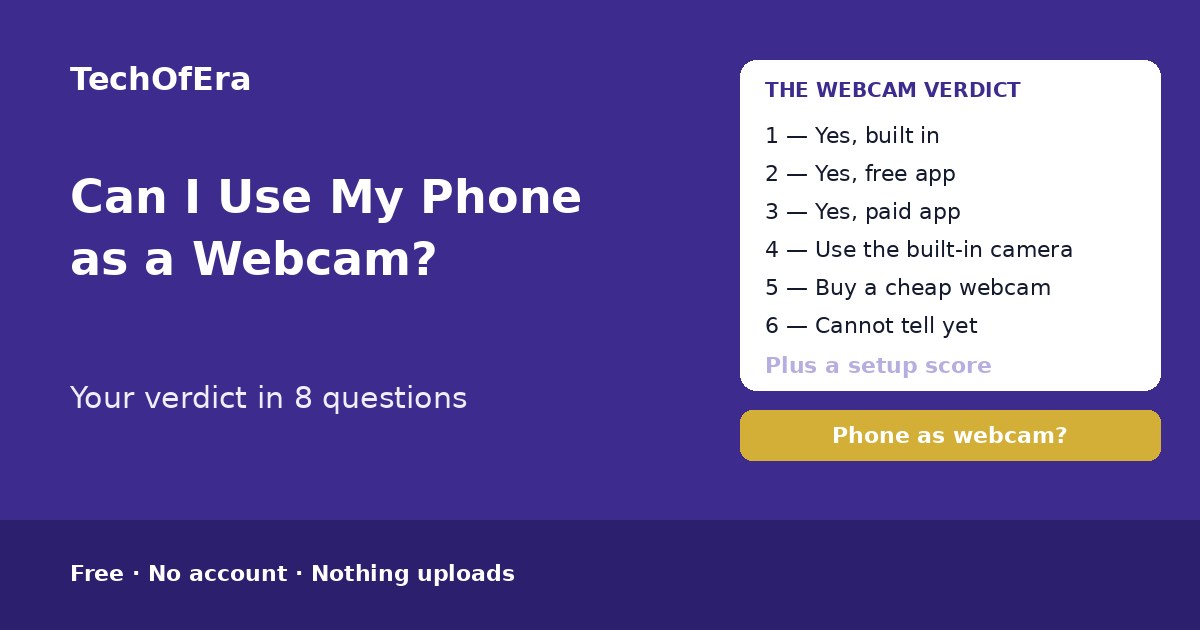
Yes, you can use your phone as a webcam — in most cases. The catch is that the method changes completely with the combination: an iPhone and a Mac work with Apple's built-in Continuity Camera and no app at all, an Android phone on Android 14 or later works over a USB cable with no app, and on Windows 11 an Android phone works wirelessly through Microsoft's Phone Link. An iPhone and a Windows PC have no built-in way and need a third-party app such as Camo, iVCam or DroidCam — and an iPhone and a Chromebook have no supported method at all. This checker weighs all eight questions and gives you a verdict: yes with the built-in feature, yes with a free app, yes with a paid app, use the camera already in your computer, buy a cheap webcam instead, or cannot tell yet — plus a setup score from 0 to 100.
To use it:
- Say what phone you have. iPhone, Google Pixel (Android 14 or newer), Samsung Galaxy, or another Android phone. The built-in options are different on each: Continuity Camera is iPhone and Mac only, Android 14's USB webcam mode is Pixel and Motorola first, and Samsung needs One UI 8.5 or newer for the same native mode.
- Say what computer you have. Mac, Windows 11, Windows 10, Linux or Chromebook. Phone Link's camera feature is Windows 11 only, Continuity Camera is Mac only, and a Chromebook has no iPhone method at all.
- Say how the phone and computer can connect. A USB cable, Wi-Fi, both, or neither. A cable is steadier and has less lag than Wi-Fi, and it keeps the phone charging — but it must be a data cable, not a charge-only cable. With neither, the phone cannot be a webcam at all.
- Say what you need the camera for. Video calls (Zoom, Teams, Google Meet), streaming or recording (OBS, YouTube, Twitch), both, or just testing. Calls need far less than streaming: 720p is plenty for a call, while a stream needs a steady connection, higher resolution and a phone that stays cool for an hour or more.
- Say what quality you need. Any quality, sharp 720p, or the best possible 1080p or 4K. The free options cap out below the best: Camo is free at 720p, DroidCam is free at standard definition, and Android 14 on macOS is limited to 720p at 30fps.
- Say what the budget is. Free only, happy to pay a little, or happy to pay for the best quality. DroidCam Pro is about $5 as a one-off; Camo Pro is a subscription and costs more.
- Say whether you have anything to hold the phone up. A phone stand or tripod, something to prop it on, or nothing at all. The phone needs holding still at eye level — a phone that slips mid-call ruins the picture, and a phone lying flat will not give a usable picture at all.
- Say whether the computer already has a built-in camera. A laptop usually has one; a desktop usually does not. If it has one and you only need it for calls at any quality, the built-in camera may be the simpler answer — and it is always the fallback if the phone setup fails mid-call.
The six verdicts, and what each one means
Yes — use the built-in feature
This combination has a built-in way to use the phone as a webcam: Continuity Camera for iPhone and Mac, Android 14's USB webcam mode for a Pixel over a cable, or Phone Link for Android and Windows 11 over Wi-Fi. No app to install, nothing to pay, and the phone appears as a normal camera in Zoom, Teams, Google Meet and most other apps.
Yes — use a free app
There is no built-in way for this phone and computer, but a free app does the job: DroidCam is the usual free choice, and Camo is free at 720p. Install the app on the phone and the matching client on the computer, connect over Wi-Fi or USB, and the phone appears as a camera in your video apps.
Yes — a paid app is worth it
You want the best quality for streaming or recording, and the free options cap out at 720p or standard definition. Camo Pro gives 4K, manual exposure and white balance, lens switching and overlays. Check the current price before paying — it is a subscription, not a one-off.
Use the camera already in your computer
Your computer already has a built-in camera, you only need it for video calls, any quality will do, and there is nothing to hold the phone up. Setting the phone up is more faff than it is worth for this use — the built-in camera is already at eye level, already in every video app, and costs nothing.
Buy a cheap webcam instead
There is no supported way to link this phone to this computer: either there is no USB cable and no Wi-Fi, or it is an iPhone and a Chromebook. A basic webcam (usually £20–£30, or $25–$35) plugs straight in and works in every video app with no setup at all.
Cannot tell yet
Not enough answers to judge: the verdict needs to know the phone, the computer, and how the two can connect. Answer the first questions and the verdict appears — and where the answer is unclear, the checker says so instead of guessing.
Which phone and computer combinations work, and how
The reference table the checker works from — phone and computer on the left, the verdict and the method on the right:
| Phone × computer | Verdict | Method |
|---|---|---|
| iPhone + Mac, any connection | Yes — built-in feature | Continuity Camera — no app, wireless or cable |
| Pixel + Windows, USB cable | Yes — built-in feature | Android 14 USB webcam mode — choose Webcam in the USB menu |
| Android + Windows 11, Wi-Fi | Yes — built-in feature | Phone Link — turn on "Use as a connected camera" |
| Samsung + Windows 10, Wi-Fi, free only | Yes — free app | DroidCam — free at standard definition |
| iPhone + Windows, Wi-Fi | Yes — free app | Camo free at 720p, or DroidCam free |
| Android + Linux | Yes — free app | DroidCam (Linux client) or Android 14 USB mode |
| iPhone + Windows, streaming, wants 4K | Yes — paid app | Camo Pro — 4K, manual controls, overlays |
| Android + Mac, streaming, wants 4K | Yes — paid app | Camo Pro — the built-in mode caps at 720p on macOS |
| Laptop camera + calls + any quality + no mount | Use the built-in camera | The camera already in the computer — no setup |
| No USB cable, no Wi-Fi | Buy a cheap webcam instead | Basic webcam, usually £20–£30 or $25–$35 |
| iPhone + Chromebook | Buy a cheap webcam instead | No supported method — basic webcam plugs straight in |
| Old Android, no Webcam option in the USB menu | Yes — free app | DroidCam — works on Android 6.0 and later |
Your step-by-step routine: pick the method, then set it up once
Whatever the verdict, this is the routine the checker is aiming for — the plan it builds from your answers:
- Check the built-in option first. iPhone and Mac: Continuity Camera, nothing to install. Pixel and a USB cable: Android 14's Webcam option in the USB menu. Android and Windows 11: Phone Link's "Use as a connected camera". If your combination has one of these, use it — it is free, and it is the least that can go wrong.
- If there is no built-in way, install one app on each device. DroidCam is the usual free choice; Camo is free at 720p. Get the phone app from the phone's official app store and the client from the maker's own site, and put both devices on the same Wi-Fi network — or connect by USB for a steadier picture.
- Use a USB cable when the picture matters. Wi-Fi is fine for a call, but a cable has less lag, does not drop when the signal dips, and keeps the phone charging. Make sure it is a data cable: a charge-only cable will not carry the picture.
- Put the phone on a stand at eye level. Behind the screen, rear camera facing you, not looking up your nose. A small phone stand or tripod costs a few pounds or dollars; leaning the phone against the monitor works for one call, but it slips.
- Keep the phone plugged in. Using a phone as a webcam drains the battery much faster than normal use, and some phones get hot on long calls. A USB connection charges it at the same time; on Wi-Fi, plug it into a charger.
- Choose the phone in your video app. In Zoom, Teams, Google Meet or OBS, open the camera menu and choose the phone — Continuity Camera, Android Webcam, DroidCam or Camo — as the camera. Test it before a real call, and keep the built-in camera as the fallback if the phone setup fails mid-call.
What makes this checker different
The pages that rank for this search are how-to guides — a Popular Science guide, a Tom's Guide round-up of the apps, a Gizmodo guide to the built-in options, a MakeUseOf guide to Phone Link, and a Computerworld guide to the Windows methods. They all explain the methods in words, one combination at a time. None of them asks what phone you have, what computer you have, how the two can connect, what you need the camera for, or what quality you need — and none of them gives you a verdict for your exact setup, or a setup score. This page is the answer the guides do not give: eight questions, an instant verdict, a setup score, the blockers named, and the exact steps for your combination. It is a self-assessment, so it says plainly what it cannot know: it cannot see, test or measure the phone or the computer.
This checker also answers a different question from the Can I Use My Phone While Charging? Checker — that one is about using the phone during charging, including the battery, the heat and whether it is safe; this one is about using the phone as a webcam for your computer, including the method, the app and the setup. The Is My iPhone Still Supported? Checker covers whether your iPhone can run the iOS 16 that Continuity Camera needs, and the Will My Phone Work Abroad? Checker covers whether the same phone works on another country's networks. The four go together: a supported iPhone with a stand and a cable can be your webcam at home and your phone abroad — a phone that cannot be a webcam here still needs a cheap webcam on the desk.
When is this the right check?
When the laptop camera makes you look like a blurry ghost on every call and you want to know whether the phone in your pocket can replace it — because the answer genuinely changes with the phone, the computer and the connection. When you have a desktop with no webcam at all and want to know whether the phone saves you buying one. When you are about to stream or record and want to know whether a free app is enough or a paid one is worth it. And when someone tells you "just use your phone as a webcam" and you want to know, before you install anything, whether that actually works for your exact setup.
Honest limitations
A self-assessment, not technical advice
This checker cannot see, test or measure the phone or the computer. It cannot tell whether your phone runs Android 14, whether your cable carries data, or whether your Wi-Fi is strong enough. If a method needs an app, get it from the phone's official app store.
The setup score is a comparison, not a measurement
The setup score from 0 to 100 is the checker's own judgement: it weighs your answers against each other so you can compare setups. It is not a reading from the phone or the computer — no web page can test either one.
Android versions vary by maker
Android 14's built-in webcam mode works on Pixel and Motorola phones, and Samsung phones need One UI 8.5 or newer — other makers vary, and some have not enabled it at all. If the Webcam option does not appear in the USB menu, the phone does not have it, whatever the Android version says.
Free versions have limits
DroidCam is free at standard definition with ads, Camo is free at 720p, and iVCam's free version shows a watermark. The prices in this checker — DroidCam Pro about $5, Camo Pro a subscription — are as they read in November 2026; check the current price before paying.
Wi-Fi quality is a guess
Most people judge their Wi-Fi by whether video calls work, and "works for a call" and "steady enough for a stream" are different things. If the picture stutters over Wi-Fi, use a USB cable — it is the one fix that always works.
Rules from official sources, dated November 2026
The rules here are the built-in features and apps as Apple, Google and Microsoft describe them, as they read in November 2026. Features change: recheck with the official sources if anything about the features, or about your phone or computer, changes.