How the second-monitor check works
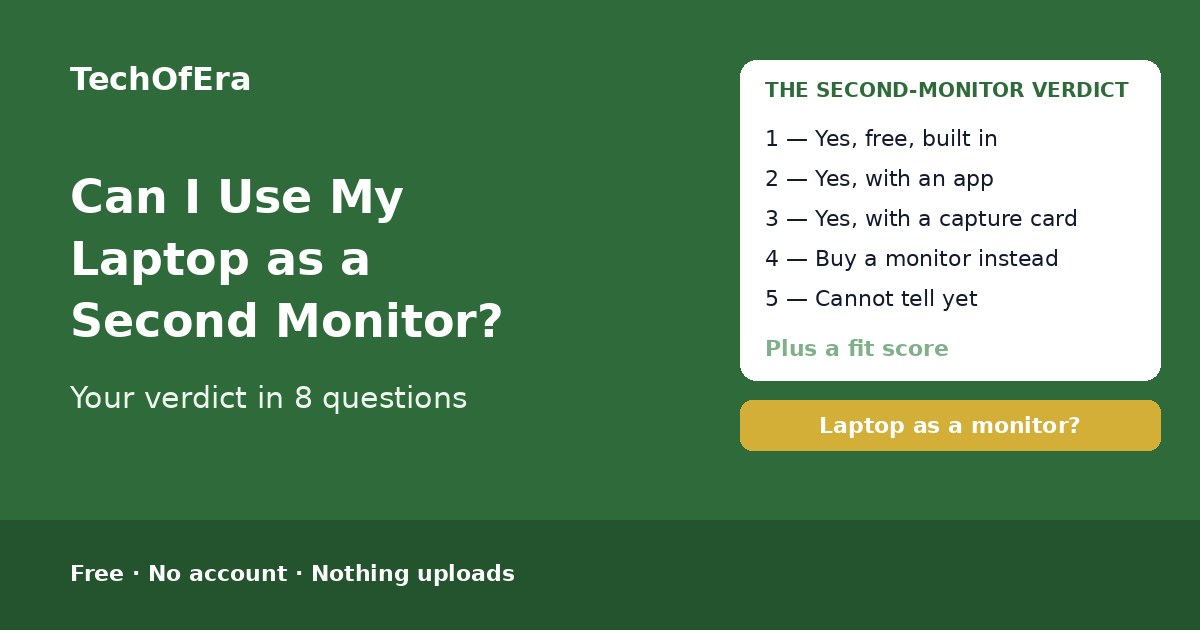
The question sounds simple — plug the laptop in and use it as a screen — but a laptop is not a monitor. A monitor takes video in; a laptop's HDMI port only sends video out. So the real question is not "can I plug it in" but "which of the four working methods fits my two computers": the free built-in wireless display (Windows to Windows, or Mac to Mac), a third-party app (mixed systems), a capture card (when wireless is too slow or there is no Wi-Fi), or a cheap real monitor (when nothing else will do the job). This checker weighs all eight questions and gives you a verdict — yes, free and built in; yes, with a third-party app; yes, with a capture card; buy a cheap monitor instead; or cannot tell yet — plus a fit score from 0 to 100.
To use it:
- Say what system the main computer runs. Windows 10 or 11, macOS, Linux, ChromeOS, or something else. The main computer is the one doing the work — the spare laptop is the one becoming the second screen.
- Say what system the spare laptop runs. Windows 10 or 11, macOS, Linux, ChromeOS, or something else. The built-in methods only work when the two systems match: Windows to Windows, or Mac to Mac.
- Say how the two can connect. Same Wi-Fi network, a USB cable, an Ethernet cable or wired network, or an HDMI cable only. An HDMI cable alone never works — a laptop HDMI port is an output, so the cable needs a capture card in between.
- Say what the extra screen is for. Office work, browsing and video, coding or creative work, gaming, or presentations and meetings. Office work and browsing are happy over Wi-Fi; gaming needs a wired feed or a real monitor.
- Say how much lag you can stand. No lag at all, a little lag is fine, or lag does not matter much. Wireless streaming always lags a little: office work copes with it, gaming does not.
- Say how old the spare laptop is. Recent (2018 or newer), older (2012 to 2017), or very old (before 2012). A MacBook needs to be from 2018 or later to receive AirPlay, and a very old laptop may stutter on a streamed desktop.
- Say how good the Wi-Fi is. Strong Wi-Fi (5 GHz, good signal), basic Wi-Fi (2.4 GHz, or a weak signal), or no Wi-Fi at all. Strong 5 GHz lags least; no Wi-Fi means a cable method.
- Say what you are willing to spend. Nothing (it has to be free), a little (a paid app is fine), a dongle or capture card is fine, or you would buy a cheap monitor instead. The built-in methods and Deskreen and Spacedesk are free; Duet Display is paid; a capture card costs more.
The five verdicts, and what each one means
Yes — free, built in
Your two computers match — Windows to Windows, or Mac to Mac — and both are on the same Wi-Fi network. The free built-in method works: Wireless Display on Windows (install the optional feature, open the app, then Windows key + K on the main PC), or AirPlay on Mac (turn on AirPlay Receiver on the MacBook, then Screen Mirroring on the main Mac). It takes about ten minutes and costs nothing.
Yes — with a third-party app
Your two computers run different systems, so there is no built-in way to join them. A third-party app streams the extra desktop over Wi-Fi or USB: Deskreen is free and runs on Windows, macOS and Linux; Spacedesk is free and streams from a Windows PC to a Mac, Windows or Linux viewer; Duet Display is paid and works over USB or Wi-Fi. Expect some lag — fine for office work and browsing, not for gaming.
Yes — with a capture card
Wireless is too slow for what you want, or there is no Wi-Fi at all. A capture card plugs into the spare laptop's USB port and takes the main computer's HDMI output: connect the main computer's HDMI out to the card, plug the card into the laptop, and open the capture software. The feed has far less lag than Wi-Fi — but it still passes through the laptop, so fast games still feel delayed.
Buy a cheap monitor instead
Nothing free will do this job well: you want to game with no lag at all and nothing to spend, or there is no Wi-Fi, no cable budget and no free method that works. A cheap real monitor plugs straight into the main computer, has no lag, and works with every system — and it often costs less than a capture card and a paid app together.
Cannot tell yet
Not enough answers to judge: the verdict needs to know the main computer's system, the spare laptop's system, and what the extra screen is for. Answer the first questions and the verdict appears — and where the answer is unclear, the checker says so instead of guessing.
Which setups work, and which do not
The reference table the checker works from — the two computers and the job on the left, the verdict and what to do on the right:
| Your two computers × the job | Verdict | What to do |
|---|---|---|
| Two Windows laptops, same Wi-Fi, office work | Yes — free, built in | Wireless Display on the spare, Windows key + K on the main |
| Two Macs, same Wi-Fi, office work | Yes — free, built in | AirPlay Receiver on the MacBook, Screen Mirroring on the main Mac |
| Windows PC + MacBook, same Wi-Fi | Yes — with a third-party app | Deskreen or Spacedesk, both free |
| Windows PC + Linux laptop | Yes — with a third-party app | Deskreen, free, over Wi-Fi |
| Mixed systems, USB cable, office work | Yes — with a third-party app | Spacedesk or Duet Display over USB |
| Chromebook as the spare laptop | Yes — with a third-party app | Deskreen in the browser; a browser tab, not a full second screen |
| Very old spare laptop, office work | Yes — with a third-party app | Try Deskreen in a browser first; a cheap monitor is the fallback |
| No Wi-Fi, gaming, happy to buy a capture card | Yes — with a capture card | HDMI capture card into the laptop's USB port |
| HDMI cable only, no Wi-Fi | Yes — with a capture card | The cable alone shows nothing; a capture card turns it into a USB feed |
| Gaming, no lag allowed, nothing to spend | Buy a cheap monitor instead | A real monitor has no lag and costs less than the workarounds |
Your step-by-step routine: set it up, then check the lag
Whatever the verdict, this is the routine the checker is aiming for — the plan it builds from your answers:
- Put both machines on the same network. The built-in wireless methods and the free apps all need both machines on the same Wi-Fi network. Use 5 GHz if you have it: it lags less than 2.4 GHz. Keep the laptop close to the router.
- Turn on the receiver on the spare laptop. On Windows: Settings, System, Optional features, View features, add Wireless Display, then open the Wireless Display app. On a MacBook: System Settings, General, AirDrop & Handoff, turn on AirPlay Receiver. For a third-party app, install it on both machines.
- Connect from the main computer. On Windows, press Windows key + K and pick the laptop. On a Mac, open Control Centre, choose Screen Mirroring, and pick the MacBook. Choose Extend, not Duplicate, so the laptop shows a second desktop rather than a copy of the first.
- Check the lag with your real work. Open the documents, browser tabs or video you actually use, and watch for stutter or delay. Office work and browsing should feel fine; if the mouse trails behind your hand, move the laptop closer to the router or switch to a USB cable.
- If it stutters, go wired. A USB cable with Duet Display or Spacedesk lags less than Wi-Fi, and a capture card lags less still. If even the capture card feels delayed for fast games, that is the limit of a spare laptop as a monitor.
- Keep the spare laptop plugged in. Showing a streamed desktop all day drains the battery fast, and a laptop that sleeps or dims its screen breaks the link. Plug it in, turn off sleep while it is a monitor, and keep it cool.
What makes this checker different
The pages that rank for this search are guides — an Engadget how-to, an XDA Developers walkthrough, a Tom's Hardware guide, a Windows Central guide and an Android Authority guide. They all explain the same methods in words: Wireless Display for Windows, AirPlay for Mac, a third-party app for mixed systems, a capture card for gaming. None of them asks what systems your two computers run, how they can connect, what the extra screen is for, or how much lag you can stand — and none of them gives you a verdict for your exact pair of computers, or a fit score. This page is the answer the guides do not give: eight questions, an instant verdict, a fit score, the blockers named, and a setup routine built from your answers. It is a self-assessment, so it says plainly what it cannot know: it cannot see, test or measure your computers.
This checker also answers a different question from the Monitor Daisy Chain Checker — that one is about chaining several real monitors together on one computer; this one is about turning a spare laptop into the second screen itself. The Should I Leave My Laptop Plugged In? Checker covers whether to keep the spare laptop on charge while it acts as a monitor, and the Should I Repair or Replace My Laptop? Checker covers whether the spare laptop is worth keeping at all. The three go together: a spare laptop worth keeping, kept plugged in, makes a fine second screen — a laptop that should be replaced does not.
When is this the right check?
When you have a spare laptop lying around and wonder whether it can be a second screen — because the answer genuinely changes with the two systems, the connection and what the screen is for. When your monitor has just died and you need a screen today. When you work from home and want more space for documents without buying a monitor. And when you have already bought an HDMI cable expecting it to work, and want to know why it shows nothing (the laptop's HDMI port is an output, not an input — you need Wi-Fi, or a capture card).
Honest limitations
A self-assessment, not setup advice
This checker cannot see, test or measure your computers. It cannot tell whether your Wi-Fi is fast enough, or whether your spare laptop will keep up. If a method needs a paid app or a dongle, it says so plainly — and if it does not work on your machines, try the next method down the list.
The fit score is a comparison, not a measurement
The fit score from 0 to 100 is the checker's own judgement: it weighs your answers against each other so you can compare setups. It is not a reading from your computers — no web page can test how fast your Wi-Fi is or how old your laptop feels.
“A little lag” is a judgement, not a measurement
Most people judge lag by feel, and "a little" and "too much" can feel alike. If the mouse trails behind your hand, or video stutters, that is too much lag for the job — move the laptop closer to the router, switch to a USB cable, or use a real monitor.
App prices and features change
Deskreen and Spacedesk are free as this page reads in November 2026, and Duet Display is paid — but apps change their prices and their free tiers. Check the price on the app's own page before you pay for anything, and never pay for an app until the free method has been tried.
One pair of computers at a time
This checker looks at one main computer and one spare laptop at a time. It does not check a third machine, and it does not ask whether anyone else uses the spare laptop — so run it once per pair, and set up each pair on its own.
Rules from official sources, dated November 2026
The rules here are the setup guidance from Microsoft and Apple, and the method descriptions from the apps themselves, as they read in November 2026. Guidance changes: recheck with the official sources if anything about the guidance, or about your computers, changes.