How the plugged-in laptop check works
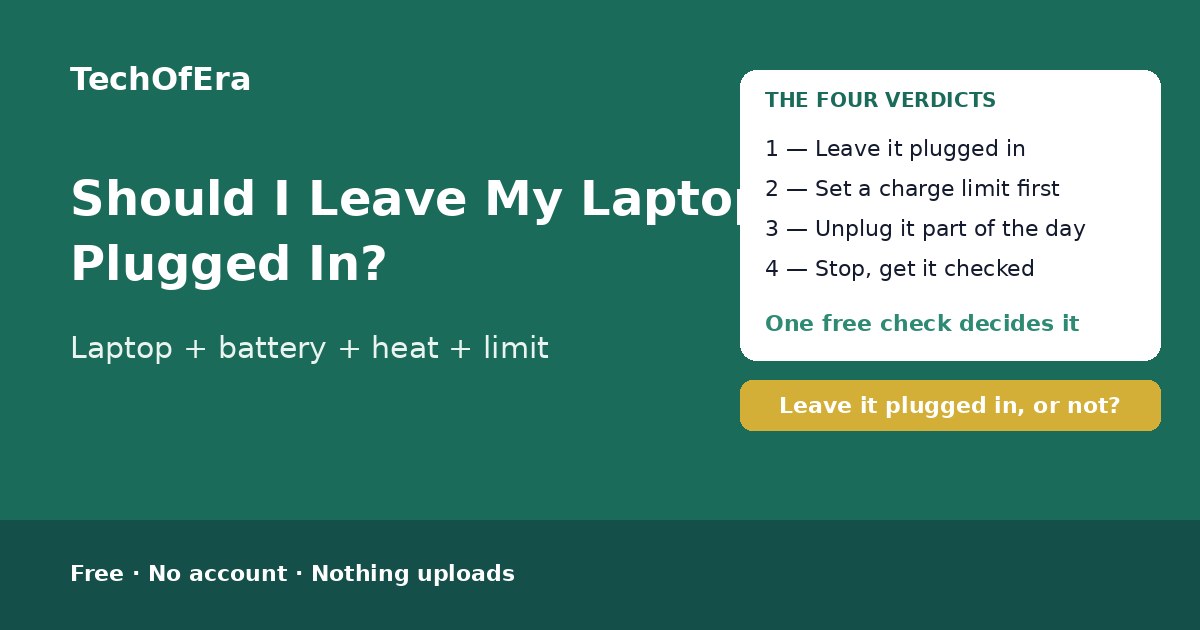
Leaving a laptop plugged in used to be a real worry: old batteries overcharged, and a laptop left plugged in all day could swell or fail. Modern laptops do not work that way. A Battery Management System stops the charging current at 100% and the laptop then runs on AC power, not on the battery, so the laptop cannot overcharge. What still wears a lithium-ion battery is voltage stress and heat — the industry consensus is that lithium-ion batteries last longest kept between about 20% and 80% charge, healthiest near 50–80%. So the question is no longer "is leaving it plugged in safe?" but "does this laptop, on this desk, spend the day hot and at 100%?" This checker weighs all of it — the laptop, its age, the battery health, how it is used, how many hours a day it stays plugged in, whether a charge limit is set, whether it gets hot, how hard you work it, what it sits on, and whether the battery is swelling — and gives you a verdict: leave it plugged in, set a charge limit first, unplug it part of the day, or stop and get the battery checked.
To use it:
- Say what laptop it is. Apple MacBook, Lenovo, Dell, HP, Asus or another Windows laptop — the charge-limit setting lives in a different place on each, and the checker names the one for your laptop.
- Say how old the laptop is. Under 1 year is a new laptop; 5 years or older is an old one — and older laptops have fewer battery protections and a more tired battery.
- Say what the battery health is. On Windows, run powercfg /batteryreport in a terminal and compare the design capacity with the full-charge capacity. On a MacBook, check System Settings > Battery > Battery Health. Under 80% means the battery is worn.
- Say how the laptop is used. Desk-bound means plugged in most of the day — the pattern a charge limit is made for. Mostly on battery means it rarely stays plugged in, so the plugged-in question hardly matters.
- Say how many hours a day it stays plugged in. Under 4 hours a day is barely plugged in; over 12 hours is plugged in almost all day — the battery sits at 100% for most of its life.
- Say whether a charge limit is set. A charge limit caps the charge at 80% or lower, so the laptop never sits at 100%. It is the single most useful setting for a plugged-in laptop: Lenovo Conservation Mode caps the charge at 55–60%, Asus Battery Health Charging offers 60% or 80%, Dell Power Manager has a custom stop point, and Apple Optimised Battery Charging holds a MacBook at 80%.
- Say whether the laptop gets hot while plugged in. Heat is the main thing that wears a battery. A laptop that often gets very hot while plugged in is being damaged — and if the battery is also worn, or the laptop is old, the answer is to stop and get it checked.
- Say how hard you work it. Heavy work — gaming, video editing, virtual machines — makes far more heat than browsing or documents, and heat plus a full charge together wear a battery fastest.
- Say what it sits on. A soft surface — a bed, sofa or cushion — blocks the vents and traps the heat the laptop makes. A hard flat surface is what the laptop needs, and a laptop stand is better still.
- Say whether the battery is swelling. A bulging base or a lifting trackpad means stop using it and get the battery checked — do not keep it plugged in. This answer alone can change the verdict.
The four verdicts, and what each one means
Leave it plugged in
A charge limit is on (or the laptop is barely plugged in), the battery is healthy, and it runs cool on a hard surface — the laptop never sits at 100% for long, and the heat can escape. Keep the vents clear and leave the limit on.
Set a charge limit first
Leaving it plugged in is fine for this laptop — but without a charge limit it would sit at 100% for most of the day, and that is the wear that adds up. Set the limit for your laptop's maker, then leave it plugged in as normal.
Unplug it part of the day
The laptop, the battery or the heat makes staying plugged in a bad habit: an old laptop, a battery under 80%, a laptop that gets hot, or one that lives on a soft surface. Unplug it for a few hours a day, let it run on battery down to about 40–50%, then plug it back in.
Stop — get the battery checked
Something is wrong with this battery: it is swelling, or it gets very hot while plugged in on a worn battery. Stop using and charging the laptop and get the battery checked before plugging it in again.
What makes this checker different
The pages that rank for this search are guides — HP, MakeUseOf, Pocket-lint, Mental Floss and Alibaba all explain the same thing in prose: modern laptops do not overcharge, heat and time at 100% are what wear a battery, and a charge limit is the fix. All of them say the same thing, and none of them asks what your laptop is, how old it is, what its battery health is, how you use it, how many hours a day it stays plugged in, whether a charge limit is set, whether it gets hot, how hard you work it, or what it sits on — and none of them gives you a verdict for your laptop. There is no free, standalone checker that takes your laptop, age, battery health, usage pattern, plugged-in hours, charge limit, heat, workload, surface and swelling and turns them into a verdict with a safer-charging plan and a labelled estimate of the yearly capacity loss. This page is that answer: ten questions, an instant verdict, the blockers named, and the next steps. It is a self-assessment, so it says plainly what it cannot know: it cannot feel how hot a laptop gets, read the battery health, or see inside the laptop.
When is this the right check?
When your laptop lives on a desk, plugged in all day, and you wonder whether you are quietly wearing the battery out — because a new laptop with a charge limit on is fine, and the checker says so. When the base feels hot every afternoon — because heat plus a worn battery is the combination that damages batteries, and the checker names it. When you have switched to gaming or video editing on the sofa — because the workload and the surface are the two things most guides mention and nobody checks. And when the battery health has dropped under 80%, or the base of the laptop is starting to bulge — because the question then is not whether to leave it plugged in, but whether to use it at all.
Honest limitations
A self-assessment, not a repair diagnosis
This checker cannot feel how hot a laptop gets, read the battery health, or see inside the laptop. It cannot tell whether a battery is worn out or a charger is faulty. If a laptop swells, smells, or gets very hot while plugged in, stop using it and talk to the manufacturer or a repair shop.
Without the battery health, the verdict is weaker
Battery health is the one number that says how worn the battery is — and Windows does not show it the way a MacBook does. The checker still works without it, but it says so: the verdict drops to low confidence and the first step is to run powercfg /batteryreport or check the laptop's age.
The time at 100% and the capacity loss are the checker's own estimates
The plan estimates how long the laptop sits at 100% each day from your answers — it assumes a typical laptop takes about 1.5 hours to charge from 20% on AC power. The yearly capacity-loss figure is the checker's own estimate from Battery University's published figures: about 20% a year at 100% and 25°C, about 35% at 100% and 40°C, about 4% at 50% and 25°C. A fuller battery finishes sooner and a flatter one later, so treat both figures as guides, not measurements. They are the checker’s own estimates, and the plan says so.
Charge limits vary by maker and model
Lenovo Conservation Mode, Asus Battery Health Charging, Dell Power Manager, HP Power Manager and Apple Optimised Battery Charging all do the same job in different places — and some older or cheaper laptops have no charge-limit setting at all. If your laptop has none, the checker says so and the habit has to change instead: unplug it part of the day.
A cheap charger can fail in ways the checker cannot see
A no-name charger can have poor insulation, a fake wattage rating, or no thermal protection at all — and none of that shows up in ten questions. The checker treats a laptop that gets hot as a reason to stop, but the only real fix for a cheap charger is a charger from the maker or a certified brand.
Rules from official sources, dated November 2026
The rules here are the HP, MakeUseOf, Pocket-lint, Mental Floss and Battery University battery guidance — the Battery Management System stop at 100%, the 20–80% guidance, the charge-limit settings and the swelling rule — as they read in November 2026. Guidance changes: recheck the manual for your exact model if anything about the laptop changes.